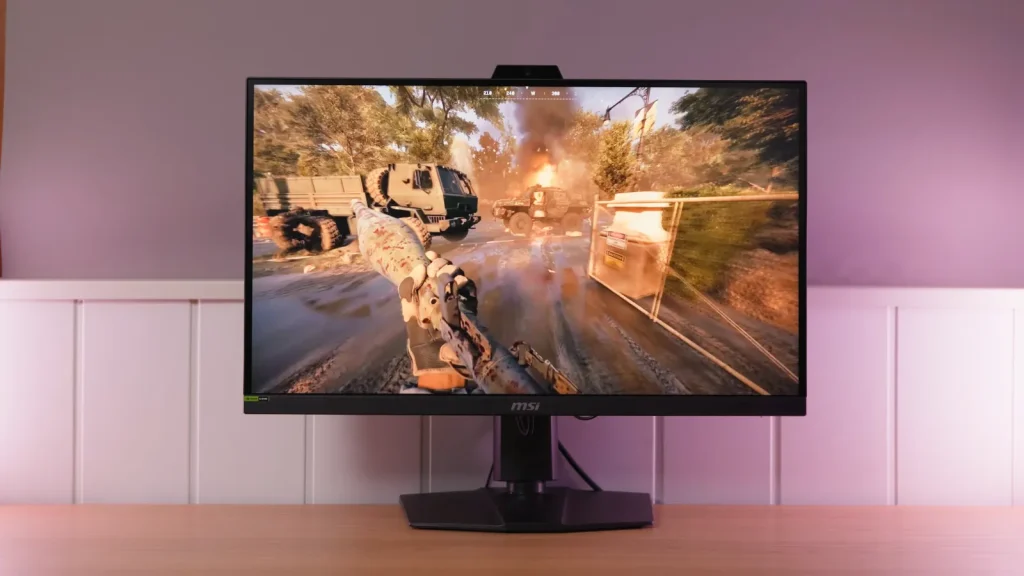
The MSI MPG 272QRF X36 lets us assess what G-SYNC Pulsar adds to a 360 Hz 1440p IPS. Its main selling point is improving moving-object clarity without requiring refresh rates as high as some competitive OLEDs.
Tests compare that sharpness against the brightness, flicker, and latency accompanying each setting. The firmware update matters too: it changed some initially observed behavior and added new options at 60 Hz.
Design and everyday operation
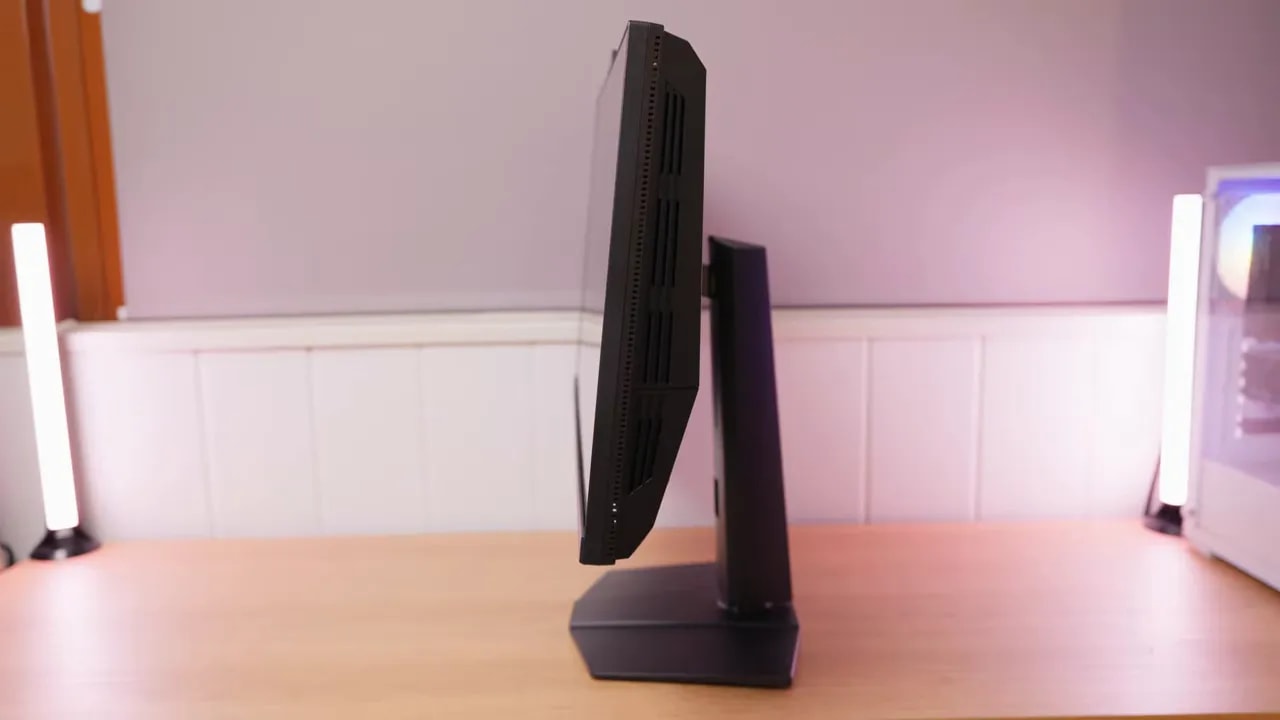
Beyond performance, there is a physical detail worth knowing: the monitor is quite thick. Yes, it is 27 inches, but the body is bulky.
It also noticeably gets particularly warm along the sides. Nothing dramatic, but perceptible.
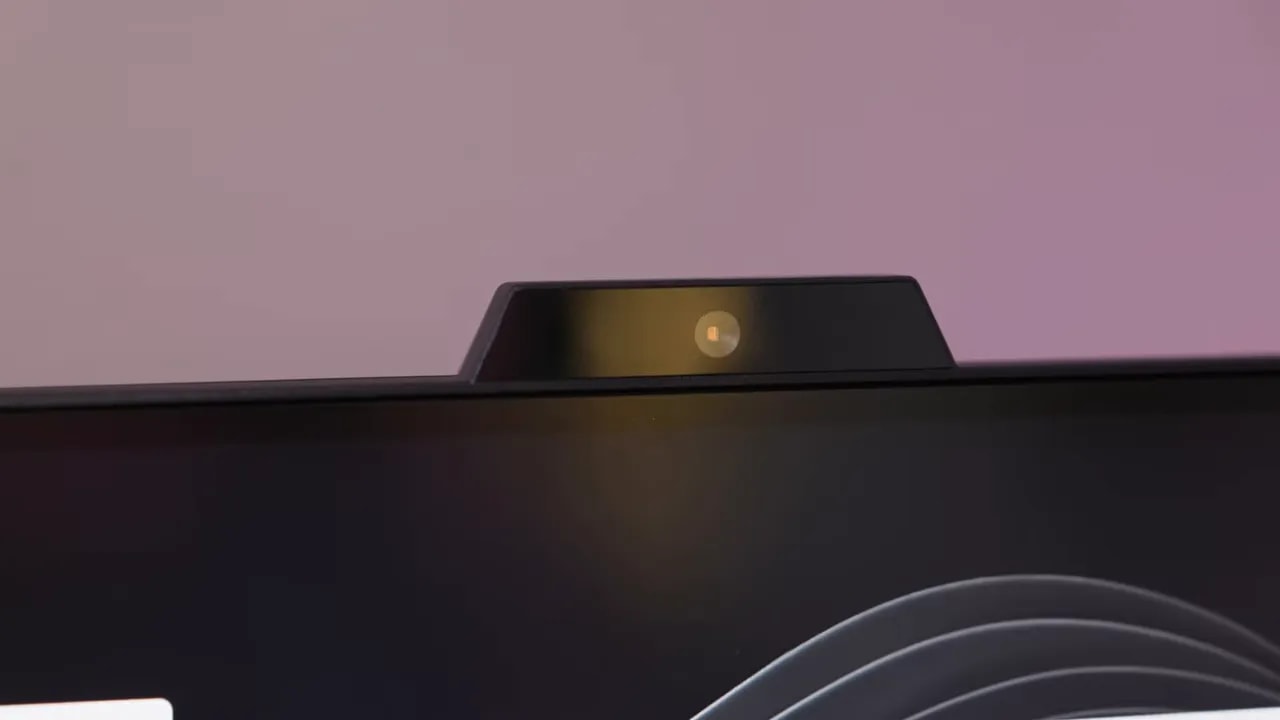
At the top is a sensor that resembles a webcam, but is not one. It controls lighting and color in real time based on the environment.
Personally, I am not a big fan of these automatic features, especially on a monitor with already good factory calibration. My recommendation is simple: unless you need something very specific, leave it off.
What Pulsar does for motion
The first part is the familiar one. G-SYNC, Adaptive Sync, FreeSync, and HDMI 2.1 VRR are essentially different implementations of the same concept: variable refresh rate.
The idea is that the monitor matches its refresh rate to the game’s actual FPS in real time:
- if the game runs at 80 FPS, the monitor runs at 80 Hz
- if it runs at 100 FPS, the monitor runs at 100 Hz
- if the frame rate changes, refresh rate changes with it
This greatly improves perceived smoothness, especially during sudden performance drops. Instead of forcing a fixed rate, the panel synchronizes its refresh with the GPU’s output.
This normally works within a specific range, usually approximately from 48 Hz to the monitor’s maximum refresh rate. Below that range, LFCkicks in, meaning Low Framerate Compensation.
What does LFC do? Simple: if the game runs at 25 FPS and the variable range starts at 48, the monitor doubles or even triples the frequency to remain within its operating range. In that case, it could run at 50 Hz or more, depending on the implementation.
The second part is what really matters here: backlight strobing, also known as motion blur reduction through backlight strobing.
It sounds technical, but the principle is easy to grasp if you remember how a conventional LCD panel works.
On an LCD, each frame remains visible until the next arrives. Lower refresh rates therefore leave each image on screen longer. That persistence causes some of the motion blur we perceive.
A couple of quick equivalents help explain it:
- 60 Hz: each frame lasts 16.7 ms
- 120 Hz: 8.33 ms
- 240 Hz: 4.17 ms
This parameter is commonly associated with MPRT, which should not be confused with gray-to-gray response time.
It is worth pausing here, because many people mix these concepts up.
The motion blur comes from image persistence on screen. ghosting, in contrast, relates to the time each pixel takes to change from one color to another, the familiar gray to gray.
Slow gray-to-gray response produces a trail around moving objects. With persistence, you see a blurry moving image even when pixel transitions are relatively fast.
Both affect motion clarity, but they are not the same.
Strobing uses a clever technique: instead of remaining on throughout the frame, the backlight turns on briefly, turns off, and turns on again with the next frame.
In other words, the monitor flickers.
This reduces how long the eye sees each image, lowering perceived blur. It partially mimics old CRT behavior: their excellent motion clarity came precisely from generating images through impulses.
LCD implementations vary by brand:
- BenQ Zowie with DyAc
- ASUS with ELMB
- Nvidia with ULMB
The problem is that historically, these technologies never fully convinced me for several reasons:
- they introduce double images or strobe crosstalk
- they often reduce brightness considerably
- they often restrict other monitor features
- on inexpensive monitors, they often work poorly outright
That is why I was quite skeptical about G-SYNC Pulsar. The difference here is that Nvidia builds not on classic ULMB, but on ULMB 2, a greatly improved version of its predecessor.
IPS response and the leap with Pulsar enabled
Before discussing G-SYNC Pulsar, it should be clear that this MSI already has a very strong foundation even without enabling strobing.
It offers several overdrive modes plus a manual control with up to 400 levels, an impressive amount of adjustment for tuning response to taste.
If you prefer not to adjust things, the factory presets are available. Measured times are incredible for an LCD:
- Weak mode: 2.86 ms without overshoot
- Normal mode: 2.58 ms with a little overshoot
- Strong mode: 2.42 ms with more overshoot
- Stronger mode: 2.3 ms, but with quite bothersome overshoot
Honestly, of all the LCDs I have tested, this is among the best for ghosting and gray-to-gray response. That alone gives the monitor a very good foundation.
Here comes the truly interesting part of this Gsync Pulsar MSI MPG 272QRF Review.
Disabling G-SYNC in the Nvidia control panel lets you enable ULMB 2. Keeping G-SYNC enabled instead brings up the option for G-SYNC Pulsar.
In motion clarity, the two look practically identical. The important difference is that G-SYNC Pulsar retains variable synchronization.
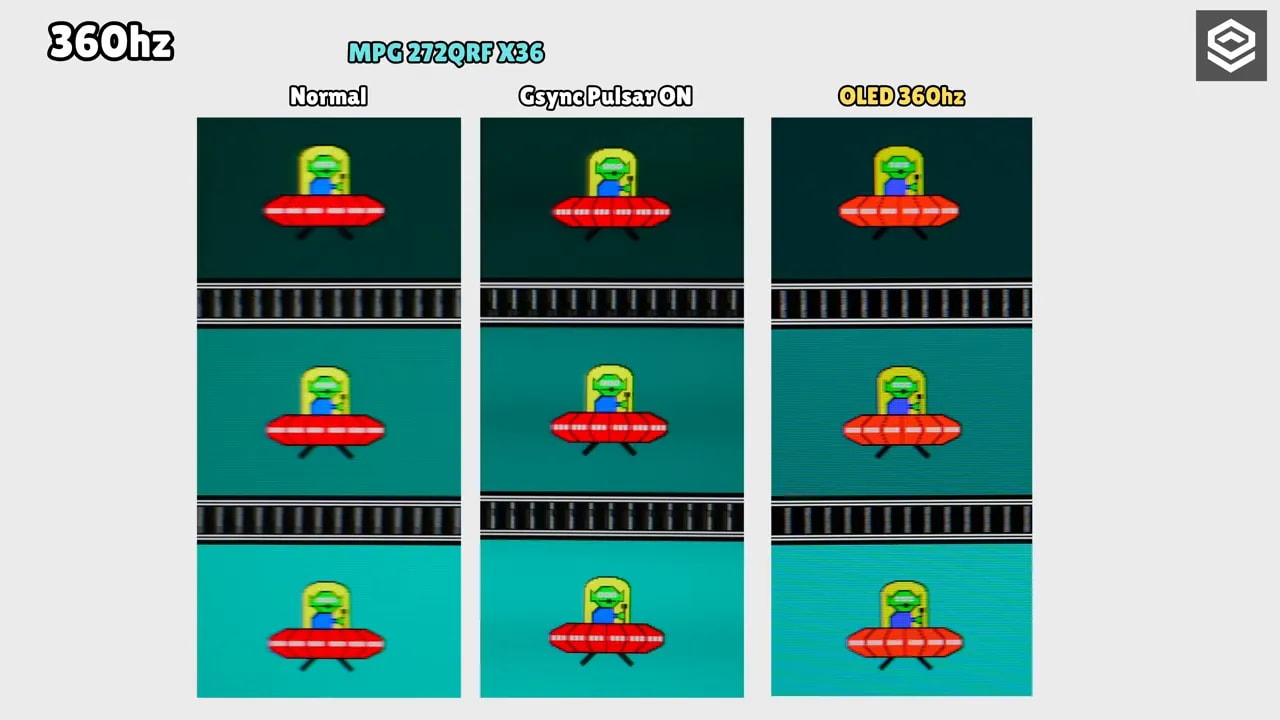
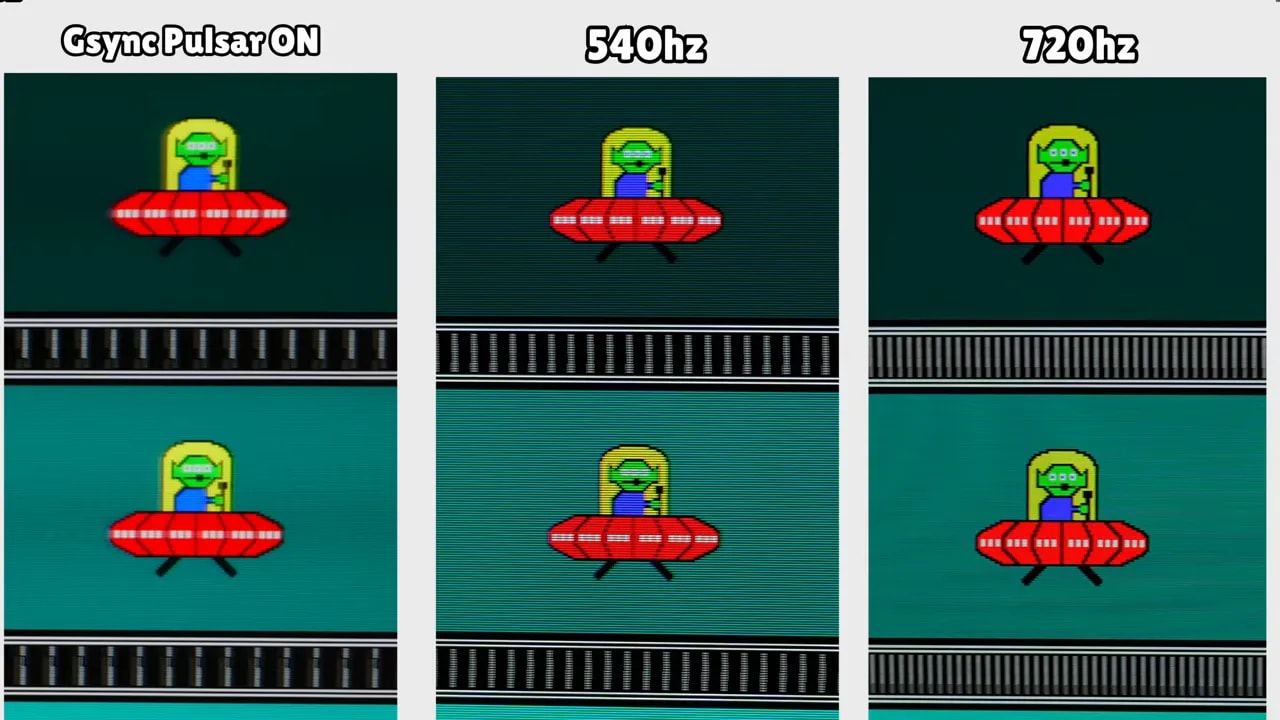
The visual improvement over normal operation is enormous. UFO-style tests show it clearly:
- the alien’s eyes are much better defined
- fine details hold up better in motion
- overall sharpness is much greater
Most surprisingly, the usual double-image artifact in medium or light transitions is practically absent. Some remains visible in certain dark transitions, especially yellow or dark tones. Even there, though, the result far exceeds my expectations.
Against a 360 Hz OLED, in normal mode without strobing, the OLED still looks slightly clearer because its transitions are practically instantaneous.
But enabling G-SYNC Pulsar or ULMB 2 changes things. The MSI becomes sharper in motion. UFO details, particularly the alien’s eyes and certain white dots on the saucer, are better defined.
Stepping up to one of the most extreme OLEDs tested here, the ASUS tandem WOLED at 540 Hz, which can also run at 720 Hz at 720p, makes this a serious comparison.
Against 540 Hz mode, the MSI with G-SYNC Pulsar delivers surprising sharpness, even appearing better in some details. But here is the major caveat: the native 540 Hz OLED does not need strobing, so it does not have that double image in dark transitions.
Against 720 Hz, they are very close, though I personally lean slightly toward the 720 Hz OLED. Sharpness is similar or even better in certain dark areas, again without backlight-strobing artifacts.
In other words: G-SYNC Pulsar can truly compete in motion clarity, but does not entirely eliminate the technique’s inherent compromises.
Brightness and color: what changes when enabled
One of the most frustrating aspects of these technologies is usually reduced brightness. Fortunately, the result here is very good.
With G-SYNC Pulsar enabled, the monitor loses only around 7 nits of maximum brightness. In other words, a minimal reduction. Brightness also remains quite stable across different APL levels.
That matters enormously, because a major weakness of many motion blur reduction modes is making the screen too dim. That does not happen drastically on this MSI.

The Pulsar comparison shows the cost of enabling improved motion: the measured maximum brightness loss is small, and luminance stays stable as the illuminated area changes. The review’s motion photos complement this measurement.
Another positive surprise is that enabling G-SYNC Pulsar barely changes grayscale calibration. Curiously, gamma is even slightly better tuned with it enabled.
Factory calibration in Standard mode, targeting 6500K and gamma 2.2, is quite well refined.
More limitations appear in HDR. G-SYNC Pulsar can be enabled with HDR, but the PQ EOTF and luminance curves reveal the backlight pulses more clearly here.
Without it enabled, HDR follows a fairly decent curve for a monitor without OLED or strong local dimming. With Pulsar, however, the weaknesses become more apparent.
This monitor is about more than speed. Color performs quite well too.
- DCI-P3: almost 93% coverage
- Adobe RGB: 89,3%
- BT.2020: around 68% in HDR
DCI-P3 calibration is not bad, although blues stray somewhat. Where I found it particularly good was the sRGB mode.
In fact, the sRGB mode is among the best I have tested on a gaming monitor, with an average Delta E of 0.4. That is outstanding. Red deviates slightly, but remains below two, and grayscale is excellent too.
That means, despite its clear gaming focus, it is perfectly suitable for editing.
However, there is an important detail: sRGB mode cannot be used simultaneously with G-SYNC Pulsar.


The sRGB mode combines a useful gamut clamp with excellent color accuracy. This result is independent of Pulsar: the monitor provides a useful color foundation alongside its specialization in motion clarity.
Flicker and firmware improvements
So far, this sounds too good to be true, but there are significant drawbacks too.
Initially, the main one was flicker. Especially below 90 Hz or 90 FPS, and particularly when frame rate fluctuated around that threshold, such as between 80 and 100 FPS, flicker was quite noticeable.
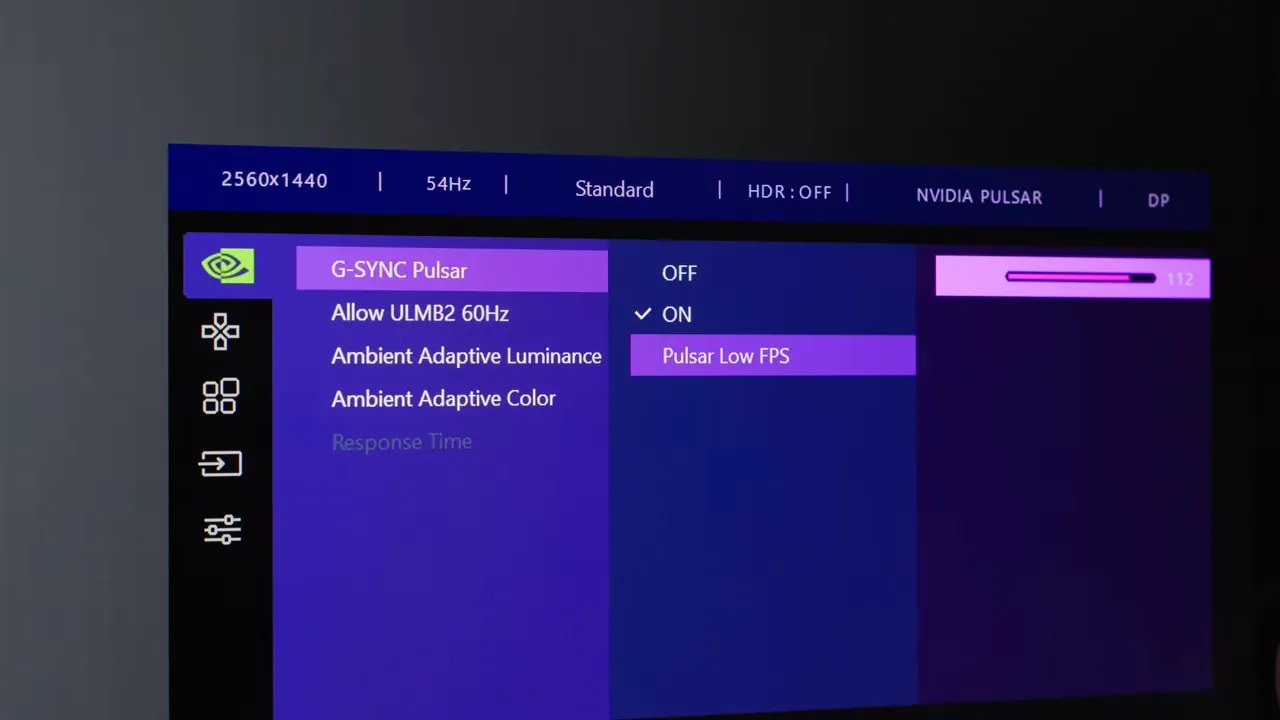
The OSD has a setting called something like Low FPS, with an adjustable value from 75 to 120. At first, it seemed to change the G-SYNC range, but based on testing and the monitor’s built-in refresh-rate counter, the actual threshold was around 90 Hz. Below that, LFC seemed to activate.
Even at 40 Hz, the monitor could triple the frequency to 120 Hz to return to its operating range.
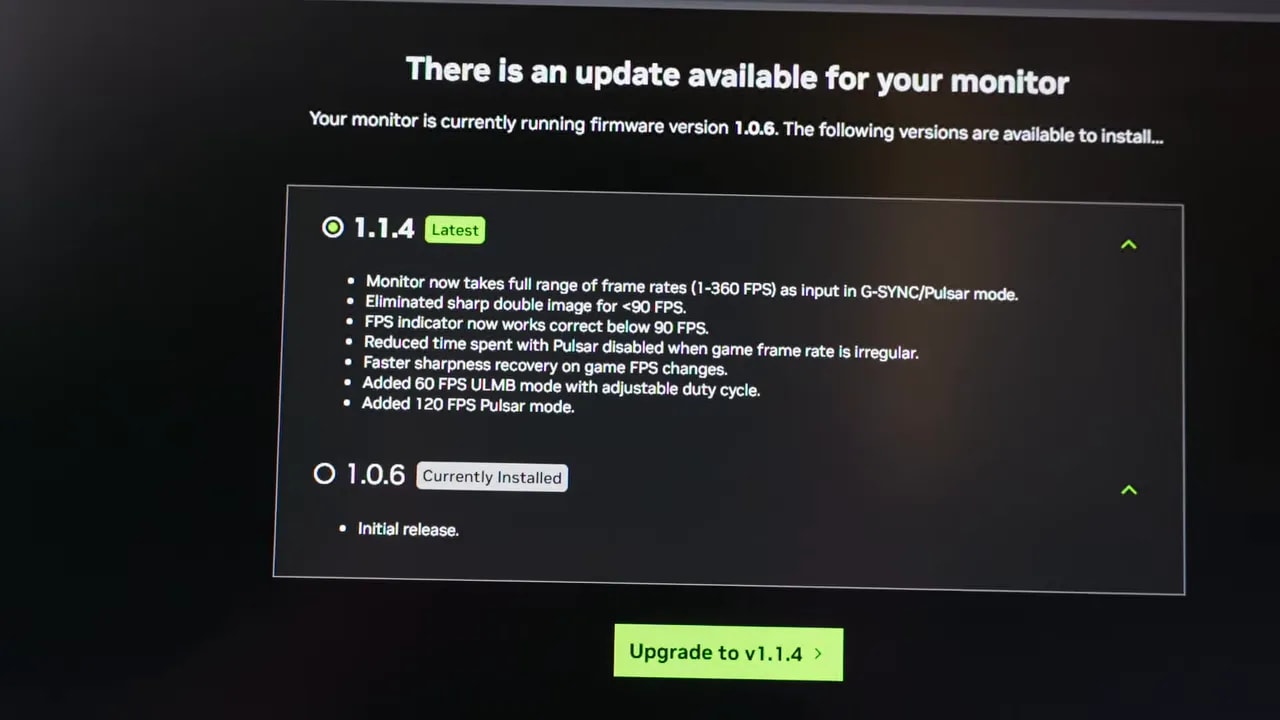
Fortunately, Nvidia released a G-SYNC Pulsar update, and it brings a real improvement.
Updating is simple:
- connect the monitor through the dedicated micro USB port
- visit Nvidia’s official G-SYNC Pulsar website
- perform the update directly in the browser
- wait for the monitor to restart
After the update, flicker improved enormously. It is no longer as bothersome around 90 FPS or below. Some pulses remain noticeable in certain situations, but behavior is now on another level.
The monitor’s FPS counter also changed and now no longer represents LFC as actual refresh rates. Previously, for example, 40 FPS could display as 120. Now it displays 40, making it harder to infer the exact internal range threshold at a glance.
ULMB 2 at 60 Hz, consoles, and latency
The update added a 60 Hz ULMB 2 mode. Testing required disabling G-SYNC in the Nvidia control panel to use it. The clarity improvement was especially interesting for games locked to 60 FPS, though it must be weighed against flicker and increased latency.
Most interestingly, this 60 Hz mode does not seem to require an Nvidia GPU. At least, it could be enabled on PlayStation 5 and also on Nintendo Switch.
In games running at 60 FPS, improved text readability and perceived motion sharpness are quite striking.
However, there are clear drawbacks:
- brightness drops considerably at 60 Hz
- the strobing effect is much more noticeable
- it feels very CRT-like
- it can cause considerable eye fatigue
Honestly, it is a fascinating and unusual mode, but hardly the most comfortable for long sessions.
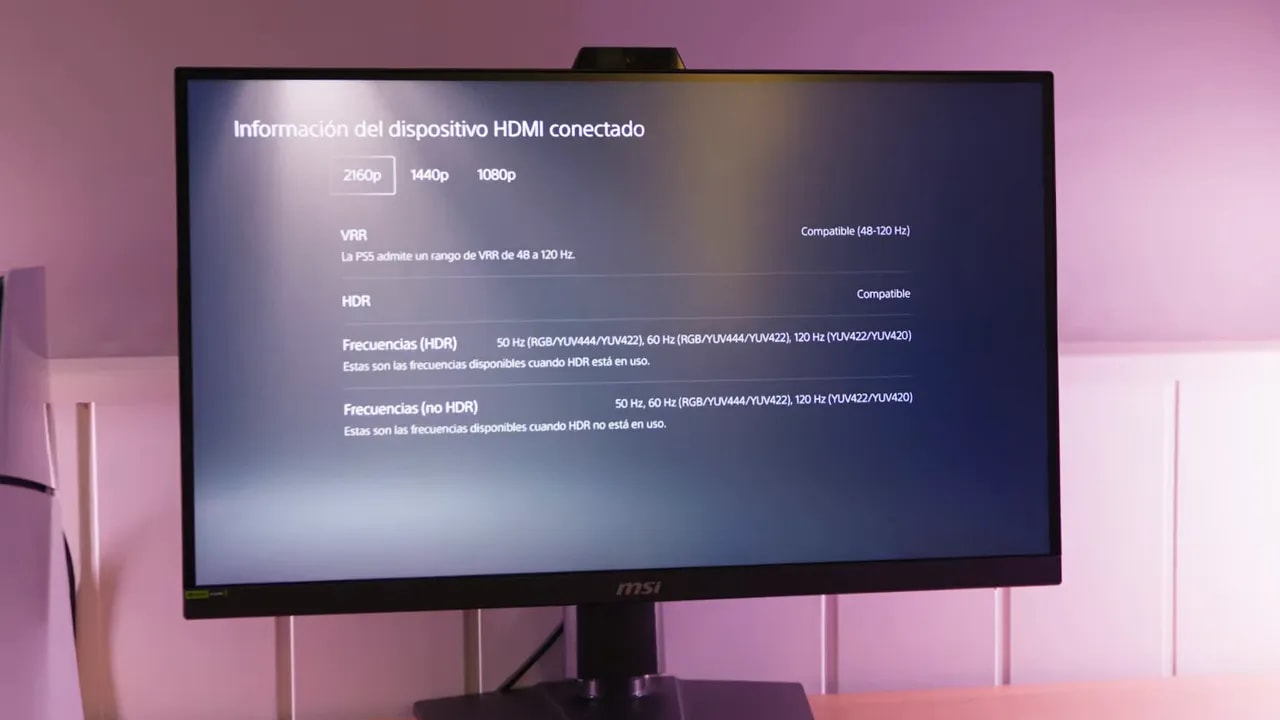
This MSI includes HDMI 2.1, so with PS5 it can be set to 4K 120 Hz with VRR.
The odd part is that it was not possible to enable ALLM on the console. Many MSI monitors normally allow HDMI 2.1 compatibility to be switched between PC and Console modes, but that setting did not appear in this menu.
Not a huge problem, but worth considering if you want completely seamless console compatibility.
Another important point in this Gsync Pulsar MSI MPG 272QRF Review is input lag.
Enabling either ULMB or G-SYNC Pulsar increases input latency.
- to 360 Hz, the increase is around 3 ms
- to 60 Hz, the increase is around 10 ms
At 360 Hz, the difference is small, almost negligible for most people. But on a product likely to appeal to competitive players, it deserves mention.
At 60 Hz, it is harder to notice visually because baseline latency is already higher, but the increase is there.
When to choose Pulsar over OLED
The main advantage over an extremely fast OLED, such as the 540 Hz or 720 Hz ASUS, is less about winning in every area, which it does not, and more about needing fewer actual FPS to approach that clarity.
And that makes plenty of sense.
If you can achieve very high motion sharpness at 360 FPS, you do not need the powerful GPU required to run certain games at 540 or 720 FPS. From that perspective, G-SYNC Pulsar has a clear proposition.
Even so, here is the big reality check.
For less money, there are already very good OLED monitors. And although this MSI can surpass a 360 Hz OLED in motion clarity, OLED remains in another league in practically everything else:
- Better contrast
- Better HDR
- Wider coverage and greater visual punch
- Very competitive sale prices
That makes it quite a niche product in my view. It makes sense for someone meeting several conditions at once:
- Does not want OLED, perhaps out of concern about burn-in
- Specifically wants 27 inches and 1440p
- Wants the best possible motion clarity on IPS LCD
If that describes you, this is a very interesting option. Otherwise, more balanced alternatives likely exist for the same money or less.
After all this, my impression is clear. G-SYNC Pulsar pleasantly surprised me.
I do not think it is hype or a decorative feature. Nor is it the ultimate solution or something I would recommend without context. But it works better than expected, and its implementation on the MSI MPG 272QRF X36 is quite successful, especially after the update.
Looking solely at motion clarity, it is probably the most impressive LCD I have tested so far.
However, I also think this technology would make even more sense on a monitor explicitly aimed at pure competitive gaming, such as a very high-refresh-rate 1080p model, where the extra sharpness would fit even better with the users most likely to value it.
As it stands, this MSI is a distinctive, striking, technically interesting product with a fairly small target audience.
And precisely because of that, it has been one of the most intriguing and interesting tests I have done lately.