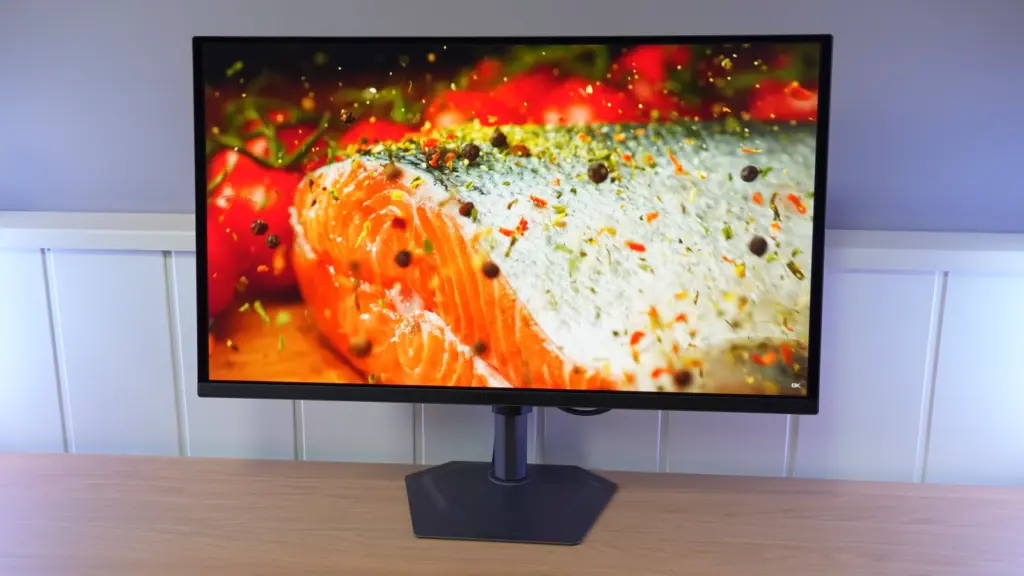
The Gigabyte MO27Q2 brings 27-inch 240 Hz QD-OLED to a price-focused package. It retains a good color baseline, a practical stand, and several connectivity extras. The glossy finish and peak HDR tuning are the two factors that most shape its use.
To assess it, separate three things: OLED’s inherent speed, each mode’s calibration, and brightness retained as the illuminated area changes. Sharing panel technology with other models does not guarantee the same behavior in those areas.
Packaging and ergonomics without a bulky base
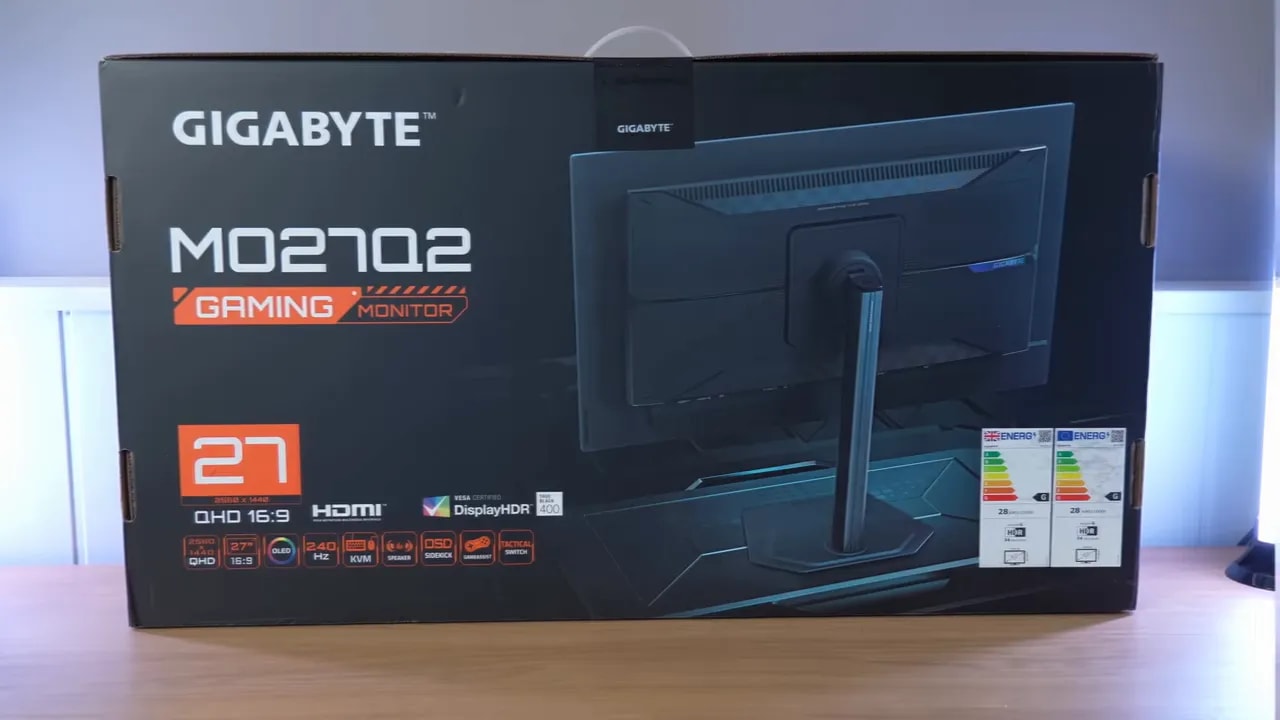
Without spending too much time on packaging, it is quite well equipped. The box includes:
- Cable HDMI 2.1
- Cable DisplayPort 1.4
- Cable to power the USB hub
- Two power cables
- Calibration report
- Base and stand
The calibration report is always a nice touch, although what ultimately matters is the panel’s actual measurements. Still, as an introduction, it is good.
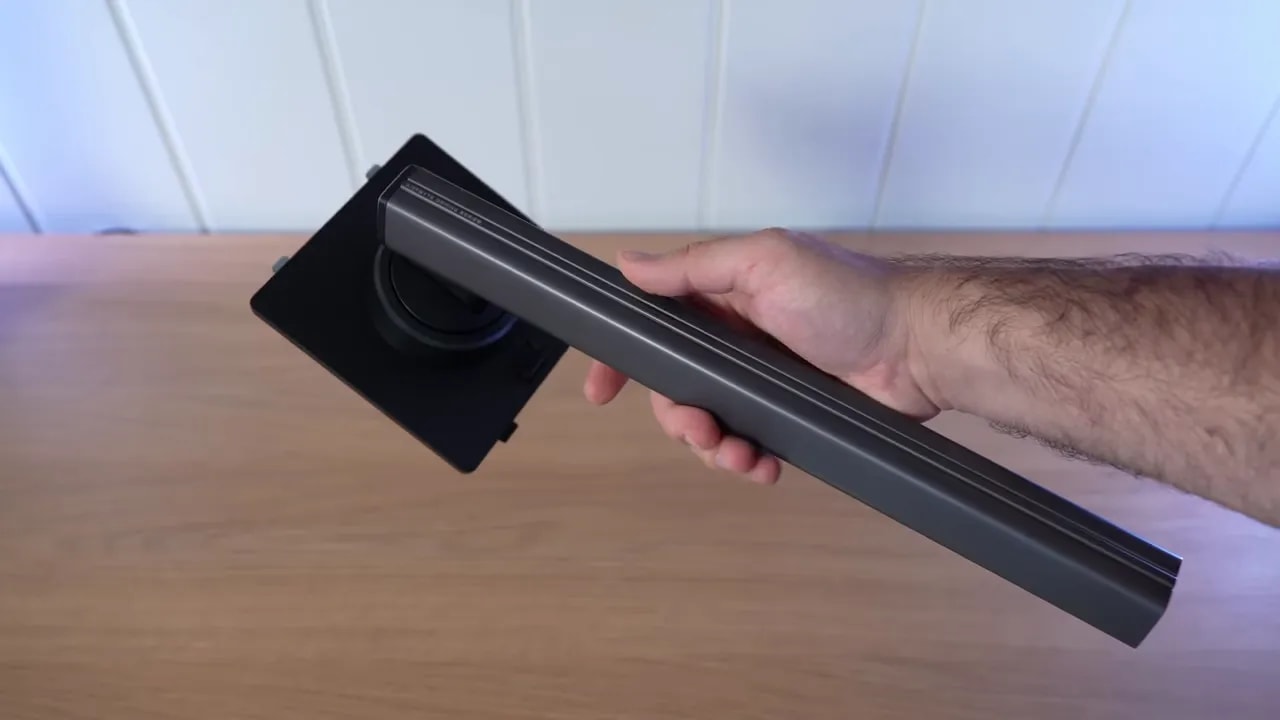
I liked the stand quite a lot. It is metal, slim, takes up little desk space, and is easy to assemble. It is not one of those bulky bases that steals half your desk without adding anything.
Ergonomics are very well implemented. It allows:
- Height adjustment
- Tilt
- Swivel
- Portrait use, although only in one direction
You can also swivel the monitor without moving the base, although the range is not particularly wide. Even so, overall construction feels good. The design is restrained, without odd flourishes, and it feels well finished.
Connections, controls, and reflections
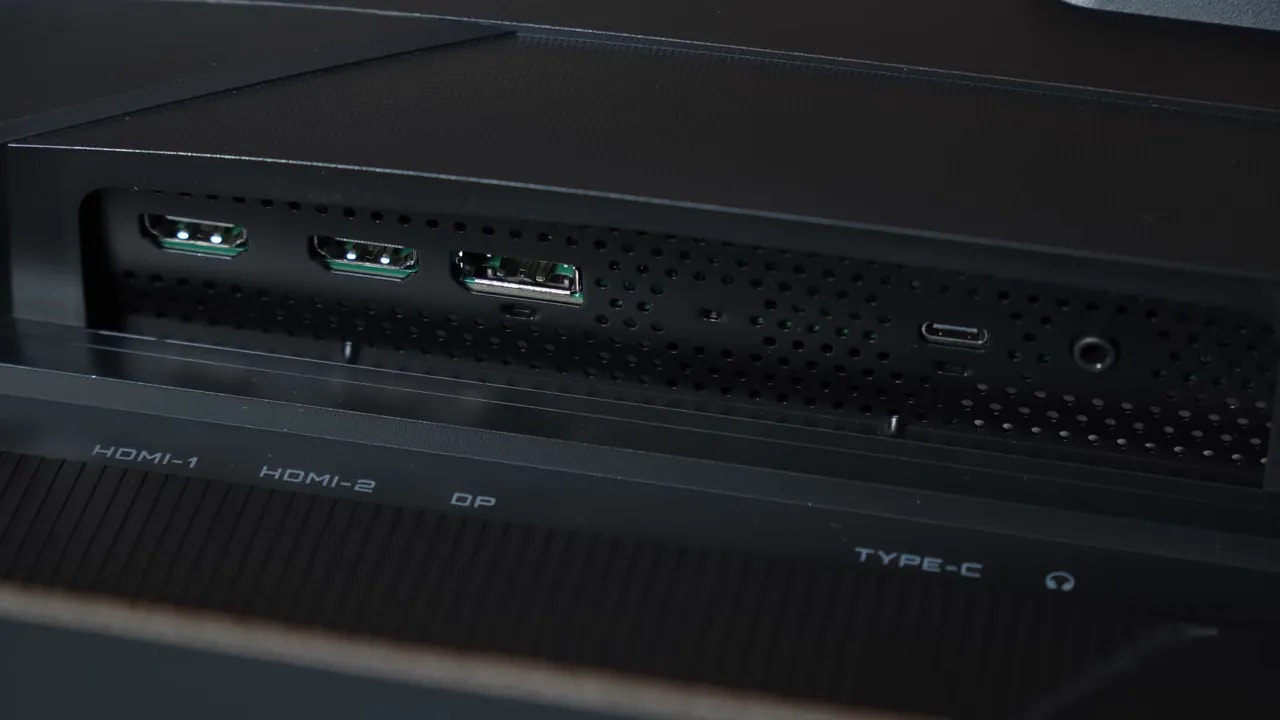
For inputs and outputs, the Gigabyte QD OLED MO27Q2 does quite well. We get HDMI 2.1, DisplayPort 1.4, USB-C, a USB 3.2 hub, and an audio jack output.
The only clear limitation here is USB-C, capped at 18 W charging. That is not much if you plan to use it as the sole connection for a more demanding laptop, but it at least handles light charging. For a phone, for example, it can do the job without issue.
The monitor includes a joystick for menu navigation, still the most convenient way to control an OSD. The menu captures are not all explored in depth, but clearly show access to color profiles, temperature, brightness, and APL- and HDR-related settings.
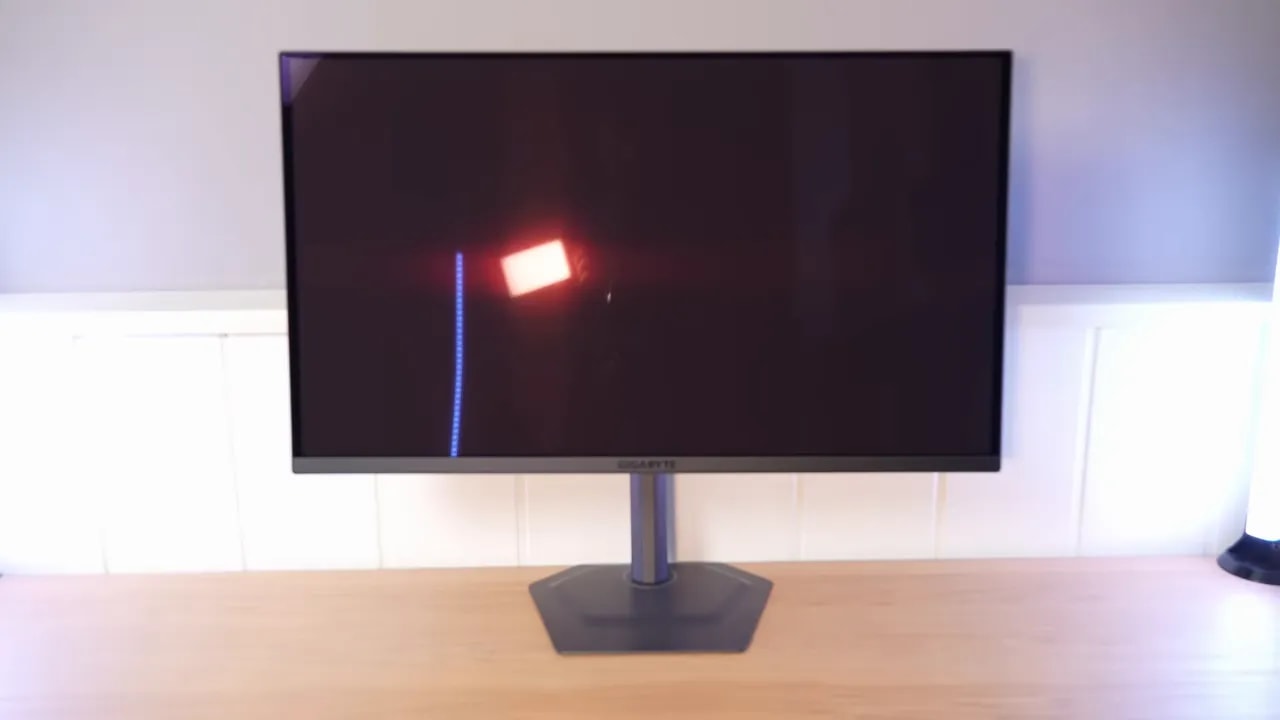
One of this monitor’s key features is its glossy finish. That needs serious consideration before buying.
What does that mean?
- Reflections are more noticeable and distinct
- Colors look better than on many matte monitors
- The image has more visual punch
Personally, I prefer glossy to matte on this type of panel because it usually makes better use of OLED. However, if you use it in a very bright room or with a light source hitting the screen directly, you must accept QD-OLED’s usual compromises.
In dark scenes under strong ambient light, these panels can show that magenta tint in blacks and dark areas. It is not a fault exclusive to this model; it is inherent to QD-OLED technology.
SDR color and preset choice
Comparing Standard mode in native gamut with sRGB shows substantial oversaturation. This is normal on many wide-gamut monitors, but should be stated clearly: if you want sRGB, enable the calibrated sRGB mode.
sRGB mode is calibrated for 142 nits and is a pleasant surprise for two reasons:
- The gamut clamp is not too aggressive
- Color accuracy is quite good
Grays do deviate a little, which is fairly common on OLED. Most interestingly, sRGB gamma tracking is very well implemented, something OLED monitors do not always get this right.
Color temperature tends to be slightly warm, but I do not find it problematic. Brightness also remains adjustable to taste in this mode.


The gamut limiter and grayscale tracking explain why this mode is useful for desktop work. It retains brightness control; the warm white tendency and small deviations remain separate aspects from coverage.
In native gamut against DCI-P3, the monitor reaches 99.6% coverage, which is frankly good. The issue is that native gamut extends a little beyond P3, so enabling the P3 clamp is worthwhile for better accuracy.
With that clamp, it drops to 98,8%, but color accuracy improves greatly. Again, grays stray a little and gamma is less accurate than in sRGB, with a somewhat abrupt small dip. Nothing terribly serious, but it is there.
Against Adobe RGB, the Gigabyte QD OLED MO27Q2 reaches 97,6% coverage in native gamut. Enabling the Adobe RGB gamut clamp brings it to 96,1%, but improves calibration.
Calibration in this mode is decent, although improvable, and grayscale behavior broadly matches the other modes.
Out of the box, the setting closest to 6500K is Normal. The others go too warm or too cool. For simplicity, leaving it on Normal makes sense. For further refinement, use manual custom-temperature settings and an ICC profile.
With meter-based adjustments in native mode and an ICC profile, the monitor clearly improves in:
- Color accuracy
- RGB balance
- Grayscale
However, one thing should be clear: copying someone else’s calibration does not guarantee the same result. Even with the same model, each unit can vary. This type of calibration and ICC profile also makes much more sense for work or content consumption than gaming.
SDR brightness: when to use APL Low or Middle
Here, the monitor inherits a very interesting feature from other Aorus QD-OLEDs: adjustable APL, in both SDR and HDR. This substantially changes how brightness responds to content.
There are essentially three levels:
- APL High
- APL Medium
- APL Low
In SDR, the higher modes can reach peaks above 1000 nits under certain conditions. At medium, behavior is more like a True Black 400mode. At low, brightness consistency takes priority, with a maximum around 260 nits full-screen.
Which makes most sense?
- APL Low if you want color work and to avoid scene-dependent brightness changes
- APL Medium if you want more brightness in actual use
This matters because with APL medium or high, brightness varies with content: small, very bright elements stand out more, while other areas may dim somewhat. That is not always desirable for productivity and editing. For general use, medium is usually the most balanced choice.
HDR: the peak does not explain the whole image
Several HDR modes are available, and switching them also changes the associated APL level. I understand Gigabyte intends them to be used that way, although you can change them manually afterward.
The best-calibrated modes are:
- HDR
- HDR Movie
Those cannot be customized, while other modes allow some parameters to be adjusted. The problem is that those other profiles sacrifice calibration to pursue specific goals, such as lifting dark areas more.
As usual, the best calibration point occurs at 10% APL. It holds up quite well at 2% and 25%, but tracking worsens beyond that. This is normal on practically all QD-OLEDs.
Here is the main drawback I found compared with more expensive models. The 1000 nits mode can exceed that figure at 2% APL, but calibration leaves quite a bit to be desired at both 2% and 10%.
In other words, the monitor can boast its peak, but does not track PQ EOTF and luminance as accurately as higher-end QD-OLEDs, at least up to 10% APL.
Still, I do not see it as an enormous problem. In fact, I often still prefer modes such as True Black 400, because they usually provide a brighter, more consistent image in real scenes, even without those striking peaks in small windows.


At the same 10% window, HDR with APL Middle stays closer to the reference. Peak 1000 considerably brightens shadows and midtones as well as allowing more intense highlights. A higher peak therefore does not mean more accurate scene reproduction.
In HDR, the Gigabyte QD OLED MO27Q2 reaches around 81% BT.2020, which is quite good. P3 coverage within the UHD space is almost complete, and color volume is also wide, as is usual for QD-OLED.
Keep one thing in mind: color volume is not the same as gamut volume. Brightness matters here too, not just the color space itself.
Motion, VRR, and console use
There are few surprises here, which is good. With 240 Hz and OLED’s virtually instant transitions, motion performance is excellent.
To summarize:
- No noticeable ghosting
- I found no serious overshoot issues
- It works well at 240, 120, and 60 Hz
Input lag is within normal values. Some OLEDs rise somewhat more at 60 Hz, but it is not especially concerning here.
The monitor supports VRR and works without issue through either FreeSync or G-Sync Compatible, although it is not officially certified for the latter.
However, as with practically every OLED on the market, there is also some VRR flickering. It is most noticeable in specific situations, such as:
- Loading screens
- Scenarios entering and leaving the LFC range
- Test patterns designed to provoke that behavior
The good news is that it seemed somewhat less pronounced than on other QD-OLEDs, although still present. If you are very sensitive to it, the solution remains the same: play without VRR.
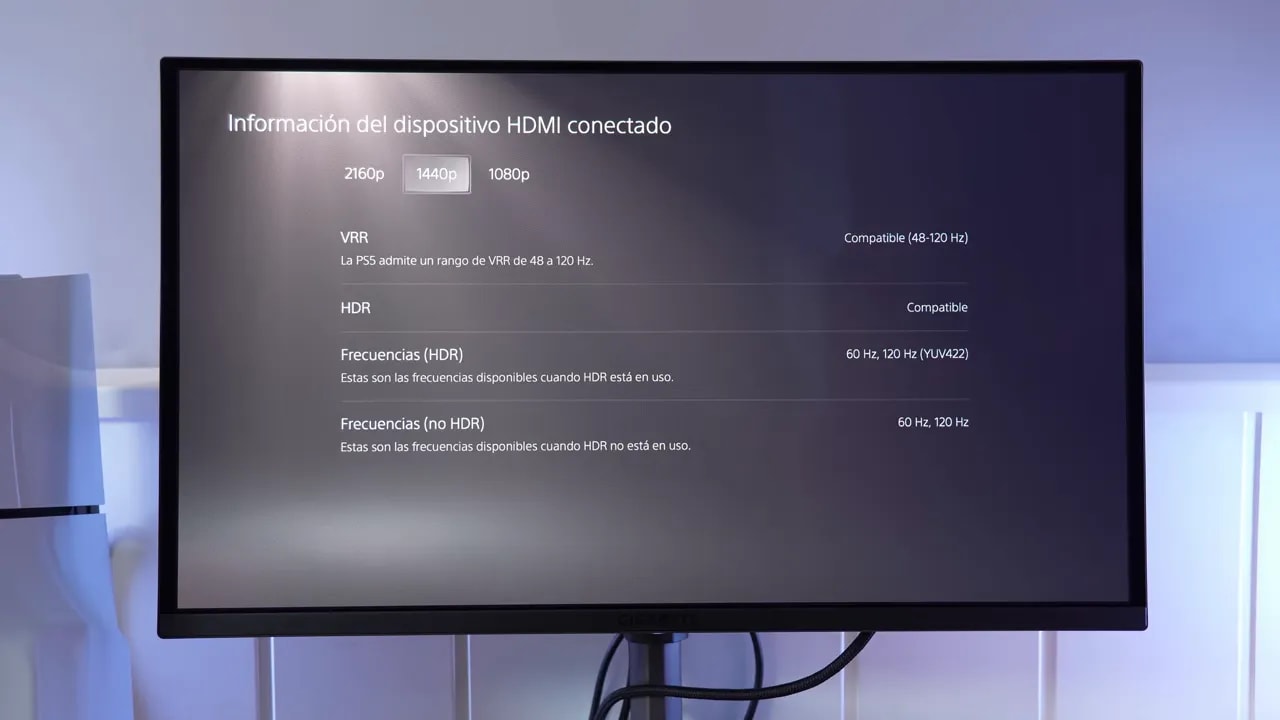
With PS5, the Gigabyte QD OLED MO27Q2 performs very well. Compatibility is complete, and it also supports a 4K signal with supersampling at 120 Hz, along with VRR.
You can also use it at:
- 1440p
- 1080p
In every case, with the maximum color configuration the console permits.
Text, KVM, and desktop sound
It includes two 5 W speakers. They are nothing special. Bass is virtually absent, but they can help in a pinch occasionally.
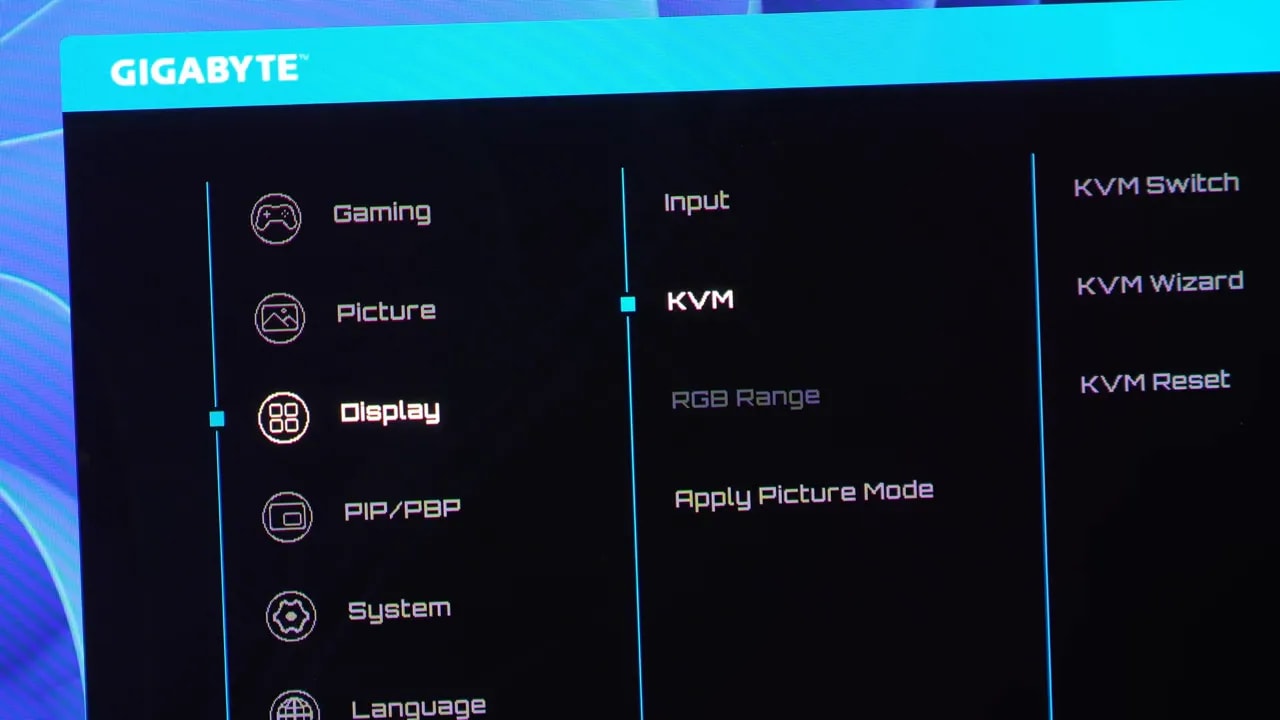
It also adds features such as:
- KVM
- PBP to show two sources side by side
- PIP to overlay a second source
These are useful extras if you want to use the monitor with multiple devices and depend less on duplicate peripherals or constant manual switching.
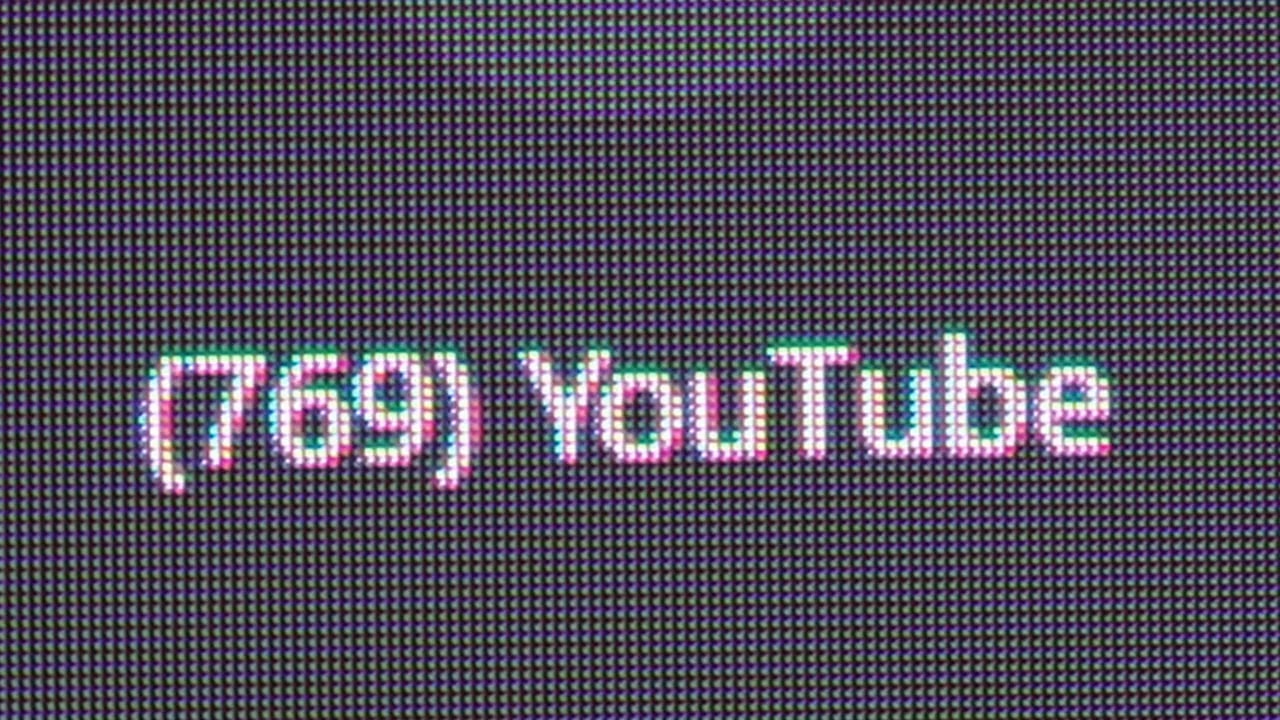
The panel uses the latest QD-OLED generation available in this format, with an improved subpixel. That helps with one of the most discussed issues on this type of screen: text definition.
There is still some fringing compared with an IPS at the same pixel density, but it is better handled than on equivalent WOLED panels. Honestly, it does not strike me as especially distracting in normal use.
Where it fits as a purchase
If the Gigabyte QD OLED MO27Q2 is around 480 to 500 euros, yes, I consider it a very good buy. Not because it is perfect, but because it cuts back where it hurts least and keeps what matters at a very high level.
The only truly clear difference from more expensive QD-OLEDs is calibration in the 1000-nit HDR mode. Otherwise, it more than delivers: solid color, adjustable brightness behavior, flawless motion, good console compatibility, and more than decent construction.
If you want a glossy 27-inch 240 Hz QD-OLED without much higher prices, the Gigabyte QD OLED MO27Q2 is one of the most interesting models to appear in this range. On sale, it is quite hard not to recommend.