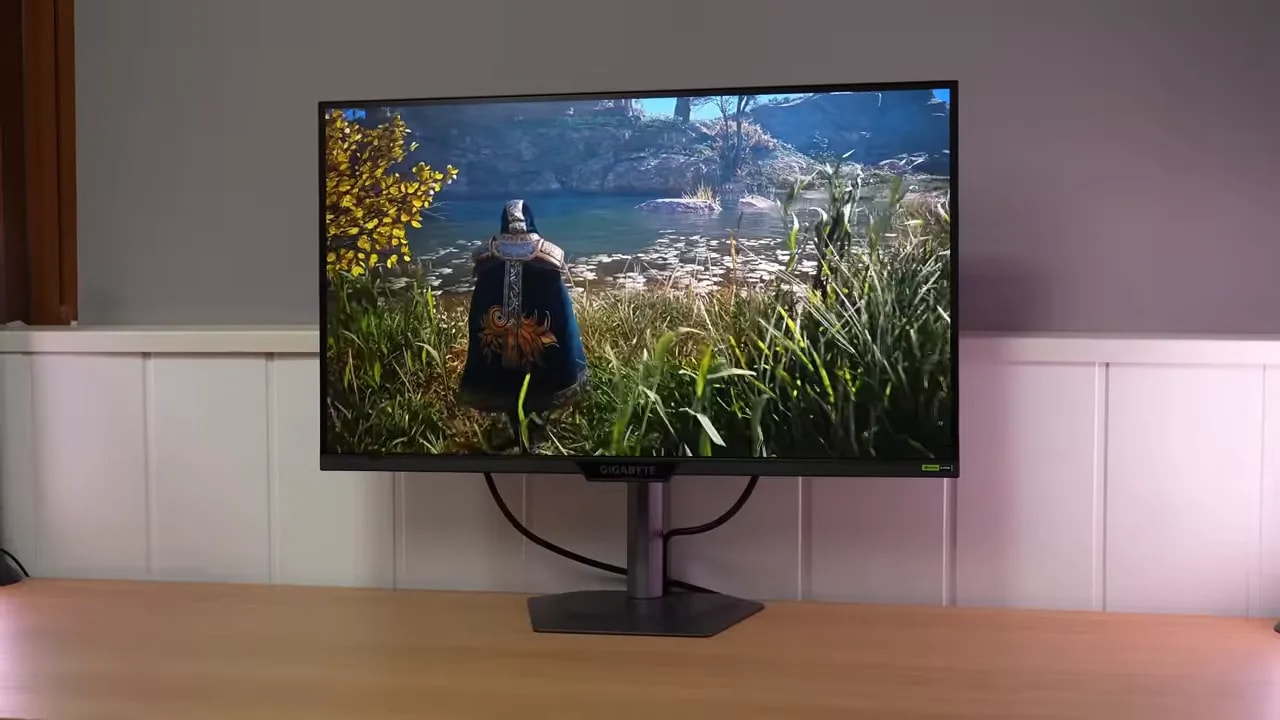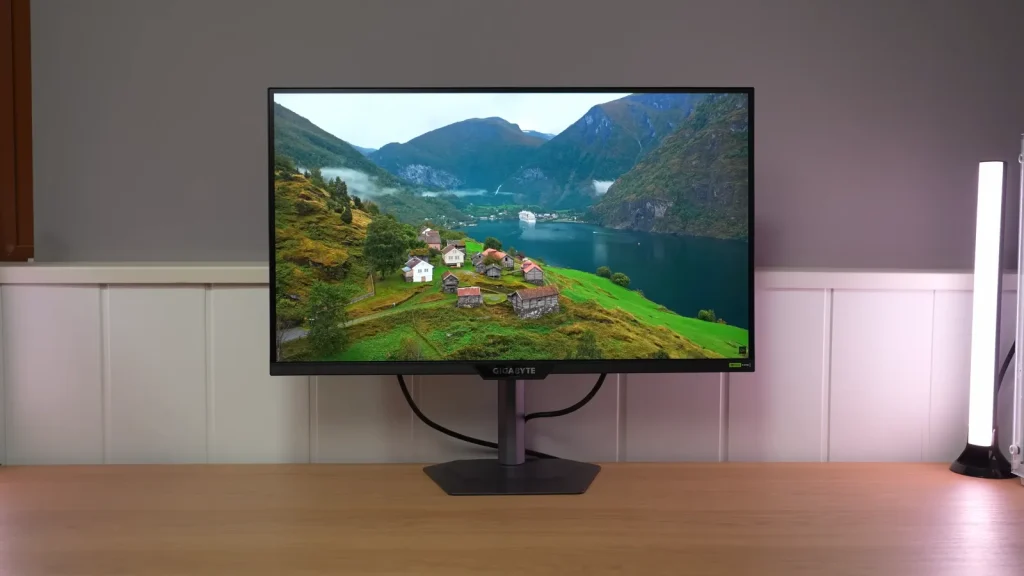
The Gigabyte G27Q2 combines a wide-gamut image, good contrast for IPS and a fully adjustable stand with 1440p on a 27-inch screen at up to 210 Hz. Its appeal is bringing these advantages together at a low price. The compromises lie in the matte finish, calibration and an overdrive implementation that needs an intermediate setting.
It is a particularly interesting option for gaming mixed with desktop tasks. For color-sensitive editing, the panel’s coverage is promising, but the sRGB mode and the unit’s uniformity make it harder to recommend as readily. These are the differences to weigh beyond its specifications list.
Packaging, assembly and a stand that makes good use of desk space
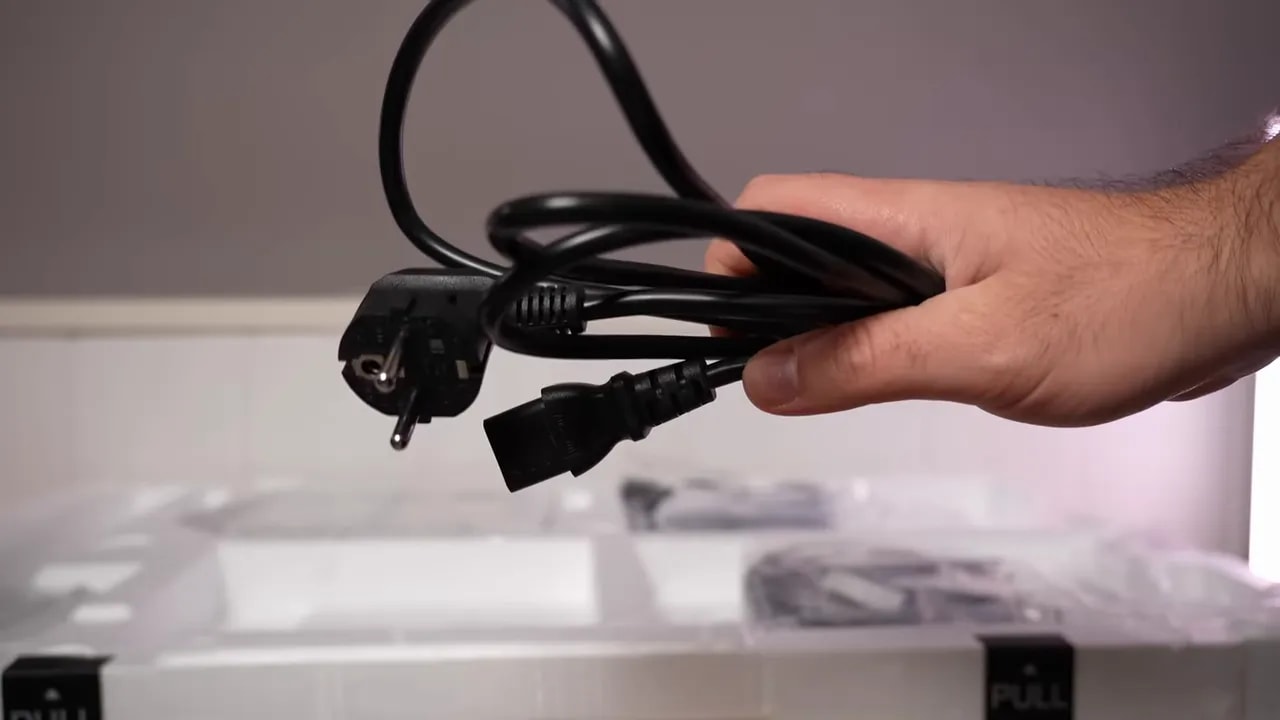
The box includes a DisplayPort cable, power cable, documentation and a cable-management clip. The support and base fit together without taking up too much space: the metal base and stand column are relatively slim but feel solid.

The ergonomics are well handled. Height, tilt, swivel and portrait orientation can all be adjusted, making it easy to position the screen without an arm. The design is understated; the front logo is larger than on other Gigabyte models, an aesthetic detail I preferred when it was more discreet.
Connections and finish: versatile, with a pronounced matte coating
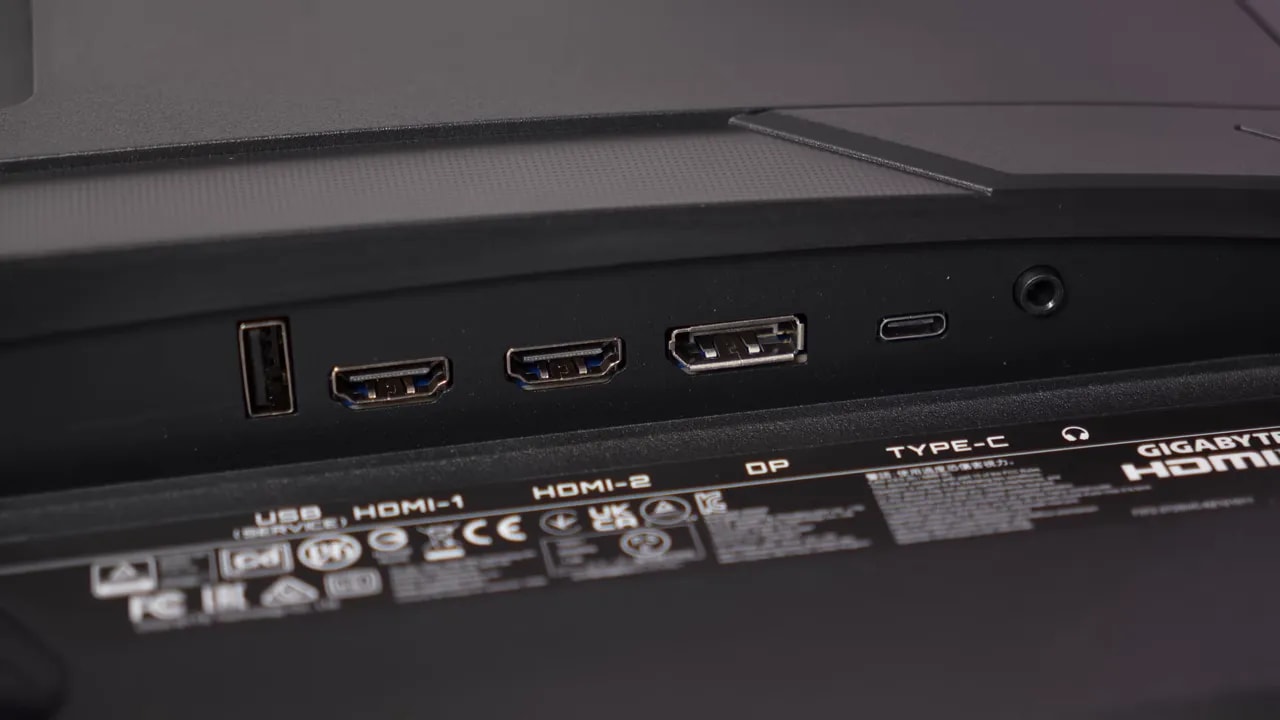
USB-C carries video and supplies 15 W of charging power. It is a useful extra for connecting a compatible device, although that power does not replace the power supply of a demanding laptop. A joystick controls the menu, making preset changes and picture adjustments more convenient than a row of buttons.
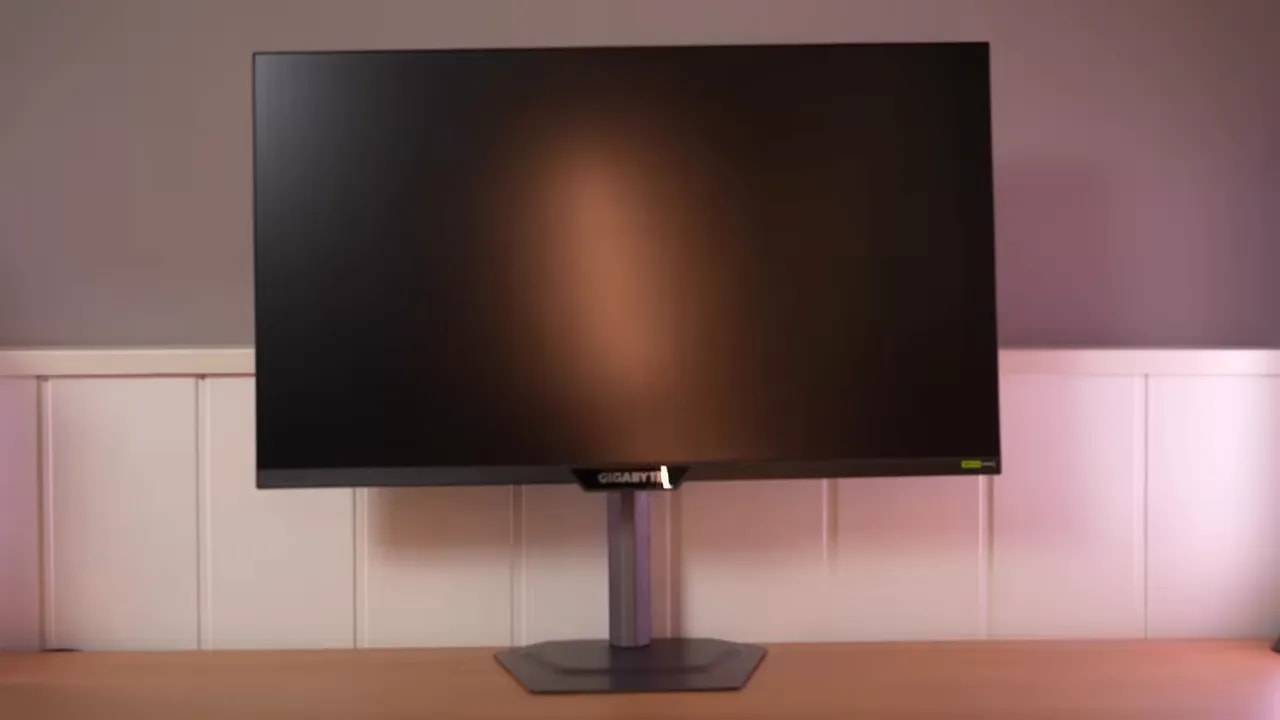
The coating is quite matte. It diffuses light sources well but adds perceptible grain and makes the image look a little less clean. This is not a resolution problem: it is the surface’s effect on text and light backgrounds. If you are sensitive to that finish, give it weight in your choice.
Color: a wide gamut for gaming, less accuracy than it might suggest
Standard is the recommended starting point for gaming and multimedia. The temperature is close to 6500 K and gamma tracking is acceptable, although white and some colors remain imperfect. The wide coverage produces a vivid image; it does not mean all content will be reproduced accurately.
The sRGB mode tries to contain that saturation. It retains around 95.7 % of the gamut but locks virtually every setting except brightness. White looks warm and grayscale performance could be better. Gamma is somewhat closer to the target than in Standard, but that does not fix the overall result.


These screenshots separate two issues: gamut clamping and white/grayscale adjustment. The sRGB mode controls native oversaturation, but its locked settings make the remaining deviations difficult to correct.
For calibration with a colorimeter, it makes more sense to start in Standard, where color temperature can be changed. Manual adjustment and an ICC profile improve white and grays, although some colors remain imperfect. A profile from another unit does not guarantee the same result either.
Good IPS contrast, with different results for brightness and color uniformity
Around 380 nits were measured in SDR with the colorimeter used as the reference for comparison with earlier models. Contrast, at around 1600:1, is higher than usual for many IPS monitors in this segment. It adds depth to the image, although it still lacks OLED blacks or Mini LED local dimming.
The unit showed little backlight bleed, relatively restrained glow and reasonable brightness distribution. Color was less uniform on the right side. These are separate observations: a screen can distribute luminance well while still changing tint from one area to another.


The comparison explains why the result is more convincing for desktop work and gaming than for demanding editing. These maps describe this unit; they cannot establish exactly the same deviation for every G27Q2.
HDR: color is retained, but contrast still limits the experience
Of the presets tested, the mode called HDR provides the most useful tracking. It preserves midtones fairly well, although it raises black levels and slightly darkens some shadows. Its maximum is around 423 nits; HDR Game and Movie reduce available brightness.
No abnormal gamut loss was observed when enabling it. Even so, good coverage does not solve the main limitation: without local dimming, the monitor cannot combine deep blacks with intense highlights. HDR is an additional compatibility feature, not a central reason to buy it.
210 Hz and overdrive: an intermediate setting is missing
The panel runs at 200 Hz by default and can reach 210 Hz through overclocking. The tested unit showed no flicker and retained 10-bit support through 8 bits plus FRC. The improvement over 200 Hz is small; choosing the right overdrive setting has more effect on motion clarity.
Picture Quality keeps overshoot very low but leaves slower initial transitions. Balance brings the initial average below 5 ms at the cost of substantial overshoot. Between them, there is no option that retains more speed without introducing so many artifacts. Smart OD adapts to the refresh rate but does not ultimately improve on that manual choice.


The comparison keeps the refresh rate fixed to isolate the overdrive change. Choosing the lowest average is not enough: Balance’s overshoot also affects perceived clarity. The gallery includes tests at 120 and 60 Hz.
Aim Stabilizer Sync adds backlight strobing to reduce blur, with some brightness loss and possible double images. On this model it does not work at the same time as G-SYNC. You also need to choose overdrive first and then enable Aim Stabilizer, because enabling it locks that control.
Picture Quality or Balance are the most sensible combinations to try with it. There are no advanced clarity settings; this is a basic extra. G-SYNC Compatible support, used separately, did work correctly without abnormal flicker in the test.
PS5: 1440p at 120 Hz, with clear limits
On PS5 it supports 1440p at 120 Hz and also accepts 4K at 60 Hz. It has neither VRR nor ALLM on this console. PC G-SYNC compatibility does not carry over to this case.
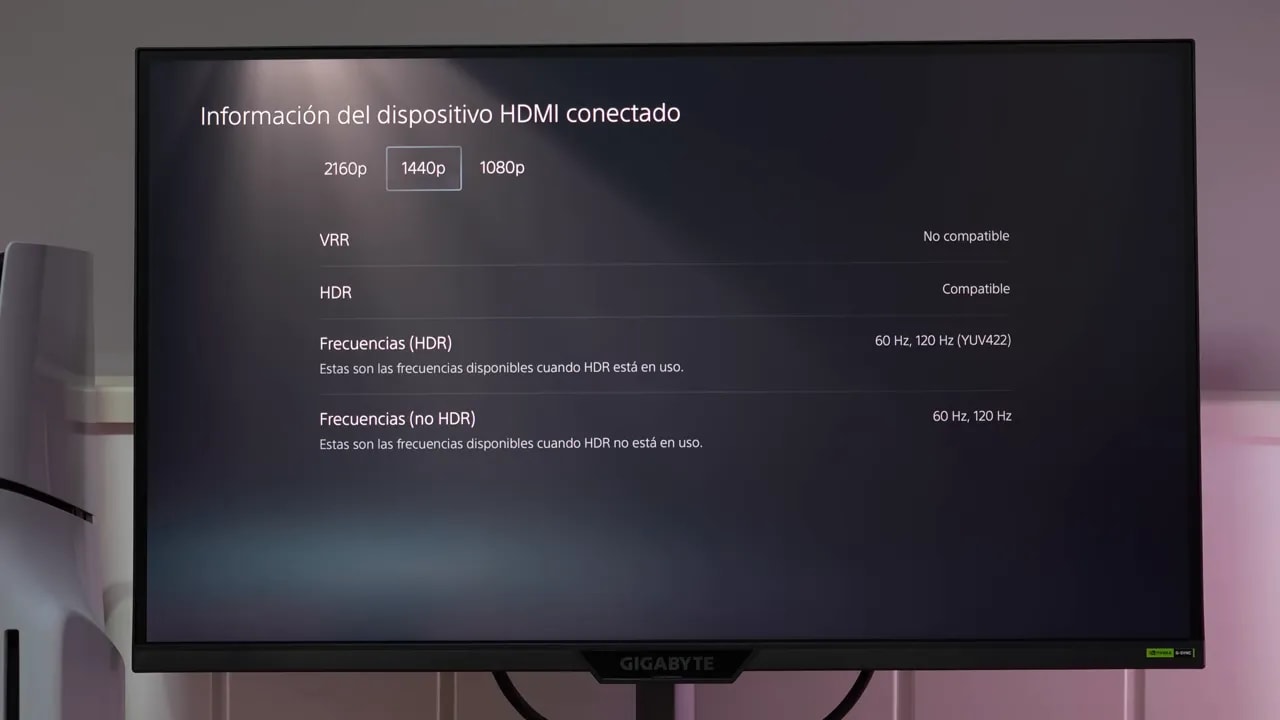
At 120 Hz, Picture Quality can be used if you tolerate some overshoot; to avoid it, turn overdrive off. At 60 Hz, the recommendation is to leave it disabled. Measured input lag is somewhat higher than on some rivals, although it was not a notable limitation in the use described in the review. There are no speakers.
When I would choose it
The G27Q2 makes sense if you want a fast IPS with good ergonomics, USB-C video and a wide-gamut image, and it is available at a clearly competitive price. Contrast and the stand are practical strengths; sRGB mode, color uniformity and the overdrive balance are less well rounded.
As a purchasing guideline in the review, it was especially attractive at around €135 and remained a reasonable option up to about €160–170. Near €200, it lost appeal against better-tuned alternatives. These are purchasing references, not a current offer: the links in the header show the available options.
Check the exact model reference. G27Q2 and M27Q2 are different models; panel, gamut and feature differences should not be treated as interchangeable just because they share part of their name.