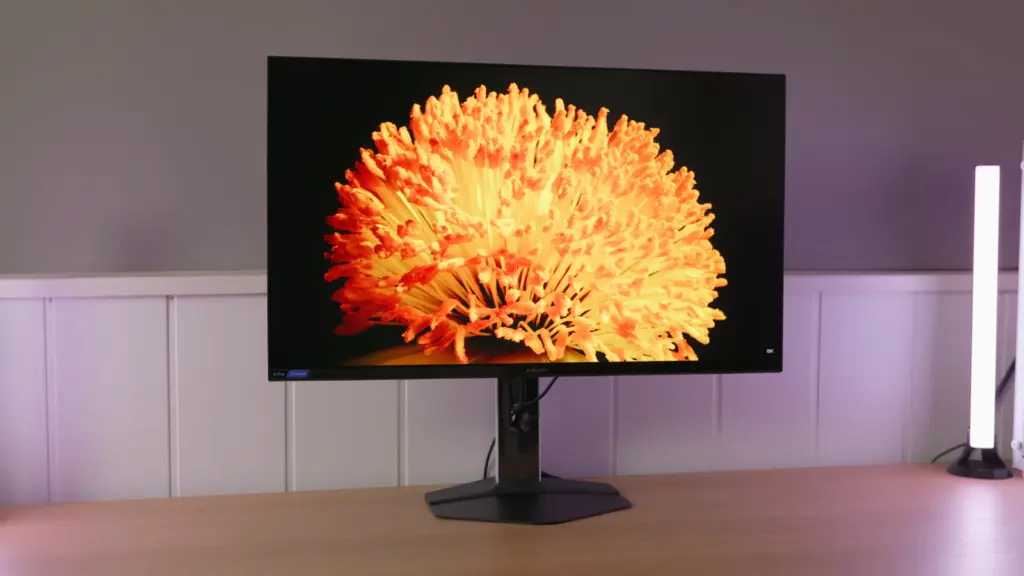
The Xiaomi G Pro 27Qi 2026 stands out for the intensity of its HDR. It combines a 27-inch 1440p 180 Hz IPS panel with a 1,152-zone Mini LED backlight. It can be an interesting option if you want high brightness and also use the monitor for desktop work, but you need to choose its settings carefully.
Its limits are not just about the number of zones: how it controls them, what happens to color and how response changes when HDR is enabled all matter.
In this review
Packaging, assembly and build changes
Accessories include the power supply and video cable. The box photos help show the stand components and connection cover before assembling the monitor. They are not laboratory tests, but they show how the product arrives and what setting it up involves.


The metal base takes up less space than the previous model’s and feels better made. The column and rear retain a similar look, including the lighting ring. Attaching the base requires screws; it is a one-off task, although less convenient than other quick-release systems.


The stand lets you adjust the position, and there is a small headphone hanger. The rear cover conceals the connections. These details do not change HDR performance, but they make the screen easier to live with on a desk with several devices.


Connections, surface finish and menu controls
HDMI 2.0 and DisplayPort 1.4 retain the previous generation’s approach. The joystick avoids navigating menus with a row of buttons, although navigation felt somewhat slow during the review.


Xiaomi separates picture profiles from a gaming-mode section that can be configured independently. That division can be confusing when you want to change color, gamma and response in one place. You do not need to enable that second profile to achieve a well-adjusted everyday configuration.

SDR: high brightness and several modes worth distinguishing
The monitor can deliver very high SDR brightness, enough that you do not need to use it at maximum all the time. The matte finish is pronounced: it helps diffuse reflections but introduces visible texture on light backgrounds. That is a different choice from the clean appearance of a glossy screen.
Native mode offers a wide gamut, although the unit’s white point was cool out of the box. Choosing Warm did not solve the adjustment by itself, because it pushed white too far toward red. The dedicated color modes behave differently: P3 was a more convincing starting point than sRGB, whose clamp left colors out and was not especially accurate.
For general use, you can choose the presentation you find pleasant, but for editing it is worth checking the mode and calibrating the unit if accuracy is needed. A wide gamut does not mean a screen displays all content correctly without adjustment. The sRGB screenshot shows the clamp: some colors sit inside the target rather than reaching it. That limits the tones it can reproduce in that mode, which matters for photographs and web content.

Local dimming also changes color reproduction. I would disable it for SDR color work. With it off, you retain native IPS contrast; with it on, blacks improve greatly in favorable scenes, at the cost of dependence on object size and position.
Calibration and uniformity
Manual calibration from native mode clearly improved the unit, even compared with the dedicated P3 mode. For color work, it makes sense to adjust white and create a profile for the specific screen. Copying settings from another unit can provide guidance, but does not ensure the same result.
Default mode did not provide a particularly useful clamp either: it did not align well with any of the usual color spaces. I would prefer a dedicated mode suited to the content or calibrated native mode, depending on the work.
Brightness distribution was reasonable on the unit, while color differences between areas became more visible at high brightness. For color-sensitive tasks, reducing luminance made more sense than using all the available headroom. One unit’s uniformity is not a quality rate for the whole range.
HDR is its main attraction
In HDR Standard mode, the Low and Middle local-dimming settings are around 1,100 nits in the reference chosen for the specifications page. High can exceed 2,600 nits in a 10 % window. These results come from different configurations: they should not be mixed as though they describe one mode.
High gives highlights considerable impact, but also raises some midtones above the reference curve and can make halos more visible. Middle offers a more balanced compromise, although it does not track the reference perfectly in the 10 % window either. The curves show why more brightness does not imply a more accurate image: both the peak and the way light is distributed before reaching it change. Film and Game reduce the impact even with High, so the local-dimming setting’s name does not tell the whole story.


In the tests, high brightness remained stable during the prolonged measurement. Even so, light distribution matters: a scene and a test pattern can place very different demands on the zones. The comparison below shows brightness with local dimming off and with Low, Middle and High. In High, the maximum appears with small and medium-sized windows and falls as more of the screen is lit; Low and Middle follow a different distribution. That is why the peak of a small light does not, by itself, describe a bright full-screen scene.

The improvement over an IPS without local dimming is clear in HDR content. Against an OLED there is another trade-off: the Xiaomi retains high intensity in large bright scenes, whereas the OLED can control each pixel without the halos associated with zones.
What you notice when using the dimming zones
The algorithm is more balanced than the previous model’s in situations such as a cursor on a dark background, but it does not eliminate the technology’s limitations. It can dim very small elements, leave halos or produce brightness changes when moving windows and objects.
If those changes bother you, dropping to Middle is more useful than always chasing the highest peak. For desktop use with light backgrounds and windows, it is also worth trying local dimming disabled. The most striking demonstration setting is not necessarily the most comfortable throughout a working day.
A useful example is a white cursor on a dark background. The algorithm may keep it dimmer to avoid lighting too much surrounding area, then brighten it as it approaches a light area. The improvement over the previous model is that the backlight is less obvious while following those elements, not that the trade-off disappears.
In HDR High, brightness changes when moving windows could become more visible. Middle reduced that effect. Viewing the screen head-on also matters: halos are more apparent from the side. Position and the chosen setting can therefore greatly change your impression of the same scene.
Response changes when HDR is enabled
In SDR, Faster is the reference selected in the review: it provides fast response, with overshoot already noticeable in the measurements. A more relaxed setting reduces that excess at the cost of slower transitions. Choose for the balance between the two, not just the lowest response time.
When HDR is enabled, overdrive is limited to Standard behavior, which is slower. That is relevant if you expect exactly the same motion clarity in SDR and HDR. It matters less in slower-paced games, but can matter considerably for competitive play. At 180 Hz, the selected references show 4.23 ms and 5.13 RGB of overshoot in Faster, compared with 7.25 ms and 0 RGB in Standard. Standard avoids that overshoot but takes longer to complete the initial phase of transitions. The screenshots compare both settings at the same refresh rate; the overdrive limitation when enabling HDR is the observation from the review.


View the tests at other refresh rates and the motion tests →
Variable refresh rate worked on PC in the test, including with the NVIDIA graphics card used. That does not confirm console VRR. There is also no strobing mode to reduce motion blur.
PS5 and choosing it over an OLED
For PS5, the verified reference here is 1440p at 120 Hz without VRR or ALLM; the specifications page retains the compatibility details.
Against an OLED, the main trade-off is brightness in large scenes versus black-level control. The Xiaomi has substantial brightness headroom, whereas an OLED can render a tiny object against black without relying on zones and offers faster transitions. Neither advantage alone determines the best screen for every desk.

I would choose it for bright HDR, a variety of games and alternating with desktop work. To make the most of it, you need to accept that local dimming and picture modes require some choice, particularly when moving from work to gaming.
I would look elsewhere if the absolute priority were HDR response speed, no halos or a very accurate uncalibrated sRGB mode. Judge its value for money against the price available today, not a past offer: check retailers and compare it with other Mini LED models before deciding.