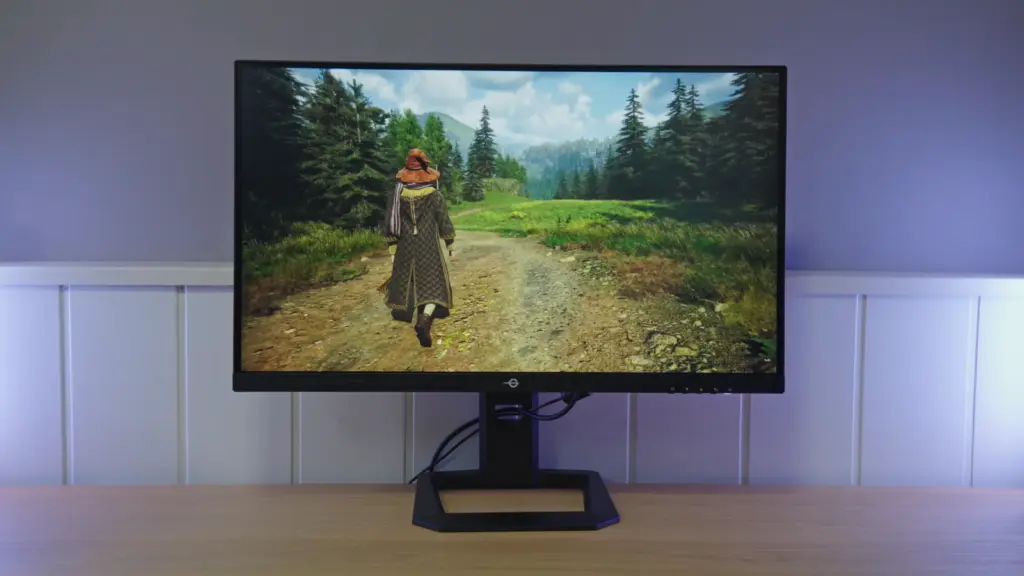
The Titan Army P2710S lands squarely in a very appealing category: 27 inches, 1440p resolution, IPS panel, and 240 Hz, but at a price that makes you look twice. And yes, that is exactly why I was curious to see where it cuts back, where it delivers, and whether it is really worthwhile against the competition.
The quick answer is that, at its price, it is surprisingly good. It is far from perfect, but has several strengths uncommon in this range, especially color and factory calibration.
Box contents and first impressions
The packaging contains what you would expect:
- The power supply and cable
- A DisplayPort cable
- Manuals
- A calibration report
- The stand
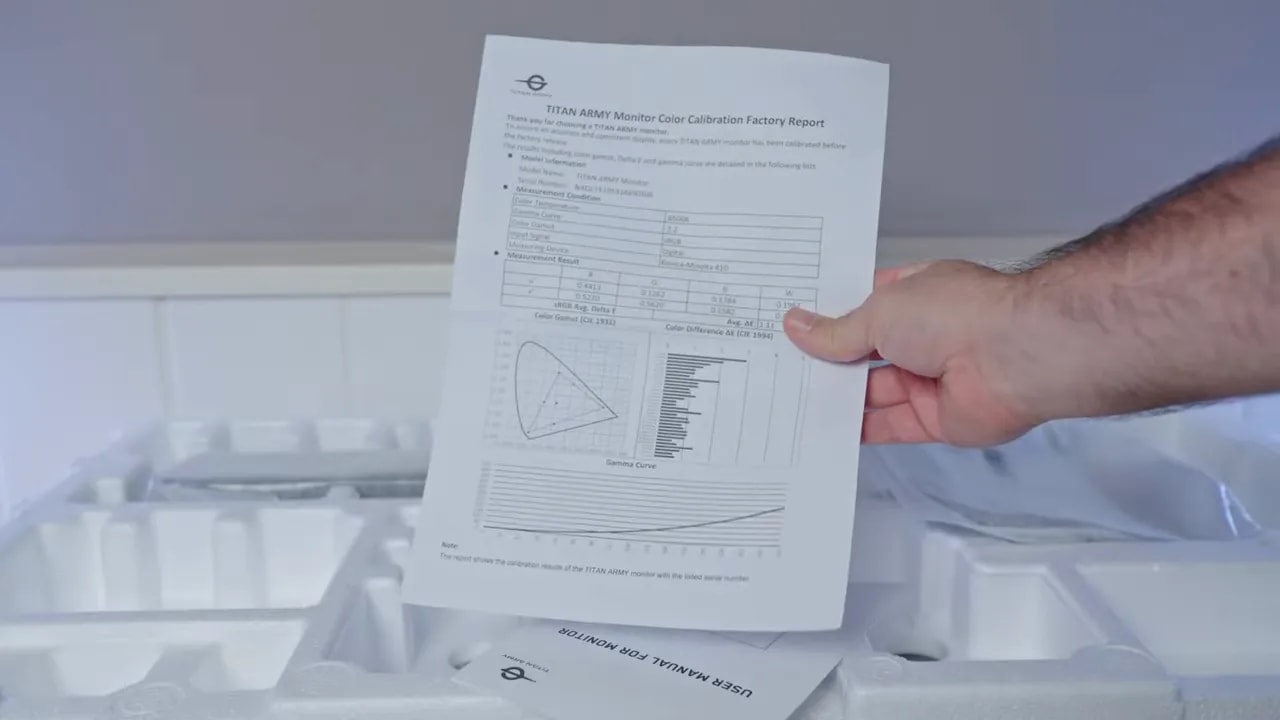
That last point deserves attention, because Titan Army often uses fairly basic stands to reduce costs. Fortunately, this time, they have included an adjustable stand, which already earns it plenty of points.
Design, construction, and ergonomics
The stand offers practically all the important adjustments:
- Height adjustment
- Tilt
- Swivel
- Portrait mode
- Panel movement without moving the entire base
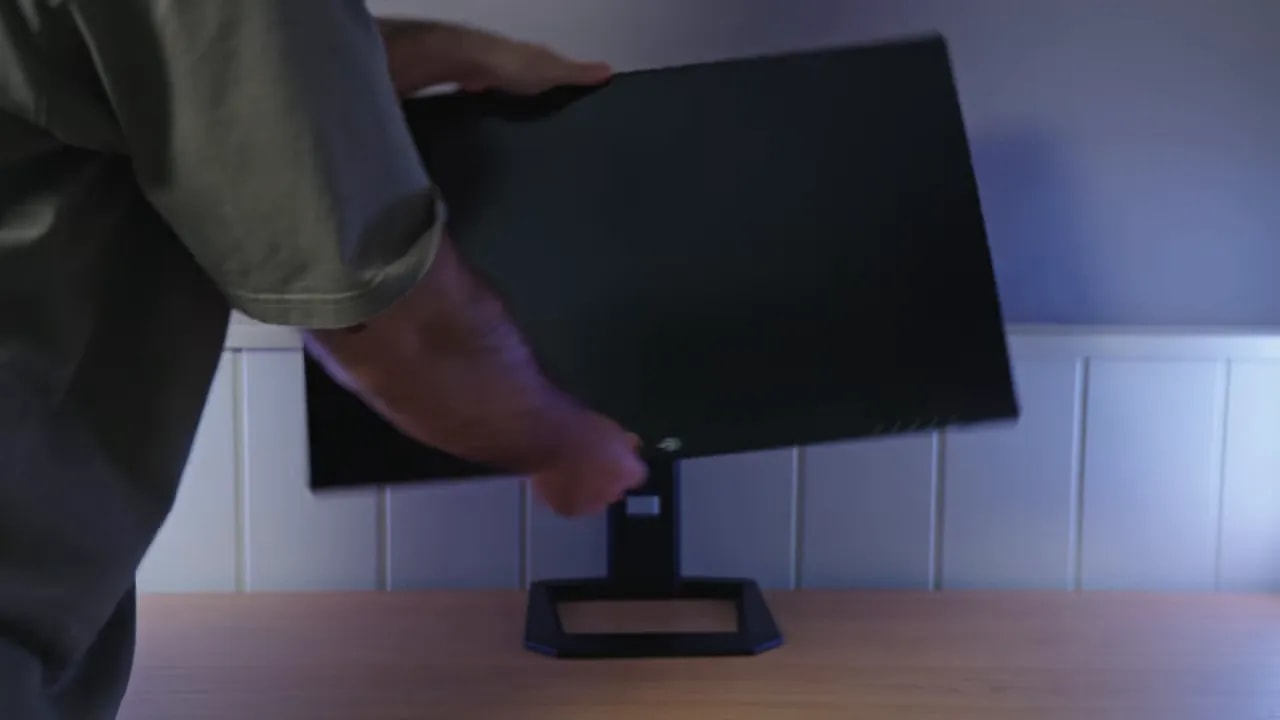
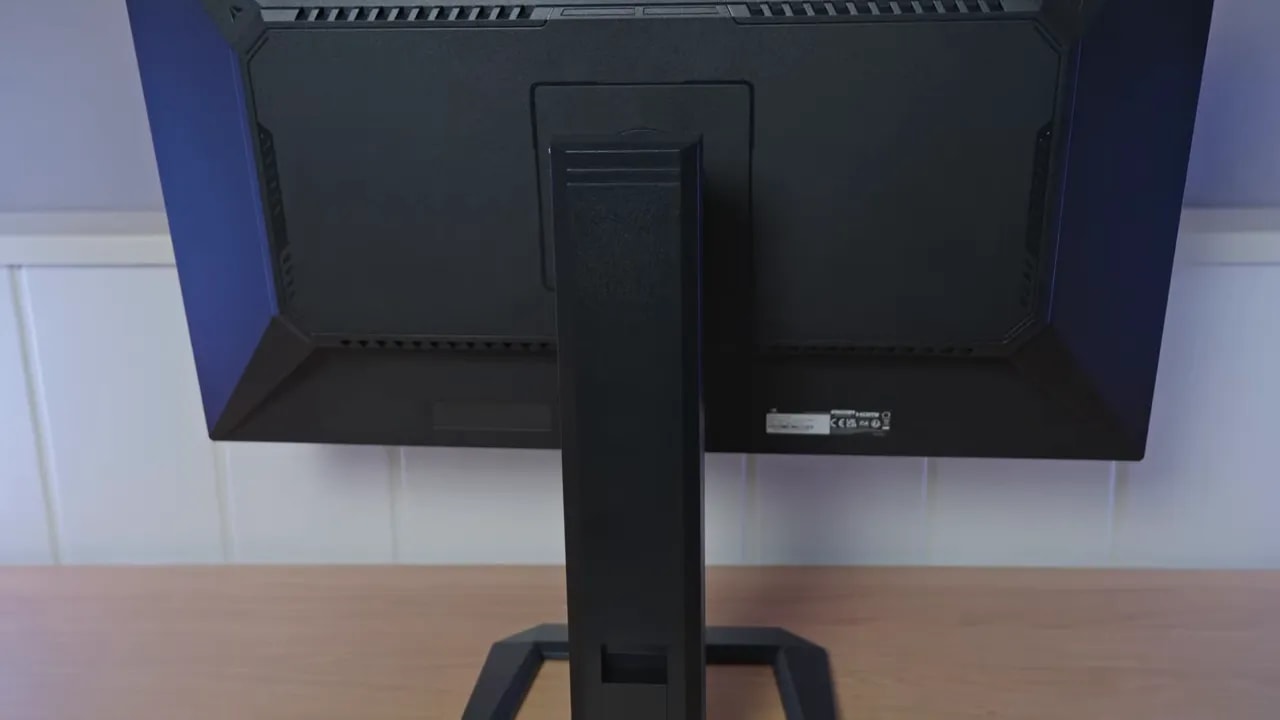
That said, there is no point pretending otherwise. Build quality has clearly been pared back. Plastic dominates, and the overall feel is not especially premium. But on an inexpensive monitor, that is where you expect cuts before the panel.
There are also the usual physical buttons for navigating the OSD. They work, but a joystick would be very welcome by now, since it is much more convenient for frequent adjustments.
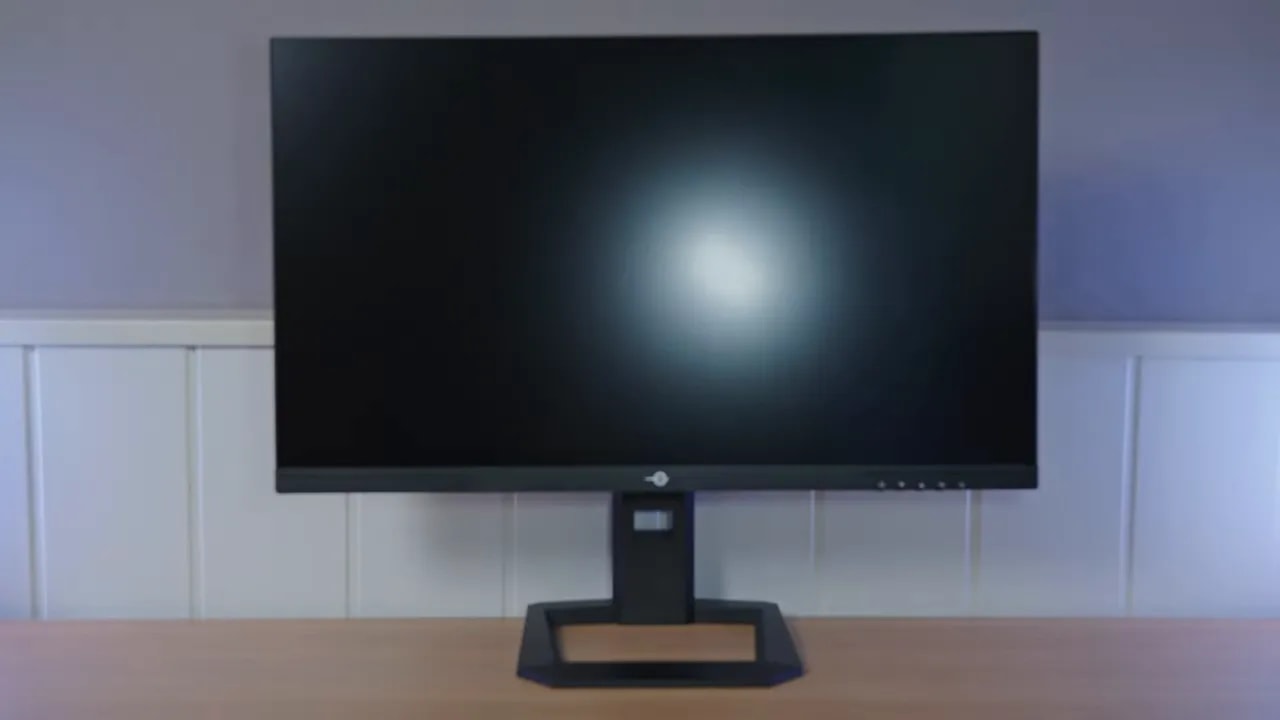
Screen finish and anti-glare treatment
The panel uses the classic matte finish. The good news is that it avoids an aggressive coating that blurs the image too much. The matte finish is fairly light, so sharpness does not suffer excessively.
I still prefer well-implemented glossy finishes, but they are practically nonexistent on LCD gaming monitors of this type. Within the usual choices, this one is quite well executed.
Picture modes and color quality
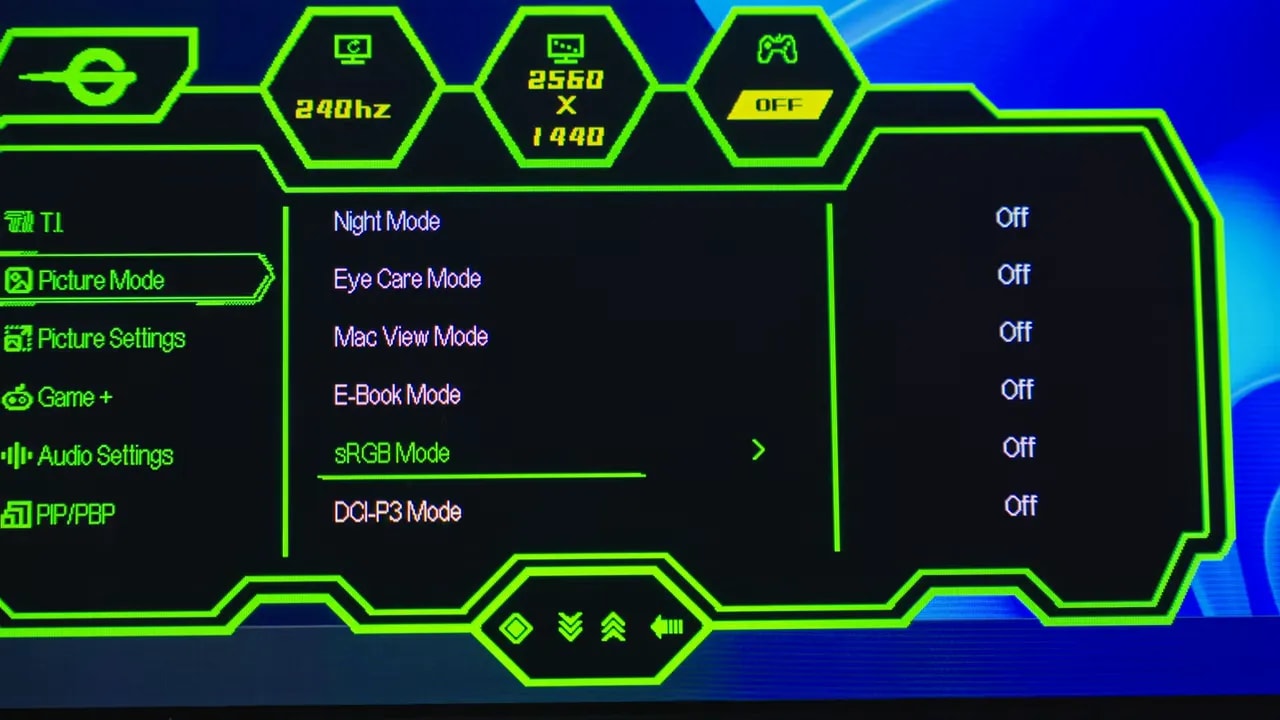
Color is one of this monitor’s strongest areas. There are several professional modes alongside the usual presets, but honestly, Standard mode seems the most recommendable.
And not just because it looks good, but because it also lets you adjust parameters within the preset itself or elsewhere in the menu. That leaves plenty of room to tailor it to your taste.
Standard mode
Out of the box, Standard mode offers a fairly wide color range. Coverage of DCI-P3 reaches 97.8%, an impressive figure for this model’s price range.
Calibration against that gamut is also quite good for what is theoretically not the “pro” mode. Color accuracy is good, Delta E is kept in check and although color temperature leans a little cool, it is nothing dramatic.
sRGB gamma tracking is reasonably accurate, and grayscale balance is not bad either. Also:
- 100% sRGB
- 94% Adobe RGB
However, Standard calibration does not target sRGB exactly. It is aimed more at DCI-P3 D65, so for more restrained sRGB reproduction, another preset is worth considering.
DCI-P3 mode
DCI-P3 mode clamps the gamut very little, and color accuracy is very similar to Standard mode. Grayscale follows a similar pattern, as does color temperature.
One welcome detail is that the professional modes also allow customization. Color temperature defaults to “Warm,” the option closest to 6500K.
Since behavior is so similar, I still find Standard mode more practical for both gaming and working within this color gamut.
sRGB mode
sRGB mode removes Standard mode’s oversaturation. It clamps a little more than ideal, but not excessively. Color calibration keeps Delta E fairly low, and grayscale behavior again resembles the other modes.
In short, it is not a perfect sRGB mode, but it is perfectly usable if you want a more restrained, natural image for desktop use, browsing, or tasks where wide saturation is undesirable.


This mode contains native saturation and provides an image better suited to sRGB content. The clamp is not perfect, but accuracy and coverage should be read separately: a wider gamut would not necessarily be more faithful here.
Manual calibration and ICC
A professional colorimeter can refine it further. In this case, custom color temperature adjustments do improve it, but this is not one of those times when the monitor changes completely.
And that is actually a good sign: factory calibration is already fairly decent. Other models show a much more dramatic before-and-after difference because their starting point is worse.
If using an ICC profile, remember the usual point: it primarily helps content reproduction and color work, less so gaming. And even if you copy settings or a profile, two units of the same model never end up exactly alike.
Brightness, contrast, and uniformity
In Standard mode with Warm color temperature, the monitor delivers approximately 344 nits of maximum brightness and contrast slightly above 1000:1.
Here I would say it falls a little short of some rivals. These are not bad figures for an affordable IPS, but competing monitors can get somewhat more brightness and contrast.
Brightness and color uniformity are not disastrous, although clearly, there is room for improvement. Some areas also show more backlight bleed, which is often closely tied to that uniformity.
I do not consider it a disaster, but this is not a panel that stands out here. As so often with IPS, there is a substantial unit-to-unit lottery.
IPS Glow
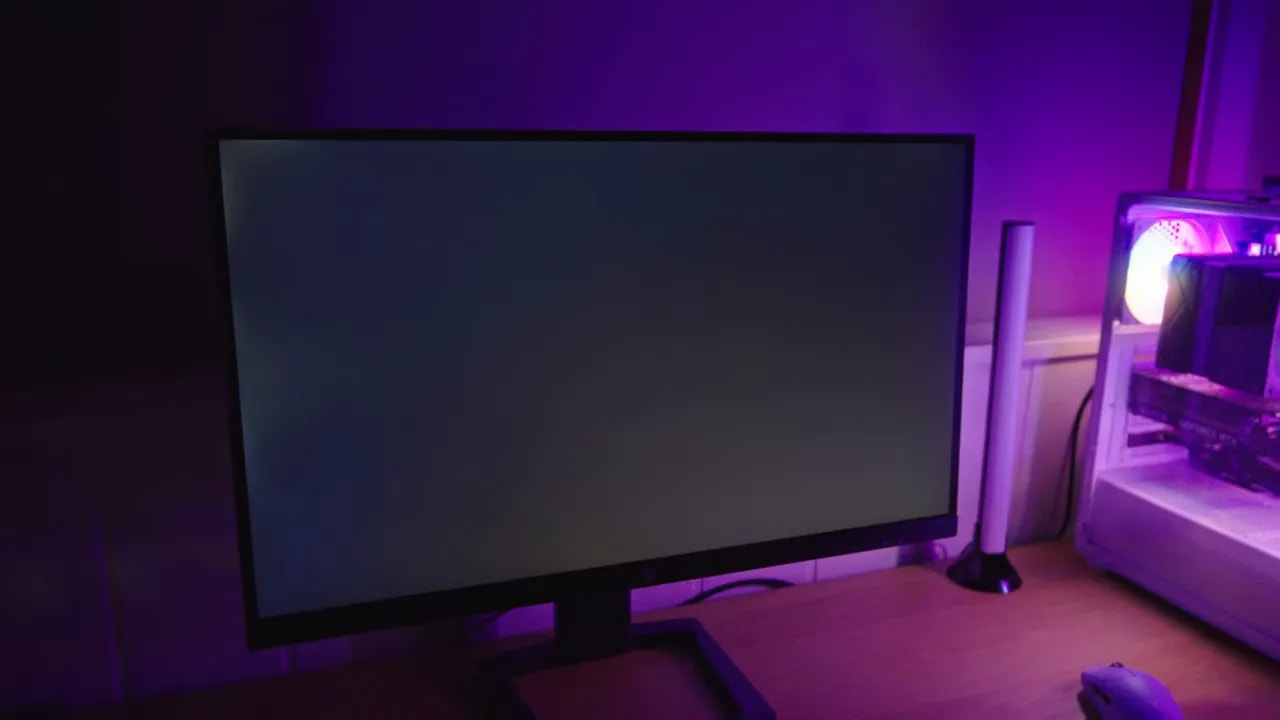
The IPS Glow, the grayish effect seen from certain angles or in dark scenes, is roughly average for what I usually see on IPS panels.
In fact, I have tested monitors with better contrast or slightly deeper blacks that then had more IPS Glow. So here, while not spectacular, it delivers without serious disappointments.
HDR: usable, but largely a token feature
If you enable HDR in Windows and the image suddenly looks odd, almost sepia-toned, nothing has broken. The issue is that you also need to enable it in the monitor’s menu. You can simply leave it on automatic.
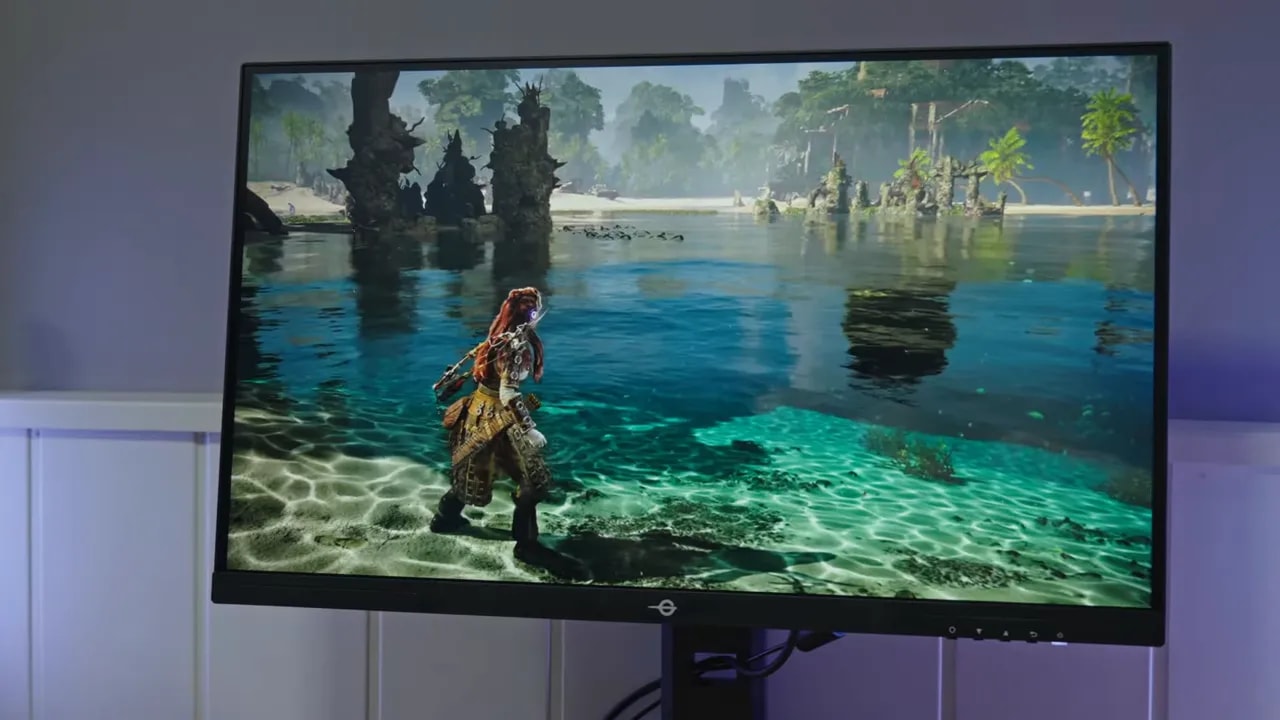
Its three HDR modes are very similar. Brightness increases a little, to around 367 nits, and the luminance curve is fairly good. The problem is mainly in the PQ EOTF curve, where some shadow detail is lost at the lowest levels because brightness tends to be lifted too much.
Color accuracy is not bad relative to its coverage. It reaches 73% of BT.2020. But color volume, which should not be confused with gamut coverage because brightness is also involved, falls somewhat further in BT.2020.
By contrast, in DCI-P3 and BT.709 the color range remains fairly wide.
The verdict here is clear: HDR is present, but it is not a reason to buy this monitor. Like almost all its direct rivals, it needs much more brightness and vastly more contrast to offer truly good HDR. That requires solutions such as Mini LED with local dimming.
It may be useful in some games, but personally I still prefer SDR.

Midtones follow the reference reasonably well, but shadows are raised by the panel’s black level and highlights are limited at the brightness ceiling. This is why SDR performance deserves more weight than HDR compatibility.
Response times and overdrive
The menu contains several somewhat hidden overdrive levels, five in total. The best result for me came from mode 2.
With this setting, initial response time is around 5.67 ms. It is not extraordinary or the fastest monitor on the market, but it is quite good, especially because it maintains very little overshoot.
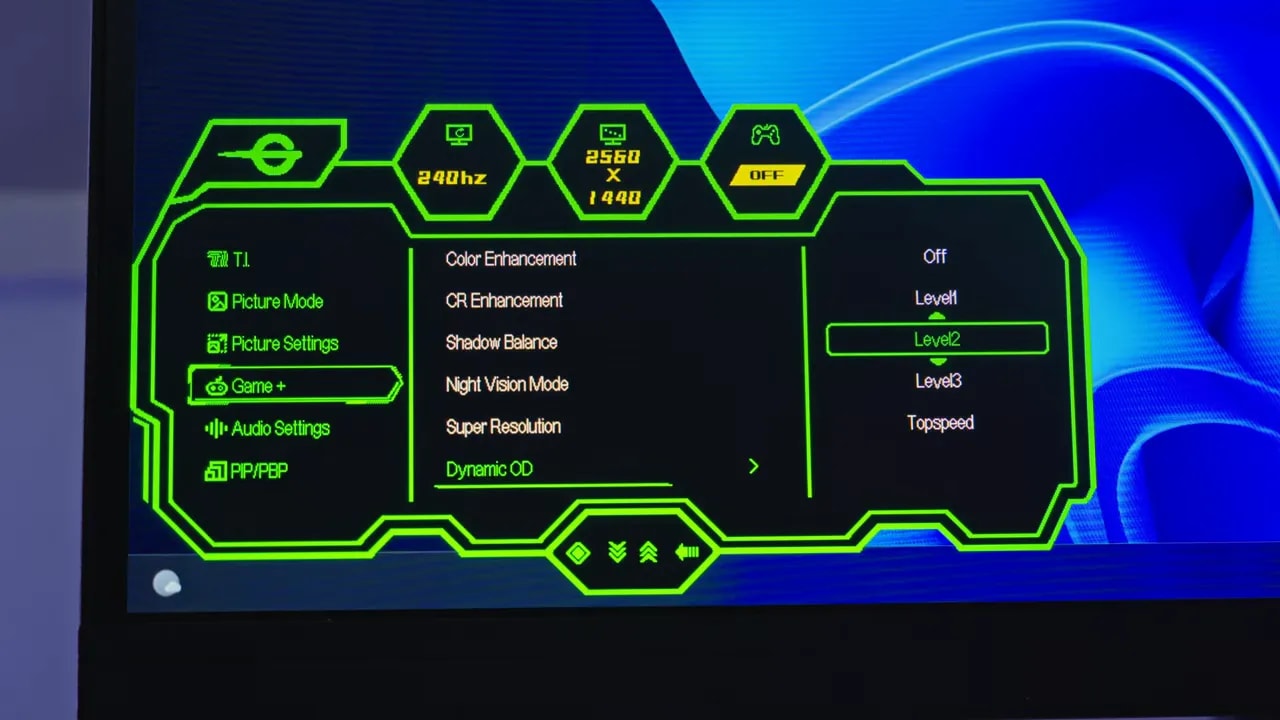
UFO-style tests clearly show mode 2 improving over Off and mode 1, making it the most sensible setting to leave enabled. Mode 3 is also worth trying if you want a little more speed, although some overshoot starts to appear.
I do not recommend the most aggressive, top-speed-style mode, because the excess becomes more noticeable and no longer pays off.

Level 2 is the tested compromise at 240 Hz. The reference remains 5.67 ms initial response with little overshoot; at lower refresh rates, also check OD 1 measurements rather than automatically applying the same setting.
VRR, G-Sync Compatible, and FreeSync
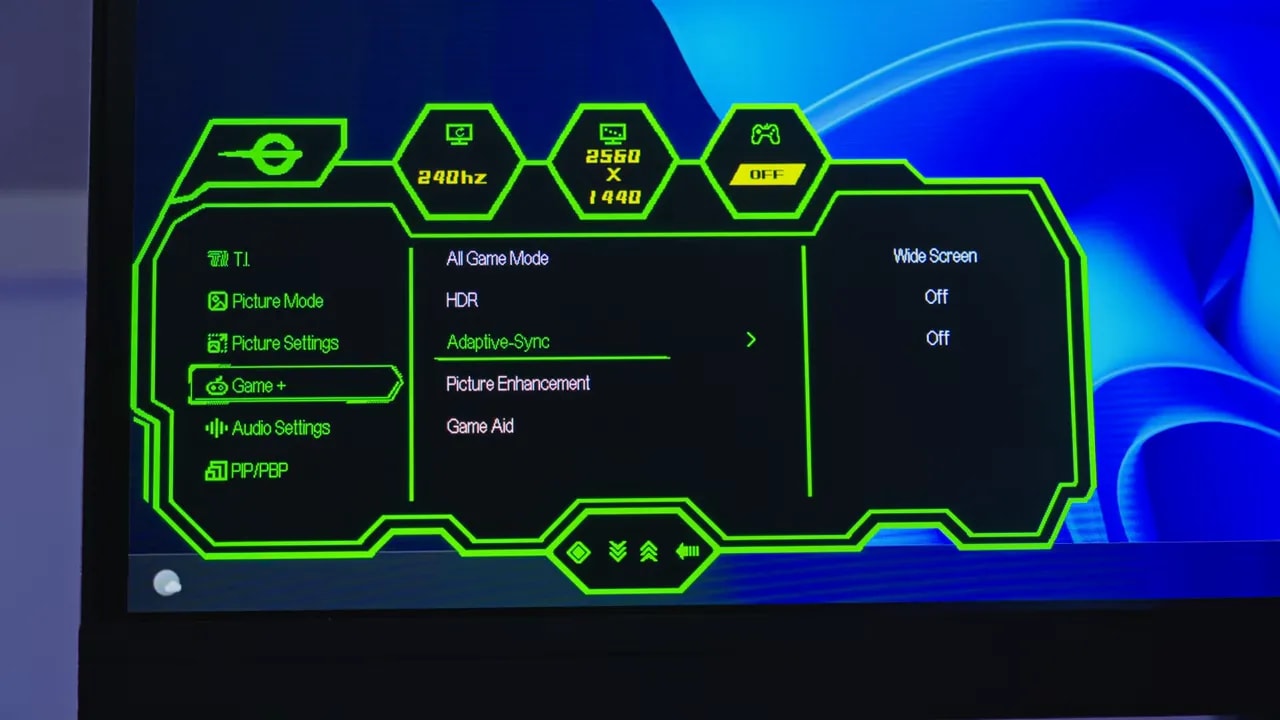
The monitor supports VRR, meaning Adaptive Sync, FreeSync, and operation as G-Sync Compatible. It appears as Adaptive Sync in the menu and simply needs enabling.
Testing with an Nvidia graphics card showed good behavior. The pendulum test showed no flickering, and other patterns revealed no significant issues. So, at least on this unit, VRR works as it should.
PS5 and console compatibility
An important PlayStation 5 detail: to get the most from it, enable SPX mode.
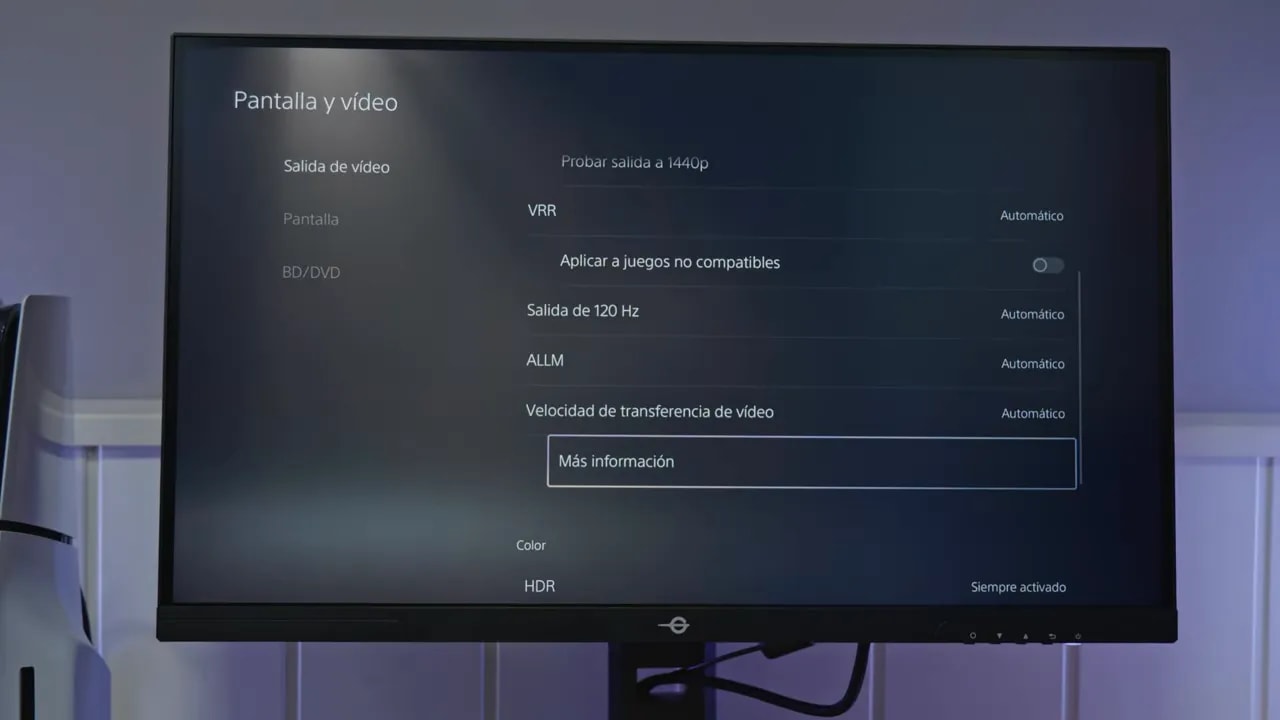
With that enabled, the monitor allows:
- 1440p at 120 Hz
- VRR
- ALLM
- HDR
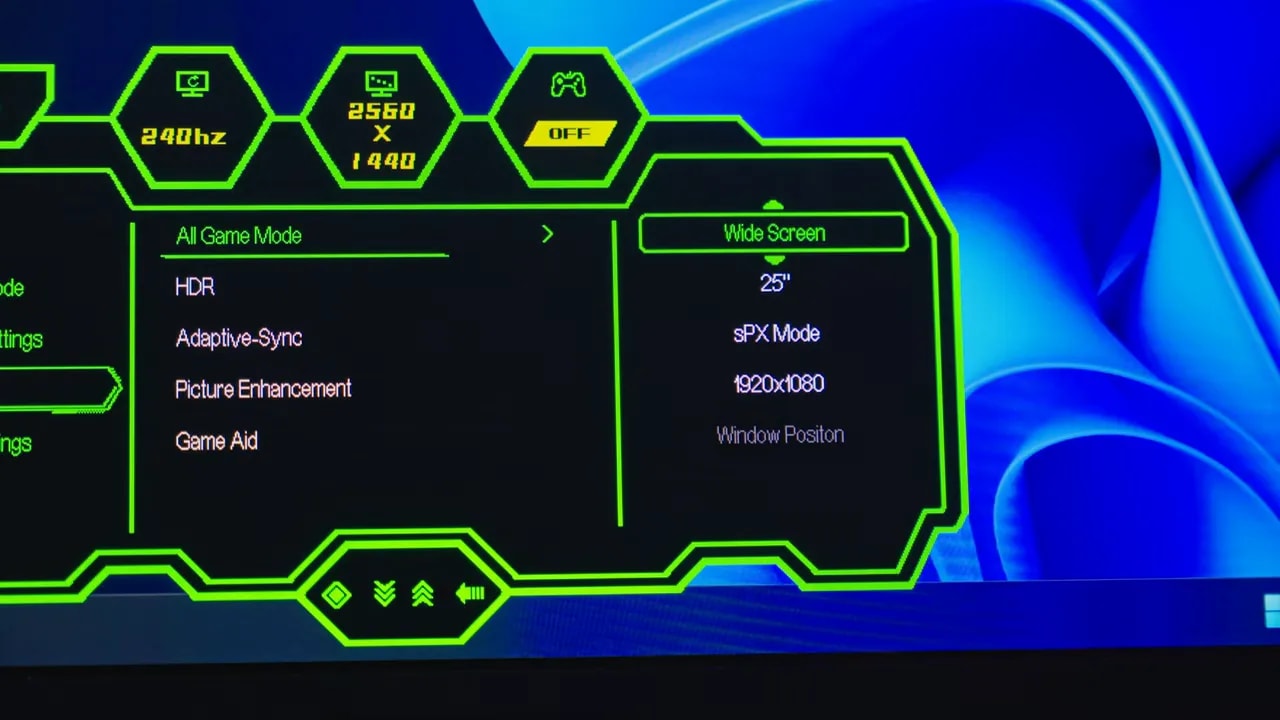
It also supports supersampling at 4K 60 Hz while retaining VRR. Only 4K at 120 Hz is missing, but there is little more to ask at this price. In fact, its console compatibility is quite unusual for this type of monitor at this cost.
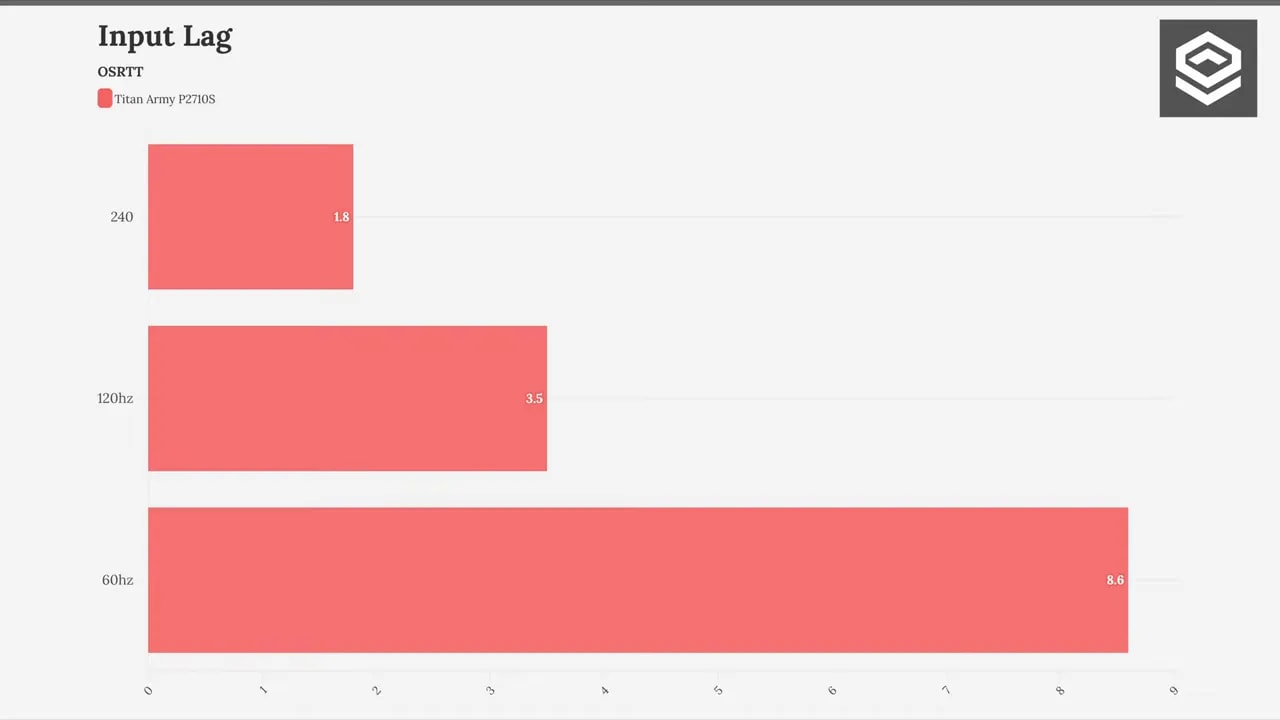
Nothing concerning with input lag. At both 240 Hz and 120 Hz and 60 Hz, the figures are within normal ranges.
Extra features
It is not packed with flashy extras, but one useful feature deserves mention: PIP and PBP, for displaying two video sources simultaneously.
Not everyone uses this, of course, but if you connect multiple devices or want two signals at once, it is a useful addition.
Price and where it really makes sense
Price is where this monitor gets most interesting. At the time of the review, it could be found for 210 euros, especially at PCComponentes, although it was also available on Titan Army’s official website and Amazon at varying prices.
And honestly, at 210 euros, it is excellent. That is where this model really makes sense, because it offers a combination of specifications that normally costs more.
The best and worst of the Titan Army P2710S
What I liked most
- Wide color gamut for its price
- Very good factory calibration, uncommon in this range
- 1440p and 240 Hz at 27 inches for a very aggressive price
- Decent ergonomics with an adjustable stand
- Good VRR performance
- Very capable PS5 compatibility
Where it is weaker
- Brightness and contrast adequate, but not among the best in its segment
- Basic construction, with plenty of plastic
- Token HDR, like most monitors in this range
- Good response times, but not top-tier
Conclusion
The Titan Army P2710S is not trying to be the best 27-inch 1440p 240 Hz monitor on the market. It does something much smarter: offering a lot for very little money.
If you want premium finishes, class-leading contrast, or serious HDR, better options exist. But if you want a fast monitor with a good practical experience, surprisingly good colors, and a very solid feature set without stretching your budget, this model makes a lot of sense.
In fact, what convinces me most is not just the specification sheet, but that in everyday essentials such as color, general use, gaming, and compatibility, it performs better than its price suggests.
For around 210 euros, there is little more to ask.