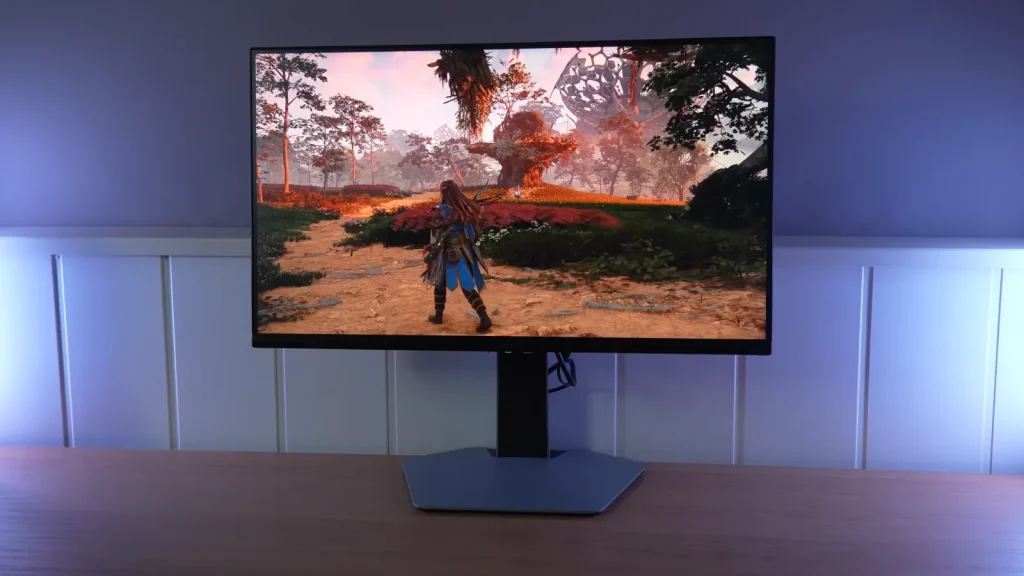
The TCL 25G64 combines a 300 Hz 1080p IPS panel with a 180-zone Mini LED backlight. Brightness and color modes are strengths, while how those zones are controlled matters more than the count alone.
This monitor is intended for those who prefer a compact, fast display. Testing also reveals compromises in uniformity, blooming, and color depth at maximum refresh rate.
Accessories, ergonomics, and connections
The packaging of the TCL 25G64 includes the basics, and handles them well:
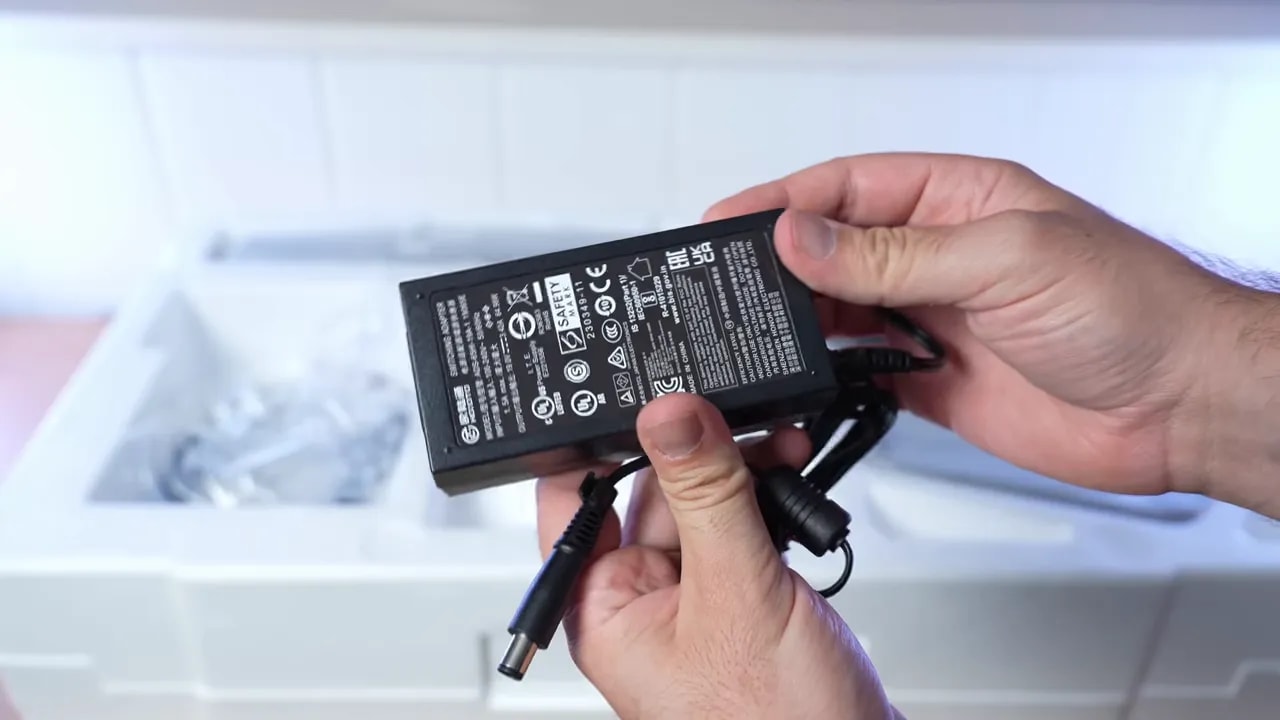
- External power supply
- DisplayPort cable
- Documentation
- Calibration report
- Base and stand
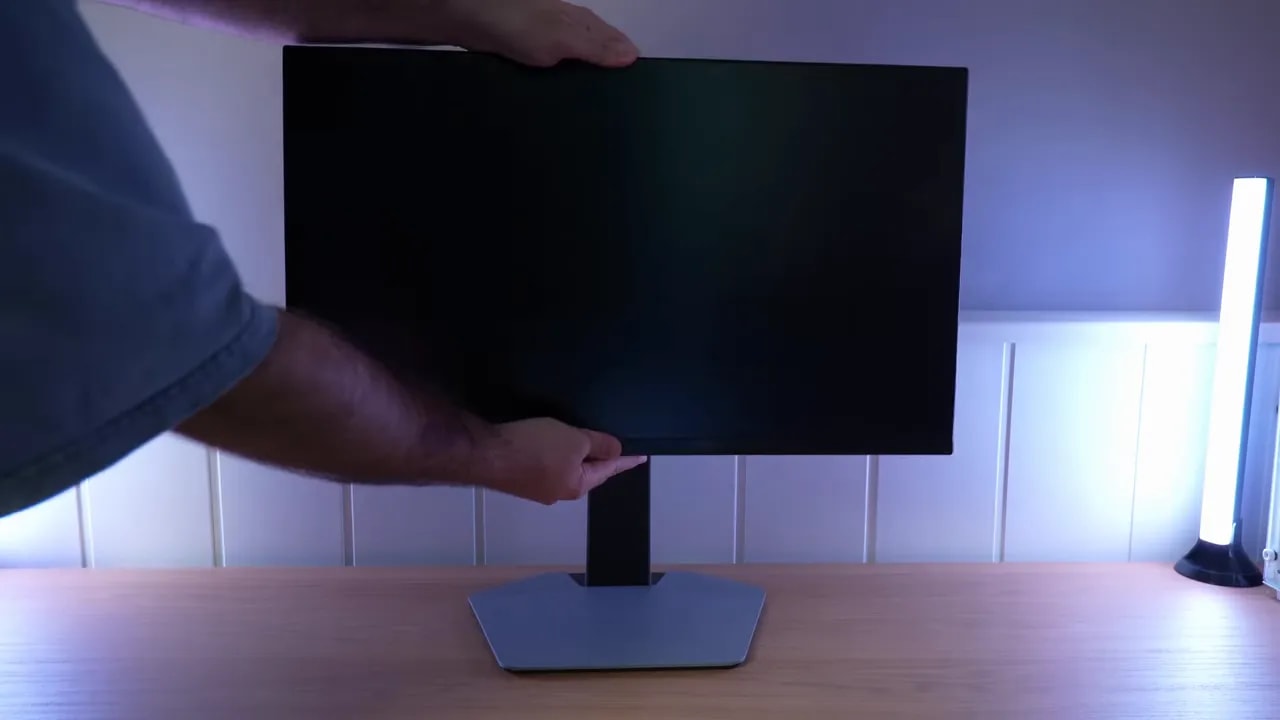
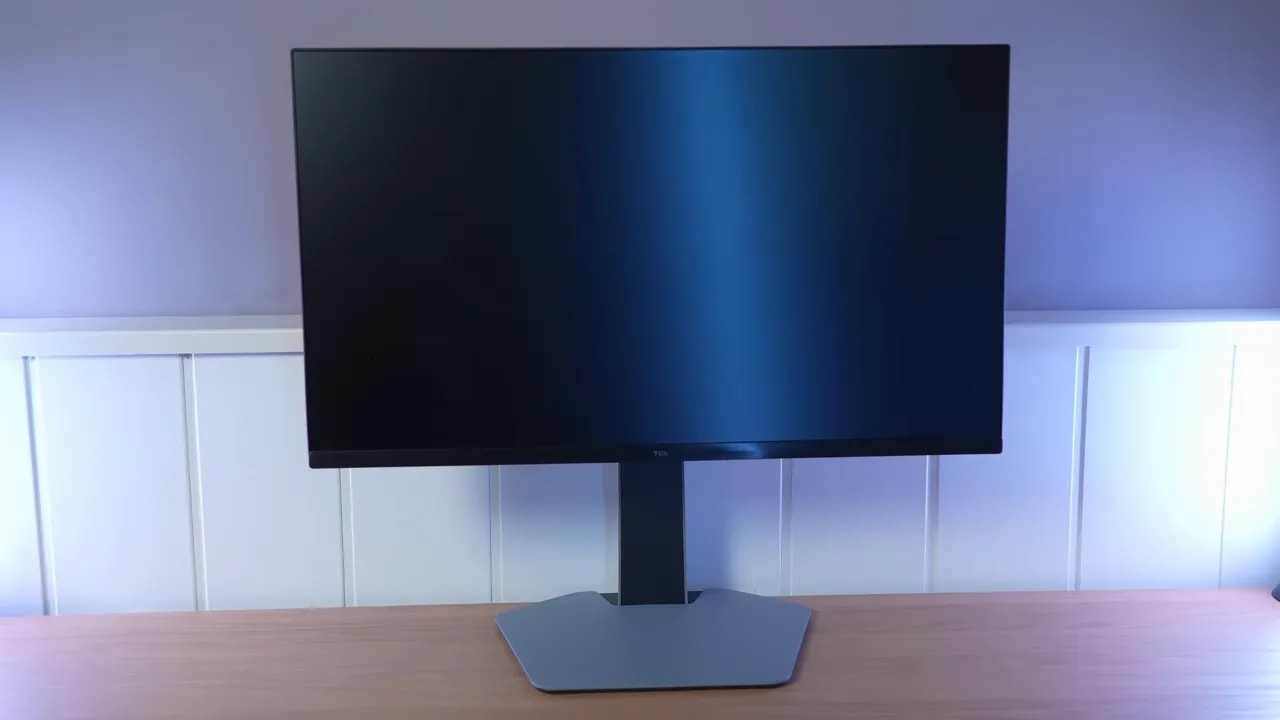
The stand pleasantly surprised me with its quality and cable management system. Ergonomic adjustments are generous. It offers:
- Height adjustment
- Forward and backward tilt
- Swivel
- Portrait pivot in either direction
In fact, you can swivel the monitor without moving the base, which is always welcome on a desk. The only clear downside here is that I find the base too large for the panel size. It is not a major issue, but it takes up more space than it should.
Overall, the construction of the TCL 25G64 seems good to me, with a fairly minimalist design appropriate to its price range.
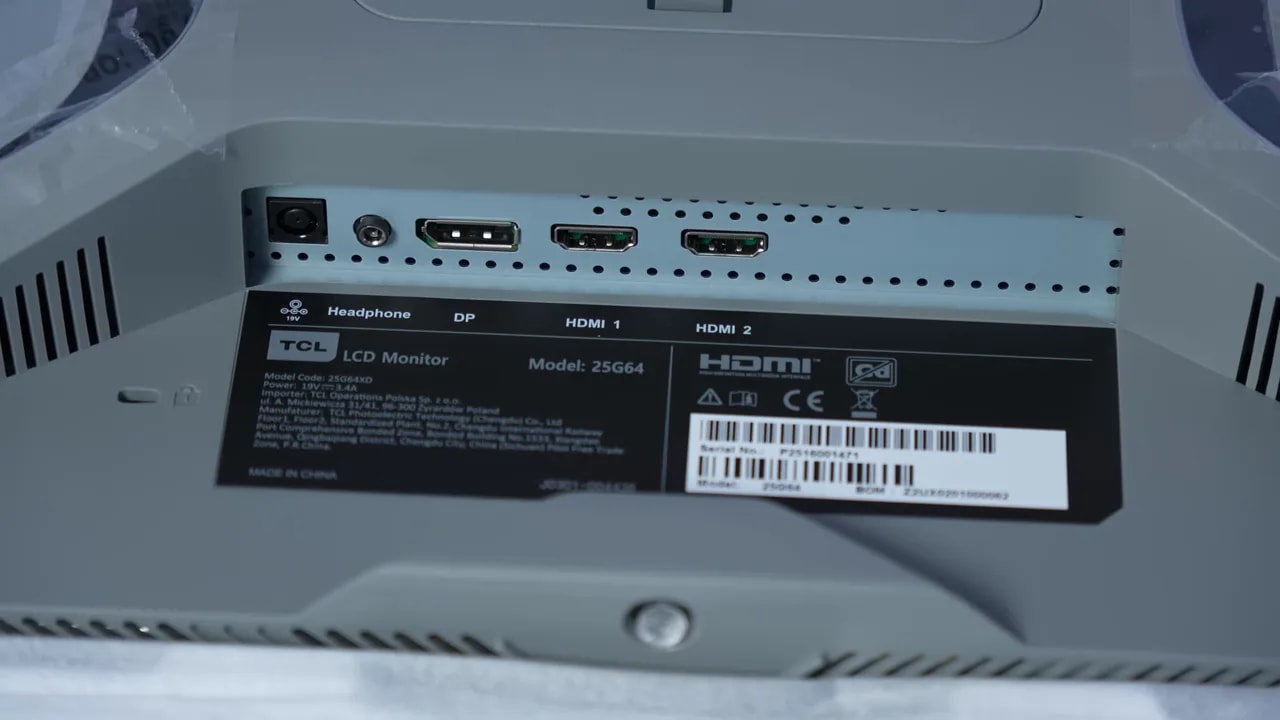
For connectivity, the TCL 25G64 offers:
- 2 HDMI
- 1 DisplayPort
- 3.5 mm audio output jack
- Power connector
There are no built-in speakers, so the jack serves as an audio output rather than an integrated sound system.
The OSD is navigated using a single illuminated joystick. I found it convenient, simple, and well implemented. There is no need to reinvent things when something this simple works.
The screen finish is matte and fairly pronounced. This has the clear advantage of controlling reflections very well, but there is a tradeoff. Colors lose some vibrancy, and whites can show some graininess. That effect is present on this model. It is not excessive, but it is there.
Color: professional modes and native gamut
This is where the TCL 25G64 starts getting serious. It has several professional modes, and brightness and color temperature remain adjustable. In these modes, the best-fitting setting is clearly warm, meaning warm.
sRGB
The sRGB mode clamps the gamut a little more than I would like, but it is not poorly implemented. The real highlight here is calibration. A Delta E below 1 is remarkable for a gaming monitor at this price.
If blue extended a little further, it would be almost perfect. Grayscale balance is very well tuned, color temperature is practically on target, and gamma follows the sRGB standard quite convincingly, though somewhat high. RGB balance is also good, with blue slightly low.
Rec.709
There is also a Rec.709mode, which is unusual on a gaming monitor and more useful for anyone working with video. Coverage is very similar to sRGB, although the clamp is slightly less aggressive here. However, color accuracy, while good, falls behind sRGB mode.
The main difference is gamma, which targets 2.4, more in line with video and television. Grayscale balance remains quite good.
Adobe RGB
In Adobe RGB, the TCL 25G64 covers approximately 88,9%. Not bad at all for this type of monitor. Color accuracy is good again, although some greens and blues deviate a little more. Grayscale balance remains solid, though slightly worse than sRGB.
DCI-P3
The DCI-P3 mode is particularly good. Coverage reaches 93% and color accuracy is among the best I have seen on a gaming monitor. Even with a more inaccurate green here and there, the maximum Delta E of 2.23 is still very good.
Grayscale balance is also quite well tuned. If you want to use the TCL 25G64 for color work without a colorimeter, this is one of the modes well worth considering.
If your main use is gaming, or if you work with color and do have a colorimeter, I recommend using the monitor in Original gamut. Why? You lose some accuracy compared with the clamped modes, yes, but gain a wider color range.
In that mode, the TCL 25G64 reaches:
- 92% Adobe RGB
- 97% DCI-P3
And that matches the advertised figures. In fact, among the 1080p monitors I have tested, this one has one of the widest color gamuts.
Ideally, set color temperature to warm and use Gamma 1, the setting closest to the sRGB standard. User mode with manual adjustments is another option for custom calibration.
Manual calibration targeting DCI-P3 D65 improves the monitor further. However, ICC profiles are more suited to color work and content playback than pure gaming.
Brightness and local dimming: what 180 zones achieve
The brightness of the TCL 25G64 is simply far above the norm in its category. In practically every measurement, it exceeds 500 nits.
Depending on the colorimeter and mode, results include:
- More than 600 nits in User mode with an older colorimeter
- Around 560 nits in Warm using that same reference
- More than 500 measured nits with the more accurate colorimeter
In short, the TCL 25G64 is one of the brightest 1080p monitors I have tested. Native contrast is also quite good for an IPS, though of course, the real highlight here is local dimming.
The TCL 25G64 uses Mini LED backlighting with 180 zones. On paper, that is not many. In fact, the count may sound low. But that is where the algorithm comes in, and I have to say it surprised me quite a bit.
For those unfamiliar with it, a Mini LED monitor divides the backlight into zones that can dim or turn off according to the content. This improves blacks and contrast, but because control is not per pixel, a bright object near a dark one produces the familiar blooming, the halo around lights.
In a checkerboard pattern, black levels do improve, but the difference is small. Here you notice that 180 zones are still 180 zones. This test is especially harsh on this type of system, and it does not fare particularly well in either SDR or HDR.
Compared with other Mini LED monitors, such as some Xiaomi or KTC models, blacks in that technical test are less deep. Even so, that does not tell the whole story, since local dimming depends heavily on the content.
If you use scenes or patterns closer to real content instead of an extreme test, behavior changes considerably. For example, in a typical maximum-white and maximum-black measurement, black level can drop to 0,008, producing contrast above 68.000:1. Obviously, that does not represent normal use, but it shows how far it can go.
With patterns combining black and white rectangles, contrast improves noticeably over disabled local dimming. It is not a standardized measurement, but it helps explain the situations where the TCL 25G64 shows its strengths.
After testing different patterns, medium mode seems the most balanced for both blacks and brightness. In fact, luminance is very close to High mode, but with quite sensible behavior.
One of the most striking things about the TCL 25G64 is how it responds to different APL levels, meaning the percentage of bright image on screen.
In SDR, with local dimming set to Medium or High, peak brightness appears at around 25% APL, coming very close to 1000 nits. It is quite an unusual curve. Many Mini LED monitors behave differently, so this likely reflects a decision related to power consumption or energy regulation.
In HDR, behavior is very similar, but with good news: I found no apparent brightness drops like those on other models. At 100% APL, it stays around 800 nits, and holds up quite well at different percentages.
HDR and blooming in real content
There are several HDR modes, each associated with color temperature and local dimming settings. These can be adjusted afterward, so you are not completely tied to a fixed configuration.
The best general starting point, in my view, is DisplayHDR mode with color temperature set to warm. Avoid Standard temperature, because it adds too much blue and also reduces brightness.
One important detail is that, despite this not being OLED, HDR calibration varies with APL because brightness changes with local dimming enabled. At 100% APL, for example, the PQ EOTF curve performs worse than in other scenarios.
In BT.2020, the TCL 25G64 reaches 76%, a fairly reasonable figure. Color accuracy follows the usual pattern for Quantum Dot monitors, and when measuring color volume, which also accounts for brightness, it falls below 70% of BT.2020.


With DisplayHDR, LD High gains brightness over Standard but darkens some shadows and midtones. Local dimming changes both contrast and luminance tracking; the gallery’s larger windows complement this 10% comparison.
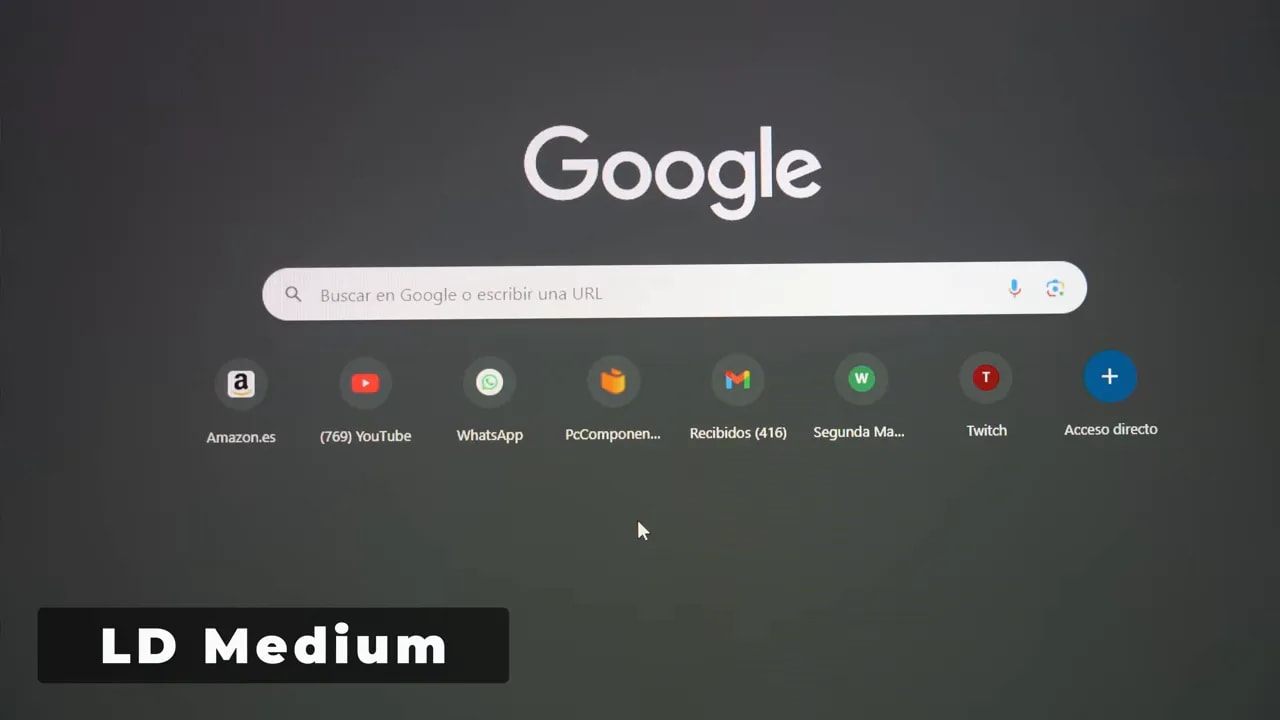
This left a better impression than expected. On the desktop, the TCL 25G64 seemed even better implemented than other Mini LED monitors with more zones. For example, you do not see the “zones chasing the mouse” effect found on some competitors.
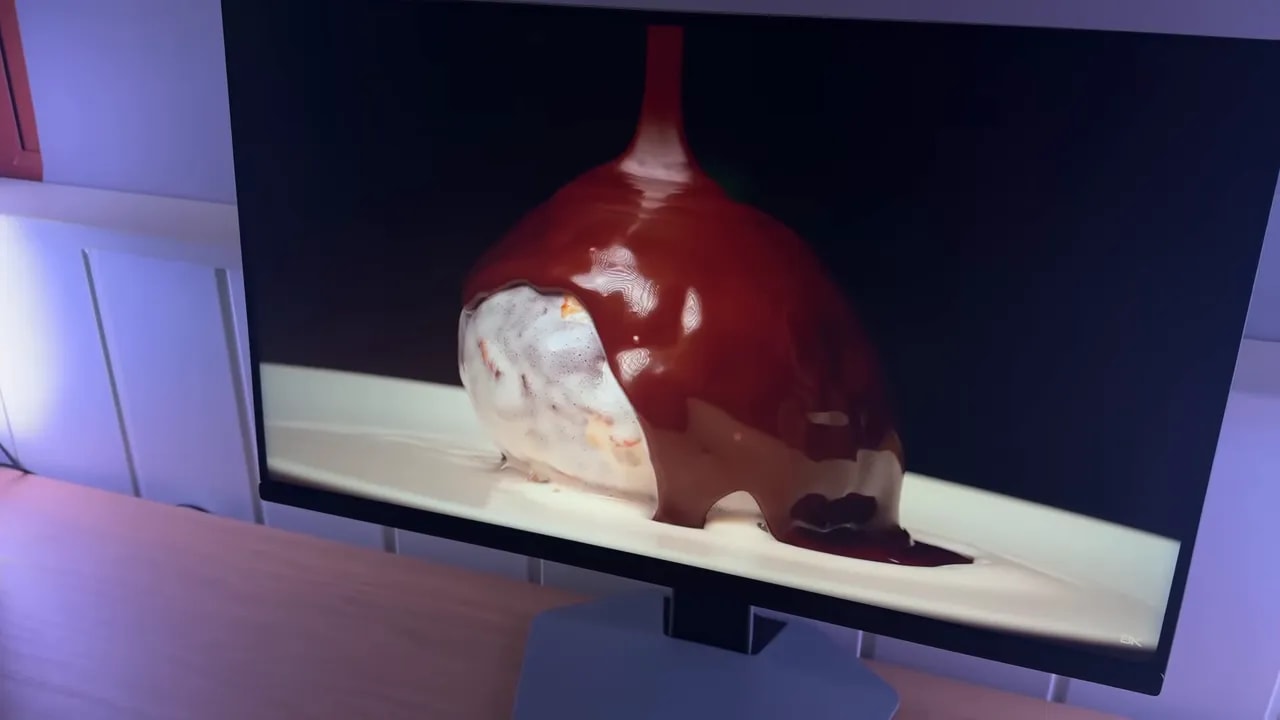
That does not mean blooming disappears. Far from it. Black backgrounds with very bright objects reveal halos, especially when viewing the monitor from the side, where they become even more noticeable.
In a browser, for example, some Chrome icons can show a halo around them. The point is that, for just 180 zones, the implementation is better refined than I expected.
Uniformity, glow, and brightness modulation
As with other Quantum Dot monitors, the TCL 25G64 tends to show a reddish glow when viewing dark tones from certain angles. I am not referring to a red-tint bug, but the typical behavior of this layer.
The good news is that enabling local dimming reduces the effect considerably.
As for backlight bleed, my unit could have been better. Some is visible near the top, and I also received a unit with a sluggish pixel that can become visible on dark backgrounds.
Brightness uniformity could improve, but is acceptable. Where it clearly falls short is Color uniformity, which I find quite poor. This happens in both Original gamut and professional modes, although the latter improve it slightly.
That has an important consequence: the center may be very well calibrated, while the corners shift in color. I do not see it as a major problem for gaming. For serious color work, it can be an issue when using high brightness.
One of the most debated topics with Mini LED monitors is PWM backlighting. This system uses high-frequency flicker and can contribute to eye fatigue for some people.
Although the brand advertises certifications related to blue light and similar matters, based on what I could check, the TCL 25G64 does show some flicker. More than the KTC, less than the Xiaomi. Without specialized equipment, I cannot quantify it precisely, but I would not be at all surprised if it does use PWM, as other models in this category do.
300 Hz at 8 bits or 240 Hz at 10 bits
The TCL 25G64 stands out for more than color and brightness. It also has 300 Hz, which calls for a close look at response performance.
First, a practical detail: at 300 Hz with HDR the monitor tops out at 8 bits. Lowering it to 240 Hzallows 10 bits, which is useful for reducing banding in HDR content.
There are three overdrive modes, and the one I generally recommend is Fast.
- Fast: average initial response time of 5.65 ms with no noticeable overshoot
- Fastest: drops to 3.64 ms, but increases overshoot noticeably
In the UFO Test, Fastest is not unusable, but it creates visible artifacts on both light and dark backgrounds. So, despite the more impressive number, I do not consider it ideal for real use.


Fast keeps overshoot low and provides the recommended balance at 300 Hz. Fastest pushes response harder and increases artifacts. Choosing between 300 Hz at 8 bits and 240 Hz at 10 bits in HDR affects another part of the experience: refresh rate versus gradation.
If you prefer 240 Hz to take advantage of 10-bit color, the best setting remains Fast. Here it comes in at around 5.54 ms without overshoot. The more aggressive mode again reduces time, but with even more artifacts.
Compared with the 300 Hz Titan Army, behavior is similar, though I would say the Titan Army controls dark-transition ghosting slightly better. Against the 400 Hz KTC, those extra 100 Hz are understandably noticeable: there is less motion blur and better definition in motion, so the KTC still has the advantage for pure competitive gaming.
The TCL 25G64 supports FreeSync Premium in both SDR and HDR. Tested with an Nvidia graphics card, it works quite well despite lacking official G-Sync Compatible certification.
Some minimal flicker can be seen, particularly with local dimming active in certain scenes, but I saw nothing especially bothersome. With local dimming disabled, flicker is lower still.
There is no dedicated input lag reduction mode, but the figures are entirely normal.
HDMI and PS5 use
The official website lists the HDMI ports on the TCL 25G64 as 2.1, although their behavior suggests they do not offer full HDMI 2.1 bandwidth. For example, higher-resolution supersampling is not supported, and console use is limited to 1080p.
Even so, it does allow:
- VRR
- ALLM
And that is not particularly common on 1080p monitors of this type.
For console use at 120 Hz or 60 Hz, I also recommend leaving overdrive on Fast. Overshoot remains very low and response times reasonable.
Conclusion: a 1080p monitor with different priorities
The TCL 25G64 strikes me as, if not the best, certainly one of the best 1080p monitors available right now. It balances color, brightness, contrast, and motion performance very well. That is not easy to find, especially at this price.
It is not perfect. Color uniformity is its weakest point, and the Mini LED zone count limits what it can do in difficult scenes. Even so, the overall result is surprisingly good.
If you plan to move to 1440p soon, saving for something else probably makes more sense. But if you are happy with your current PC, play at 1080p, and want a clear upgrade in almost every area without blowing your budget, the TCL 25G64 is a serious contender.
In short, an unusual monitor in a good way. And that is precisely what makes it interesting.