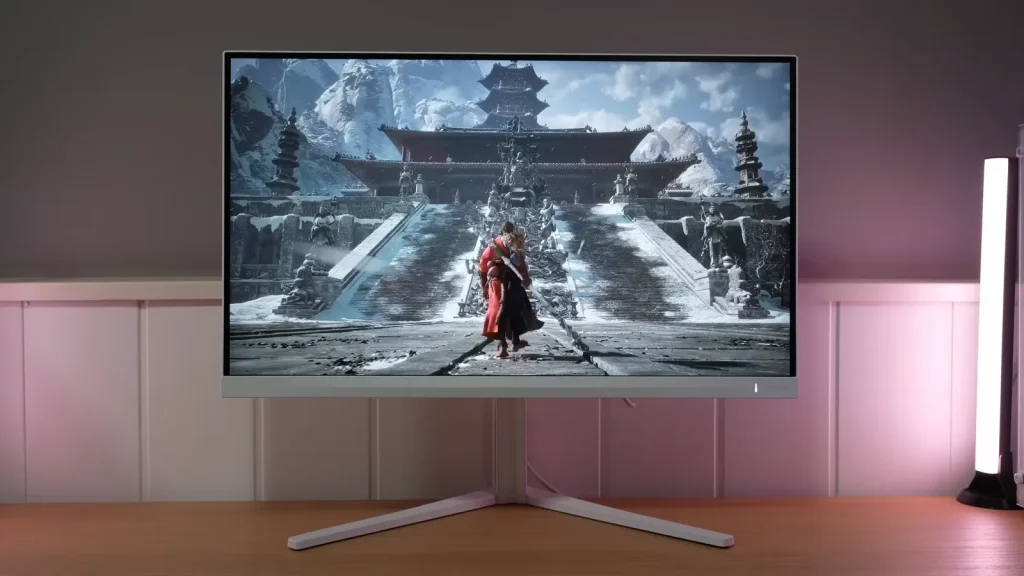
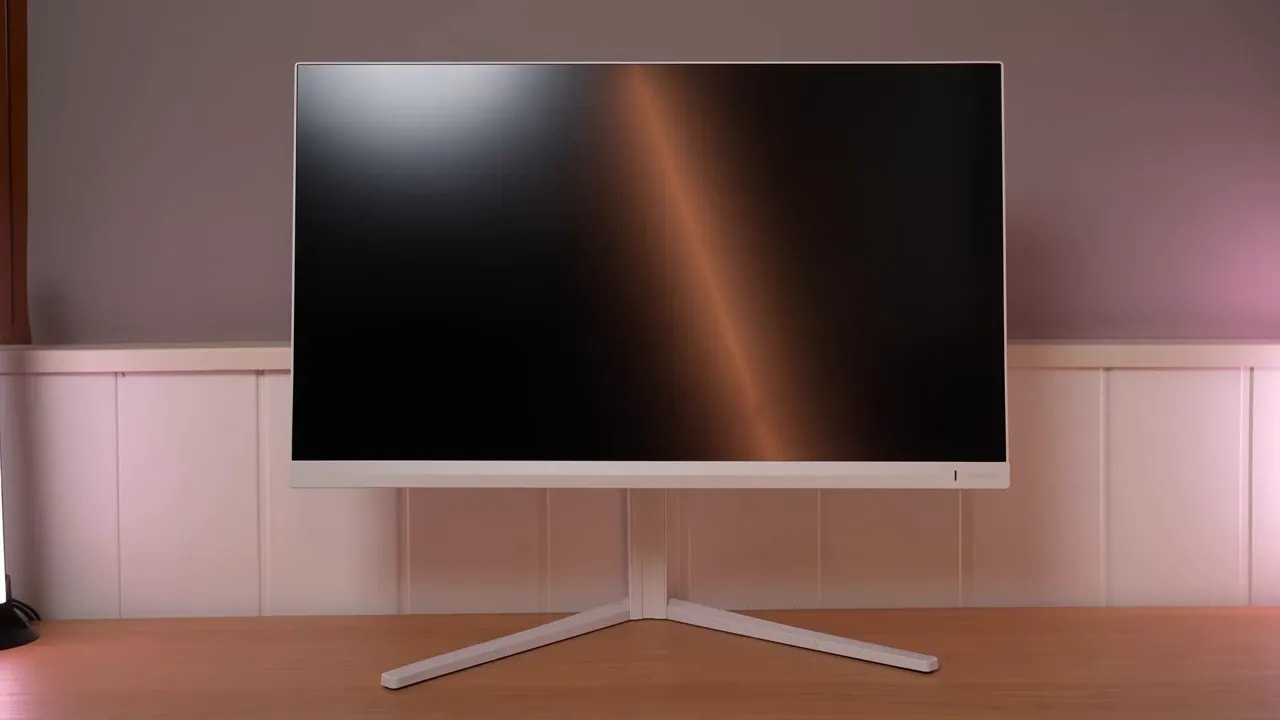
The Philips Evnia 27M2N3501PA combines a 1440p IPS panel running at up to 260 Hz with white styling and an adjustable stand. It offers considerable image flexibility, but overdrive and Adaptive Sync settings need attention for the cleanest balance.
Its light matte finish and joystick controls are practical advantages. Limited HDR, the standby LED, and differences from the equivalent AOC round out an assessment that goes beyond maximum refresh rate.
Packaging, assembly, and connections
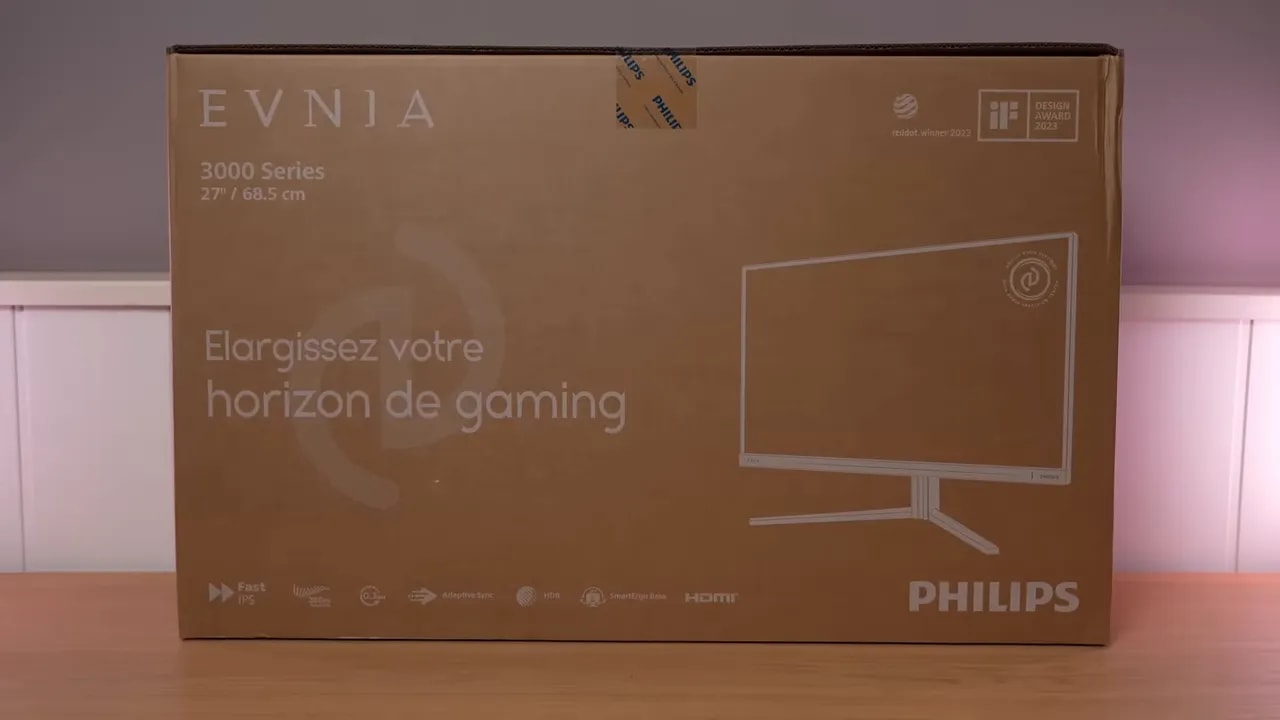
Packaging is well organized and does not suggest cuts to the basics. The box contains expected accessories and a few welcome details.
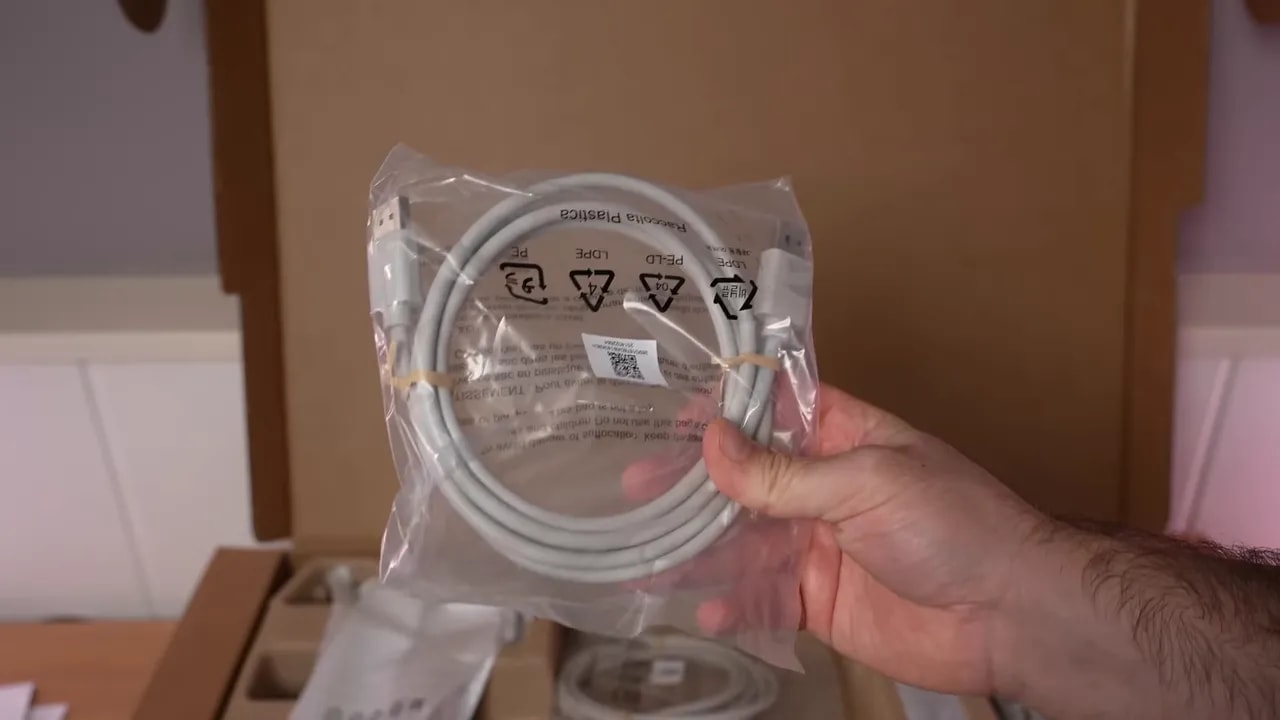
Includes:
- Cable DisplayPort
- Cable HDMI
- Power cable
- Documentation
- Calibration report
An interesting detail that adds considerable visual appeal is that the cables are white too, matching the monitor. It may sound trivial, but in a light-colored or minimalist setup, it looks much better than a typical black cable disrupting the aesthetic.
The stand on the Philips Evnia 27M2N3501PA offers more than acceptable quality. It does not feel high-end premium, but certainly does not feel cheap either. The less favorable point is that the base takes up considerable desk space, so keep that in mind if your desk is small.
Ergonomics are very good. The stand allows:
- Adjustment for height
- Tilt
- Swivel
- Use in portrait orientation in both directions
- Swivel the screen without moving the base
Also, although it may not look like it at first glance, it does support VESA mounting. It has a cover or small plate that you remove to attach the monitor arm of your choice.
In short: good ergonomics, good looks, and a major plus if you want a white monitor that does not sacrifice performance for aesthetics.
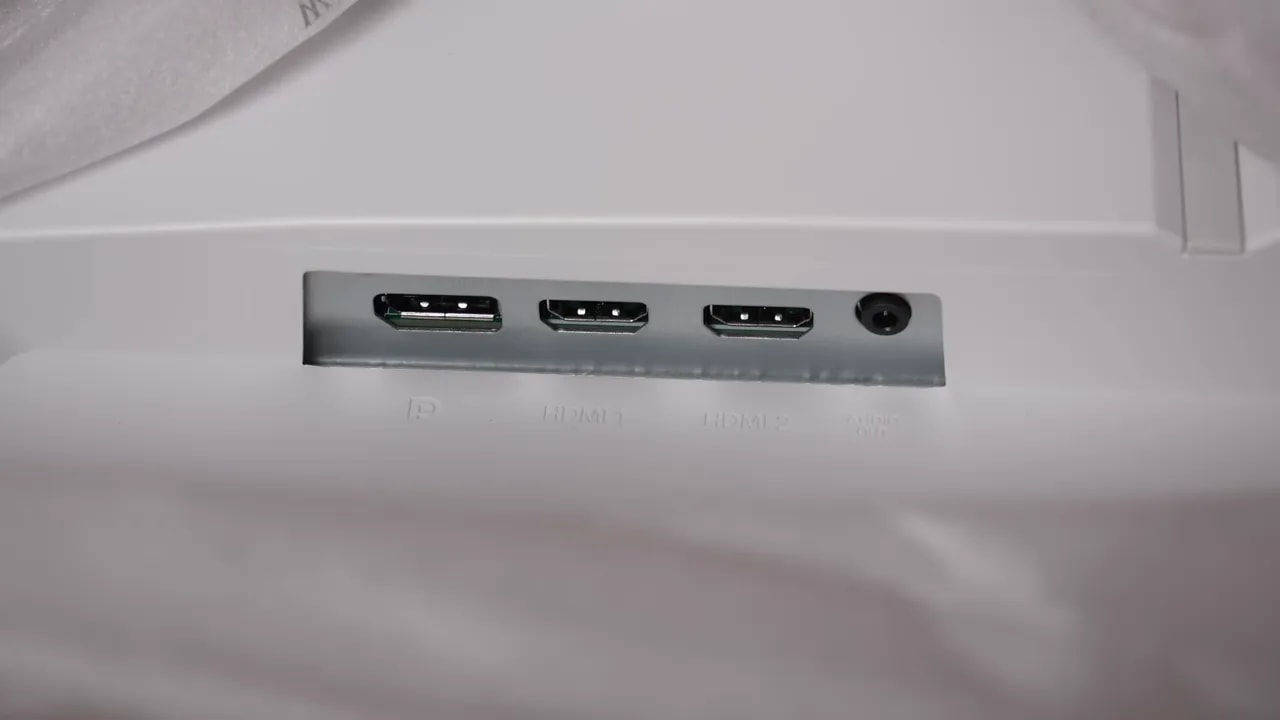
There are not many extras in terms of connectivity, but the essentials are covered:
- 2 HDMI
- 1 DisplayPort
- Audio jack
There is an important practical detail here. Instead of the multiple-button setup found on some rivals, this Philips uses a joystick to navigate the OSD. Honestly, that makes the monitor much easier to use. Setting up a monitor with a joystick is usually much more convenient and faster.

Screen finish and color settings
The screen finish is matte, as is typical in this segment, but it is not one of those aggressive matte coatings that dulls the image too much or introduces obvious grain.
Philips has chosen a lighter matte coating. What does that mean?
- Worse reflection handling than other monitors with stronger coatings
- Greater perceived sharpness
- Less grain on light backgrounds
It is a fairly reasonable trade-off. If you work in a room with a lot of direct light, it will not be the best coating for fighting reflections. If image clarity is your priority, it comes out ahead.
The menu on the Philips Evnia 27M2N3501PA includes several picture presets and plenty of adjustment options. You can change:
- Color temperature
- Gamma
- RGB channels
- Picture modes
- sRGB gamut limiting
The sRGB mode implementation is not particularly intuitive. Instead of having a clearly separate, standalone sRGB mode, Philips lets you limit each preset to the sRGB gamut. It works, yes, but it is a bit confusing.
The best starting results come from:
- Standard mode
- 6500K
- Gamma 2.2
It is not a perfect factory setup, but it is the most solid starting point.
Gamma tracking tends to run a little high. That affects grayscale performance and leaves it less refined than it could be. The 2.2 setting is closest to the target, although it does not follow the curve perfectly.
Trying gamma 2.0 does not really fix this, because that 2.0 setting behaves more like a kind of 2.1. So it is not the solution.
RGB balance could also be better. The blue channel is a little low, and the color temperature is slightly warmer than ideal, although it does not stray wildly from 6500K.
Average grayscale accuracy is not bad, but there is clear room for improvement. Pure white approaches a Delta E of 4, which is a deviation that could certainly be improved.
DCI-P3
Coverage of DCI-P3 is 93.6%, a fairly capable result for this price range.
Accuracy within this gamut is acceptable. The weakest points are green and yellow, which fall a little short on saturation.
Adobe RGB
At Adobe RGB comes in at around 92% coverage, but you should avoid drawing the wrong conclusions here. This is not a monitor designed specifically for serious photographic work in that gamut. Some colors stray noticeably, such as the oversaturation in red, and that is completely normal for a gaming panel of this type.
sRGB
Compared with sRGB, the panel shows the typical oversaturation you would expect from a gamut volume close to 120%. This means more vivid colors, which people often like for gaming, but which are not always suitable for web work or content designed specifically for sRGB.
The good news is that you can limit the gamut to sRGB. The bad news is that this limit clamped it too much, leaving it at around 93%. Even so, this mode has one very interesting benefit: it noticeably improves white, grayscale, and RGB balance.
In other words, if you want a more accurate image within sRGB, it may be worthwhile. If you want more vivid colors for gaming, it is best to leave that limit off.


The sRGB limiter controls native oversaturation, although it cuts back the gamut more than it should. Grayscale testing lets us assess white and gamma separately; choosing this mode does not automatically eliminate their deviations.
With a colorimeter, the Philips Evnia 27M2N3501PA improves. And the biggest improvements are where an imperfectly adjusted panel is most noticeable to the eye: grays, whites, and overall balance.
The calibration was aimed at DCI-P3, disabling sRGB mode to prioritize a more vivid image, which is generally more appealing for gaming.
To do this, custom color temperature settings were used within the 6500K preset, enabling manual RGB adjustment.
With the corresponding ICC profile, the improvements focus on:
- Better grayscale balance
- Well-adjusted white
- More accurate EOTF
- Better overall accuracy within the panel’s coverage limits
That said, it is worth being clear: ICC profiles make much more sense for multimedia and color work than for gaming. For gaming, the practical difference is much less important.
Brightness, uniformity, and HDR limitations
This monitor makes a fairly good impression for its segment in terms of brightness and contrast.
The figures are approximately:
- 400 nits of maximum brightness
- 1300:1 contrast
These are good figures for an IPS gaming monitor at this price. In fact, this is where this Philips does especially well against some direct rivals.
Color uniformity is fairly good. Brightness uniformity has more room for improvement, but it is still acceptable.
We also need to discuss the usual IPS issues: backlight bleed and glow.
There is some visible backlight bleed, but nothing extraordinary. No IPS is perfect in this respect. As for IPS glow, that brownish or whitish effect when viewed at an angle, it is average. Neither among the best I have seen nor among the worst.
The Philips Evnia 27M2N3501PA supports HDR, but expectations need to be realistic. As with many budget gaming monitors, HDR is largely a token feature here.
Truly convincing HDR would require two things that are not available at a sufficient level here:
- Higher brightness
- More contrast
Even so, there are several HDR presets, and the one with the best tracking of the PQ EOTF curve and luminance is Personal mode.
The downside is that the EOTF is inaccurate, especially at the lower end, so dark areas look brighter than they should.
HDR coverage:
- BT.2020: almost 70%
- UHDA-P3 / DCI-P3: around 93%-94%
That means no colors are lost compared with SDR, and color volume, although it drops as expected when brightness is also taken into account, performs well for the monitor’s price.
260 Hz: how to adjust response and MBR
One of the most appealing strengths of the Philips Evnia 27M2N3501PA is that it reaches 260 Hz through overclocking.
And here is the important part: it is worth enabling. There are no strange sacrifices or annoying compromises compared with 240 Hz. The panel still runs at 8 bits, because it is not a 10-bit panel, but there is no particular penalty for using that overclock.
Fast
The mode Fast is fairly clean, but a little slow for a monitor at this refresh rate. It comes in at around 6.88 ms of initial response time, and there is already some overshoot even then.
Faster
If you increase it to Fastermode, the time drops to around 4.86 ms, which is quite a bit better. The problem is that overshoot increases.
The numbers may not look dramatic, but in practice, when looking at UFO Test-style captures, that whitish halo does appear, especially in certain dark-green and medium-green transitions.
That is why my final impression is this: the overdrive is not bad, but it could be better tuned. Ideally, there would be a more refined intermediate mode between Fast and Faster. That is precisely what some similar AOC models handle a little better.
Even so, this needs context. We have reached a point in the market where these modern 1440p, high-refresh-rate monitors no longer have serious ghosting. Differences exist, but often you have to look quite closely to clearly notice them in normal use.
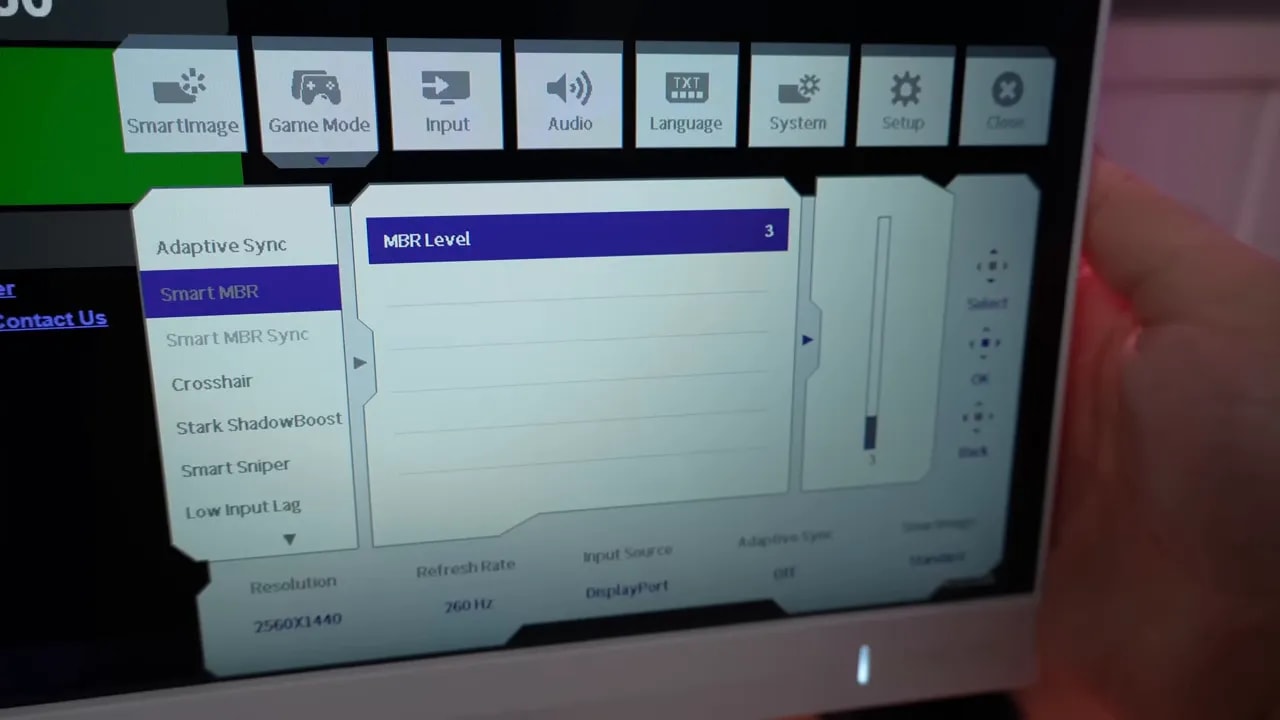
The monitor includes a Motion Blur Reduction mode adjustable from 1 to 20.
The higher you set it:
- The sharper motion looks
- The more pronounced the strobe crosstalk or double-image artifact becomes
It is the classic trade-off with these modes. Personally, I am usually not very impressed by them for exactly this reason: the double-image effect can be quite obvious.
There is also a fairly awkward behavior in the OSD. When adjusting MBR, the monitor automatically sets overdrive to its most aggressive mode, Fastest. You then have to go back and manually lower it to the mode you want. It seems buggy, and a fix does not look very likely.
It can be combined with any overdrive mode, and if you wanted to use it, the most sensible choice would be Fast or Faster, rather than Fastest.
Adaptive Sync also changes overdrive
As expected, the Philips Evnia 27M2N3501PA supports Adaptive Sync.
- G-Sync Compatible over DisplayPort
- FreeSync over DisplayPort or HDMI with AMD graphics cards
With an Nvidia graphics card, performance is good. There were no unusual problems with:
- Flickering
- Tearing
- Strange VRR behavior
Also, as on certain AOC models, Motion Blur Reduction can be combined with G-Sync Compatible and with different overdrive modes.
That said, just because it can be done does not necessarily make it worthwhile, because double edges remain visible.
There is an interesting technical issue here that deserves a mention because quick reviews rarely discuss it. Enabling Adaptive Sync on the monitor, even without then enabling it in the Nvidia control panel, can change overdrive behavior.
In measurements, that change sometimes results in:
- Faster gray-to-gray times
- More overshoot
The strange thing is that when you compare this with visual tests such as UFO, the practical result does not always change as clearly.
In this specific case, with Adaptive Sync enabled on the monitor but not in the control panel, the tests showed a faster monitor. Without that setting, the monitor measured considerably slower in testing.
However, even in a mode like Faster, where measurements seemed to indicate little overshoot, the white halo was still visible. This suggests that the practical test that best represents the real experience is the one with that setting enabled.
Tests were also run with different V-Sync configurations without reaching a completely firm conclusion. This is one of those technical subjects that deserves further investigation, because there is little truly useful, consistent information about it.


Both measurements keep Fast and 260 Hz, changing the Adaptive Sync state. The difference confirms that this condition needs to be stated when comparing response and overshoot. Motion photos help assess how noticeable the change is during use.
The monitor adds a mode for Low Input Lag that can only be enabled when Adaptive Sync is not in use.
In theory, it makes the monitor a little faster, but in practice the difference is imperceptible. Overall input lag is good and similar to comparable AOC alternatives.
PS5 and small everyday details
If you plan to use the Philips Evnia 27M2N3501PA with PlayStation 5, there are several important things to know.
It supports:
- 4K signal with supersampling
- 1440p at 120 Hz
- 4K at 60 Hz
But it does not support:
- ALLM
- VRR on PS5
There is also a very important recommendation if you will use it with a console at 60 or 120 Hz: turn overdrive off. At those lower refresh rates, the other modes produce quite a lot of overshoot, and it is clearly noticeable.
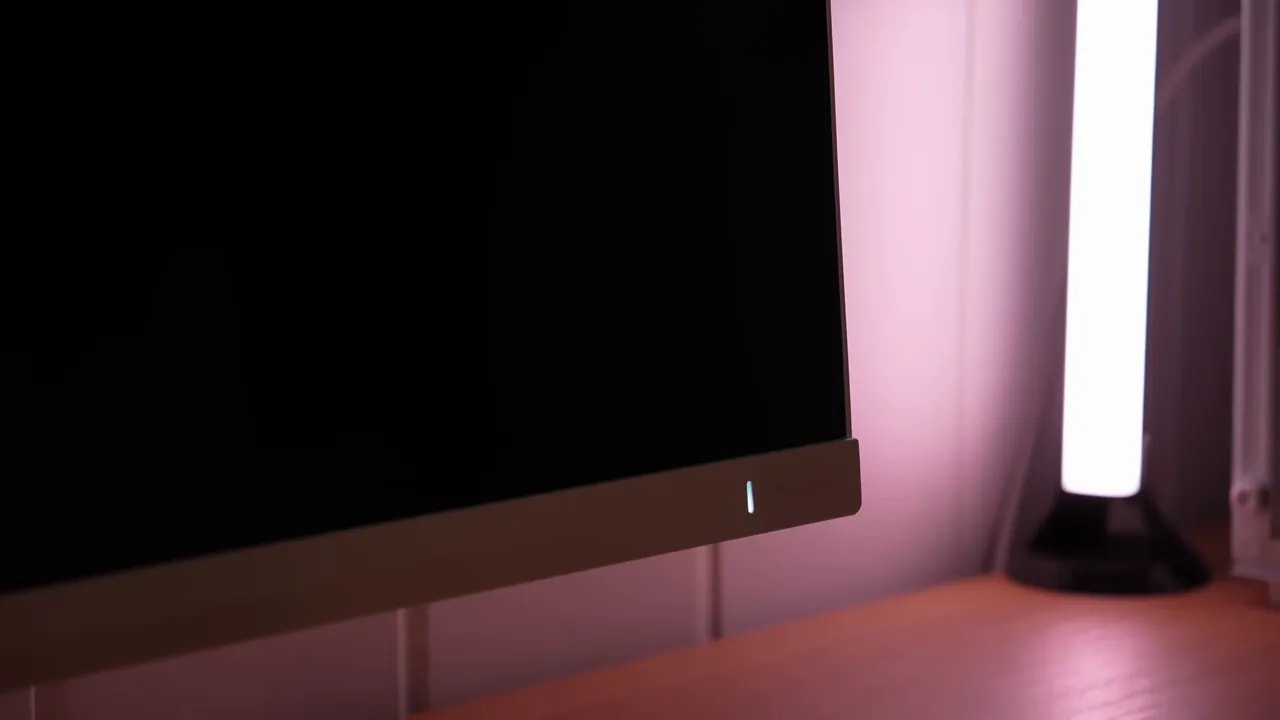
A small quirk of some recent Philips monitors returns here. When the monitor goes to sleep, the LED keeps blinking.
The problem is that, although the menu lets you adjust the LED intensity or even turn it off while the monitor is displaying an image, it still blinks when the monitor enters standby.
There is no real way to fix it through the OSD, so if it bothers you, you have two options:
- Put tape over the LED
- Turn the monitor off completely
The monitor has built-in speakers, which are not always included on all its direct rivals.
That said, there is no point sugarcoating it: they are weak. They are not a reason to buy the monitor, but they are there if you need basic audio, system sounds, or console audio without setting up anything extra.
Conclusion compared with the AOC alternative
The natural comparison for this Philips Evnia 27M2N3501PA is the AOC Q27G4ZR, especially because both sit in a very similar price bracket.
One important qualification: the available direct comparison is based on the AOC version with a nonadjustable stand. Another variant has an adjustable stand and could differ slightly in brightness, speakers, and panel tuning.
Even so, several clear conclusions can be drawn:
- At brightness and contrast, the Philips comes out ahead
- At color, the two are fairly evenly matched
- At response times, on paper the Philips can look better in Faster mode
- At overdrive’s visual clarity, the AOC can look a little more refined depending on the mode used
The final message is fairly clear: both are good, and the differences are subtle. This is not a case of one being very good and the other clearly inferior. These are two very capable options in a segment that is currently in an especially good place.
If you are choosing between the Philips Evnia 27M2N3501PA and its direct AOC alternative, the realistic decision is this:
- If you want a white monitor that is also a little cheaper, the Philips makes a lot of sense
- If you prefer the AOC alternative, you will not go wrong either, because it performs at a very similar level
Ultimately, the Philips Evnia 27M2N3501PA is one of those products that does not try to reinvent anything, but gets something very important right: giving you a lot for your money. And right now, in this segment, that is worth its weight in gold.