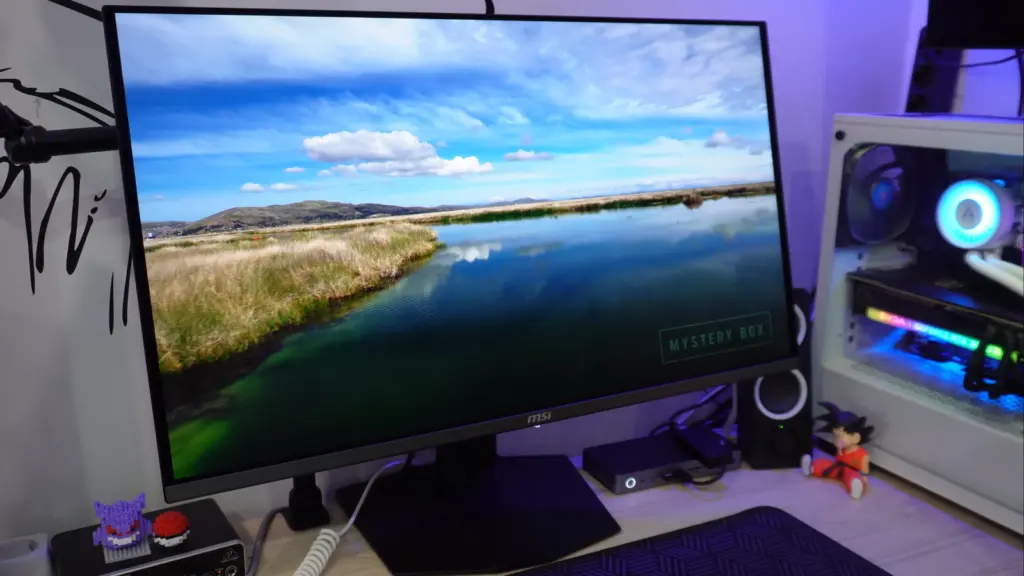
Here is one of those screens whose specifications already look formidable. A monitor with 32 inches, 4K resolution, 240 Hz and a new-generation QD-OLED panel. As if that were not enough, MSI has added serious productivity extras such as USB-C with 90 W charging, video and KVM. In other words, a clearly high-end product aimed both at premium gaming and a desk used for work and leisure.
The model in question is the MSI MPG 321URX, and yes, it brings a lot to the table. But an attractive specification sheet is not enough. What matters is checking whether the panel really performs, whether calibration is up to scratch, how HDR behaves, whether text looks good for daily use and what genuine drawbacks it has. Because it does have them.
The monitor was supplied by the brand, but that does not change the conclusion: the job here is to examine both the strengths and what falls short.
Design, build quality and ergonomics
Visually, the monitor makes a good impression. It has the thin upper section now familiar on OLED panels, and the rear incorporates subtle lighting that can be customized. It is not an RGB light show, which is welcome. At the front, the bezels are fairly ordinary and the appearance remains clean.
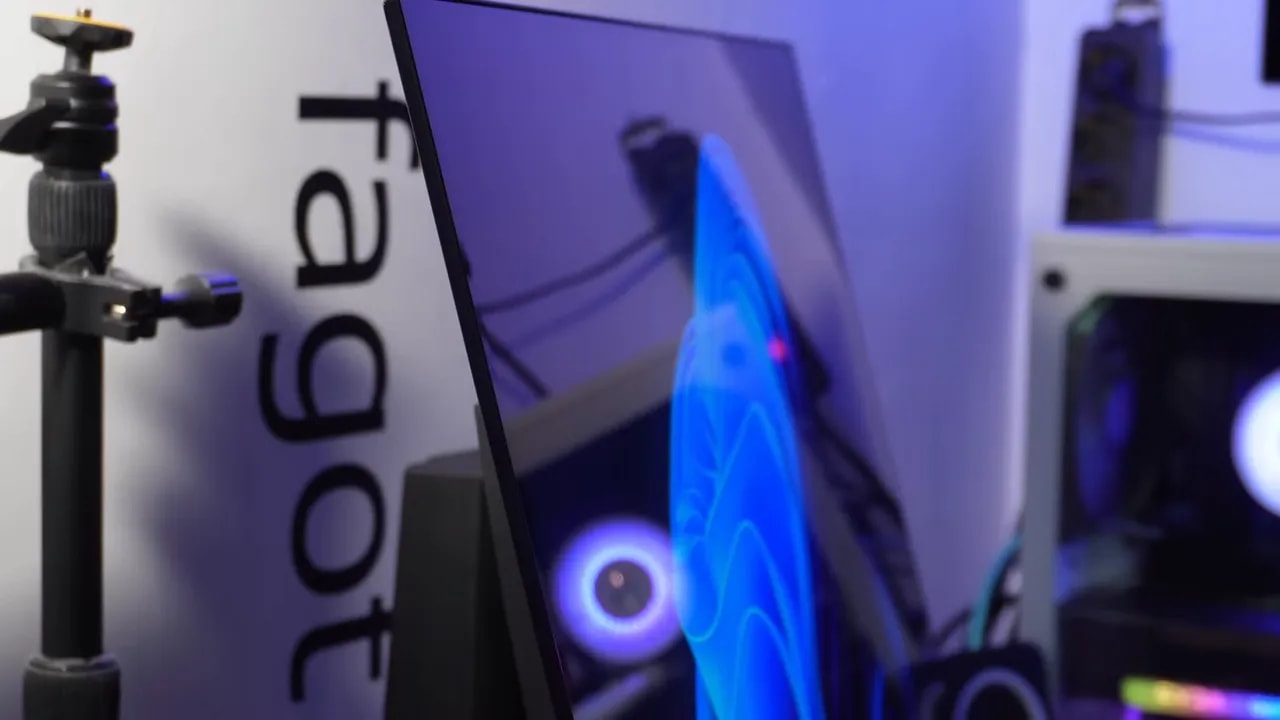
I quite liked the stand. It is large, but remember that this is a 32-inch monitor. The base feels reassuringly sturdy, and overall construction is in line with what MSI usually offers on this type of product.
The ergonomics are well covered:
- Height adjustment
- Monitor swivel without moving the base
- Tilt
What it does not allow is portrait orientation. On a monitor this size, I do not consider that a major omission—it would honestly be rather impractical—but it is worth knowing.
Connectivity: well thought out, with a complaint about the cables
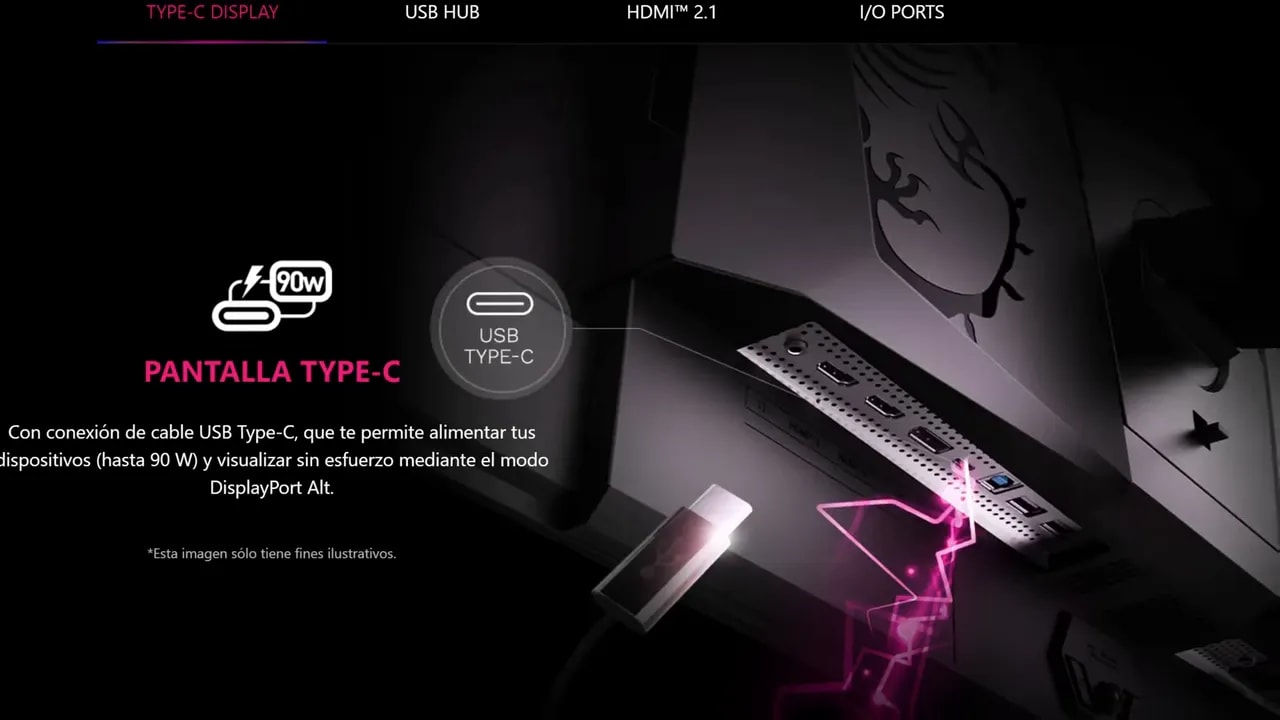
Connections are comprehensive. MSI has not held back here:
- 2 USB-A ports
- 1 USB-B upstream connection for the USB hub
- 1 USB-C with up to 90 W, video and KVM
- 1 DisplayPort 1.4
- 2 HDMI 2.1 ports
- Audio jack output
Both HDMI 2.1 and DisplayPort can deliver 4K at 240 Hz, although both use DSC. There are no built-in speakers, but personally I do not mind much. Monitor speakers are almost always basic, and anyone wanting reasonable sound quality usually ends up using external speakers or headphones.
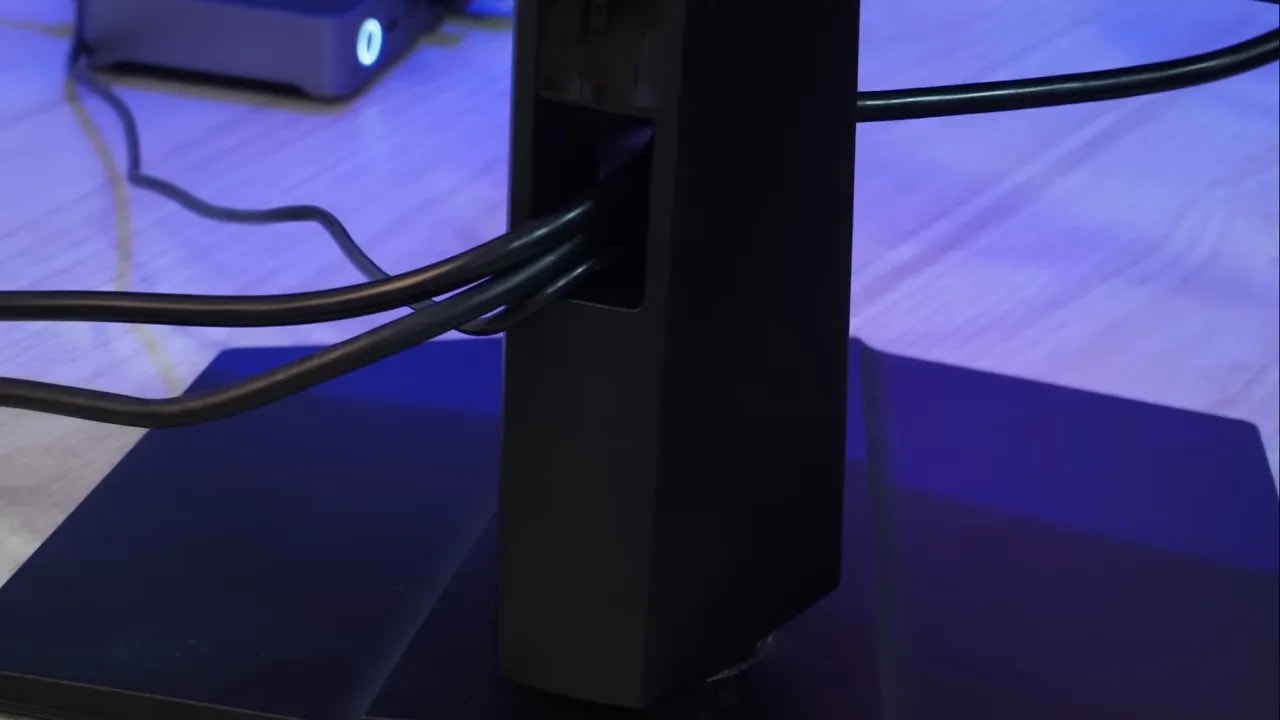
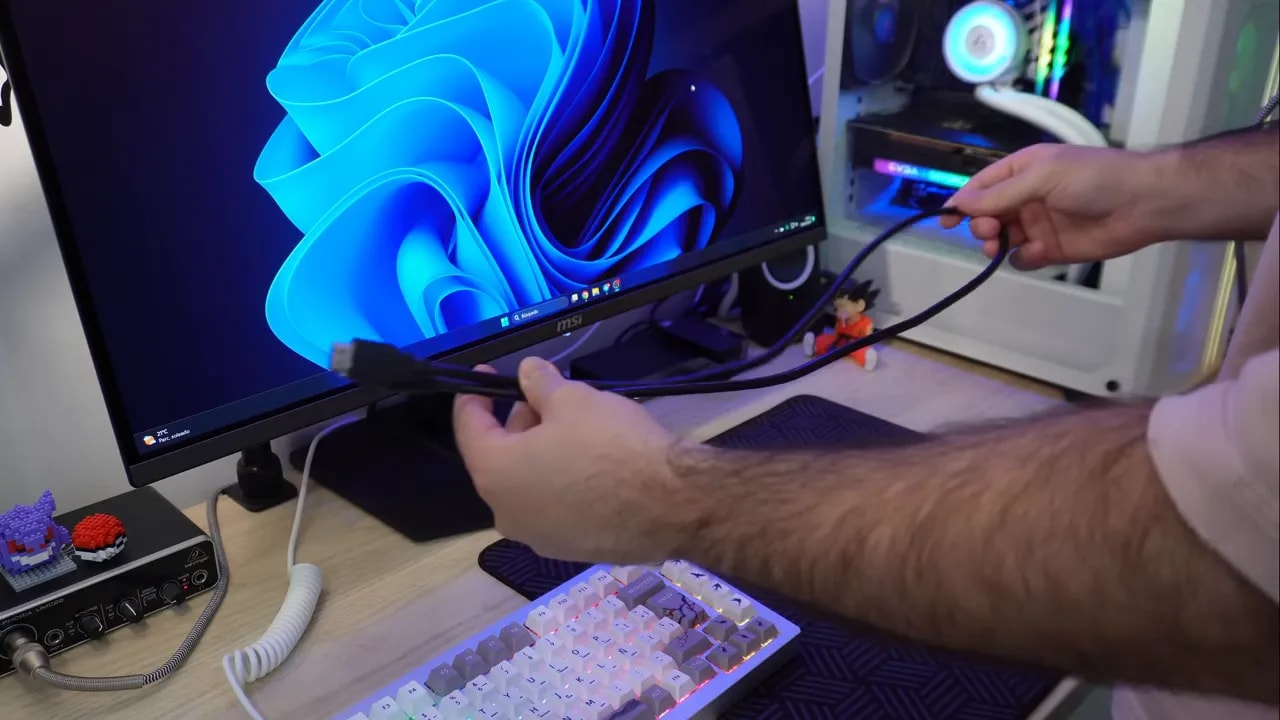
Where MSI does deserve a little criticism is the box contents. Only two cables are included: USB-B and HDMI 2.1. The problem is not just the quantity: that HDMI cable is one meter long, which seems too short for this type of monitor. If the PC is beside it and you want to route the cable neatly through the trim, it becomes quite taut.
For that reason, much of the testing was done using DisplayPort.
Controls, OSD and KVM
The monitor is controlled through three buttons:
- One for power
- A joystick to navigate the menu
- An action button to launch the proprietary software
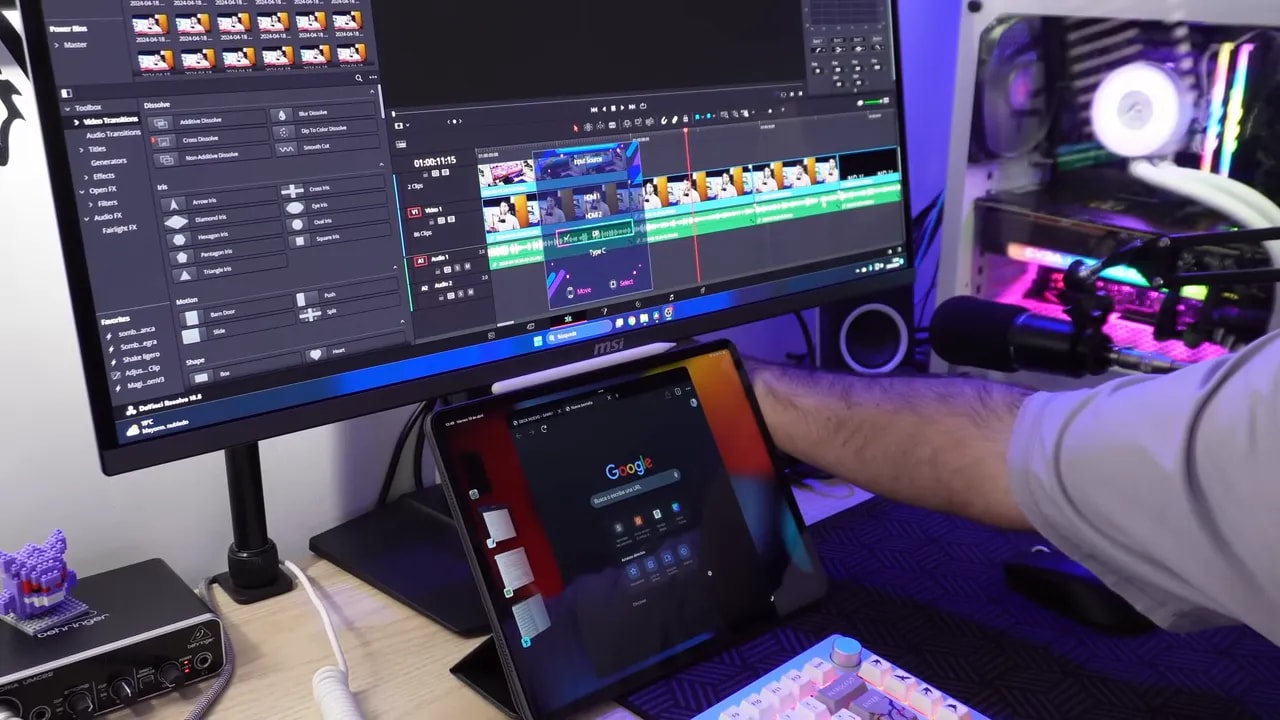
The KVM implementation is particularly good. If you are unfamiliar with this feature, it basically lets you connect a keyboard and mouse to the monitor and share them between devices. In this case, combined with 90 W USB-C, it is very convenient for using a laptop or iPad alongside the main computer without a tangle of cables.
It is one of those extras that may not seem important until you try it and no longer want to go back.
Color coverage: enormous
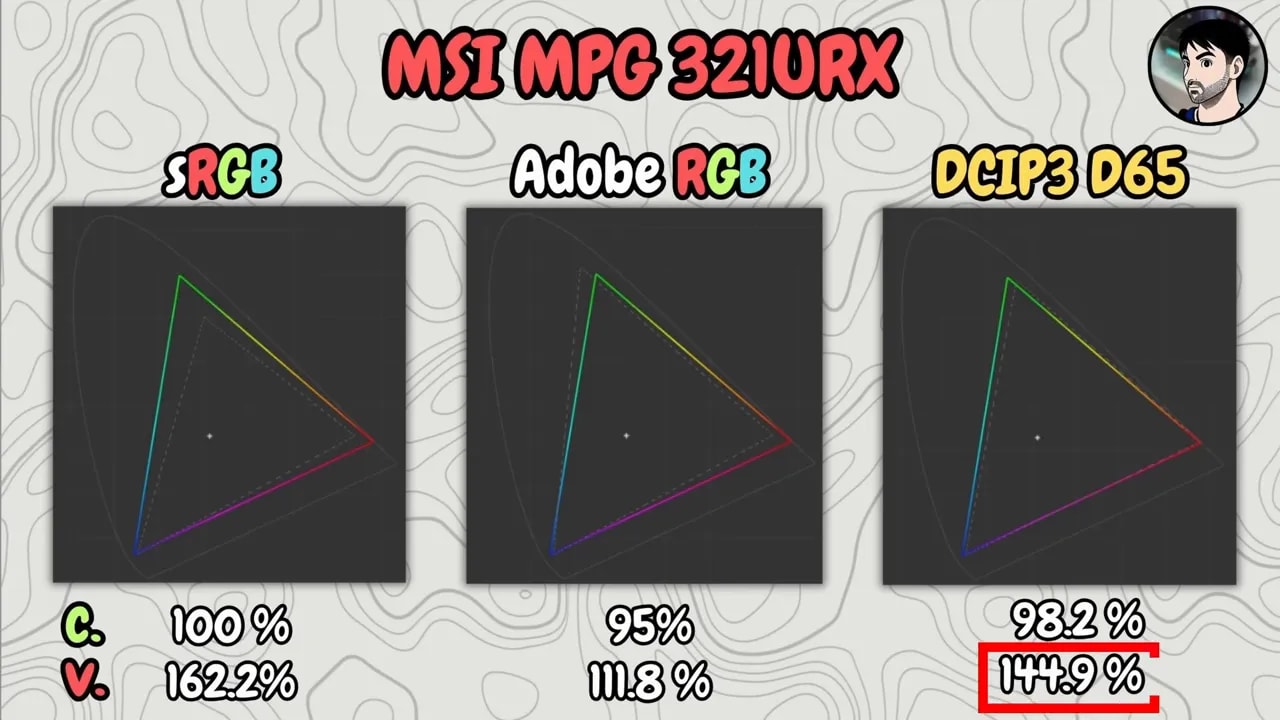
This is where the MSI MPG 321URX really shows its strengths. Gamut coverage is simply spectacular:
- 100% sRGB
- 95% Adobe RGB
- 98.2% DCI-P3
And looking at gamut volume, it becomes even more impressive, reaching 144.9% in DCI-P3. That means the monitor can reproduce a huge range of color. However, wide coverage and accurate reproduction are different things. Calibration is the key.
Factory calibration and color modes
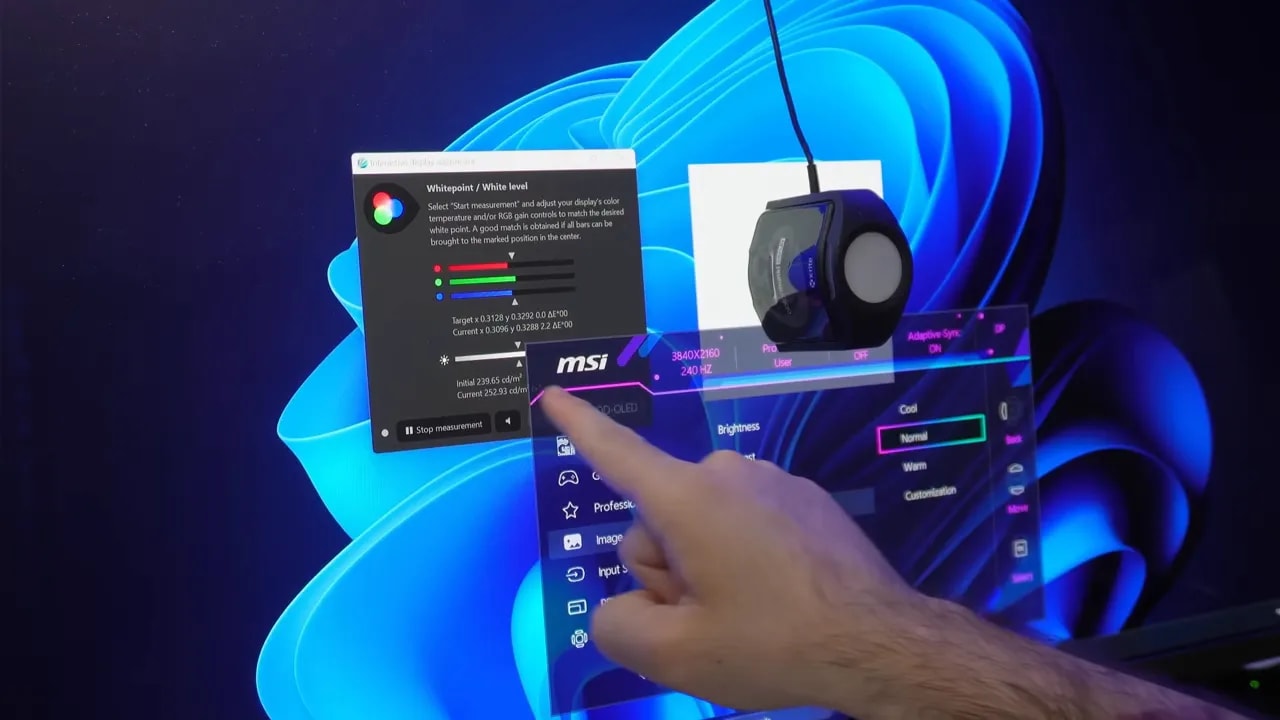
The monitor includes dedicated modes for different color gamuts, so it makes sense to assess them as intended. An ICC profile can also be downloaded from the drivers section of the official website. That is included in the testing too: if MSI offers it, it makes sense to check how well it works.
With the color temperature set to Normal, the results are fairly good. The gamut is reasonably clamped:
- Between 97% and 98% in DCI-P3 and sRGB
- 94% in Adobe RGB
Also, both Delta E and the behavior of gray and color temperature are well tuned. The weakest point is the white-point distance, which is not ideal, although it is far from disastrous.
The gamma, meanwhile, is very well adjusted and correctly follows a target of 2.2.
There is, however, a mode called Premium Color that oversaturates enormously. It may look impressive at first, but it completely ruins the factory calibration. If you want an accurate image, that is not the way to go.


The factory tests help assess the tuning as well as the gamut the panel reaches. For color work, check the specific mode and the temperature-control restrictions explained below; simply enabling a preset by name is not enough.
The problem with manual color-temperature adjustment
Here is one of those faults that should be corrected in firmware. When you enter User mode and change the color temperature to Custom, brightness plummets. Not just a little: it falls to around 80 nits, leaving the monitor too dim for normal use, especially gaming.
This is not unique to this model. It had already happened on another 32-inch 4K monitor from the brand, although that one was IPS. That makes it seem like something software could fix, rather than a hardware limitation.
Until it is fixed, manually adjusting white makes very little sense if the price is destroying the panel’s useful brightness.
SDR brightness, blacks and uniformity
In SDR, the measured maximum brightness is 251 nits. That is not a figure to boast about against a Mini LED, but OLED has different strengths. What matters here is that contrast is infinite and blacks are pure, because each pixel can switch off completely.
- Maximum SDR brightness: 251 nits
- Minimum brightness: 31 nits
- Contrast: infinite
Brightness uniformity is fairly good. There is a small drop at the sides, but nothing worrying or unexpected.

HDR: True Black 400 or a 1000-nit peak
In HDR, the monitor offers two main modes:
- DisplayHDR True Black 400
- 1000-nit peak-brightness mode
As with OLED, brightness varies with the amount of bright content on screen. That is why it is measured with white windows of different sizes against a black background. In the 1000-nit mode, the panel reaches approximately 990 nits in a window of 1%. Beyond that, brightness falls as the illuminated area increases.
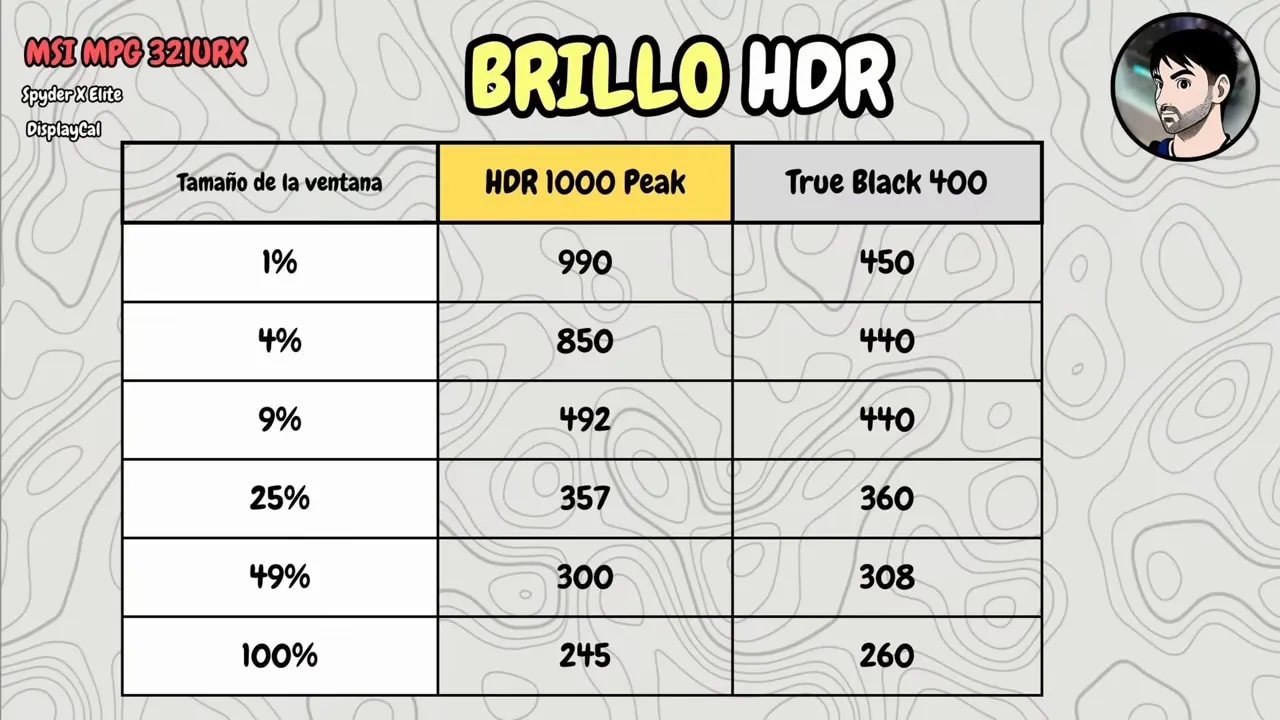
The True Black 400 mode falls behind in peak nits, but has a clear advantage: scenes with several on-screen elements feel more consistent in brightness. This is especially noticeable in office tasks, for example with the screen split between a video and a white window.
If you want to keep HDR active outside games or movies, True Black 400 may be more pleasant. For movies and gaming, the 1000-nit mode has more impact and looks very good.
Overall, ABL behaves fairly well. It is present, of course, as part of how this type of panel works, but it does not cause sharp brightness changes that constantly become annoying. That is an improvement over earlier generations.
Glossy finish and reflections: more vivid colors, but watch direct light
The panel has a glossy finish. That makes the image feel more vibrant and punchy, but brings the usual trade-off: more reflections.
This type of QD-OLED also behaves distinctively in direct light. The screen takes on a more brownish tint. Under dim lighting it is not a serious problem, but if it receives direct sunlight, it will bother you at certain times of day.
That is a disadvantage against some WOLED panels. Compared with an LG CX, for example, the effect is not seen in the same way with a light source in front.
Gaming performance: genuinely formidable
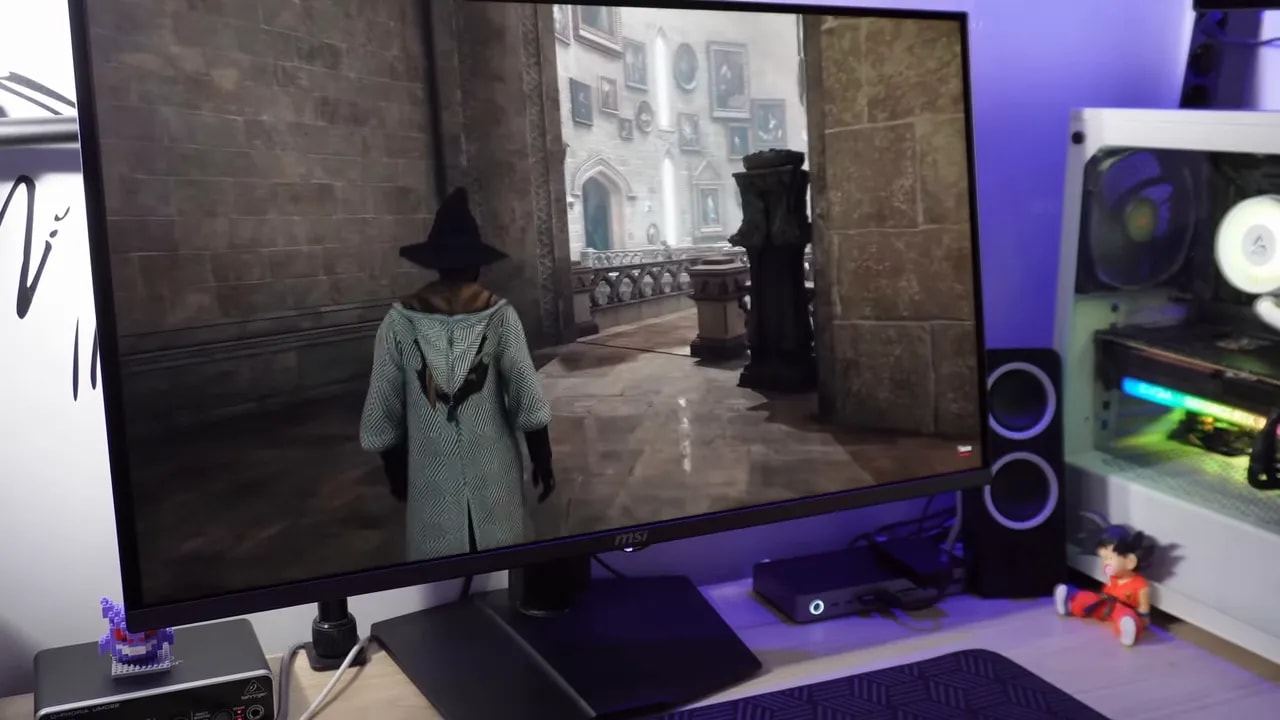
If pure gaming performance is what you want, this monitor is a beast. Its 240 Hz combined with OLED’s practically instantaneous response makes the image look exceptionally clean, with motion clarity that quickly spoils you.
And that is the problem. When you return to an IPS, even a fast one, you immediately notice the difference.
For ghosting, the experience is essentially what you would expect from a good high-end OLED: almost nonexistent. The sense of motion clarity is on another level.
Flicker with VRR
Not everything is perfect. With FreeSync or G-Sync Compatible there is some flicker. This is not a fault exclusive to this model, but fairly common behavior on OLED monitors.
Some people will find it more distracting, while others may not notice. Some prefer to disable VRR and play with V-Sync; others use neither to minimize latency. It depends greatly on the situation and the game, but you should know it is there.
It feels as though it flickers a little less than an older OLED such as an LG CX, although personal perception can also have a considerable influence here.
Text and productivity: much better than you might expect
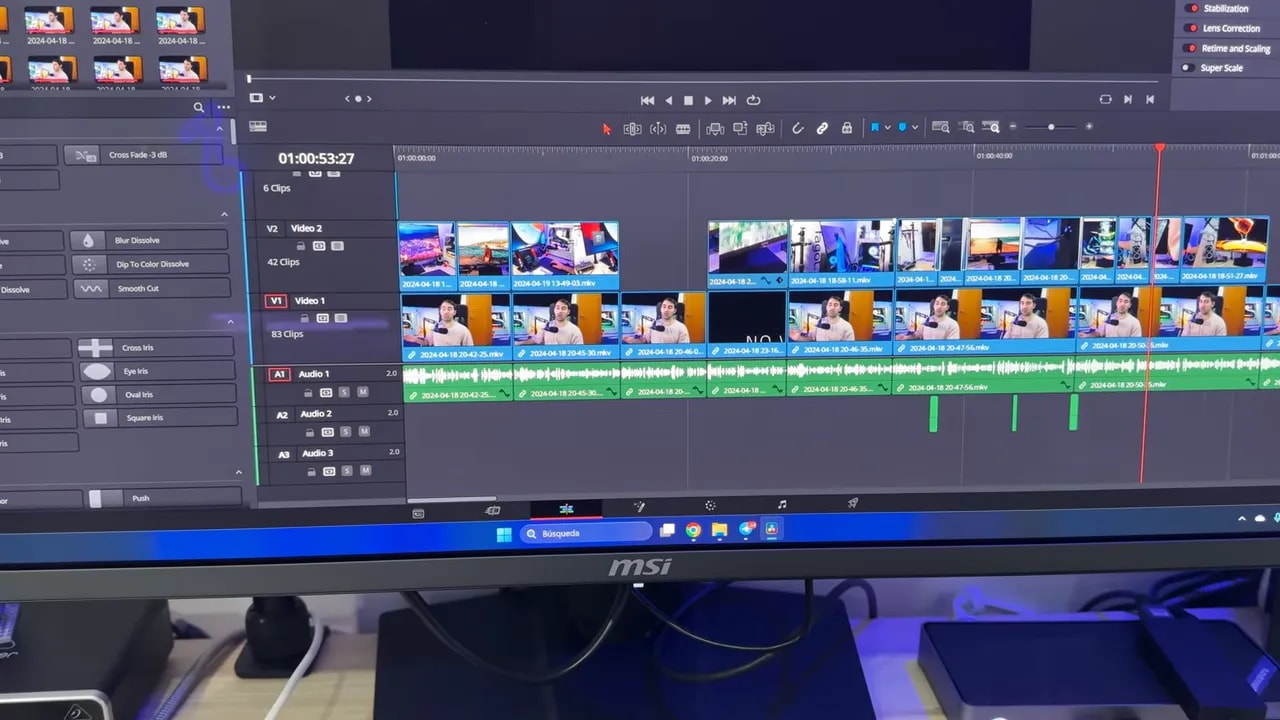
Text is one of the biggest concerns about desktop OLEDs. Both WOLED and QD-OLED have shown artifacts due to the subpixel arrangement, particularly in earlier generations.
Here MSI uses a new-generation panel with a revised layout, and this is also 4K at 32 inches, which greatly helps pixel density. The result is text that looks very good.
Can you spot something unusual if you scrutinize it extremely closely? Yes. Is it bothersome in normal use? Not at all. It is perfectly usable for productivity.

Burn-in, retention and OLED Care 2.0
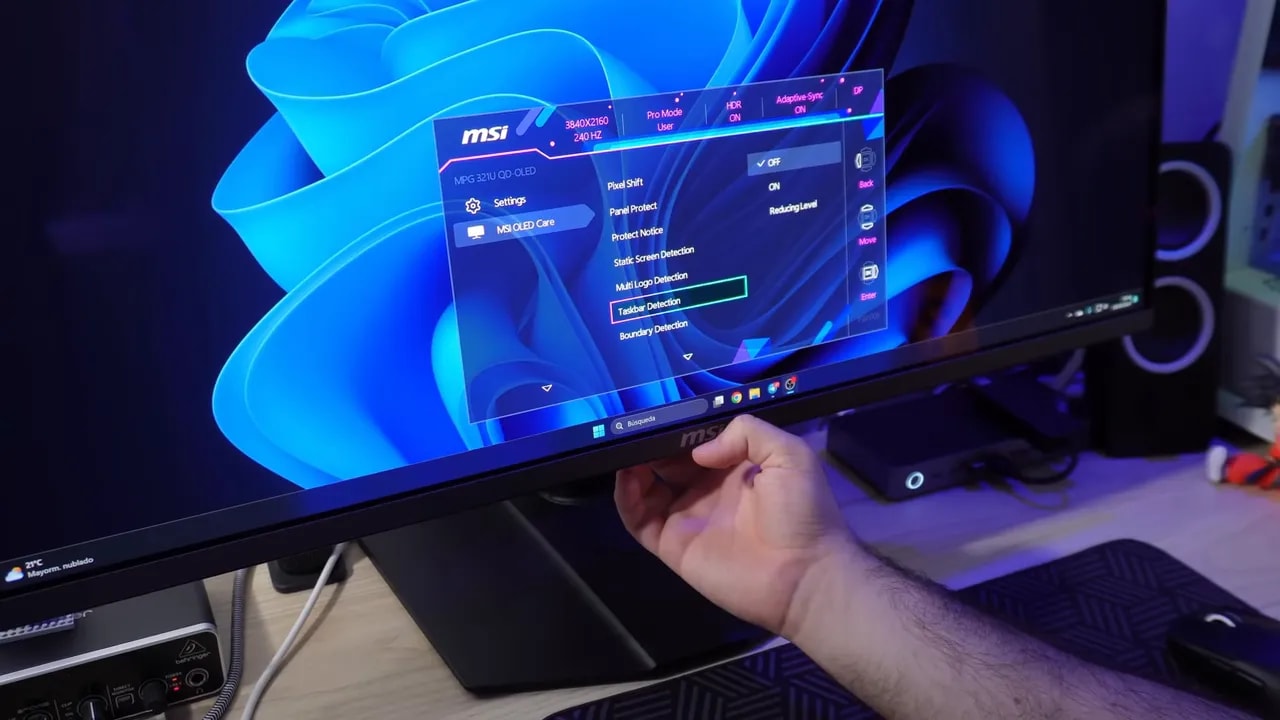
The big fear with any desktop OLED remains the same: burn-in. MSI tries to address it with several features in its OLED Care 2.0 system, alongside a 3-year warranty.
During use, I did not find these protections particularly annoying, although one is more noticeable than the others.
Pixel shifting
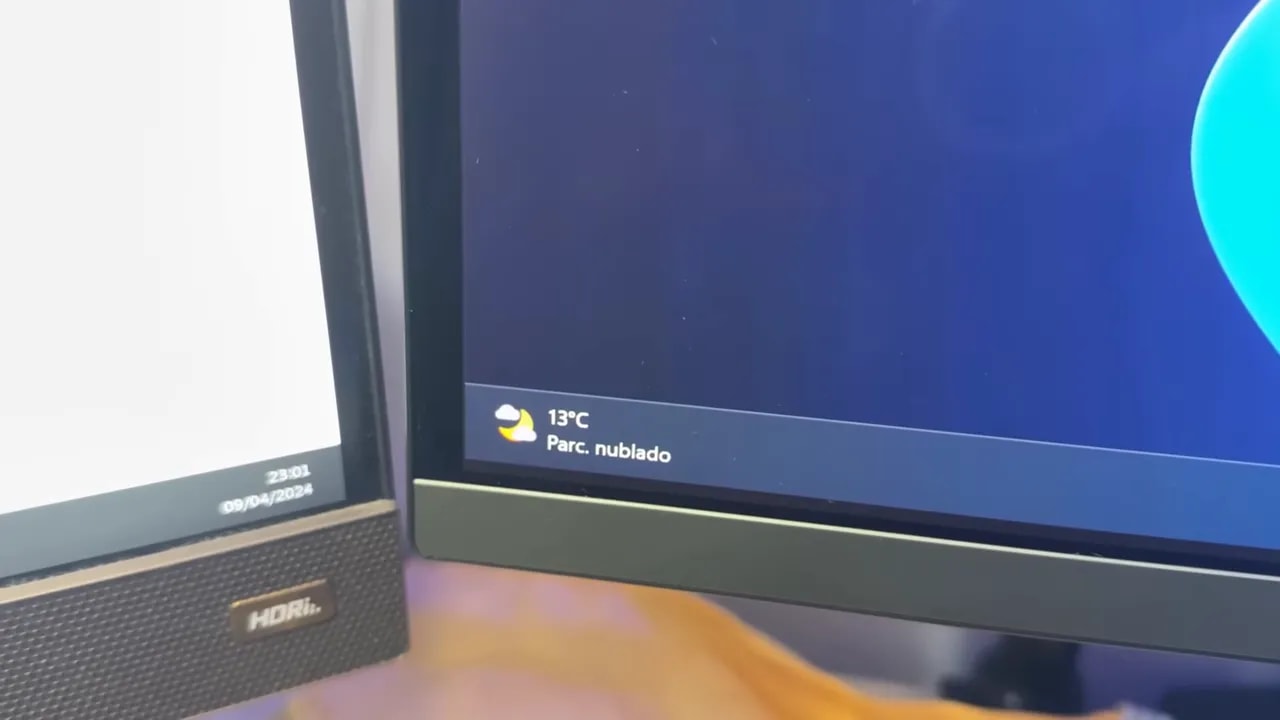
The pixel shifting moves the image slightly over time to reduce the risk of uneven wear. In practice, the margins appear to move, sometimes leaving a visible strip of different thickness on either side.
It can be configured at different levels, such as Slow or Normal. It works, but visually disrupts the bezel’s symmetry a little. It is not dramatic, but it is there.
Pixel refresh every 4 hours
The monitor prompts you every 4 hours to run a pixel refresh. This helps reduce retention and keep the panel in good condition. Note that image retention is not the same as burn-in. Retention disappears after a short time.
If you do not run the process when prompted, the monitor can do it automatically while you are not using it. One detail to keep in mind: after completing that refresh, the monitor stays off and does not switch back on by itself. When waking the PC from sleep, you may therefore need to turn the screen on manually.
Beyond that, I used it normally, as I would any IPS. I did not obsess over leaving a fixed window or a static desktop. Ultimately, if you buy a monitor, it is to use it.
Gaming Intelligence software and firmware updates
MSI includes its Gaming Intelligence software, which lets you change practically the same options available in the monitor menu from Windows, but much more conveniently. To make it work, you do need to connect USB-B.
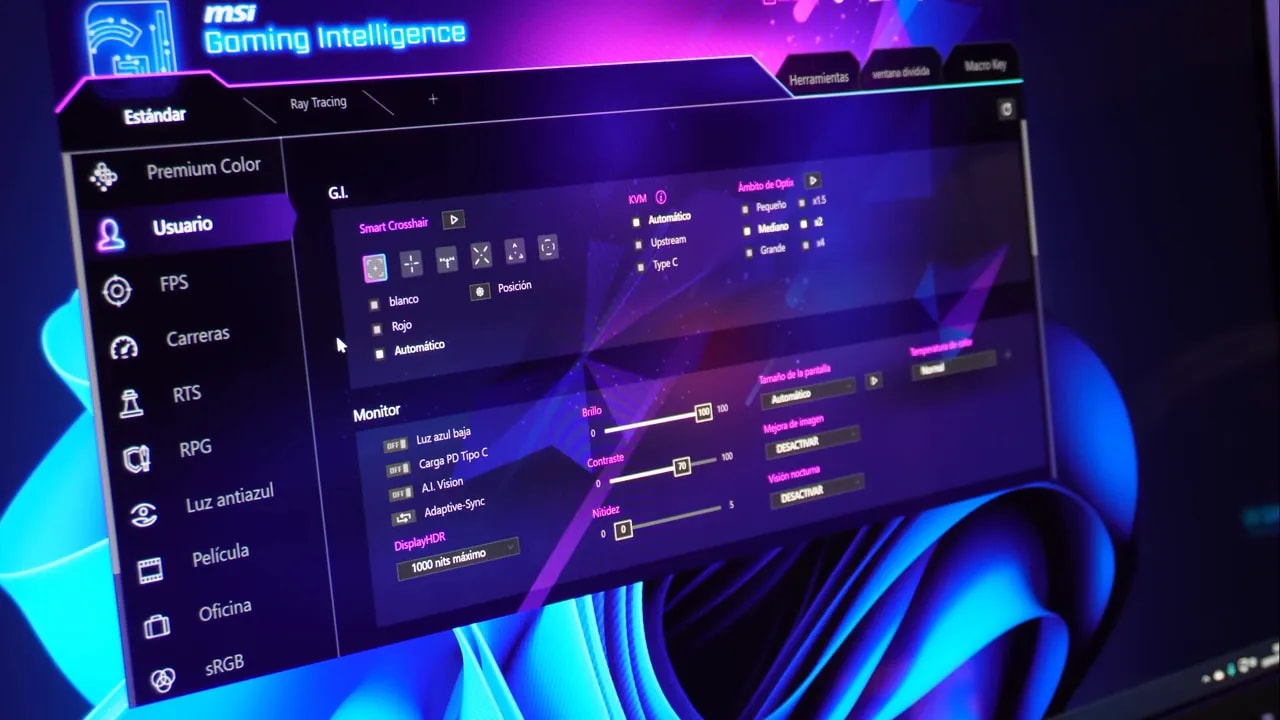
The program itself works well. The problem is how MSI has chosen to promote it. As soon as you connect the monitor by USB, a message recommends downloading the software and suggests other programs such as Norton. Worse, that notice can reappear when the monitor sleeps and wakes again.
I really dislike that part. It is completely unnecessary.
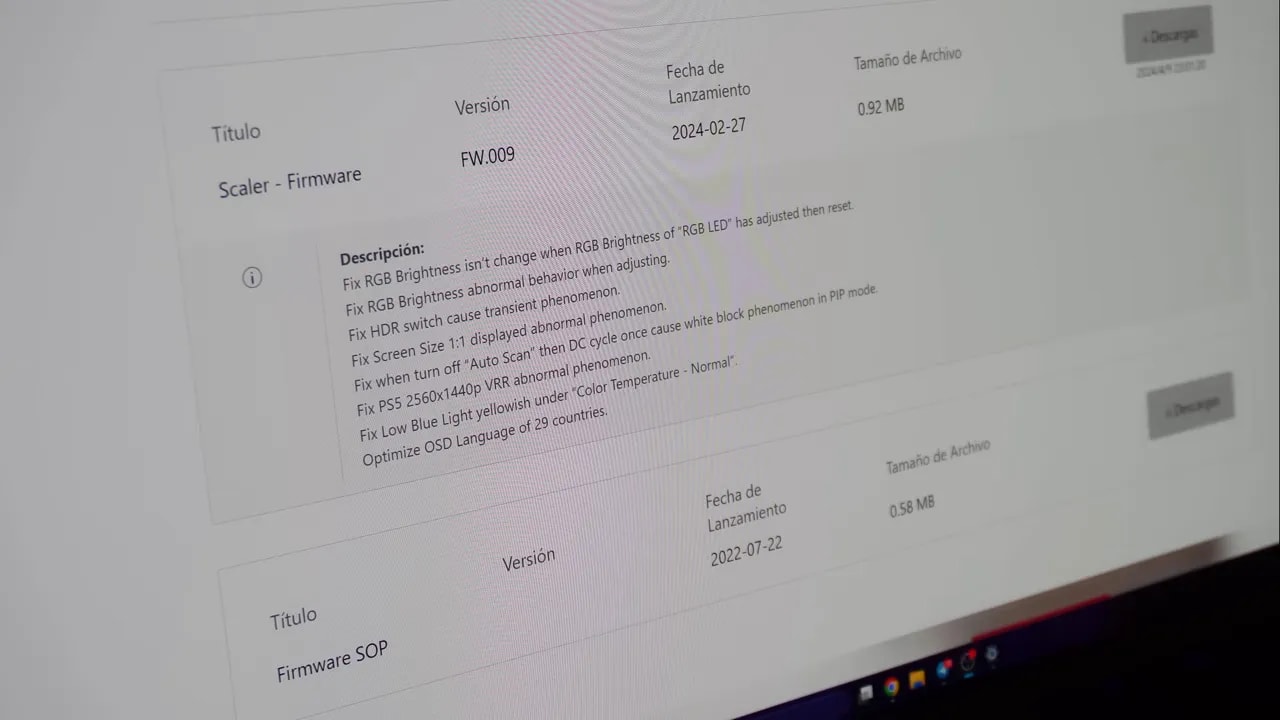
There is, however, an important reason to install the software: updating the firmware. And this needs to be said clearly. It really needs to be done.
With the factory firmware, which appeared to be the launch version, there were some restarts. After updating, those problems disappeared.
The update is performed through the software after downloading the latest version from MSI’s website. Be aware that updating requires the monitor to be connected by DisplayPort. That detail is not particularly well catered for out of the box, so it deserves another small criticism.
Price at the time of the review: very high in Spain
Now for the painful part. At the time of this review, the price was around 1400 euros, which hurts. Yes, this is a top-end monitor with a first-class panel and comprehensive features. But it is still a high figure.
Most strikingly, it had been seen in the United States for 900 dollars. The difference from the Spanish market was substantial. Some stores might offer it for less, or stock could stabilize and bring the price down over time, but at that point it remained a clearly premium product.
Conclusion: a formidable monitor, though not a perfect one
The MSI MPG 321URX strikes me as a top-tier monitor. It is not perfect, with several areas for improvement:
- The included HDMI cable is too short
- Custom color-temperature adjustment causes brightness to collapse
- There is VRR flicker, as on other OLEDs
- The glossy finish and brownish effect in direct light can be distracting
- The initial experience improves greatly after updating the firmware, and it should be more polished from the factory
Even with those drawbacks, the overall package is impressive. If you have the budget and the hardware to run 4K at high refresh rates, the experience is on another level compared with a fast IPS. It is not a small improvement, but one you notice immediately.
Three things make a particular difference:
- The motion clarity of an OLED at 240 Hz
- The infinite contrast
- Spectacular HDR when the content supports it
It also does more than gaming well, adding very useful features such as 90 W USB-C, KVM and PIP/PBP modes, which suit a 32-inch screen intended for productivity as well.
The great unknown, as always with this type of monitor, is how the burn-in protection technologies will age over the years. In the short term, the implementation looks substantial. In the long term, real-world use will have to tell.
If the price becomes a little more competitive, it could become one of the most well-rounded 4K 240 Hz QD-OLED monitors available in Spain.