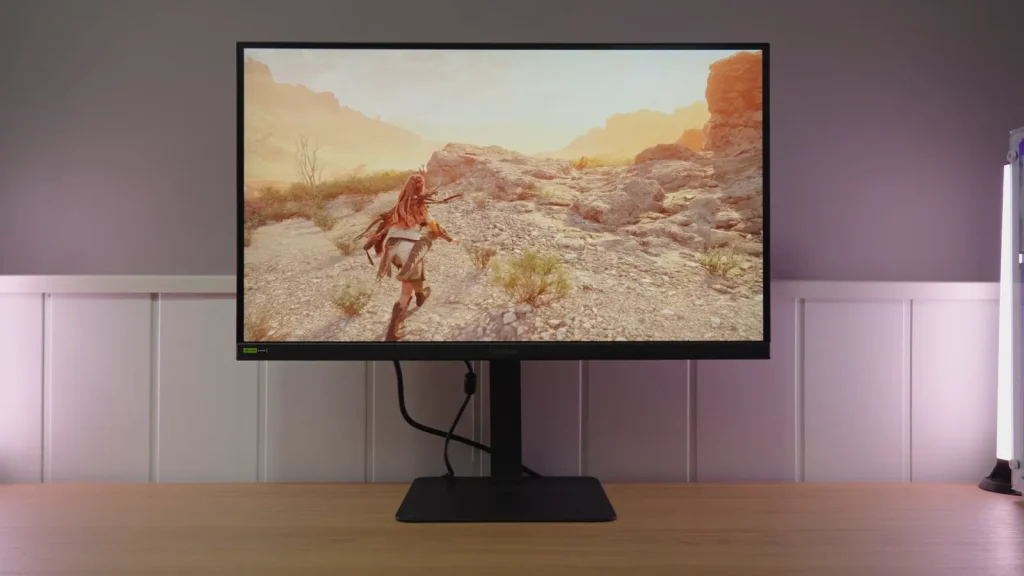
The LG G6 27G640A-B offers 1440p and 300 Hz on an IPS with good response and a light matte finish. Overdrive adaptation to refresh rate is especially interesting when frame rates vary.
Factory calibration and locked settings in some color modes need more work. Medium improves whites but reduces brightness and contrast: that tradeoff matters against similarly priced IPS alternatives.
Design, stand, and connectivity
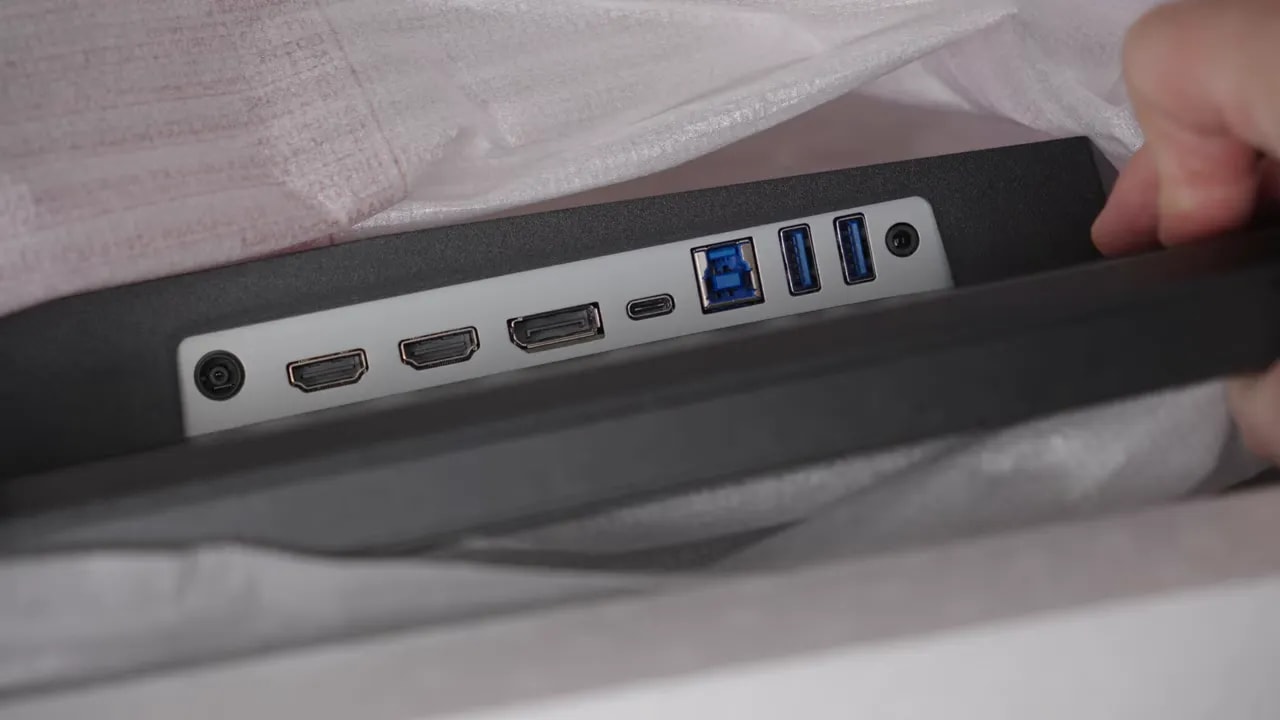
Connectivity is fairly complete. Alongside DisplayPort and HDMI 2.1, it includes:
- USB hub
- USB-C with video input
- USB-C charging up to 15 W
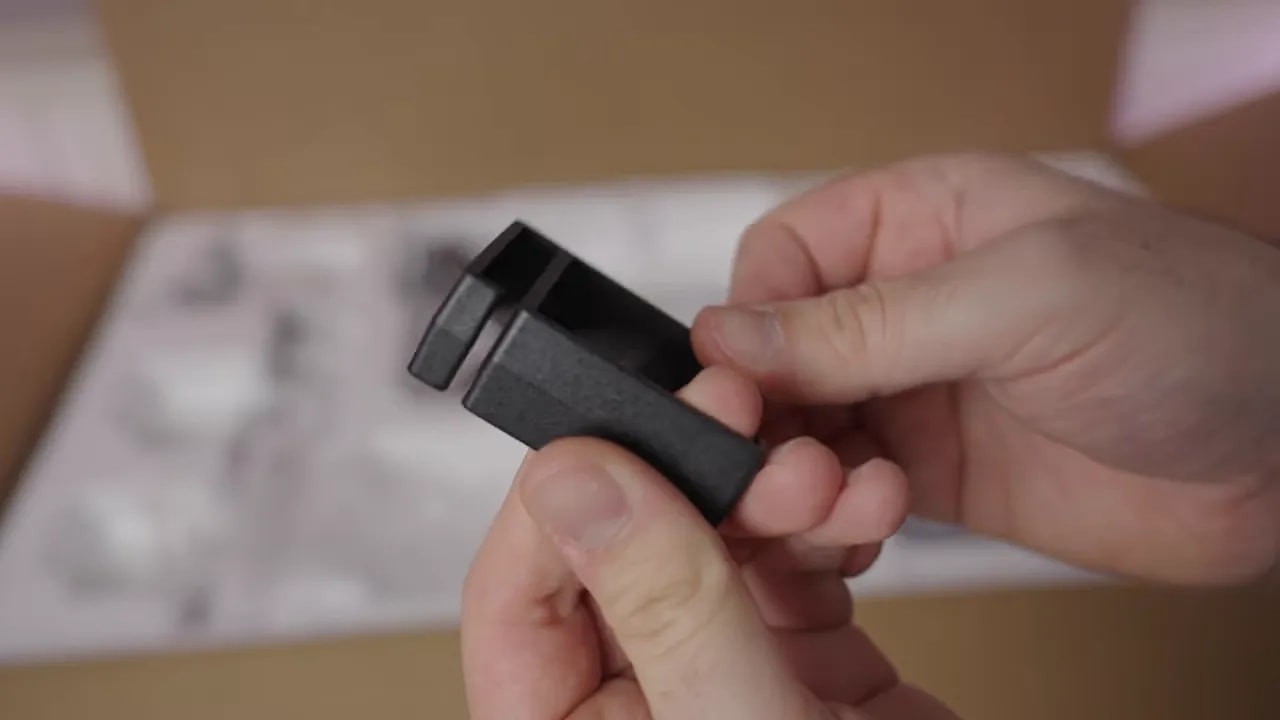
However, the box only includes DisplayPort cable alongside the power cable, with an external power supply in this case. There is also a small cable management clip and the usual documentation.
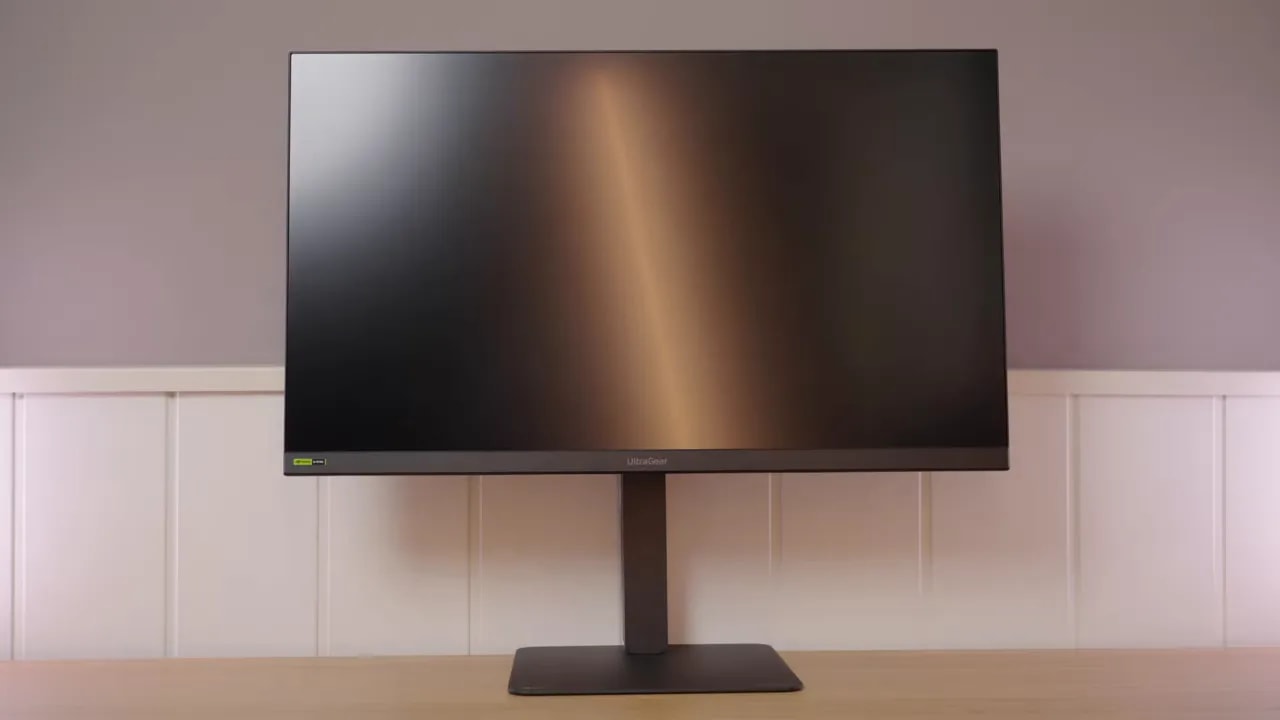
I liked the base. It is solid aluminum. Ergonomics are comprehensive: height adjustment, forward and backward tilt, portrait pivot in both directions, and swivel without moving the base.
So far, so good. It falls down in two areas:
- It wobbles too much
- Overall monitor-body quality is unconvincing
The monitor shakes easily. A small tap makes it move considerably. Worse, height adjustment produced loud creaking at the sides without unusual force. I do not know if this was specific to this unit, but it certainly did not feel good.
What pleasantly surprised me was the matte finish. It is among the lightest I have seen in a while. Obviously not glossy, but for matte it gives a clean image with little coating-induced visual grain.
It also includes typical extras such as a black stabilizer and picture presets that, honestly, are not usually used much.
Then there are the built-in speakers. No need to mince words: they are terrible. Probably the worst built-in monitor speakers I have ever tested. In practice, they might as well not be there.
Color: Medium versus factory settings
Color coverage starts off well—quite well, in fact. This is a wide-gamutmonitor, reflected in the figures:
- Close to 95% of DCI-P3
- More than 93% of Adobe RGB
- More than enough coverage for sRGB
So far, so good. The problem appears when moving from coverage to factory tuning. Calibration, especially grayscale and whites, leaves a lot to be desired. Color temperature is too warm and does not correctly match the 6500K standard. Gamma tracking is also inaccurate.
Fortunately, there is a clear improvement available without a colorimeter yet. Changing color temperature from Custom to Mediumimproves three important areas:
- Better grayscale balance
- Better gamma tracking
- Color temperature closer to 6500K
This is a simple change worth making immediately out of the box. The problem is that it comes at a cost.
With default settings, the monitor delivers approximately 420 to 430 nits. Switching to “Medium” lowers it to around 340 nits. Brightness is not the only loss; contrast falls considerably too.
There is also an annoying menu detail. Although increasing brightness initially may prompt you to disable energy saving, that is not enough. A separate setting has several energy-saving presets; disabling it completely gains a few more nits. The difference is not enormous, but it is worth configuring properly.


Medium improves white-point tuning over Custom but lowers brightness and contrast. Comparing them explains the cost before choosing; manual calibration of an individual unit offers another route to balance.
The monitor includes dedicated color-space modes, generally a welcome addition. The DCI-P3 mode clamps the gamut to around 94,1%. Color calibration itself is not bad, but whites and grays fall short again.
Here is the important limitation: this mode seems to follow a kind of gamma 2.6 in reference to original DCI-P3, and it cannot be changed. Dedicated modes allow brightness adjustment, but gamma and color temperature are locked.
For a more standard PC image, especially for gaming, the recommendation is clear: use Gamer 1 mode. It allows free parameter adjustment and a more consistent presentation for general use and gaming.
In sRGB mode, something very similar happens. The clamp also reaches around 94,1%, colors are reasonably restrained, but grayscale is again unbalanced and cannot be corrected within the mode. A shame: limited-gamut modes are a good idea, but implementation is incomplete.
Manual adjustment and a colorimeter noticeably improve behavior. Custom color temperature values were applied to approach 6500K without sacrificing as much brightness as the “Medium” preset.
However, remember a basic fact: even buying the exact same model, every panel has variations. Copying settings may get you close, but will not make two units identical.
After calibration and an ICC profile, results improve considerably, especially in:
- Grayscale balance
- Color accuracy
- Overall DCI-P3 consistency
Such an ICC profile is far more relevant to editing and content playback than gaming. For pure gaming, it is not decisive. But for color work, the panel responds better after calibration than its initial appearance suggests.
Uniformity and HDR
Brightness uniformity is imperfect. There are deviations and color variations, especially at high brightness. Lowering brightness improves stability considerably.
For editing, the recommendation is simple: work at a more moderate brightness. Panel behavior will be more stable, with fewer visible variations.
You know how IPS backlight bleed works: it is largely a lottery. This unit has some, but nothing I found severe. More noticeable is the IPS glow, the effect that raises or distorts blacks as viewing angle changes. It is somewhat more present here than on competing IPS monitors with better black levels.
In this LG G6 27G640A IPS Review, HDR needs perspective. It supports HDR400, yes. But this is not true HDR on the level of Mini LED or OLED. There are no miracles here.
The positive is adjustable color temperature in HDR, something other monitors do not always allow. Maximum brightness comes with Custommode, at around 440 nits.
HDR measurements show luminance detail loss at the high end. In the PQ EOTFcurve, as usual without true local dimming, deep blacks cannot be reproduced properly.
That means a somewhat more striking image in certain scenes, but not a transformative HDR experience.
One area where it performs reasonably is that it does not lose color in HDR. The figures are:
- BT.2020: around 72% gamut coverage
- UHDA-P3 / DCI-P3: approximately 95%
- BT.2020 color volume: close to 63%
Do not confuse gamut coverage with color volume. Volume also accounts for brightness, which is why its percentages are always somewhat lower.
300 Hz: speed and overdrive artifacts
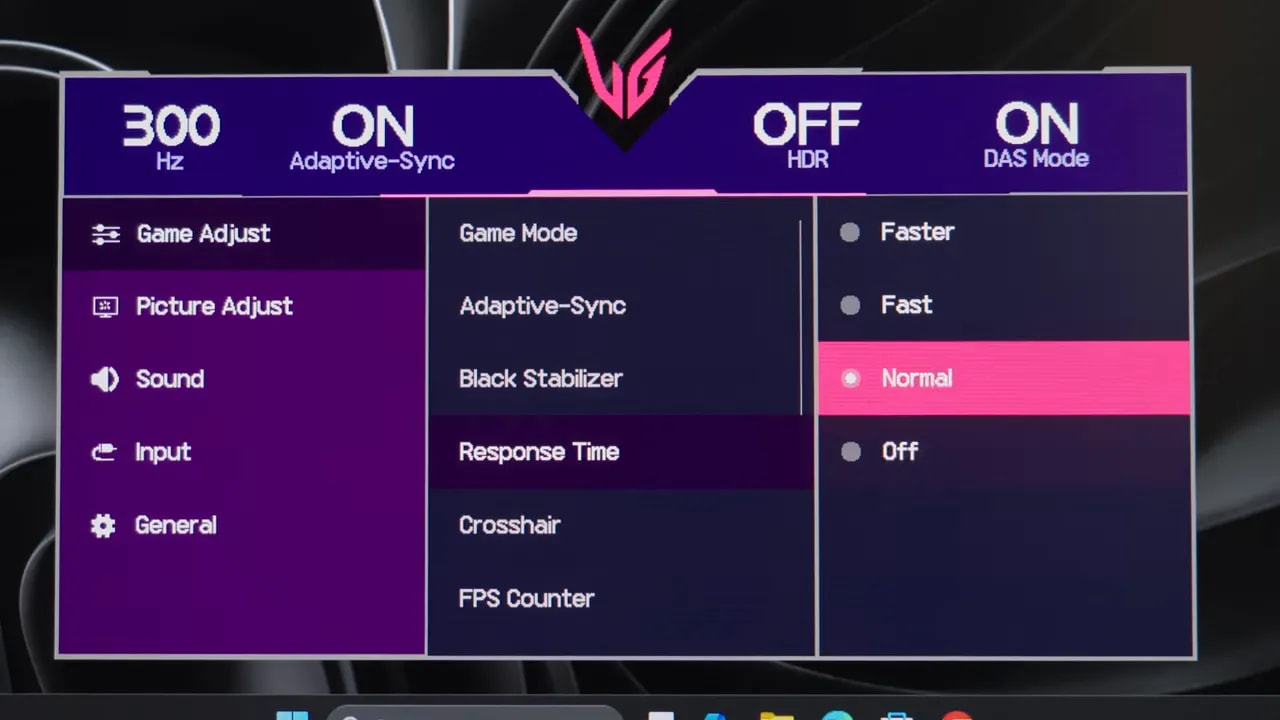
Moving to motion performance, this monitor has strong arguments. It has no backlight strobing or unusual features like that, but several overdrivemodes, and overall behavior is good.
Fast
The most worthwhile mode is Fast. It gives around 4.64 ms initial response time, with some overshoot. Particularly observant users may notice it, but in practice, I do not find it especially bothersome.
Normal
If you cannot tolerate any overshoot, lower it to Normal. That reduces overshoot greatly, but response time rises to around 6.51 ms, producing more ghosting.
The usual tradeoff: slightly more aggressive sharpness with some artifacts, or cleaner transitions with more trailing.
There was an interesting detail here. During demanding tests such as the UFO Test, especially with the most aggressive overdrive, image retention appeared quickly. This is not exclusive to OLED; IPS can also show it when pushed hard with extreme patterns.
Here it appeared even sooner than usual, after a few seconds in Fastermode. It remains visible as small UFO-test dots, but disappears after varied content or simply waiting a few minutes.
It will not happen in gaming, so it is not a real usage problem. Still, it is another reason not to recommend Faster for everyday use.
How response changes at lower refresh rates
One of this monitor’s most interesting aspects is that overdrive modes adapt to refresh rate. It may sound technical and unexciting, but it matters enormously in real use.
On many monitors, strong overdrive creates absurd amounts of overshoot as refresh rate drops. That is handled much better here.


Keeping Fast at 300 and 120 Hz shows how overdrive changes with refresh rate. This matters with VRR and fluctuating frame rates: maximum-refresh response alone does not describe every gaming condition.
120 Hz
At 120 Hz, the Fast remains the recommendation. It delivers around 7.55 ms initial response time with less overshoot than at 300 Hz, demonstrating real adaptation.
In fact, you can even use Faster at 120 Hz, because overshoot increases very little and response drops to around 6.74 ms.
60 Hz
Also at 60 Hz Faster is usable with slight overshoot and around 6.58 ms. If that still bothers you, lower it one step for around 7.13 ms, though overshoot only disappears entirely in Normal mode.
For gaming with G-Sync or VRR, this is excellent because you do not need to change overdrive with each game or frame rate.
The monitor is G-Sync compatible and Nvidia certified. Testing showed no flicker at all, and overall operation was quite good.
It also includes an effective LG low-latency mode. Input lag is low without compromises, so it is worth leaving enabled.
PS5 compatibility
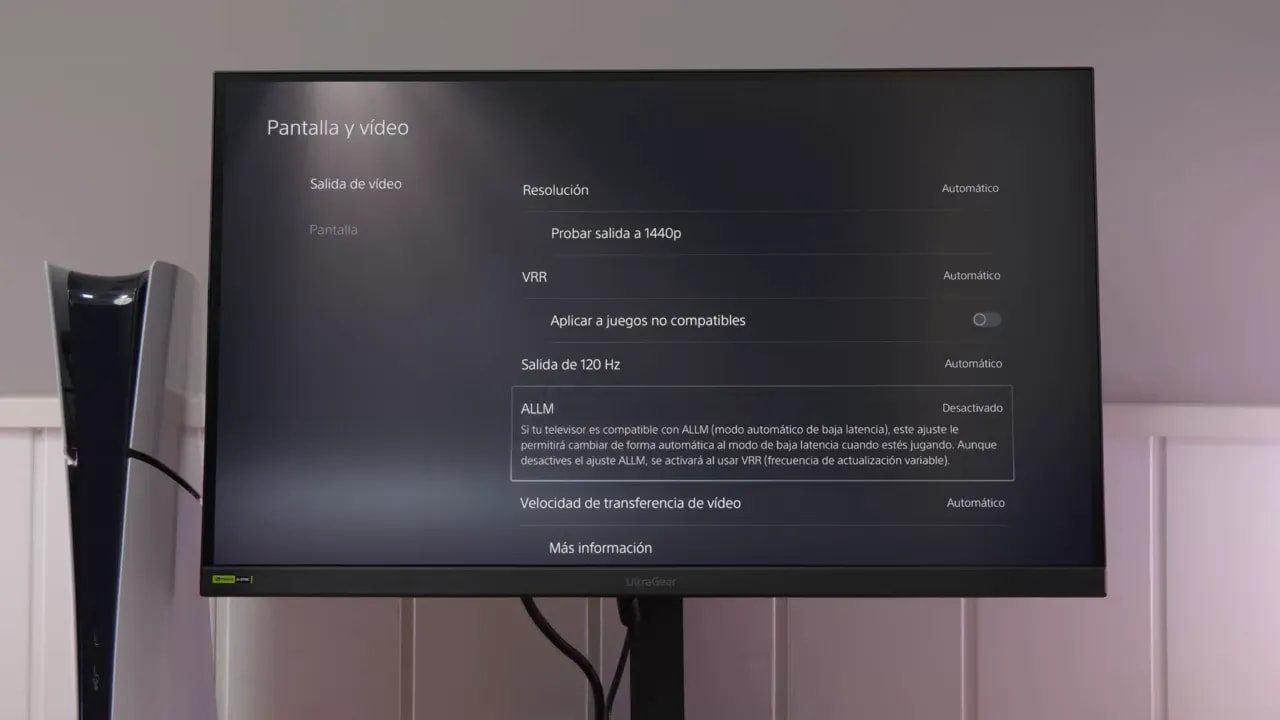
Another strength of this LG G6 27G640A IPS Review is console support. On PlayStation 5 compatibility is quite good:
- 4K supersampling up to 120 Hz
- VRR support
- 1440p also works
The odd drawback concerns ALLM. It should be available, especially since the monitor uses Full-bandwidth HDMI 2.1, but it could not be made to work. Menu options and different HDMI versions were tried without success.
It is unclear whether LG’s low-latency mode interferes, but disabling it still did not enable ALLM on the console. This is not disastrous because input lag is already low, but it is unusual given the specifications.
Conclusion against the KTC H27E6
The LG 27G640A is not a bad monitor. That is the honest summary. It has strengths and performs well in games. The big problem is fierce competition.
The clear reference here is the KTC H27E6 reviewed previously. It costs less, around 200 €, and performs better in several areas:
- Higher brightness
- Better contrast
- Better color reproduction
- Better factory calibration
- Better build quality
However, the LG has an important advantage: better gray-to-gray response. Although the KTC reaches 320 Hz overclocked, the LG balances initial response and overshoot better. In real use, adaptive overdrive across refresh rates also makes it a stronger option if you particularly value that VRR behavior.
That needs context, though. Most people will not notice a huge gray-to-gray difference in practice; you need to be quite observant. Brightness, contrast, calibration, and construction are much easier to notice.
Wrapping up the review of the LG G6 27G640A-B, my opinion is simple: it is not bad, but does not lead its price range.
Its strengths are clear:
- 300 Hz at 1440p for an acceptable price
- Good response-time behavior
- Adaptive overdrive very useful with VRR and G-Sync
- Acceptable connectivity
- Very light matte finish
And so are its weaknesses:
- Weak factory calibration of grays and whites
- Brightness and contrast suffer more than I would like when adjusting temperature
- Very limited HDR
- IPS glow slightly more visible than on competitors
- Disappointing build quality
- Terrible built-in speakers, as usual
- ALLM did not work, though it should
For the best pure value, I still consider the KTC a better buy. If you prefer a better-known brand like LG and especially value overdrive tuned for different refresh rates, this is not a bad option at around 250 € either.
But to be direct: it is a decent monitor at an interesting price, not an unbeatable bargain.
A further price drop would make it much easier to recommend. At its usual price, it belongs in the conversation but does not dominate it.