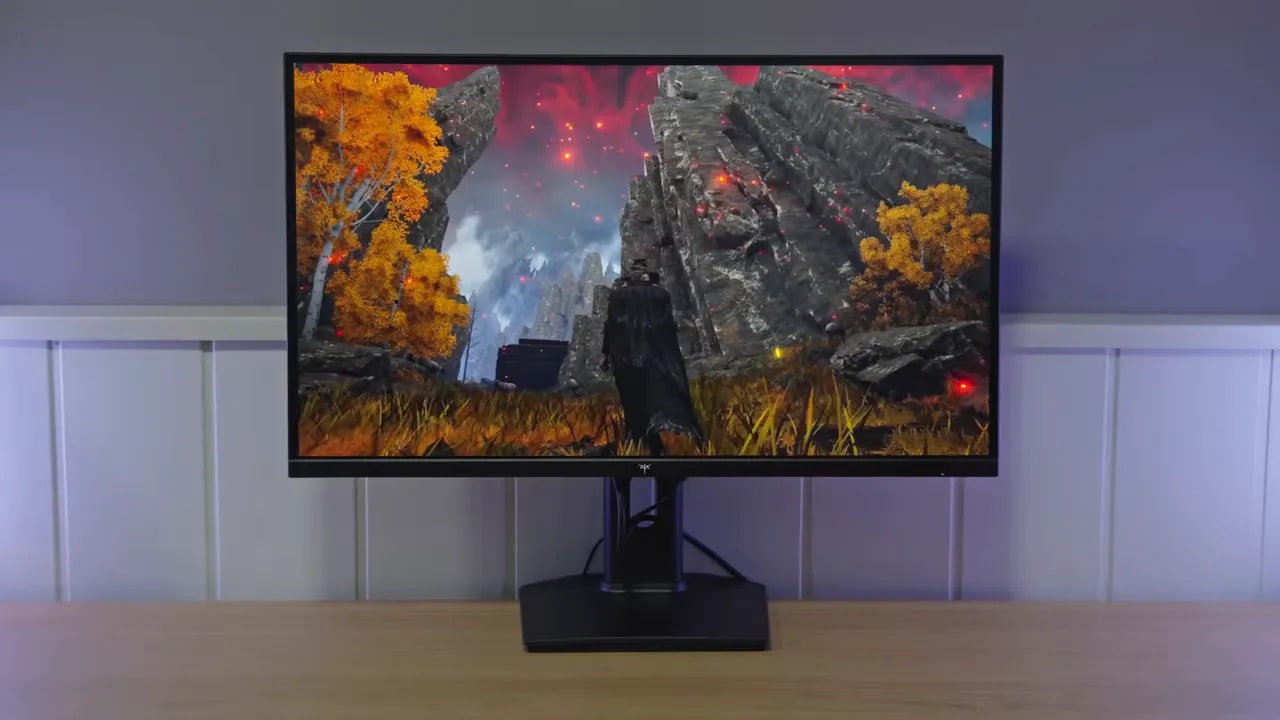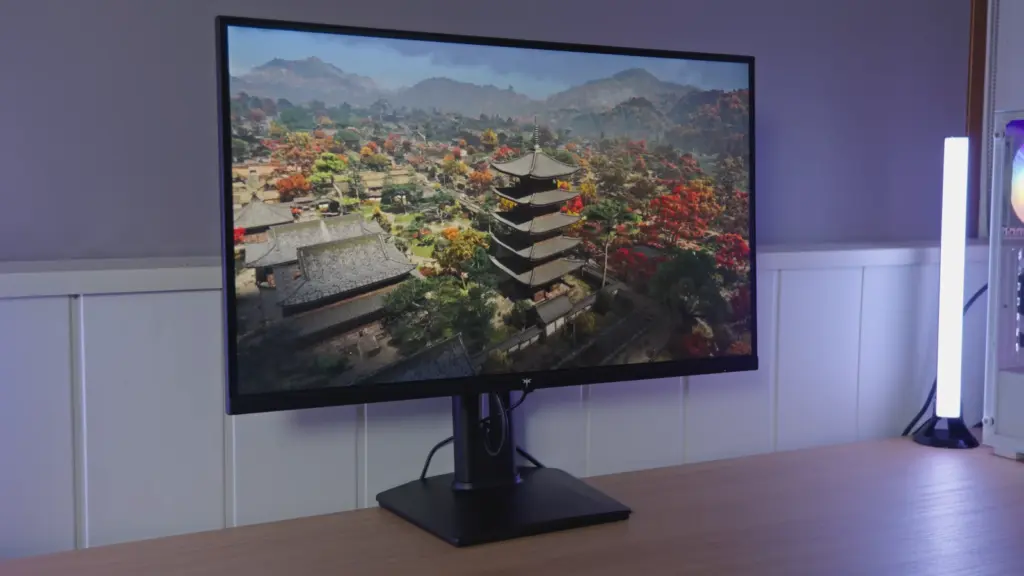
The KTC H27T7 stands out for the brightness and wide color gamut it offers in an affordable 1440p IPS monitor. Its sRGB mode is a practical advantage, while the heavy matte coating and overdrive behavior are trade-offs worth knowing about before choosing it.
The experience with this unit also raises quality-control concerns. Good color measurements alone are therefore not enough to judge the purchase: usable settings, the condition of the panel you receive, and the types of games you play all matter.
Assembly and first impressions
Inside the box of the KTC H27T7 is what you would expect:
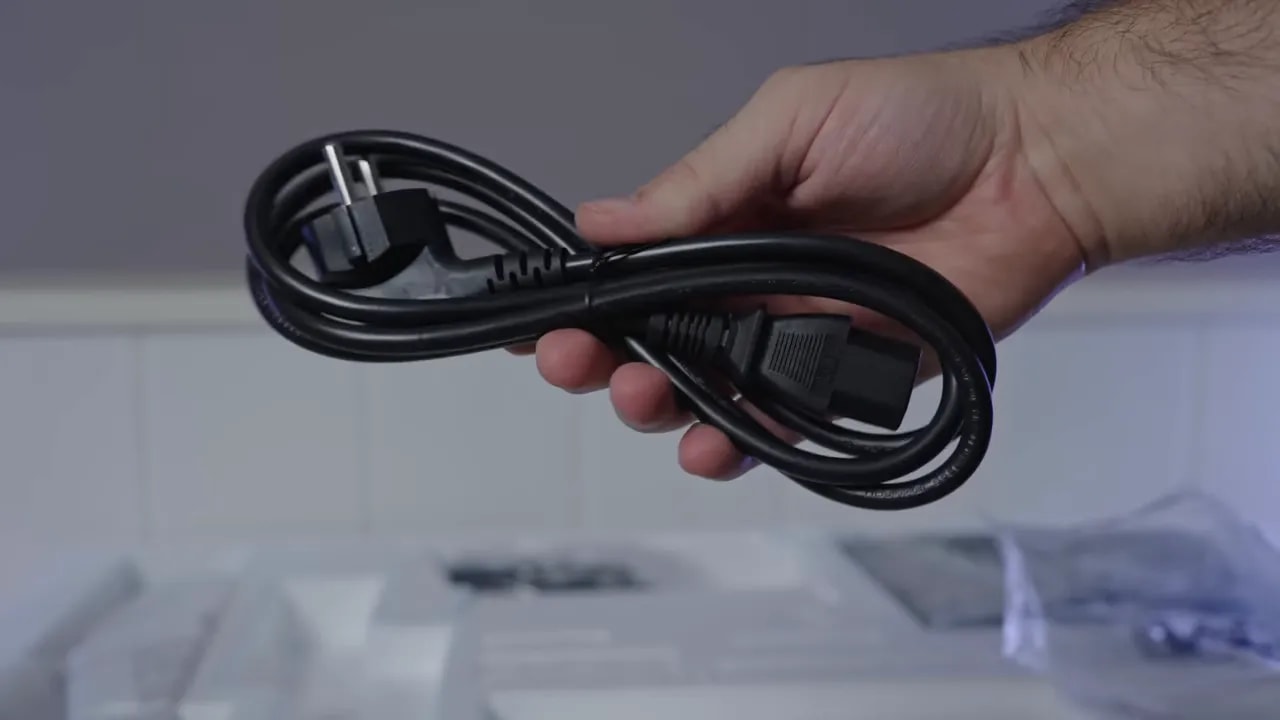
External power supply
DisplayPort cable
Documentation
Calibration report
Base and stand
The least impressive part of the package is clearly the stand. It is lightweight, mostly plastic, and generally feels rather mediocre. It does not even include the usual convenient screw for securing the base to the upright, something quite common even on budget models.
Still, I will not be too harsh, because many rivals at this price do not even offer an adjustable stand. Here, we at least get:
Height adjustment
Tilt
portrait pivot in both directions
What it lacks is swivel adjustment on the base, so pointing it to one side means moving the entire assembly. Since it is also lightweight, the monitor wobbles more than it should. Functional, yes. Premium, absolutely not.
The monitor body is a little better executed than the stand, although it is nothing to get excited about. I did like the OSD joystick: it is large and comfortable for navigating menus.
There is an interesting detail in connectivity: it includes a USB port, but it is only for updates. Do not expect a conventional USB hub.
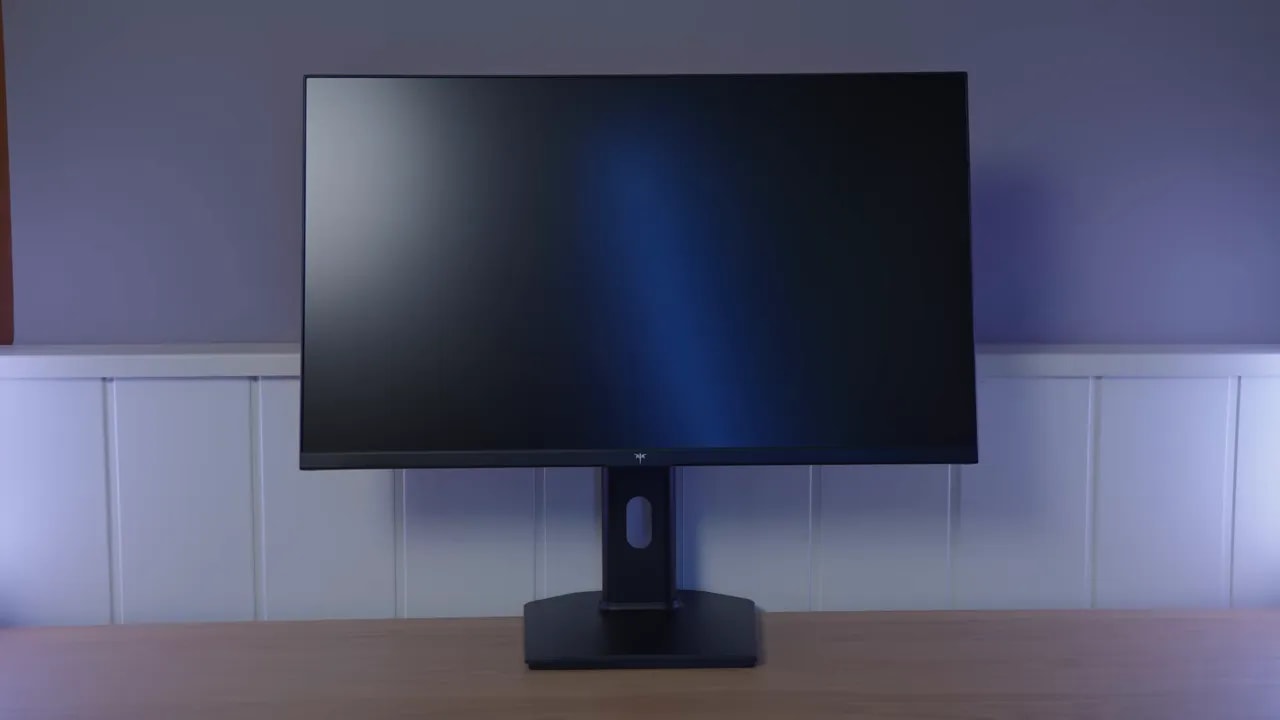
A matte finish that hides reflections and adds texture
The KTC H27T7 has a matte panel, and in this case the antireflective treatment is quite strong. The advantage? It handles reflections well. The drawback? It introduces that grainy or dirty-looking effect some matte panels show on light backgrounds.
Personal preference plays a large role here, but I prefer lighter matte finishes. On this model, the coating is strong enough to be noticeable, particularly if you are sensitive to that effect.
Color: Warm in native gamut and a useful sRGB mode
The monitor has several picture presets, but to get the most out of the KTC H27T7, the mode to use is User. It also includes a professional sRGB mode, which I will discuss later because it was a pleasant surprise.
The factory color temperature setting is Normal and leaves the image quite cool. The first recommended adjustment is to change it to Warm. That alone gets you much closer to 6500K and noticeably improves grayscale balance.
Gamma does a few odd things, but broadly tracks the sRGB standard reasonably well. Factory calibration is not perfect, but it is considerably better than you might expect for the price.
In its native gamut, the KTC H27T7 makes a very good impression. Measured against DCI-P3, it offers approximately 97,7% coverage in CIE 1976. That is a very strong result for a monitor in this price range.
Color accuracy is good too. Average delta E is low, and although certain colors such as blue are somewhat oversaturated, the overall result is very good.
Against Adobe RGB, things are more ordinary: around 85,9%. It is not a monitor for serious Adobe RGB work, but it does not pretend to be. It is in line with what is typical for the segment.
In sRGB, as with many wide-gamut IPS monitors, there is oversaturation if you leave it in native gamut. Gamut volume reaches approximately 126%, meaning it fully covers sRGB and extends beyond it.
Here is one of the best surprises of the KTC H27T7. The sRGB mode is not the usual mediocre or locked-down clamp included just to tick a box. It is very well implemented.
For starters, brightness and color temperature remain adjustable, which is not always the case. The gamut clamp is also really good: around 99,1% sRGB coverage. Honestly, of the monitors I have tested, this is one of the best at clamping the gamut in this mode.
In this preset, the best color temperature setting is User. Color accuracy is quite good, average delta E is decent, and grayscale balance also does the job. Grays are slightly less accurate than in a well-adjusted native mode, but the overall result is still very solid.


The clamp preserves virtually the entire sRGB gamut while keeping brightness and color temperature adjustable. That makes it useful for standard content without having to accept native mode’s oversaturation.
The factory calibration of the KTC H27T7 is frankly good, although, as always, it can be improved through manual calibration with a meter.
For native mode, it is worth adjusting the custom color temperature controls to achieve a more accurate white point. You can do the same in sRGB mode, since that preset allows a custom color temperature, making it much more useful.
With a carefully tuned ICC profile, the monitor can perform even better. That is not because it starts from a bad baseline, but precisely because the baseline is already good and responds well to additional calibration.
Brightness and uniformity of the unit
One area where the KTC H27T7 stands out most is brightness. Measurements show a maximum of approximately 527 nits and contrast of 1241:1, very good figures for a 1440p IPS in this class.
In fact, among the 1440p monitors I have tested in this category, it is the brightest, excluding mini LED and OLED, which play in a different league.
These values correspond to the color temperature mode Warm, but results are very similar with the custom native-mode settings. In sRGB, you do lose around 20 nits, although it remains perfectly usable.
Color uniformity is not disastrous, but could be better. The more obvious weakness is brightness uniformity, which is less impressive.
The usual IPS caveat applies here: backlight bleed is a lottery from one unit to another. On the unit reviewed, some bleed is relatively easy to see. It is not a complete disaster, but it is there.
The IPS glow, by contrast, is more or less average and did not seem particularly pronounced to me. It is that grayish haze you see when viewing the screen from an angle. It does not go away, but it is not unusually bad either.
HDR limited by panel contrast
HDR Auto mode raises shadows and slightly brightens midtones. Highlights quickly reach the panel’s limit, and there is no local dimming to preserve deep blacks alongside bright areas. Color coverage remains wide, but HDR is not one of the main reasons to choose this monitor.
185 Hz: choosing between response and overshoot
At 185 Hz, the monitor offers several overdrive modes and imposes no unusual restrictions even in sRGB or HDR. That is good because it lets you adjust its behavior to your preferences.
These are the two genuinely useful modes:
Standard: around 6 ms initial response time and little overshoot
Advance: drops to around 4.66 ms, but with considerably more visible overshoot
The difference between the two modes is substantial. In Standard, it is not the fastest monitor in the world, but it is not bad either. Advance brings a clear improvement in speed, although more artifacts appear. Personally, I would choose Advanced over Standard for gaming at the maximum refresh rate, but that depends a lot on how much overshoot bothers you.
The mode Auto is practically equivalent to Advance, so it adds little.


At 185 Hz, Advanced reduces initial response time compared with Standard, but increases overshoot. It is the setting chosen for gaming at the maximum refresh rate in this review; those more sensitive to inverse ghosting may prefer Standard.
It also includes an MPRTmode, meaning blur reduction through black-frame insertion or strobing. As is almost always the case with this type of monitor, it improves perceived motion clarity to some extent, but introduces the classic artifact known as strobe crosstalk, that double or duplicated image effect.
There are no multiple settings for this mode, although it can be combined with different overdrive levels. If you want to use it, trying Standard or Advance would make sense, but honestly, I am not particularly convinced by this mode on this monitor.
The KTC H27T7 supports Adaptive Sync, FreeSync and operation with G-Sync on Nvidia GPUs, although it is not officially certified by Nvidia.
What matters is that in actual use, it has performed well and I have not noticed any unusual flickering.
There is a very interesting detail: enabling adaptive sync in the monitor’s own menu slightly changes overdrive behavior, even if you do not enable G-Sync in the graphics control panel. In this case, the change mainly benefits Standard.
With Adaptive Sync enabled in the OSD, Standard drops to approximately 5.55 ms and overshoot rises only a little, without becoming problematic. In other words, the mode becomes better tuned.
That is why, if you are using this monitor on PC, I would leave Adaptive Sync enabled in the OSD even if you do not force anything else in the driver. It is one of those small things that makes a difference.
Use with PS5
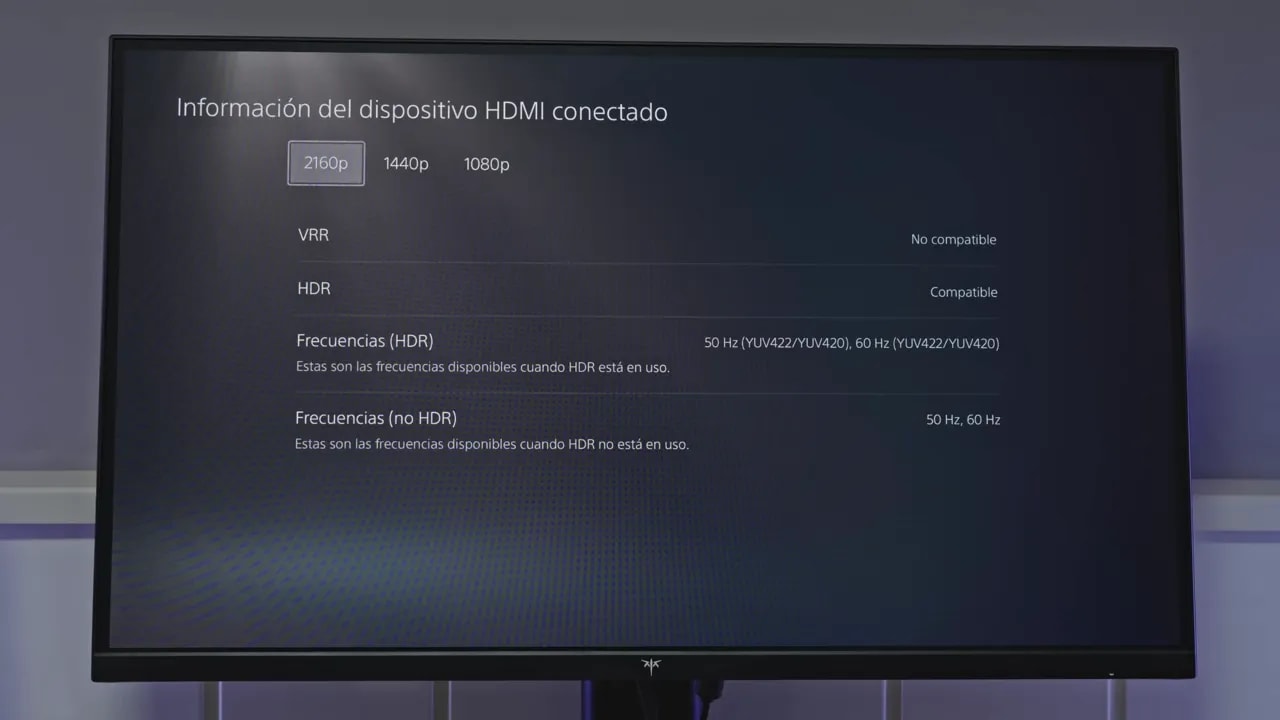
Testing also checked the behavior of the KTC H27T7 with PlayStation 5, and the results are mixed.
The bad:
No VRR support
No ALLM
The good:
It can run at 4K 60 Hz with supersampling
That is a useful extra if you want a cleaner signal from a console
If you are gaming at 120 Hz, response times rise significantly with overdrive Off. You can try Standard, which drops to around 5.11 ms, but overshoot becomes visible. At 60 Hz, however, the recommended setting is overdrive off, because Standard introduces too many artifacts.
Input lag remains within the normal range, with no unpleasant surprises.
Quality control and buying assessment
It was never going to be perfect. The review unit of the KTC H27T7 had a stuck blue pixel. It is not a huge issue, but it is a reminder that quality control from these more aggressively priced brands can be somewhat less consistent.
There are also user reports of dead pixels on KTC monitors. Still, rigorously measuring the number of defective units is extremely difficult. It would take an enormous sample to draw firm conclusions, and relying solely on online comments is risky because people without problems do not usually post to say everything went well.
My impression is clear: given the price, quality control is probably not at the level of brands such as MSI or Asus. But if you buy it on Amazon, the upside is that returns are usually easy, which considerably reduces the actual risk of buying it.
The KTC H27T7 honestly strikes me as a fantastic monitor for the money. It is not perfect, of course. The stand is underwhelming, the matte coating could be finer, HDR is incidental, and you have to accept some additional quality-control risk. But if you get a good unit, the package is better than many more expensive models from established brands.
What matters is that it nails the basics: color, brightness, contrast, refresh rate, and overall performance. That counts for a lot in a 27-inch 1440p IPS in this price bracket.
If you are looking for a budget but capable 1440p gaming monitor, the KTC H27T7 is easily among the most recommendable options right now.