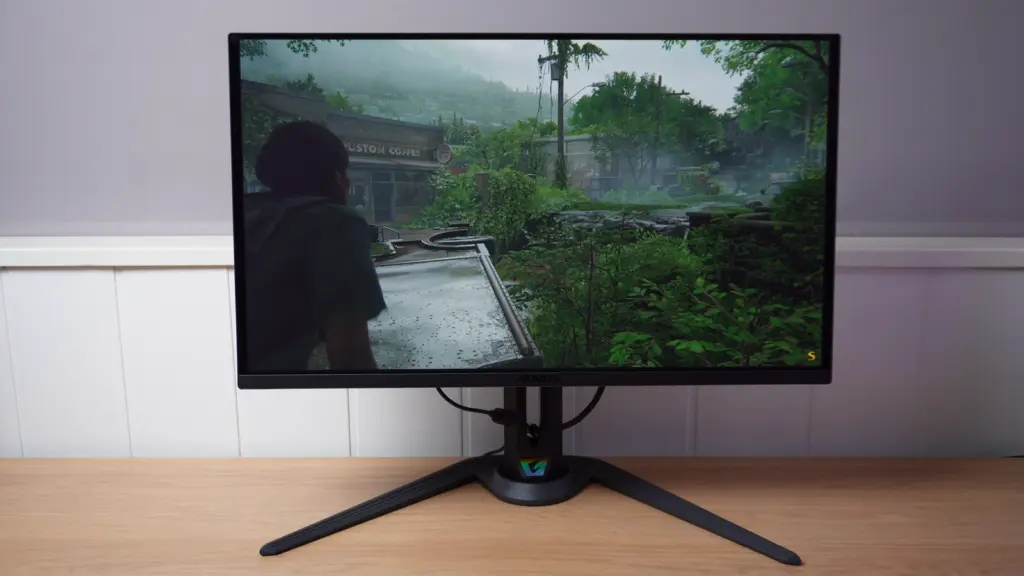
The Gigabyte AORUS FO27Q3 enters a very appealing category: 27 inches, 1440p resolution, a QD-OLED and no less than 360 Hz. On paper it sounds like a premium monitor for serious gaming, but the point is to see how that translates into practice: connections, construction, panel finish, calibration, HDR, response times, VRR, and, of course, whether the price makes sense against alternatives.
It also needs placing within Gigabyte’s own range, because this model sits alongside its 240 Hz sibling, the AORUS FO27Q2, which may be even more appealing to many people on price. But first, the focus is what matters: how this FO27Q3 is built and what it really offers.
Design, stand, and connections
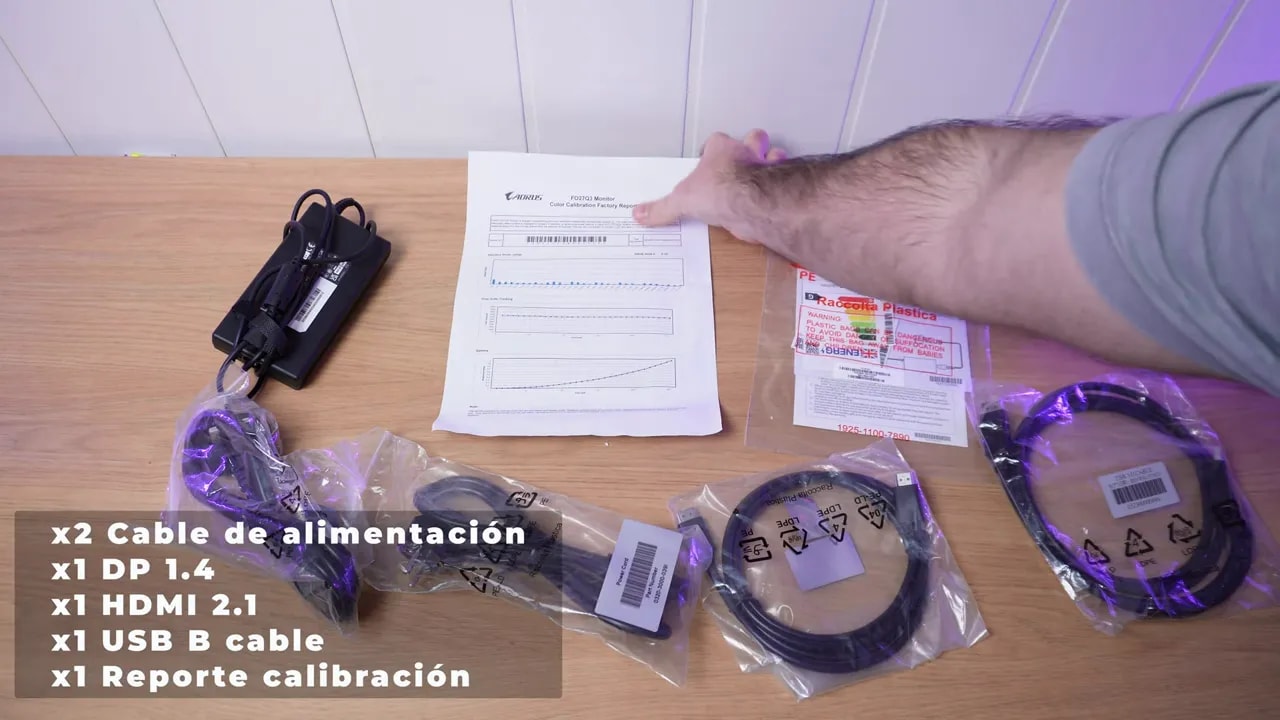
The package includes the usual connection and power cables, and one important detail already appears: it does not have DisplayPort 2.1 like its bigger sibling, but instead DisplayPort 1.4. Even so, connectivity is well covered.
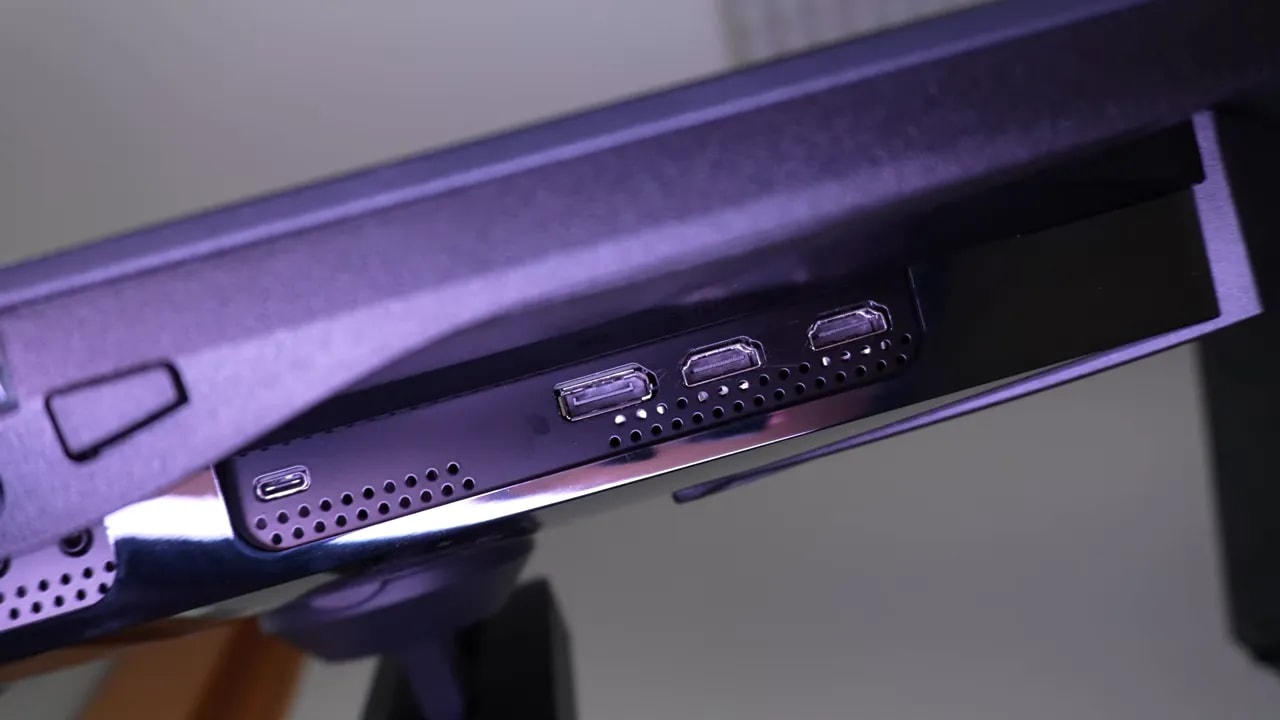
The most noteworthy connections are:
- DisplayPort 1.4
- HDMI 2.1
- USB-B upstream
- USB-C with video and charging up to 18 W
The stand is practically identical to its bigger sibling’s, just somewhat smaller. It feels sturdy, but retains that V -shaped design that takes up considerable desk space. It is not the most compact base, although it offers plenty of adjustment in return.
Ergonomics are well covered:
- Adjustment for height
- Mode portrait orientation in one position
- Forward and backward tilt
- Monitor swivel without moving the base
In other words, the stand takes up space, but functions very well.
Glossy finish, reflections, and QD-OLED characteristics
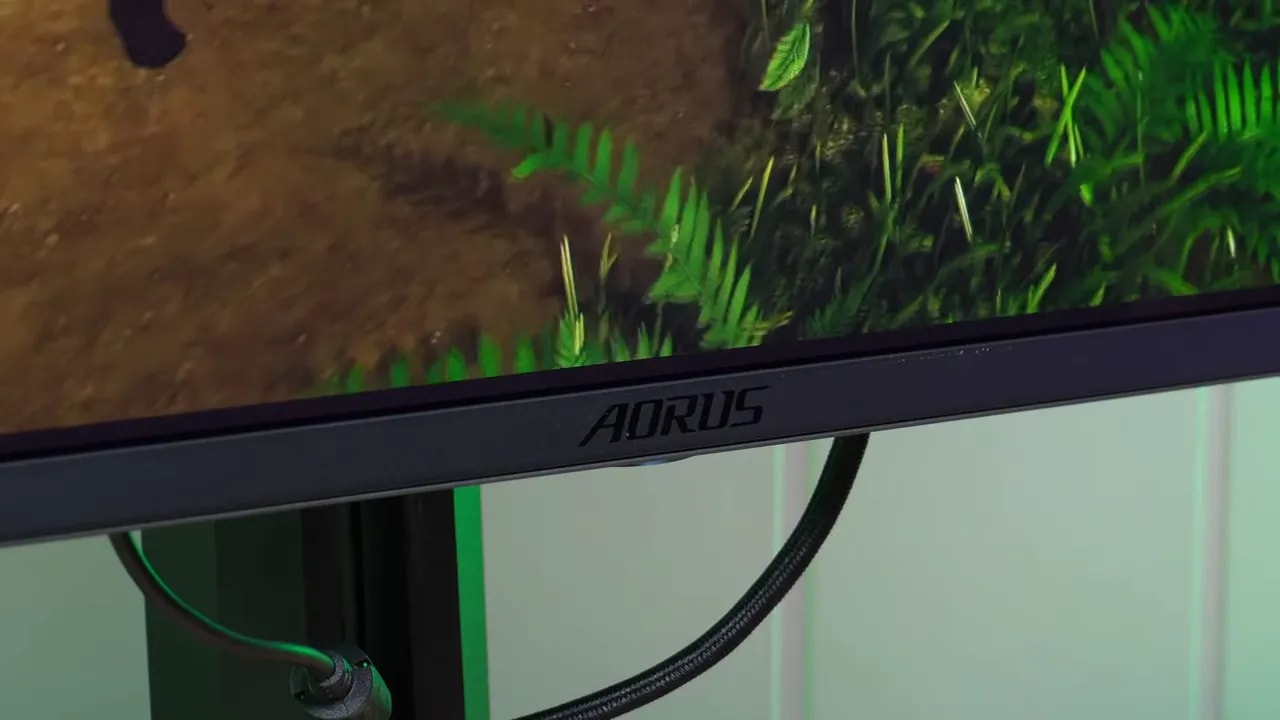
As with practically all panels using QD-OLED, the finish is glossy. That has two very clear consequences.
- The reflections are more noticeable than on a matte panel.
- The colors and overall image appearance usually look somewhat better.
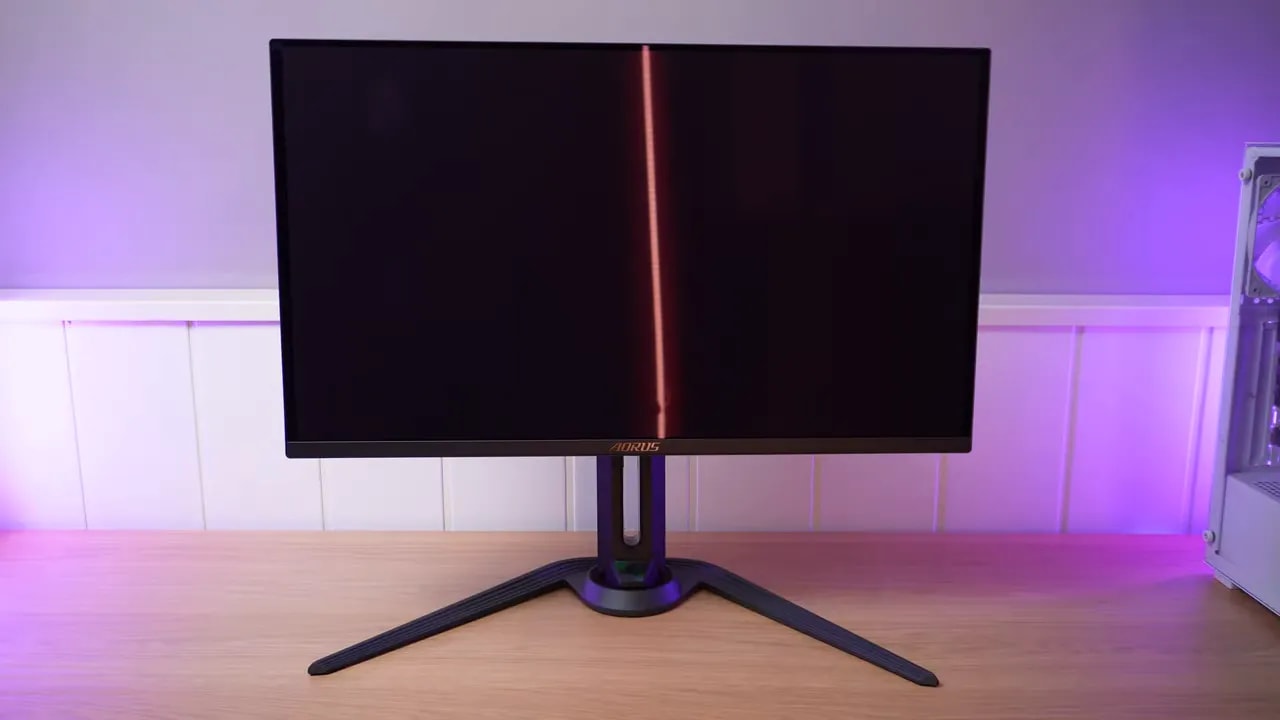
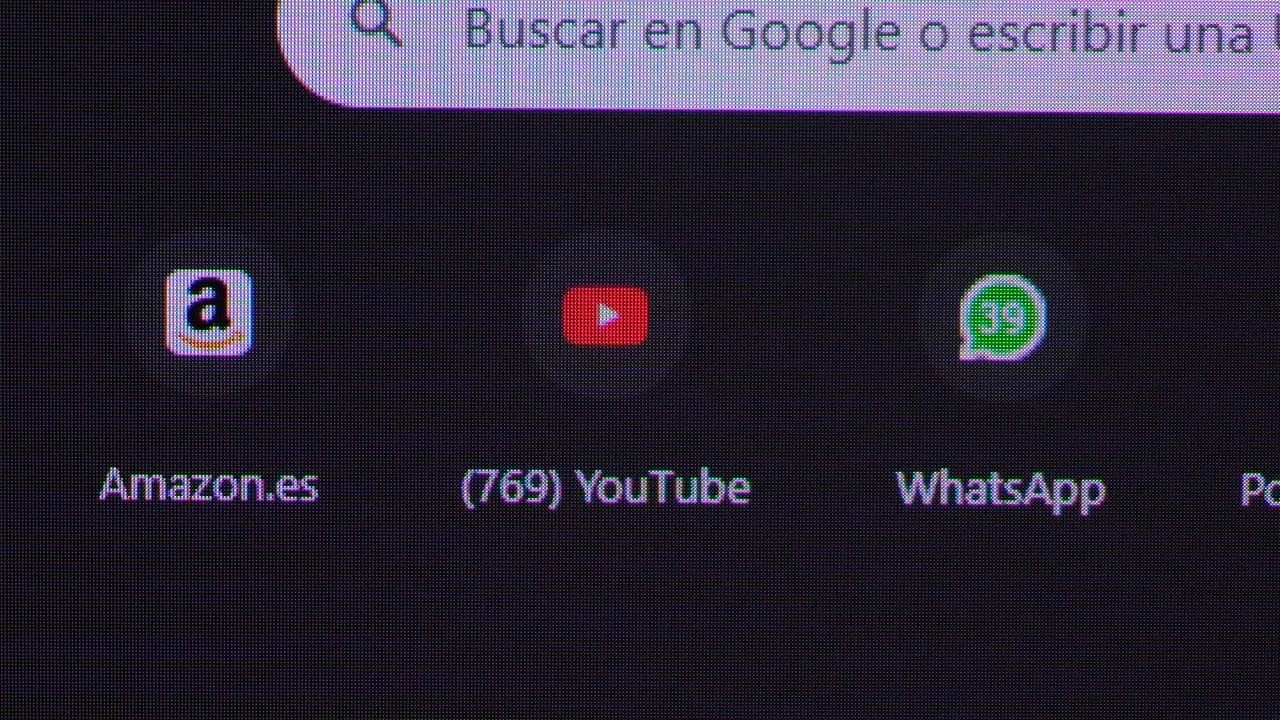
In very bright environments, the familiar magenta tint of some QD-OLEDs may also appear. It can be distracting under strong direct light or in a particularly bright room, but should not be a serious issue when gaming in darkness or moderate lighting.
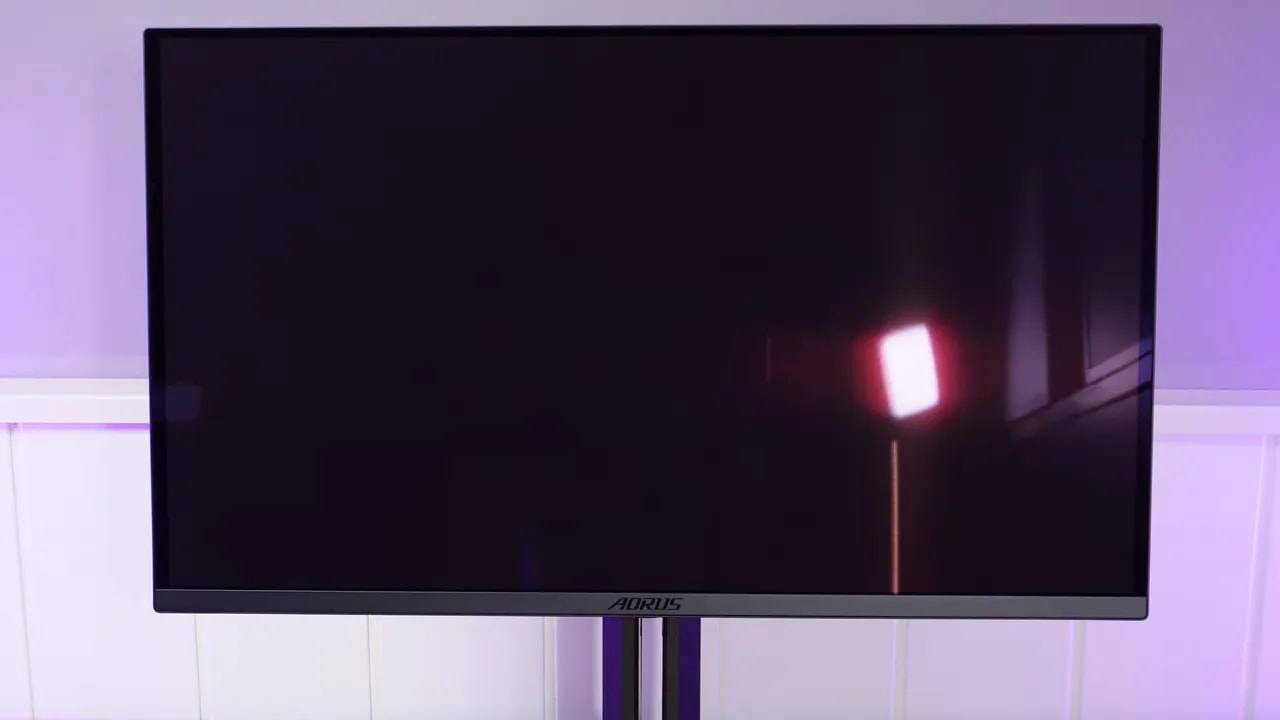
It is worth emphasizing something that applies to this type of panel: take great care when handling and cleaning them. These are delicate screens that cannot tolerate just any cloth or cleaning product. The panel is fragile, so treat it with considerable care.
Color: coverage, factory-calibrated modes, and overall tuning
For anyone considering this monitor for image quality, the baseline is very good. With a panel using QD-OLED, we get a very wide color gamut, with coverage that practically fills DCI-P3 and very high color volume.
The interesting part is how its various factory modes are adjusted, because extensive coverage is not enough: you then need to see how it translates into accuracy.
sRGB mode
The sRGB mode is quite well implemented. The DeltaE is good, the color temperature follows the standard of 6500K and overall, it is usable for work or anyone wanting a more restrained, less saturated image.
The less convincing aspect is gamma 2.2. A drop at the end of the curve produces some distortion in certain grays. It is not a disaster, but it is one of those details showing that tuning could be more precise.

sRGB mode provides a usable starting point, but gamma still has room for improvement. QD-OLED’s wide color range does not remove the need to check grayscale and the chosen working color space.
DCI-P3 mode
On the P3 mode is similar. It remains reasonably usable, but slightly worsens white-point deviation, while the gamma issue remains practically unchanged.
This is not isolated to that particular preset. It is more of a characteristic across several monitor modes.
Adobe RGB mode
At Adobe RGB does not cover the entire gamut, so it is normal for it to be less finely tuned than a monitor more specifically designed for professional work in that color space. Even so, the result is decent.
The unusual thing here is that color temperature is set around 6000K, making the image somewhat warmer. It is hard to understand Gigabyte’s decision when other modes do use the standard 6500K .
Native mode
The native mode is where you truly use the panel’s full color potential. To enjoy QD-OLED’s saturation and color range to the fullest, it is the most spectacular mode.
However, there is slight oversaturation because the gamut extends beyond the target without a clamp, unlike the factory-calibrated modes. You may even prefer it for games or content consumption, but keep it in mind if strict fidelity is your goal.
Even so, for work in DCI-P3 it could be suitable because DeltaE is good, although the oversaturation from excess coverage remains.
Manual calibration and ICC
All of this improves with manual calibration using a colorimeter. Adjusting color temperature and fine-tuning the monitor can produce considerably better results, especially in spaces such as DCI-P3.
An ICCprofile is also mentioned, though context matters here: for gaming, it is often not particularly relevant because it is simply not used. It makes more sense for editing and color work.
ABL, brightness stability, and which setting to use
One of the most important aspects of an OLED for mixed use is how ABLbehaves: automatic brightness limiting based on screen content. On this monitor, it depends on the APL stabilization setting within the burn-in protection features.
Two configurations are especially relevant:
- APL Low: better for color work, editing, and maintaining more stable brightness across the screen.
- APL Middle: more pleasant for gaming or content consumption, because it allows higher brightness peaks.
With APL Low you get approximately 260 nits stable across the screen, along with brightness and color uniformity that is quite good. For editing, desktop use, and consistency, this is the most logical setting.
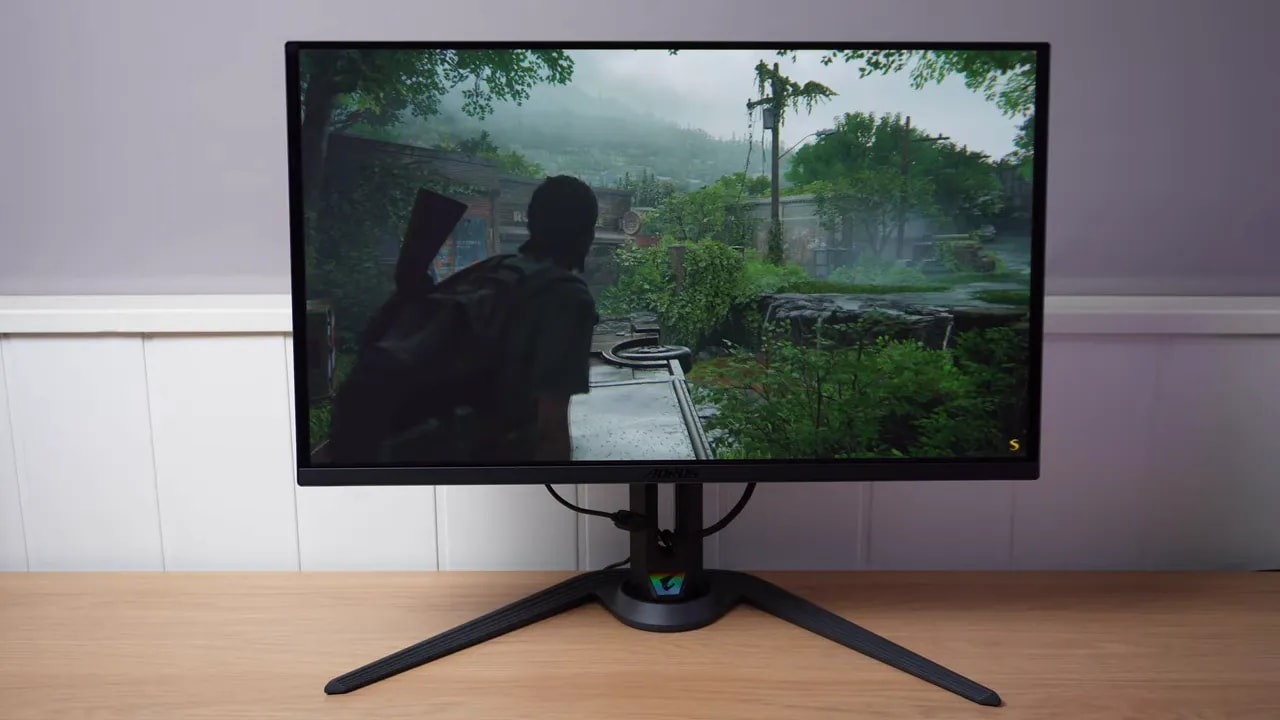
If you mainly use it for games or media, however, APL Middle usually feels more pleasant because of its brightness handling in real scenes.
HDR: available modes, brightness, and actual fidelity
There is plenty to discuss in HDR. The monitor includes several modes, with a normal HDR mode that allows no adjustment, while others let you change various parameters. There is also an HLG mode, unusual on monitors but commonly included by Gigabyte.
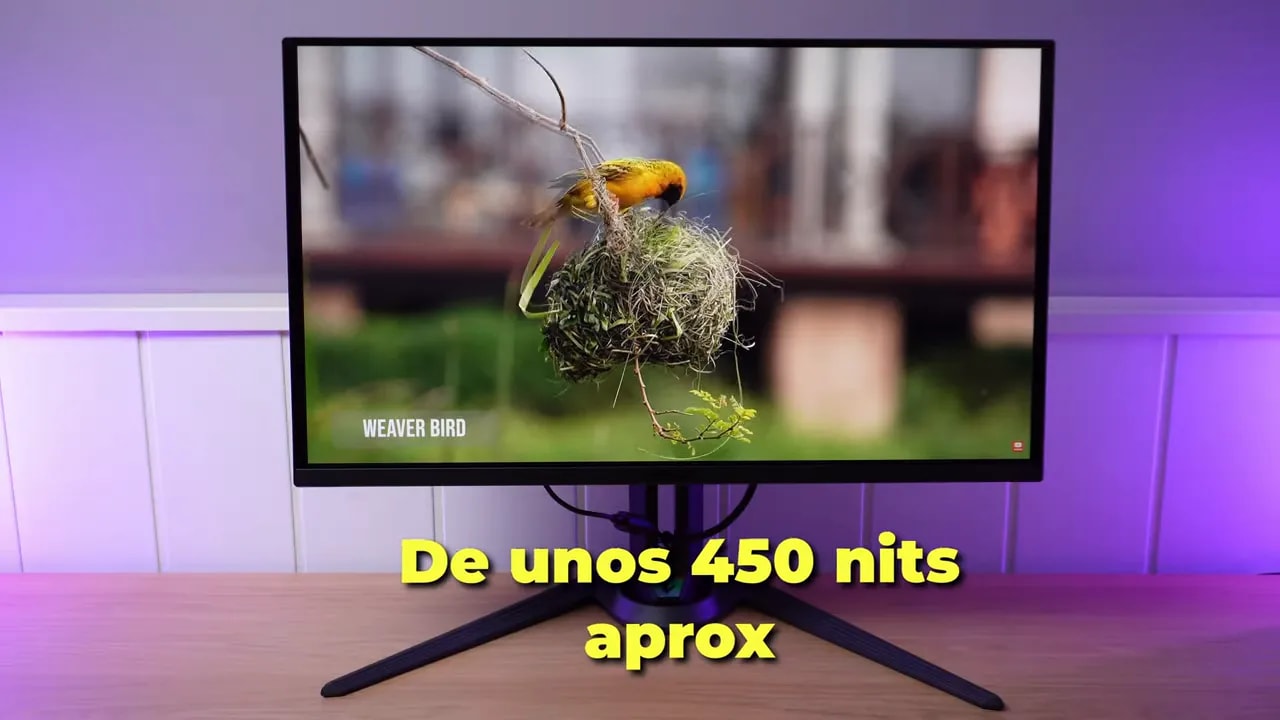
Of all the modes, the one with the best factory calibration is standard HDR. The others are adjustable, but factory calibration is rather weak.
For example, in HDR Game the PQ EOTF curve is not particularly well tuned.
HDR behavior also depends heavily on the selected APL mode:
- APL Low: fairly low brightness.
- APL Middle: behavior similar to a True Black 400, and quite well tuned.
- APL High: allows higher brightness peaks, but with poorer fidelity.
With APL High, in small bright windows, such as 2% APL, it can approach 1000 nits peak brightness. That is very good for specular highlights and isolated flashes.
However, PQ EOTF tracking in that mode is somewhat worse than in APL Middle, so peaks gain punch at the cost of some overall fidelity.
Another interesting detail is that HDR color temperature is again closer to 6000K than 6500K, similar to Adobe RGB.
White- and black-level tests show that it is not entirely bad, but neither is this one of those flawlessly calibrated HDR implementations out of the box.
Which HDR mode to actually use
To put it practically:
- APL Middle is the mode that provides greater fidelity in shadows, lighting, and overall detail.
- APL High is the mode for those prioritizing higher brightness peaks.
Another important distinction: in APL High, overall screen brightness may feel slightly lower than in APL Middle, though that depends heavily on the scene.
Personally, for gaming, APL Middlemakes more sense because the screen generally looks somewhat brighter. For spectacular highlights, however, choose APL High.


As the illuminated area increases, High’s compromise becomes visible: it allows greater peaks in small highlights but darkens more midtones. Middle tracks the reference more closely. All settings are limited at full screen; HDR Game is also not equivalent to normal HDR.
Response times, overshoot, and input lag
With an OLED panel, we already know that response times are practically instantaneous. No surprise there. The less polished aspect is that this model’s overshoot seems somewhat higher than on similar monitors.
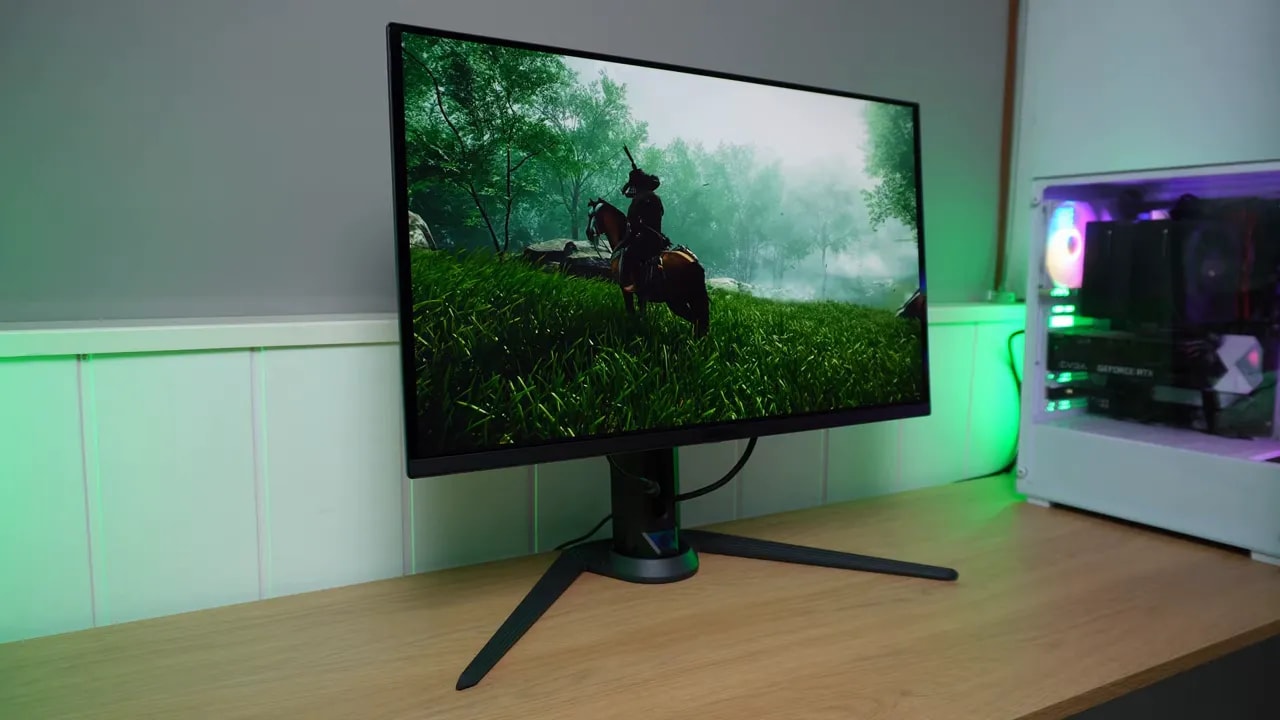
This behavior appears at both 360 Hz and 240 Hz and even at lower refresh rates. Technically, it could be better tuned.
However, fine measurements and actual use are different things. It does not stand out as an obvious problem in normal use, and the UFO Test looks quite clean.
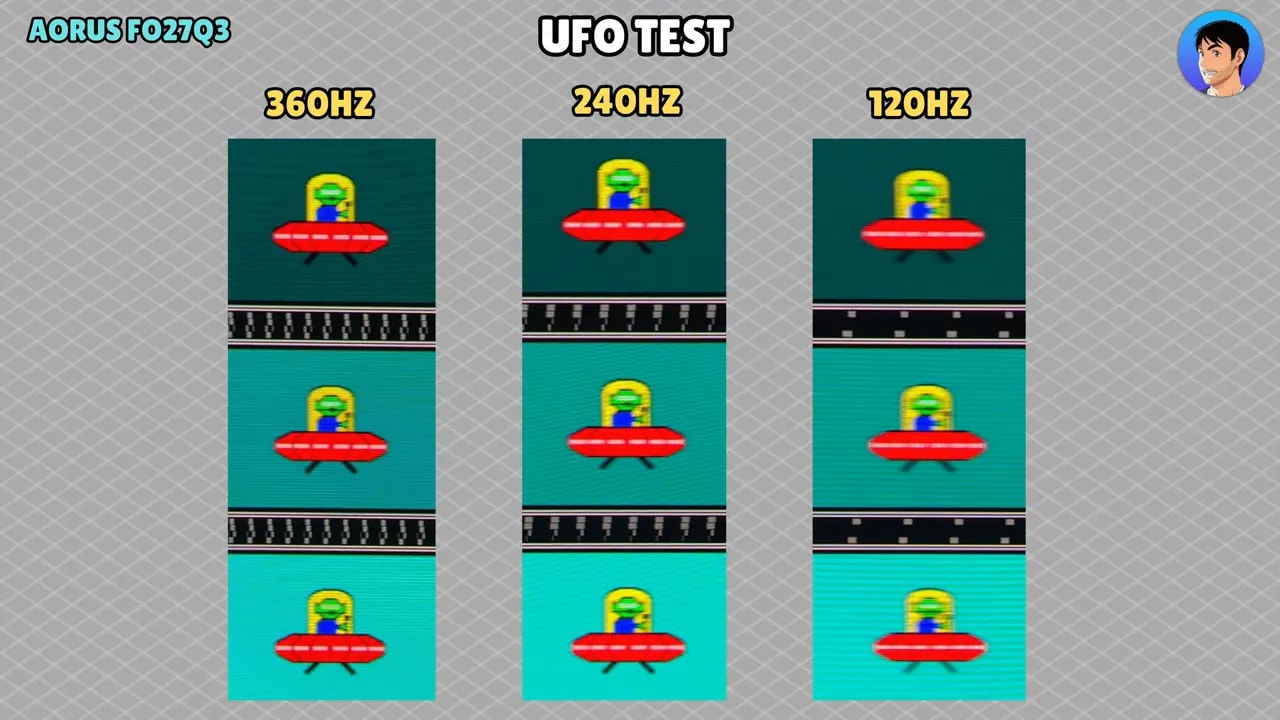
To be clear: if you scrutinize the technical test, there is room for improvement. In actual gaming, the experience remains extremely fast and very clean.
As for input lag, behavior is as expected. Higher refresh rates mean lower input lag; as refresh rate drops, lag rises.
As with many OLED and QD-OLED monitors, dropping to 60 Hz increases input lag considerably over higher refresh rates. In that context, the FO27Q3’s results are normal, and at 360 Hz it performs very well.

The table shows fast transitions alongside the measured overshoot. That excess was not especially visible in games. Input lag is a separate test: it should not be confused with the time a pixel takes to change.
VRR, FreeSync, G-Sync Compatible, and flicker
Variable refresh rate includes a fairly high FreeSync specification and, as usual in this segment, it can also be used as G-Sync Compatible.
However, as an OLED panel, it exhibits the familiar VRR flickering. This is not a fault unique to this monitor. It is fairly common on the vast majority of OLED panels.
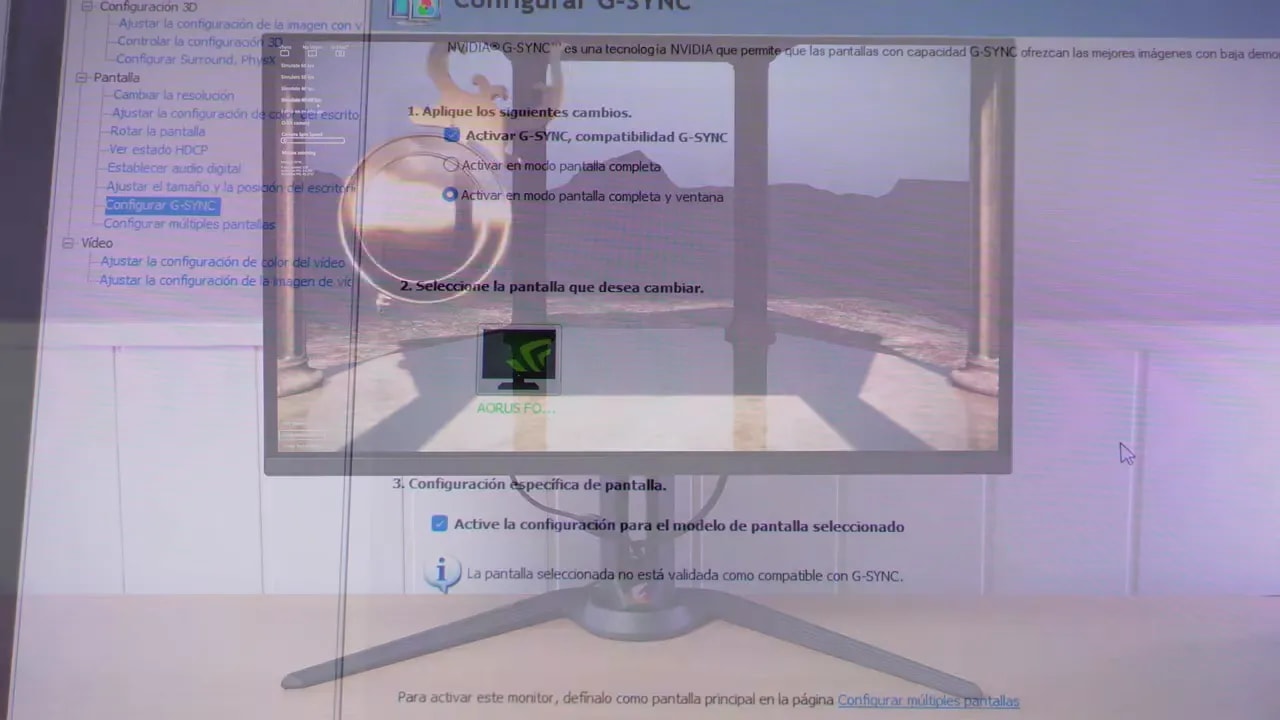
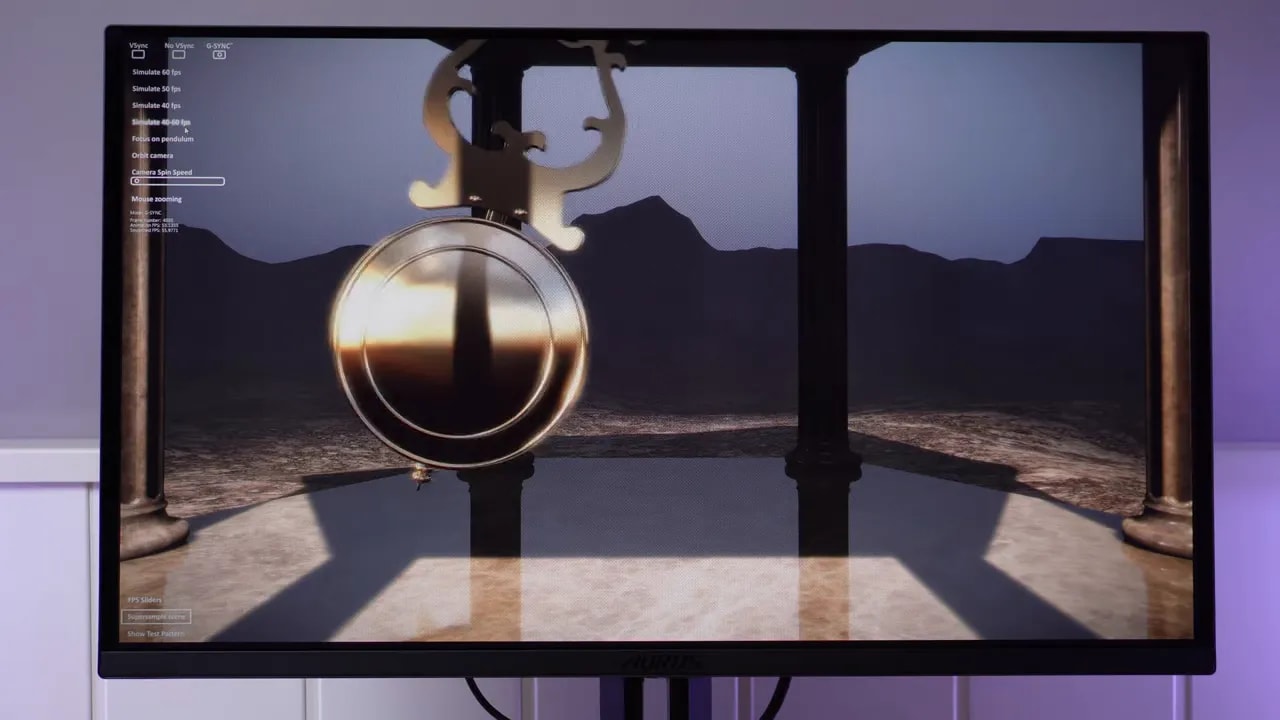
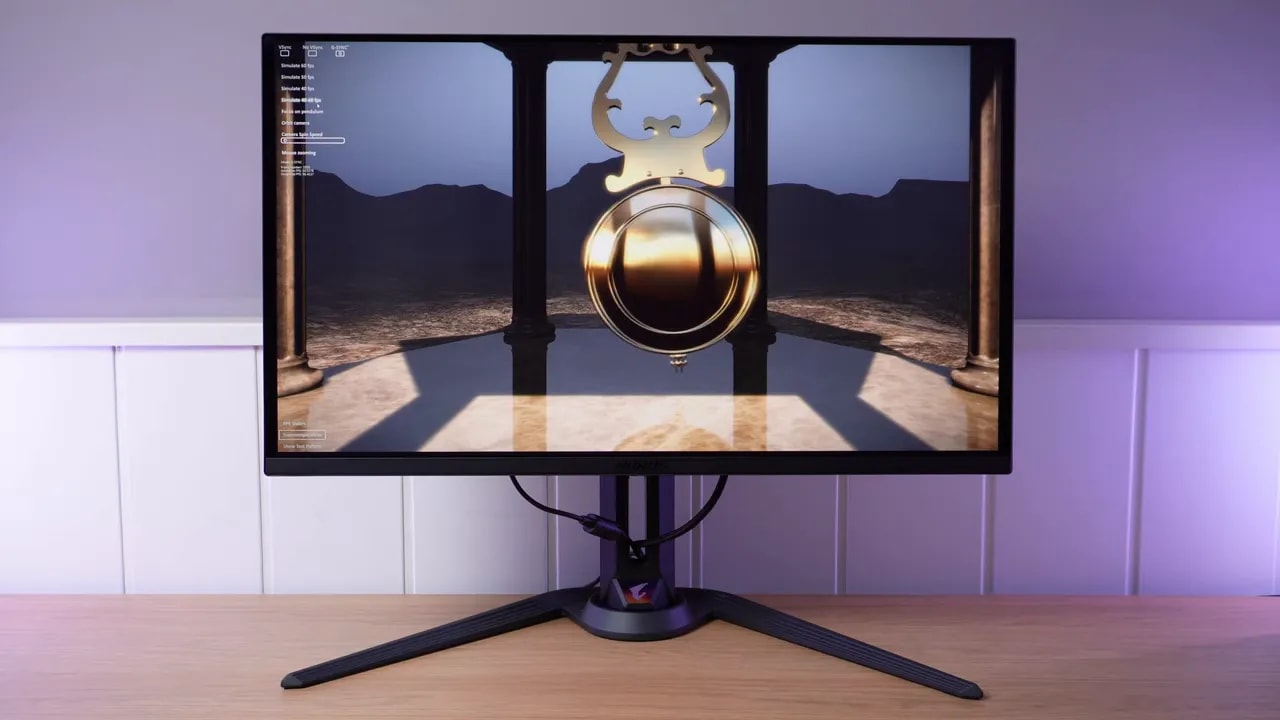
It is visible in tests such as the pendulum demo; in games, it depends heavily on the situation. It is usually most noticeable:
- Near the range of LFC
- At loading screens
- In certain particularly sensitive games
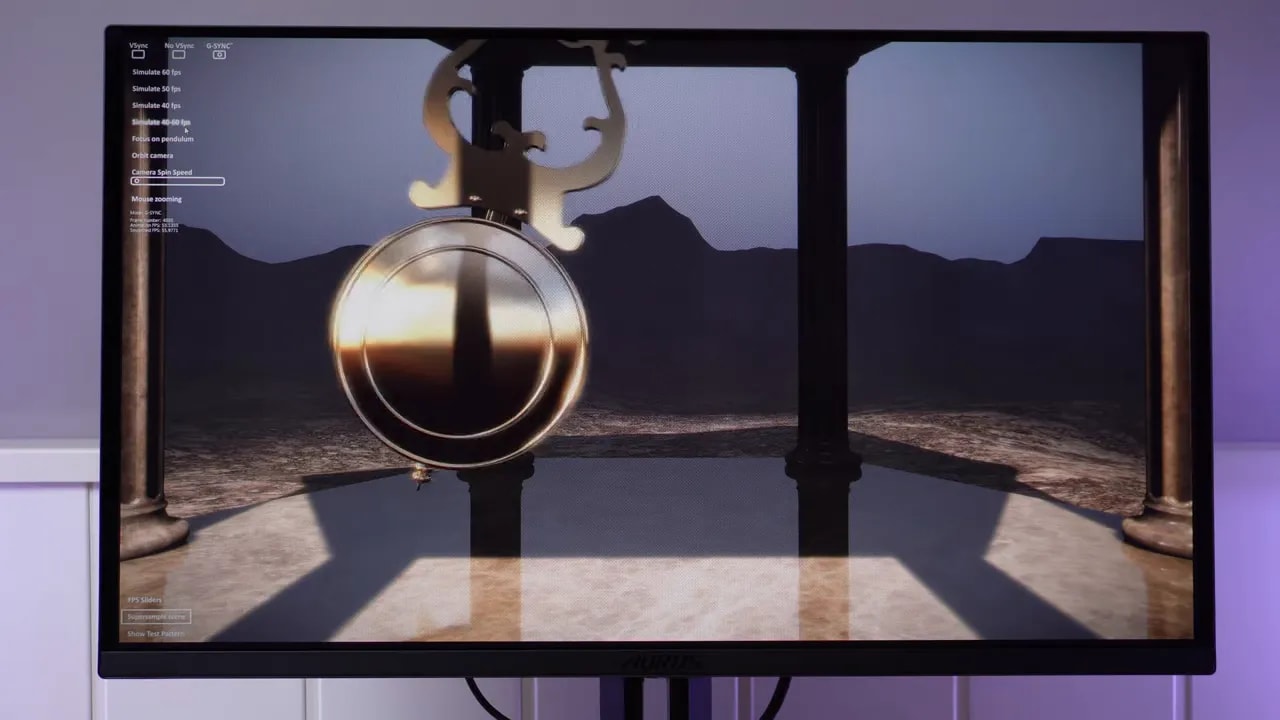
If it bothers you in a particular game, the sensible choice is disabling VRR for that game. The good news is that it is less severe than on many VA panels, so it generally remains usable.
Text clarity
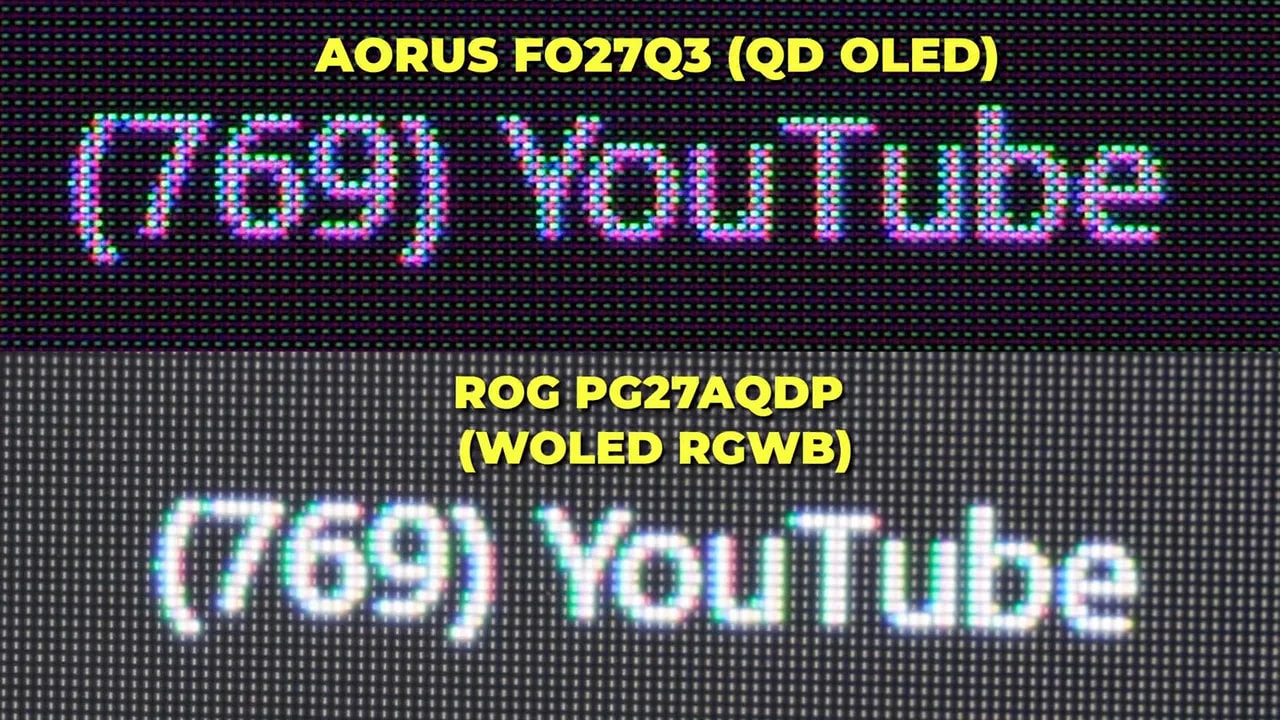
Another recurring concern when buying an OLED for desktop use is text clarity. This monitor uses a latest-generation QD-OLED panel with an updated subpixel layout, so text looks slightly better than on previous QD-OLED generations.
In fact, it seems even better than some latest-generation WOLED alternatives, always comparing equivalent sizes.
However, keep perspective: an IPS of the same size will normally still look better in this respect. If the main use involves lots of text, intensive office work, or continuous reading, that still matters.
PS5 compatibility
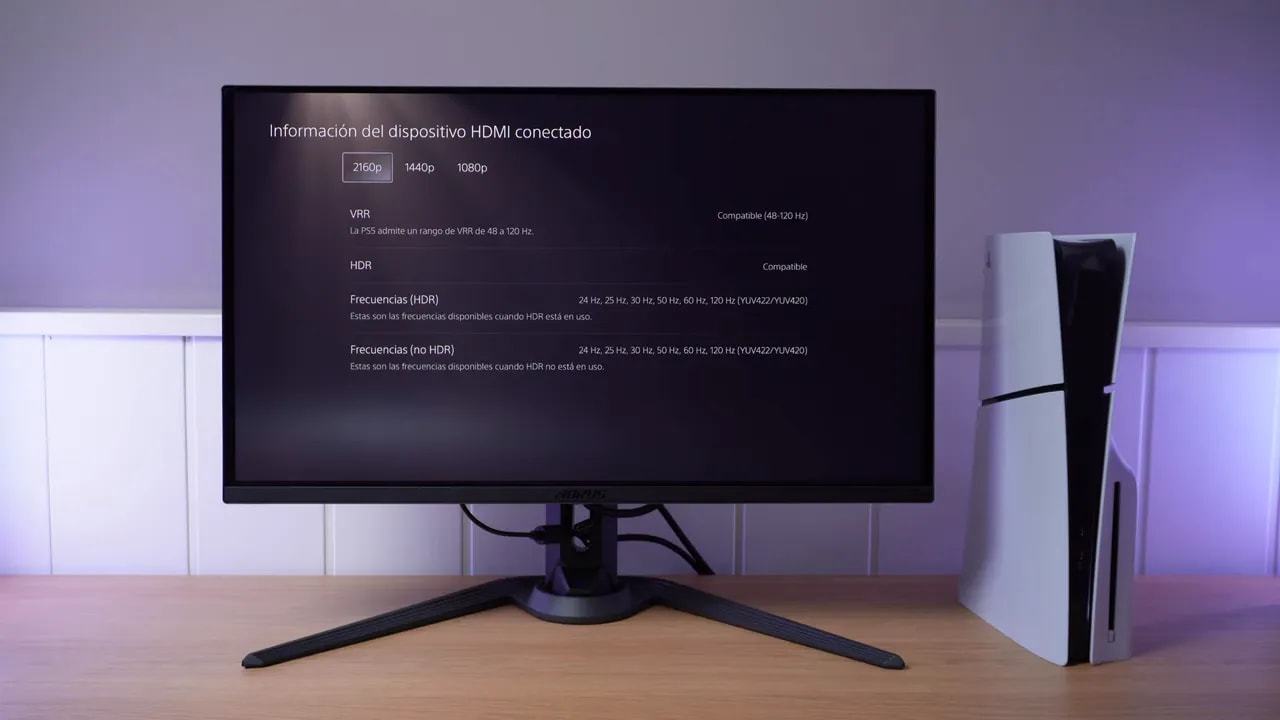
Compatibility with PlayStation 5 is very well handled. Thanks to HDMI 2.1 with full bandwidth, it can even operate at 4K 120 Hz with VRR, although the panel is natively 1440p.
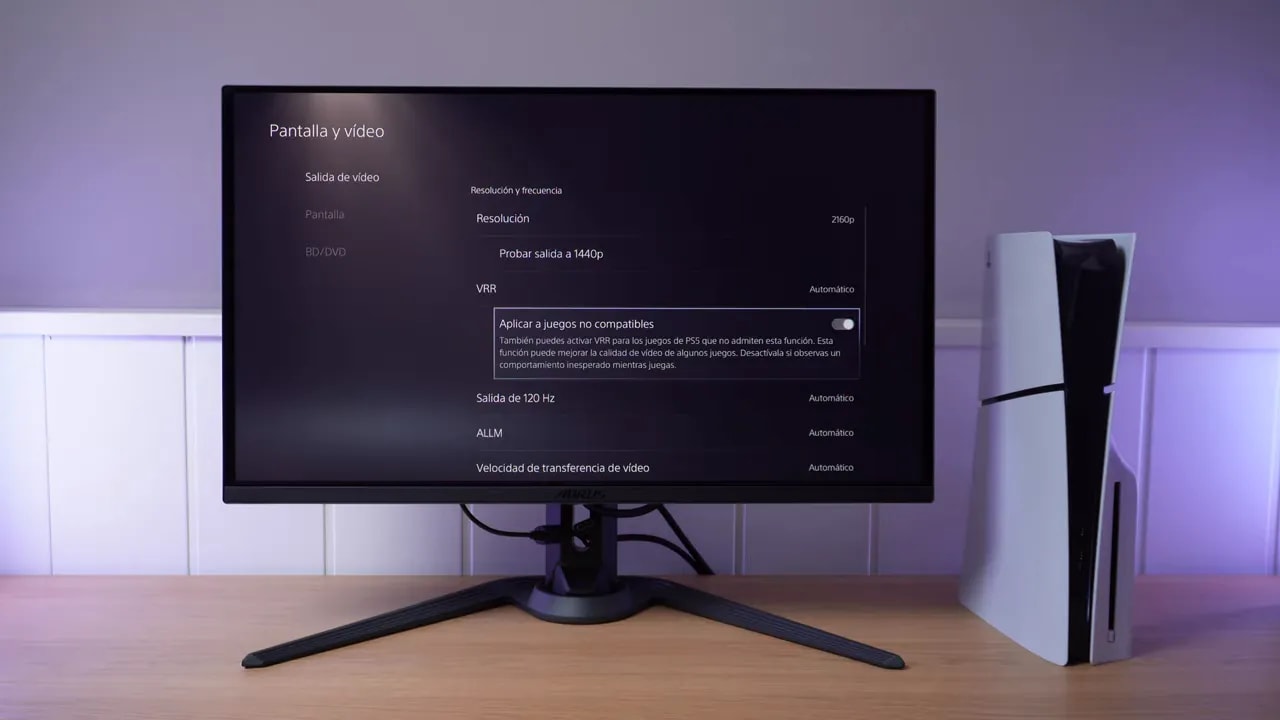
With properly implemented, sufficiently capable HDMI 2.1, the monitor can accept higher resolutions and perform a form of supersampling. In practice, console compatibility is complete.
Extra productivity features
Although clearly gaming-focused, the monitor includes several useful features for work or mixed setups.
- KVM
- PBP
- PIP
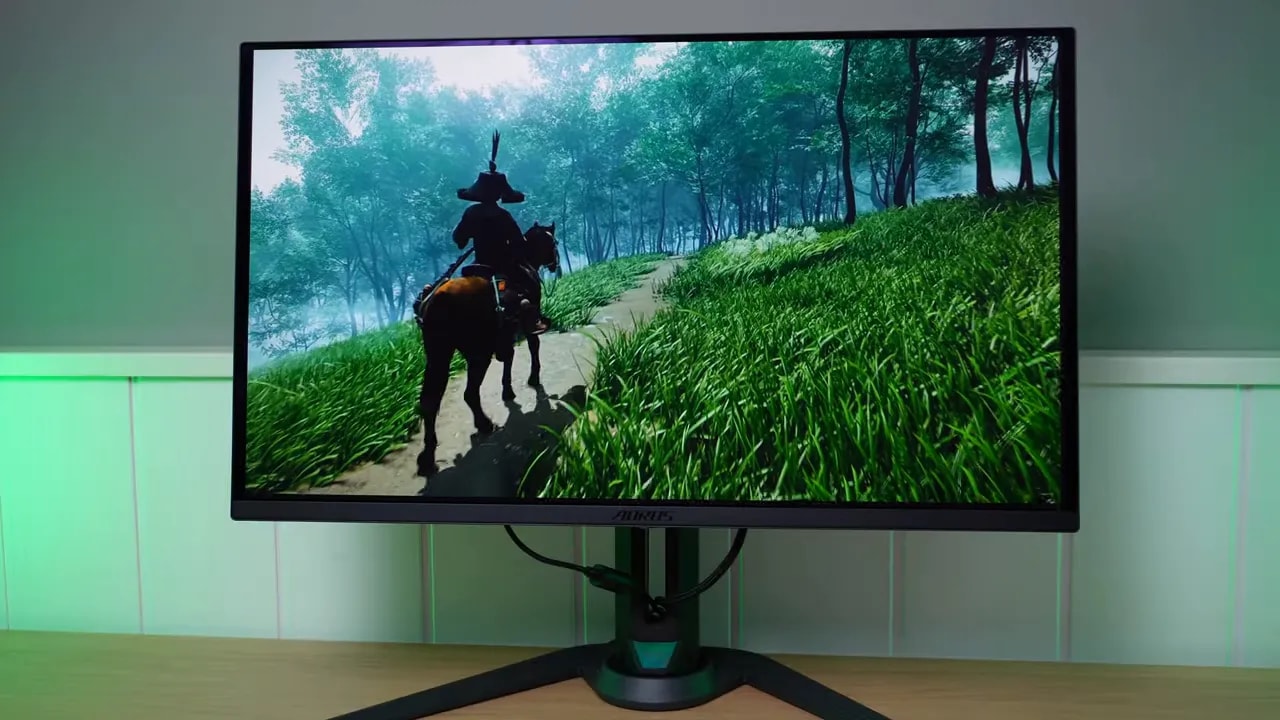
This allows control of multiple devices or simultaneous display of two video sources, useful when switching between a PC, laptop, or console on the same desk.
Price and whether it is worth buying
The price is approximately in the range of 700 to 750 euros, though it has occasionally been cheaper. That is essentially the usual range for many QD-OLED monitors.
The problem is that it is slightly more expensive than some alternatives, making this a difficult segment to compete in. It is certainly not one to dismiss, but worth keeping on your radar for a good price drop.
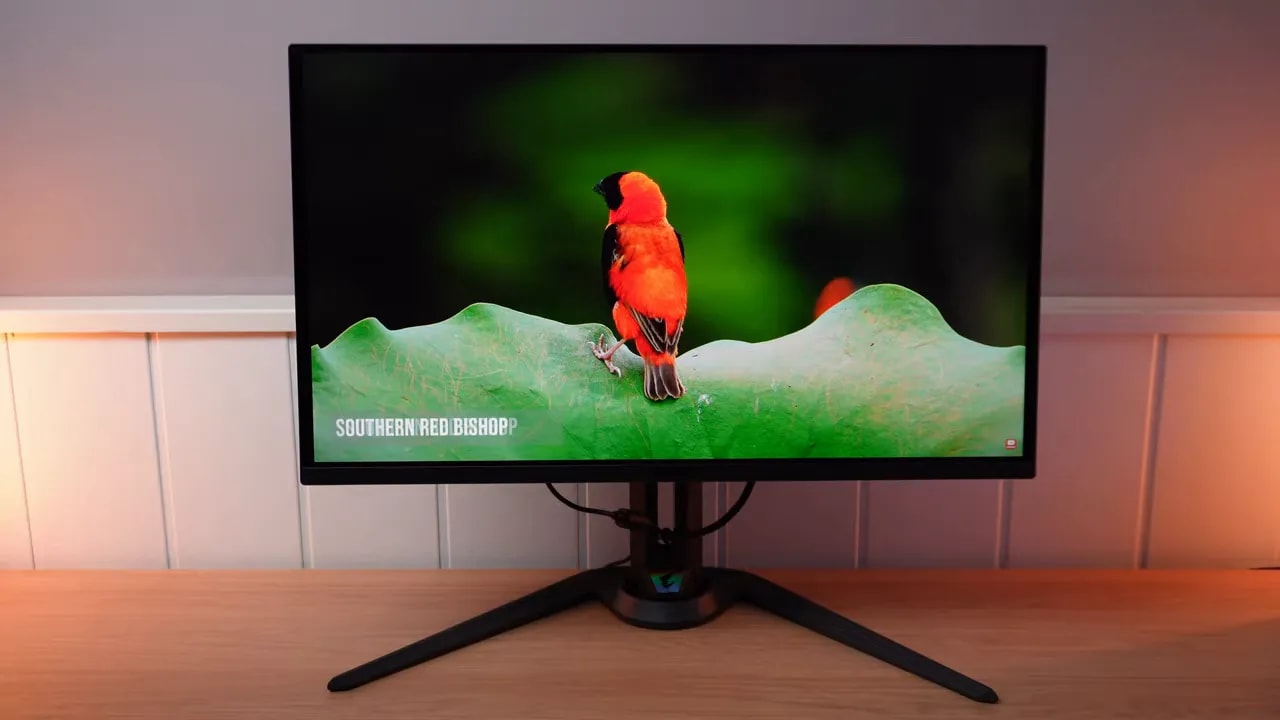
This is where Gigabyte comes in, since promotional periods have already shown its ability to make aggressive cuts on many monitors.
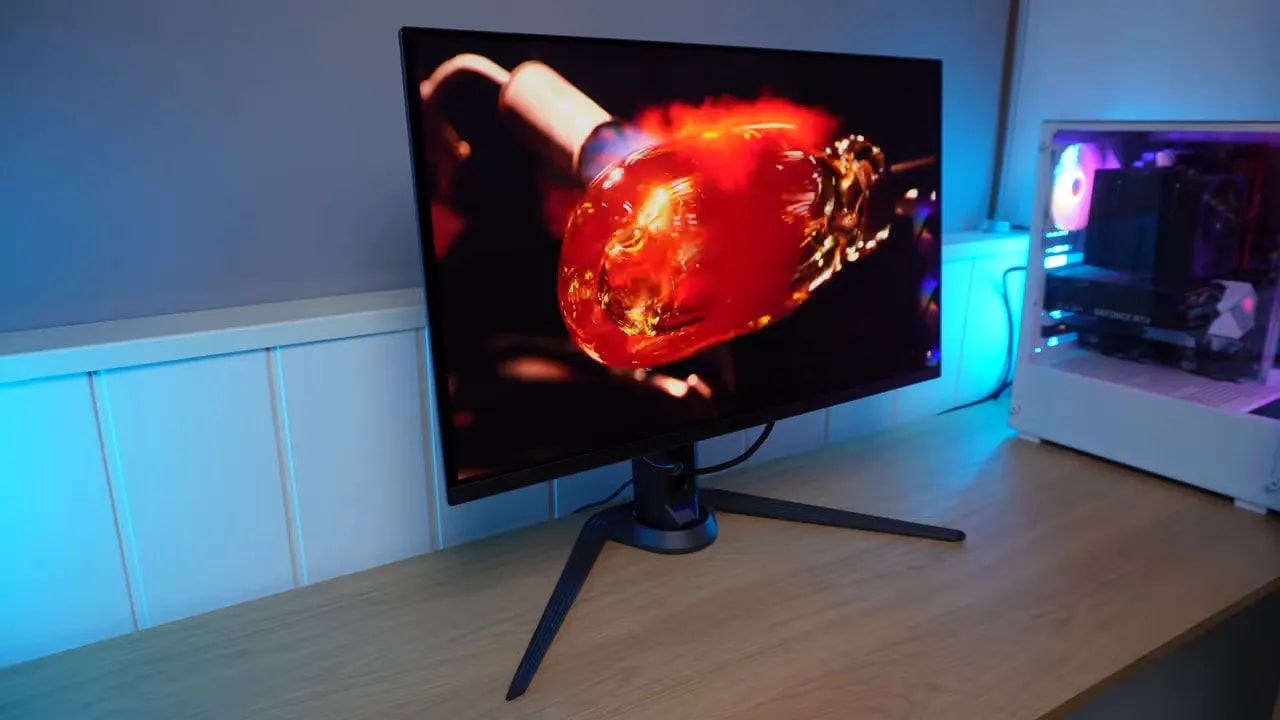
What about the 240 Hz AORUS FO27Q2?
Currently, the most attractive value option is probably the AORUS FO27Q2, the sibling with 240 Hz.
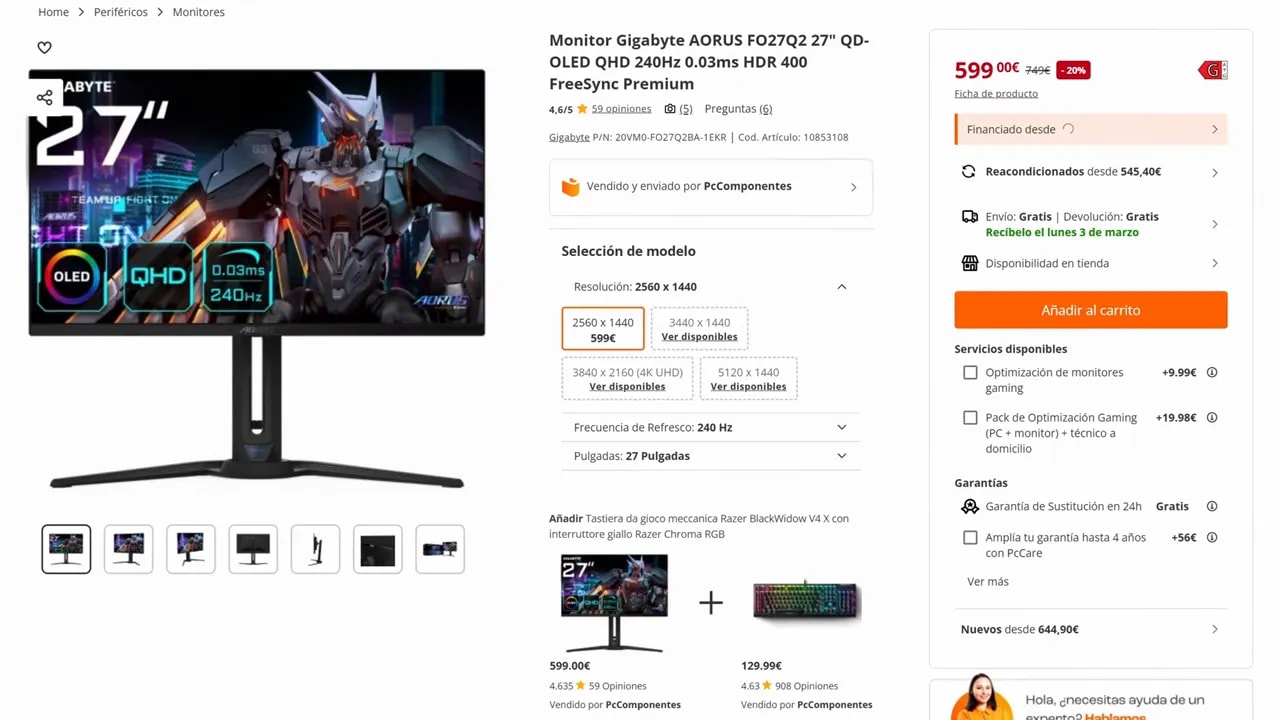
Without having tested it directly, but with clear reference points for Gigabyte’s handling of this range, it is reasonable to expect a similar experience in many areas at a friendlier price.
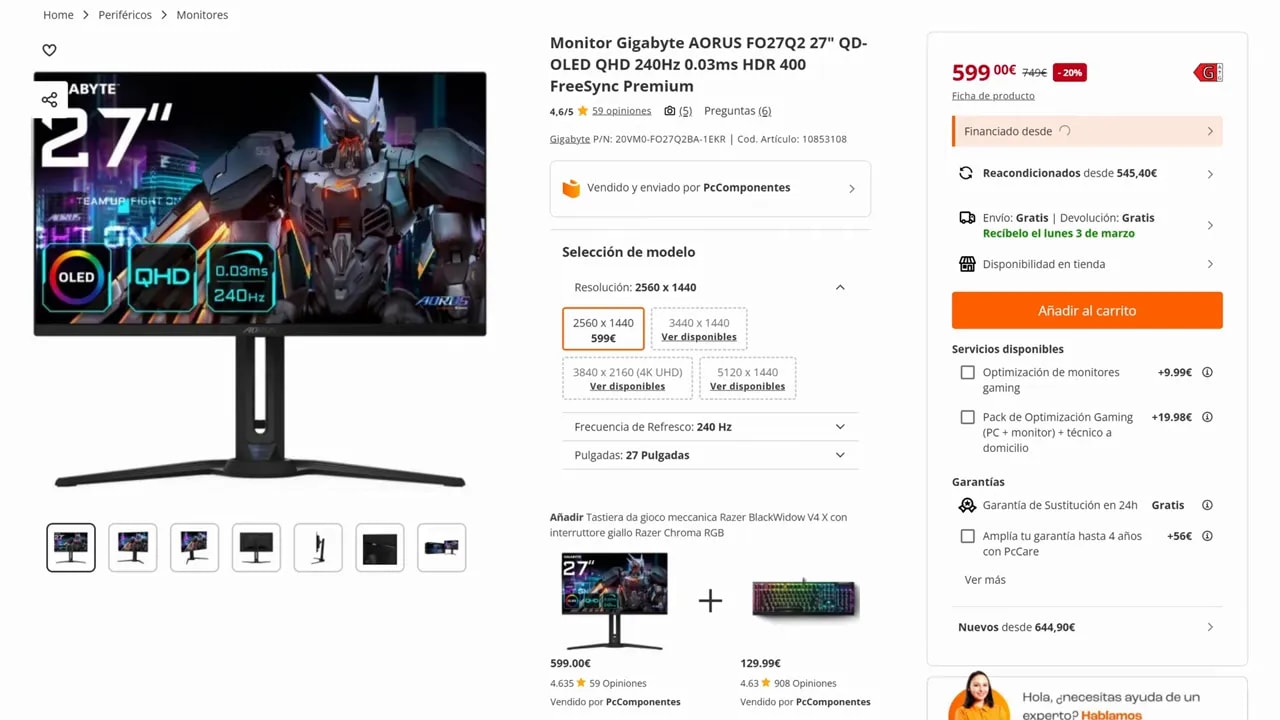
That matters because at around 600 euros it becomes one of the cheapest QD-OLEDs typically available on Amazon and at stores such as PcComponentes.
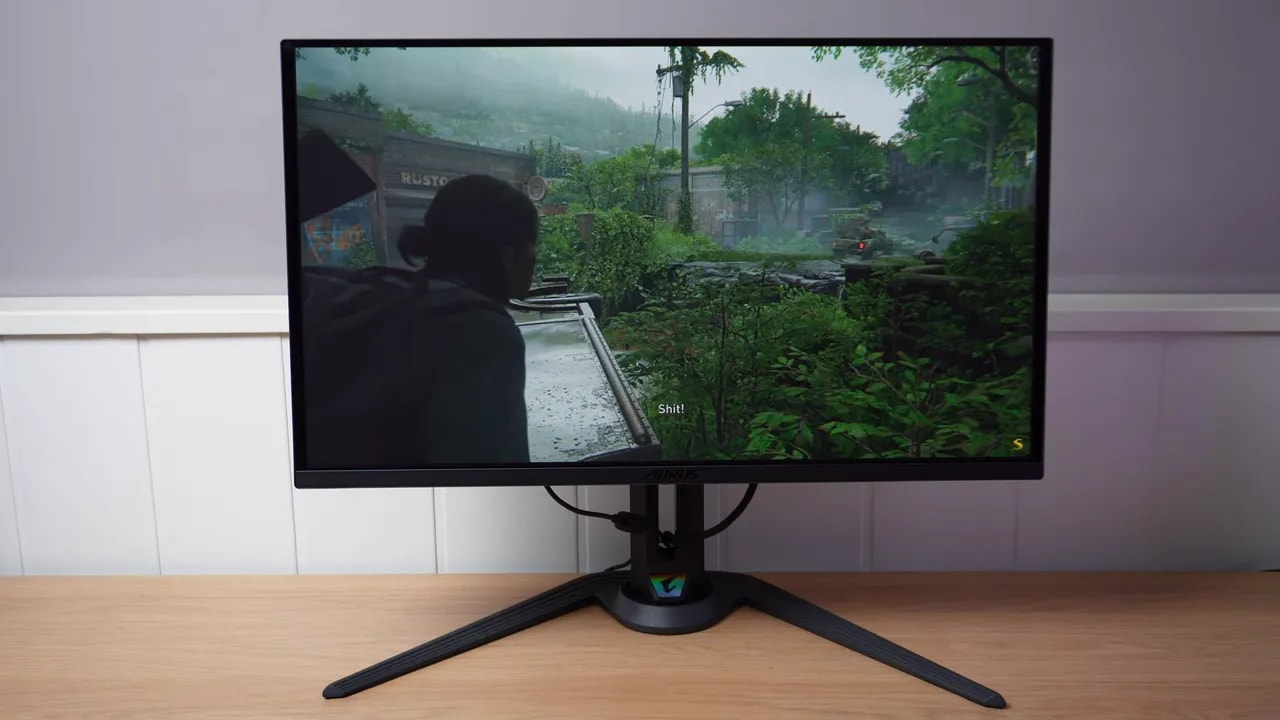
It will likely inherit—with strong qualifications—some of the FO27Q3’s small factory-calibration and fine-tuning shortcomings. Practically speaking, though, it is still a QD-OLED monitor for around 600 euros, with pure blacks and a very good-looking image.
Conclusion
The Gigabyte AORUS FO27Q3 is a very capable monitor built on an already excellent foundation: QD-OLED, 1440p, 360 Hz, full HDMI 2.1, good ergonomics, extra features, and a top-tier gaming experience.
It is not perfect. There is room to improve factory calibration, gamma that is somewhat inconsistent across several modes, an HDR that depends heavily on the APL setting, and a level of overshoot that is technically slightly higher than ideal. But all of that needs context: in practice, it still looks very, very good.
For a top competitive OLED experience at 360 Hz, it is a serious option, especially on sale. If moving to 360 Hz is not a priority, the FO27Q2 looks like a particularly smart purchase within this family.