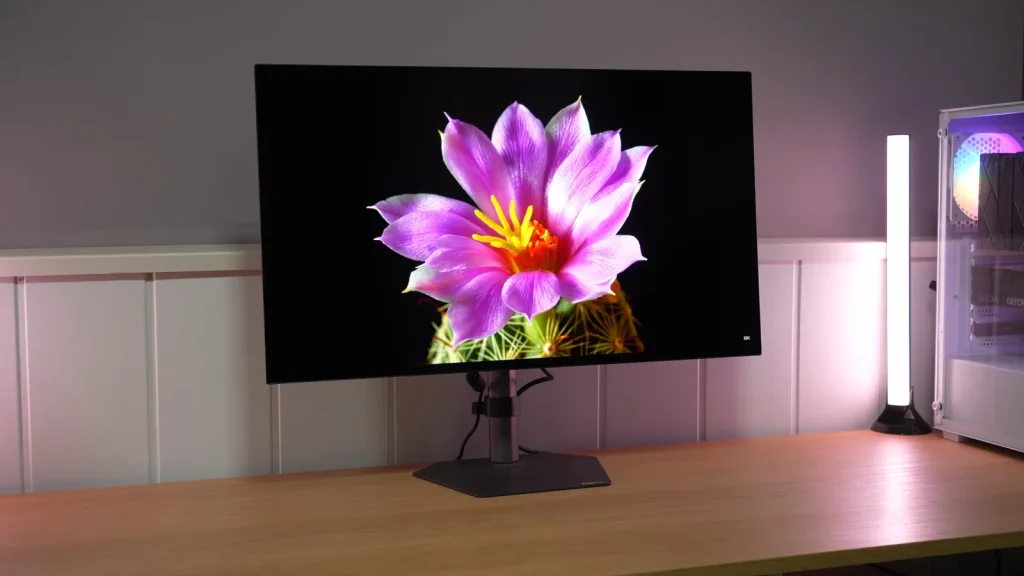
The Gigabyte MO27Q28G features a 27-inch 280 Hz Tandem WOLED with a matte finish. The brightness and color improvements over earlier WOLEDs are interesting, but Gigabyte’s implementation has its own settings and limitations.
Firmware is part of the assessment: testing with F06 showed improvements over the initial version. Price should be considered alongside the finish, connectivity, and HDR tracking, without assuming all monitors with this panel behave the same way.
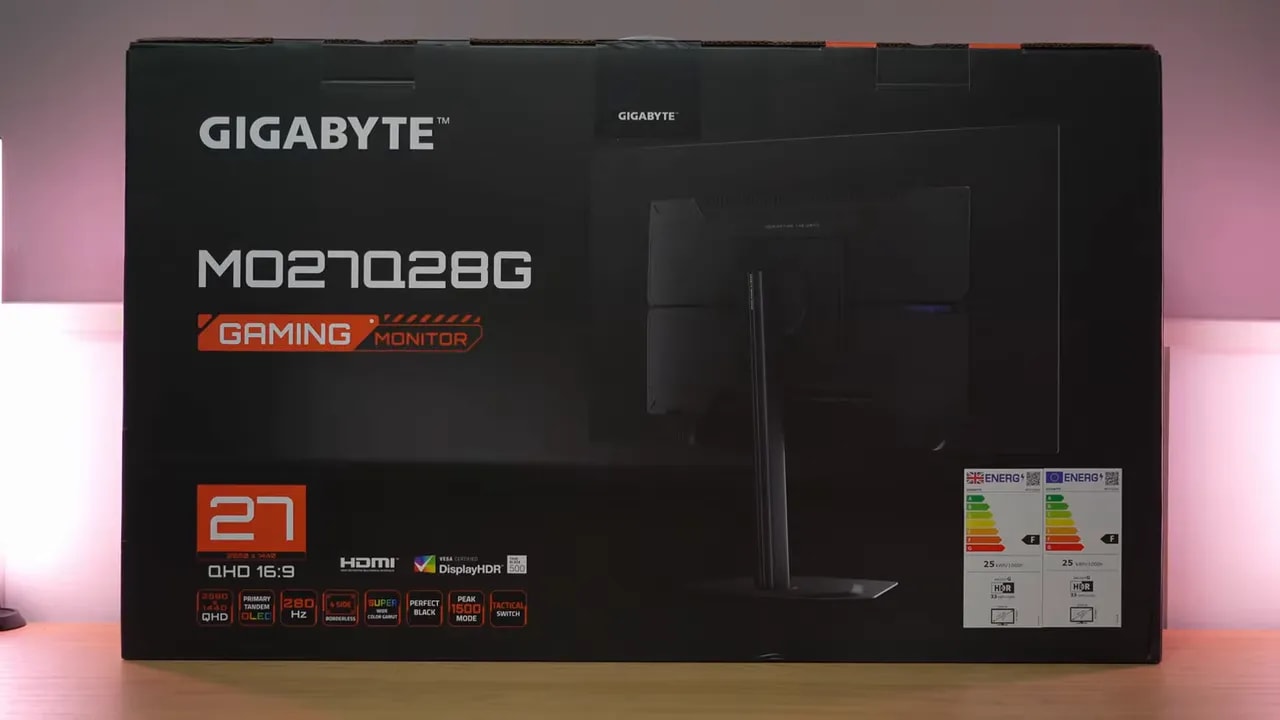
Box, construction, and connections
One thing I like about the Gigabyte MO27Q28G is that it comes with a fairly comprehensive set of accessories. Inside the box, we find:
- HDMI 2.1 cable
- DisplayPort 1.4 cable
- USB-A to USB-B/USB upstream cable
- Calibration report
- External power supply
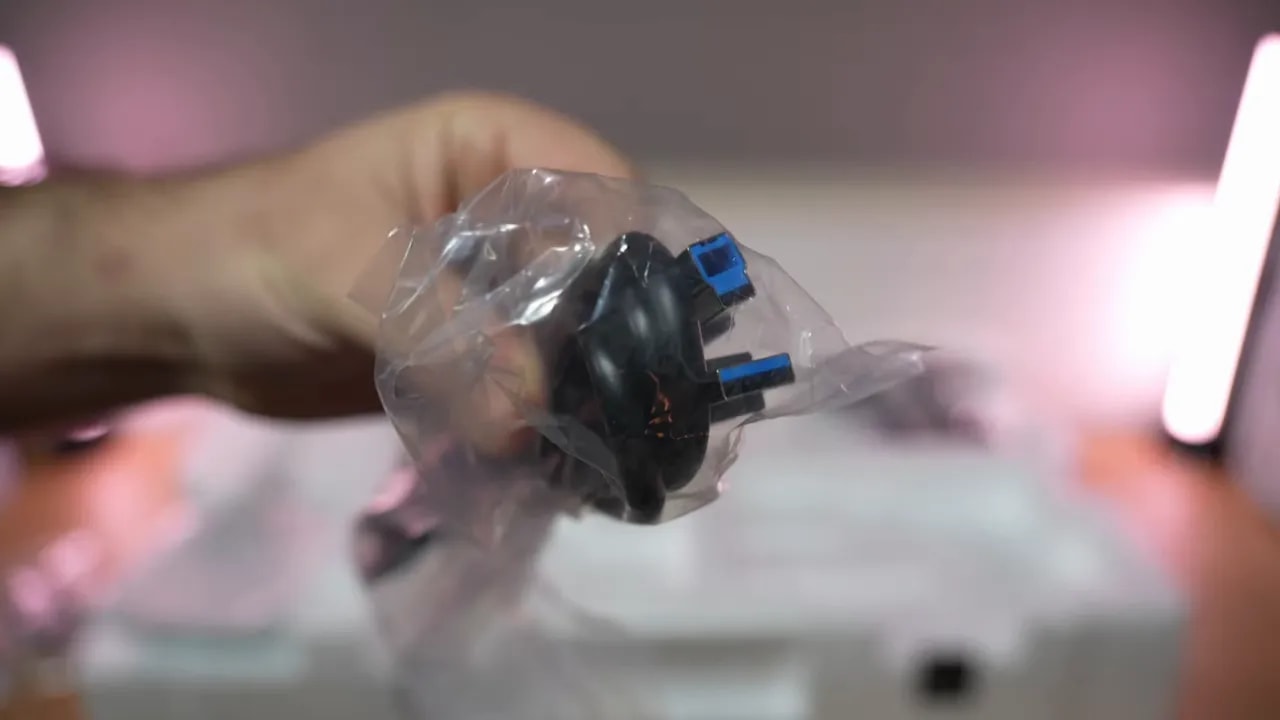
- Power cables for different outlets
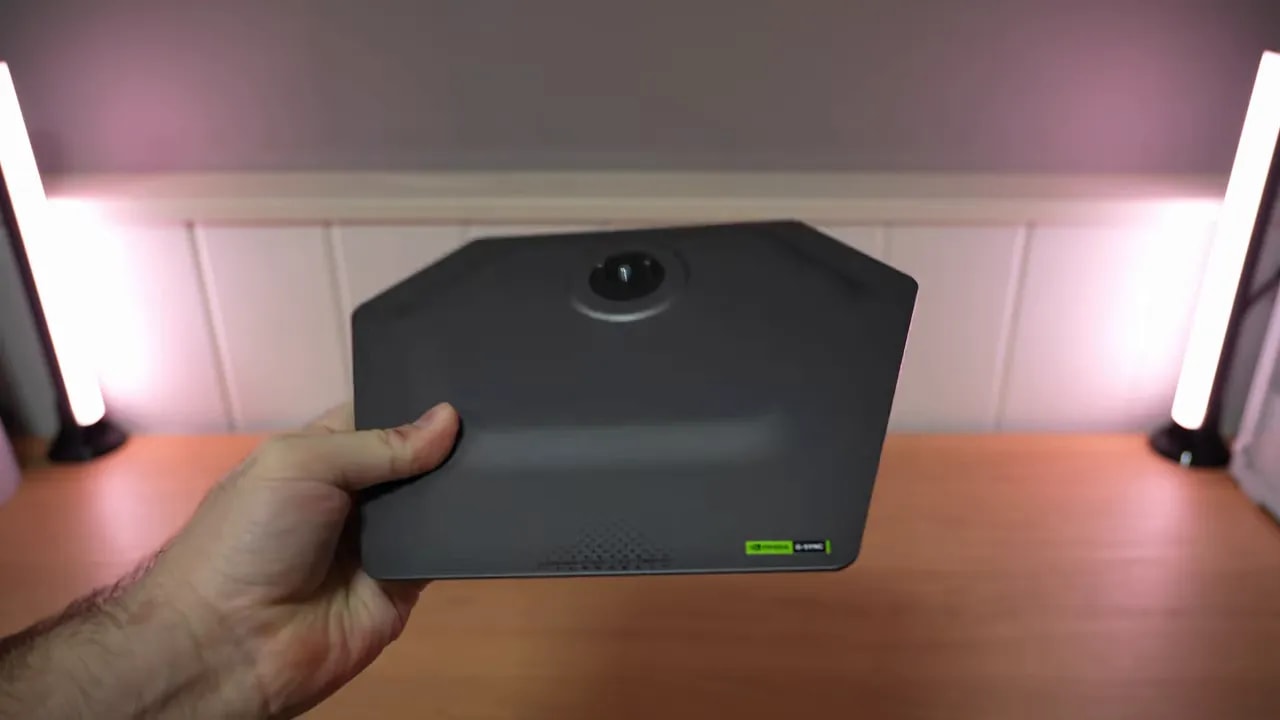
The stand is exactly the same as the M27Q X’s, and honestly, it is very good. It is slim, metal, and sturdy with more than adequate ergonomics. It offers height, tilt, swivel, and portrait pivot adjustment, although it only pivots in one direction.
The overall design is also fairly clean. No RGB lighting or unnecessary gaming decorations. Fairly understated, attractive, and at least personally, I much prefer it this way.
There is a joystick and two buttons for navigating the OSD. They work well, but I am not entirely convinced by their placement because they sit too far inward and are not especially convenient.
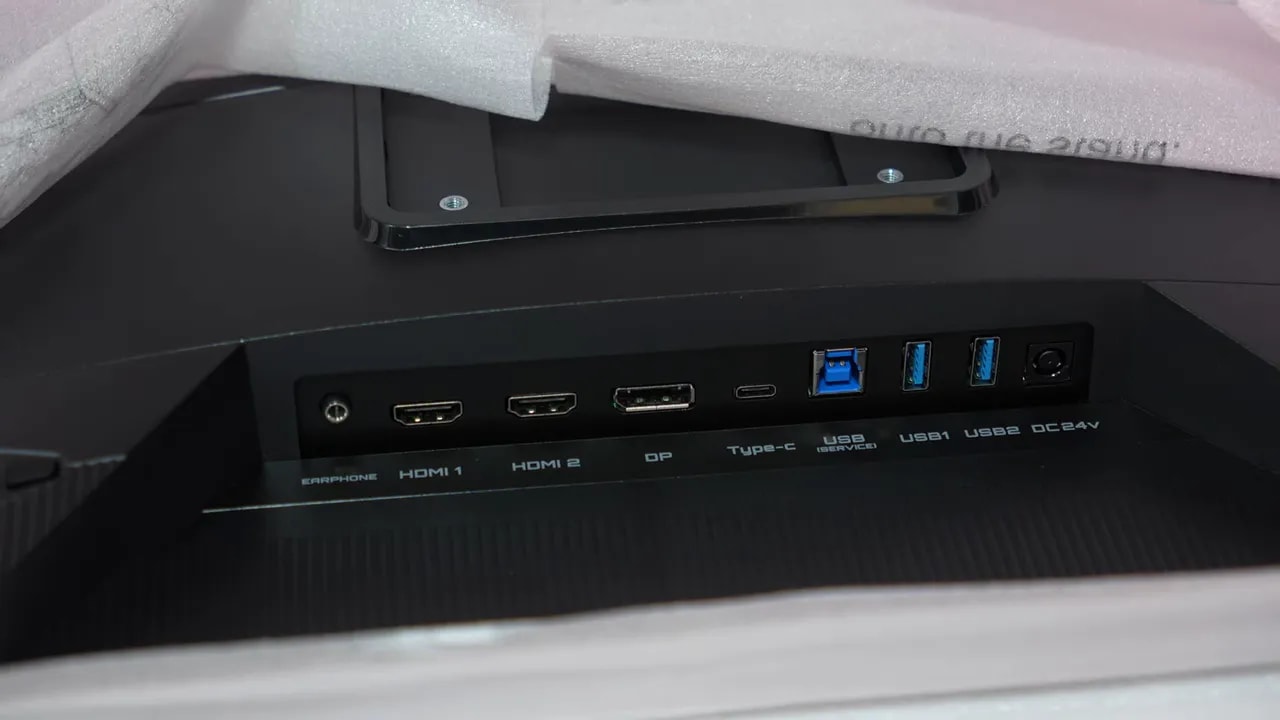
For connectivity, the Gigabyte MO27Q28G is well equipped, but with some important qualifications.
USB-C supports video, which is always welcome, but charging is limited to 18 W, so it will not replace a proper charger for more demanding laptops.
The most controversial point is HDMI. Yes, the ports are advertised as HDMI 2.1, but they do not appear to offer full bandwidth. Testing with PlayStation 5 showed general compatibility, but with somewhat more limitations than I would like at this level.
Tandem WOLED with a matte finish
Before getting into the monitor itself, it is worth putting this generation into context. These new LG WOLED panels use a 4-layer internal design, which, to simplify considerably, translates into improvements in brightness and color compared with the previous MLA generation, meaning Micro Lens Array.
The new subpixel layout is also reaching more models. Previously, getting that improvement meant choosing a 480 Hz panel or a 4K monitor. It is now present on these Tandem panels too, helping bring text clarity closer to QD-OLED, although I still think QD-OLED looks a little better in that respect at the same pixel density.
With that said, the Gigabyte MO27Q28G already starts with a solid technological foundation. How Gigabyte has fine-tuned the final product is another matter.
Here is one of the major differences from some direct alternatives. The Gigabyte MO27Q28G uses a matte finish. Not semiglossy, not something in between. Matte.
This type of finish handles reflections much better and avoids the mirror effect typical of glossy panels. In exchange, it introduces that slight surface blur that makes the image look somewhat murkier or less crystal clear.
Personally, I prefer glossy, by quite a bit. But I completely understand people who cannot adjust their room lighting or find reflections extremely annoying. For that kind of use, having a strong matte OLED option is very good news.
And yes, I will emphasize this because it has been discussed a lot: the finish on the Gigabyte MO27Q28G is matte. I have tested IPS monitors with lighter matte coatings than this monitor’s, so there is not much room for debate here.
There is another recurring concern with these WOLED panels: gray banding. It is more noticeable here than on QD-OLED. With a static gray image, you may see a kind of grid effect or some unevenness, and in some cases even an odd gradient.
The positive side is that there is a very simple solution. Run pixel cleaning and it usually disappears completely or almost completely. If it does not fully go away, run it again, and that should do it. The effect should be greatly reduced; it is impossible to eliminate 100%, but in my view it becomes much less noticeable and therefore less annoying. If it still does not go away, your unit may be defective. We have more posts discussing this subject.
It is not a sign that the panel is defective. It can occur on WOLEDs, both earlier generations and these new Tandem models.
SDR color and recommended settings
The menu has several typical gaming modes, but my recommendations are fairly simple: use Standard or Custom, which is also usually the default.
Out of the box, grayscale performance is not bad. What looks a little odd is gamma, which starts with an overly aggressive spike. That is not entirely unheard of on OLED, since they rarely get this perfectly right, but here it seems more exaggerated than ideal.
The good news is that you can improve it a little simply by changing color temperature to Usermode. This brings it closer to 6500K and also slightly improves grayscale accuracy.
You can also choose the color space, or more precisely, how the gamut is or is not clamped. It defaults to Wide Gamut, which gives you the panel’s fullest color range and is what I recommend for gaming.
With Wide Gamut, the panel offers very high coverage:
- 99.7% DCI-P3
- 95.1% Adobe RGB
DCI-P3
DCI-P3 mode is fairly well implemented. The gamut clamp lands at around 99,3% and color accuracy is quite acceptable. Grayscale could be better because of that initial drop in RGB balance, and gamma tends toward almost 2.4, but overall it is a very usable mode.
Adobe RGB
Adobe RGB loses practically no coverage and removes much of the oversaturation, although red and blue still stray a little. Grayscale behaves similarly to DCI-P3 mode, and color accuracy improves considerably over Wide Gamut.
sRGB
sRGB is a separate preset, and only brightness can be adjusted here. The default is fairly low, at around 100 nits. The clamp is good, at around 98,9%, although red and blue could again have been better tuned.
The result is an acceptable mode, with an average Delta E of 2,32, although it is a little less well tuned than DCI-P3.


The sRGB preset retains almost the entire target gamut, but still has grayscale and gamma deviations. Being able to adjust brightness does not mean having all the controls available in Custom mode; for colorimeter calibration, start with the mode specified in the review.
Something has happened with this monitor and other recent Tandem models. In calibration tests with small windows, especially at low APL, yellow deviates enormously. I have seen it on other Tandem models, but not earlier OLEDs. It is curious behavior that deserves further investigation.
With manual colorimeter calibration, the Gigabyte MO27Q28G improves clearly. I would calibrate it starting from Wide Gamut mode to use the panel’s full color range. The default white balance in User mode is already fairly good too, so color temperature does not need much adjustment.
After calibration, much of the oversaturation can be removed, making it much more refined for color work and content consumption. For gaming, as always, an ICC profile has much less real-world impact.
SDR brightness and HDR settings
One feature I really like on Gigabyte OLEDs is that they let you change the behavior of APL even in SDR. This is under the burn-in protection options, alongside pixel refresh, pixel shift, and the other usual safeguards.
The important option here is APL stabilization, with three modes:
- Low: acts as a kind of uniform brightness mode
- Middle: resembles a True Black 500 mode
- High: prioritizes peak brightness
The Gigabyte MO27Q28G offers several HDR modes. There is a standard HDR mode with no adjustable settings, followed by other presets, including a 1000-nit peak brightnessmode. Each has an associated APL setting that, in practice, determines how brightness behaves according to window size or the amount of screen illuminated.
The standard HDR and HDR Movie modes use APL Middle. They are essentially equivalent to a True Black 500. They reach close to 550 nits in small windows and settle near 320 nits.
Peak modes start above 1000 nits at very low APL, but the drop is much more aggressive. At full screen, we again end up near those 320 nits.
As for HDR calibration, peak modes are not especially accurate, which is fairly common on many OLEDs. In tests with 2% and 10% windows, the upper EOTF shows areas brighter than they should be, and the luminance curve runs ahead.
If I had to choose among the peak modes, I would use the 1500 nitsone, although they are fairly similar to each other.
As APL rises, meaning the bright portion of the image occupies more of the screen, accuracy changes. It improves somewhat around 25% APL, but then the opposite effect returns: some areas that should be brighter fall a little short.


With the tested F06 firmware, HDR keeps midtones close to the reference and darkens shadows. HDR 1500 Peak brightens some midtones and compresses highlights. Comparing them at the same 10% window explains the image difference beyond the peak reserved for small details.
If you prefer a True Black 500-style mode, use standard HDR instead of HDR Movie. It is better tuned. Even so, it is not perfect either. In general, the beginning of the EOTF runs below where it should, making dark areas a little darker than intended. As APL increases, the luminance curve shifts, and that uneven behavior returns at the upper end.
To sum up brightness, the Gigabyte MO27Q28G is brighter than previous-generation WOLEDs and also improves on some QD-OLEDs in several scenarios, but falls behind Asus models with this same panel, especially in 10% APL.
And this caught my attention because other technical reviews showed the opposite, or at least somewhat better figures. Firmware differences may explain this.
Firmware: why updating changes the experience
One thing became very clear with this monitor: firmware matters a lot. The unit arrived with version F04 and produced worse results, not only in brightness but also in PQ EOTF tracking and other HDR parameters.
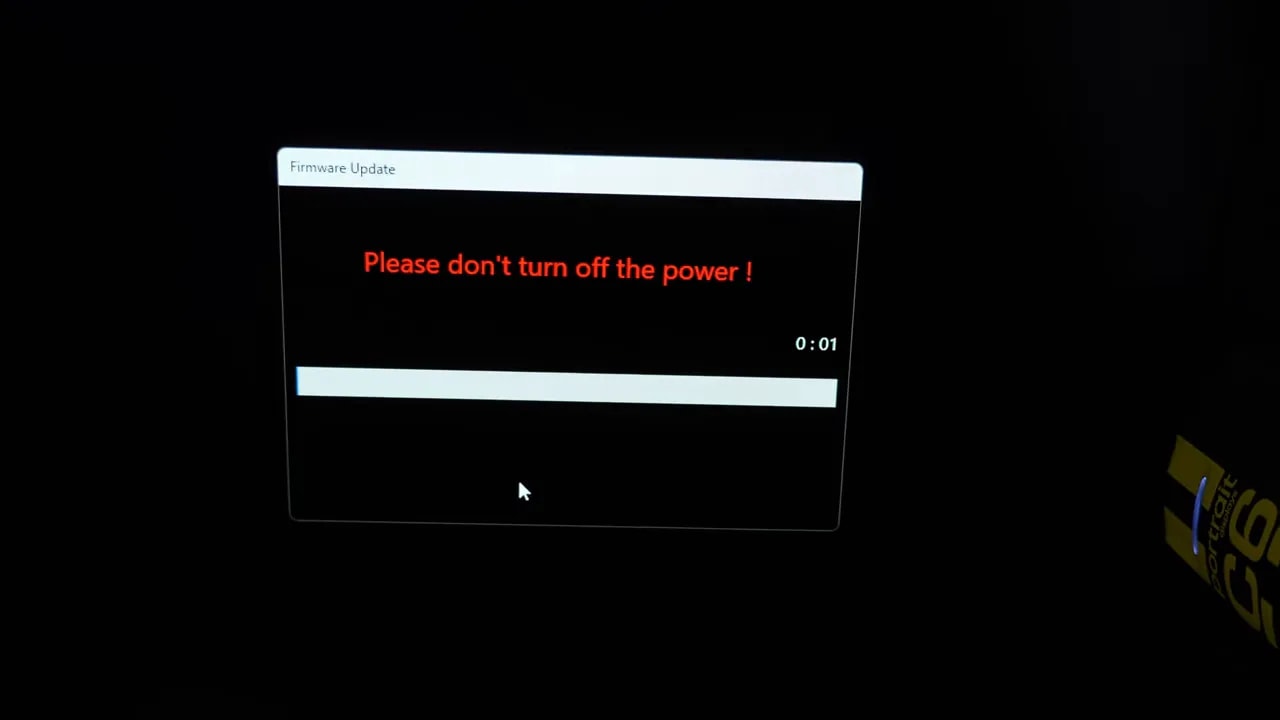
After updating to version F06, things improve. The process is also very simple:
- Connect the monitor to the PC via USB
- Install Gigabyte’s official utility
- Wait a few minutes for it to finish
F06 fixes that problem, and the monitor reaches around 84% of BT.2020 in every HDR mode, not just the True Black-style ones. In fact, in this specific test, it is the best monitor I have tested so far.
I am also including additional HDR calibration and color volume tests. Color volume should not be confused with gamut volume, because brightness is part of the calculation here. As usual, the effective BT.2020 percentage drops when measured this way.
280 Hz, variable refresh rate, and desktop features
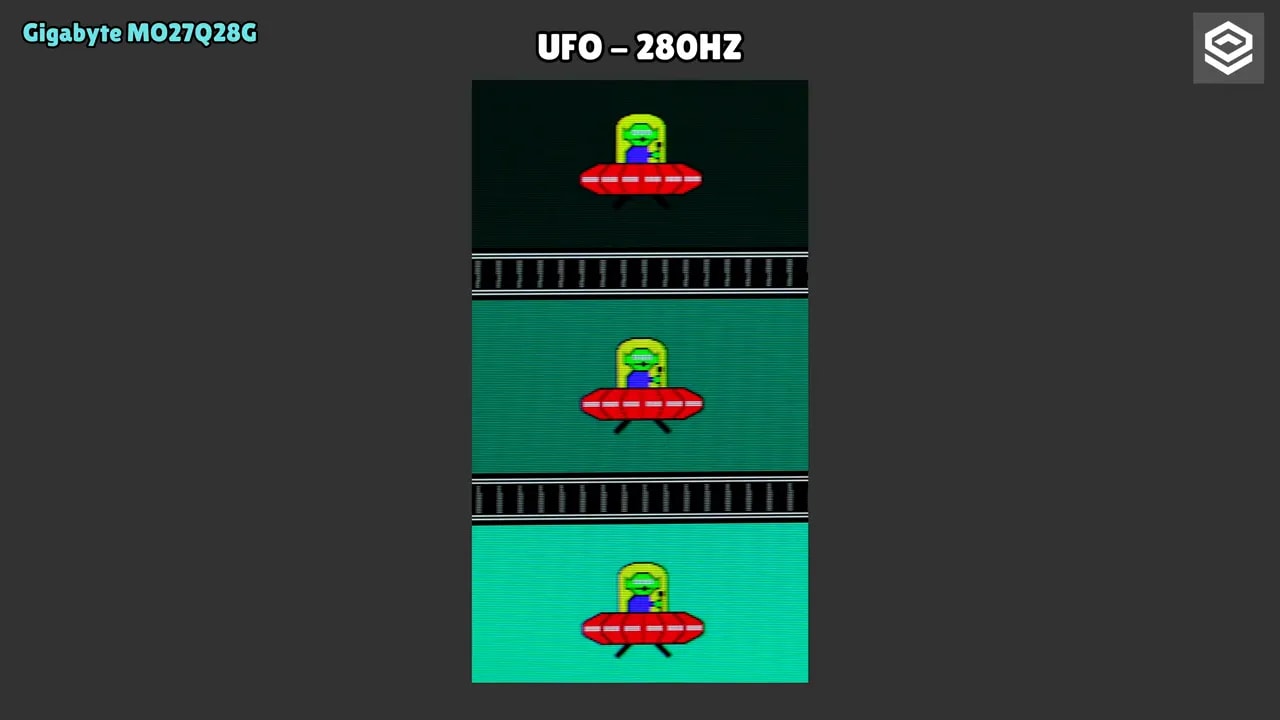
There is little mystery here. The Gigabyte MO27Q28G is a 280 HzOLED, so gray-to-gray transitions are practically instantaneous. In other words: zero perceptible ghosting.
A little overshoot may appear in a table, but in practice there is absolutely nothing visible. Motion looks extremely clean.
UFO-style captures are completely clean, so this area delivers exactly what you expect from a modern OLED aimed at competitive gaming.
However, there is no Black Frame Insertion. The usual shadow equalization aids are present, along with all the standard VRR support, of course.
The monitor supports G-Sync Compatible, FreeSync and Adaptive-Sync. It works correctly with an Nvidia graphics card, even though the control panel does not list it as officially validated. Unfortunately, that is quite common by now.
What also remains is the usual VRR flickering. All OLED monitors have it to some degree, and this one is no exception. It is not as exaggerated as on some VA panels, but it is noticeable in certain scenes or menus.
Gigabyte also includes specific modes to mitigate that flickering. There is a Middle mode and High mode. They work by adjusting ranges and introducing certain dead zones. In practice they help somewhat, but my recommendation would be:
- First try Middle mode
- If it is unconvincing, leave it disabled
- Avoid High mode unless it works better in your specific case
Honestly, simply disabling VRR is often still the cleanest solution in situations where flickering is too bothersome.
The input lag of the Gigabyte MO27Q28G is good. Yes, it is a little higher than on other OLEDs I have tested, but nothing dramatic. You will not notice it in real use unless you are extremely particular about measurements.
There are useful productivity extras:
- KVM
- PIP/PBP to display two video sources simultaneously
It also has built-in speakers, but they are fairly weak. They can help in a pinch, but little more. If you care at all about audio, dedicated speakers or decent headphones are a better choice.
PS5 compatibility
On PS5, 4K at 120 Hz, HDR, and VRR work simultaneously. It also includes ALLM and supports 1440p at 120 Hz. The verified features are:
- HDR
- VRR
- ALLM
- Operation at both 1440p and 4K
The problem appears when using 4K. Color then uses 4:2:0 chroma subsampling instead of 4:2:2, indicating limited HDMI bandwidth. Everything suggests it tops out at around 24 Gbps, roughly half what full-bandwidth HDMI 2.1 should provide.
Is it a disaster? No, not really. It probably will not change your gaming experience much. But if you look closely at menus or fine elements, you may notice some loss of sharpness from that color compression.
The positive side is that, since it is a 1440p monitor, you can simply leave the console at its native resolution and get full color. For anyone unfamiliar, PS5’s 4K mode renders at a higher resolution if the game can reach it, then reduces it to 1440p to gain some definition. But many games do not even exceed a true 1440p, so in this case it often makes more sense to use 1440p directly.
I do not consider it a severe drawback for console use, but I still do not understand why Gigabyte makes these compromises in a product at this price.
Conclusion compared with other OLEDs
This price bracket also includes QD-OLED alternatives at 240 Hz, 280 Hz, and even 360 Hz if you find a good deal. They usually have a glossy finish, providing a visually cleaner image, but they also have drawbacks.
Compared with this Gigabyte MO27Q28G, QD-OLEDs can fall a little short on brightness depending on the scenario, their black depth in lit rooms is nowhere near the same, and glossy QD-OLEDs also tend to scratch quite easily.
Ultimately, each technology has pros and cons, and the choice is becoming quite personal.
The Gigabyte MO27Q28G is not the best-tuned Tandem WOLED I have tested, but it is probably the most interesting if you want to move into this new generation while spending as little as reasonably possible.
Its strengths are quite clear:
- 27 inches, 1440p, and 280 Hz
- Tandem WOLED panel with improved brightness and color
- A matte finish for those who prioritize reflection control
- Excellent motion, with no noticeable ghosting
- Good design and stand
- Competitive price compared with other Tandem OLEDs
And its drawbacks should also be clear:
- Limited-bandwidth HDMI 2.1
- Calibration could improve compared with more expensive options
- HDR brightness trails some equivalent Asus models
- Initial firmware needs improvement, making an update almost mandatory
- A matte finish, which will be an advantage for some and a dealbreaker for others
If you want a matte 27-inch 1440p OLED, as of today the Gigabyte MO27Q28G seems to me the best option among what I have tested and what is available. If you absolutely want a glossy finish, or prioritize the most refined factory tuning above all else, other alternatives will probably interest you more.
In short, it is not perfect, but the Gigabyte MO27Q28G makes a lot of sense. Even more so at the right price.