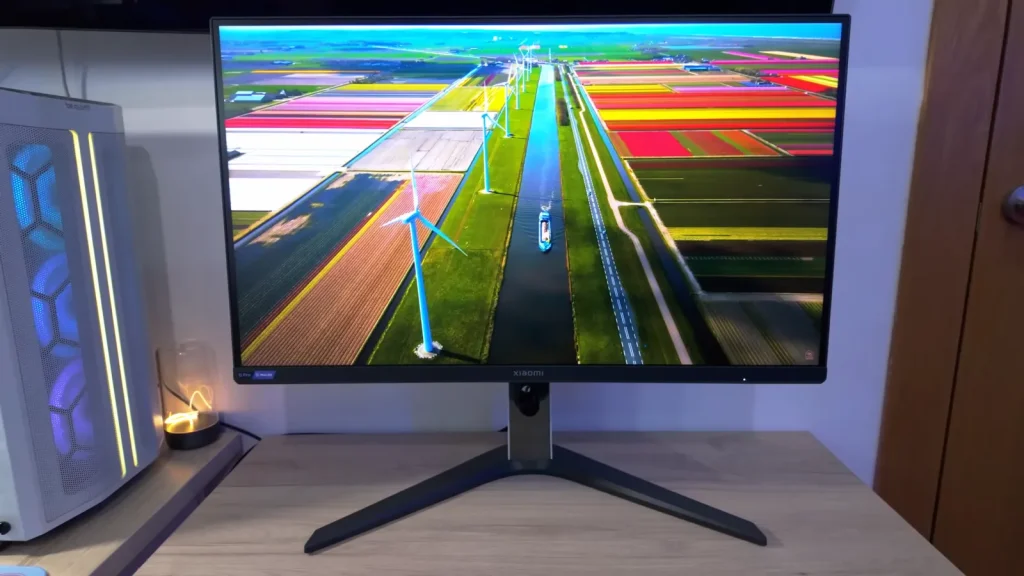
The Xiaomi Mini LED G Pro 27i adds 1,152 dimming zones to a 180 Hz 1440p IPS. The improvement is most noticeable in games and video: contrast and bright details change substantially when local dimming can respond to a scene.
For desktop use, algorithm behavior, backlight modulation, and the red-tint bug need more attention. The review separates those uses to explain when enabling each feature is worthwhile.
Assembly, ergonomics, and finish
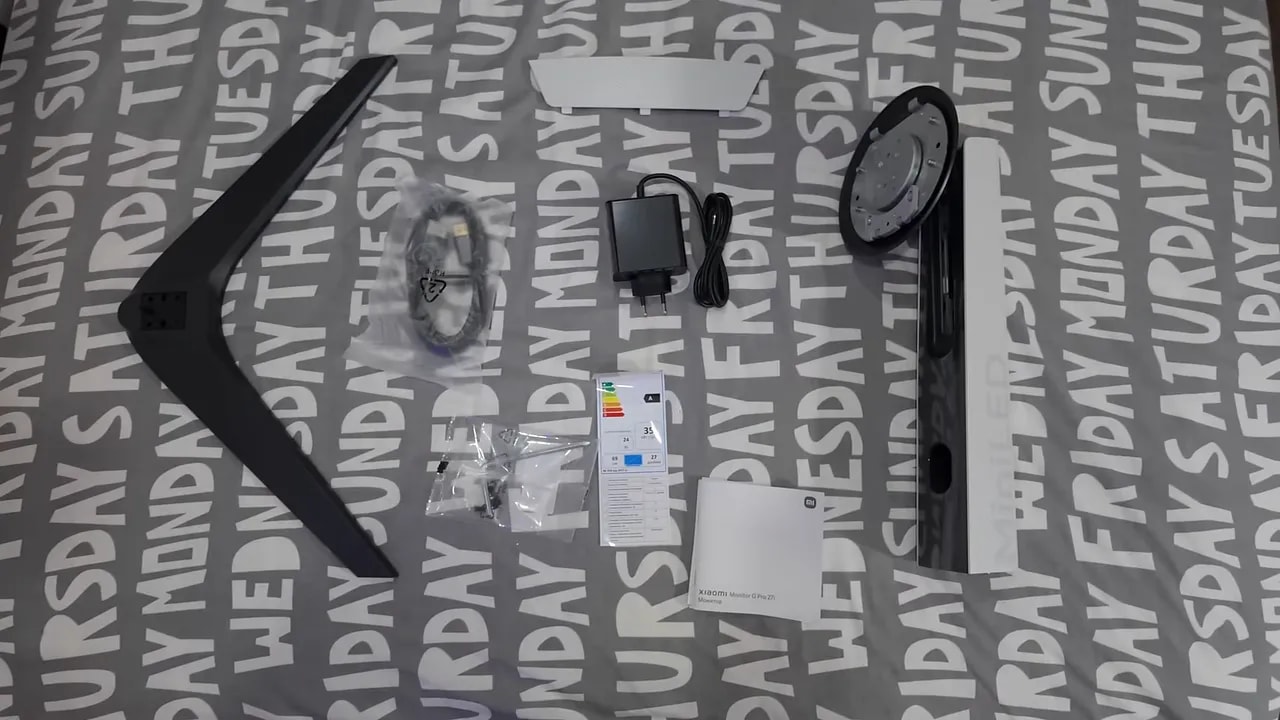
The packaging is well protected, and overall presentation is good. Inside the box we find:
- Power cable
- DisplayPort cable
- Stand and base
- Plastic trim cover to hide the connection area
- Factory calibration report
- Four screws and a tool for installing them
That factory calibration report looks good on the desk, but what matters is whether actual results support it. I will get to that later, because there is plenty to discuss.
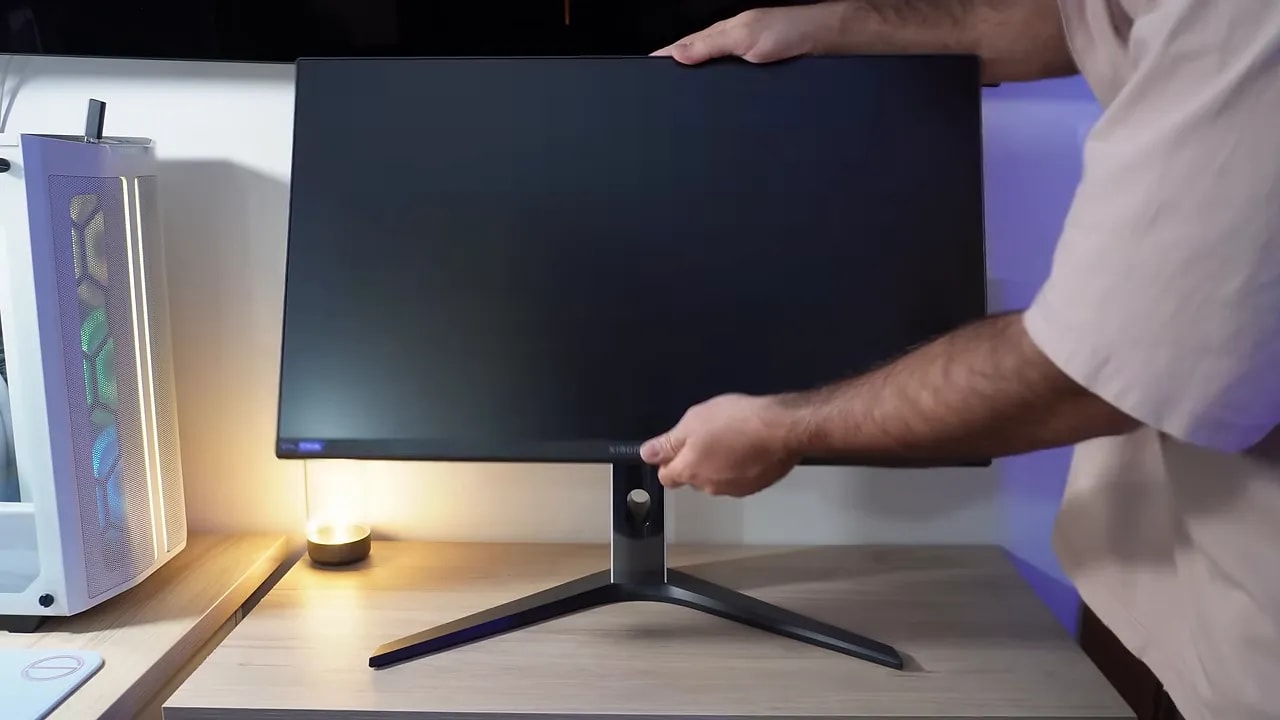
The only slightly strange part of assembly was the base system. Instead of the usual quick, convenient hand-tightened screw, Xiaomi uses four screws to secure the bottom of the stand. It is no big deal, since you assemble it once and are done, but honestly I see no need to complicate something almost everyone else handles better.
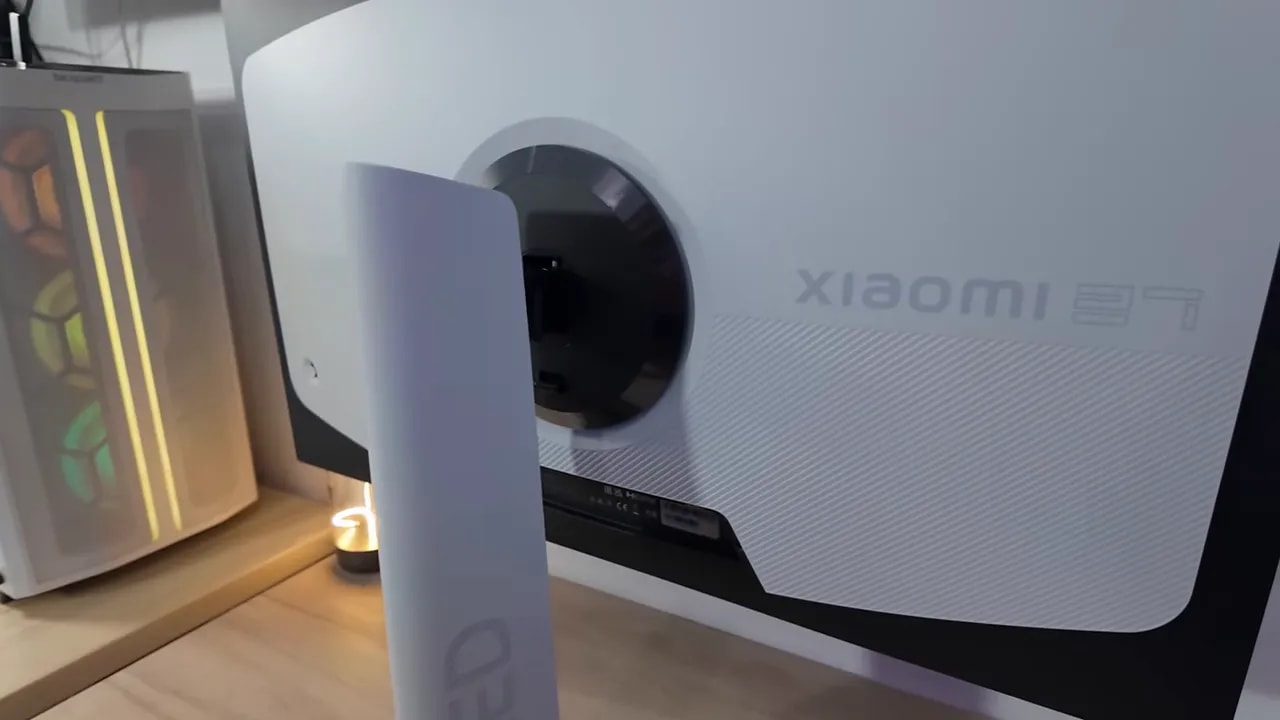
The design has a distinctly futuristic feel. In fact, it is somewhat reminiscent of certain Alienware monitors. The stand is white, the overall design has plenty of personality, and on the back there is an RGB lighting ring that can be controlled from the monitor’s own menu.
The stand is plastic but feels well made. Best of all, it is very well equipped ergonomically. You can adjust it practically any way you like:
- Height adjustment
- Tilt
- Backward tilt
- Portrait pivot in both directions
- Horizontal screen swivel without moving the base
Not all monitors have that last feature, and it is quite welcome in everyday use.
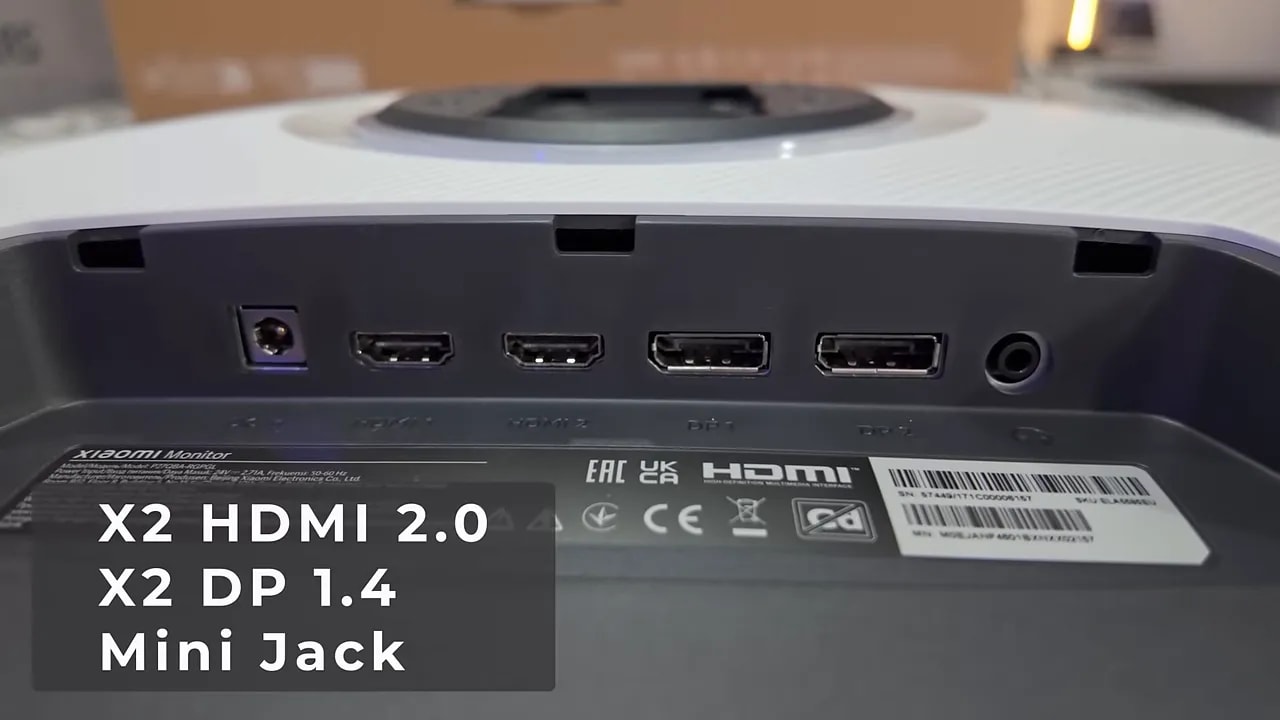
For connectivity, the Xiaomi G Pro 27i includes:
- 2 x DisplayPort
- 2 x HDMI
- Audio mini-jack output
The screen has a matte finish, exactly as expected in this range. It strikes a reasonable middle ground: good reflection handling without dulling colors too much. Personally, I still prefer glossy finishes, but realistically, there are virtually no alternatives like that at this price.
So we have to judge what the actual market offers, rather than the ideal. In that respect, the panel coating is well executed.
Color and white-point adjustment
Color is where this monitor starts to get serious. Measurements show very high color coverage and volume percentages. Its DCI-P3 coverage is complete and color volume is very aggressive, largely explained by its use of Quantum Dot.
The monitor also includes factory-calibrated presets for:
- sRGB
- DCI-P3
- Adobe RGB
What matters is that they are not there just for marketing. They are well made. These factory-calibrated modes produce very good results:
- Well-controlled DeltaE
- Correct gamma 2.2 tracking
- Color temperature very close to 6500K
- Fairly accurate white point, although with some room for improvement
That last point, white, can be refined further through manual calibration with a professional meter. Adjusting color temperature and leaving the gamut native reduces deviation from the white point even more.
That said, to be completely honest, there is no need to obsess over this. The factory-calibrated modes are so good out of the box that they already deliver a very capable experience for most uses without changing anything.

The white-balance comparison distinguishes the presets before adjusting the monitor. The panel’s wide coverage and white-point adjustment are different things; for standard content, evaluate sRGB mode rather than just native color intensity.
What Mini LED dimming adds
This is one of the monitor’s key features. When we talk about Mini LED, we are not talking about panel type, but the backlighting system.
On a traditional LCD monitor, the image needs light from behind to be visible. That backlight can be arranged in several ways:
- Edge LED, with LEDs along the edges
- Direct LED, with more centrally positioned lighting
- Full Array, with LEDs spread across the entire surface
- Mini LED, an evolution of Full Array using much smaller LEDs
Because they are smaller, more fit. That allows the use of local dimming zones, or local dimming. This monitor has 1152 zones.
What does that achieve? Certain areas of the screen can turn off or dim substantially when the image requires it. The result is much deeper blacks and dramatically higher contrast than a normal IPS.
However, zone count is not everything. The algorithm that decides when zones light up or turn off also matters enormously. That brings us to the familiar blooming, the halo or glow around bright objects against a dark background. All Mini LED displays have it to a greater or lesser extent.
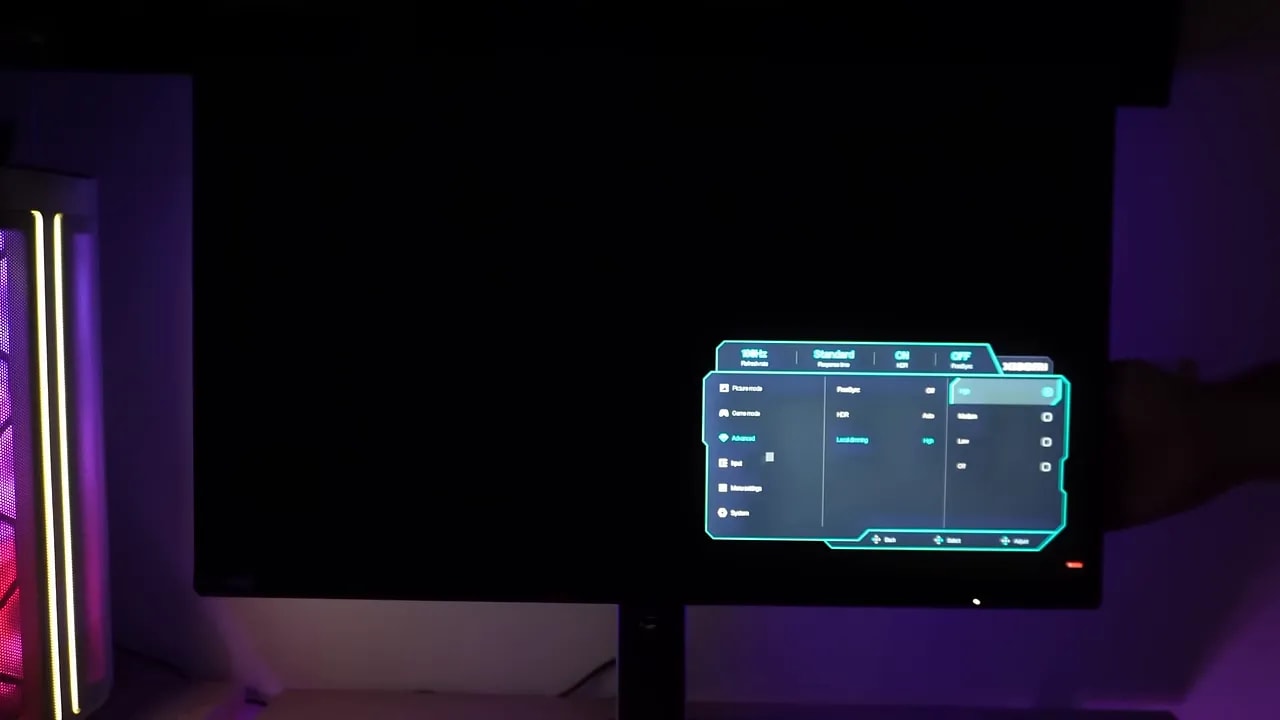
The monitor lets you set local dimming to three levels:
- Low
- Medium
- High
It can be enabled or disabled independently of HDR. That matters because it gives you considerable scope to adapt panel behavior to the use case.
In SDR, enabling local dimming sends contrast soaring. It literally delivers figures that are light-years ahead of a traditional IPS. The measured improvement is enormous and very obvious visually.
With local dimming enabled, brightness drops slightly compared with no local dimming, but still reaches around 760 nits, which is still huge.
However, the levels do not all behave alike in practice:
- High is the brightest
- Low is clearly darker
- The algorithm changes considerably between modes
Here is the important part: it is not worth using on the desktop.
In dark interfaces, especially Chrome or any window with a black background, you can clearly see zones turning on and off as the mouse moves. This is quite noticeable in Medium and High. Less so in Low, but that mode darkens the overall image too much.
A kind of trail or halo also appears around light objects against dark backgrounds. This is not an isolated fault; it is simply a consequence of how zone-based local dimming works.
So, to be clear:
- On the desktop: better left off
- In content and games: it completely changes the experience
Once you leave the desktop for movies, videos, or games, the story changes completely. That is where local dimming makes sense, and the monitor takes an enormous leap in image quality.
That applies to both SDR and HDR content, although HDR makes better use of it. Switching from local dimming off to High is one of those changes that makes you say: okay, now we are talking.
- The image gains a huge amount of contrast
- Blacks become much deeper
- The overall impression stops resembling a conventional IPS
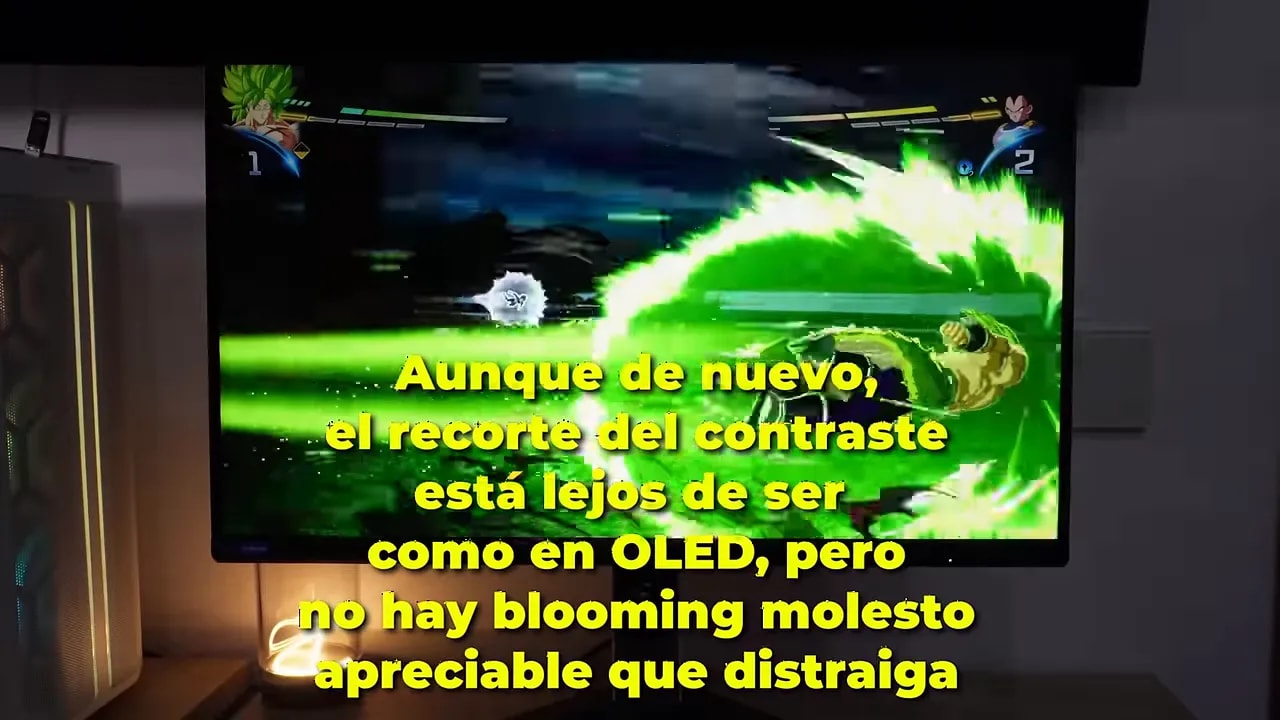
In this kind of content, blooming is barely noticeable in most situations. That makes the experience clearly better than a normal IPS without this technology.
Are there situations where it is noticeable? Yes. Especially with small, very bright objects moving quickly over dark backgrounds. The algorithm can lag slightly as it tries to follow the object, producing an effect similar to the mouse pointer on a dark interface.
But in actual gaming, even with small effects, the overall impression is very good. Dragon Ball Sparking Zero is an example: launching attacks and charging energy creates small, intense elements, yet nothing particularly distracting appears.
Is it inconvenient to keep enabling and disabling HDR and local dimming depending on what you are doing? Yes, a little. Windows HDR has a shortcut, but local dimming requires entering the monitor menu. For now, that is how it is.
A typical pure-black test makes local dimming’s effect quite clear. With local dimming enabled, the screen looks practically off when displaying full black. Disable it, and it looks like a conventional IPS again.
Even with local dimming off, however, this monitor starts from somewhat better native contrast than many IPS models, so glow is not particularly severe.
HDR: brightness, tracking, and zone control
For HDR, saying a monitor reaches lots of nits is not enough. What matters is how it distributes that brightness and whether it tracks PQ EOTF well, the reference defining how different parts of the image should light up.
On this Xiaomi, the best-performing mode is local dimming on High. That is where its behavior is most convincing.
The monitor also leaves a very good impression in luminance levels. At 75% APL it reaches around 1250 nits, and on a completely white screen it still delivers around 1130 nits.
That is interesting because the usual OLED problem does not appear here: brightness often falls substantially as APL rises. In this case, the image maintains much higher overall brightness.
Other HDR parameters were also measured:
- Grayscale balance, with room for improvement
- Color temperature, well set around 6500K
- Black level

This test uses the Medium setting. It connects the image described in the review to HDR signal tracking in that configuration; changing local dimming alters brightness distribution as well as background black levels.
Response and object tracking
Another area where this monitor surprises is response times. There are four overdrive modes, from Standard to Fastest. More aggressive modes increase the risk of overshoot, the artifact around moving objects caused by pixel overcorrection.
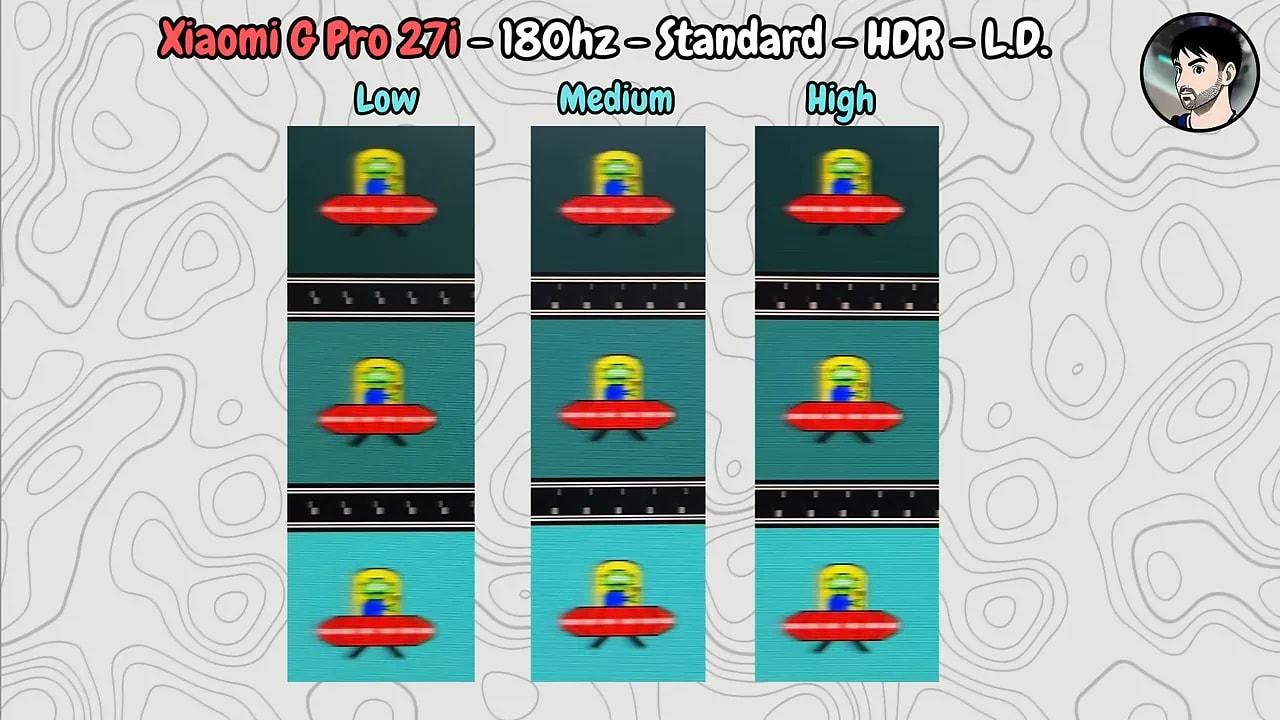
The stronger modes produce more overshoot in measurements, but in UFO-style tests there is little visible to the naked eye, even at the most aggressive levels.
In actual use, the mode with the best balance is Fast. Comparing gray-to-gray performance with other monitors that have undergone similar testing puts it near the top of the chart. That says quite a lot in its favor.
There is an important limitation, though: with HDR enabled, only Standard mode is available, and response times are somewhat worse there.
Testing with HDR and local dimming enabledshows expected behavior: the algorithm tries to follow the moving bright object. In UFO-style tests, this becomes a kind of flickering or visual trailing.
It is exactly the same principle as the mouse on a dark background or the pendulum in VRR tests. The zone system lags as it tries to track the bright object. Something similar can happen in fast games with small, bright elements on dark backgrounds.
That does not mean the monitor handles motion badly. It means zone-based local dimming has physical limits, and demanding scenes expose those limits.
Testing was also performed at 120 Hz and 60 Hz. At these refresh rates, the best overdrive mode is Standard, because the others increase overshoot more. Even so, response times remain quite good.
As for Input Lag, values are normal. As always, dropping from 180 Hz to 60 Hz increases it a little, but nothing unusual or worrying.
Regarding VRR, the monitor is sold as FreeSync and also works with NVIDIA GPUs despite lacking official G-SYNC Compatible certification. Overall behavior is good, with no unusual flickering in the pendulum test as long as local dimming is disabled.
Enable local dimming, and the bright-object tracking effect returns, creating fairly distracting localized flickering.
Backlight flickering and the red-tint bug
Here is the less attractive part of the review. While measuring response times, the sensor detects a lot of noise, suggesting that the backlight flickers at high speed. In other words, all signs point to a monitor using PWM.
That is not ideal for the eyes and may affect eye fatigue, especially for sensitive people. That does not mean everyone will notice it equally. In fact, some people tolerate this quite well. But it is a factor worth considering before buying.
It is also important not to confuse concepts. The monitor has blue-light protection certification, but that does not mean it is flicker-free. Those are different things.
- Blue light: concerns the emission spectrum
- Flicker-free: concerns whether the backlight flickers
In this respect, compared with a conventional IPS with DC backlighting, this Mini LED fares worse if you are particularly sensitive to eye fatigue.
There have been 3 videos on the IMartz channel exploring this bug in depth. Basically, the monitor develops a reddish tint when switching between certain professional modes and HDR. The bug is easy to work around; it can admittedly be annoying, but I would not rule it out solely for that. Xiaomi’s main problem here is that the monitor’s firmware cannot be updated, which would have saved many headaches. According to some users, recent versions no longer have the issue, but this review has been published for over a year and I have not bought it again, so I cannot say whether it is 100% fixed.
PS5 compatibility
Testing after the video confirmed 1440p at 120 Hz, ALLM, and VRR on PS5. It does not accept 4K input for supersampling. It is important to retain this update when consulting the original review.
Conclusion: choose the setting for the content
The Xiaomi Mini LED G Pro 27i is not perfect, but it is one of those products that forces the market to readjust. Even without local dimming, it is a very capable IPS. With local dimming and suitable content, it delivers an experience far beyond what you would expect for the price.
If PWM does not worry you much, or you know you do not usually have eye-fatigue issues, it is hard not to recommend it. If it does concern you, rather than rejecting this specific model, you probably want to approach the whole Mini LED category cautiously.
As it stands, in specifications, performance, and price, this monitor has firmly joined the most interesting buys of the moment.