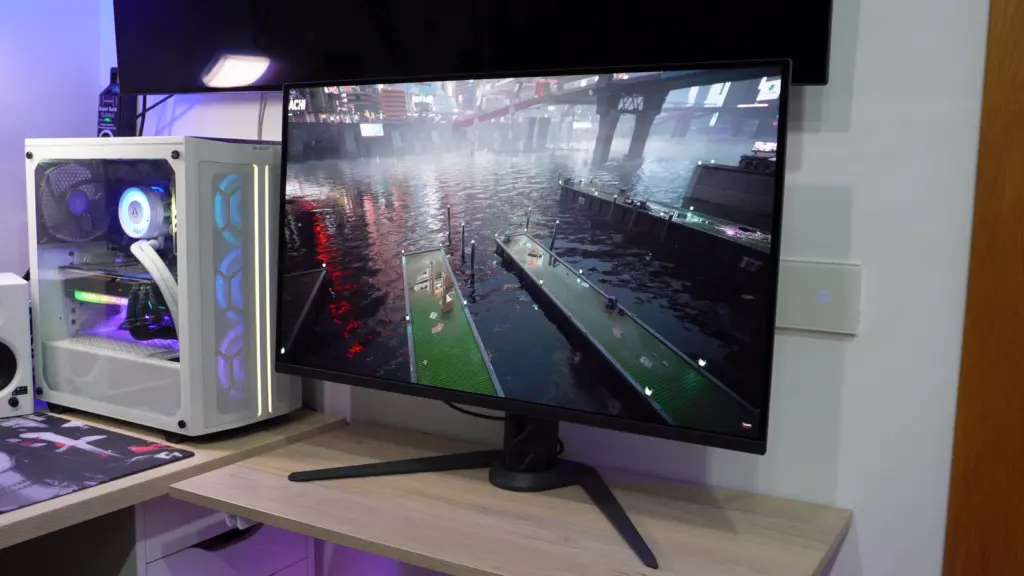
Today we have one of those monitors that signals high-end everywhere you look. The AORUS FO32U2P is a 32-inch 4K 240 Hz QD-OLED, but it goes beyond that. Its big selling point is being one of the first, and practically the only one in its category, with DisplayPort 2.1 at full UHBR20 bandwidth.
That already makes it quite special, but it also comes packed with extras, exceptionally comprehensive connectivity, good ergonomics, impressive colors, and the response times and contrast typical of a new-generation OLED. It has drawbacks too, of course, because it is not perfect. Here is a complete, organized, and genuinely useful review.
Unboxing and box contents
The box already makes clear this is no ordinary monitor. It is enormous and well stocked. AORUS has not skimped on accessories.
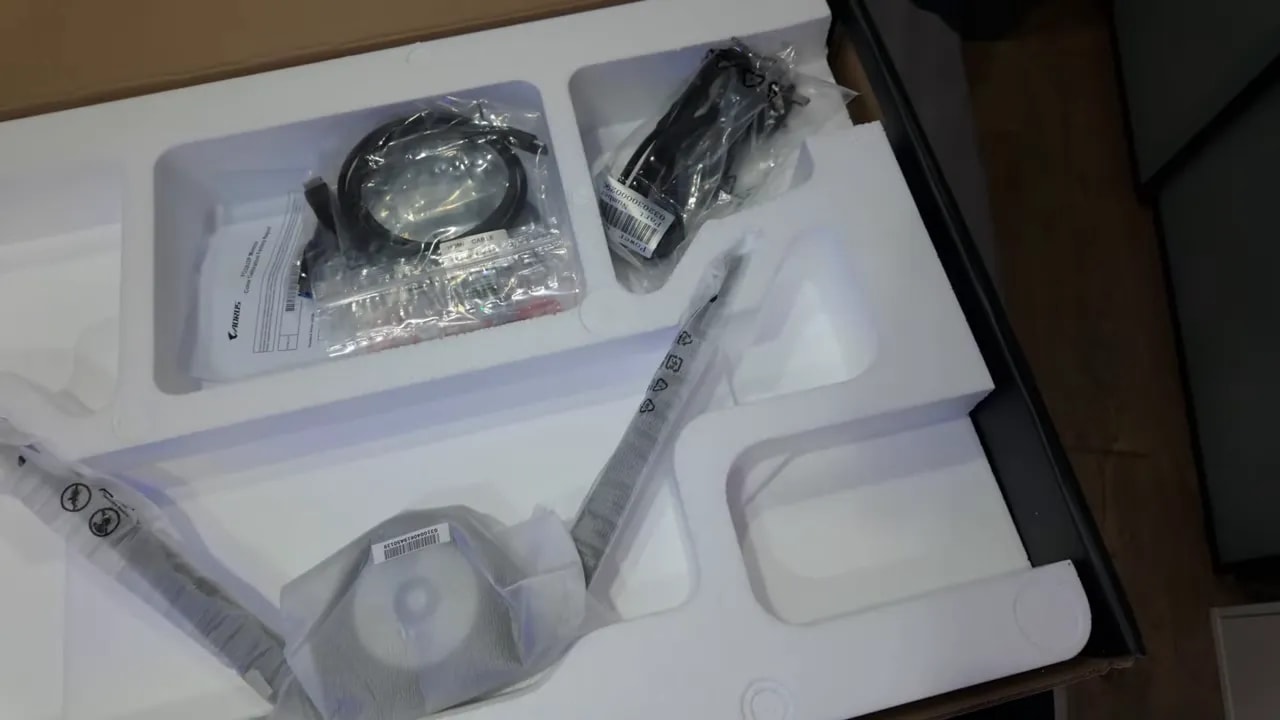
Inside, we find:
- External power supply, fairly large
- Two power cables, including the European one
- DisplayPort 2.1
- HDMI 2.1
- USB-C with video support
- USB cable for the monitor hub
- Documentation and calibration report
Such a complete package is welcome, because you often buy a monitor at this level only to find the exact cable needed to get the most from it is missing.
Panel protection is another important detail. The screen is very well packaged, which matters here because these panels are more delicate than a conventional LCD.
Design, stand, and build quality
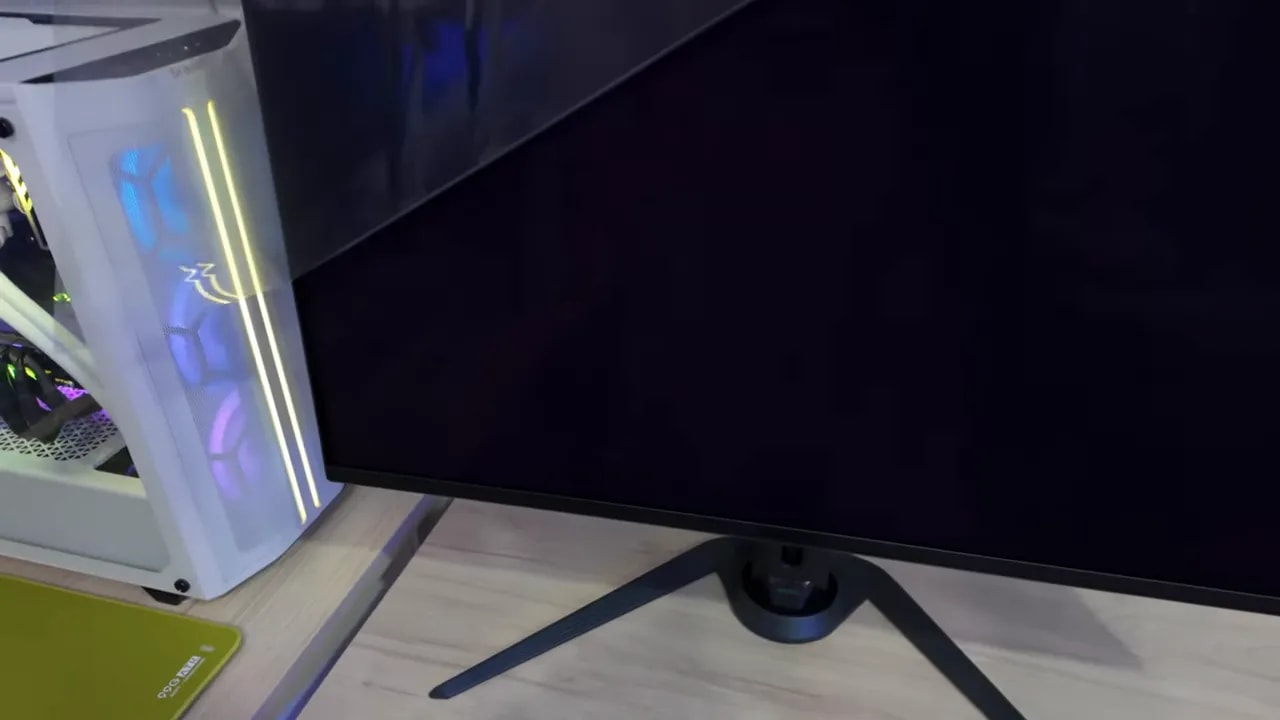
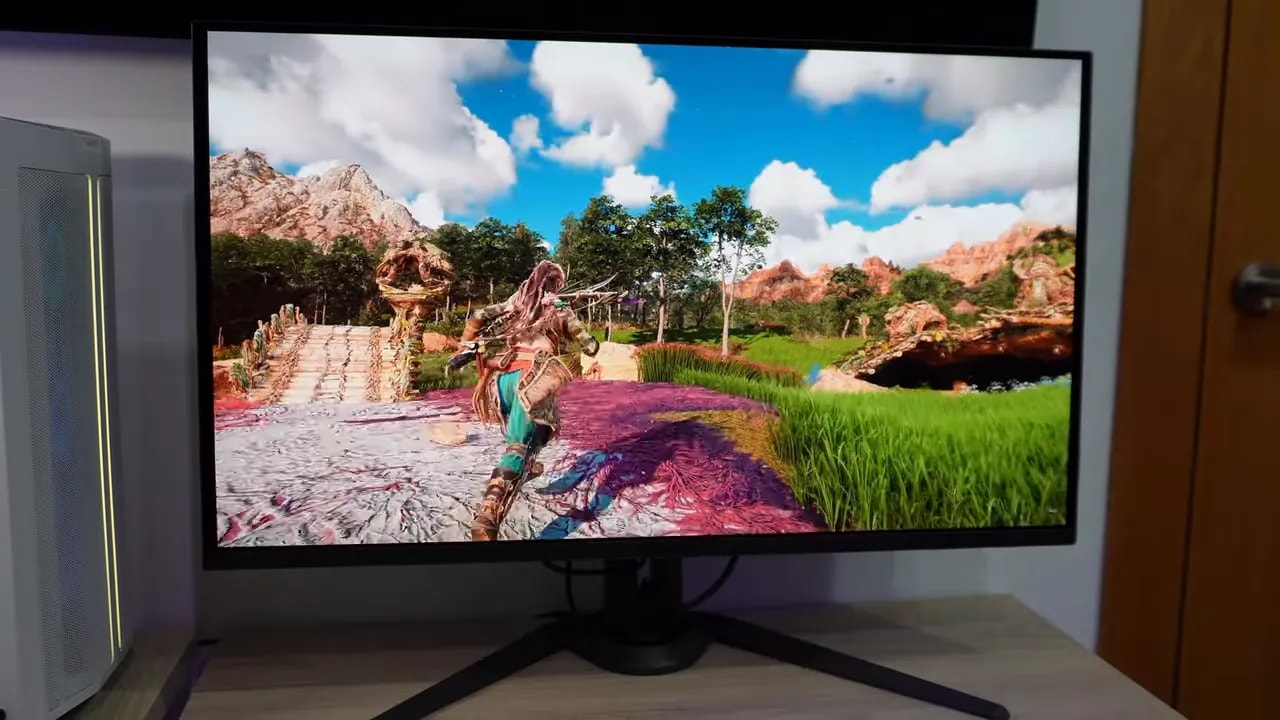
In person, the monitor looks great. It has the typical AORUS design with well-executed gaming details and rear RGB lighting, without going overboard.
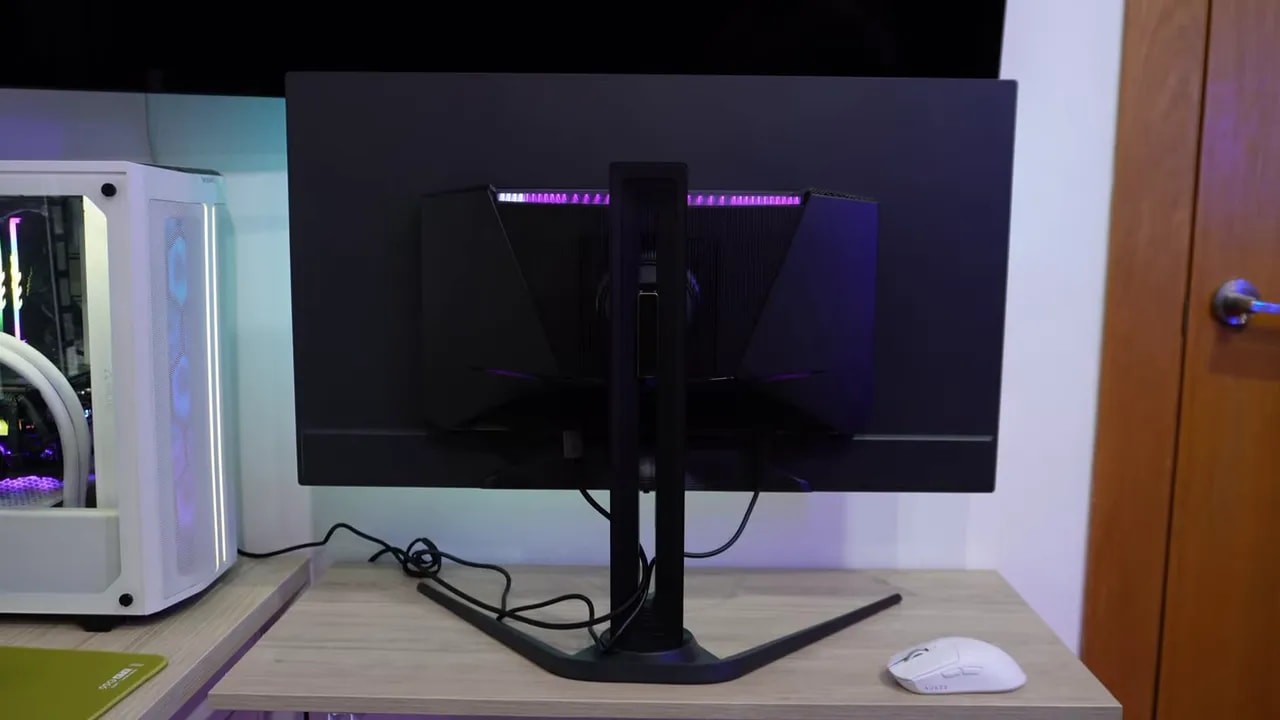
The stand is very well executed. The base is entirely metal, while the upright mixes metal and some plastic parts. Assembly is very simple and requires no screwdriver. The mounting system is convenient, and the base screw can be tightened by hand.
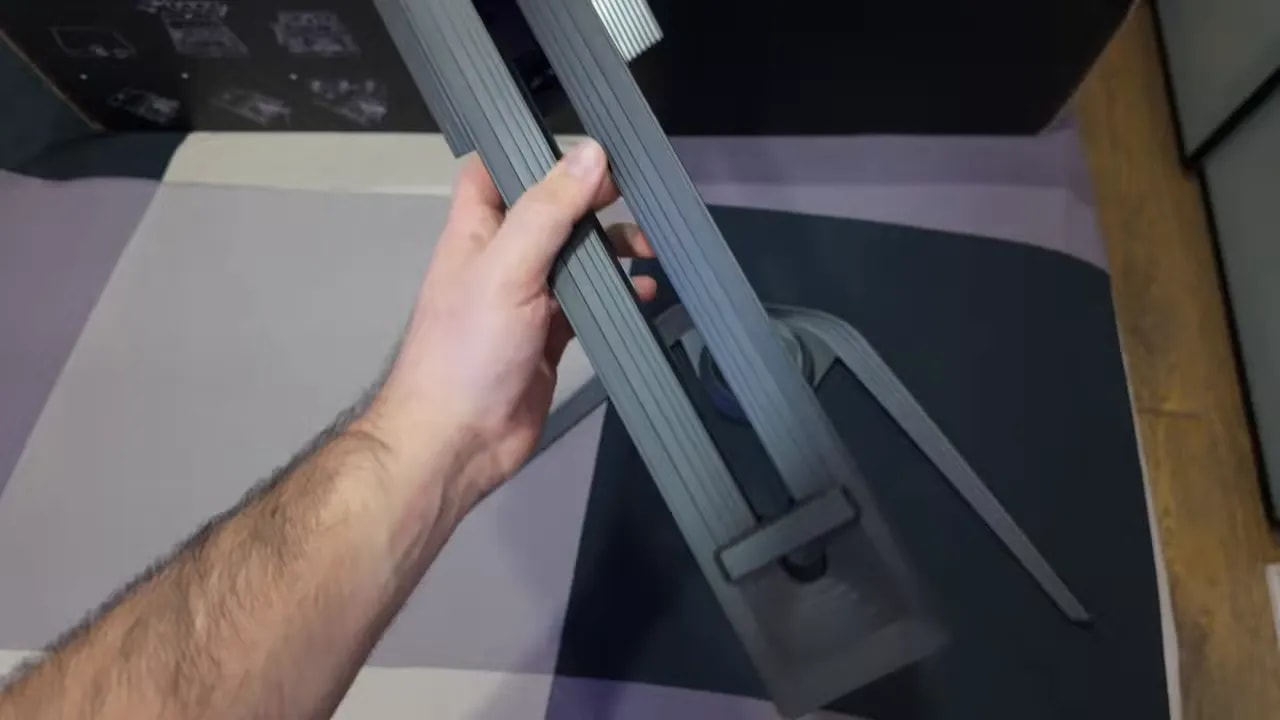
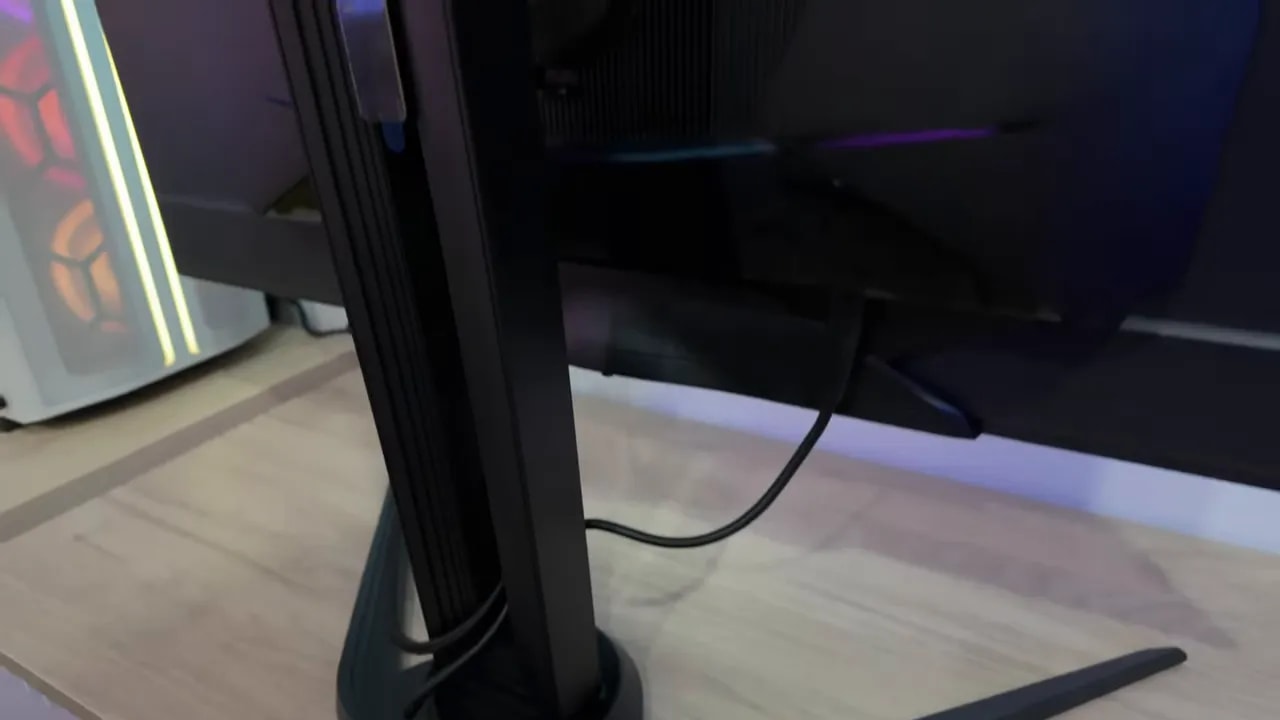
Ergonomics are comprehensive:
- Height adjustment over a wide range
- Forward and backward tilt
- Horizontal swivel without moving the base
- Portrait mode, uncommon at 32 inches
However, portrait pivot is only available in one direction.
Connectivity: exceptionally complete, with an important surprise
This is probably the most comprehensively connected monitor in its segment. There is a lot to explore here.
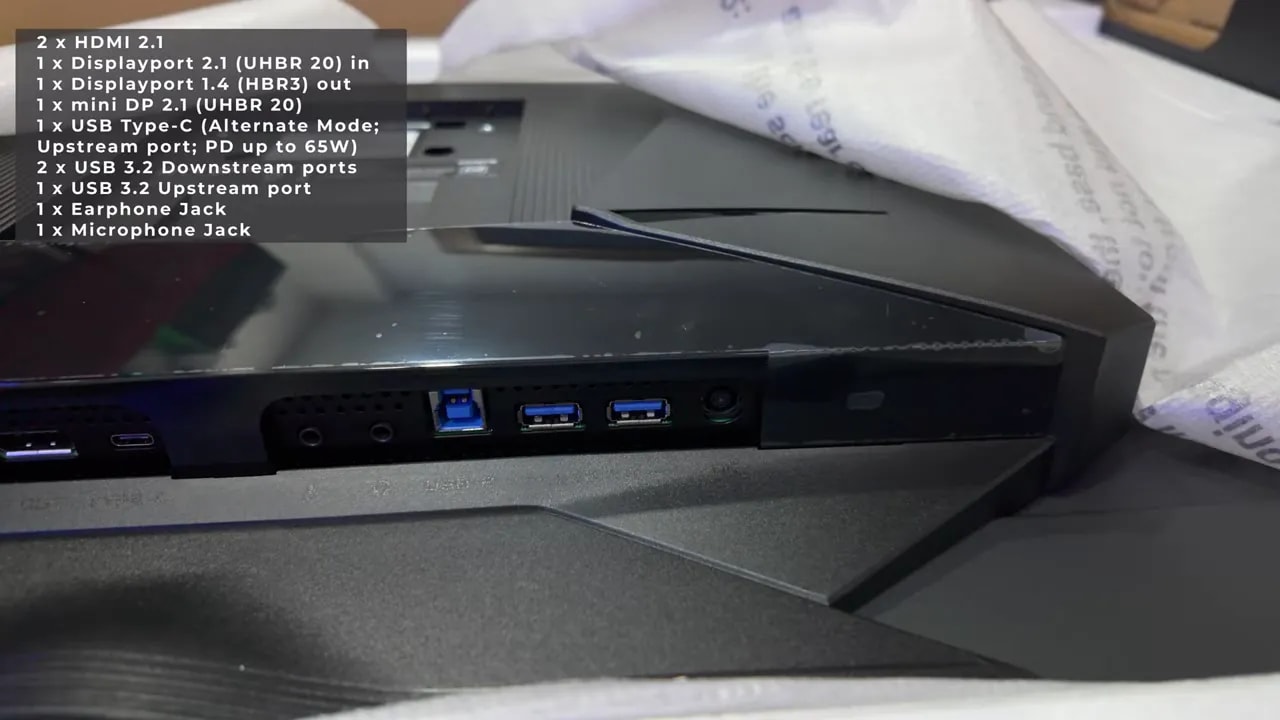
The highlights are:
- DisplayPort 2.1 UHBR20 with full bandwidth
- HDMI 2.1 for full console compatibility
- USB-C with video and charging up to 65 W
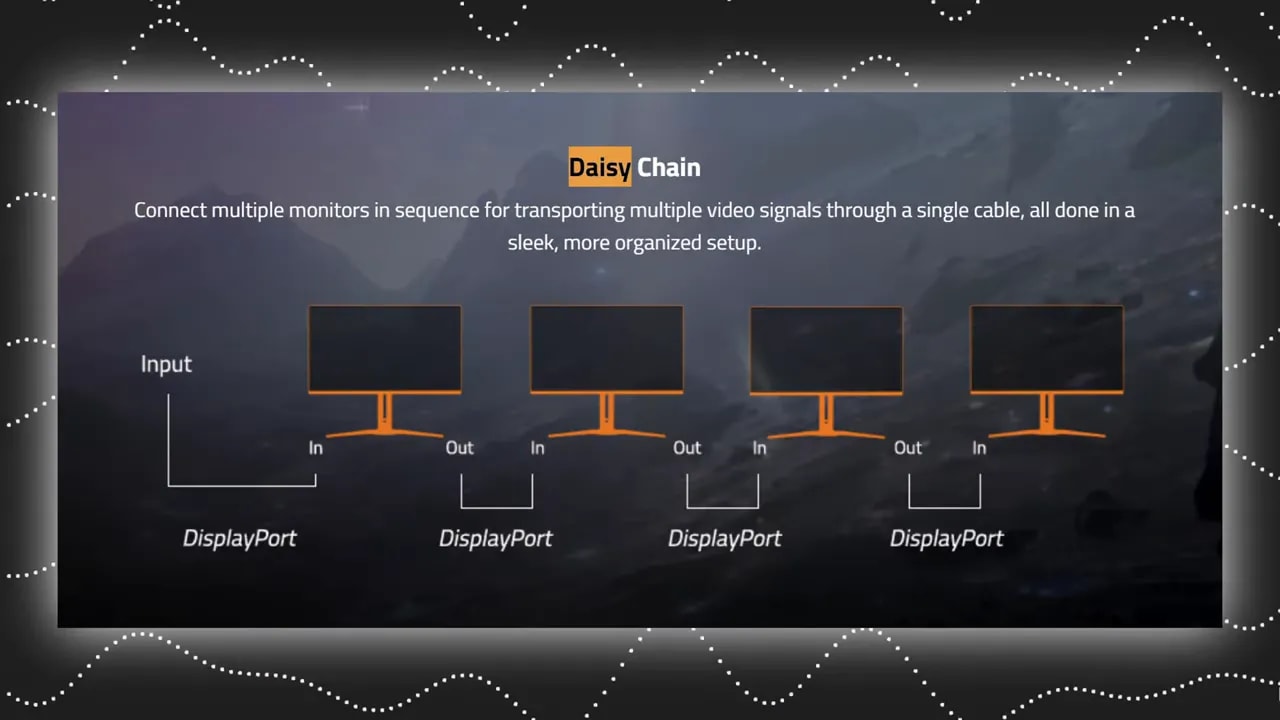
- DisplayPort output for Daisy Chain
- KVM built in
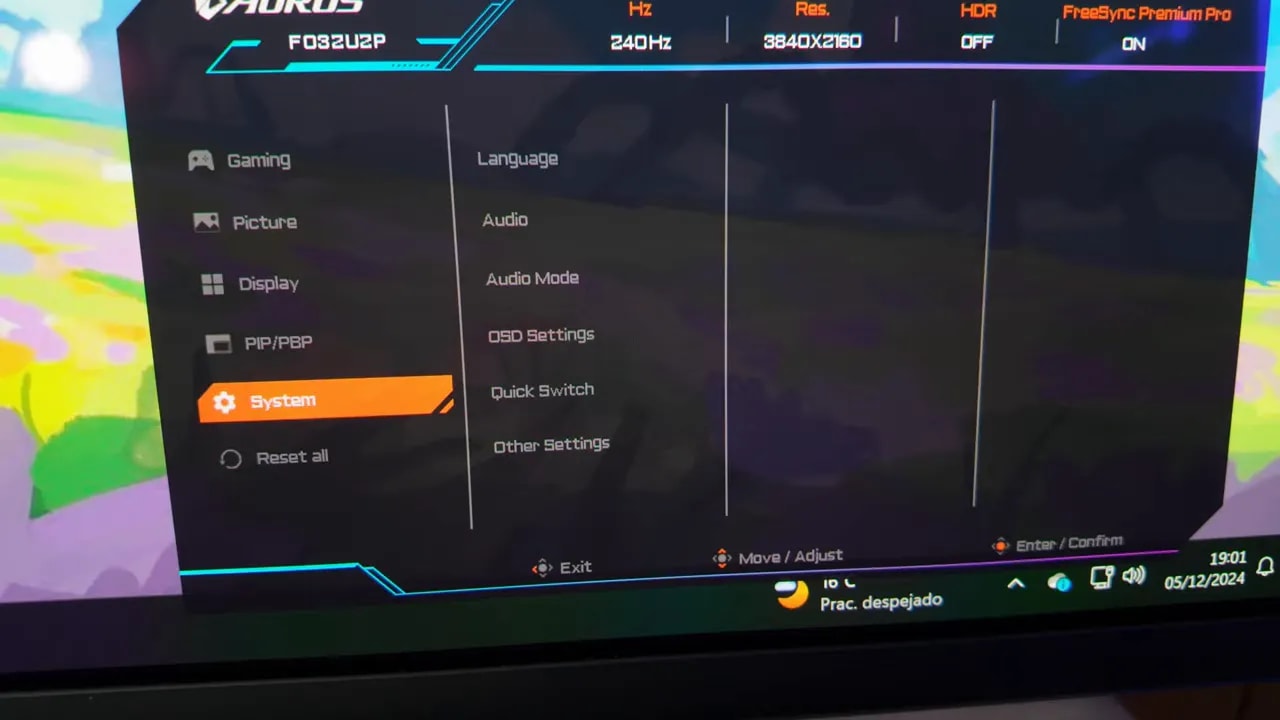
The DisplayPort output for daisy-chaining another monitor is an interesting, uncommon extra. That output is not DP 2.1, but it remains a very useful feature for certain setups.
Glossy finish and reflections: panel behavior
The panel has glossy finish. This means two clear things. First, colors and the overall image have spectacular punch. Second, reflections are much less controlled than on a matte monitor.
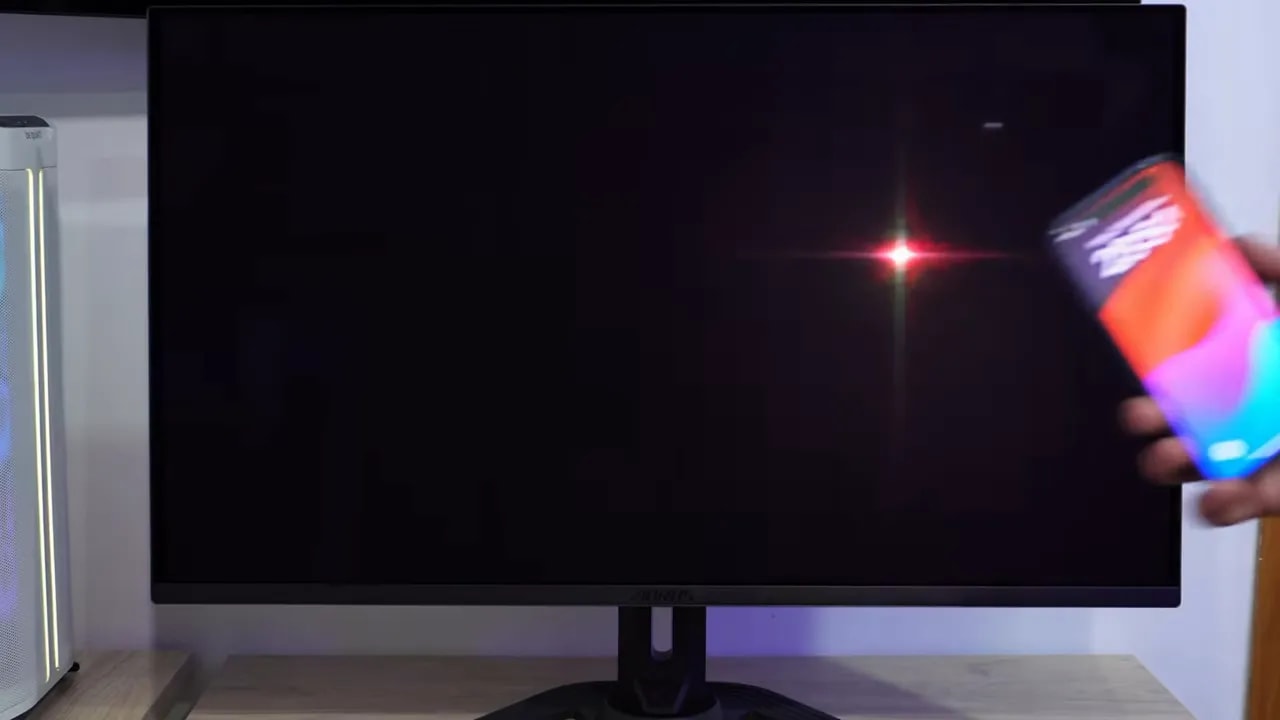
With well-controlled room lighting, the visual result is fantastic. When a direct light source hits it, besides reflections, this type of QD-OLED can show that characteristic somewhat brownish tint. It is not a serious issue with good monitor placement, but worth knowing before buying.
Color quality and gamut coverage
This monitor is exceptionally strong in color. It has a 10-bit panel and offers substantial gamut coverage.
The highlights:
- Full DCI-P3 coverage in gamut coverage, not just volume
- 93% Adobe RGB, which is fairly good
- Factory-calibrated modes for different color gamuts
sRGB mode
The mode sRGB is fairly decent out of the box. The Delta E is well controlled, although several points could be refined:
- The white-point deviation could be better
- The gamma 2.2 is a little high
- The color temperature is around 6000 K, below the 6500 K standard
- RGB balance is adequate, but could improve

The gamut clamp supports working with sRGB content, although the tested unit retains white and gamma deviations. Good coverage does not replace checking this tuning.
P3 mode
The mode P3 also makes a good impression. Color temperature now reaches 6500 K, but some details still need improvement:
- Slightly high gamma
- RGB balance not quite on target
- Fairly decent Delta E, with red straying a little
- White point could improve
DCI-P3 using Standard mode
Although there is no exact dedicated mode for DCI-P3, Standard mode also performs quite well against that gamut. It does not completely fix the same white-point and gamma issues, but factory calibration remains competent.
Adobe RGB mode
At Adobe RGB requires accepting a logical limitation: since it does not cover 100% of the gamut, tuning cannot be as precise as in others. Even so, performance is good:
- Fairly accurate white point
- Gamma somewhat high again
- Slightly low color temperature
- RGB balance could improve
Does it need calibration?
The short answer is: it depends on your use.
Factory calibration is good, but not perfect. With manual calibration using a professional colorimeter it can be tuned much better. Adjusting color temperature in Custom mode and applying an ICC profile clearly improves post-calibration results, especially in gamuts it covers well.
However, if gaming is your main use, there is no need to obsess over this. In that case, the recommendation is fairly simple:
- Use the Standard mode
- Set the gamut to native
- Take advantage of the panel’s extra color volume
If you work with photography, video, or any task where color really matters, calibration is worthwhile. Otherwise, simply adjust the image to your taste.
SDR brightness, ABL, and uniformity
As an OLED, contrast is the usual: practically infinite. Each pixel can turn off independently, so there is little mystery here.
What does warrant discussion is SDR brightness. As with other OLEDs, behavior depends on the level of APL, meaning how much of the screen displays bright content.
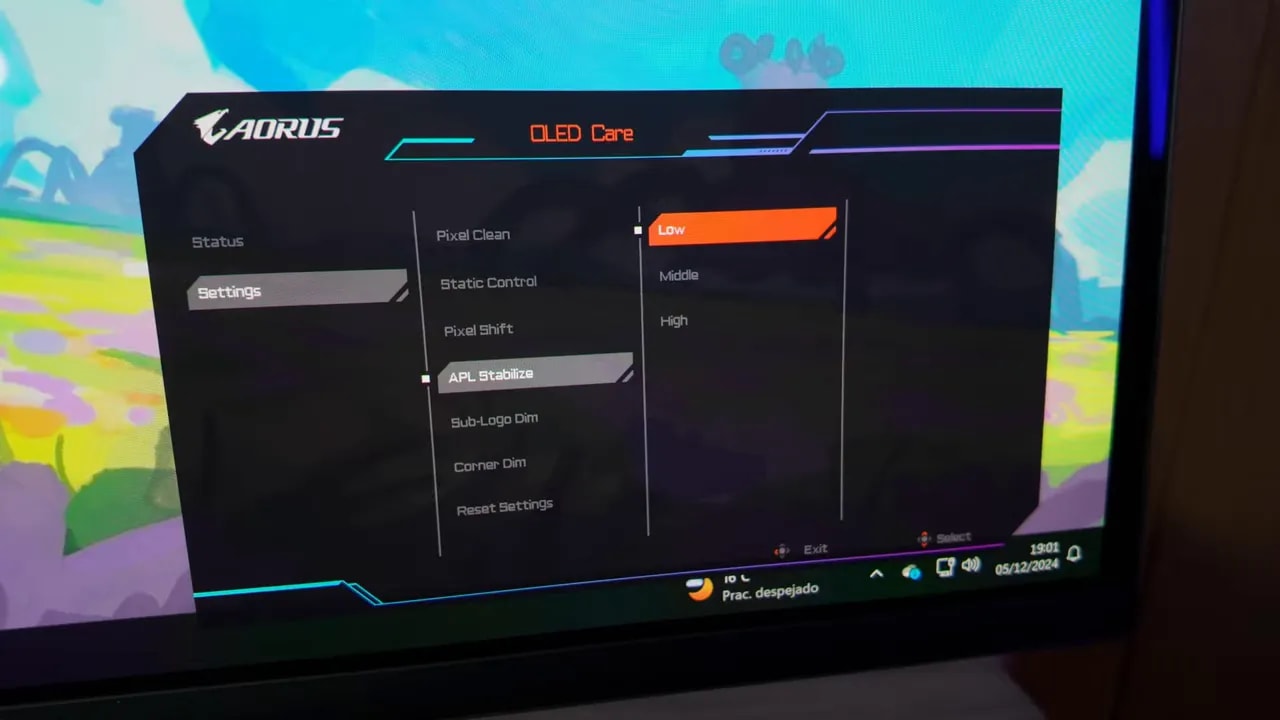
The monitor lets you change brightness-limiter behavior within its burn-in protection settings. This matters because it changes the experience considerably.
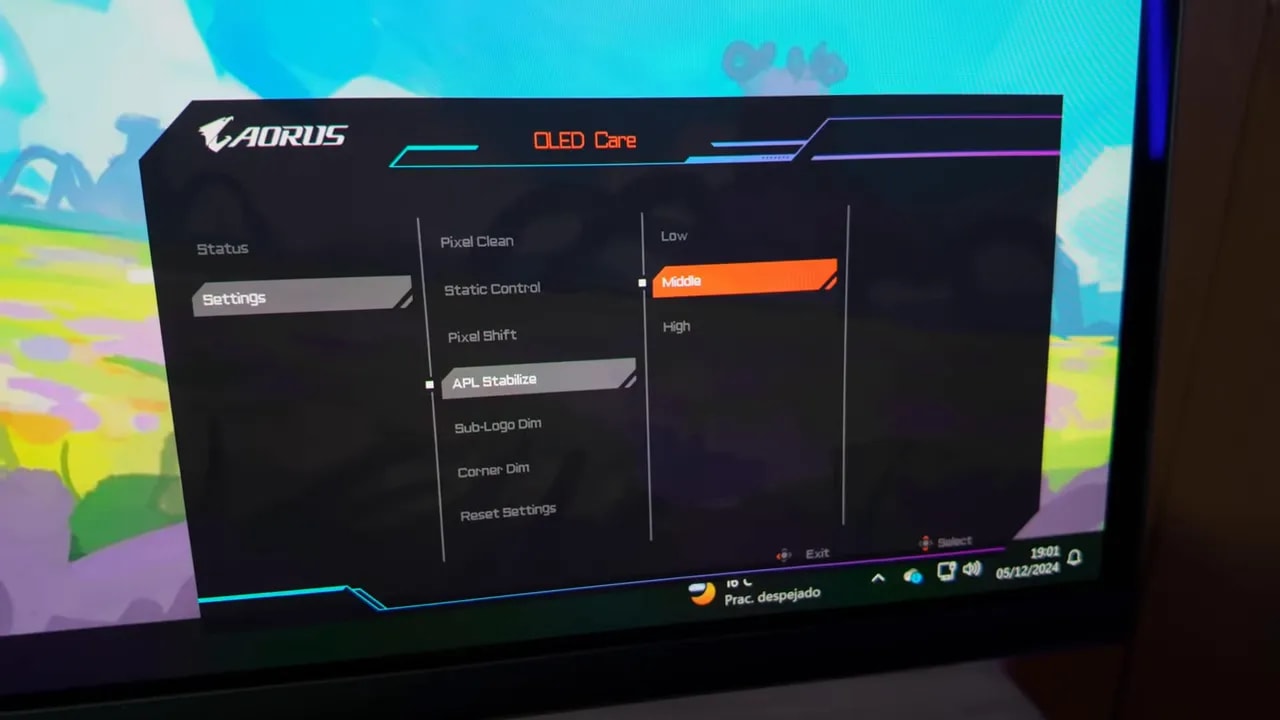
There are three main modes:
- Low
- Middle
- High
High mode
This allows the highest SDR brightness peaks. In fact, this feature gives it the highest maximum SDR brightness of any monitor featured on the channel.
The problem is that it is not always worthwhile. Although nits can rise substantially in certain areas, overall screen brightness feels dimmer than Middle, because it concentrates more energy in specific areas.
Middle mode
This is the most balanced mode for everyday and desktop use. It maintains a more consistent and generally brighter image. If you use it for work, browsing, gaming, and a little of everything, this is the recommended mode.
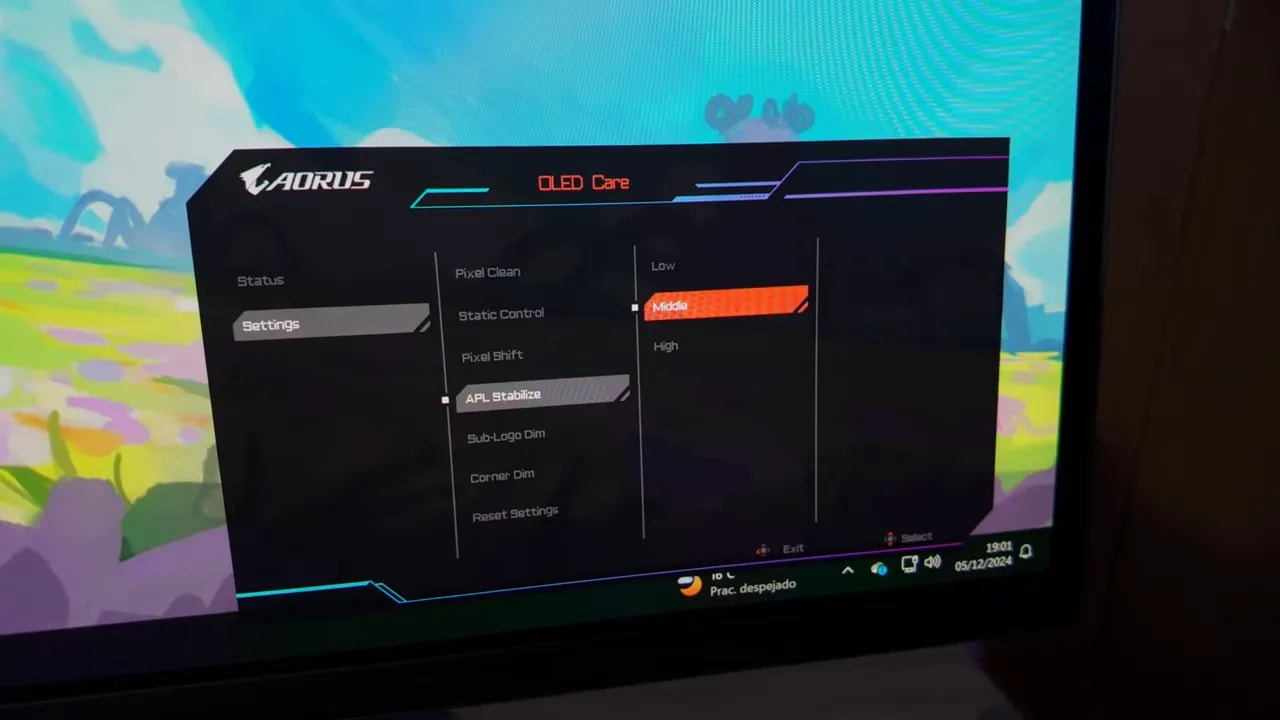

The APL setting changes how the monitor distributes brightness. For desktop use, consistency when opening bright windows also matters, not just the maximum reached by a small part of the image.
Low mode
Brightness is more restrained here, but in return you get the best uniformity. In fact, the monitor performs very well in brightness and color uniformity tests.
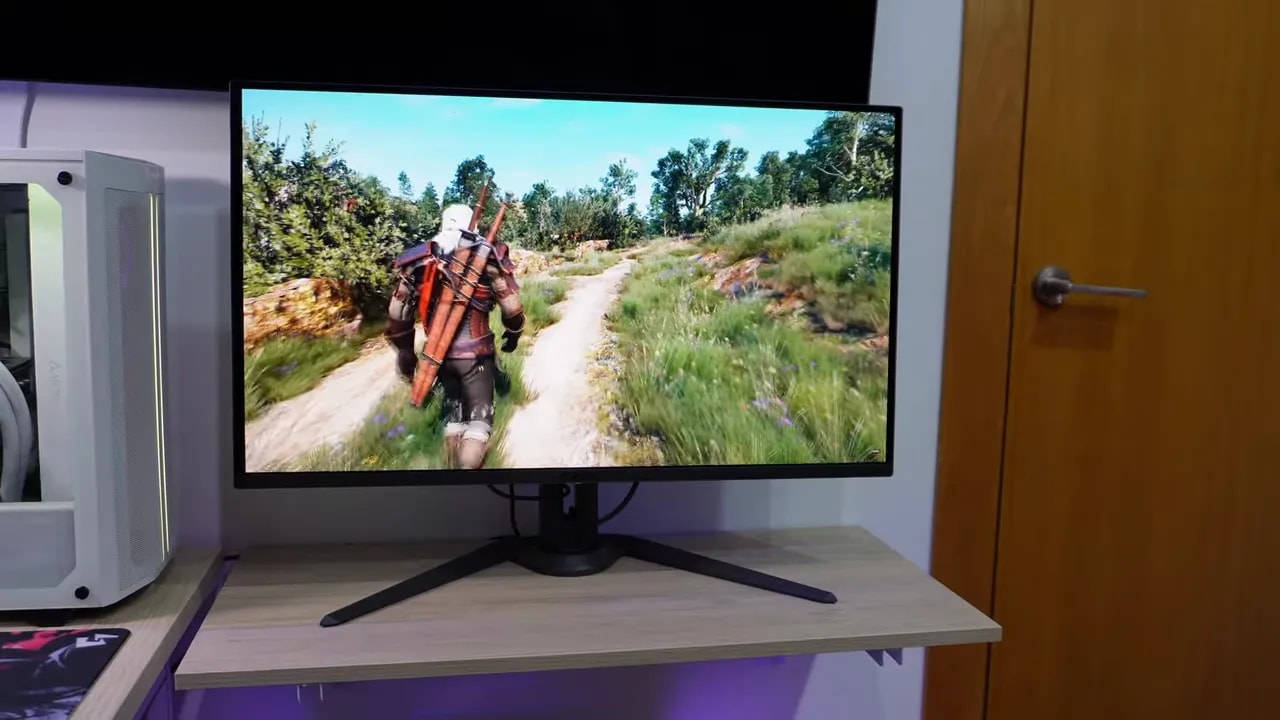
So if your aim is image work and you prioritize stability over visual punch, Low makes sense. For general use, Middle remains the best option.
HDR: a good True Black 400-style mode, less refined at 1000 nits
HDR gets considerably more technical. What matters here is not just the monitor’s peak brightness, but how it tracks the PQ EOTF curve, which determines whether bright and dark areas are represented correctly.
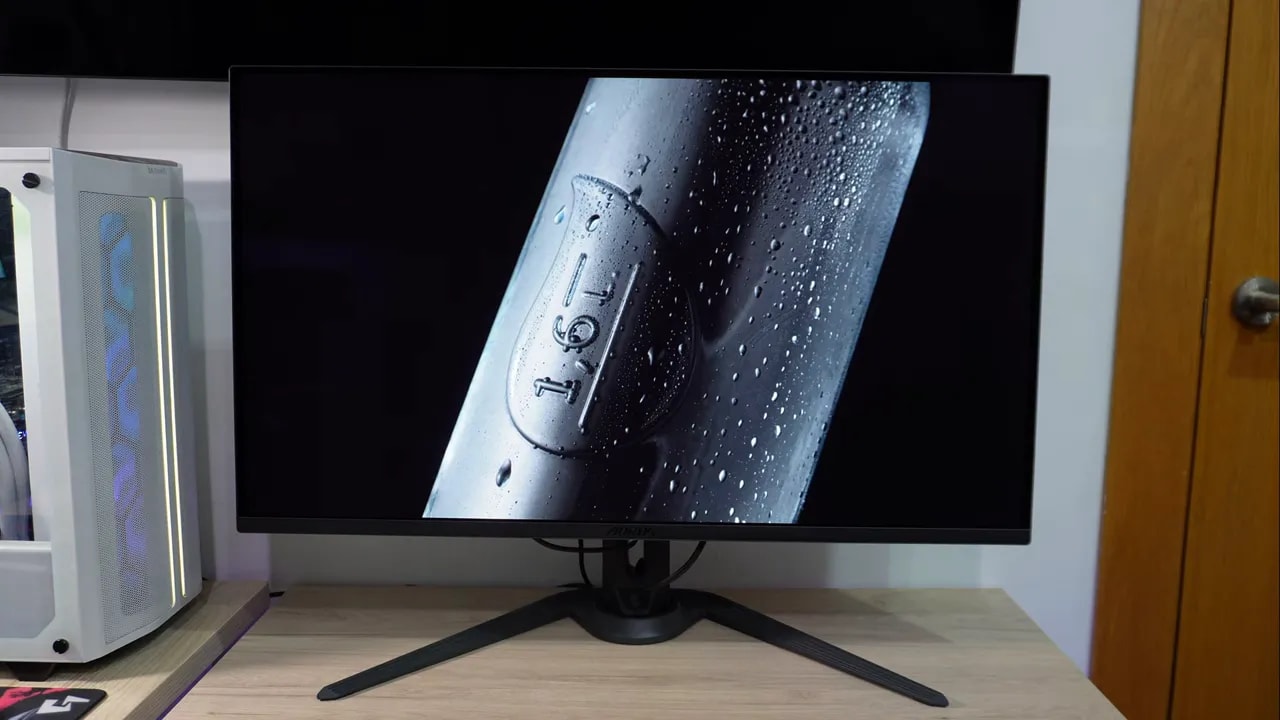
At 10% APL, the Middle and High modes perform quite well. The Low mode is less refined in HDR, so it is not worth using here.
When APL rises to 50%, the High begins to show more problems. The Middle mode holds up better. And at 100% APL, although it also weakens slightly, performance remains fairly decent.
In practice, this means:
- HDR in Middle behaves like a True Black 400 that is well tuned
- HDR in High resembles the typical 1000 nits mode on other OLEDs, with higher peaks but worse consistency
The monitor includes other HDR modes too, some customizable, and even an HLG mode, which is quite rare on monitors.
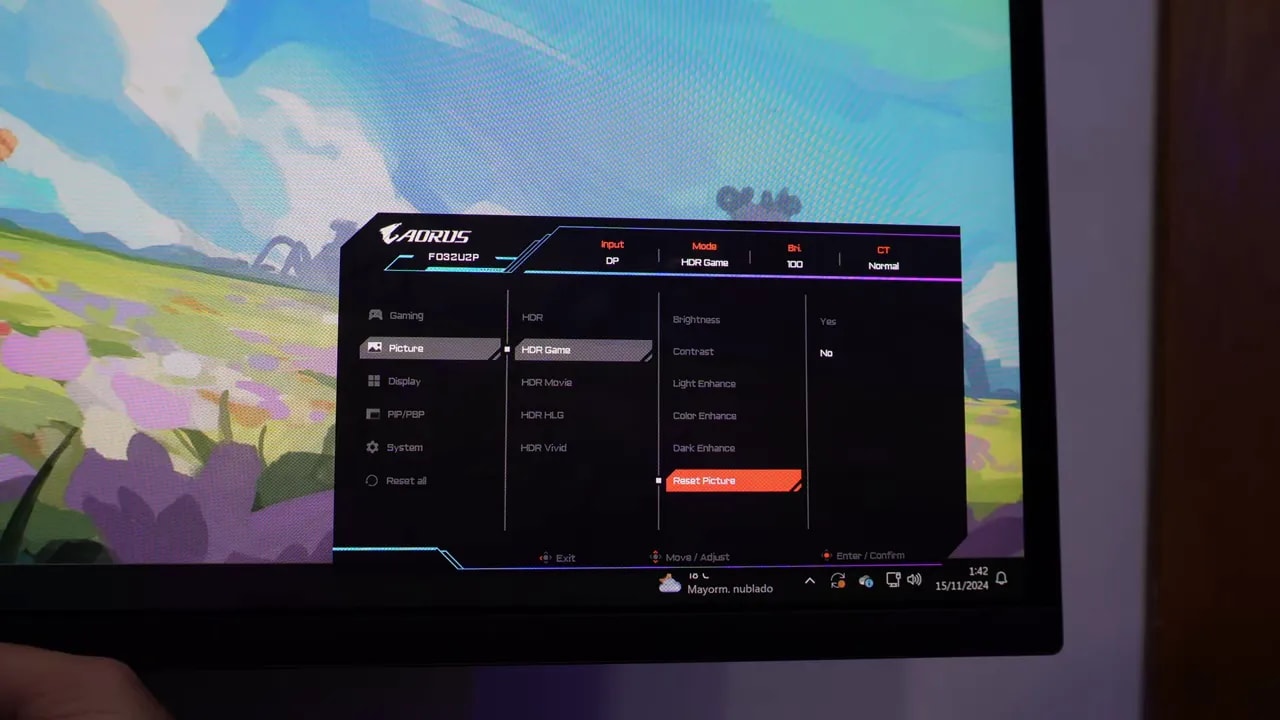
The HDR Movie mode was also tested in Middle and is not bad, but the default HDR mode, which does not allow parameter adjustments, has the best factory tuning.
That remains true when comparing other modes with APL on High. None surpasses Standard HDR mode in actual calibration.
Maximum HDR brightness at low APL, especially in High, slightly exceeds 1000 nits. It is not the brightest QD-OLED featured on the channel, but is in line with expectations for this panel type.
One detail appears in all HDR modes and could be better: the color temperature stays around 6000 K, when the ideal would be 6500 K.
Quick HDR summary:
- Factory HDR calibration is not bad
- The mode Medium offers an HDR experience similar to True Black 400 that is quite good
- The mode with 1000 nits delivers higher peaks but sacrifices luminance tracking accuracy
- The default HDR mode is the most recommendable for the best technical tuning


The two areas show why High is not a universal improvement: as the bright area grows, some midtones darken more. Middle retains reproduction closer to the reference. Game and Vivid modes raise midtones, while highlights are limited at full screen.
Response times and motion clarity
There are no surprises here, which is good news. As an OLED, its response times from gray to gray are virtually instant. Moving images look very sharp, and the sense of smoothness is excellent.
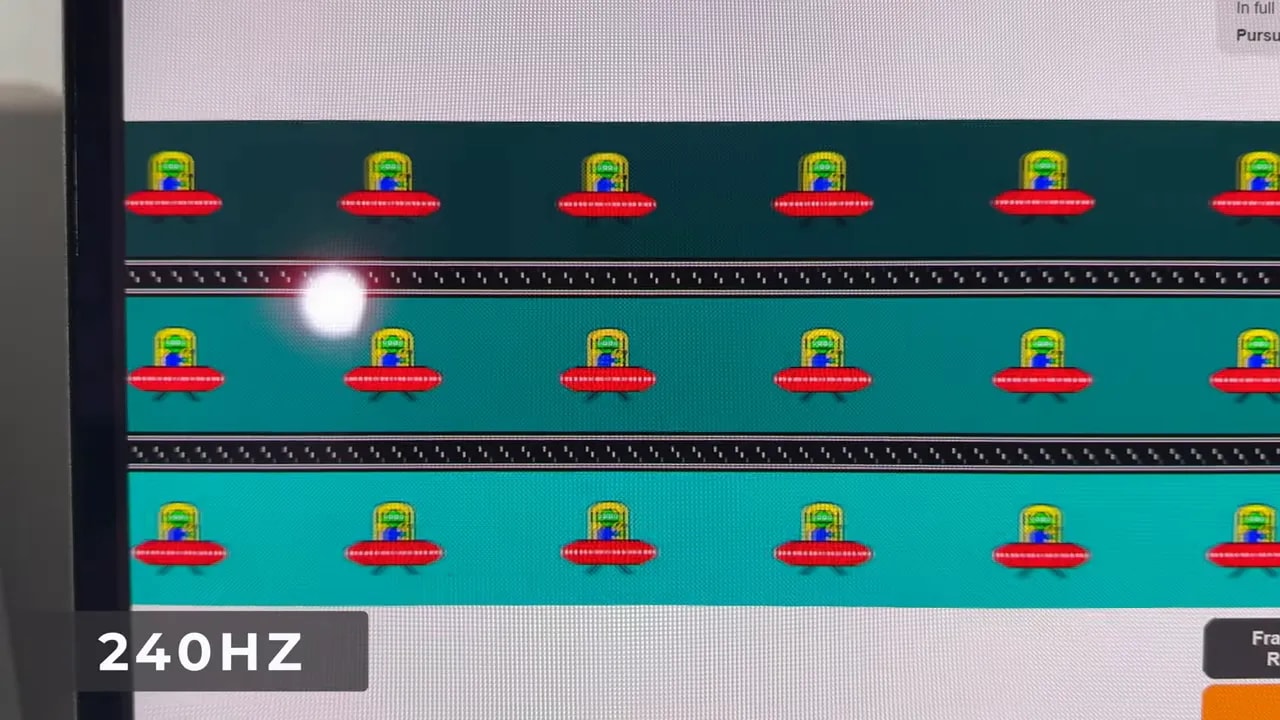
Testing shows some overshoot, but it is the typical behavior already seen on other QD-OLEDs and, honestly, has no practical significance in actual use. When gaming, the image feels very clean and extremely fast.

The measurement supports the fast transitions at 240 Hz. The observed overshoot is minor in the described use; input lag at other refresh rates is evaluated separately and cannot be inferred from this table.
Input lag: better managed than on other QD-OLEDs
The input lag at 240 Hz is average for QD-OLED monitors at this level. The good news comes at lower refresh rates.
On other models with similar panels, lowering refresh rate caused input lag to rise enormously. It rises here too, as expected, but not nearly as dramatically. That is a clear improvement over other monitors suffering from that issue.
VRR, FreeSync, G-Sync Compatible, and flickering
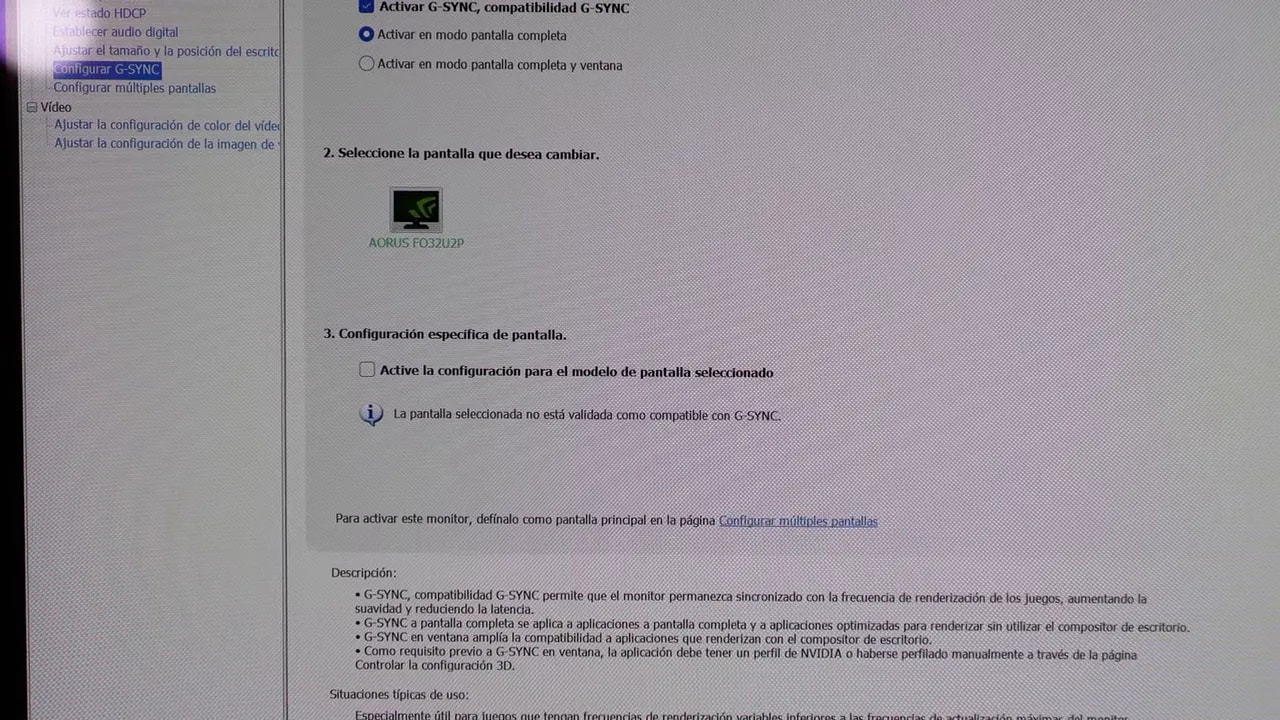
The monitor supports FreeSync and can also be used with NVIDIA graphics cards through G-Sync Compatible, although official NVIDIA validation is absent in this case.
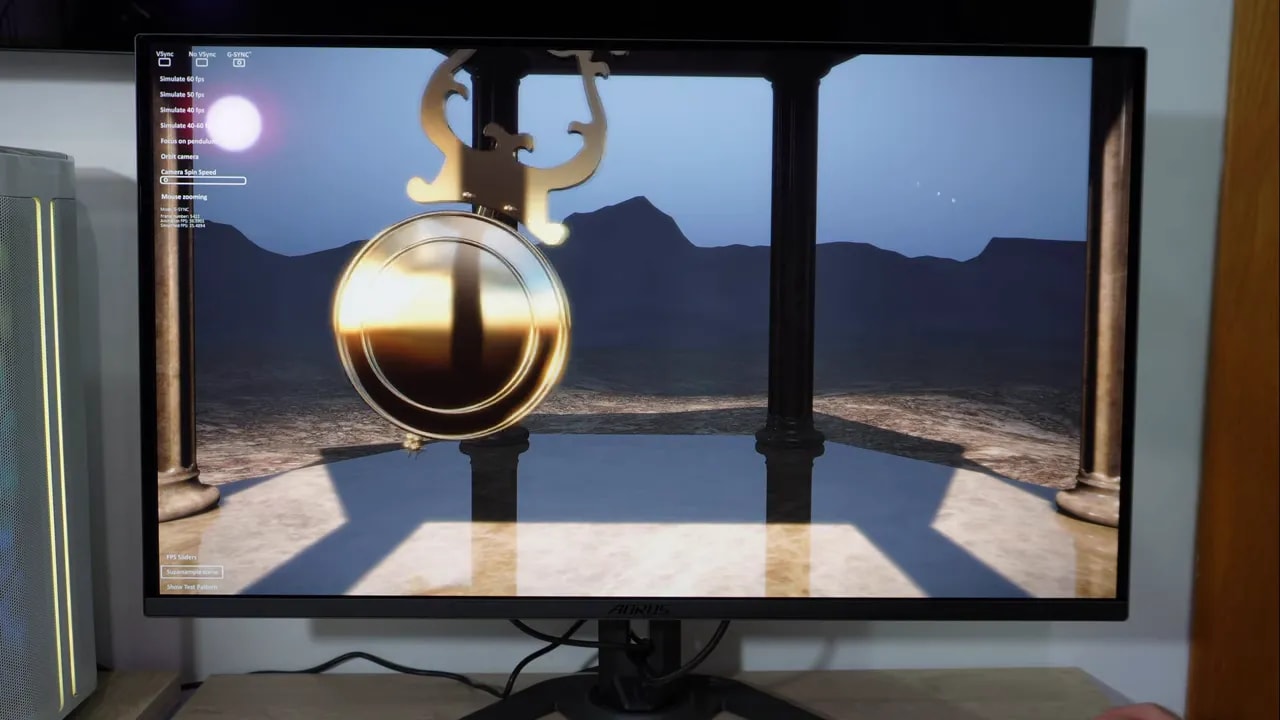
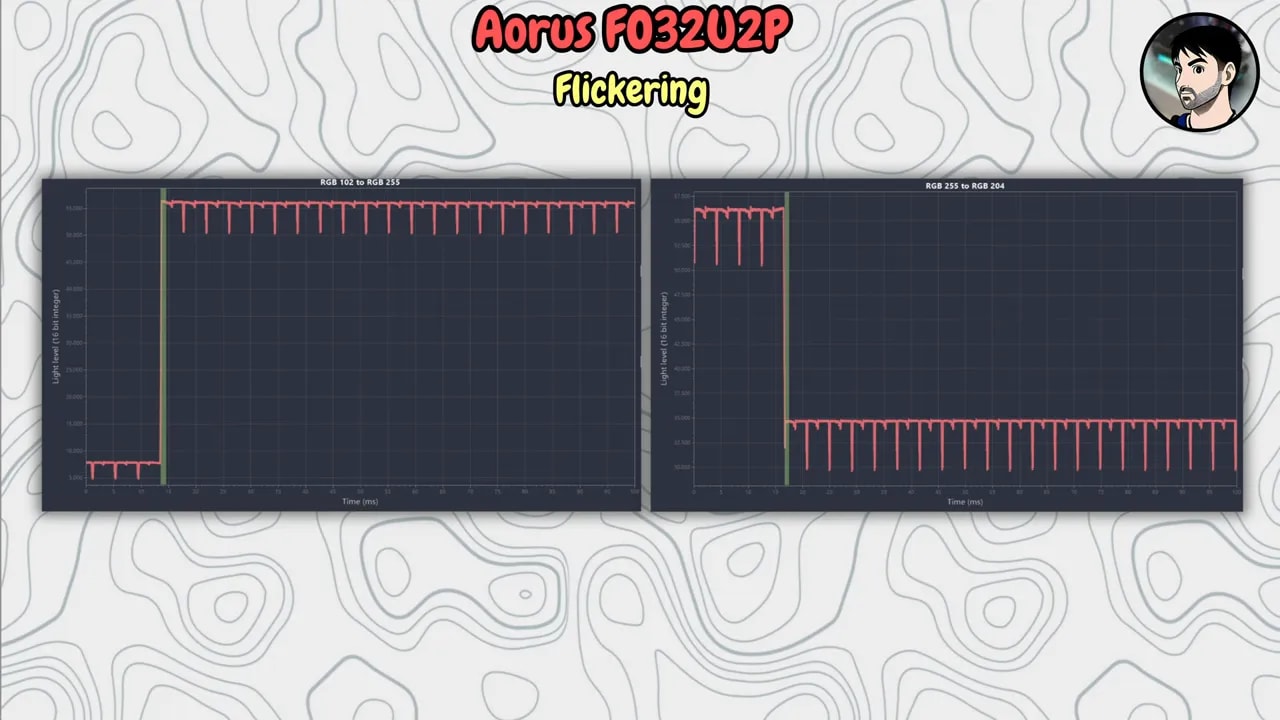
The pendulum test shows something very typical of OLED: VRR flicker or flickering. It is not disastrous, but noticeable in certain situations. If you are especially sensitive, the recommendation is simple: disable VRR.
Also remember another point. OLED monitors are not flicker free in the strict sense. Their flickering behavior is not necessarily visible to the naked eye all the time, but may contribute to eye fatigue. That is not exclusive to this model, but inherent to the technology.
Text definition and work use
One of the most discussed topics whenever an OLED monitor appears is text clarity. There is good news here.
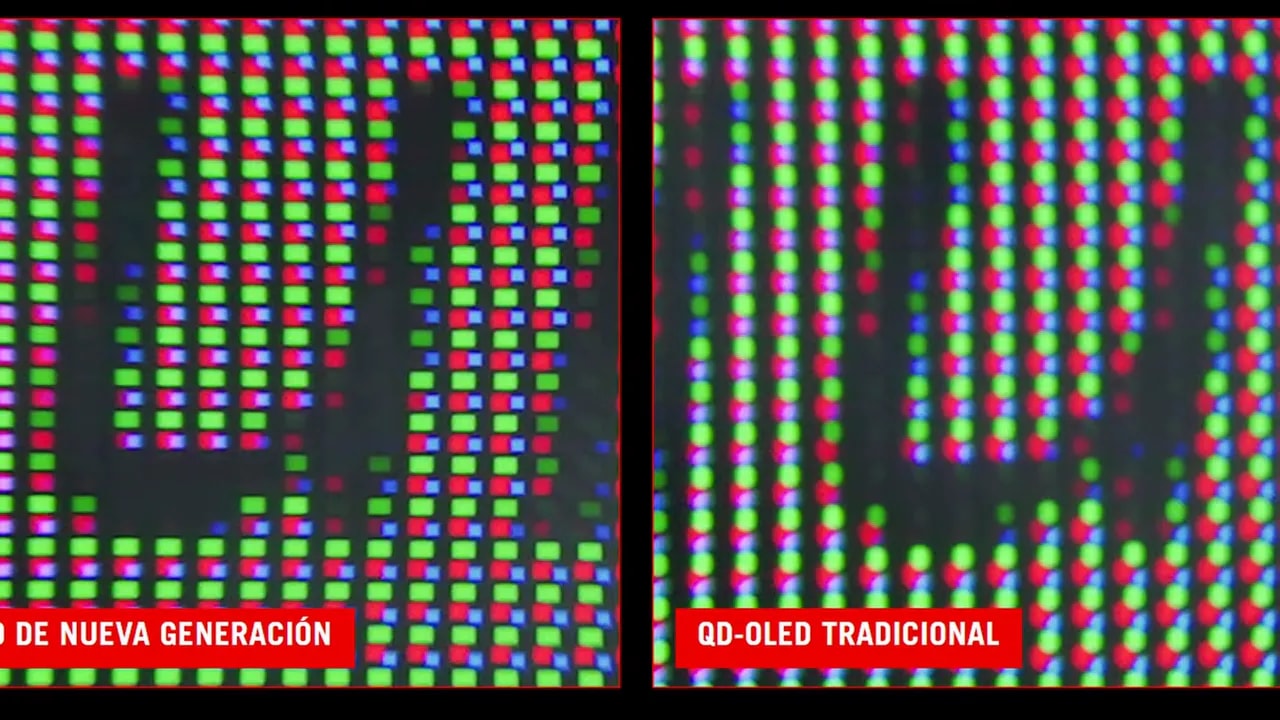
This model uses a revised subpixel structure from the new generation of QD-OLEDs. Older models had a more problematic layout, but it has improved here.
There is also another key factor: 4K resolution at 32 inches. At that density, text looks very sharp. Bring a camera extremely close and you can find artifacts, yes, but they are not distracting in everyday use.
The monitor is perfectly usable for reading documents, browsing, or working long hours. In fact, mixed gaming and work use is exactly where a product like this makes most sense.
Burn-in protection
As with any OLED, burn-in risk exists, so AORUS includes the usual protections:
- Pixel refresh
- Pixel Shift
- Logo dimming
- Other automatic protection features
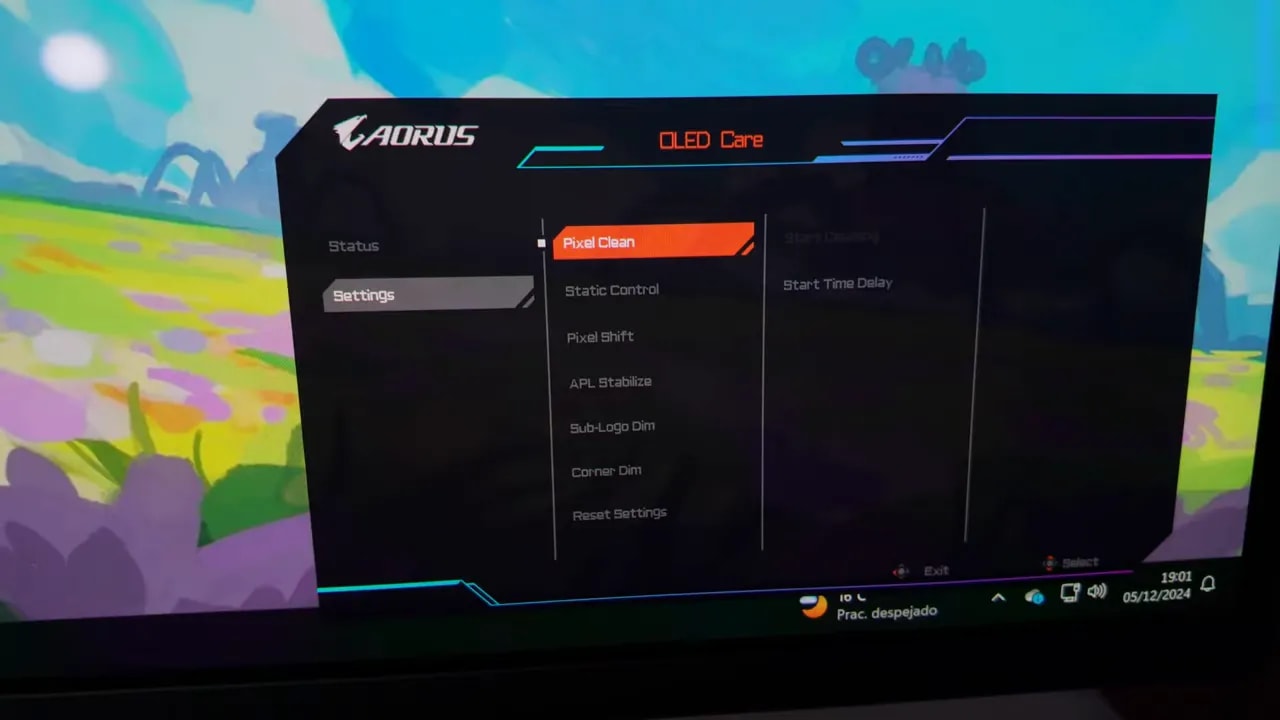
Do they work? Everything suggests they help, but only time will provide the real answer. What is fairly clear is that these new-generation panels are better equipped than older OLEDs in this respect.
For gaming or mixed gaming and work, it does not seem particularly concerning. If your use is exclusively a static desktop for years, perhaps marks could start appearing after 4 or 5 years, but currently nobody can prove it with complete certainty because these panels have not been on the market that long.
Extras that make a difference
This monitor is packed with additional features, but three stand out in particular.
KVM and 65 W USB-C
The built-in KVM and USB-C with up to 65 W charging make it very convenient when switching between a PC, laptop, or multiple devices. It is not eye-catching on paper, but is extremely welcome day to day.
Full DisplayPort 2.1 UHBR20
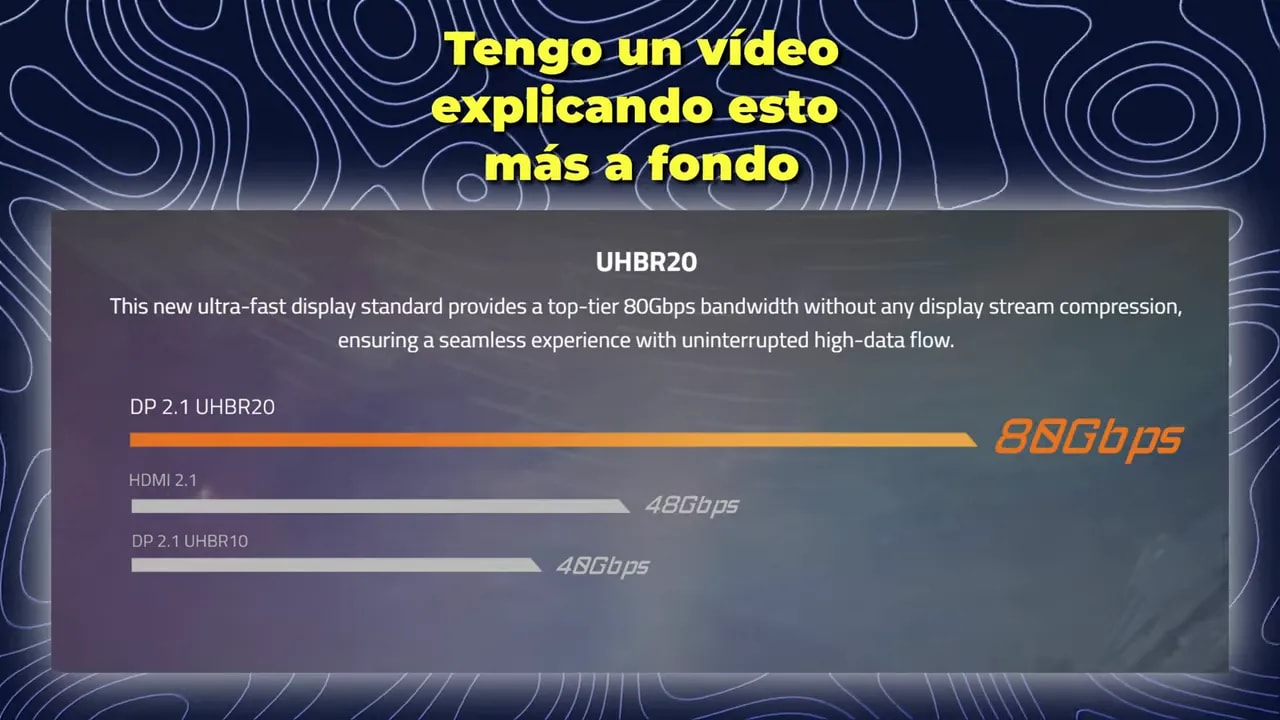
Here is the headline feature. This AORUS has DisplayPort 2.1 with the full UHBR20 specification, meaning around 80 Gbps native bandwidth.
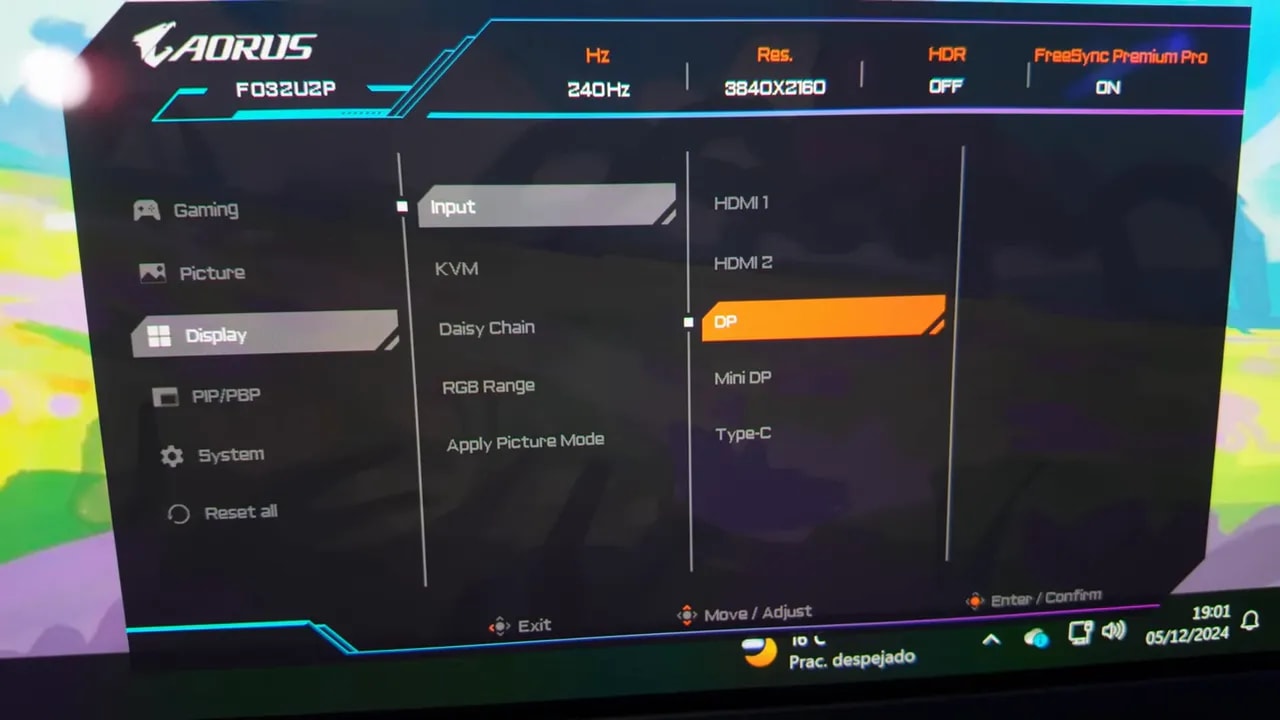
Right now, its usefulness is limited. Even many gaming graphics cards cannot fully exploit it. The latest AMD cards already use DisplayPort 2.1, but not with this monitor’s full bandwidth.
So why does it matter? Because it may make a substantial difference in the future.
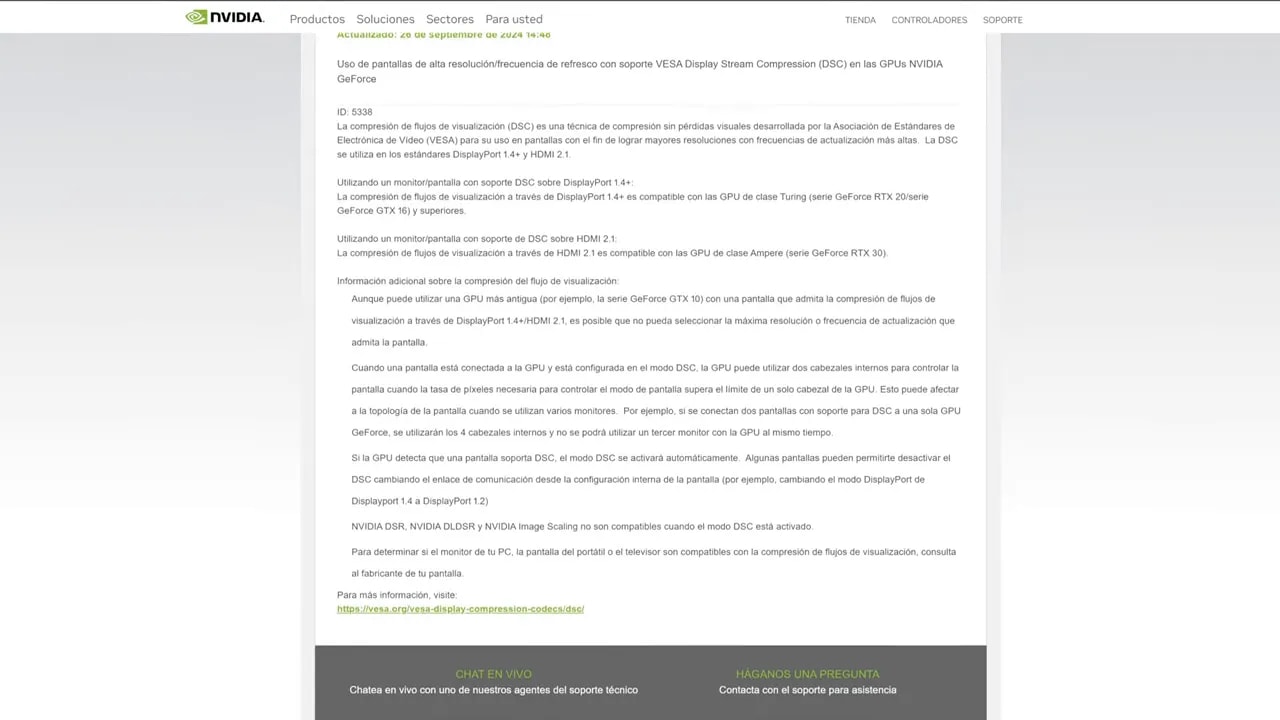
With more native bandwidth, you can drive very high resolutions and refresh rates with less reliance on DSC, the video compression currently used for things such as 4K at 240 Hz over DisplayPort 1.4.
In theory, DSC works without visible quality loss or added latency, but not all implementations are perfect. It can also impose limitations on multiple-monitor setups. One clear example is being unable to keep several high-refresh 4K screens connected simultaneously because of bandwidth limits.
With the native 80 Gbps of DP 2.1 UHBR20, the monitor is better prepared for upcoming GPU generations. Even if it is not essential today, it is a clear investment in future capabilities.
Daisy Chain
The monitor can send video to another monitor through Daisy Chain. That may help if your graphics card lacks outputs or you want tidier cabling. It will not change everyone’s life, but as an extra it is frankly good.
Built-in speakers
It also includes two 5 W speakers. They have plenty of volume but lack a great deal of bass. They are neither the worst nor the best speakers you will find in a monitor.
They work in a pinch, for occasional console use, or to avoid always relying on headphones or external speakers, but little more.
Price and final assessment
The AORUS FO32U2P is a monitor that is expensive, like practically any 4K 240 Hz QD-OLED. Pricing is around 750 euros, although it can vary by retailer and timing.
There is also a very similar version without the “P,” but without full DisplayPort 2.1 or Daisy Chain, usually somewhat cheaper. That matters because it may be the smart buy if those extras do not matter to you.
The best thing about the FO32U2P is that it is an extremely well-equipped monitor. Not only because of the panel, already very good itself, but because of everything around it.
- Spectacular image thanks to glossy QD-OLED
- 4K and 240 Hz at 32 inches
- Top-tier connectivity
- Excellent ergonomics
- KVM, USB-C, and Daisy Chain
- DisplayPort 2.1 UHBR20 as a real differentiator
What would I ask for to round it out?
- Dolby Vision support
- A slightly more refined factory calibration in some areas
It is not poorly calibrated, far from it. Simply, at this price, a little more factory attention could be expected.
Overall, it seems one of the most interesting premium-segment offerings to me. If you want a 32-inch OLED gaming monitor, with 4K, 240 Hz and also want an option ready for the future thanks to full DisplayPort 2.1, this AORUS is a very serious contender.