What changes from the previous model
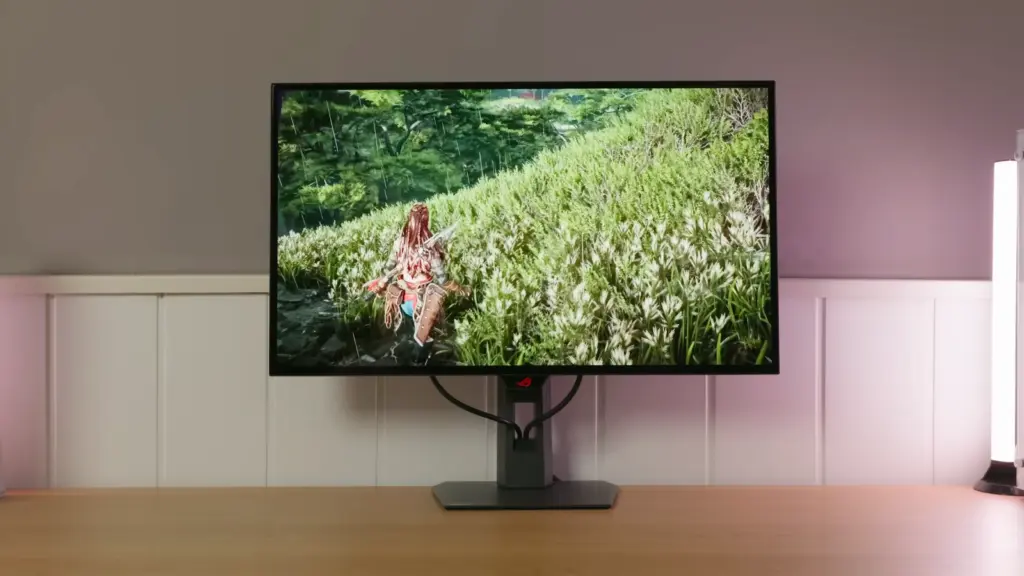
The big change is the screen. The previous model was already sold as a glossy WOLED, but honestly, it was more of a very light semimatte finish. This new model has a truly glossy finish. This has a clear advantage: the image looks cleaner and clearer, without the grain often introduced by matte finishes. On an OLED, where contrast and visual clarity are part of the appeal, this change makes a lot of sense. The downside is also the expected one. Reflections are much more noticeable, so some control over room lighting is advisable. If you play or work with a window facing the screen, you will notice it.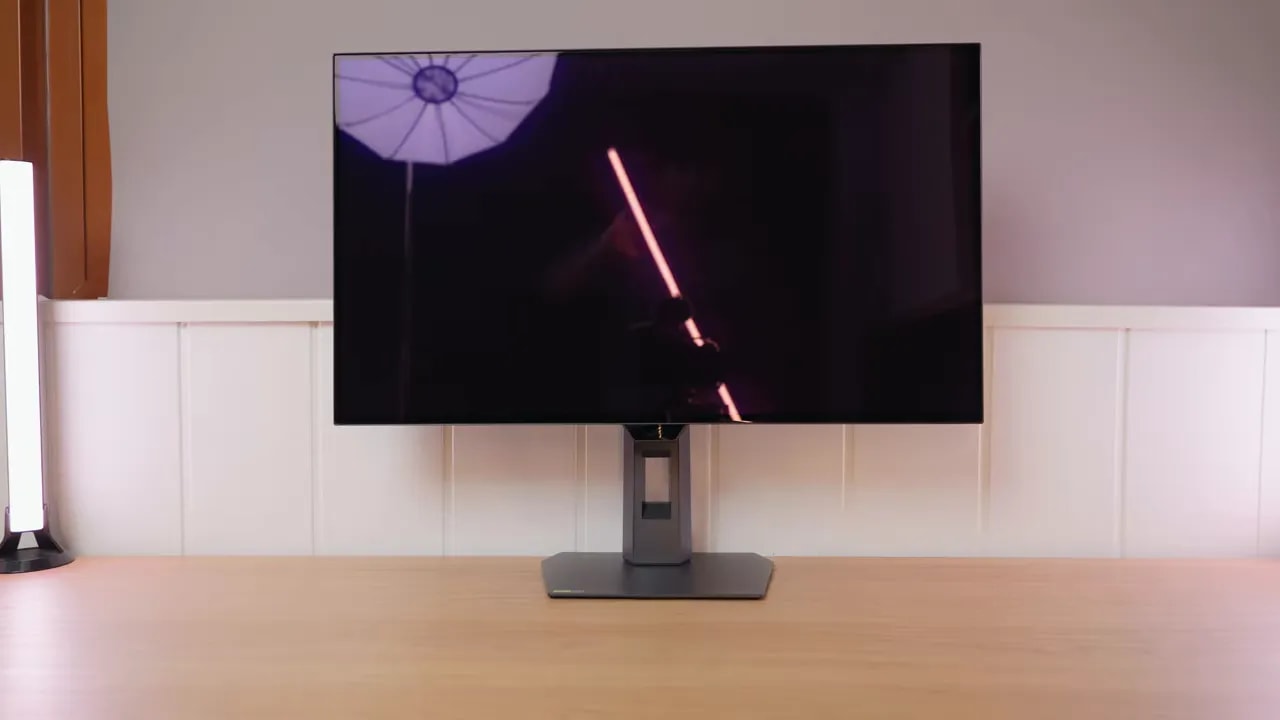
Design, stand, and ergonomics
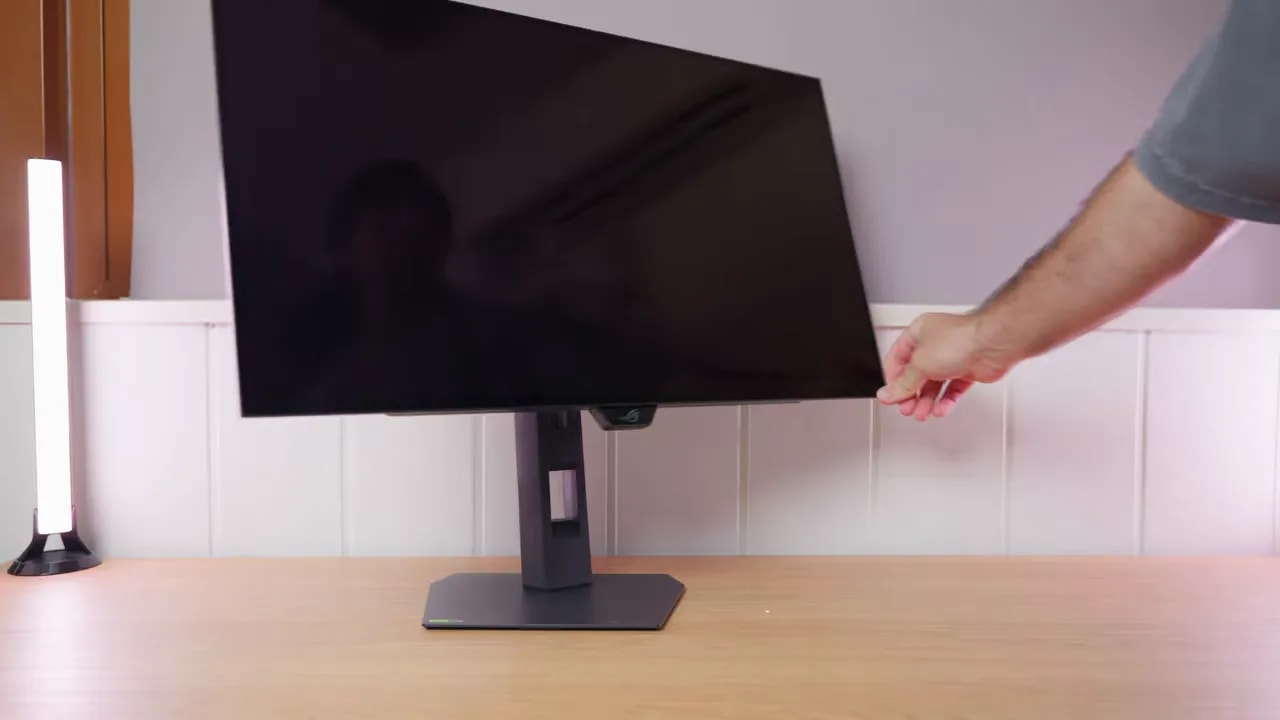
ASUS has also switched to the stand used on several of its new models. It is a more compact metal base that is practical for avoiding taking up half your desk. Ergonomics are comprehensive:- Height adjustment
- Tilt
- Backward tilt
- Portrait pivot in both directions
- Swiveling the monitor without moving the base
Connectivity, USB, and PS5 compatibility
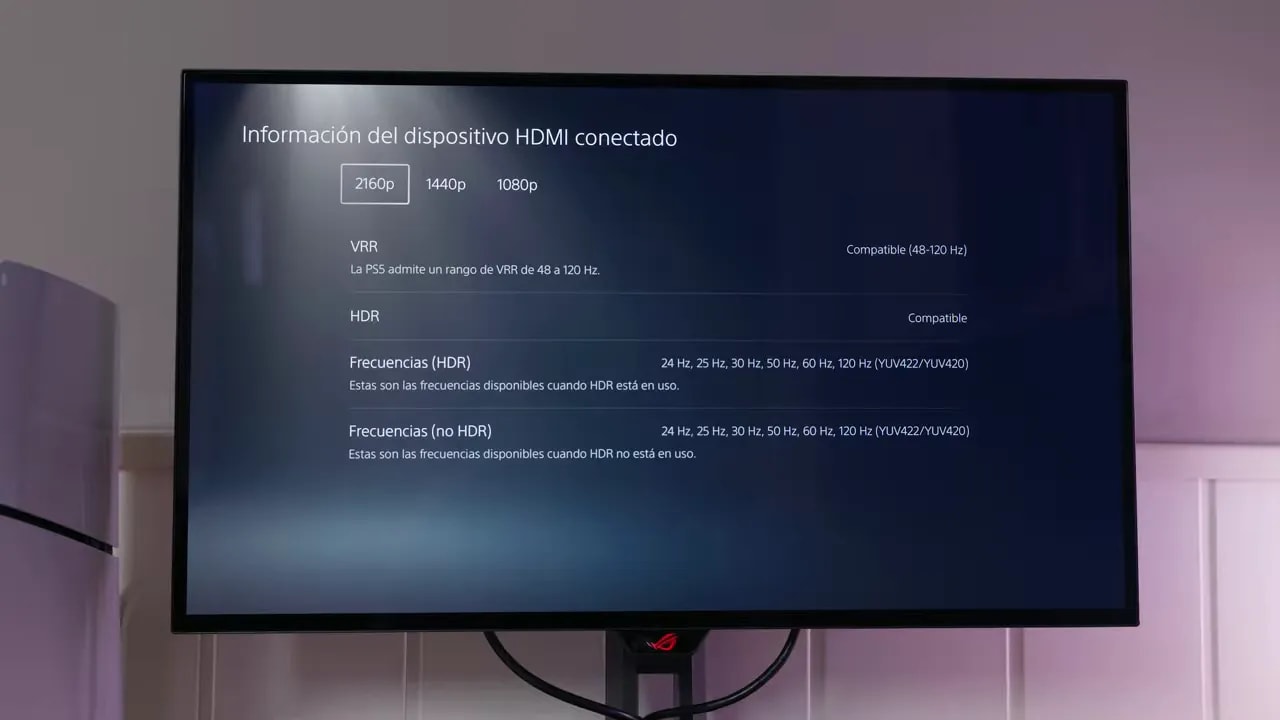
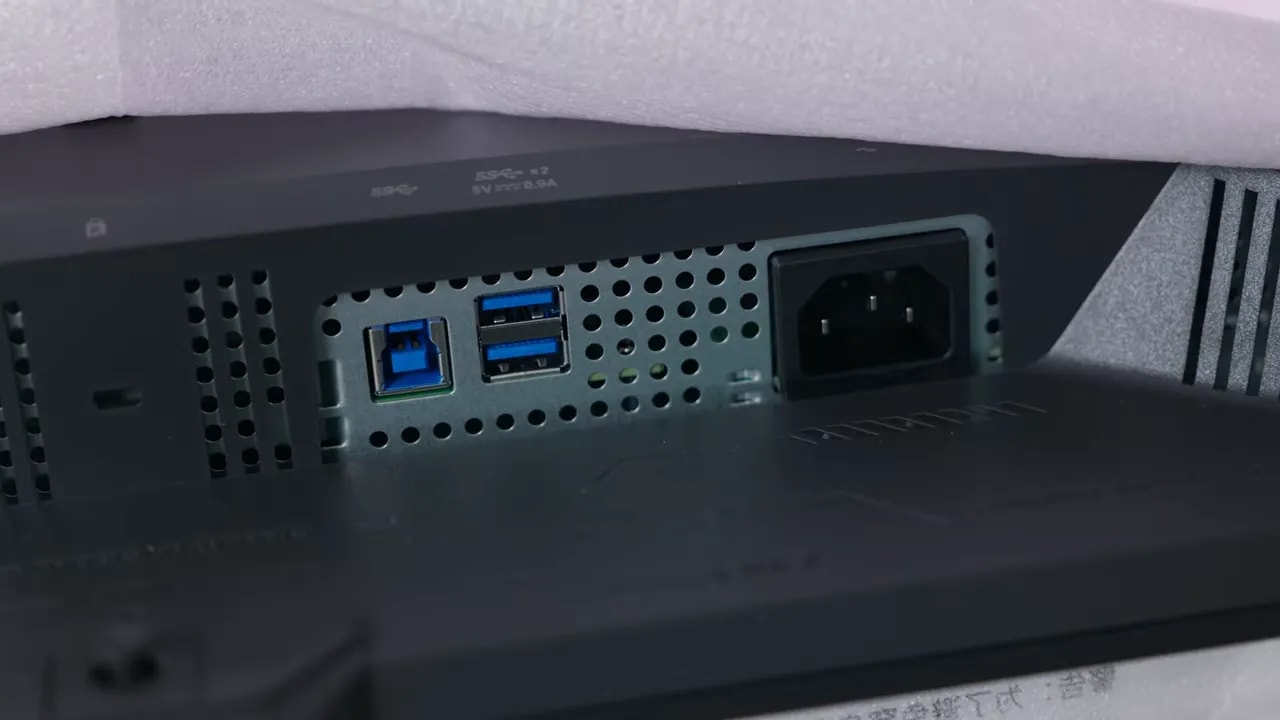
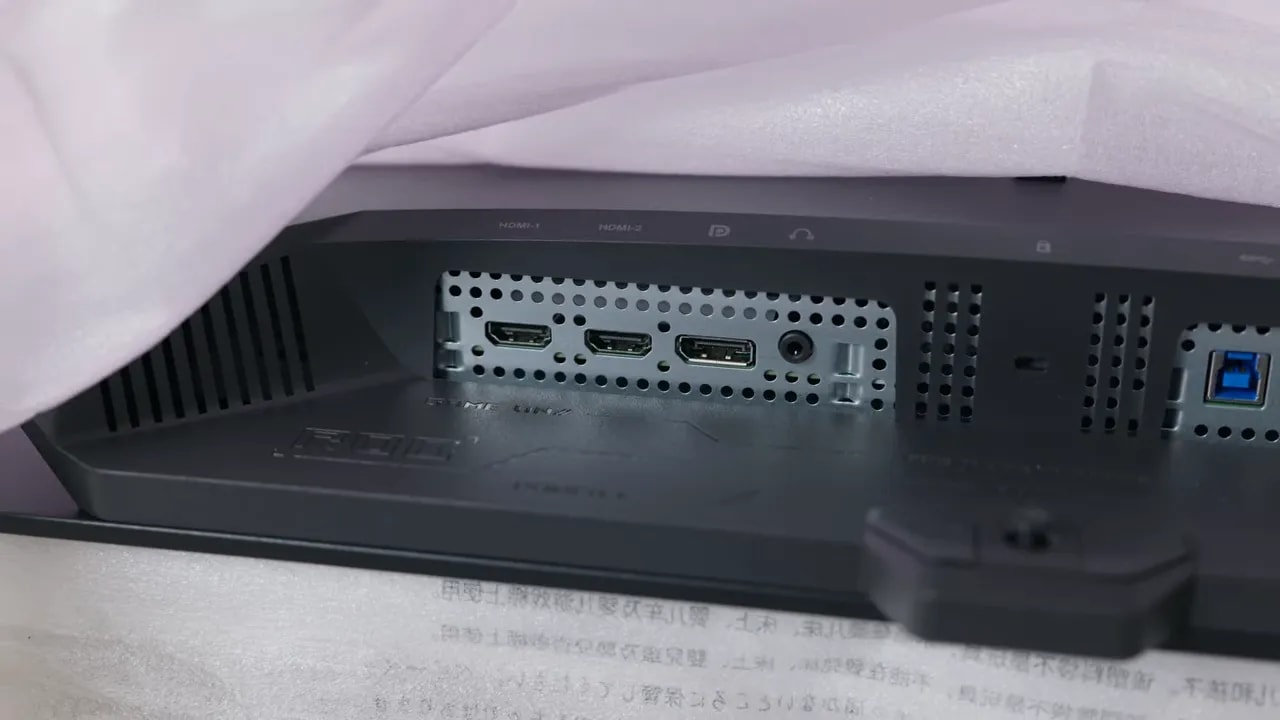
There is an important omission here: no USB-C. It does have the usual USB-A hub, so it is not completely lacking, but if you want a single-cable laptop connection, this is not the ideal model. The good news is that the HDMI 2.1 ports offer full bandwidth, which translates into full PlayStation 5 compatibility:- 4K at 120 Hz
- VRR
- ALLM
- HDR
- The highest color configuration the console supports
Packaging and included accessories
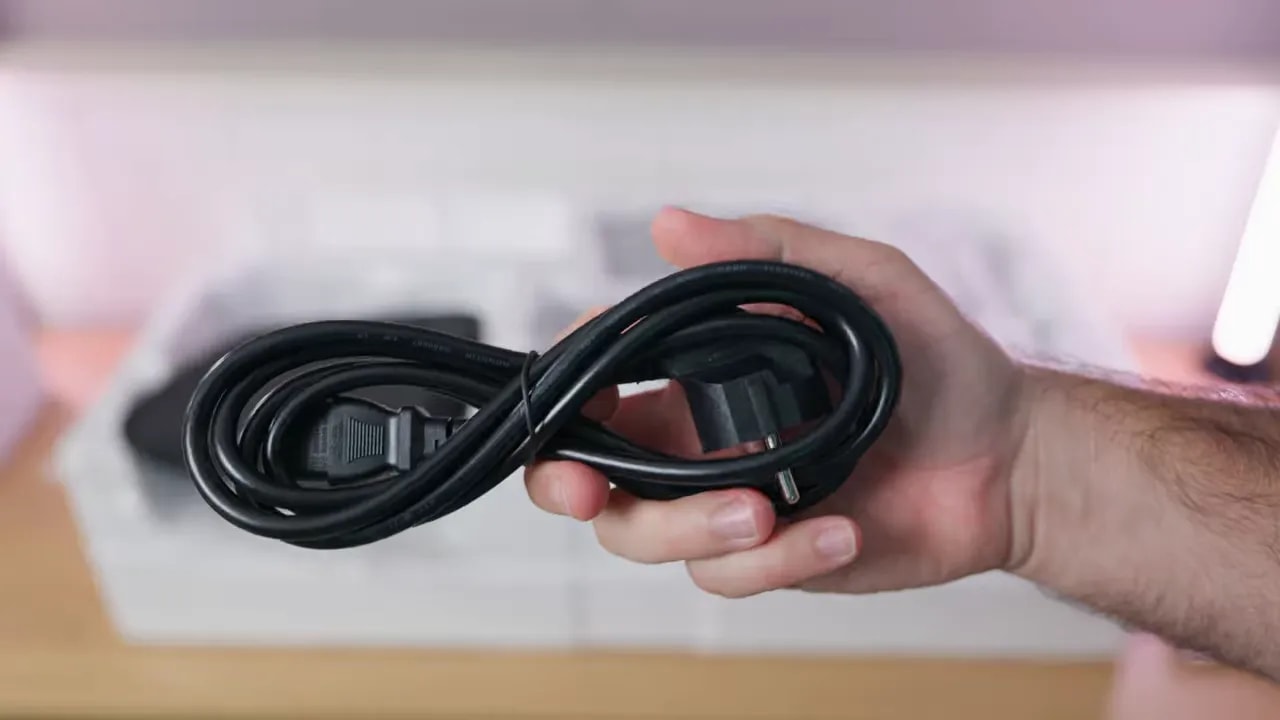
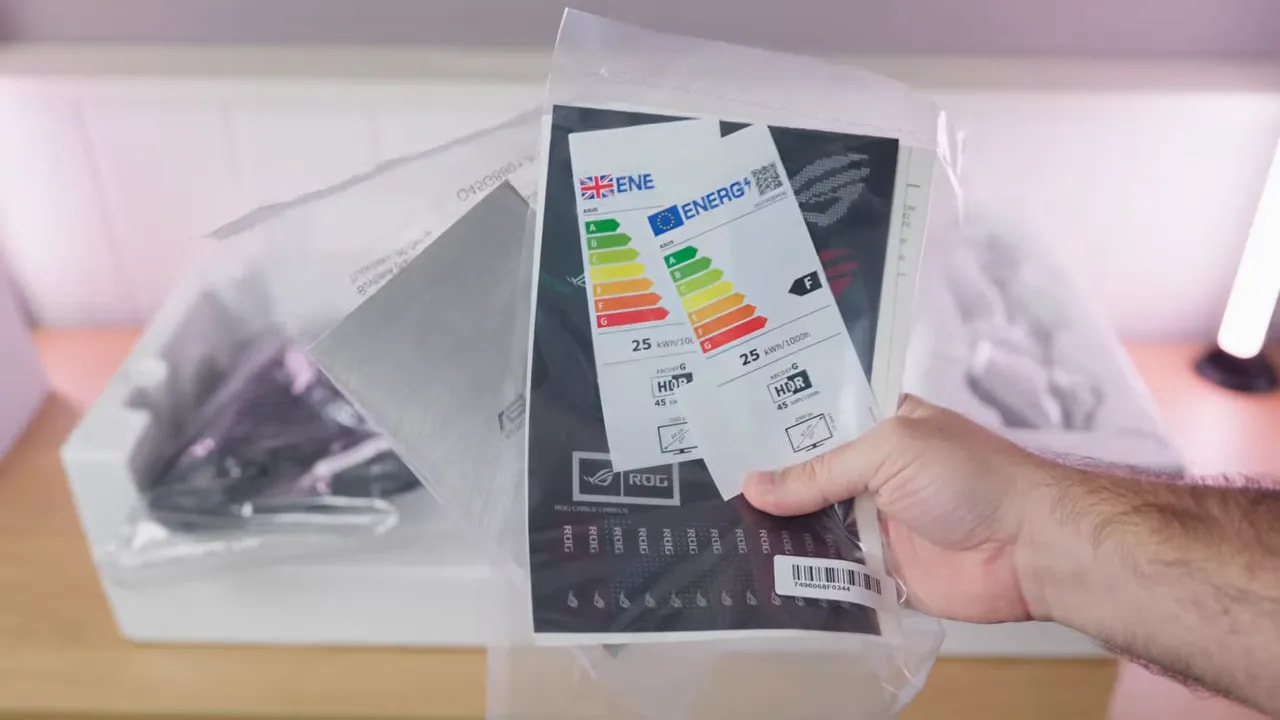
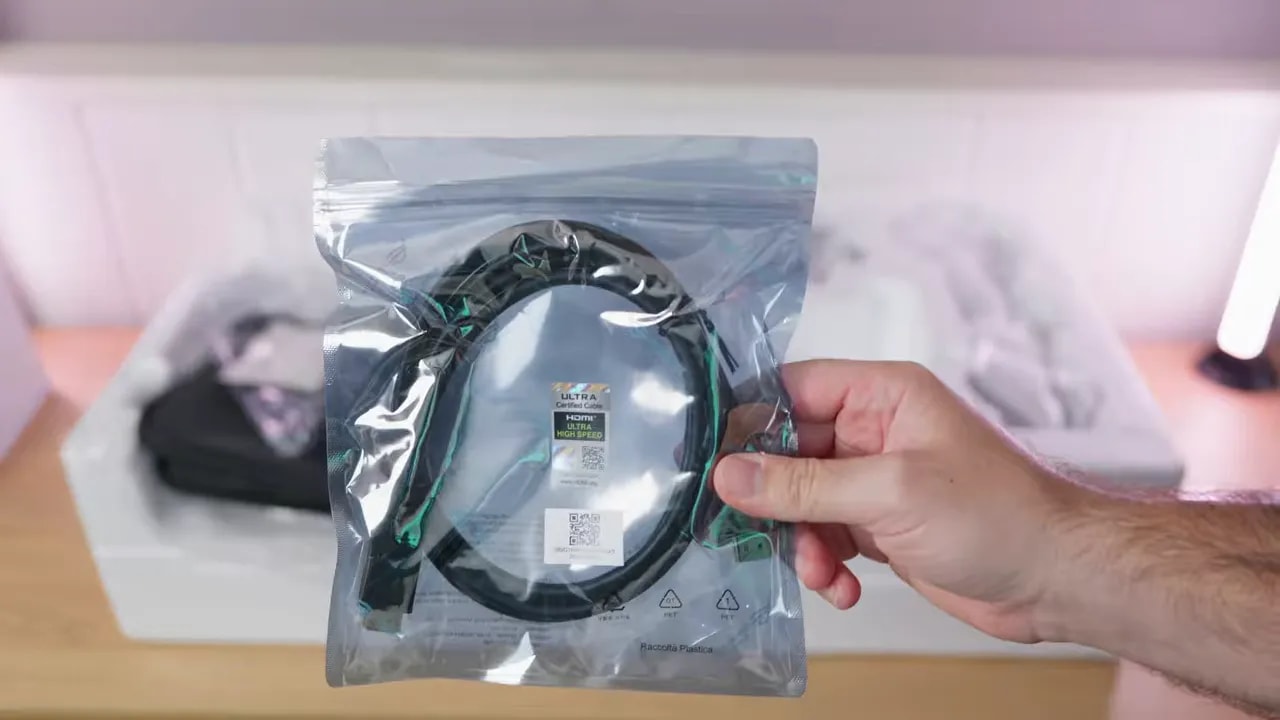
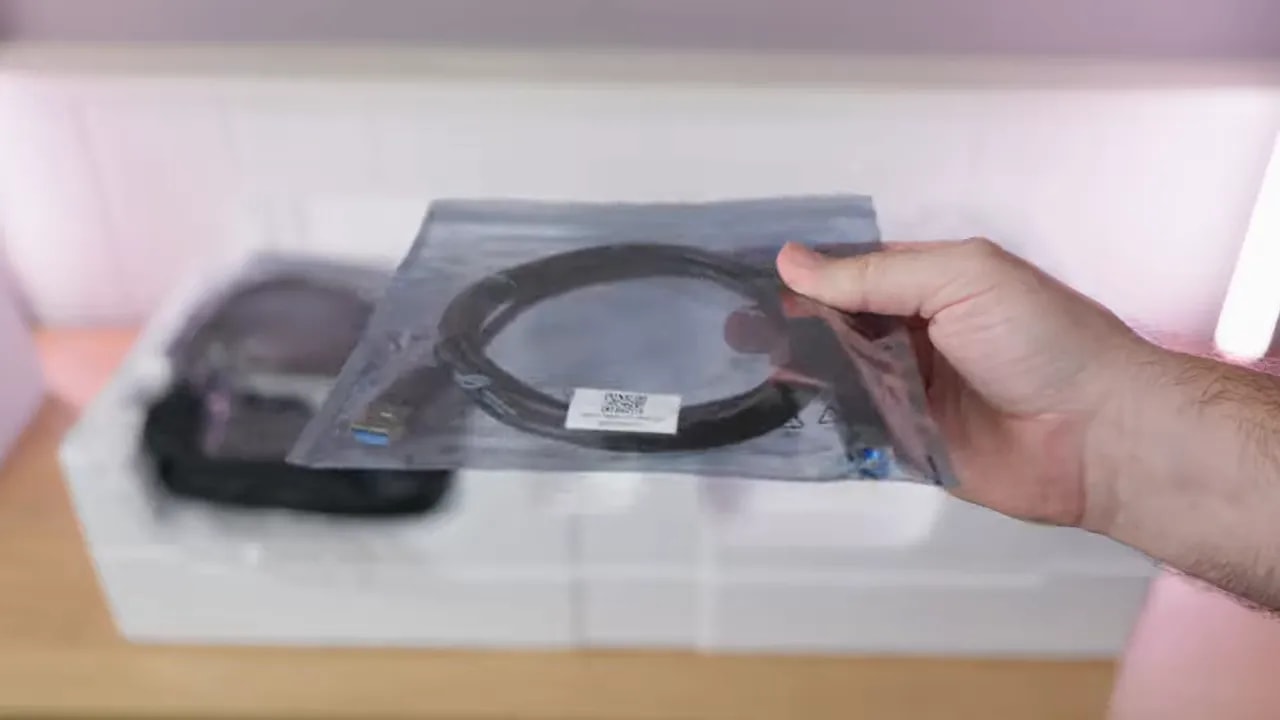
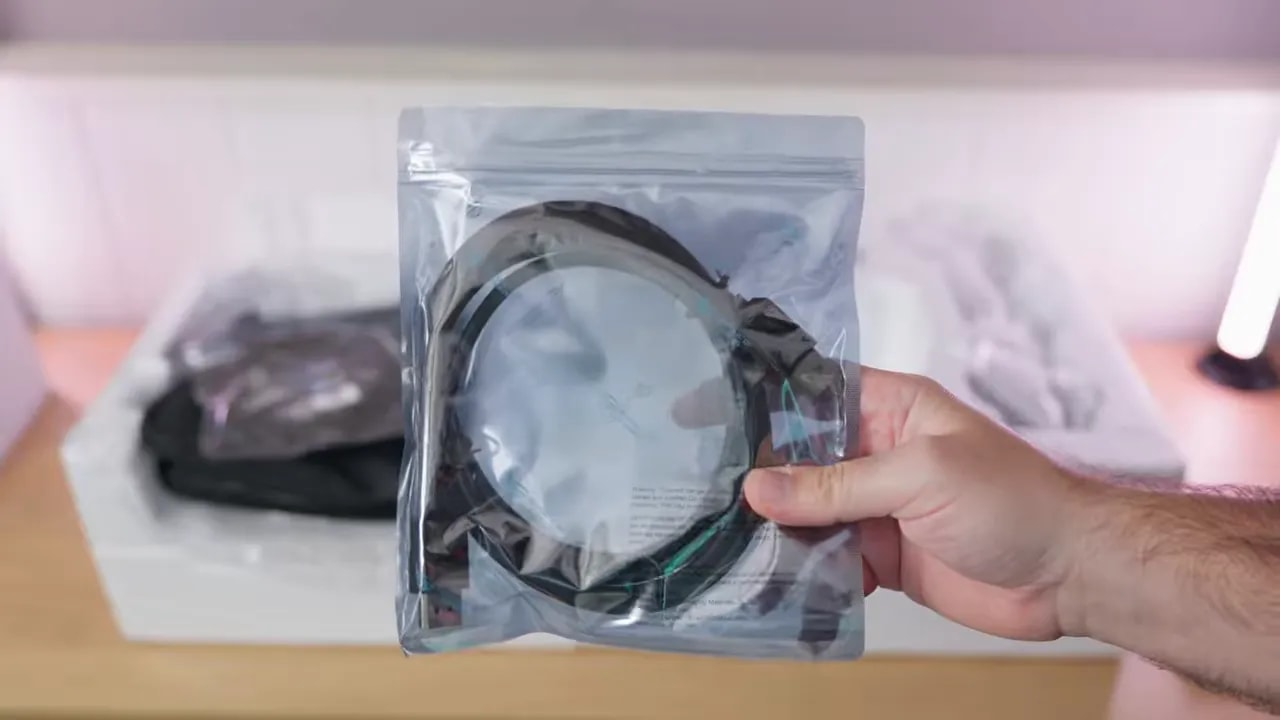
The packaging is well designed and fairly comprehensive. ASUS includes all the necessary cables and its usual little storage pouch, which is always useful for avoiding a drawer full of loose cables whose purpose you have forgotten. It is not revolutionary, but it makes the product feel thoughtfully put together.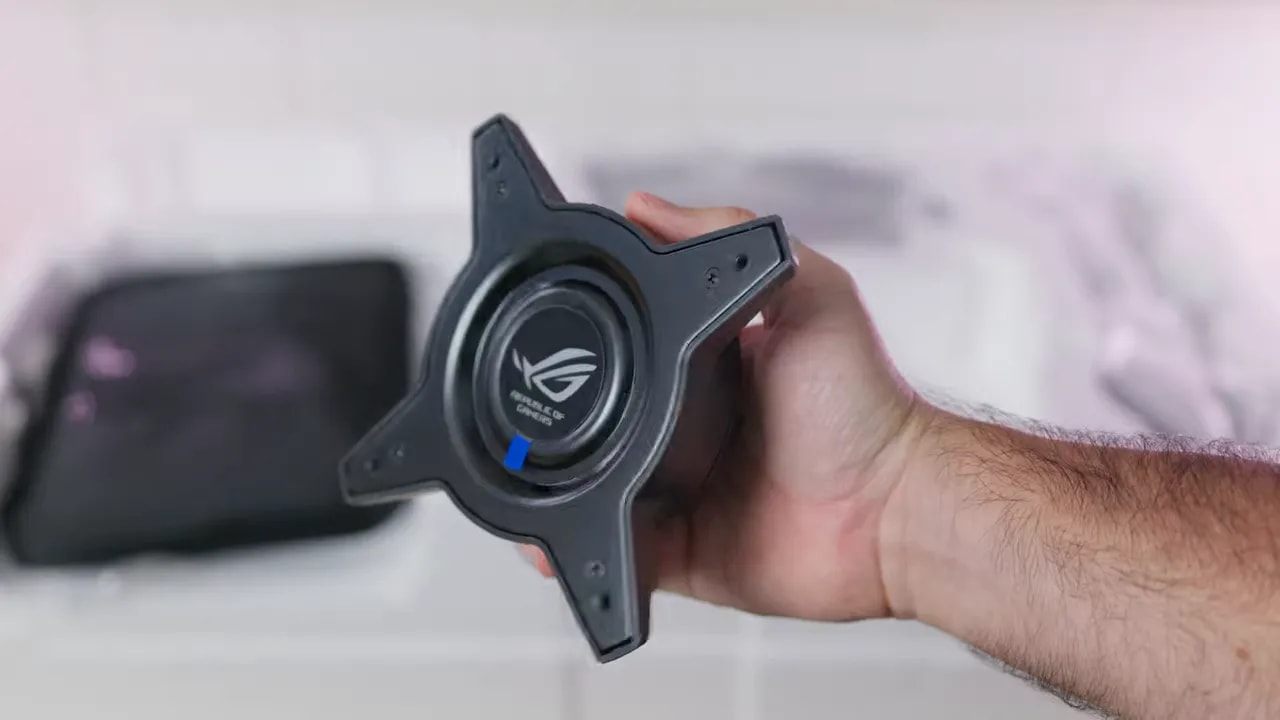
Default settings and SDR color performance
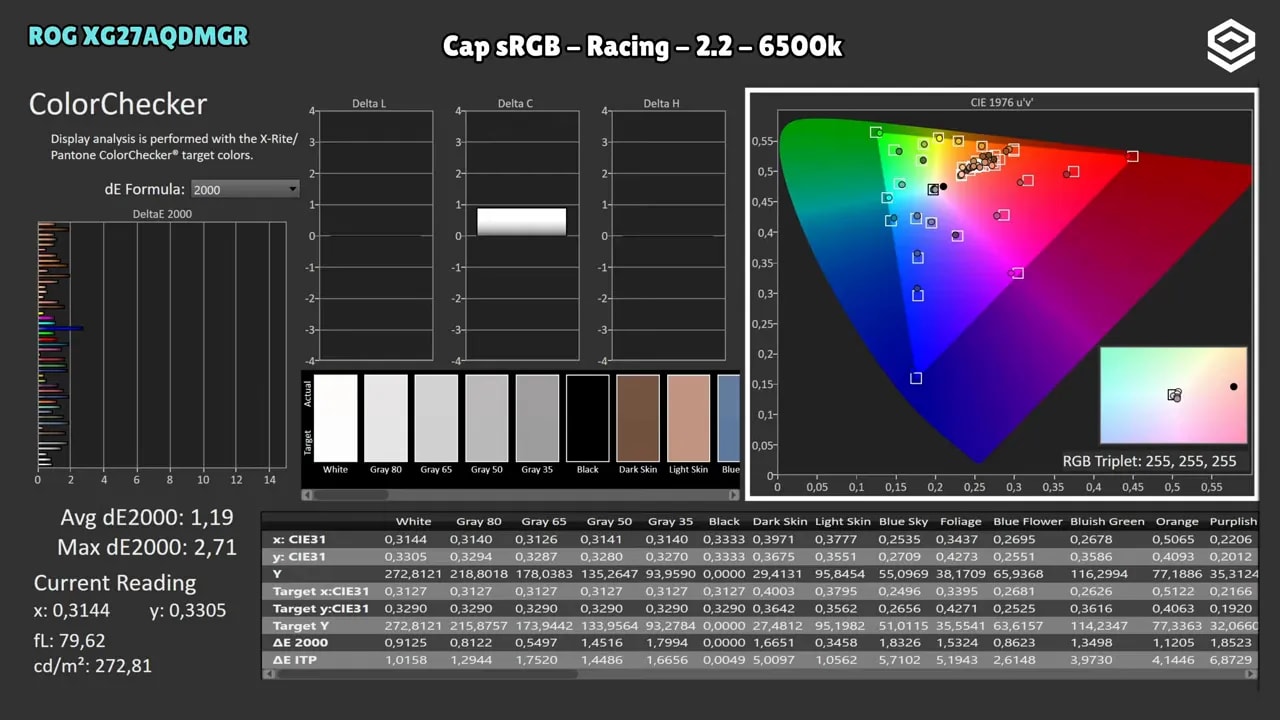
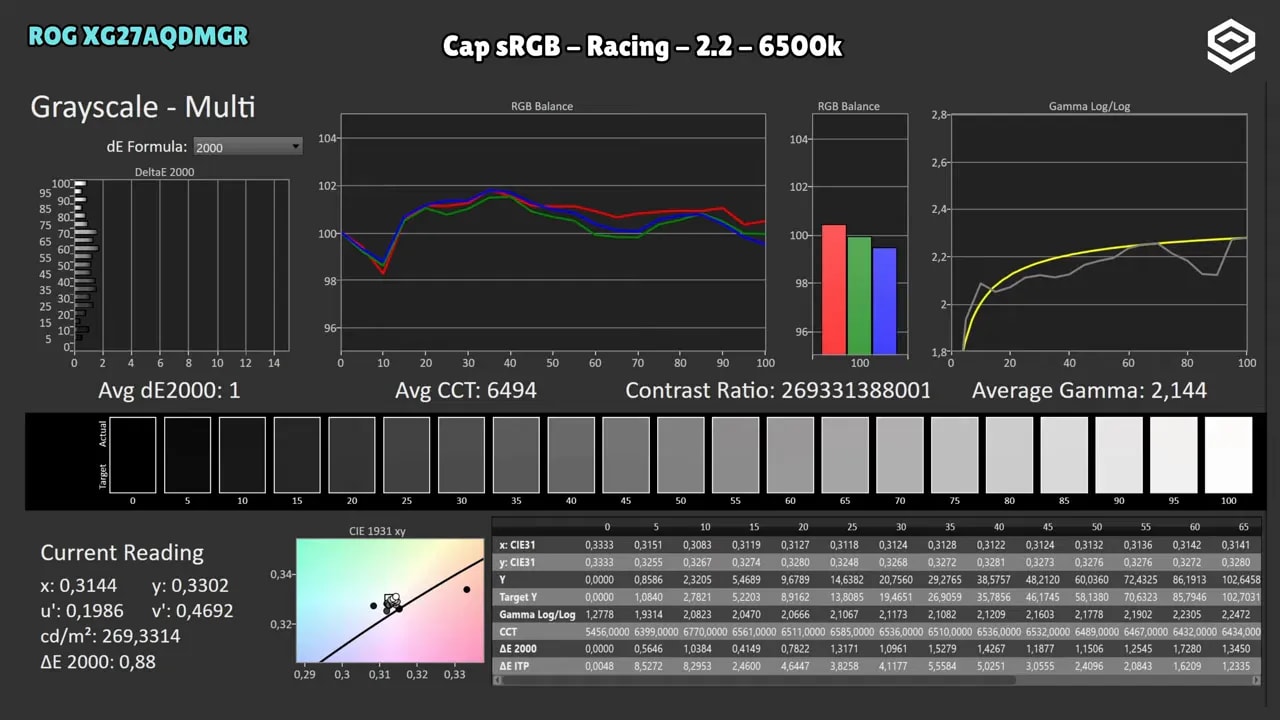
As is usually the case with ASUS, the best SDR starting point is Racing mode, with gamma 2.2, 6500K color temperature and wide-gamut. With that setup, factory calibration is fairly good. Grayscale performs well, although color temperature is a little warmer than ideal. Gamma tracking, as is common with OLED, is not perfect, but that is no surprise. Color coverage is what you would expect from this panel:- DCI-P3: 98.2%
- Adobe RGB: 95.2%
- sRGB: exceeded by a comfortable margin
DCI-P3 clamp
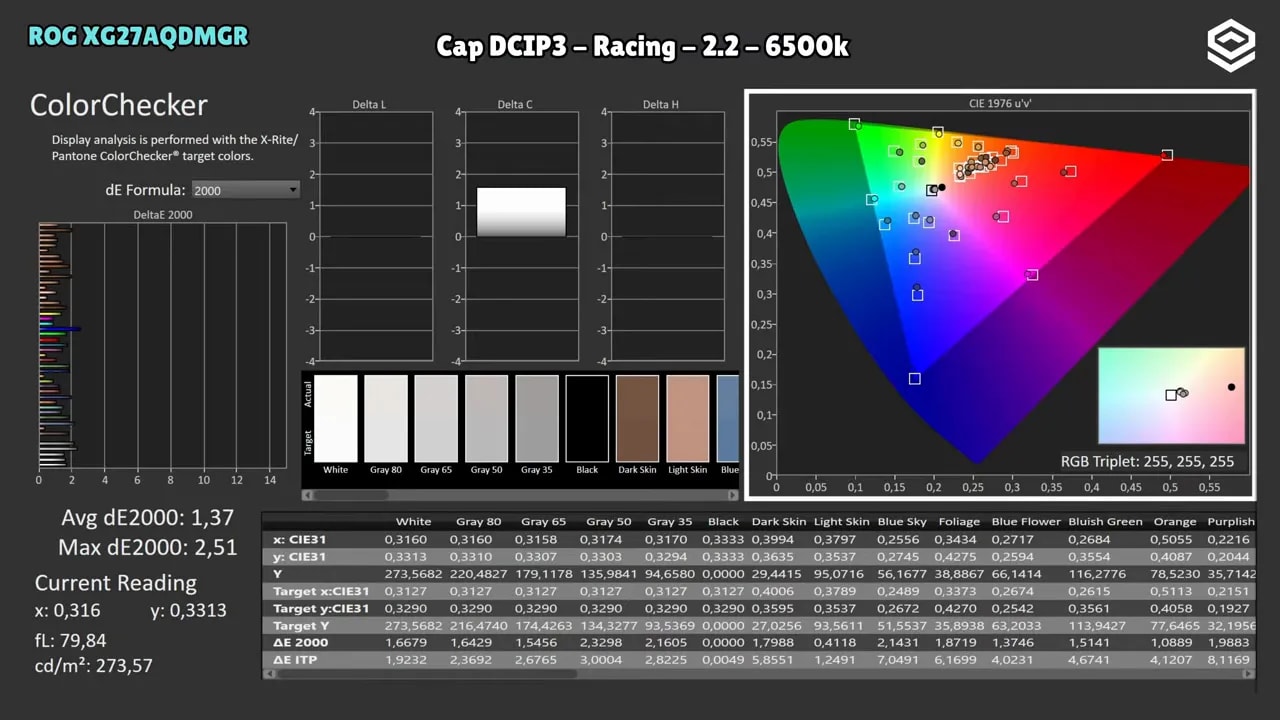
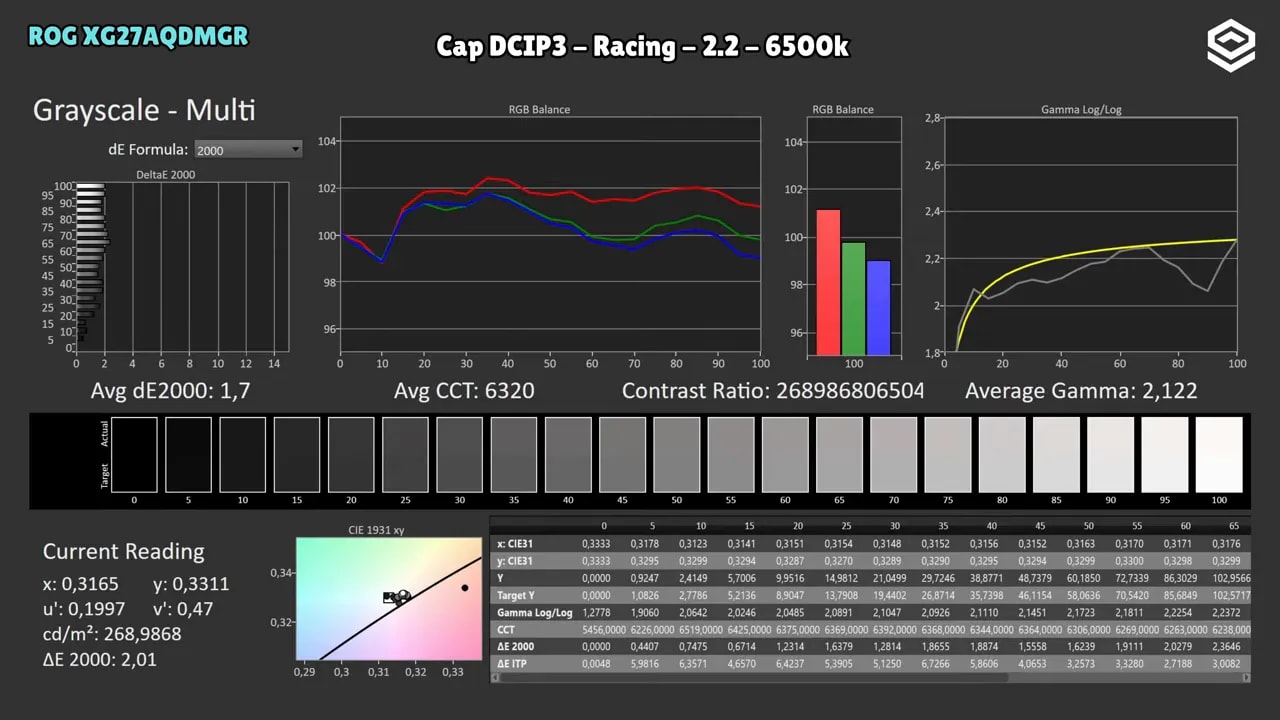
ASUS includes the usual gamut-limiting modes to avoid oversaturation, including a DCI-P3 clamp. Here, the monitor reaches 92,8%, but factory calibration improves in both color and grayscale in return. Color temperature remains a little warm, and gamma does what it can, but the overall balance is good.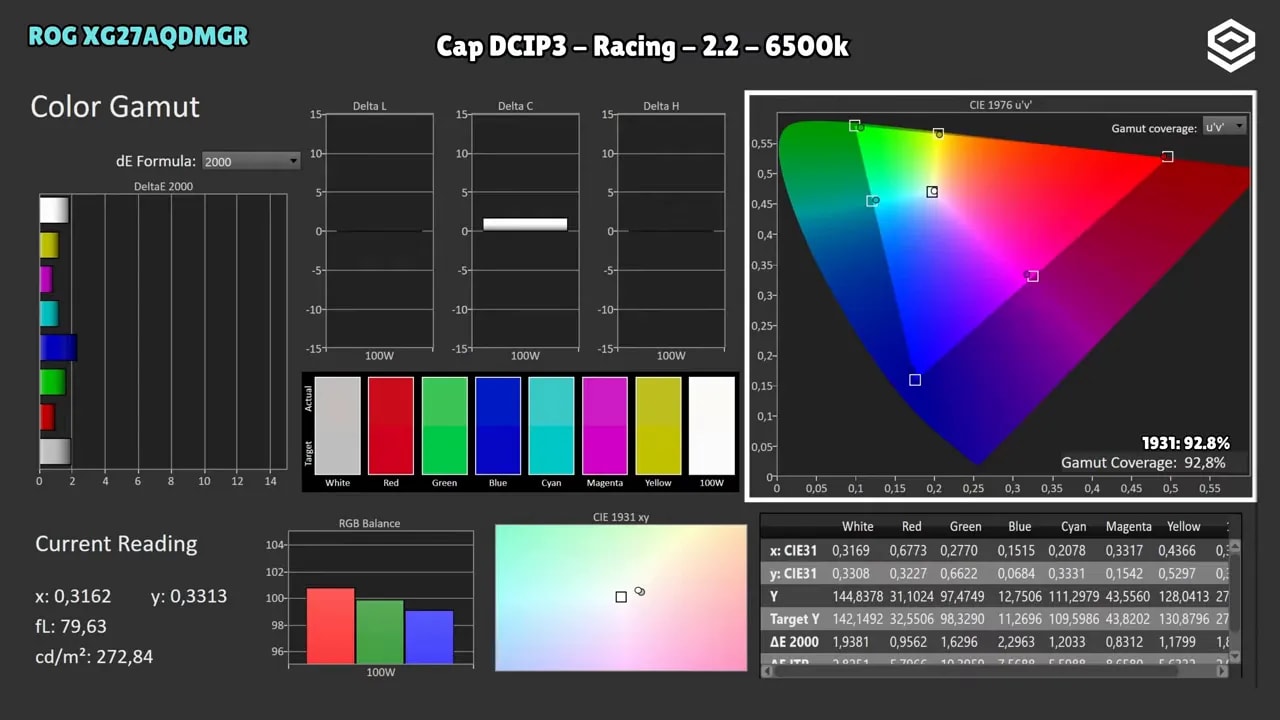
sRGB clamp
The sRGB clamp works reasonably well for accuracy, but is too aggressive. It comes in at 90,8%, which is quite a cut. Even so, grayscale does very well, with average Delta E of 1, a better match to 6500K, and somewhat more controlled gamma. The main problem is that it cuts back blue too much.
Calibrated sRGB mode: less refined this time
Here is one of the monitor’s odd surprises. ASUS includes a calibrated sRGB mode, as is common for the brand, but on this unit it performs worse than the manual sRGB clamp. The reason is simple: the clamp is extremely aggressive. We are talking about 83,3%, which is too low. This means the panel cannot even properly reach the gamut’s own primary coordinates, and it shows in colors such as red and blue. Grayscale Delta E also worsens, and gamma has a rather strange spike. ASUS usually does the opposite: its calibrated sRGB mode is better than manually clamping the gamut. Not in this case. Everything suggests that it needs a firmware update.

These are two different configurations of the same monitor. Dedicated sRGB mode clamps the gamut more than Racing with the sRGB clamp; the “calibrated” name does not guarantee it is the best choice. Distinguish this coverage limitation from the color error measured within each mode.
Manual calibration: there is room for improvement
If gaming is the main use, the recommendation is simple: keep the default modes with wide gamut and change color temperature from 6500K to User. That alone produces a small improvement. On the reviewed unit, lowering the green channel one step in the User color temperature setting and applying an ICC profile generated with a colorimeter improves results further. However, the usual reminder applies: two identical monitors do not behave exactly the same, so copying someone else’s settings does not guarantee the same fine tuning. Another important point: ICC profiles make more sense for multimedia or color work than for gaming.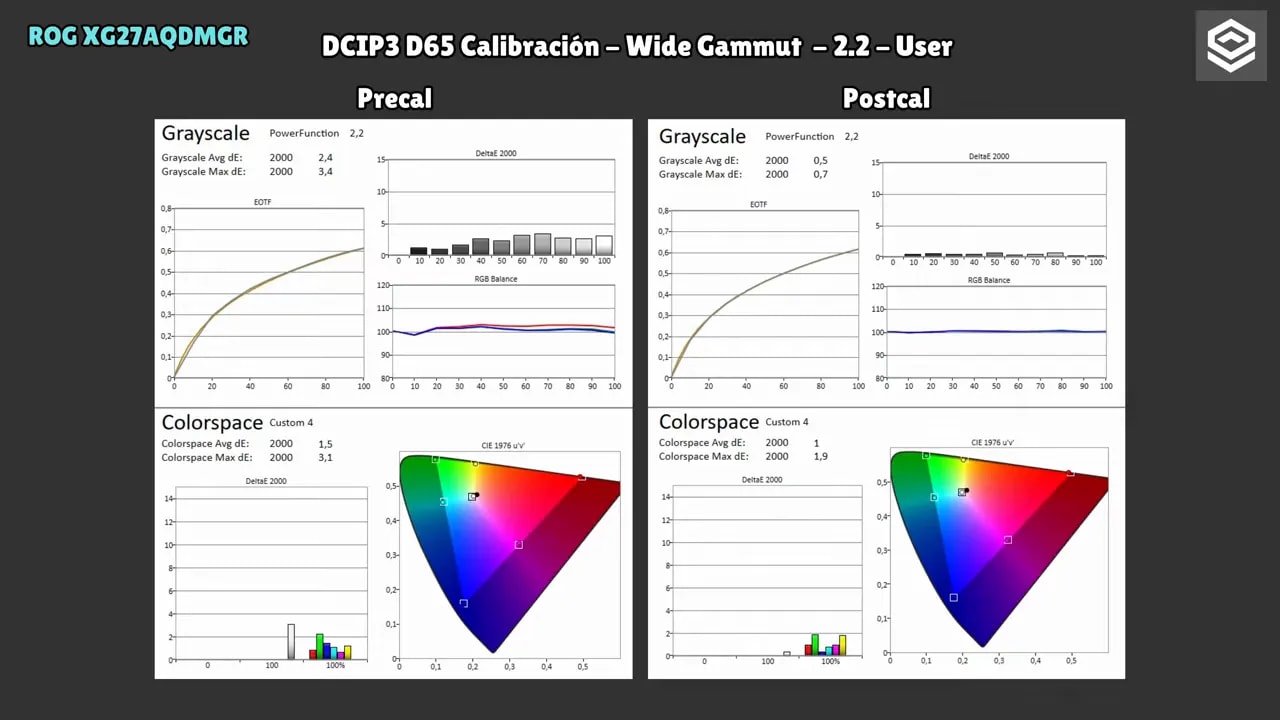
SDR brightness and uniformity setting
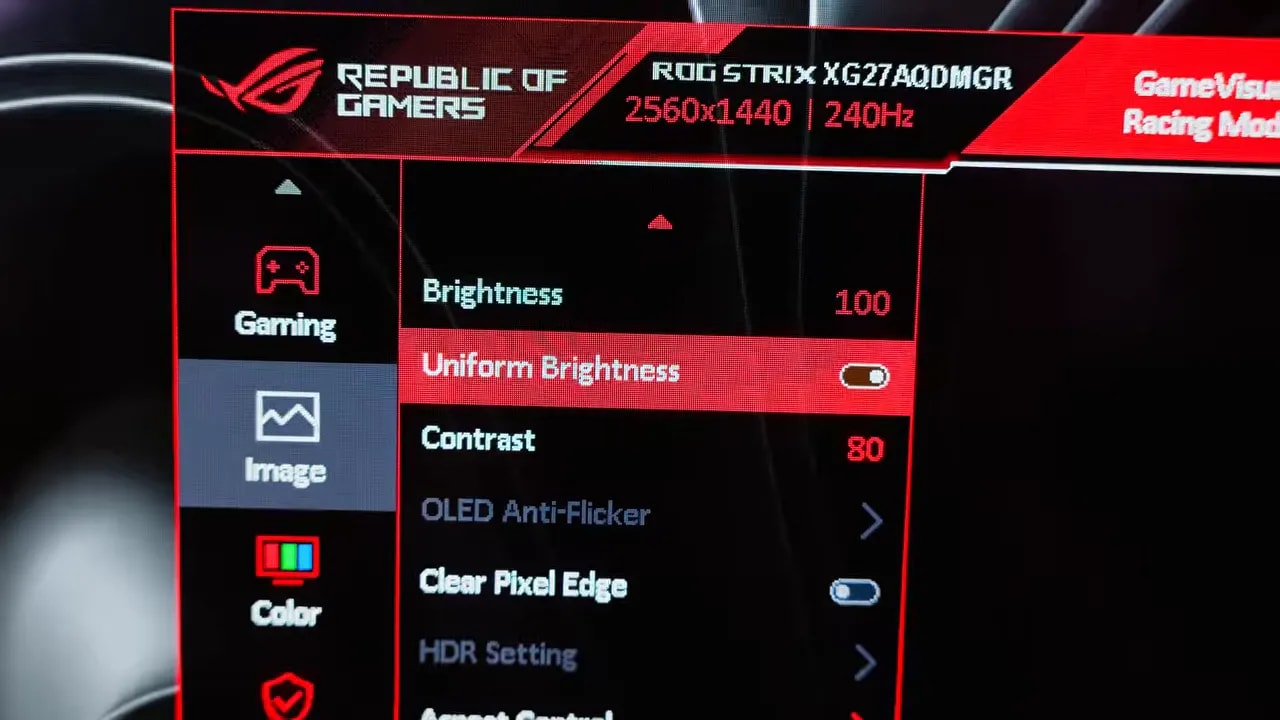
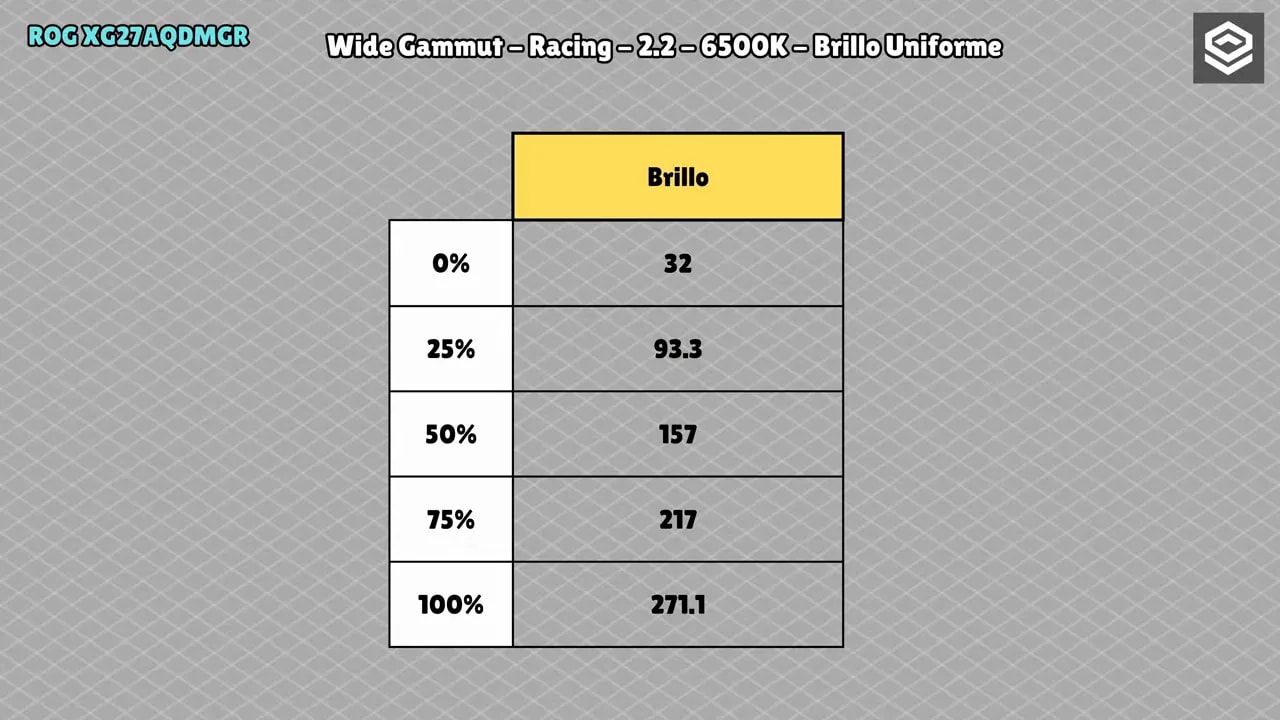
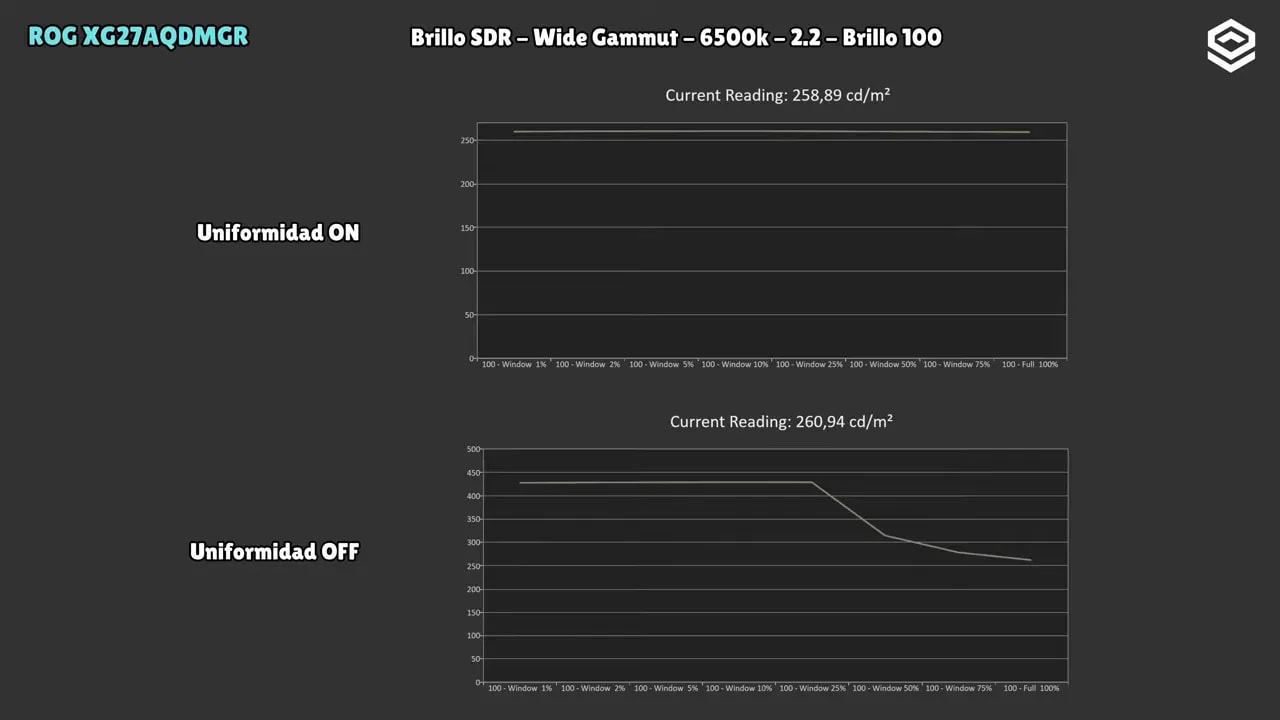
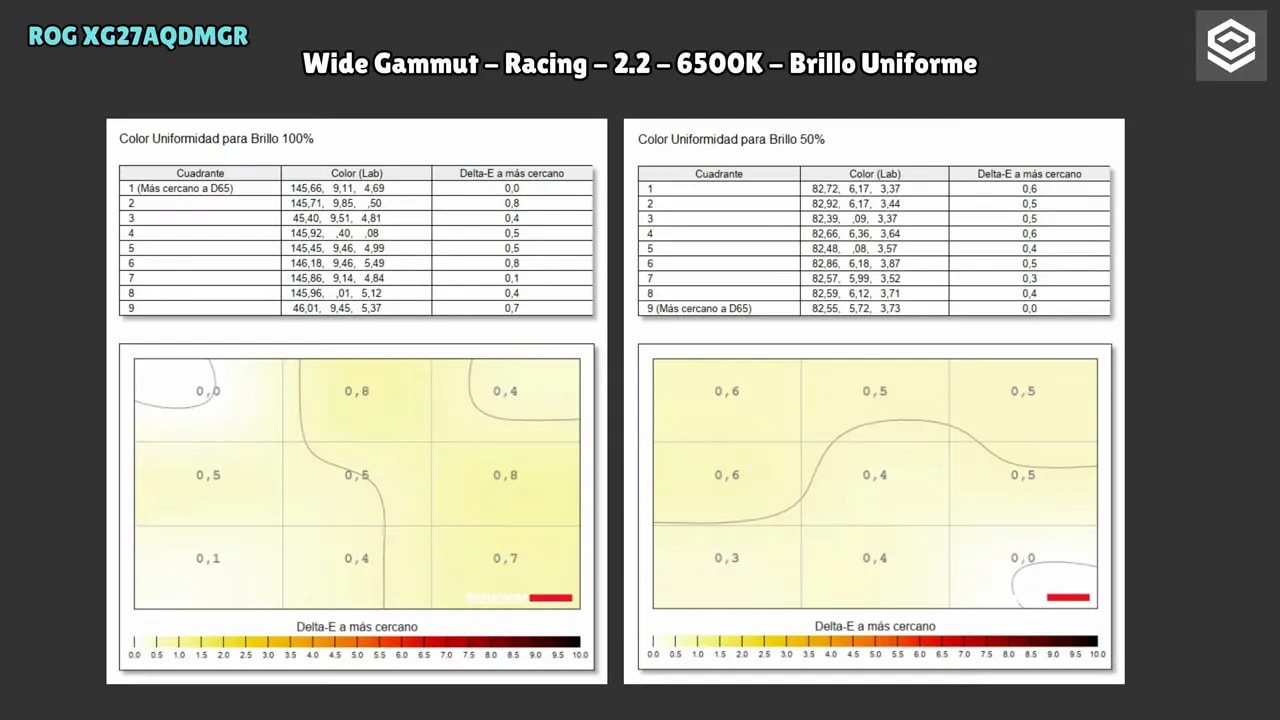
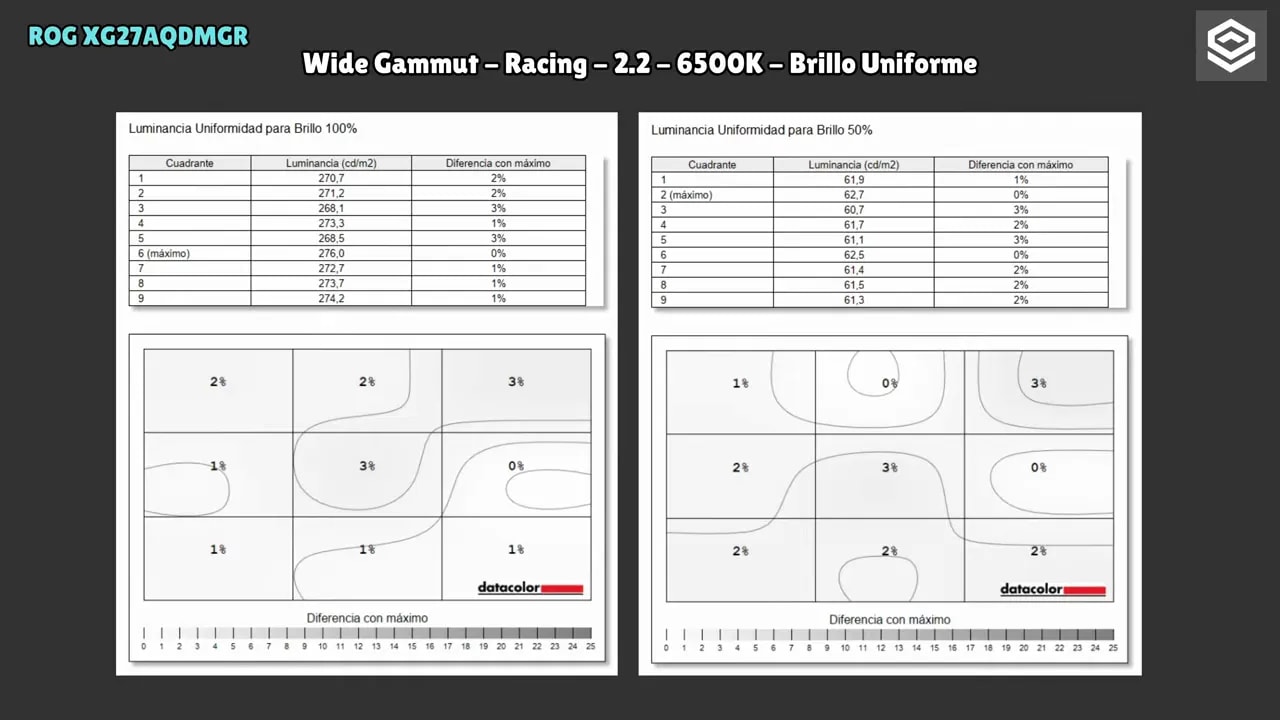
As with any OLED, brightness varies because of ABL. ASUS includes a brightness uniformity option that is quite useful. When enabled, the monitor delivers around 260-270 nits fairly consistently, which is normal for this panel type. Disabling it lets you get a little more brightness in some situations. Which is more worthwhile?- Uniformity enabled: better for editing and more consistent use
- Uniformity disabled: more interesting for gaming, where occasional extra brightness can help
HDR: a good starting point, with caveats
HDR offers three very similar modes and a True Black 400. In those three main modes, up to 10% APL the monitor reaches around 760 nits. As APL increases, brightness falls, as is typical of OLED. PQ EOTF and luminance calibration is reasonably good up to about 25% APL, but begins to go off balance beyond that. The mode True Black 400 has less brightness, but calibration is much more consistent across the whole window range. It is far from perfect, but it is more stable up to 100% APL.Brightness Boost and unlocking HDR settings
ASUS adds two interesting extra HDR options. The first is Brightness Boost, which in practice works similarly to MSI’s EOTF Boost: it shifts the luminance curve to lift shadows. It is less accurate, yes, but can help in very dark games where details are hard to make out. It also helps counter the typical dimming that occurs in some scenes. The second option is unlocking HDR settings, which lets you increase brightness from 90 to 100. Doing this makes the three main HDR modes behave like the typical peak brightness mode on many OLEDs. The panel then reaches around 1130 nits in a 2% window, a completely normal figure for this technology. The problem is that calibration worsens. In fact, the monitor itself warns you. Combining this with Brightness Boost throws calibration off considerably, although you get much more lifted shadows while retaining those brightness peaks. It can help in specific cases, but it is not the “correct” setting for accuracy. Interestingly, in True Black 400 raising brightness makes little sense, because it ends up delivering similar nits to the other modes with worse calibration.

Unlocked brightness increases intensity, but also lifts midtones more. TrueBlack 400 stays closer to the reference, though it is not perfect either. The comparison keeps the illuminated area at 10% so the mode change is easy to interpret.
HDR’s main drawback: some color is lost
This is one of the monitor’s weaker points in its current state. HDR has some loss of saturation and color coverage. In True Black 400 the situation is not dramatic. In UHDA-P3, very close to DCI-P3, it stays below 95%, so the drop exists, but is not huge. In BT.2020 it falls from 70%, which is within expectations. It is most noticeable in the Gaming HDR modes, where coverage drops to approximately 92%. That does result in an image that is somewhat less vivid and saturated. This also affects color accuracy and color volume. It is not a catastrophe, but it is visible compared with other monitors that get more from this same panel. The good news is that this behavior can be corrected through firmware. It has happened with other models before, and some brands have fixed it. ASUS therefore still has very real room for improvement here.

The captures show that gamut utilization changes between HDR modes. Wide coverage measured in SDR does not guarantee the same result in HDR, and chasing maximum brightness can involve other image compromises.
Response times: typical OLED, with a small caveat
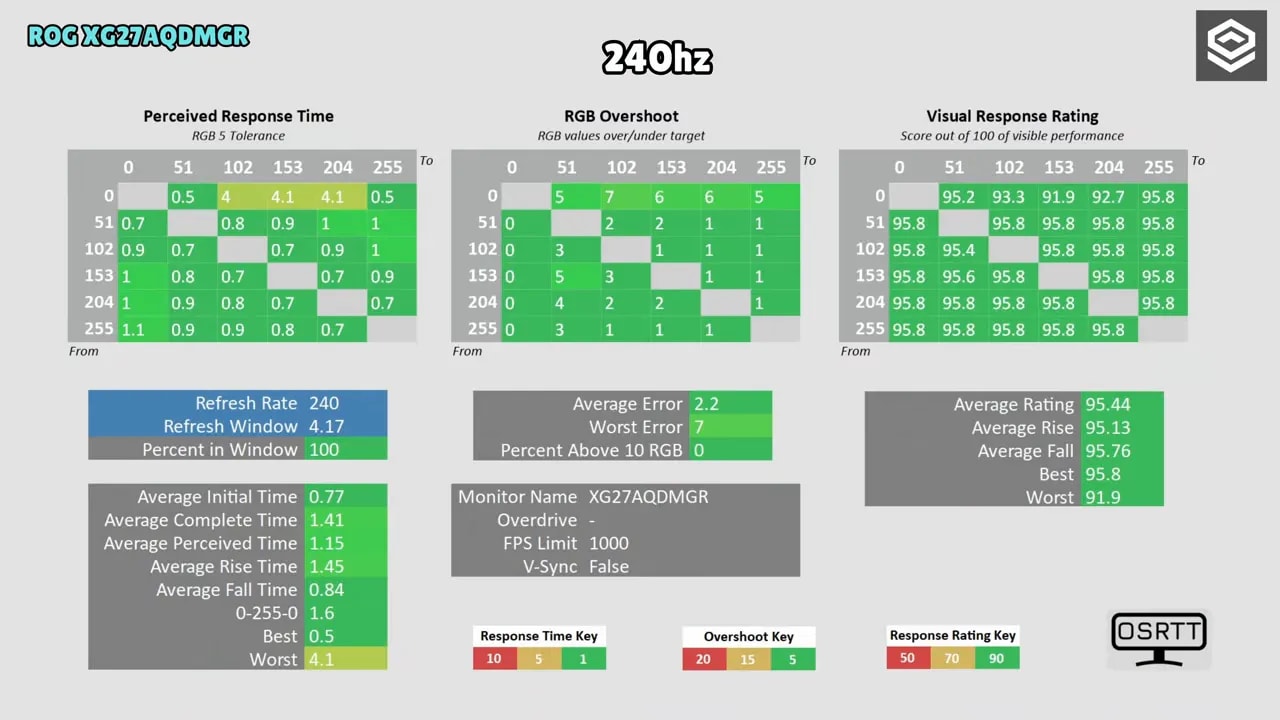
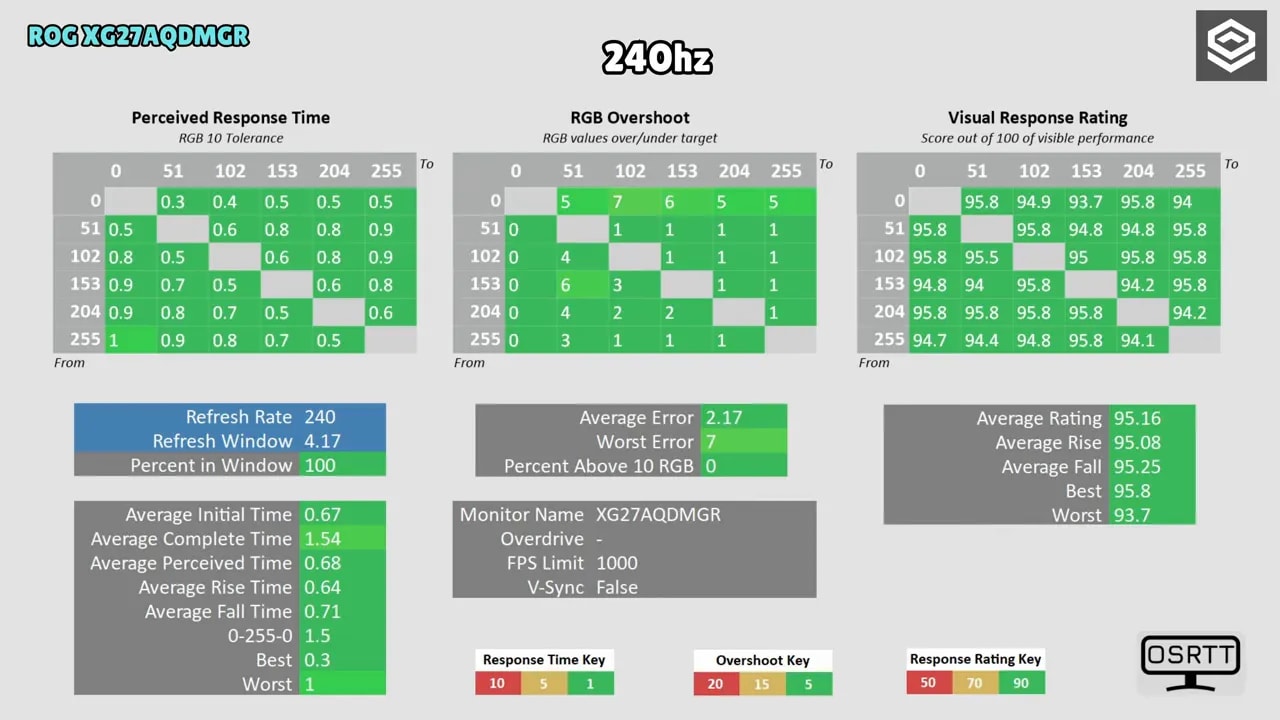
Response times retain the usual OLED foundation: practically instantaneous gray-to-gray transitions. In terms of the experience, there is no ghosting as such. However, if you are very particular and used to examining these tests closely, you can notice some overshoot. This particular monitor has a little more than other models using exactly the same panel. This also complicates measurements. Some transitions come in near 4 ms in strict tables, not because the monitor is slow, but because of how overshoot, panel flickering, and a very demanding tolerance methodology interact in measurement. Relaxing the test criterion returns behavior to the expected range. To summarize: real-world performance is typical of a third-generation MLA WOLED at 240 Hz. There are no nasty surprises here.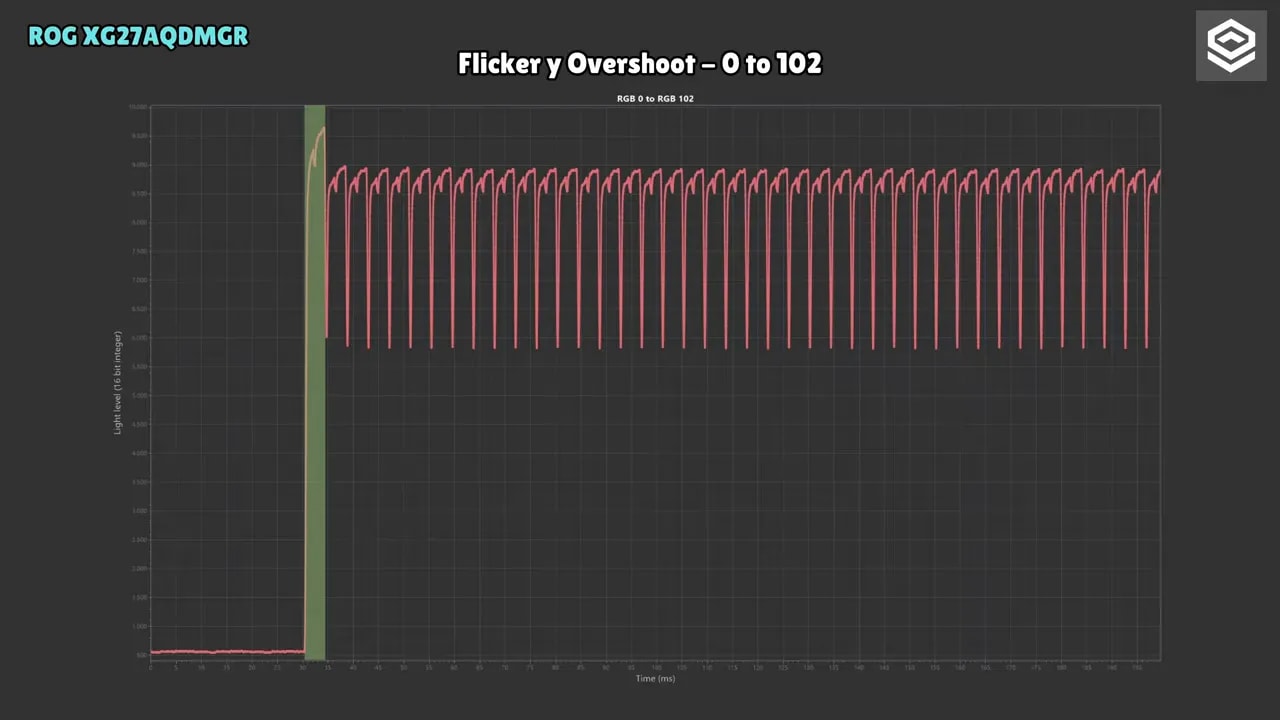
ELMB and motion clarity at 120 Hz
ASUS also adds an interesting feature: ELMB, which here essentially acts as a mode for black frame insertion. It can be enabled at 120 Hz, not at the maximum refresh rate, and has some limitations. Even so, the result is interesting because it provides motion clarity very similar to 240 Hz using only 120 fps. If your system cannot sustain 240 fps, this feature makes sense for gaining motion sharpness. It is not magic and does not fully replace native refresh rate, but it can be useful.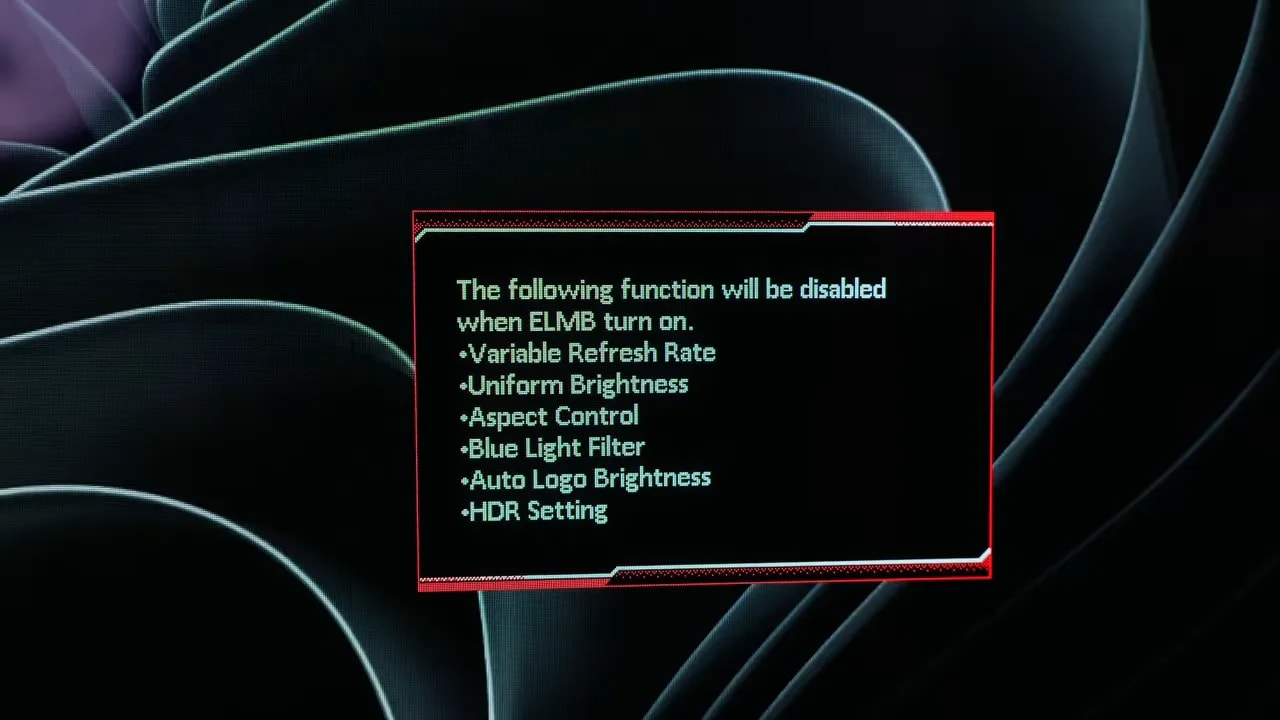
UFO and motion tests
In UFO-style motion tests, the monitor shows the usual fast OLED behavior: very good overall sharpness, no classic LCD trails, and a very clean moving object. What can appear, depending on the mode and your sensitivity, is the slight overshoot mentioned earlier. It does not ruin the experience, but it is there.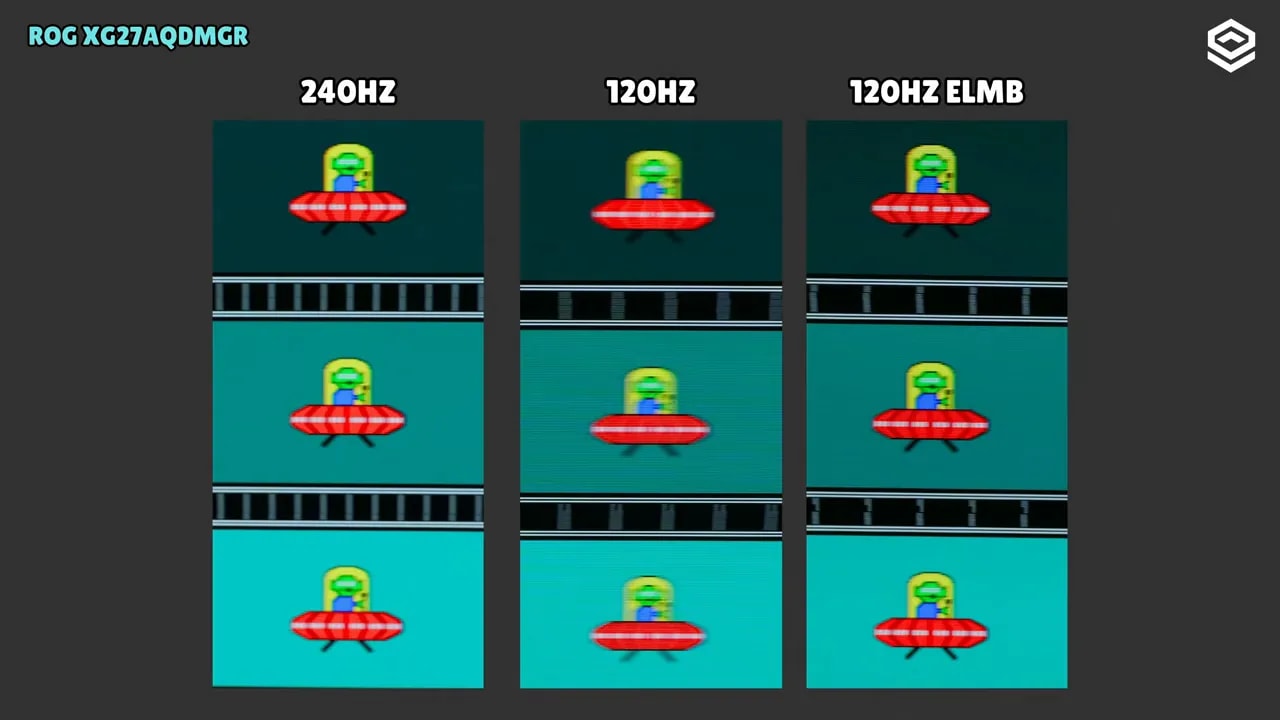
OLED Anti-Flickering and VRR flicker
Another extra feature is OLED Anti-Flickering, but be aware that it targets not the panel’s intrinsic flicker, but VRR flicker, the flickering OLED monitors also experience with variable refresh rate. This model has some VRR flicker, though less than some other OLEDs. ASUS includes two presets to mitigate it. They work partially. In some situations they help and flickering decreases. In others, flickering may even seem worse than with them disabled. They also have limitations and dead zones, so they are useful options to experiment with, but not a definitive solution.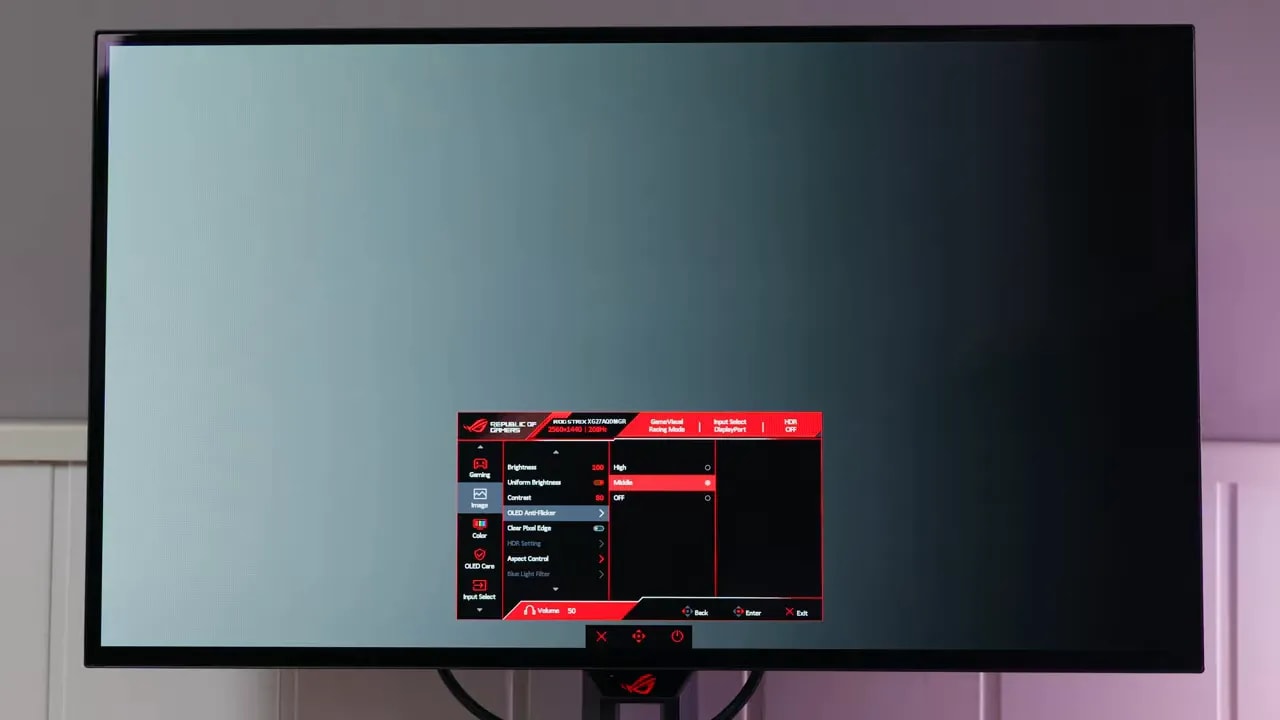
Input lag
There is little mystery with input lag. The numbers are typical for this panel type, so there is nothing concerning there. This monitor is clearly suitable for competitive use.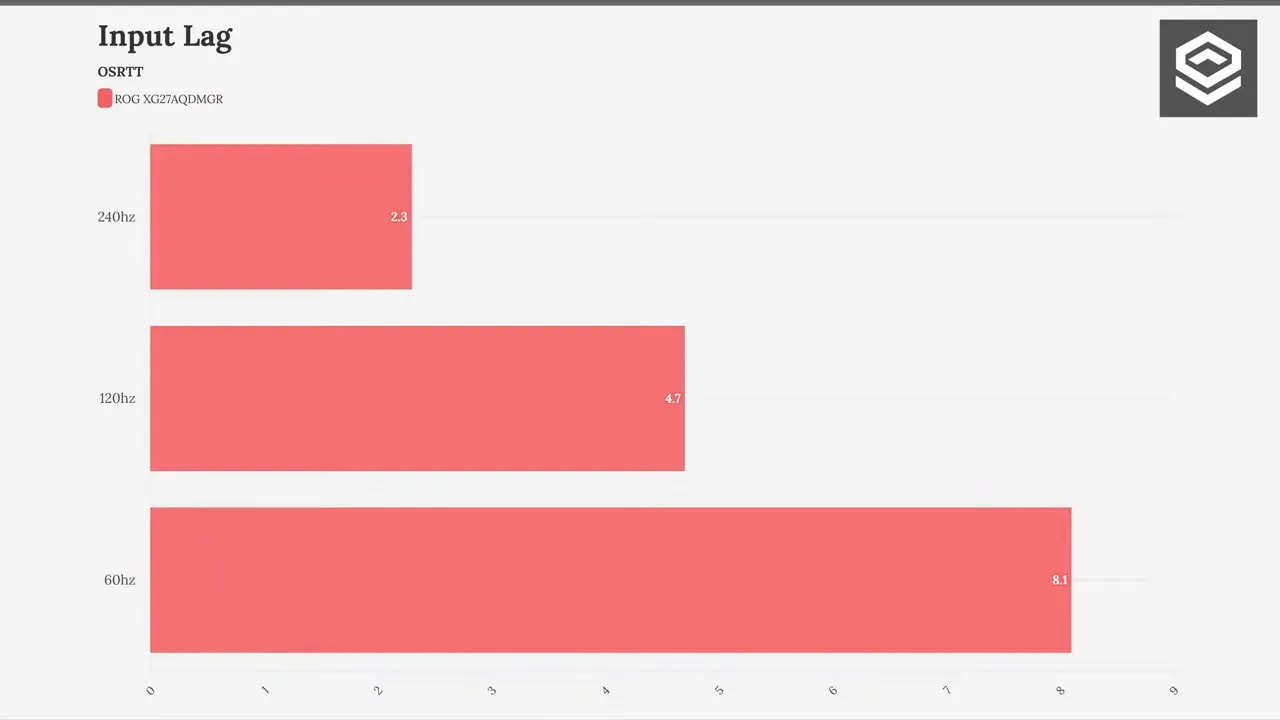
Burn-in protection: ASUS is well equipped here
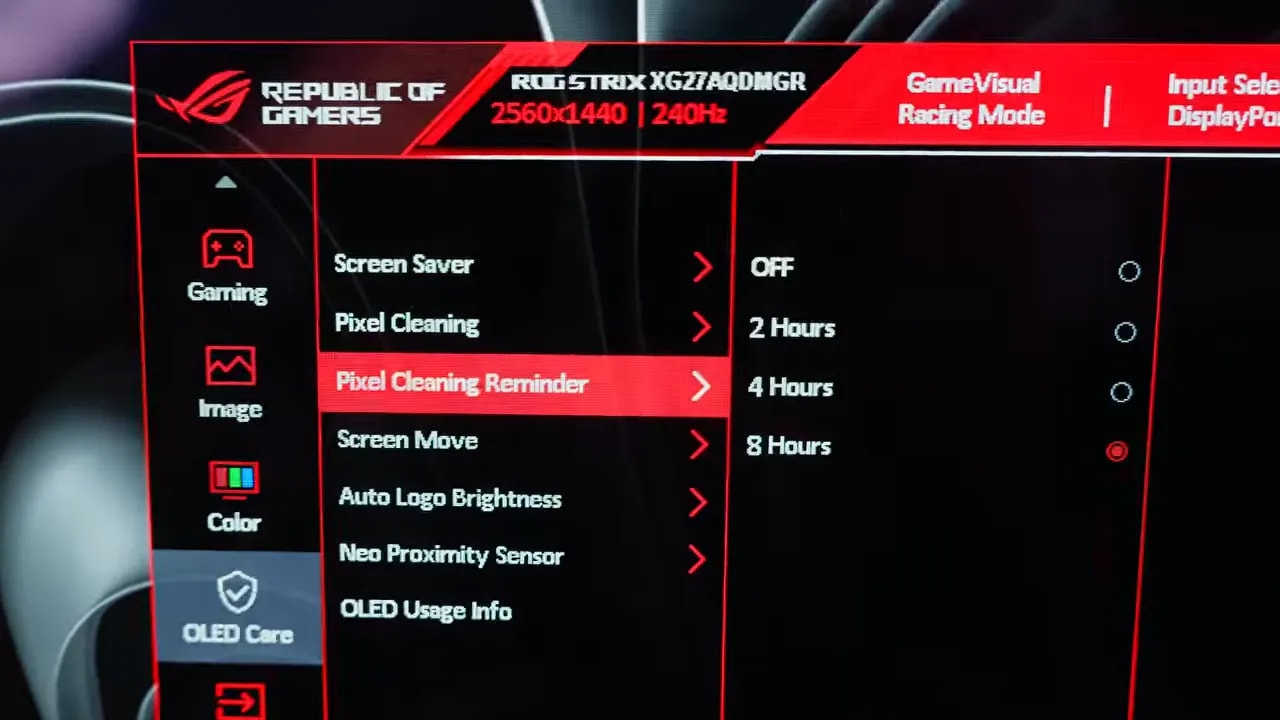
ASUS usually takes burn-in protection seriously, and delivers again here. It includes several measures:- Pixel shift
- Logo dimming
- Pixel refresh
- Presence sensor
Typical drawbacks of third-generation MLA WOLED
Banding and grid effect
Although the monitor has new features, it still carries some drawbacks inherent to this panel family. The first is banding, those broken-up or uneven grays that sometimes appear on a new panel. There is also the familiar grid or dirty-screen effect. On the reviewed unit, banding was quite pronounced out of the box, but improved substantially after pixel cleaning. This is worth stressing, because there is a lot of alarm around this issue, and panels are often judged before even completing one cleaning cycle. The the grid effect cannot be eliminated, because it is a technological limitation. Banding, however, usually improves with use and one or two cleaning cycles. If it does not improve, then yes, a return is probably warranted because you received a bad unit.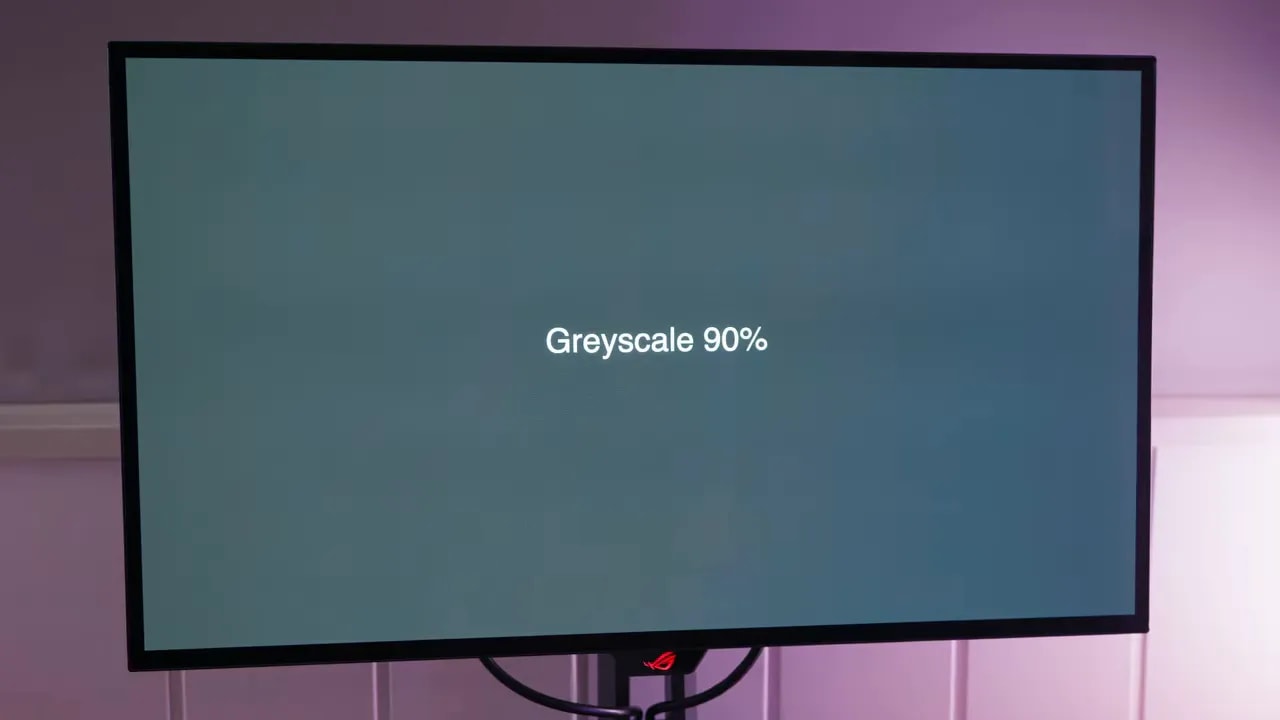
Text and fringing
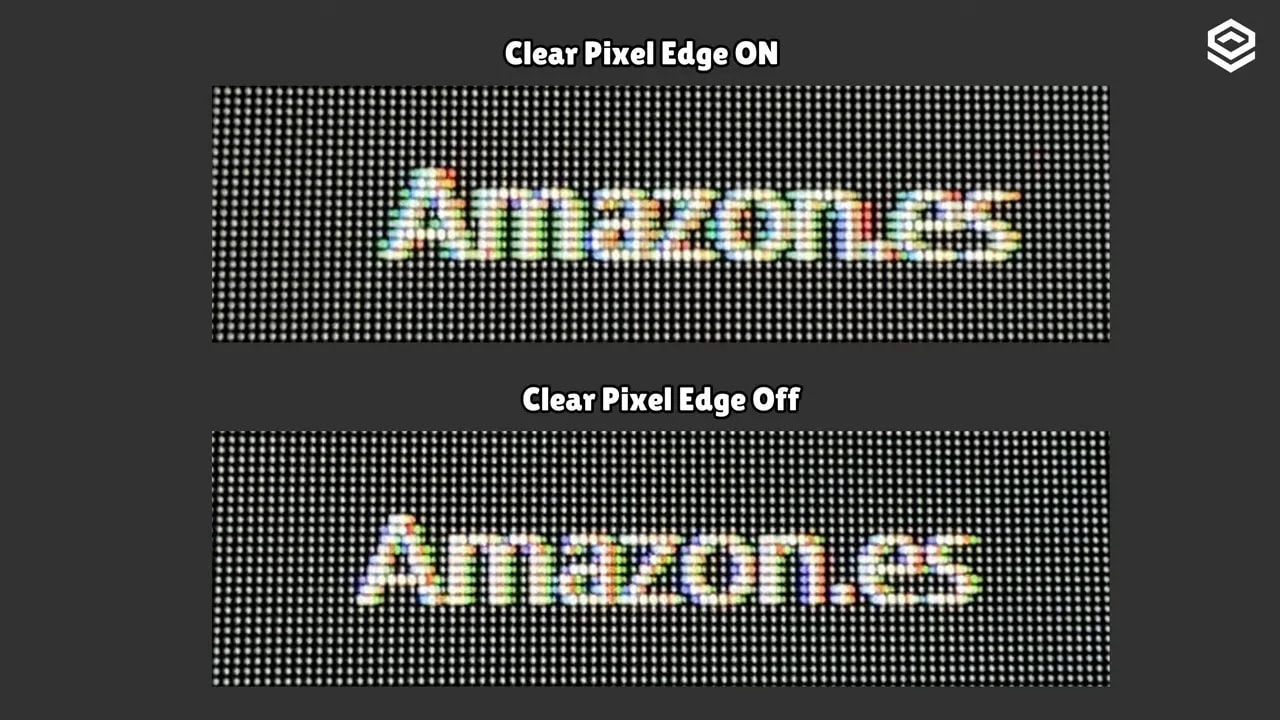
The other usual weak point is text definition. This panel uses the older subpixel layout, not the one found on Tandem OLEDs or 32-inch 4K WOLEDs, which means you may see fringing. ASUS includes an option intended to improve text, but honestly, it does not work very well. In fact, text can look worse with it enabled. The most useful option remains adjusting Windows ClearType for a slight improvement, but it remains a structural limitation of this panel type at 27 inches and 1440p.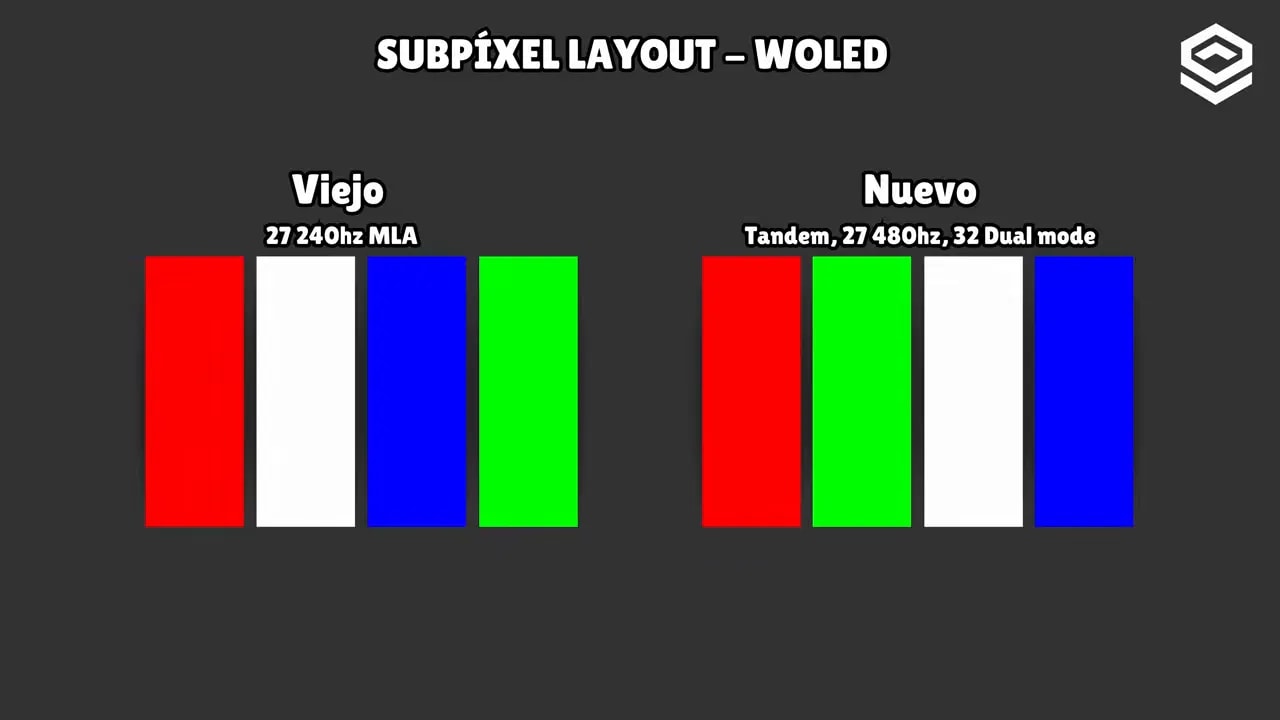
OSD menu and settings worth adjusting
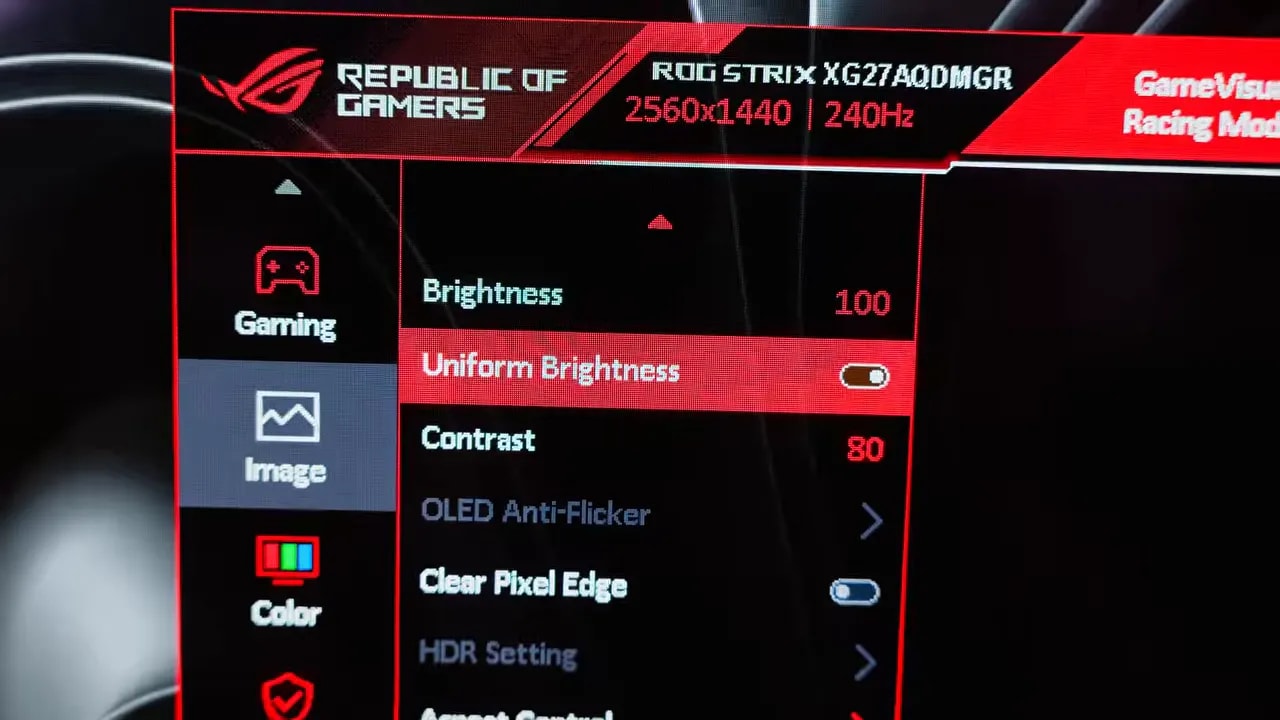
The ASUS OSD has plenty of options, as is usual for the ROG range. Beyond the standard sections, several settings are worth understanding:- Racing mode as the SDR starting point
- User color temperature instead of 6500K for a little more refinement
- Uniform brightness depending on whether editing or gaming is your priority
- Brightness Boost in HDR if you need to lift shadows
- HDR brightness unlock only if you accept reduced accuracy for a higher peak
- OLED Anti-Flickering to test whether it reduces VRR flicker in your case
- Burn-in protection options and presence sensor
Price and direct rival: ASUS vs LG
At the time of testing, the ASUS costs around 460 euros. Its closest rival is an LG model using exactly the same panel and also featuring a glossy finish. That LG can sometimes be found for around 430 euros, although it depends heavily on deals and timing. As often happens, their prices are close enough that the decision depends more on each model’s approach than on raw specifications.Where the LG wins
- No color loss in HDR, so it offers better coverage in that mode
- sRGB mode with a more generous clamp
- Supports hardware calibration, a niche but valuable feature for some users
- Better overshoot control
Where the ASUS wins
- More extra features
- ELMB
- OLED Anti-Flickering
- Presence sensor
- A more appealing stand
- ALLM compatibility on PS5, something the LG OLEDs tested here did not offer
- More comprehensive burn-in protection
So, is it worth it?
In its current state, the ASUS ROG XG27AQDMGR seems to me a good monitor. I certainly do not consider it a failed product. It has things to improve, especially HDR and that calibrated sRGB mode that clearly needs firmware work, but I do not think it has any absolutely disastrous flaw. Its best points are clear:- Very fast 1440p 240 Hz OLED panel
- Pure glossy finish, cleaner and clearer
- Very good PS5 compatibility
- Very comprehensive stand and ergonomics
- Lots of useful extras
- Good burn-in protection options
- Color loss in HDR
- Weak calibrated sRGB mode
- No USB-C
- Text could improve due to the subpixel layout
- Pronounced reflections from the glossy finish