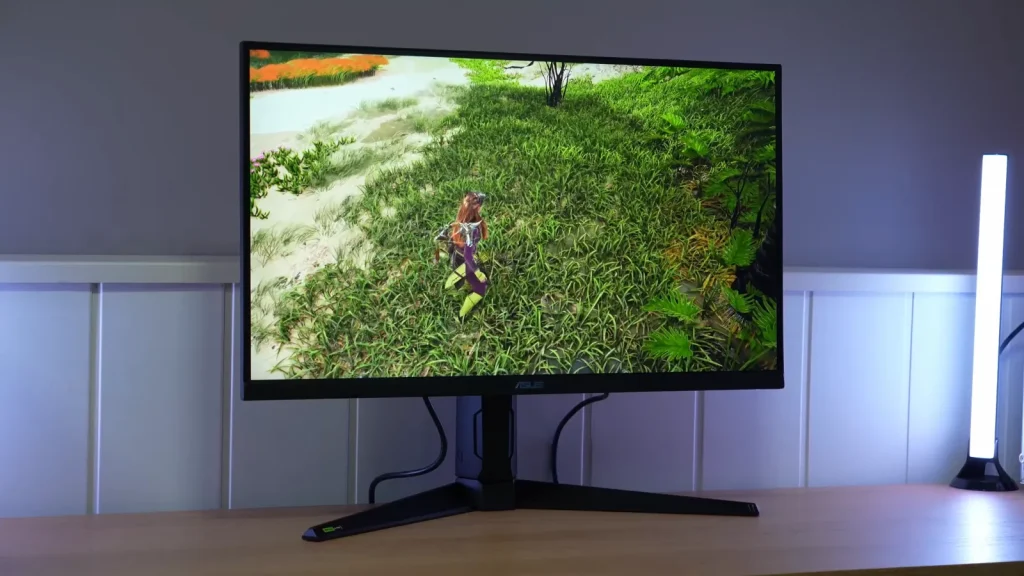
The ASUS TUF VG27AQL5A offers a 210 Hz 1440p IPS panel with an interesting combination of color, brightness, and PS5 compatibility. It is not the fastest in its class, but its settings let you tailor the experience to either PC or console.
Calibrated sRGB mode, overdrive, and ELMB are the controls most worth understanding. The stand and matte finish also affect how it fits on your desk.
Assembly, ergonomics, and connections
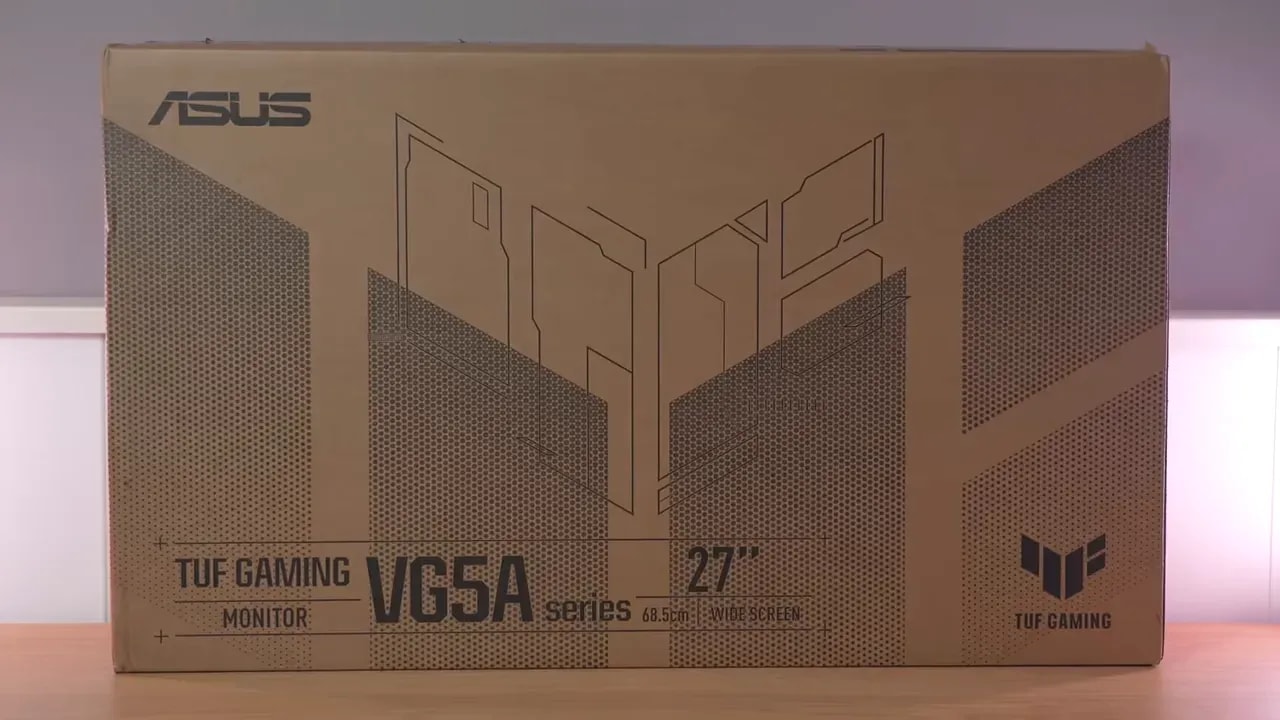
The package is typical ASUS, but well equipped. Inside, we find:
- Paperwork and documentation
- Power cable
- DisplayPort cable
- Stand and base
- Screws for attaching the stand to the monitor
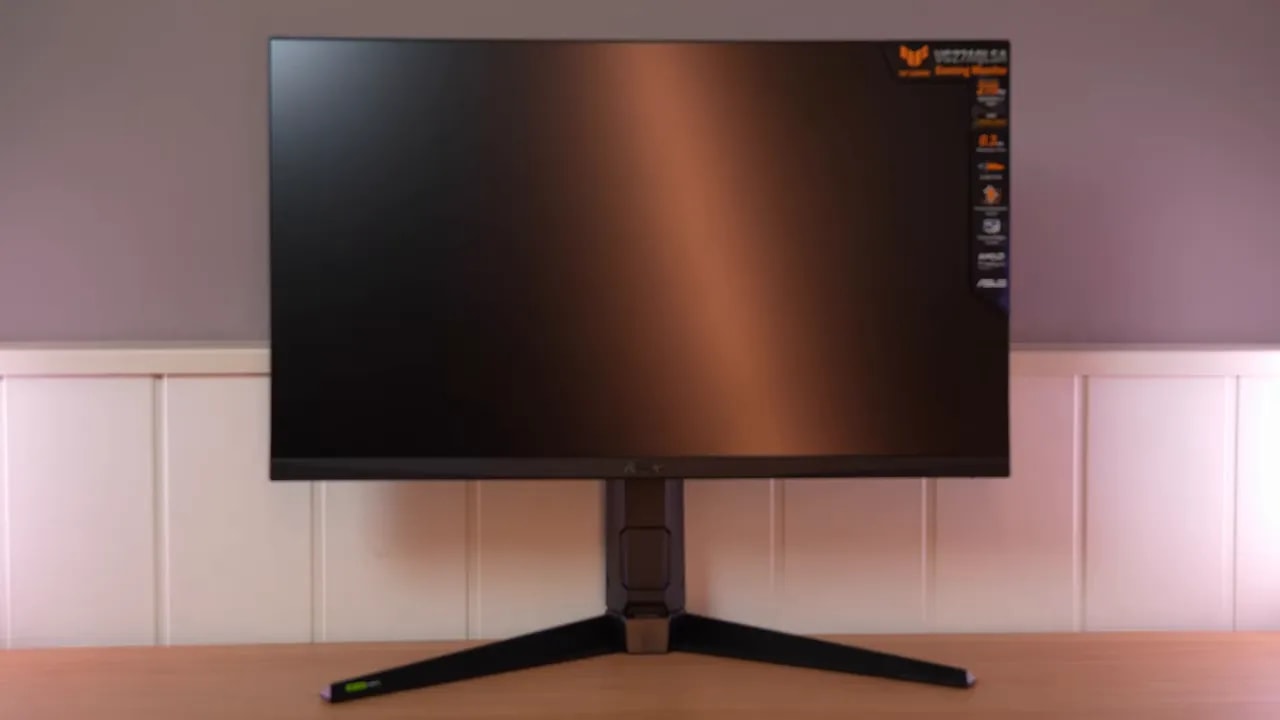
The stand is fairly bulky, and the base takes up more space than I would like. I personally prefer more compact bases, such as those in the ROG range, but that does not take away from its good construction. Yes, the exterior is plastic, but the overall feel is solid.
Assembly requires four included screws, and once assembled, it is clear ASUS has not cut corners on ergonomics here.
This ASUS TUF offers plenty of ergonomic adjustment. It supports:
- Height adjustment
- Tilt
- Tilt or swivel
- Portrait rotation
You can also swivel it without moving the base, which is always welcome on a desk. It retains the mount on top of the stand for accessories such as a camera.
Menu navigation uses a joystick and several fairly large buttons. This may seem minor, but it makes a huge difference day to day. Few things are worse than an OSD with good features that is awkward to operate.
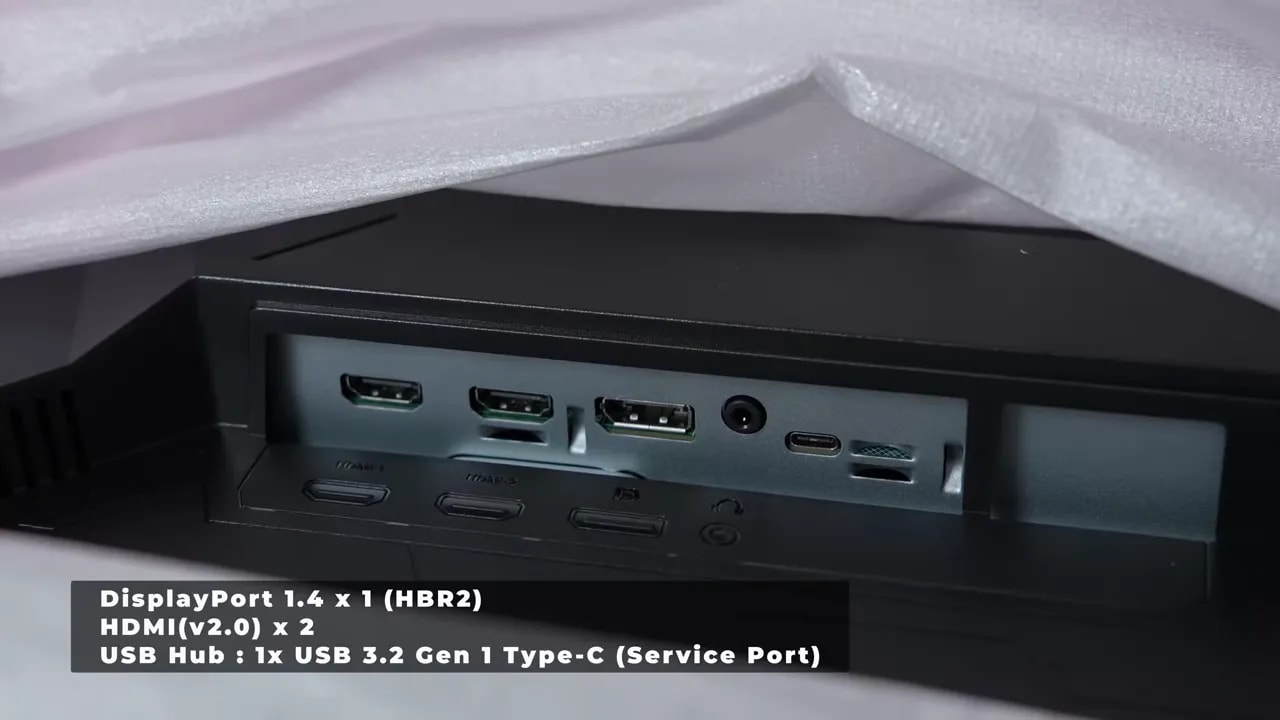
Connectivity is reasonably well covered. The inputs suit its market segment and work well for mixed PC and console use.
Finish and color modes
The panel surface has a fairly pronounced matte finish. This has a good side and a bad side.
- The good: it cuts reflections fairly well.
- The bad: it introduces a little more surface blur, especially noticeable on whites.
This comes down to taste. I prefer lighter matte finishes, but if reflection control is your priority, it delivers.
The monitor has plenty of presets. The two most interesting are Racing and User. I would choose between those based on personal preference, but they make the most sense if you want to adjust settings thoughtfully.
It also lets you restrict the color gamut to:
- Native or wide gamut
- DCI-P3
- sRGB
- Calibrated sRGB mode
And this is one of the most interesting parts of this ASUS TUF VG27AQL5A Review, because ASUS has done a very good job with factory calibration.
If you use wide gamut mode, the recommended combination is color temperature set to Warm. This keeps it fairly close to 6500K, exactly where you want it.
Overall performance in this mode is good:
- Fairly good gamma 2.2 or sRGB tracking
- Correct RGB balance
- Decent grayscale
- Coverage close to 93% DCI-P3
- Around 89% Adobe RGB
The area for improvement is that some colors, such as blue, look somewhat oversaturated within that wide coverage, so calibration could be refined further. Even so, it is good for a gaming monitor.
Limiting the gamut to DCI-P3 lowers coverage a little, to approximately 88,7%, but accuracy improves considerably in return. Blue oversaturation, for example, disappears, and the final result is more polished than I expected.
Grayscale accuracy also improves over native mode. So although coverage does not reach 100%, it makes very good use of what the panel can provide.
Clamping the gamut to sRGB brings the monitor to around 97% coverage, with fairly good calibration in both color and grayscale.
But if you want the best, the standout is the calibrated sRGB mode. ASUS has done a really good job here. Although default brightness is around 125 nits, calibration is excellent:
- Very good sRGB gamma tracking
- Very refined RGB balance
- Color temperature almost exactly at 6500K
- Outstanding color accuracy
- Maximum Delta E below 2
In fact, it is one of the best sRGB modes I have tested on this type of monitor. It would not really need calibration for work or content consumption in this gamut.


The calibrated sRGB preset offers good white, grayscale, and gamma tuning along with the gamut clamp. It is different from Racing’s sRGB limiter; that distinction matters for reproducing the review’s results.
Testing wide gamut mode calibrated for DCI-P3 with custom color temperature settings and an ICC profile improves the results. It delivers slightly more coverage than the DCI-P3 clamp and somewhat more refined calibration.
However, the difference is not huge, because the factory modes are already quite well tuned. These ICC profiles also make more sense for multimedia or color work than for gaming.
Brightness, contrast, and HDR
Maximum brightness is around 445 nits, with small variations depending on the meter used. What really stands out is not just that brightness, but the accompanying contrast of approximately 1600:1.
And that is very good for IPS. In fact, it is clearly above the average of many IPS gaming panels, which often fall shorter in blacks and contrast.
It shows on dark backgrounds. The panel provides more convincing blacks than usual, and on the tested unit, backlight bleed and clouding were fairly well controlled. Only a small light leak on the right is visible, but overall this is among the best IPS units I have tested in this respect.
Glow is not especially bothersome either. Brightness and color uniformity are decent, though there is room for improvement, especially in color at the lower-right corner.
Lowering brightness a little improves color uniformity, and although the luminance deviation percentage may look larger, the actual maximum deviation is around 18 or 19 nits, which is not much.
The monitor supports HDR and offers several presets. Testing them as supplied, the one I find most convincing for PQ EOTF and luminance tracking is the Console HDR.
HDR calibration is not bad. RGB balance is good, and there is an interesting detail: at the beginning of the PQ EOTF curve, it reproduces dark tones better than a normal IPS usually does.
Why? Because enabling HDR also activates a very basic form of local dimming. The problem is that it is so rudimentary that it hurts more than it helps. It does not seem to have many zones, perhaps four or eight, and a blooming test clearly shows that illuminating an object against a dark background lights up a whole strip.
That is very obvious and not worthwhile. My recommendation is to disable that local dimming.
Disabling it loses some deep-shadow accuracy at the beginning of the curve, but honestly, it is worth it. An eight-zone system behaving this way is more of a hindrance than anything else.
As HDR400, and with the understanding that it is nowhere near what Mini LED or OLED offers, the overall calibration result is not bad. What is missing is a significant brightness increase, since it stays around 456 nits.
HDR coverage is around:
- 65% BT.2020
- UHDA-P3 similar to SDR DCI-P3, though a little worse than SDR wide gamut
- Color volume around 92% DCI-P3
- Color volume of approximately 62% BT.2020
210 Hz: overdrive and blur reduction
Moving to pure gaming performance, we get up to 210 Hz with overclocking. I saw no problems from enabling it, so you would normally leave it on. That said, moving from 200 to 210 Hz is hardly life-changing.
Overdrive offers several levels, with the two most interesting being:
- Level 3: about 5.87 ms initial response time with little overshoot
- Level 4: about 4.91 ms with a little more overshoot
Looking at the UFO test, overshoot does not seem especially bothersome at either level 3 or level 4. That is why, for general PC use, I would go straight to level 4. If you are more sensitive to that small excess in some transitions, just lower it to level 3.
Compared with similar monitors, it is roughly average, though leaning slightly faster.


At 210 Hz, level 4 speeds up transitions compared with level 3 and introduces more overshoot. Compare the average with motion photographs and lower the setting as refresh rate decreases.
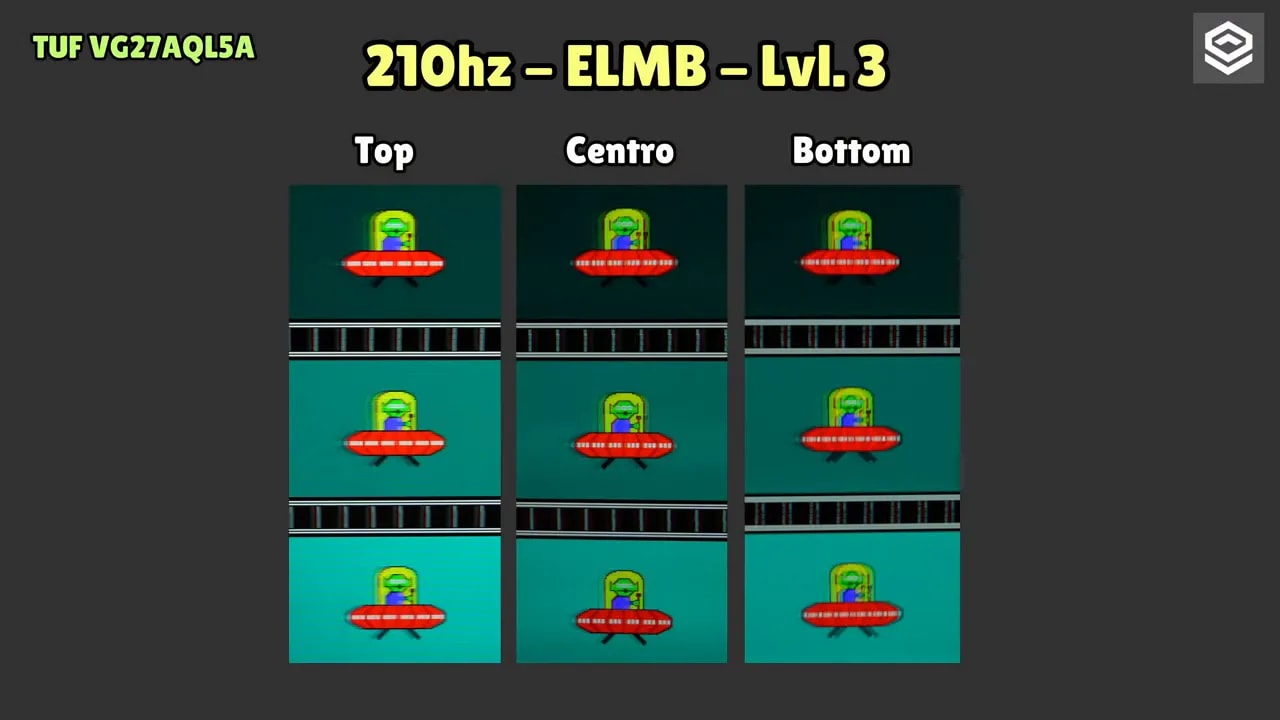
ASUS includes its usual motion blur reduction mode, the familiar ELMB. It strobes the backlight to improve motion clarity at the expense of brightness, while introducing the usual double-image artifact, strobe crosstalk.
There are several levels, and the stronger you set it:
- The lower the brightness
- The more clarity improves
- The more visible the artifact becomes
If you use it, the most reasonable choice seems to be level 3. Even so, I am not entirely convinced by this mode because it remains quite situational.
It does offer plenty of customization, though. You can position the artifact in different locations, and leaving it centered is usually best.
The monitor supports VRR. On PC, G-Sync Compatible works well despite lacking official NVIDIA certification. It can also use FreeSync with an AMD graphics card.
Interestingly, combining G-Sync with backlight strobing seemed somewhat buggy, and the setting did not apply correctly. In any case, I am not too concerned because this combination is rarely worthwhile. In fact, combining strobing with variable refresh rate usually worsens clarity.
Without that mode enabled, VRR works smoothly. I noticed no bothersome flicker in pendulum-style tests, so it performs well here.
PS5 and everyday use
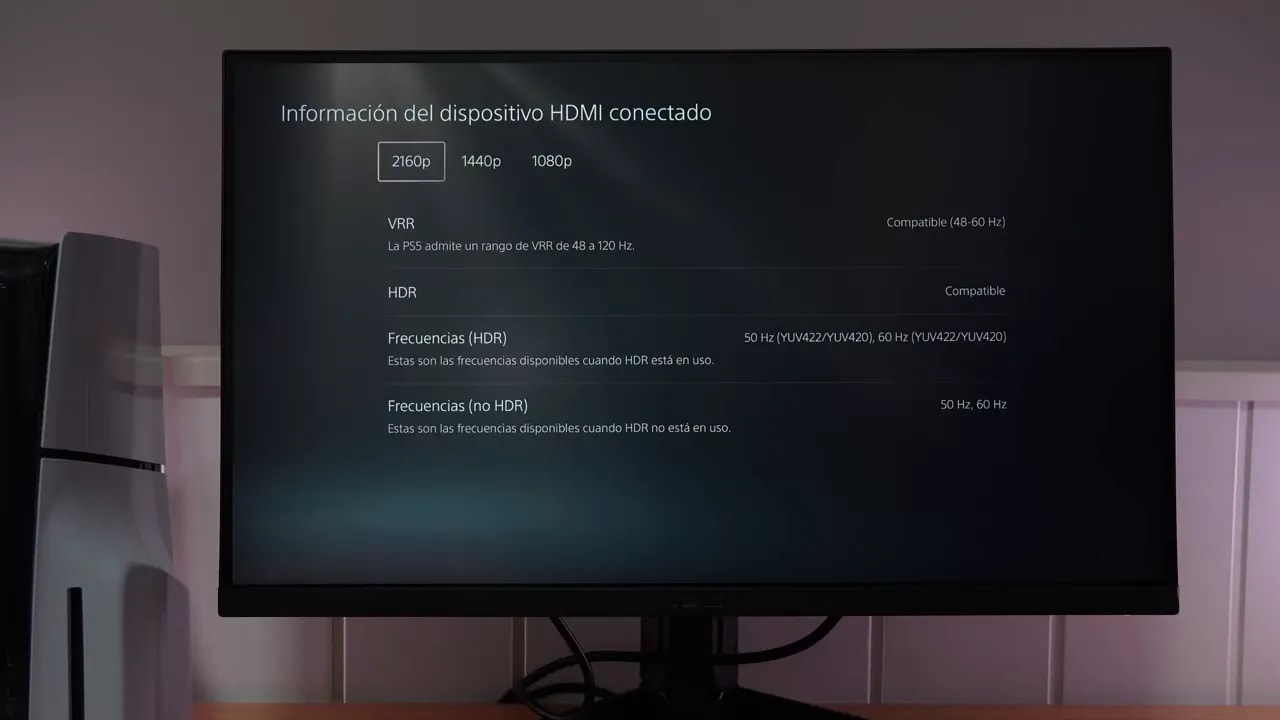
This is where the monitor earns a lot of points. As with the ROG XG27ACS, this ASUS TUF offers very good PlayStation 5 compatibility.
It supports:
- VRR at 1440p and 120 Hz
- ALLM
- 4K 60 Hz
And all of that without HDMI 2.1. That makes it one of the best relatively inexpensive monitors for PS5, in my opinion.
For console use at 120 Hz, ideally set overdrive to level 2 or level 1. Response times remain good. At 60 Hz, you can push it to level 1, and if the slight overshoot bothers you, simply disable it.
Input lag is also good, so there is nothing concerning there.
As an extra, it has built-in speakers. They are nothing special, as with almost any monitor, but they can help in a pinch.
What it offers over the ROG XG27ACS and KTC
To better place this model in context, it is worth comparing it with two clear rivals I have recently recommended or reviewed.
Compared with the ROG XG27ACS:
- It has slower response times
- It is brighter
- It has considerably more contrast
- It also offers a wider color gamut
- Overall factory calibration seems even better here
- The ROG usually costs a little more
Compared with the KTC I have been recommending lately:
- It is a little faster
- Contrast is similar, and this ASUS may even exceed it
- The KTC still leads in color gamut
- The KTC clearly wins on value for money
- The KTC is usually considerably cheaper, around 170 euros and even 160 on sale
Wrapping up this ASUS TUF VG27AQL5A, my impression is fairly clear: it is a very well-rounded monitor. It does not have the world’s most spectacular HDR, it is not the fastest in its class, and the stand could be better, but it does a lot of things well at once.
Its clearest strengths are:
- Very good factory calibration, especially in sRGB
- Above-average IPS contrast
- Good SDR brightness
- 210 Hz and competitive response
- Comprehensive ergonomics
- VRR works well
- Excellent PS5 compatibility at 1440p 120 Hz and 4K 60 Hz
Its weaker points:
- Somewhat aggressive matte finish
- Limited HDR with very basic local dimming
- Bulky stand
- Strobing with G-Sync is not particularly impressive
If also using it with PlayStation 5 is a priority, that is probably its strongest selling point. In fact, that extra compatibility is what gives this ASUS TUF VG27AQL5A such a positive verdict. It is more than a good PC gaming monitor. It is an especially balanced option for anyone wanting one screen that works very well in both worlds.
And that is not so easy to find at this price.