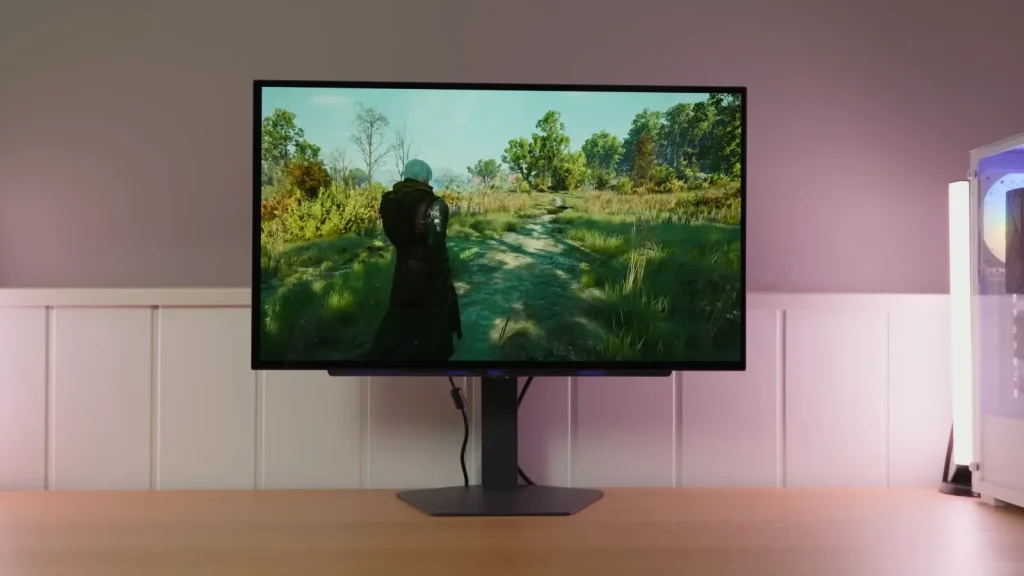
The LG 27GX704A-B makes sense for anyone looking for a 27-inch OLED for gaming who values a clean image without the grain that a matte finish can introduce. Its 240 Hz refresh rate, panel contrast and glossy finish make an appealing combination. The trade-offs are reflections and the text and brightness limitations of this WOLED.
This unit was purchased for the review; LG did not sponsor the test. Whether it is a good buy depends on its price compared with other options. The available price is shown in the retailer section, and the full measurements are on the specifications page.
In this review
Build quality and positioning on the desk
Build quality is adequate, with a metal base and more plastic in the stand column and housing. Overall, it does not feel especially luxurious, but the stand provides the adjustments you need to position the screen properly.
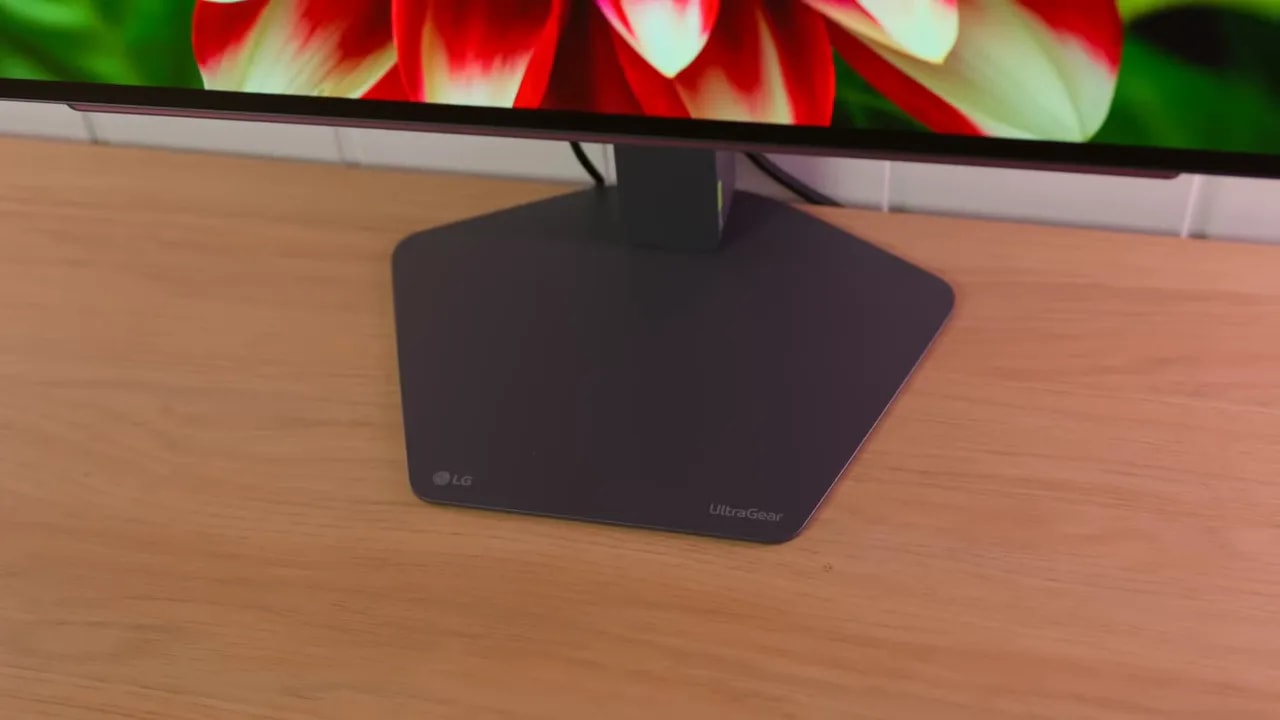
You can adjust the height, tilt the screen, swivel it without moving the base and rotate it into portrait orientation in one direction. These are useful adjustments for matching the position to your desk and chair, and they offer more everyday value than many gaming-menu extras.
HDMI, DisplayPort and the USB hub cover use with a desktop PC and several devices. The lack of USB-C matters if you were expecting to connect and power a laptop with one cable. Consider that need before choosing it solely for the panel.
A clean image, if you control reflections
The glossy finish is one of its main attractions. Light backgrounds look clean, without the texture of some matte coatings. In dark games, per-pixel light control keeps blacks dark beside bright elements, without the halos of a backlight divided into zones.
That finish also clearly reflects windows and lights in front of the screen. Decide where it will sit before buying. A monitor can have excellent blacks and still be uncomfortable if it reflects a light source right over the part of the screen where you play.
For extended office work, there are other considerations: the subpixel structure can produce colored edges on text, and texture or banding may be visible in certain grays. Adjusting the system’s text rendering helps, but does not change the panel structure. It is also worth using its care features and avoiding unnecessarily leaving the same static image on screen.
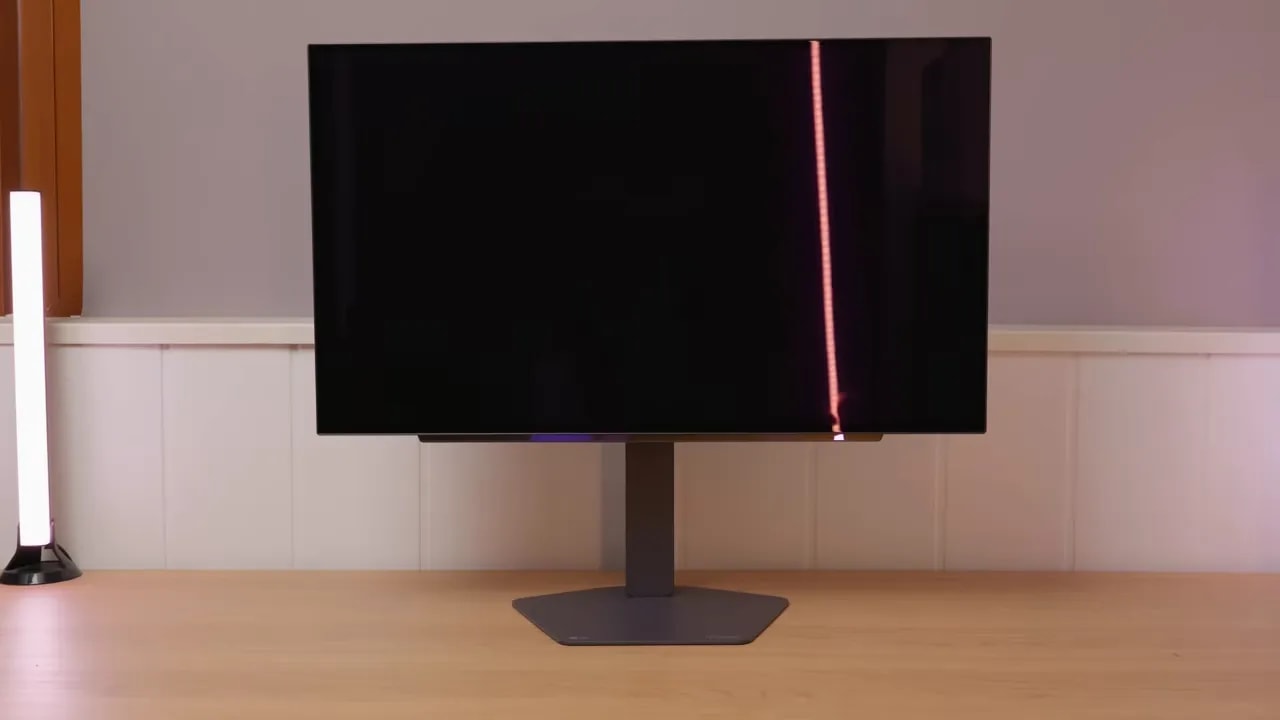
Text and grays deserve a closer look
On this 27-inch WOLED, colored edges were visible when reading text. Compared with a third-generation QD-OLED of the same size, the review found its presentation less clean in this respect. That is an important difference for anyone spending more time with documents than games.

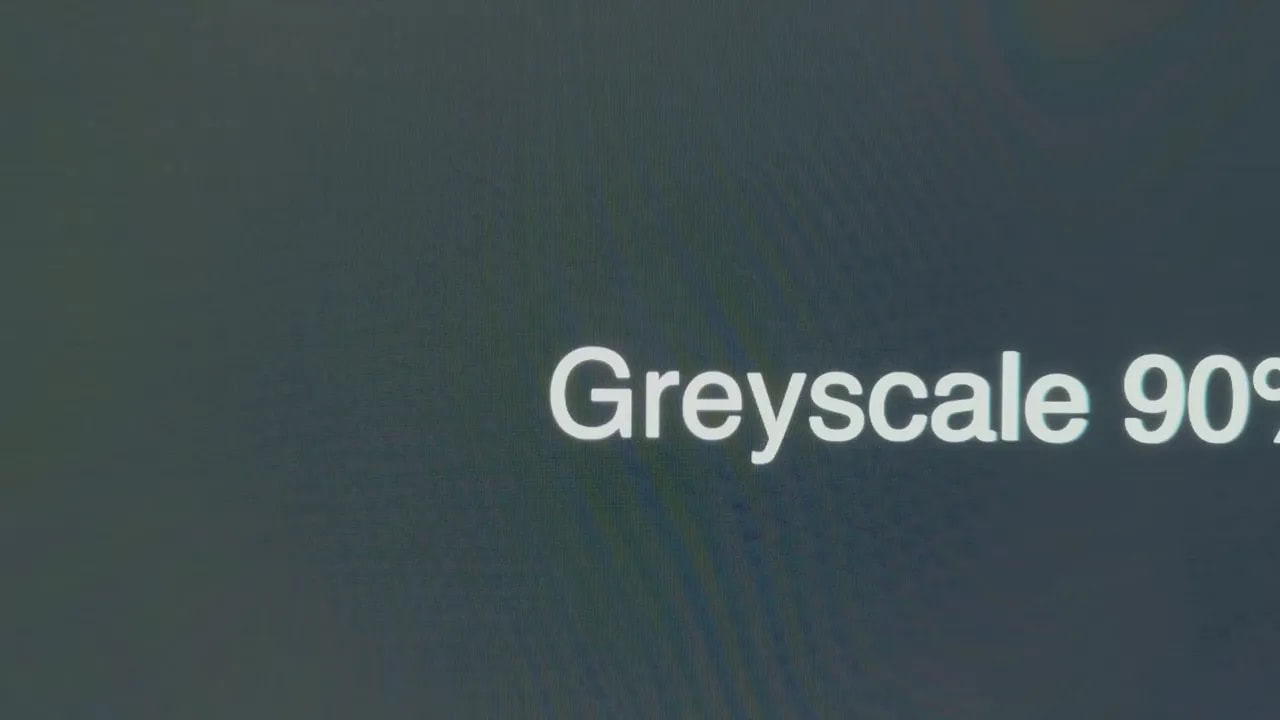
The texture that can appear in some grays is not the same as banding, and should not be confused with the grain of a matte coating: this LG has a glossy finish. The close-up photos help identify these effects. Pixel cleaning can improve certain irregularities, but it does not change the subpixel layout or guarantee that it will fix every defect on another unit.
Which mode to use for desktop work and color
Gamer 1 provides a good starting point. On the tested unit, with Gamma set to Mode 2 and a custom color temperature, white is close to the reference and native color is convincing. There is no need to choose a professional mode just because of its name: the dedicated P3 mode showed less desirable gamma behavior than this configuration.
The sRGB mode clamps the gamut for everyday content, although it does not eliminate every deviation. If you do demanding color work, checking the tests for the specific mode is more useful than looking only at its coverage percentage.
The monitor supports hardware calibration with LG’s compatible tools. That is an advantage if you have a colorimeter and need to fine-tune your own unit. Copying a profile from another screen is not the same as calibrating yours.
In the professional modes, brightness can be adjusted, but color temperature and gamma are locked. If you need to correct those settings, keep that restriction in mind; the P3 or sRGB name does not make the preset freely adjustable.
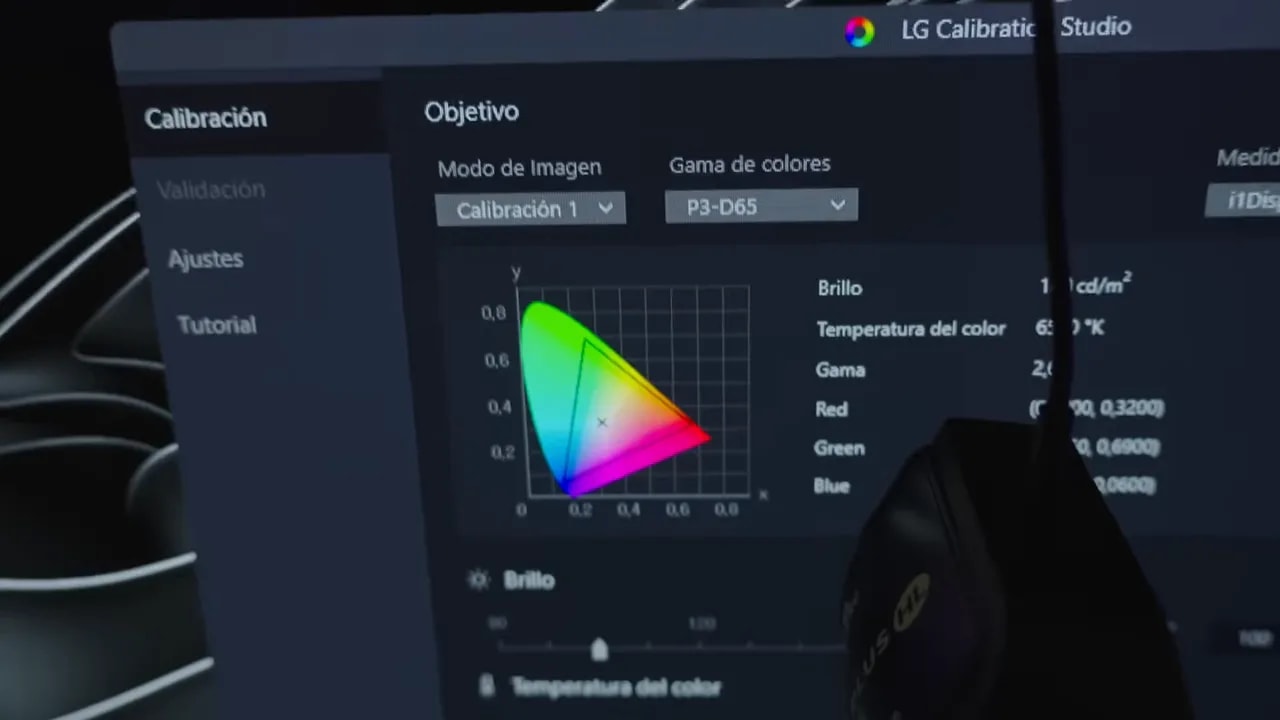
LG Calibration Studio lets you save calibrations to the monitor’s internal memories using a compatible colorimeter. This is particularly useful for production work: it lets you prepare the screen for your specific working target. For gaming without demanding color requirements, Gamer 1 already provides a starting point that reduces the need to go through that process.
Stable brightness or more intensity in highlights
For SDR work, I recommend disabling Peak Brightness if you want stability: brightness stays at around 267 nits. Low and High can provide more intensity in certain scenes, but also make brightness vary more with the illuminated area. For documents and windows, that variation usually adds less value than constant brightness.
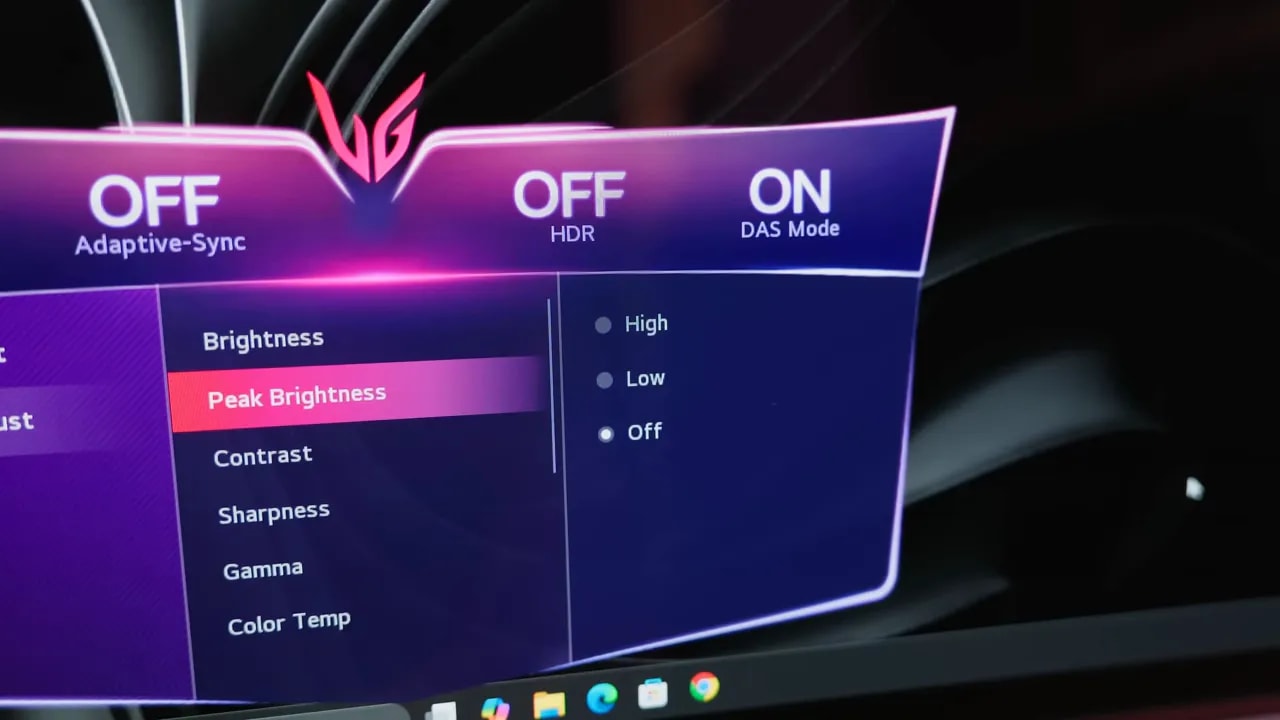
Low and High are more interesting if you prefer to give bright parts of a game scene more impact. When you open a large white window, that advantage shrinks and the brightness change can become noticeable. Off avoids constantly dealing with that trade-off while you work.

The chart separates two goals: keeping a work window stable or achieving more brightness in small parts of the image. Off is the desktop reference; Low and High vary more with the illuminated area.
HDR: a higher peak does not always mean a better image
Peak Low is closer to the reference, although its tracking is not perfect either. Peak High gives small highlights more impact and exceeds 1,000 nits in the peak test, but brightens shadows and midtones more. You may like its impact; it is not the most accurate setting.
The difference also depends on how much of the image the bright area occupies. As the illuminated area increases, available brightness falls and highlights are compressed. That is why one peak figure does not explain how a snowy scene, a light interface or a small explosion in a dark image will look.
I would start with Peak Low for a presentation closer to the content and try High if you prefer more intensity. The screenshots let you compare that change without confusing it with a universal improvement in HDR.


With the same 10 % window, High raises shadow and midtone luminance more. That boost may look striking, but the curve moves further from the reference; it should not be confused with more faithful detail reproduction.

The brightness curve completes the comparison: the peak available in a highlight is not sustained when much of the panel is lit. That is the limit you notice most in large, bright scenes.
Fast gaming and the PS5 setting to check
The OLED response and 240 Hz refresh rate produce very fast motion. Variable refresh rate worked in the tests, although flicker remains possible when frame rates vary significantly, as on other OLEDs. It has no dedicated feature to eliminate that problem.
The DAS low-latency mode is associated with the gaming settings; it should not be confused with ALLM. For gaming, keep a gaming configuration rather than assuming the color modes offer exactly the same behavior.
There is an important setting for PS5: select HDMI 2.1 in AV mode to receive 4K at 120 Hz. In PC mode, the test was limited to 4K at 60 Hz. VRR worked; ALLM did not activate. The specifications page records this distinction so that “HDMI 2.1” is not read as a promise that everything works without configuration.
The OSD can show the refresh rate in real time, which is useful for checking VRR. There is no dedicated OLED anti-flicker mode or black frame insertion feature. The extras are simpler than on other ranges, although that does not stop you enjoying the panel’s fast response.
Glossy WOLED against other OLED alternatives
The comparison is about more than which has a higher refresh rate or slightly wider coverage. In the review, this WOLED retained its black appearance better under certain lighting conditions, whereas the QD-OLED could show the familiar magenta tint. At the same time, the LG’s well-defined reflections mean you need to manage the lighting.
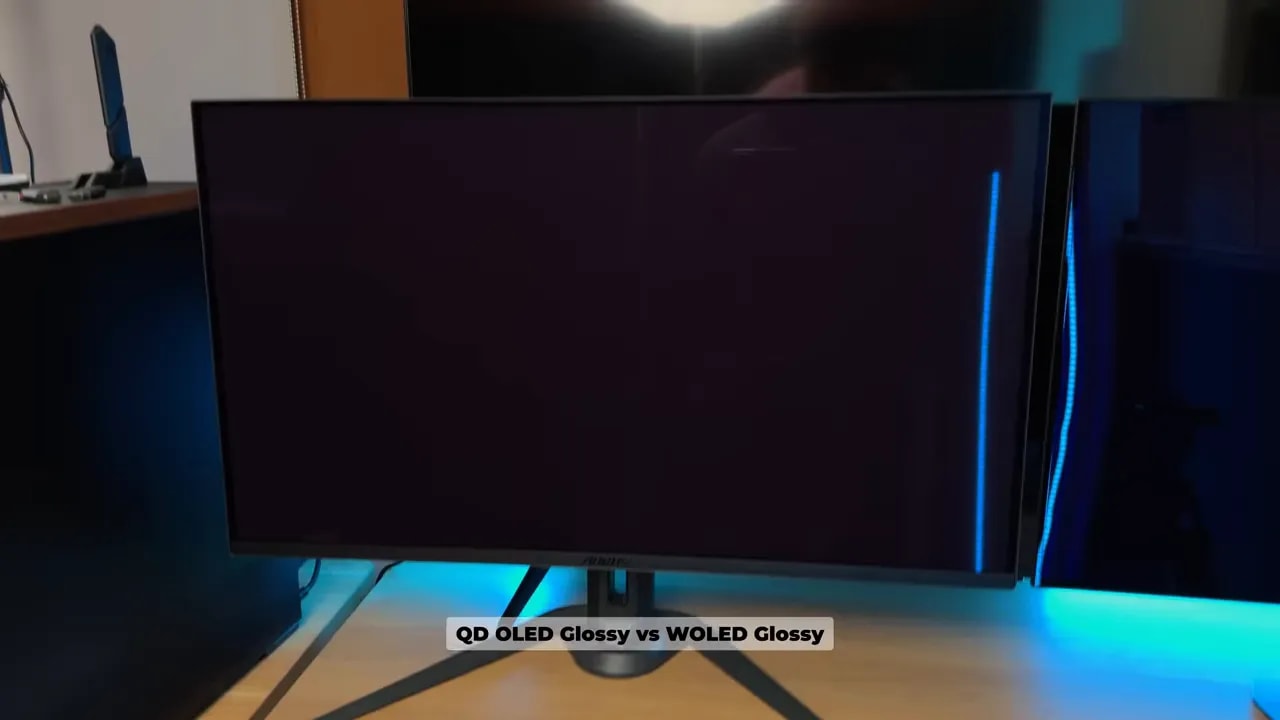
A QD-OLED may be more convincing if you value its color reproduction and text presentation compared with this particular WOLED. The LG has the clean finish and hardware calibration in its favor. These are useful differences when choosing for your needs, without making the technology a universal ranking of better or worse.
I would choose it for…
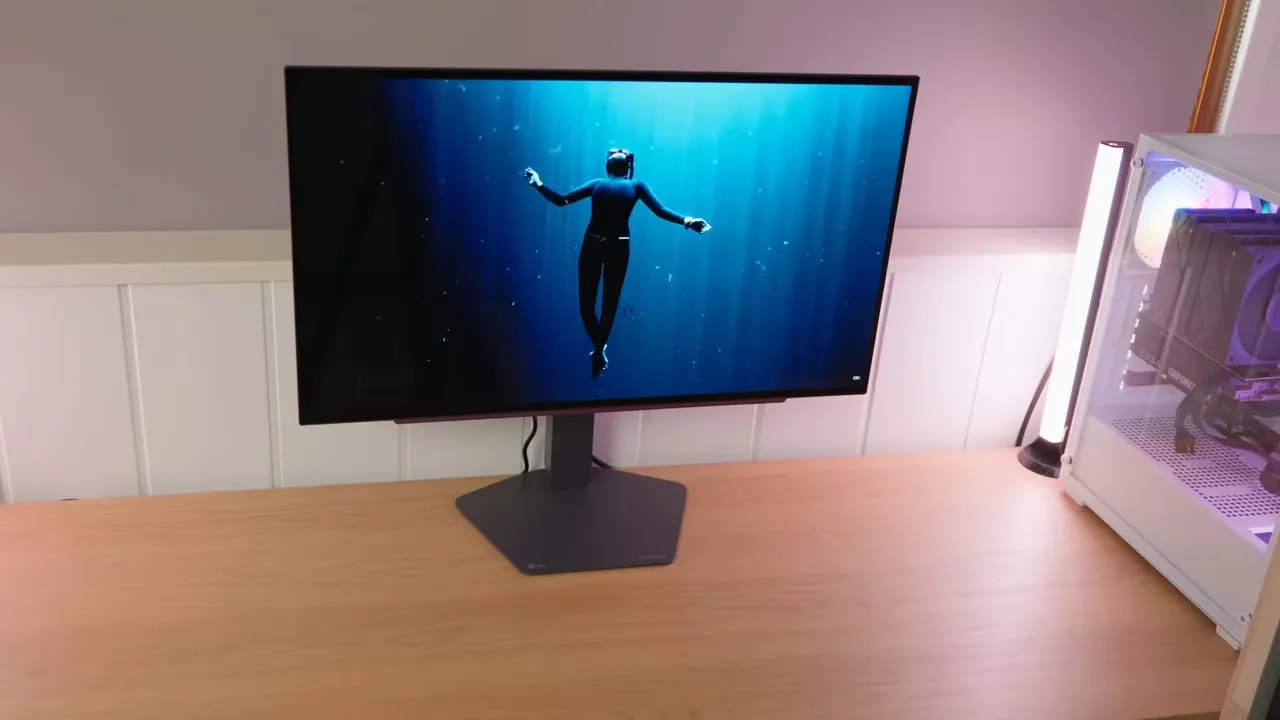
Gaming in a room with controlled lighting, enjoying the glossy finish and having a solid starting point for color, with hardware calibration if needed. Its ergonomics and internal calibration capability round out a proposition that goes beyond refresh rate.
I would look elsewhere for long hours of static text, a desk with hard-to-avoid reflections or if the priority is sustaining very high brightness over large areas. Before buying, I would compare its price with other 240 Hz OLEDs: its finish and features matter, but they do not justify any price difference.