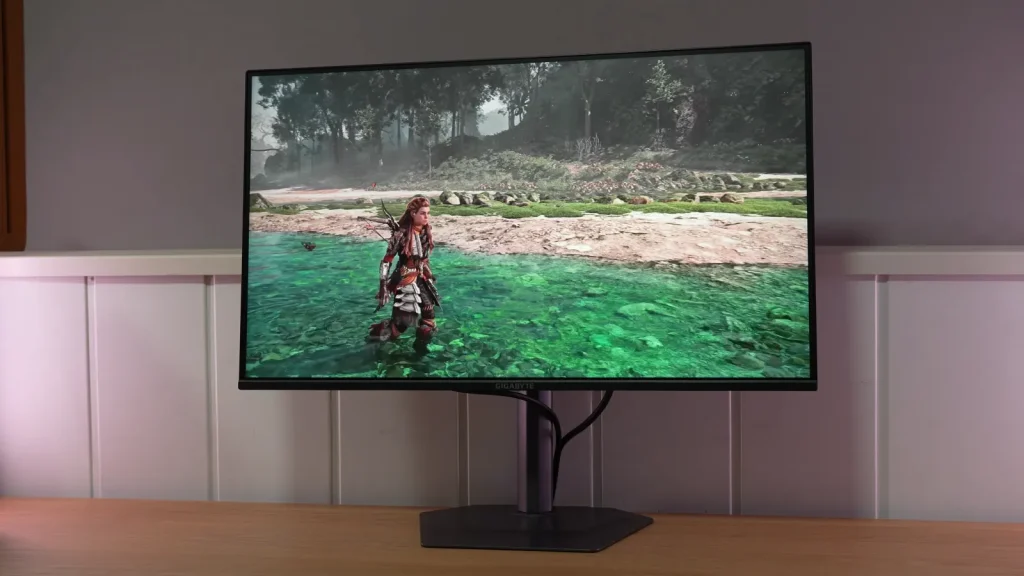
The Gigabyte G25F2 combines a 200 Hz 1080p IPS and adjustable stand in an affordable monitor. Its greatest strength is response, especially with overdrive suited to the refresh rate in use.
The matte finish, unit’s backlight bleed, and sRGB clamp are the most visible compromises. It should also be distinguished from the GS25F2, whose stand changes everyday comfort.
Packaging, stand, and differences from the GS25F2
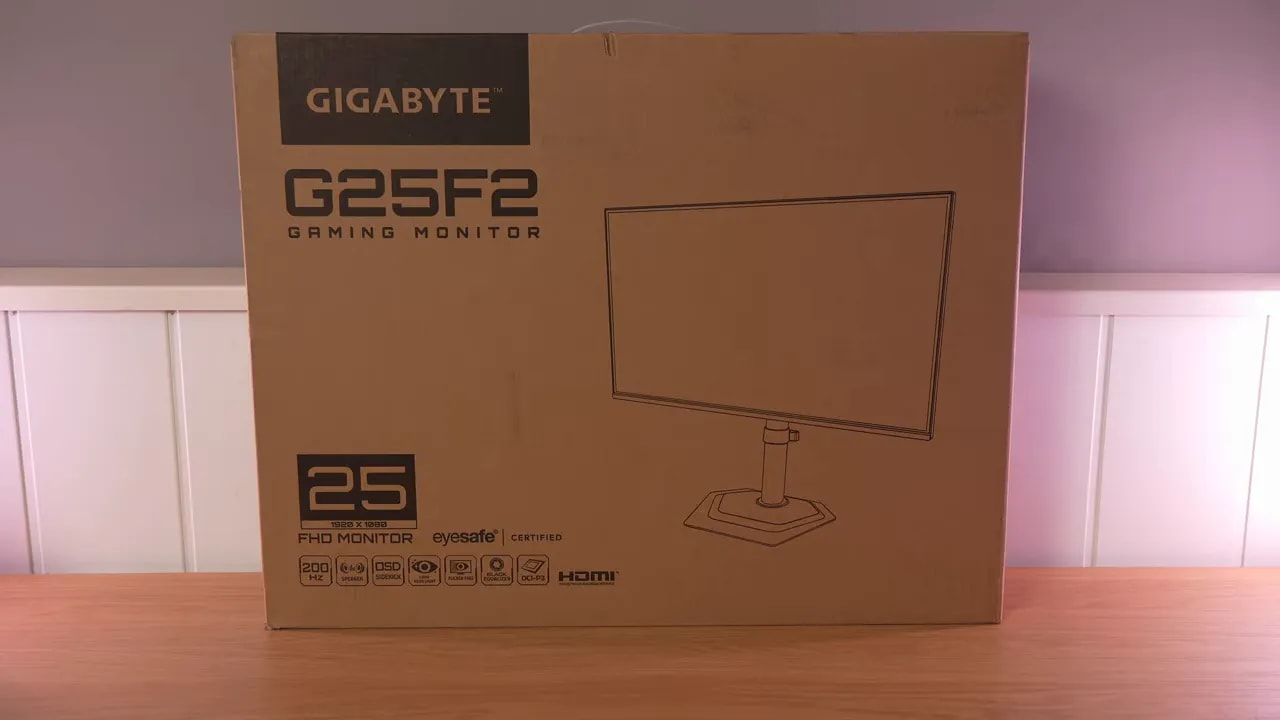
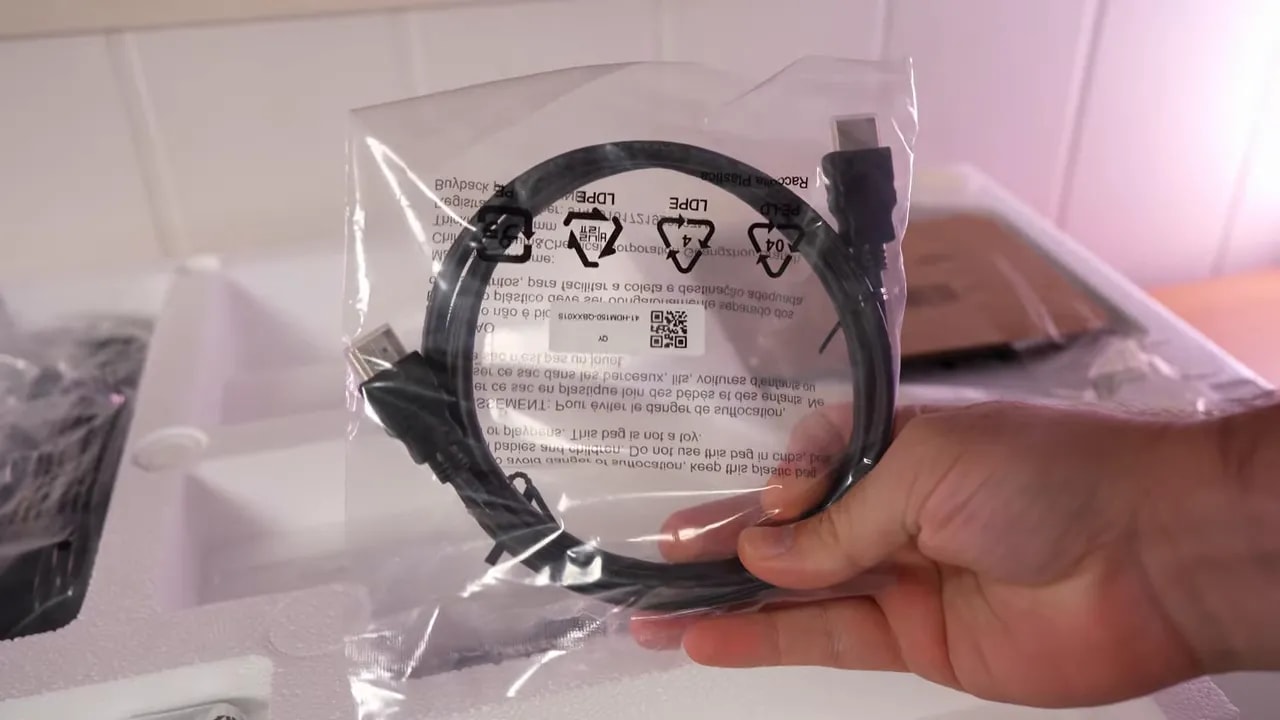
Packaging is quite decent for the price. Inside we find:
- HDMI cable
- Two power cables, one European and one UK type
- Documentation
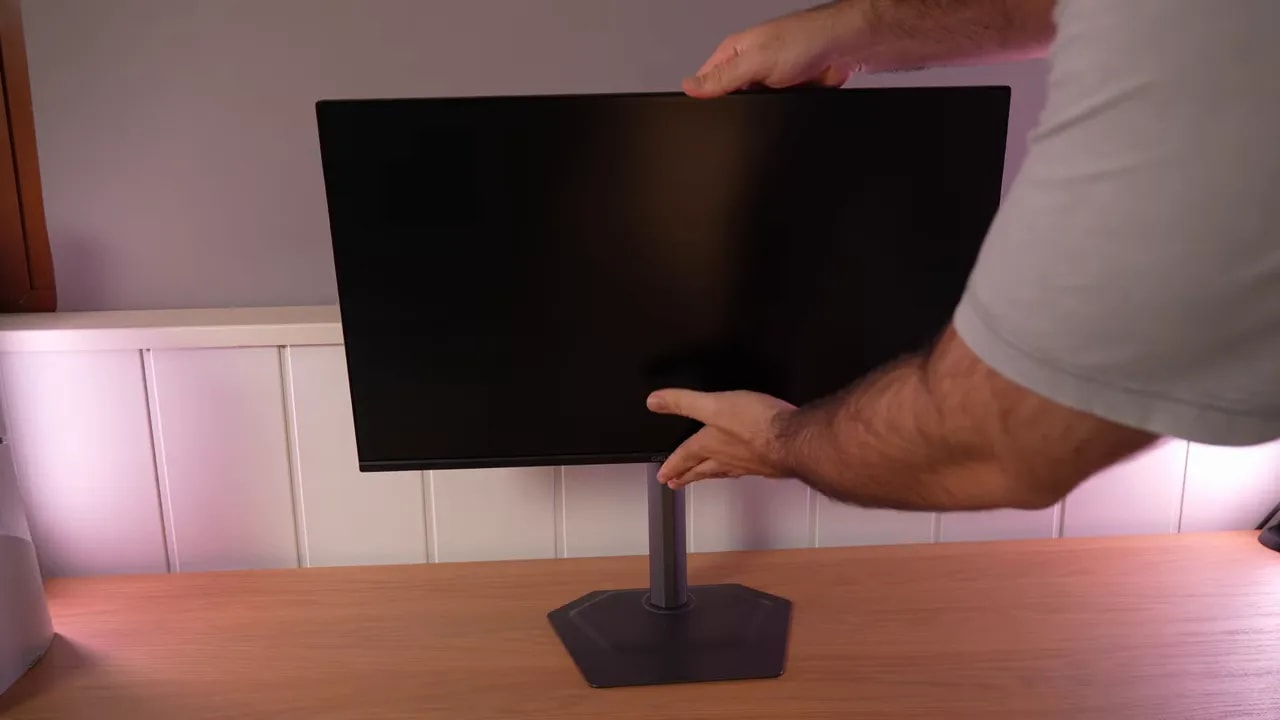
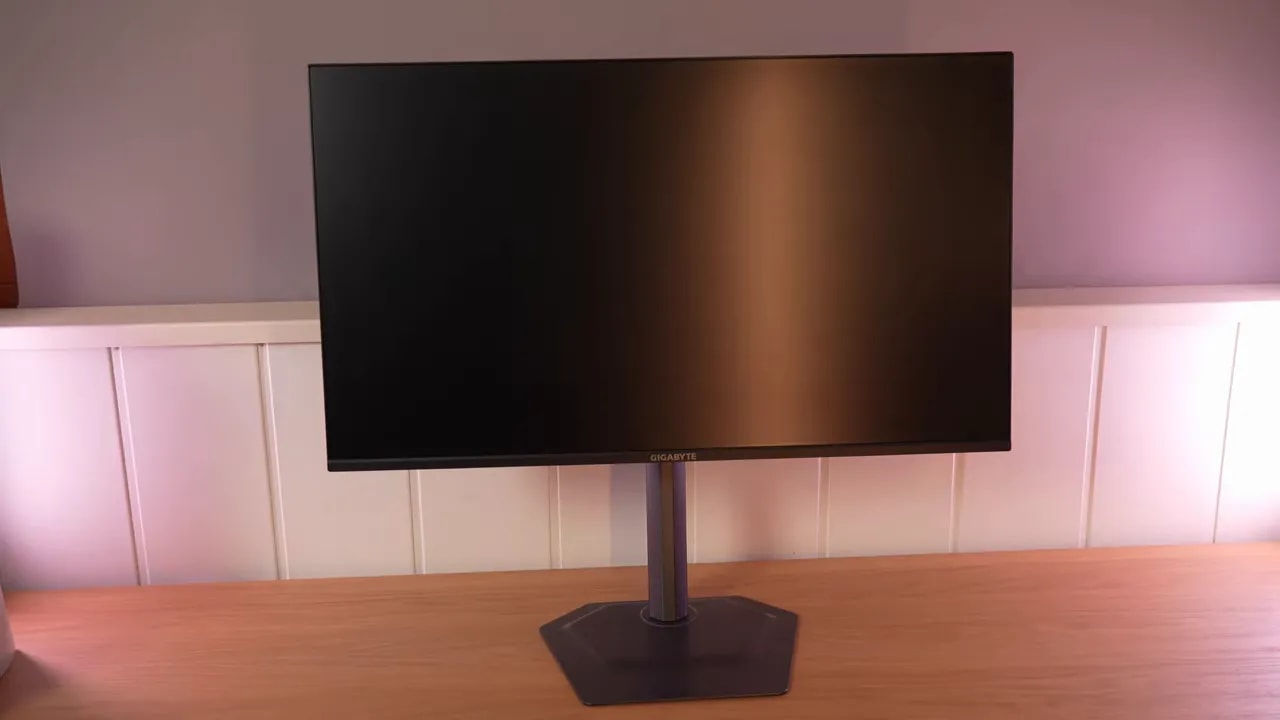
- Stand of very good quality
This is one of the first pleasant surprises of the Gigabyte G25F2. The stand is made entirely of aluminum, both base and arm, and does not feel like a cheaply compromised product. For this price range, it is really good.
The stand also offers height, tilt, swivel, and pivot adjustment. It pivots vertically in one direction and permits some swivel without moving the whole base. That is certainly unusual on such inexpensive monitors.
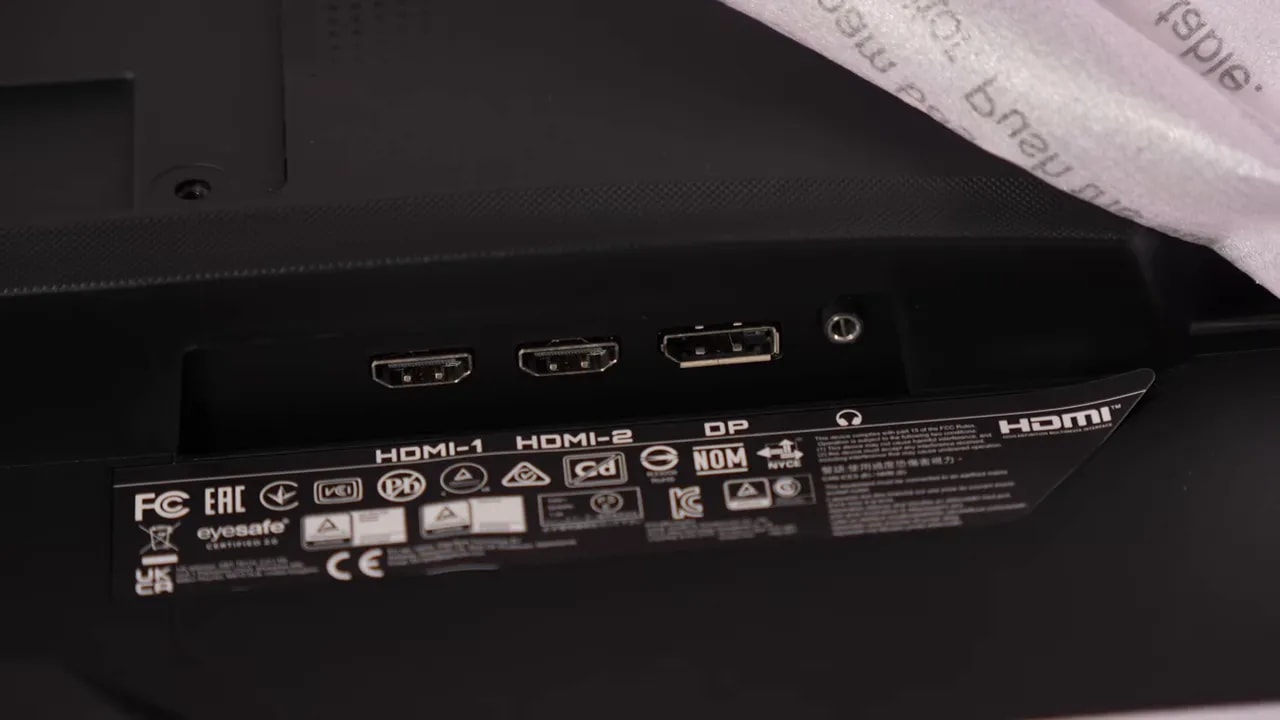
For connectivity, the monitor offers:
- 2 HDMI ports
- 1 DisplayPort
- Headphone output
Note that there is a practically identical version, the GS25F2, differing mainly in the stand. That variant uses a nonadjustable stand. Technically, behavior is almost the same, so practically all important image, color, and performance findings apply equally.
The price difference between the models is sometimes small and sometimes substantial. If the version without the adjustable stand becomes much cheaper, it can be an outstanding buy. If they are almost tied, the better stand is worth choosing.
Finish and SDR color
The Gigabyte G25F2 has a fairly heavy matte finish. That has a clear advantage: very good reflection handling. The usual trade-off is that the treatment also slightly restrains the perceived vibrancy of the image and colors.
It is not dramatic, but noticeable. If you prioritize gaming or working in a fairly bright room, it will help. If you prefer a somewhat cleaner, more vibrant image, other panels have less aggressive coatings.
The OSD has several configurable picture modes. The most recommendable are Standard and Custom, because they are essentially quite similar and leave room to tune the monitor better. There is also an sRGB mode, worth discussing separately later because it substantially changes panel behavior.
Adjusting color temperature quickly shows that the presets are not equally useful:
- Normal: somewhat warm out of the box
- Natural: cools the image considerably and also reduces brightness
- User: the best starting point for grayscale calibration, although red is somewhat elevated
The quick conclusion is simple: for using the monitor as supplied, Standard or Custom is best. If you also plan calibration or an ICC profile, User mode provides the most interesting starting point.
Moving to numbers, the monitor reaches a maximum brightness of around 345 nits. That is not enormous, but perfectly good for an inexpensive gaming monitor. In fact, it is sufficient for normal use and gaming in a bright room.
Contrast is around 1120:1, a respectable figure for IPS. It will not compete with VA for deep blacks, but it is not among the weak IPS panels with poor contrast either.
Color is a pleasant surprise. Standard mode exceeds 90% DCI-P3 coverage, very good at this price. For multimedia and extra gaming vibrancy, it is a clear positive.
It also approaches 90% Adobe RGB, although accuracy drops somewhat more here. That is expected, since most budget gaming monitors target DCI-P3 much more than serious Adobe RGB use.
The main default issue is not bad color—quite the opposite, colors are very vivid—but that it oversaturates considerably compared with sRGB. It covers approximately 97.3% of that gamut, but its volume is larger, so several colors extend too far.
That means the image may look attractive and striking, particularly for gaming, but is not the most faithful representation if accuracy matters. That is why there is a mode called sRGB.
The problem is that this mode clamps too much for my taste, ending around 93%. It improves color accuracy, color temperature, and gamma tracking, but does so with a somewhat aggressive clamp.
To summarize:
- Standard/Custom mode: more striking, but oversaturated
- sRGB mode: more accurate, but clamped too far
This is a typical compromise on many budget gaming monitors. Neither option is perfect, although both are usable depending on the main purpose.


Coverage and volume are not interchangeable: native mode can oversaturate some colors without perfectly covering the full reference. The sRGB preset reduces that expansion, within the limits shown by both measurements.
DCI-P3 calibration using custom color-temperature settings and a meter-generated ICC profile improves the monitor considerably. It cannot work miracles, since missing gamut cannot be invented, but provides a more refined baseline for multimedia and light editing.
Even so, colors such as green and blue remain slightly short compared with a more capable display. Understand that this type of ICC profile is aimed more at multimedia consumption and casual color work than pure gaming.
Uniformity and HDR limitations
The Gigabyte G25F2 supports HDR, but this needs perspective: it is very basic HDR. Enabling it does not actually increase brightness, and PQ EOTF tracking lacks the precision needed for a convincing HDR experience.
Contrast also cannot properly reproduce the lower part of the curve, so shadow and luminance details are lost. This is normal for an inexpensive monitor not designed for dependable HDR content viewing.
In its favor, enabling HDR does not cause significant color loss. Coverage is around 67% BT.2020 and around 91% UHD DCI-P3, so at least it does not completely disrupt the color palette.
The review unit does show some fairly noticeable backlight bleed. As always with budget IPS, there is some lottery involved. You may get a better or worse unit.
The positive is that IPS glow is not as aggressive as on other models. That whitish or grayish effect seen from side angles is present, of course, but less distracting than on some rivals.
The brightness uniformity is indeed fairly weak. It does not fare particularly well there. The Color uniformity, by contrast, is better handled and improves further around 50% brightness.
200 Hz: choosing between speed and overshoot
Moving into real gaming territory, the Gigabyte G25F2 stands out strongly in response times. It runs at native 200 Hzwithout overclocking and offers several overdrive modes.
The most interesting modes are:
- Smart OD: around 5.11 ms initial response time
- Picture Quality: around 5.68 ms, slightly slower but with practically no overshoot
- Balanced: around 4.26 ms, the fastest usable option and most balanced for gaming
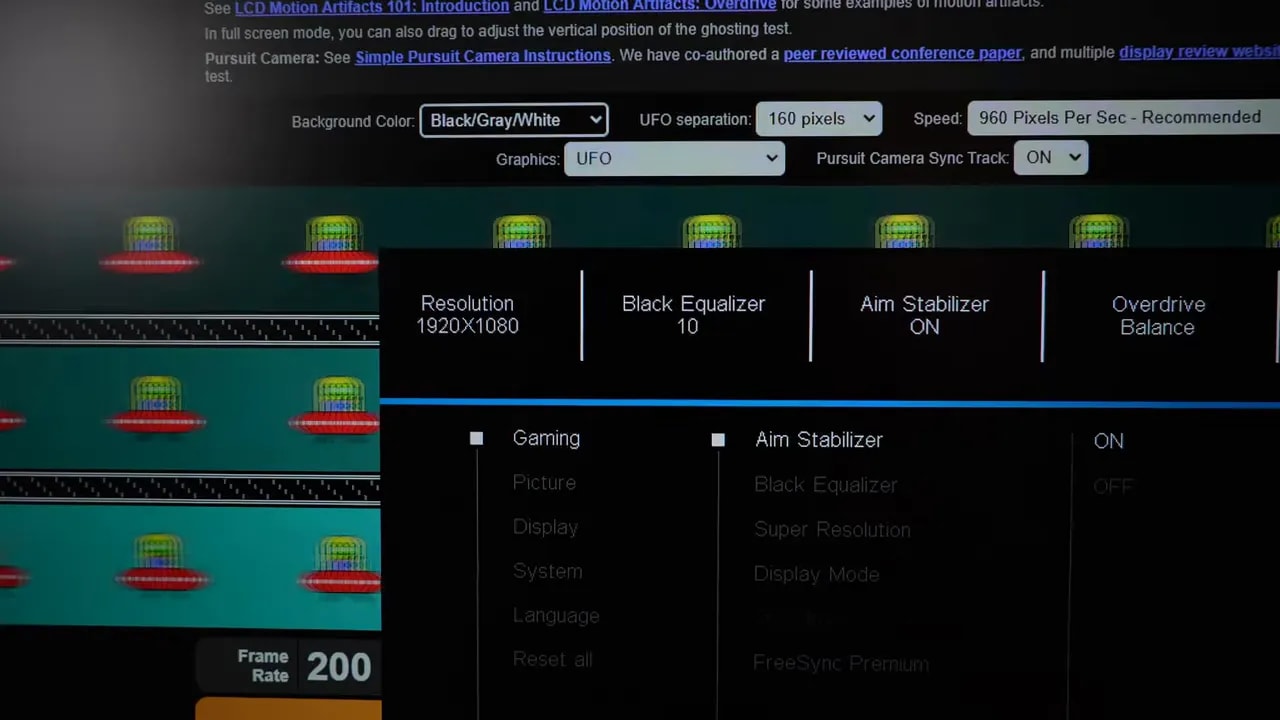
The mode Balanced is the most interesting overall. Yes, it adds slightly more overshoot, but it remains controlled and works quite well in practice. In fact, UFO-style tests show barely anything concerning.
The modes to avoid are:
- Off, because it produces more ghosting
- Speed, because overshoot goes too far


Picture Quality keeps overshoot low; Balance reduces initial response time but introduces more overcorrection. Both operate at the same 200 Hz. At 120 or 60 Hz, follow the specific settings indicated in the review.
The monitor includes a motion blur reduction mode called Aim Stabilizer, which essentially applies backlight strobing. This improves motion clarity at the cost of reduced brightness and the usual double-image artifacts, known as strobe crosstalk.
There is only one preset and it is not adjustable. Although not among the best systems available, it is not among the worst either. It is usable if you like this technology and prioritize motion clarity over brightness and a natural image. Personally, gaming without these modes still seems preferable in most cases.
The input lag is entirely normal, so there is no concern there.
Adaptive sync is well covered. It supports FreeSync Premium and can also be used as G-Sync Compatible through DisplayPort, although that cable is not included and the model lacks official Nvidia certification.
What matters is that testing showed no issues with flickering or tearing, so in practice it is usable without fuss.
PS5 use and speakers
For PS5 use, compatibility is fairly basic. It can be set to 1080p and 120 Hz, but there are several important limitations:
- VRR cannot be enabled
- No ALLM
- No supersampling
Overdrive also changes considerably with refresh rate:
- At 120 Hz, preferably use Picture Quality
- At 60 Hz, preferably disable overdrive because every mode introduces too much overshoot
As an extra, the monitor has two 2 W speakers. They exist, already more than some budget models offer, but sound is weak. Bass, volume, and definition are lacking.
That is not particularly surprising, since built-in monitor speakers rarely stand out, but understand they are only an emergency solution.
Conclusion compared with other budget models
To put the Gigabyte G25F2 in context, comparison with other monitors tested in the same price bracket is what determines whether it is a good buy or simply looks appealing.
Where it stands out most is gray-to-gray response times. It fares really well there. The only models ahead cost more and run at 300 Hz, so they are in a different league.
Against similarly priced monitors, this is the best tested for response. For a monitor below 100 or just above, that is a strong showing.
Color is also above average for the segment. It is very close to options already good in this area. Specific models may be slightly better, but the actual visual difference is small.
It does not outright lead in brightness and contrast, but does not disappoint. Some specific monitors exceed its brightness, others its contrast, and some both. Even so, the overall package of the Gigabyte G25F2 ends up more balanced, better compensating with color, response, and extras.
That brings in a very important point: the adjustable stand and overall equipment help the product feel more well-rounded than several alternatives that look similar on paper.
The Gigabyte G25F2 is not trying to be a premium monitor disguised as a bargain. It does something much more useful: gets the gaming essentials right without driving up the price. It responds quickly, looks good, has a surprisingly good stand in the full version, and within its limitations offers more than is usually expected in this range.
If you want an inexpensive, fast, balanced PC gaming monitor, it is highly recommendable. Not because of marketing, but because measurements and overall experience show that it truly delivers where it matters most.
Quick conclusion: if the goal is to buy a monitor around 100 euros without making a mistake, the Gigabyte G25F2 is one of the safest choices currently available.