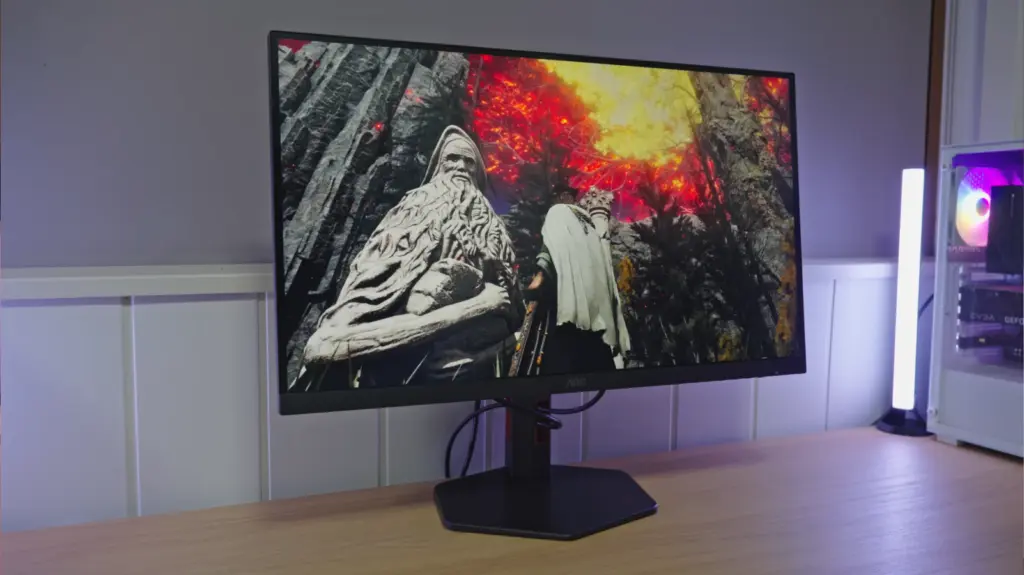
The AOC U27G4R falls squarely into that category of product that demands attention once you see the price and what it offers. This is a 27-inch IPS Dual Mode monitor capable of running at 4K at 160 Hz or at 1080p at 320 Hz. In other words, it targets both those wanting image quality and high resolution and those prioritizing outright competitive gaming.
That is precisely what makes it interesting: the AOC U27G4R is not trying to be merely a curiosity on paper. It offers serious value, a fully adjustable stand, good response times, HDMI 2.1 for consoles, and plenty of settings. It is not perfect, of course, but at around 300 euros it is hard to find too many faults.
What is included and first impressions of the AOC U27G4R
The packaging of the AOC U27G4R is well packaged and includes the essentials from the start:
-
HDMI 2.1 cable
-
DisplayPort 1.4 cable
-
Power cable
-
Manuals
-
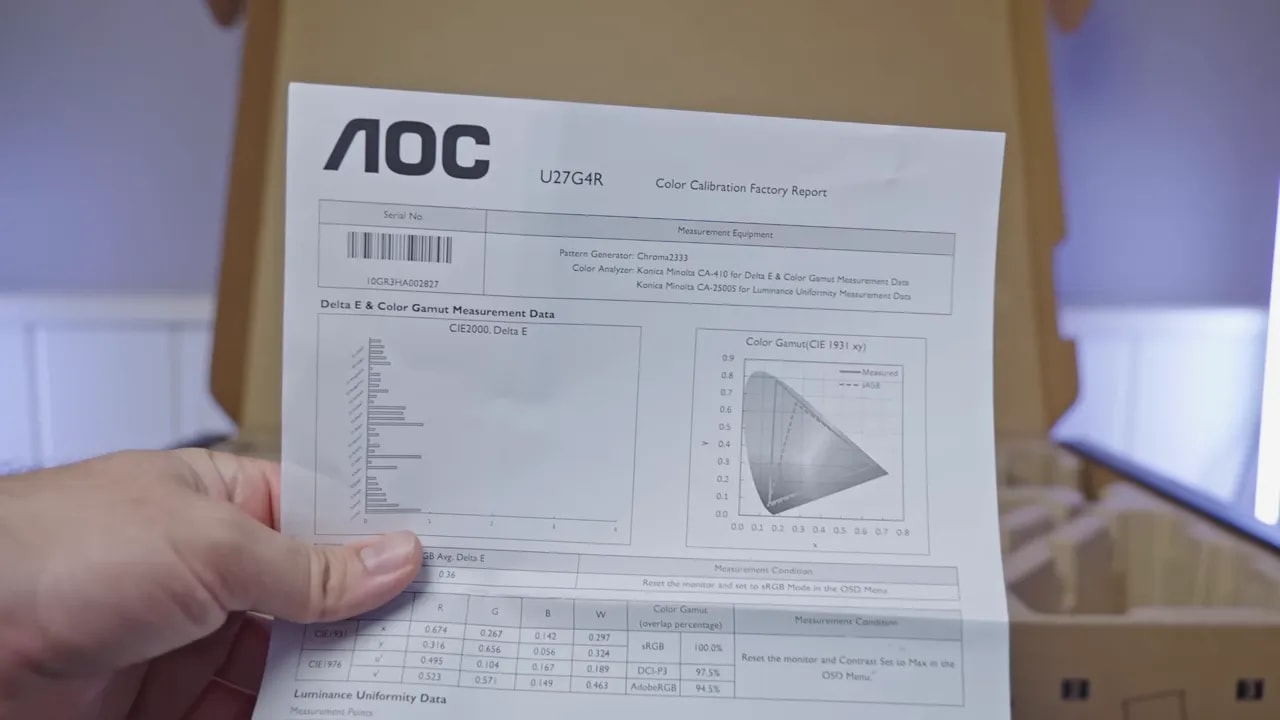
Calibration report
-
Stand
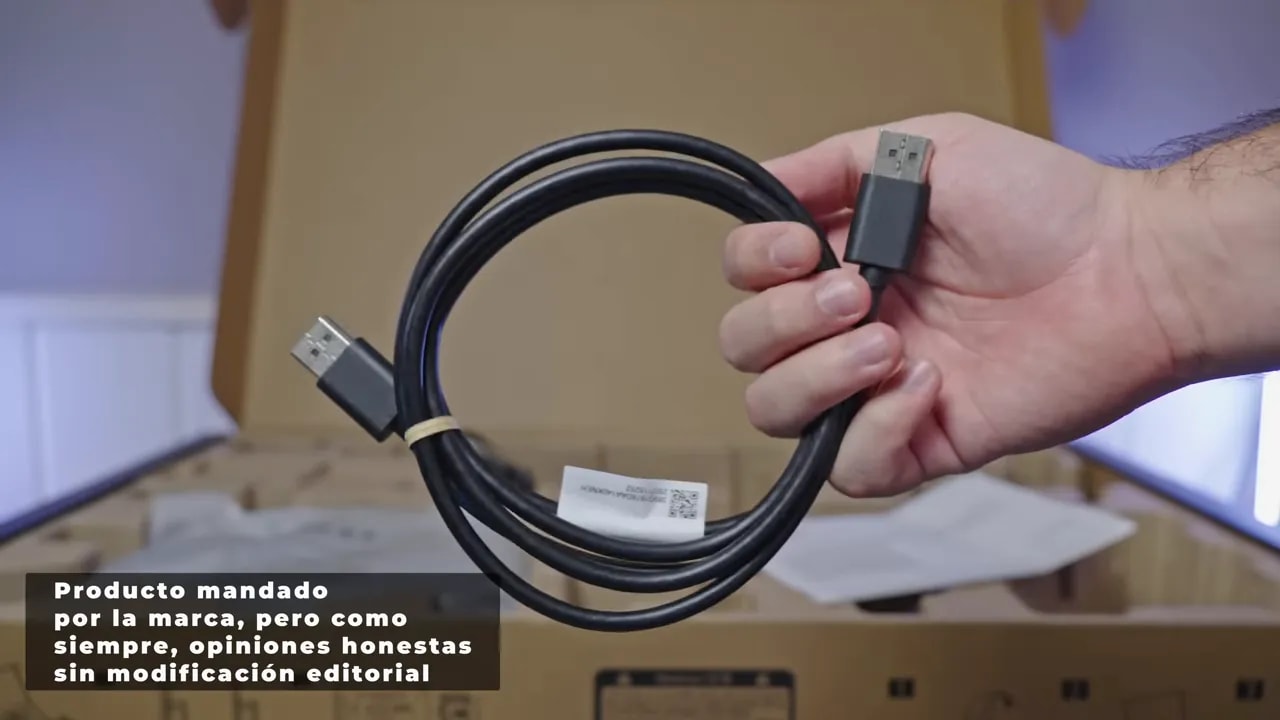
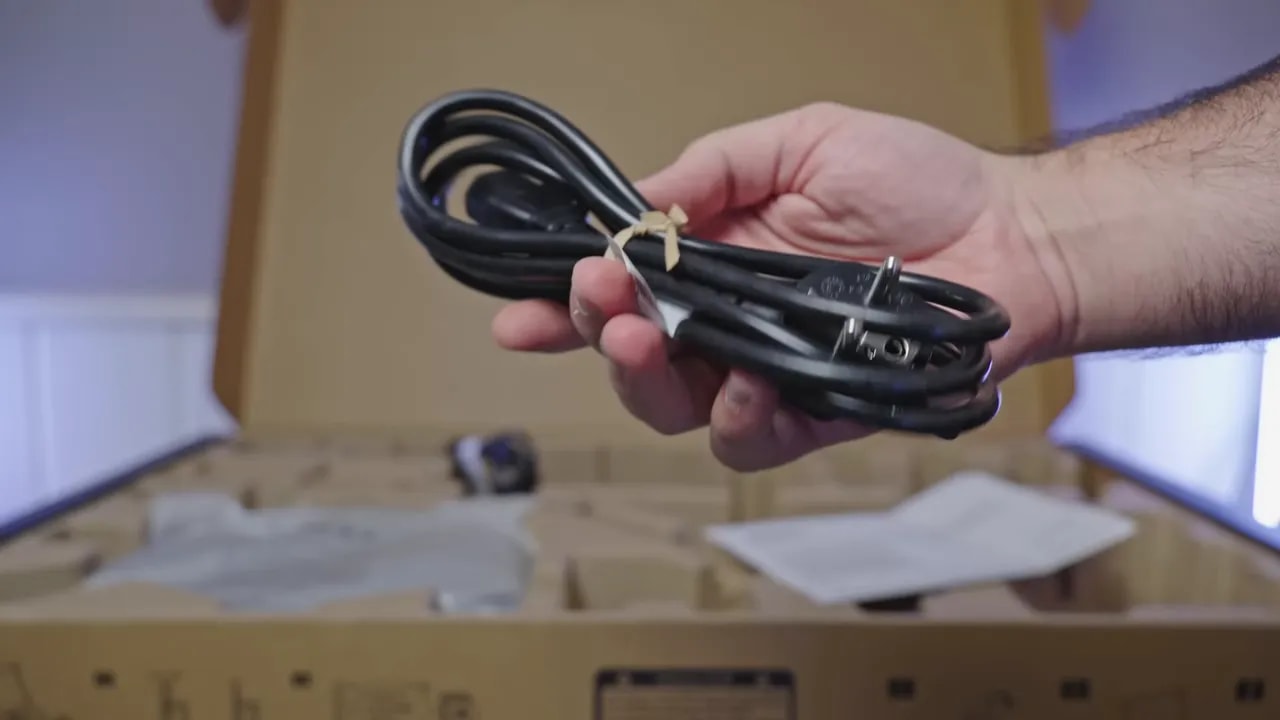
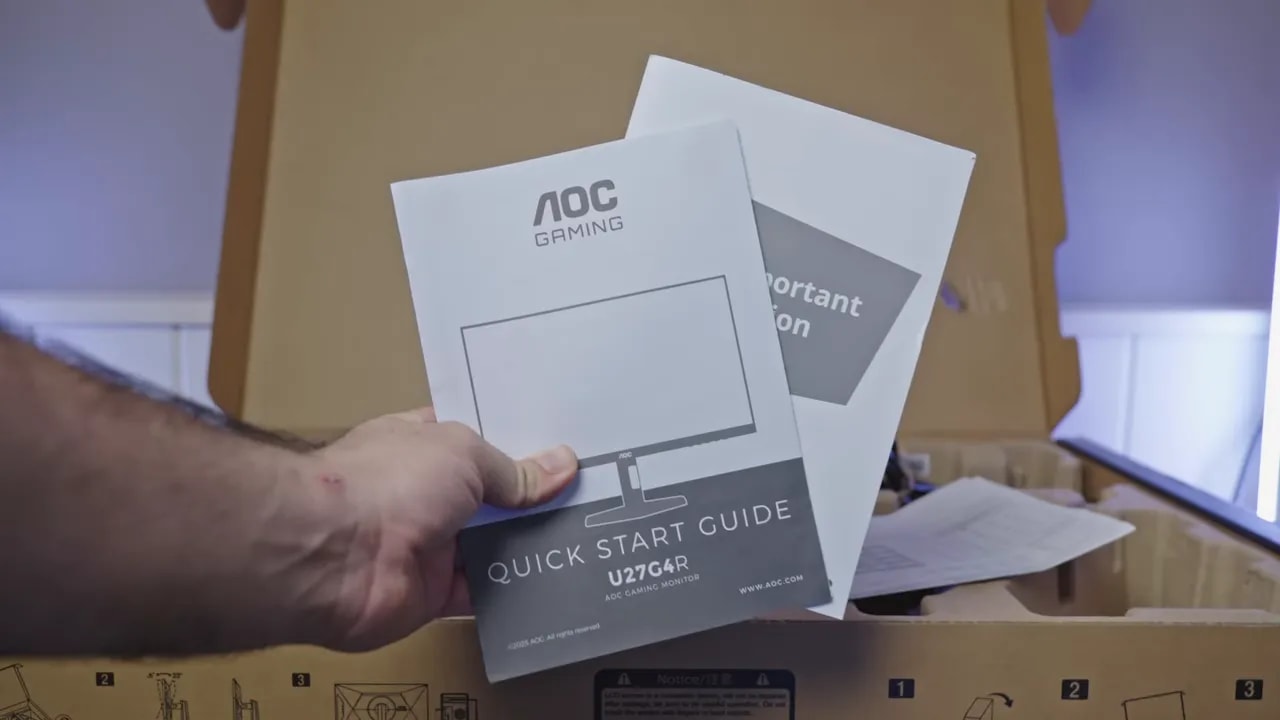
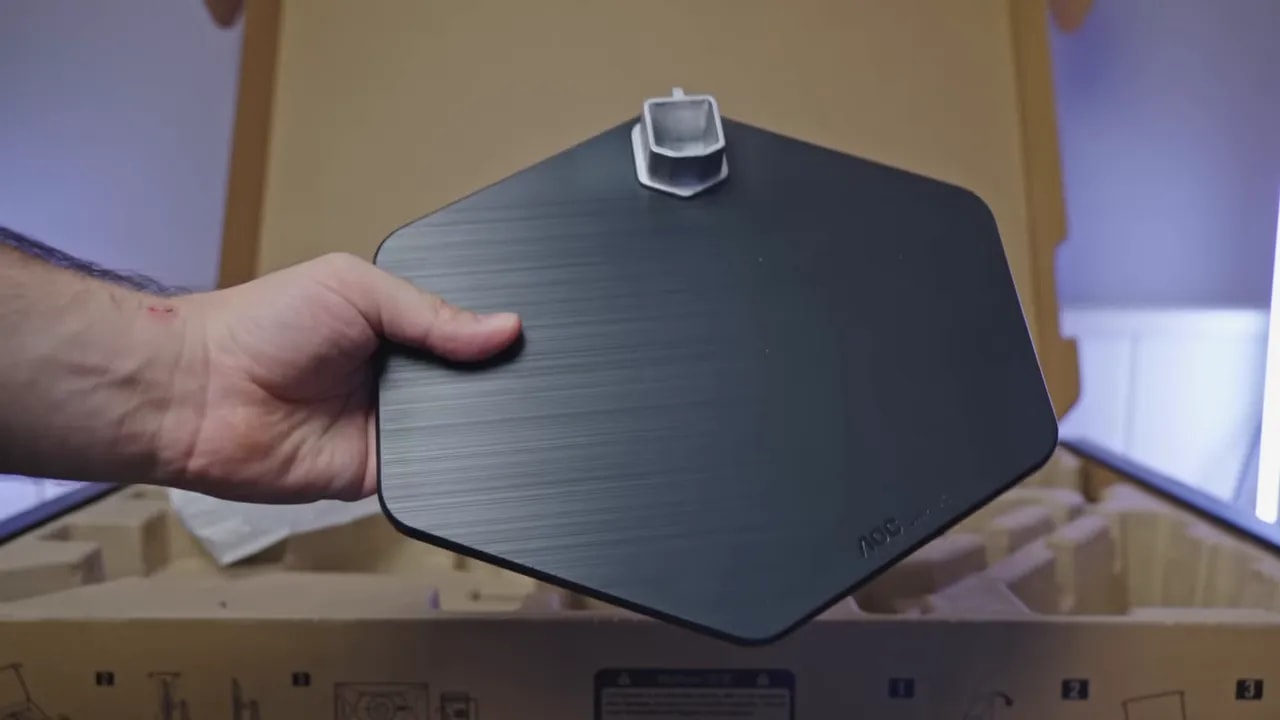 The power supply is internal, always convenient because it avoids the usual external brick cluttering the desk.
Design, stand, ergonomics, and construction
The stand is mostly plastic, but does the job well. It does not feel especially premium, nor like a badly executed budget product. I would describe the construction quality of the AOC U27G4R as simply decent, which is already quite good at this price.
Where it really stands out is ergonomics. Height, tilt, and swivel are adjustable, and it can be positioned vertically. It also lets you move the monitor without shifting the entire base, welcome in everyday use.
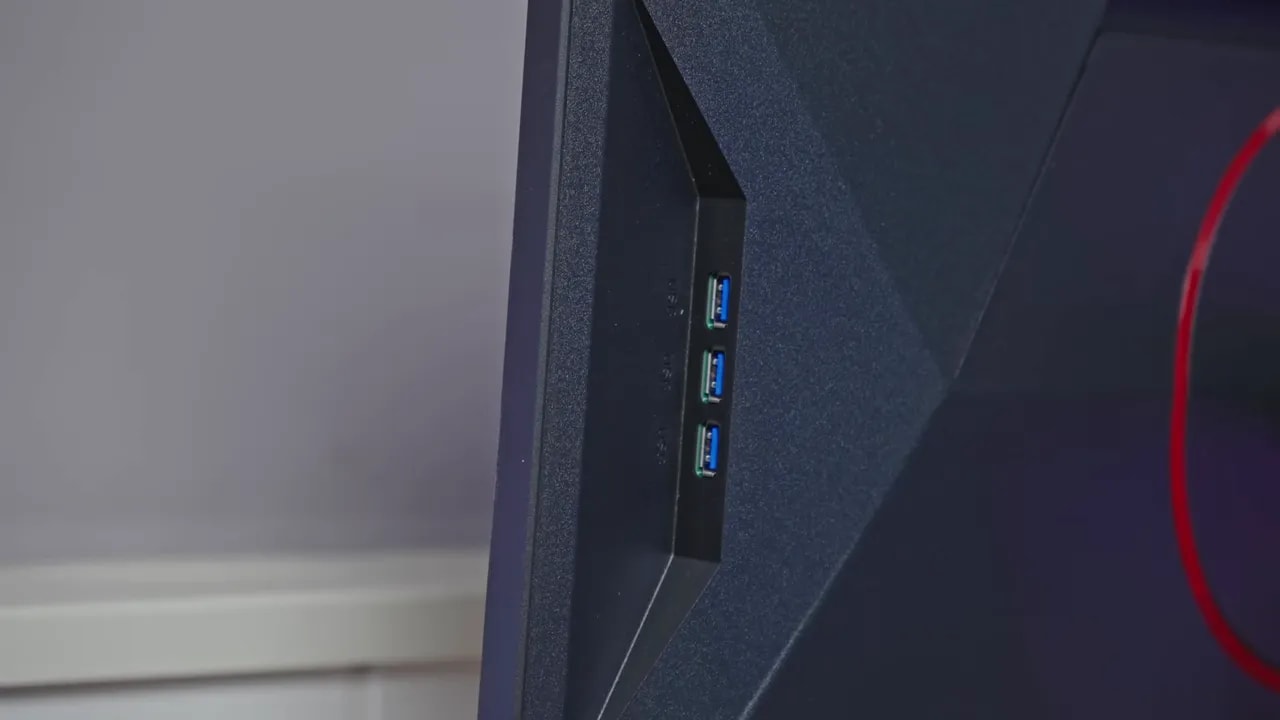
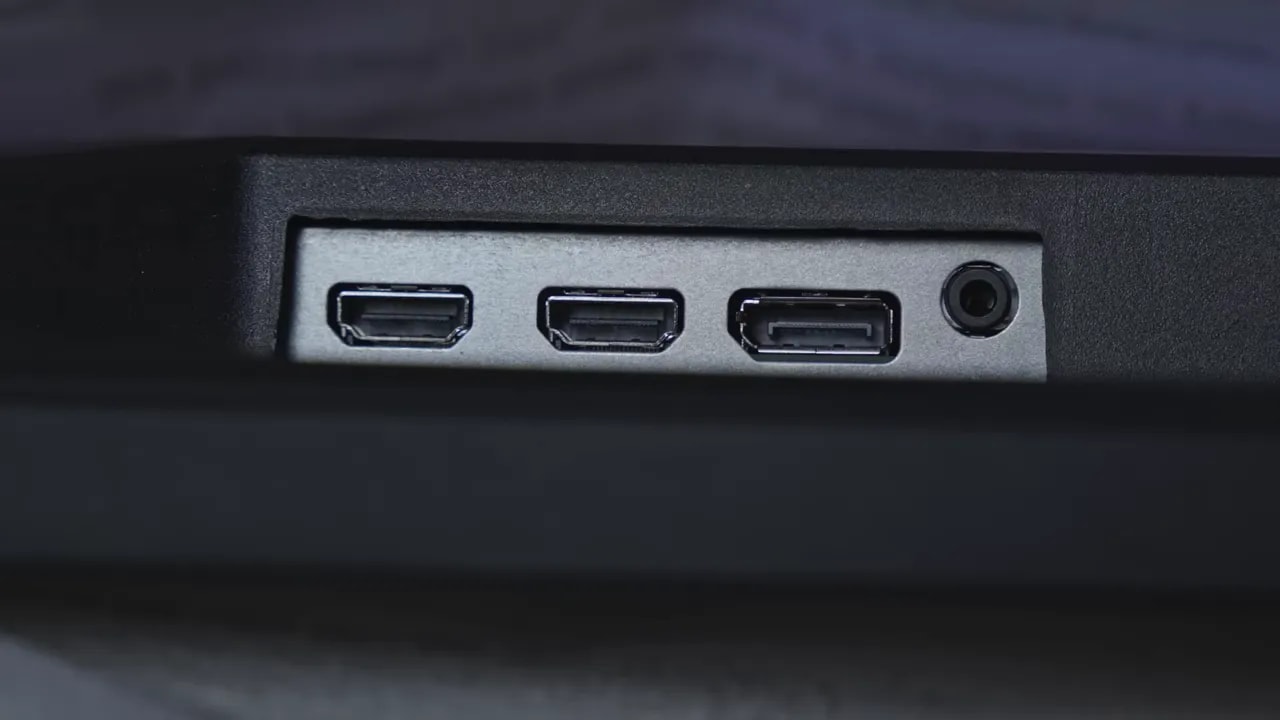
The monitor is well equipped for connectivity. It also has a four-port USB hub, with one charging-capable port underneath and others accessible from the side. That is a very good feature. The downside is that the cable needed to power the hub is not included, and honestly it would have been nice to have it in the box.
OSD control is another area for improvement. AOC chose buttons instead of a joystick here. It works, but a joystick would have been much more convenient.
Panel finish and antireflective treatment
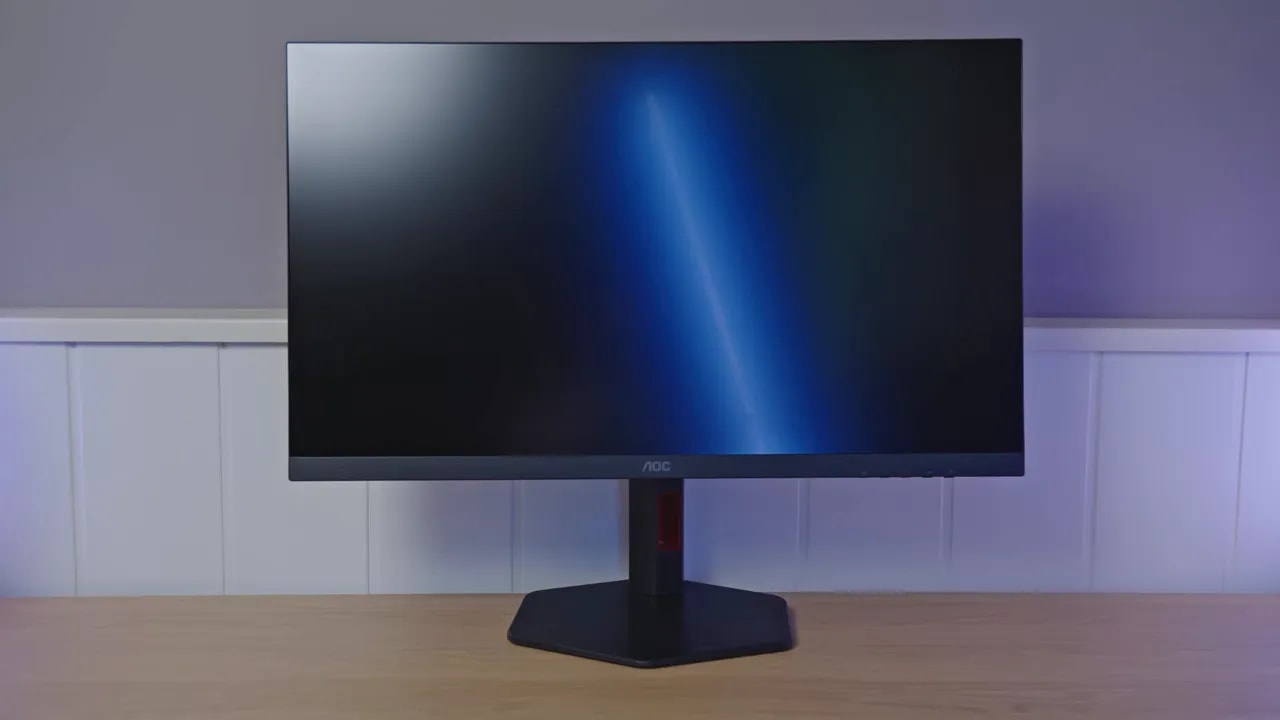
The panel on the AOC U27G4R has a matte finish, as expected, but fortunately not an aggressive one that blurs the image. You notice this with an LED strip behind you or a distinct light source: reflections remain somewhat more defined than on monitors with heavier coatings.
That has an upside and a downside. Colors retain more presence and the image feels less muted, but reflections are somewhat more pronounced. Personally, I prefer this approach: if a panel is matte, the finish should be as light as possible.
SDR picture and color modes
The OSD has several gaming modes and professional profiles. For general monitor use, the most sensible mode is Standard.
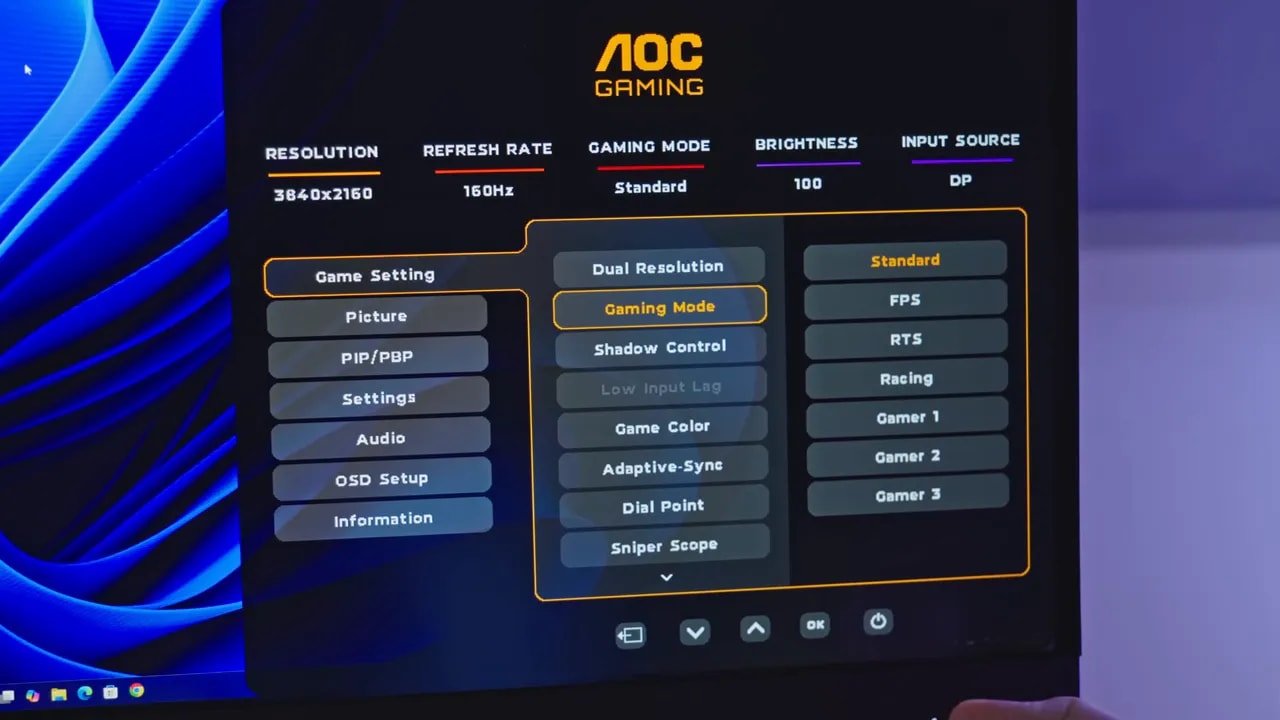
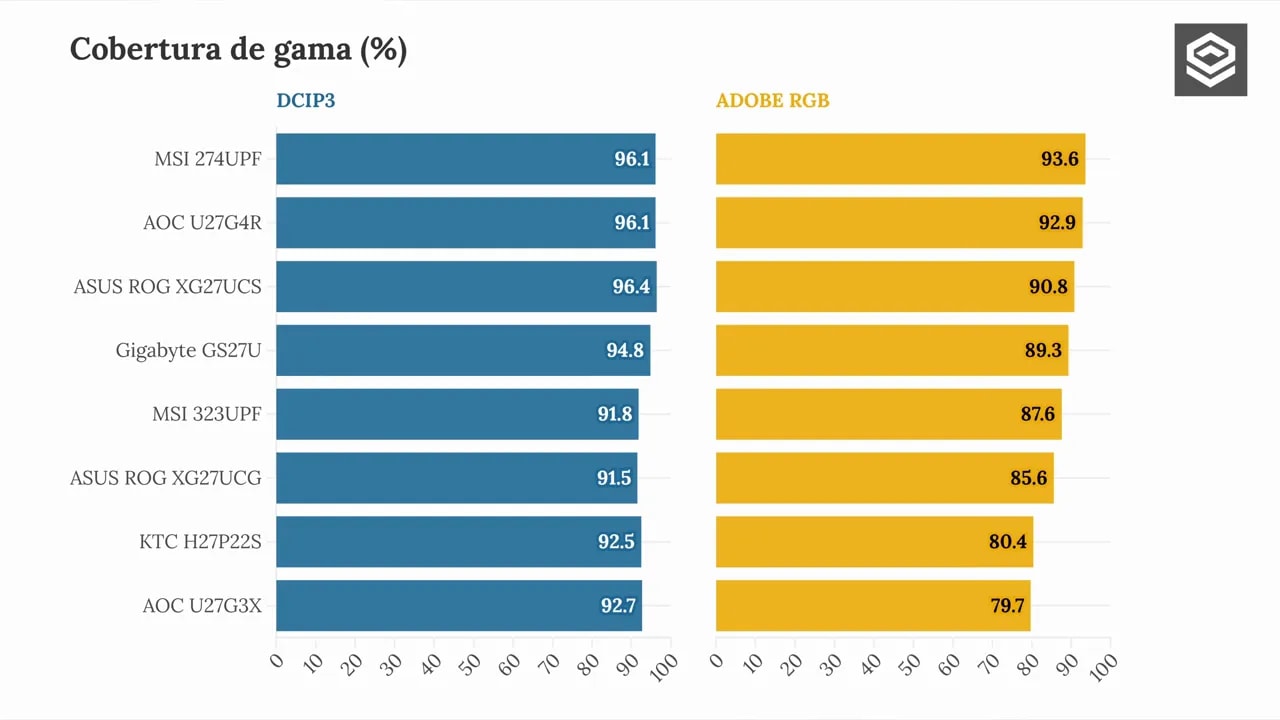
With native gamut, Standard mode, color temperature set to Warm and gamma 2.2, the AOC U27G4R offers fairly wide coverage. DCI-P3 reaches approximately 96%, very good for a monitor at this price.
Color accuracy is also quite decent, although there is a clear issue: whites and light grays deviate too much. That is where factory calibration struggles.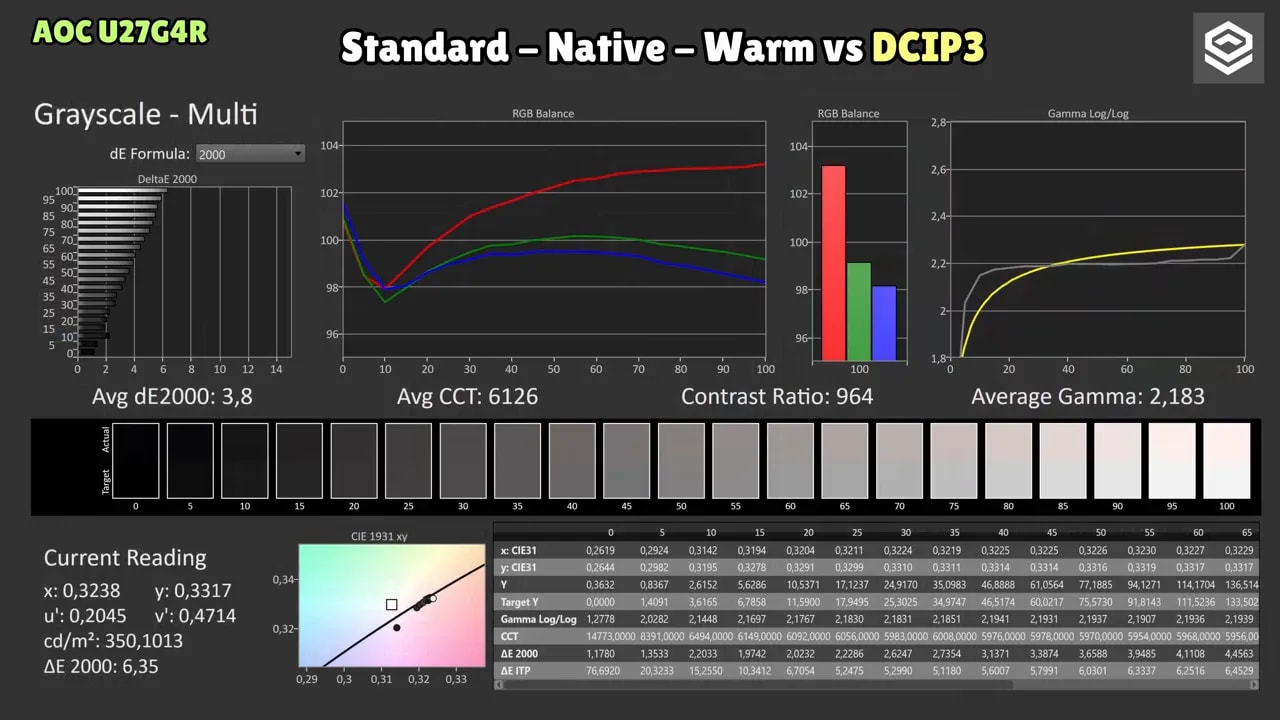
Looking more closely:
-
Light grays could improve
-
RGB balance in Warm has a warm tendency
-
Gamma behaves reasonably correctly
-
Color temperature is somewhat warm, but not dramatically so
This setting also achieves nearly 93% Adobe RGB and fully covers sRGB, even extending beyond it. That is exactly why professional modes make sense: they clamp the gamut to avoid oversaturation.
AOC U27G4R DCI-P3 and sRGB modes
Among the professional modes, the DCI-P3 profile does not clamp the gamut too much. It stays around 95%, so it remains wide. Color accuracy does not change much from Standard mode, and the same room for improvement in whites and RGB behavior appears again.
The interesting point here is gamma. In this mode, it is set to 2.6. That is not inherently bad, since true DCI-P3 usually uses gamma 2.4 or 2.6 and a white point different from sRGB’s usual D65. The issue is the odd mixture here: they retain D65 while fixing gamma at 2.6. The result is a strange halfway mode, with neither gamma nor white point adjustable.
In sRGBmode, the clamp helps remove substantial oversaturation compared with Standard. Gamut is limited to around 97% and color accuracy is not bad, but the pattern repeats: somewhat elevated whites and light grays that could improve.
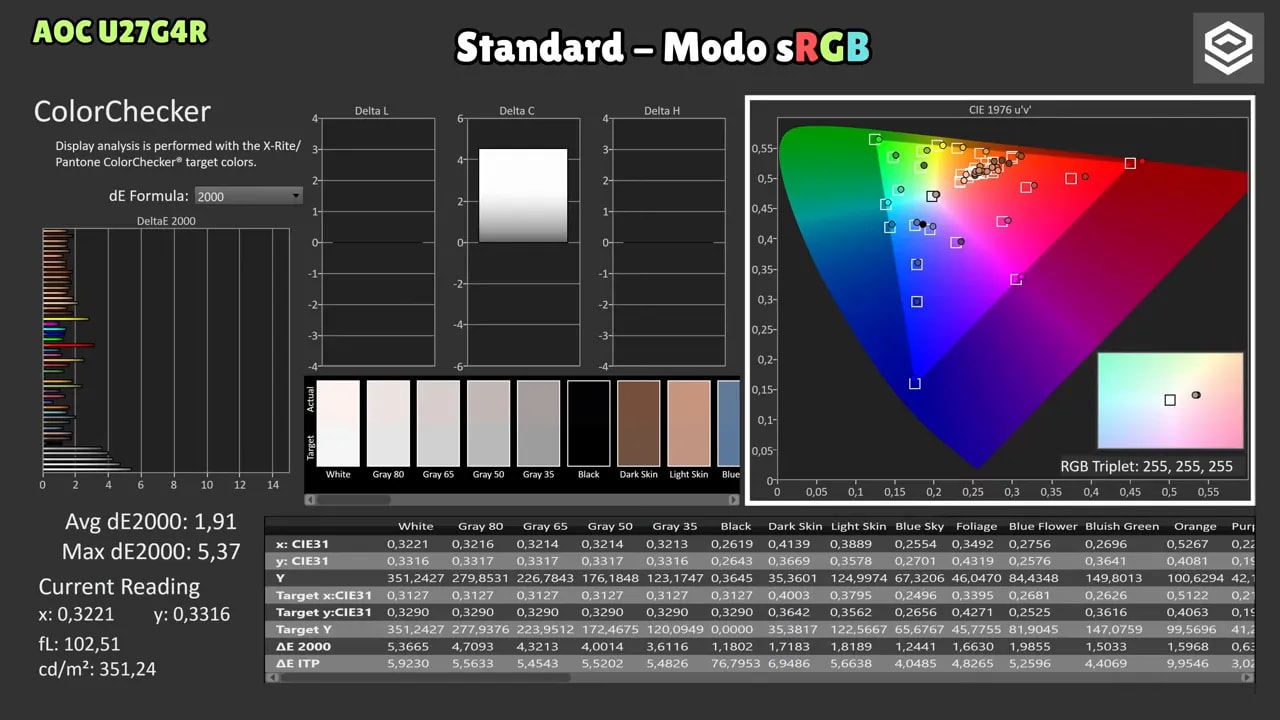
To summarize factory calibration on the AOC U27G4R: good for the price, but not fully polished. Whites and light gray tones need the most correction.


Changing presets affects gamma and white as well as clamping the gamut. In DCI-P3, those controls are locked; choose the mode based on content and restrictions, not only advertised coverage.
Manual calibration: a substantial improvement
The good news is that manual color-temperature adjustments clearly improve the monitor. Presets do not fully solve the problem, and Warm remains the best starting point. Truly fine tuning requires manual calibration.
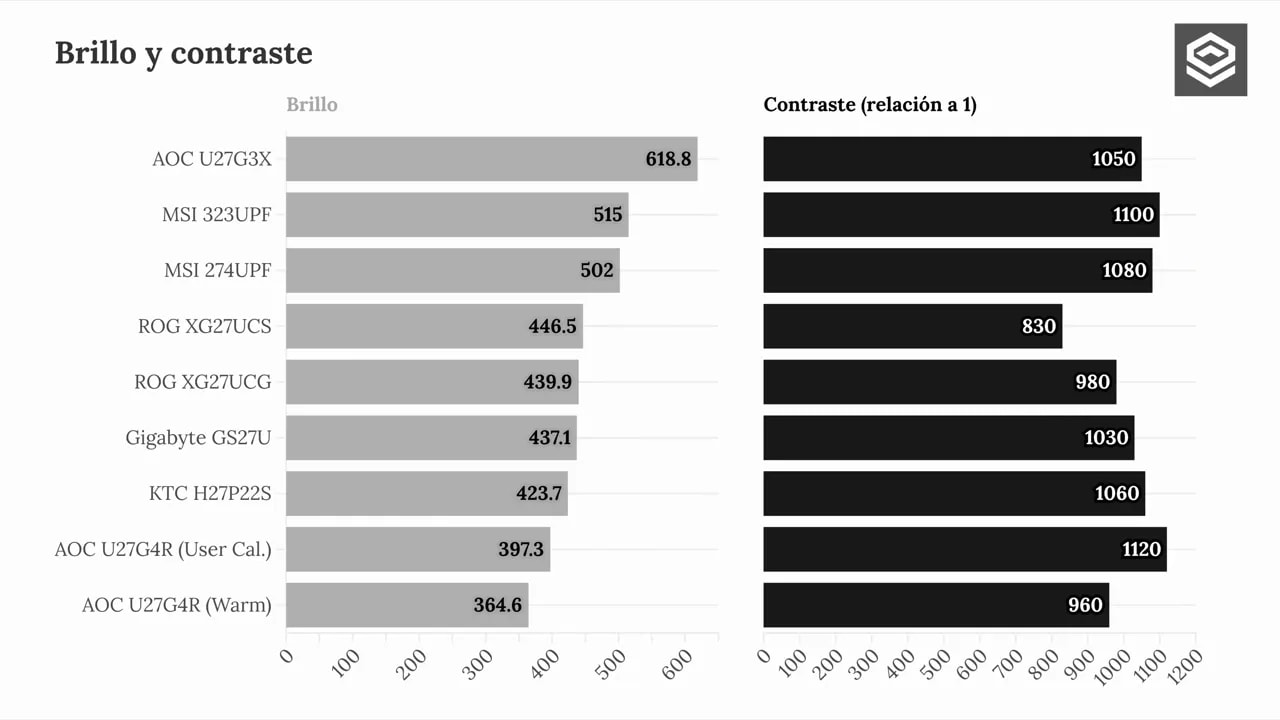
With a professional meter, custom color-temperature settings, and an ICC profile, the improvement is large. It is not just color accuracy that improves, but also brightness, which is fairly unusual.
Normally, calibrating a monitor means lowering brightness or contrast. Here the opposite happens. In the previous Warm modes and professional profiles, brightness is around 350 nits. Depending on the meter, it may be closer to 360 or 370 nits.
With calibrated color-temperature settings, the AOC U27G4R can approach 400 nits. Leaving RGB balance at default can even exceed that figure. Black level also improves, and therefore contrast does too.
In more specific numbers:
-
Calibrated: around 385 nits
-
Default with RGB at 50/50/50: close to 405 nits
If you buy the monitor, you can try copying those settings, although results will never be exactly identical because each unit varies. Even so, simply adjusting color temperature will very likely improve the image.
Keep this in mind: ICC profiles make much more sense for multimedia, editing, and color work than gaming. For gaming, at least copying the color-temperature settings is worthwhile to correct whites considerably, even without an ICC profile.
Uniformity, backlight bleed, and IPS glow
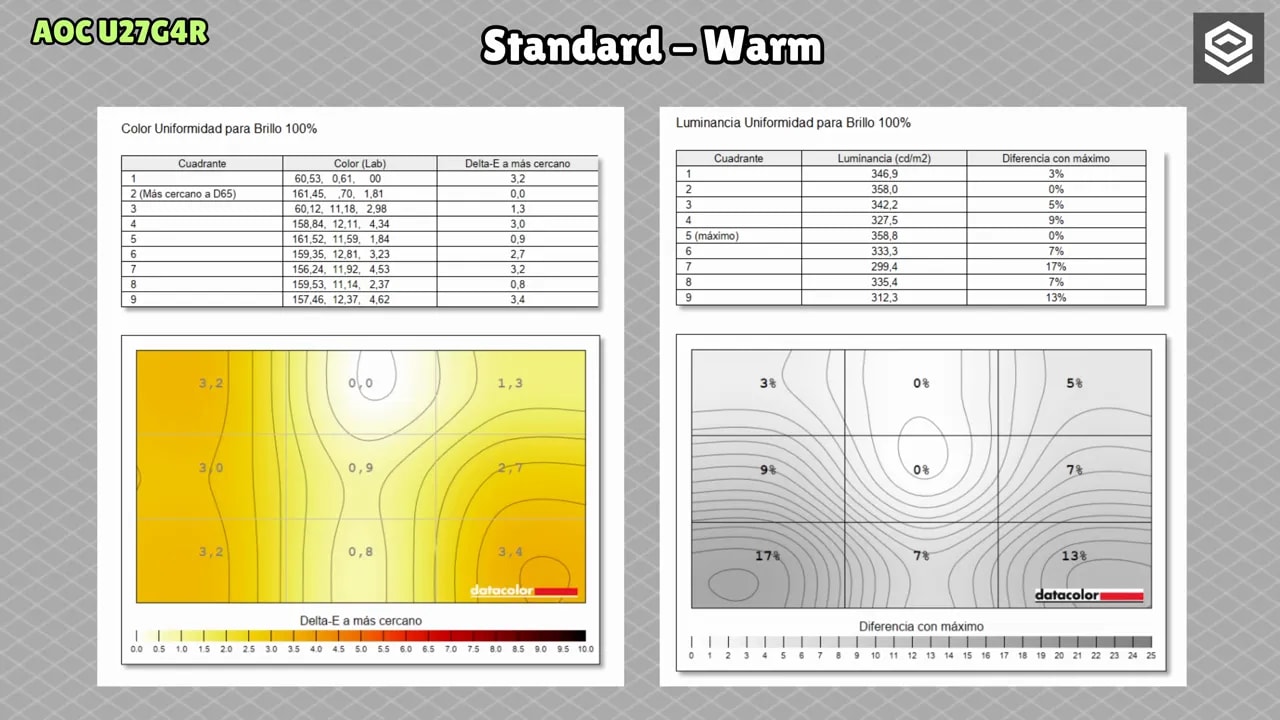
For SDR uniformity, the AOC U27G4R fares quite well. There are no excessive deviations, although brightness uniformity has more room for improvement than color, especially in the lower-left corner.
Backlight bleed always involves some lottery. This unit shows some at the bottom, but nothing I consider dramatic.
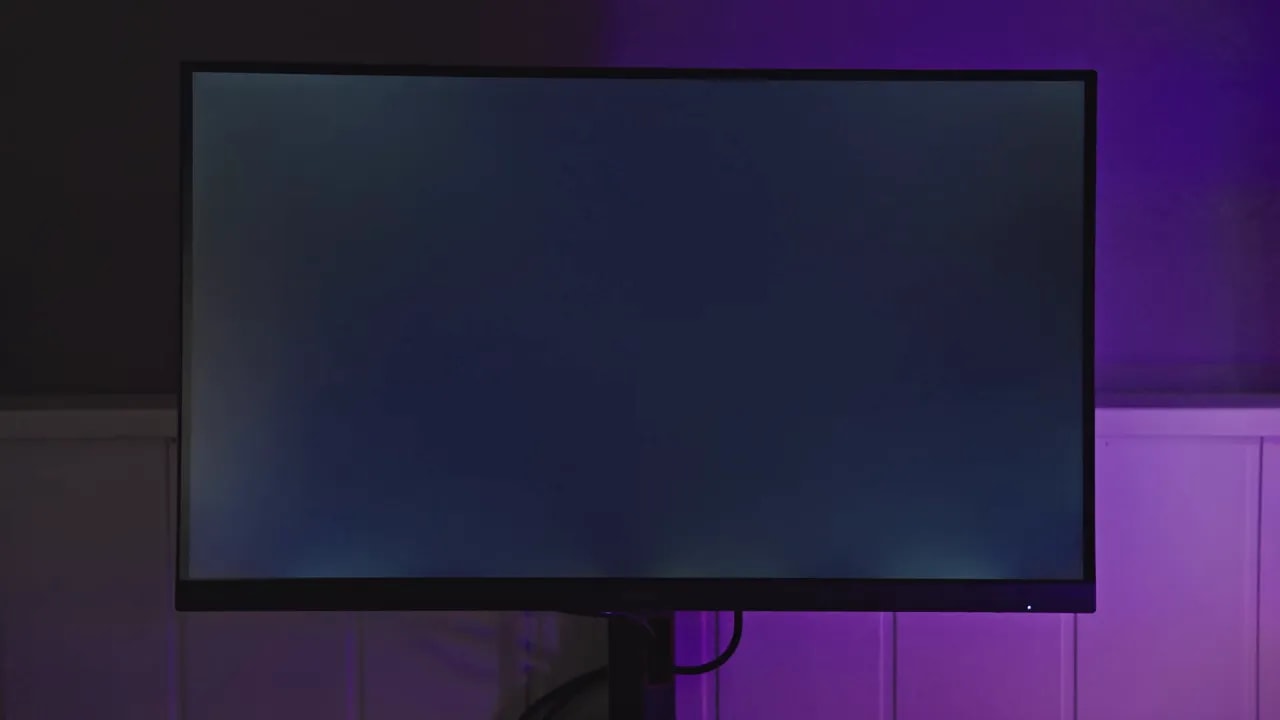
The IPS glow, which is generally more representative of the model than a specific patch of bleed, did not seem excessive for IPS either. I have seen others with a much stronger yellowish side tint.
HDR on the AOC U27G4R: usable, but mostly incidental
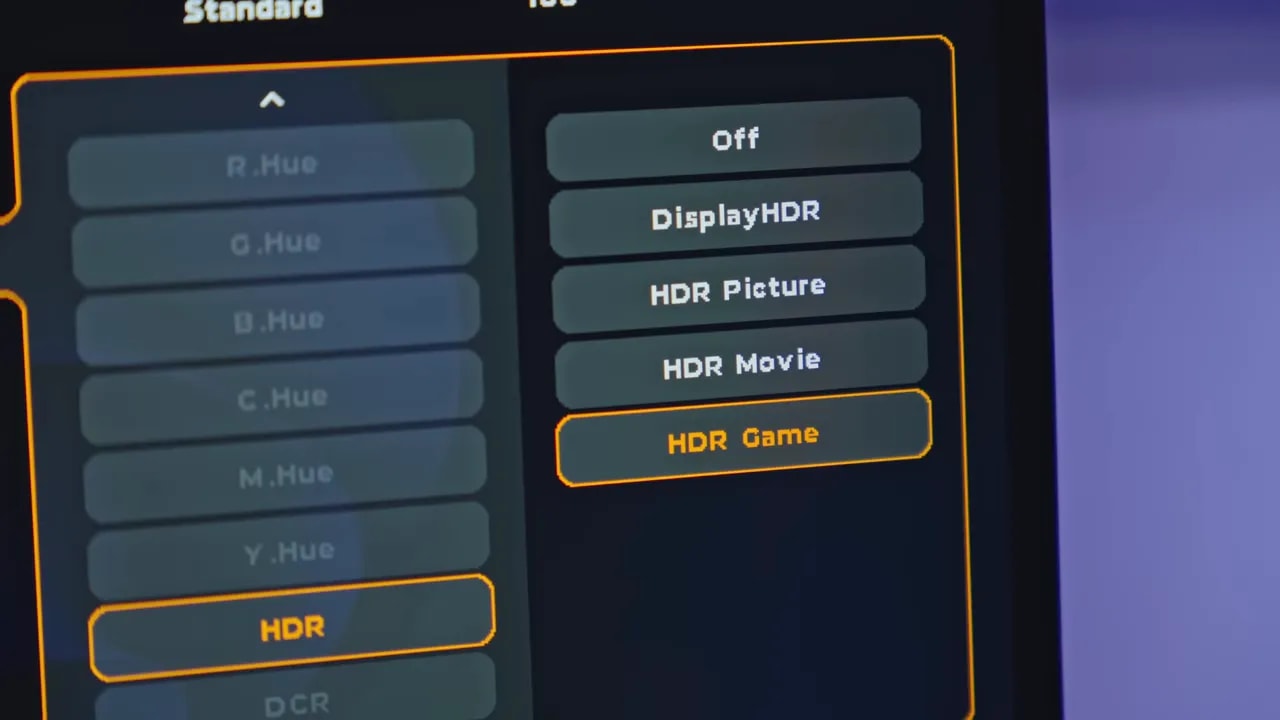
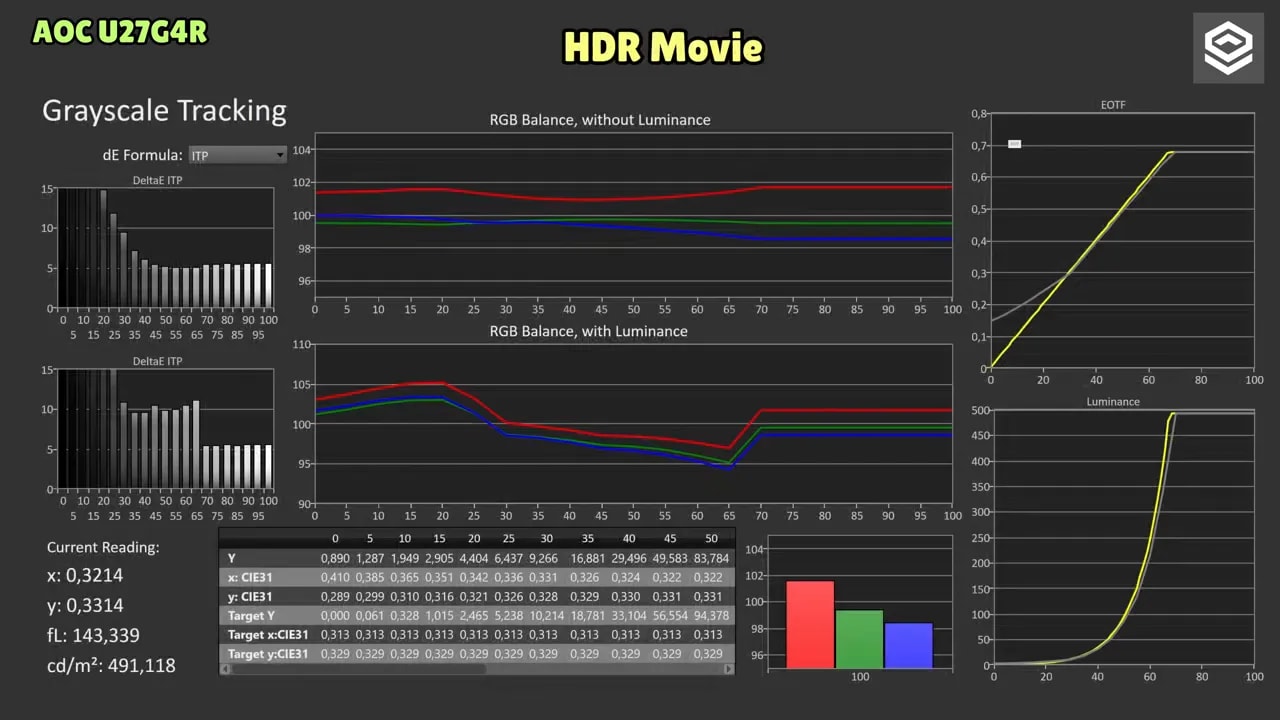
There are several HDR modes. The brightest are HDR Game and DisplayHDR, reaching around 535 nits. Movie and Picture can largely be ignored, since their calibration does not stand out either.
The real issue is not just brightness, but curve tracking too. DisplayHDR does not properly track either PQ EOTF or the luminance curve, so it is not the mode I would choose.
If you want to try HDR, the best setting is HDR Game. At least it tracks luminance more accurately. However, inaccuracies early in the PQ EOTF cause some shadow detail loss.
Then there is the fundamental issue: an IPS monitor without local dimming or OLED’s advantages cannot deliver truly striking HDR. That requires far more brightness and, above all, much more contrast. HDR here is an additional feature rather than a reason to buy.
HDR color coverage is approximately:
-
65% Rec.2020
-
Less than 90% UHDA-P3
That stands out because on many monitors SDR DCI-P3 coverage is quite similar to HDR UHDA-P3 coverage. Here, it falls more than expected.
Response times and overdrive
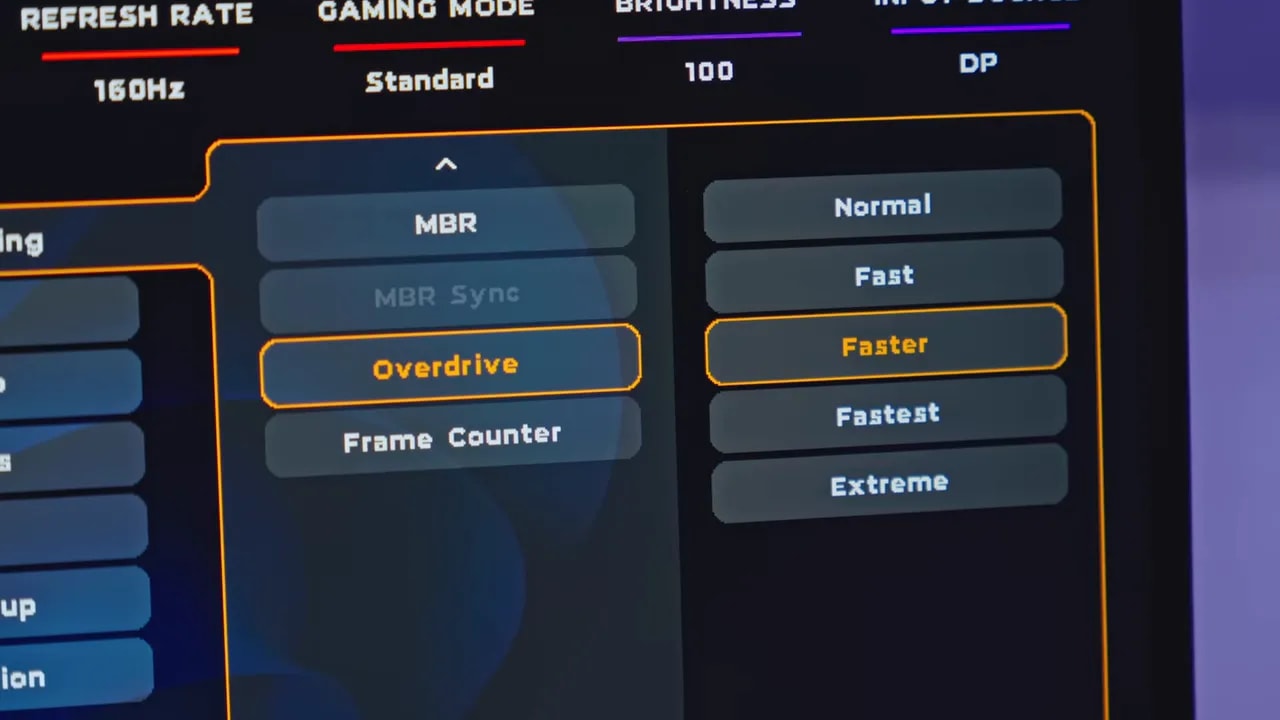
This is where a Dual Mode monitor must prove it is more than marketing, and the AOC U27G4R does quite well. Several overdrive modes are available in both SDR and HDR, and compatible with Adaptive Sync.
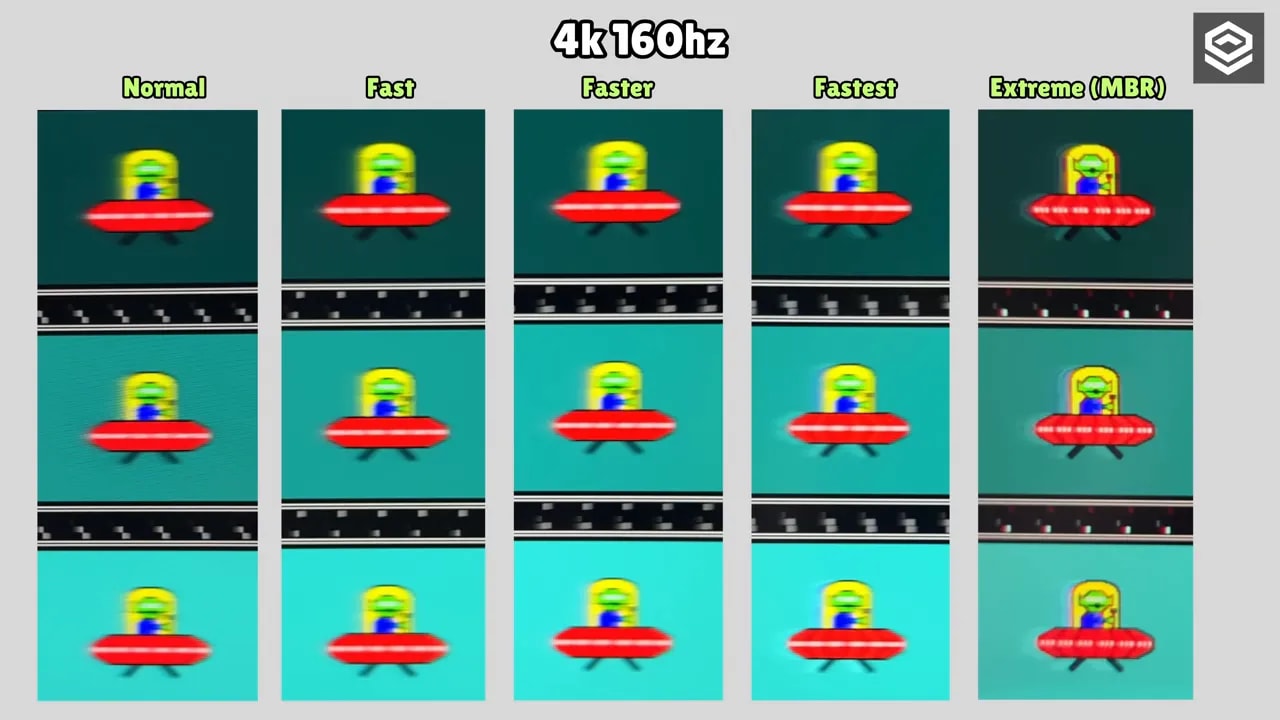
4K at 160 Hz
At 4K 160 Hz, I would choose one of these two options:
-
Fast: almost 6 ms initial response time and very little overshoot
-
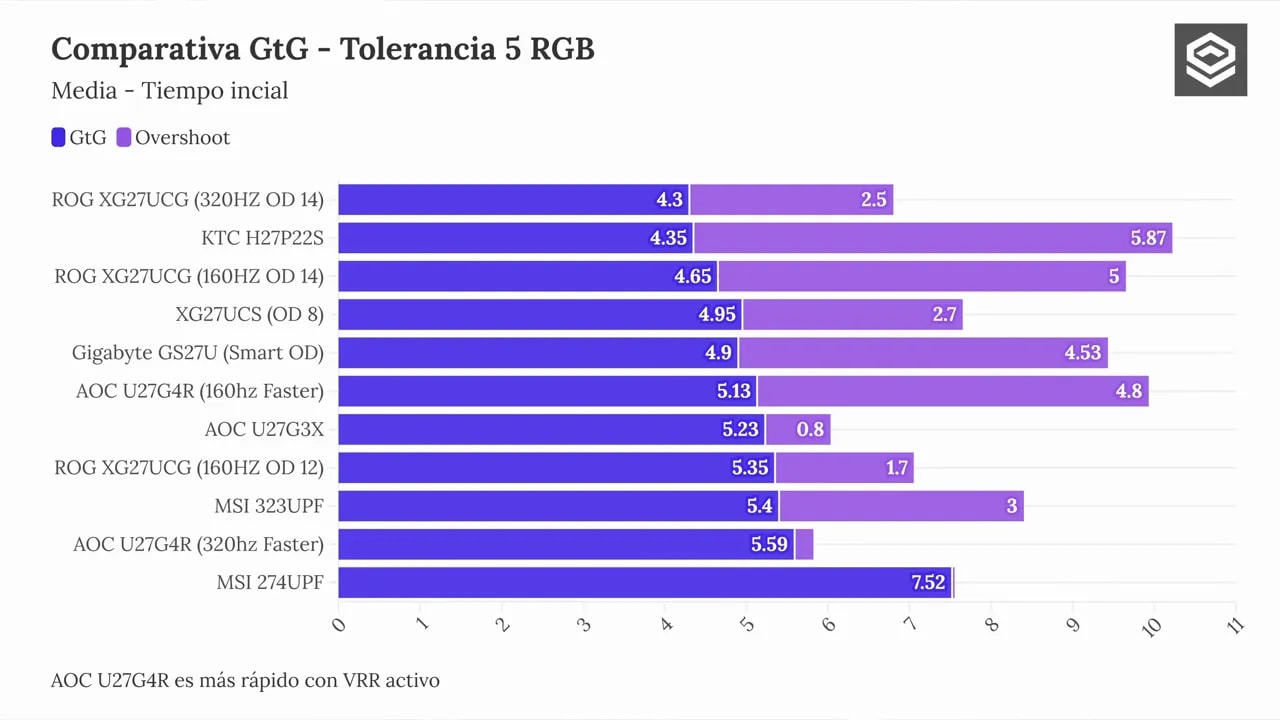
Faster: drops to around 5.13 ms, but overshoot rises somewhat
Faster mode’s overshoot is particularly noticeable on dark backgrounds, where a whitish halo appears. Fast, in exchange, leaves transitions somewhat slower. Personal preference decides here.
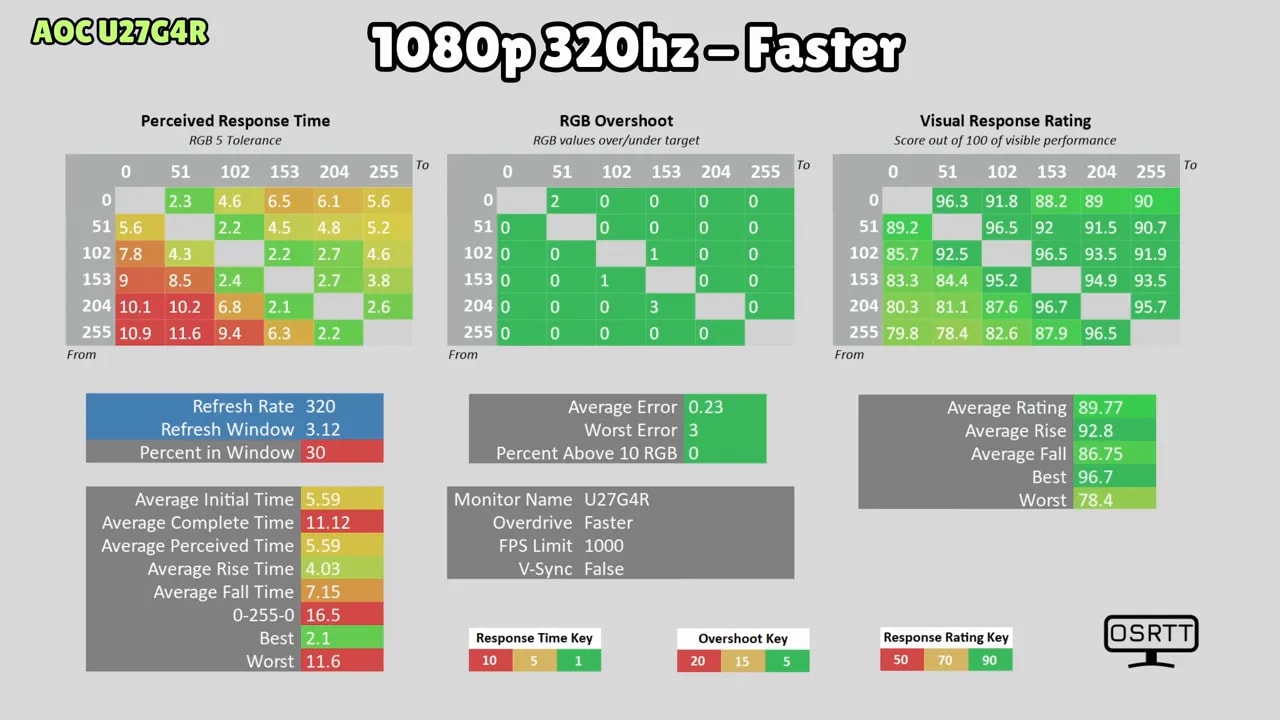
1080p at 320 Hz
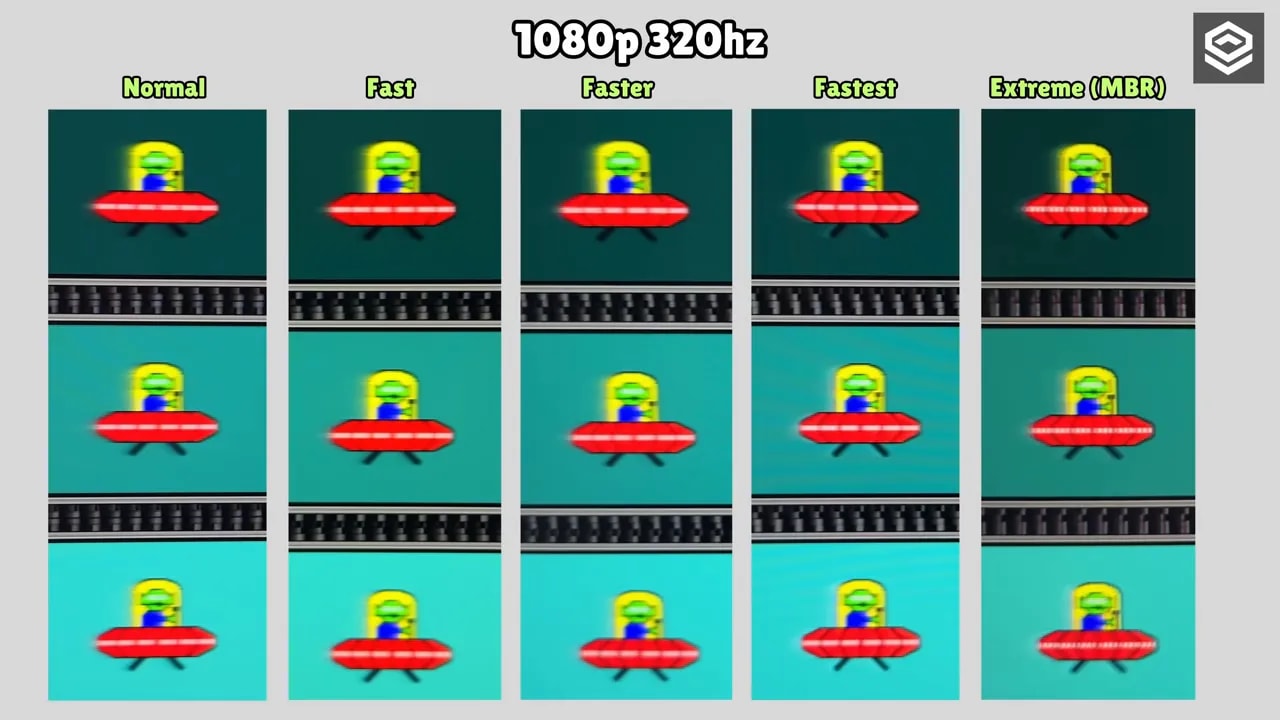
At 1080p 320 Hz, the most balanced mode is again Faster, at around 5.59 ms with little overshoot. Moving to the next level considerably reduces response time, but overshoot rises far too much.
UFO-style captures clearly show the more aggressive mode introducing visible artifacts in both dark and medium transitions. It is not completely unusable, but certainly not the cleanest setting.
Motion Blur Reduction: highly adjustable and quite interesting
The AOC U27G4R includes a Motion Blur Reduction mode with a slider from 0 to 20. It starts working at level 1 and can be used at both 4K 160 Hz and 1080p 320 Hz.
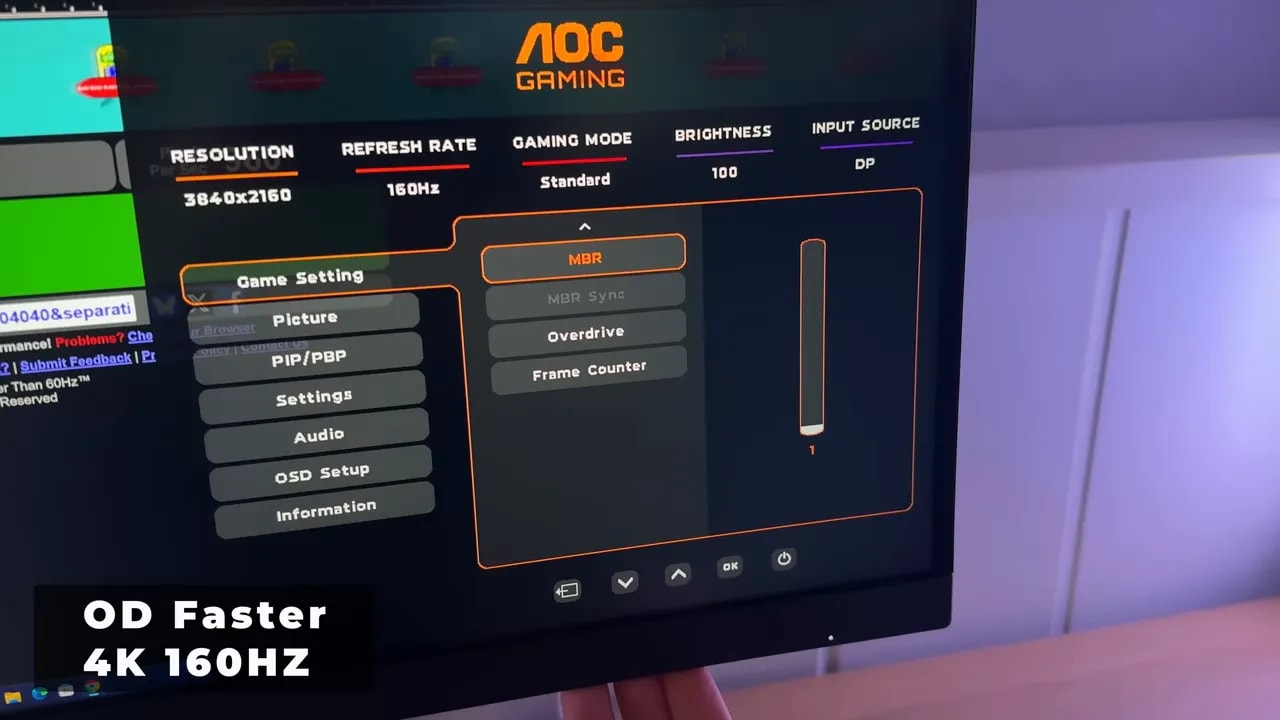
The higher the value:
-
The lower the brightness
-
The greater the motion clarity
-
The more artifacts may appear
Intermediate levels seem most sensible to me. A value around 10 visibly improves clarity without sacrificing too much brightness or introducing too many defects. At high levels, the image loses considerable light and artifacts become more obvious.
Such fine adjustment is a great feature. Some monitors force you to choose between only a couple of fixed levels. Here, you can fine-tune much more.
Personally, though, I am not this technology’s biggest fan. I completely understand its appeal to some competitive gamers, but I usually prefer leaving it off. Still, good implementation adds a lot.
There is also an Extreme overdrive mode that actually acts as another form of Motion Blur Reduction. Honestly, I do not quite understand why it exists separately when a dedicated slider already lets us adjust it to taste.
Adaptive Sync, G-Sync Compatible, and overdrive behavior
The monitor supports Adaptive Sync, allowing use with Nvidia cards as G-Sync Compatible or AMD through FreeSync. It lacks official Nvidia certification, but works quite well in practice, without serious flickering at either 4K 160 Hz or 1080p 320 Hz.
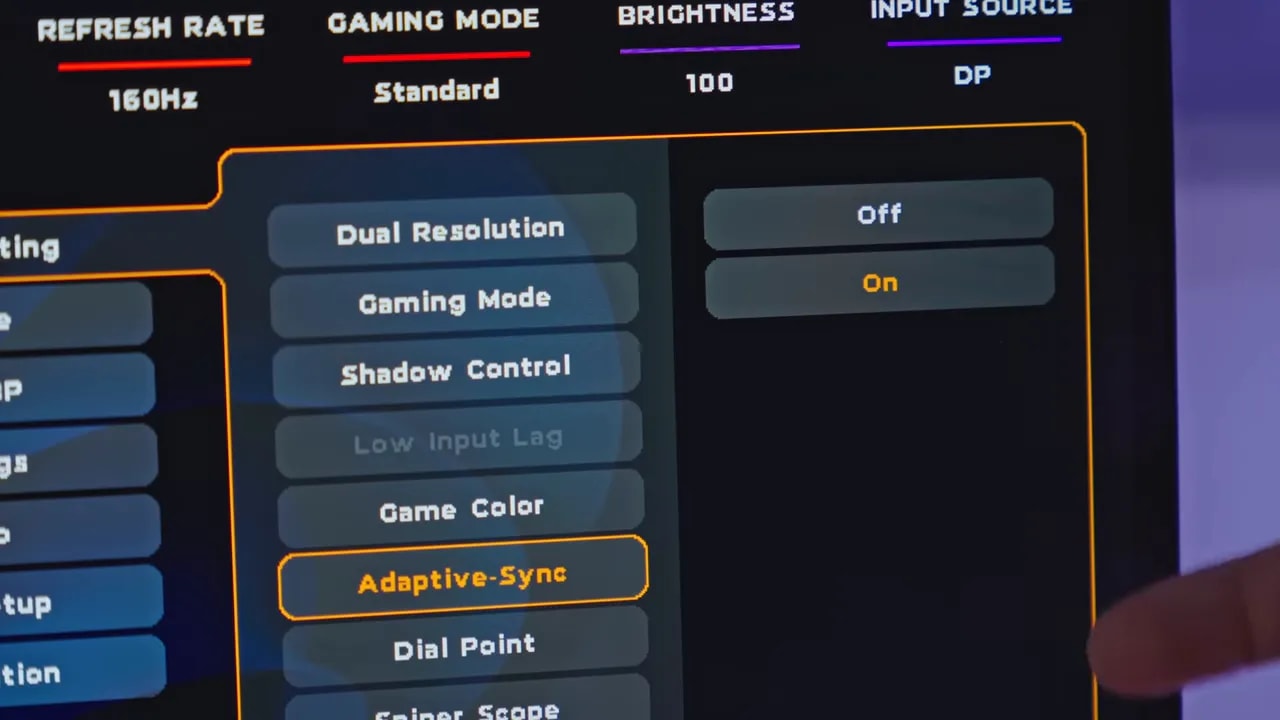
It also has an unusual feature: you can enable Motion Blur Reduction alongside Adaptive Sync. In that case, however, there is only one setting rather than a fine slider. Frankly, it is not my favorite visual combination, but it is there for anyone wanting to experiment.
The really interesting part is something else. Enabling Adaptive Sync, even without then enabling G-Sync in Nvidia’s control panel, changes overdrive behavior. These are tangible changes, not microscopic differences.
For example:
-
At 4K 160 Hz, Faster drops to around 4.58 ms and overshoot rises only slightly
-
At 1080p 320 Hz, Faster also becomes somewhat quicker, approaching 5 ms with barely any overshoot penalty
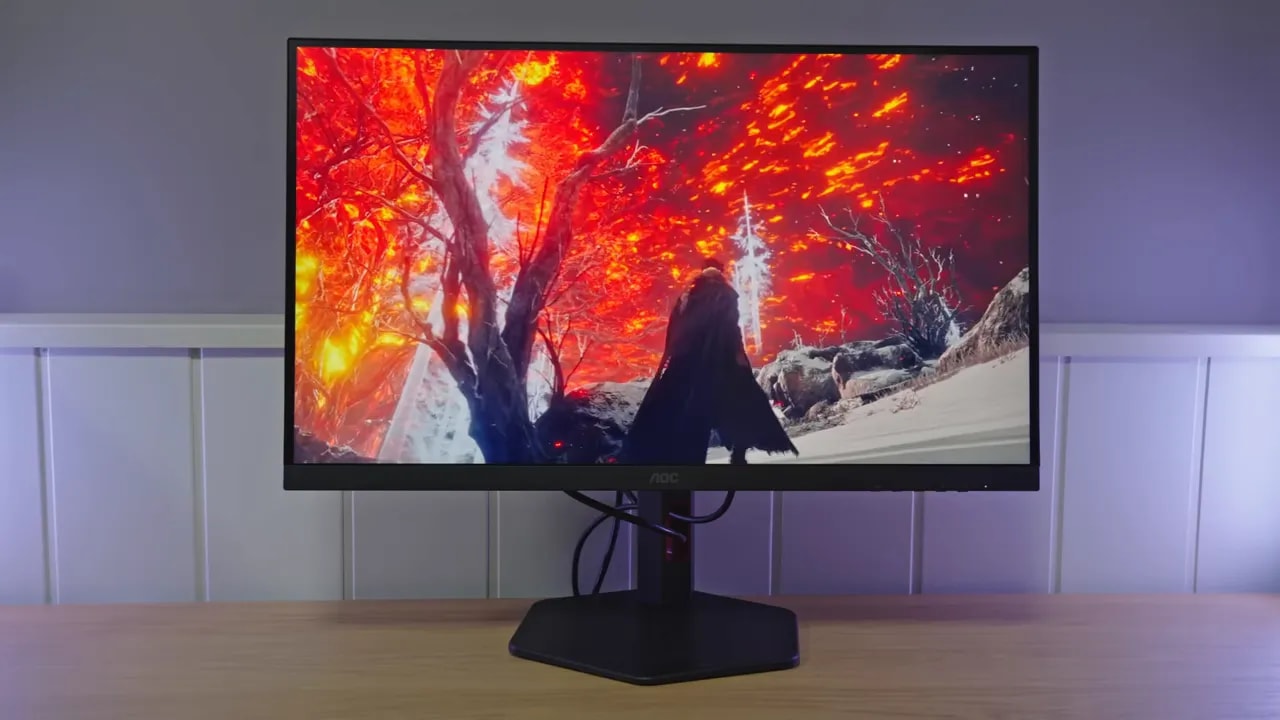
That is why I recommend leaving Adaptive Sync enabled. It feels as though AOC has tuned overdrive better in that scenario.
The trade-off is that doing so disables Low Input Lagmode. But the practical loss is minimal. With it off, input lag rises only around 0.3 ms depending on the tested refresh rate. In practice, almost nobody will notice that difference, while you can benefit from better ghosting and transition behavior.


Enabling Adaptive-Sync changes overdrive behavior even with resolution, refresh rate, and the Faster name unchanged. These captures document that nuance; 1080p at 320 Hz tests use another configuration and are consulted separately.
PS5 compatibility and console use
If you want to use the AOC U27G4R with PlayStation 5, there is good news. Thanks to HDMI 2.1 with full bandwidth, the monitor allows:
-
4K at 120 Hz
-
ALLM
-
VRR
-
HDR
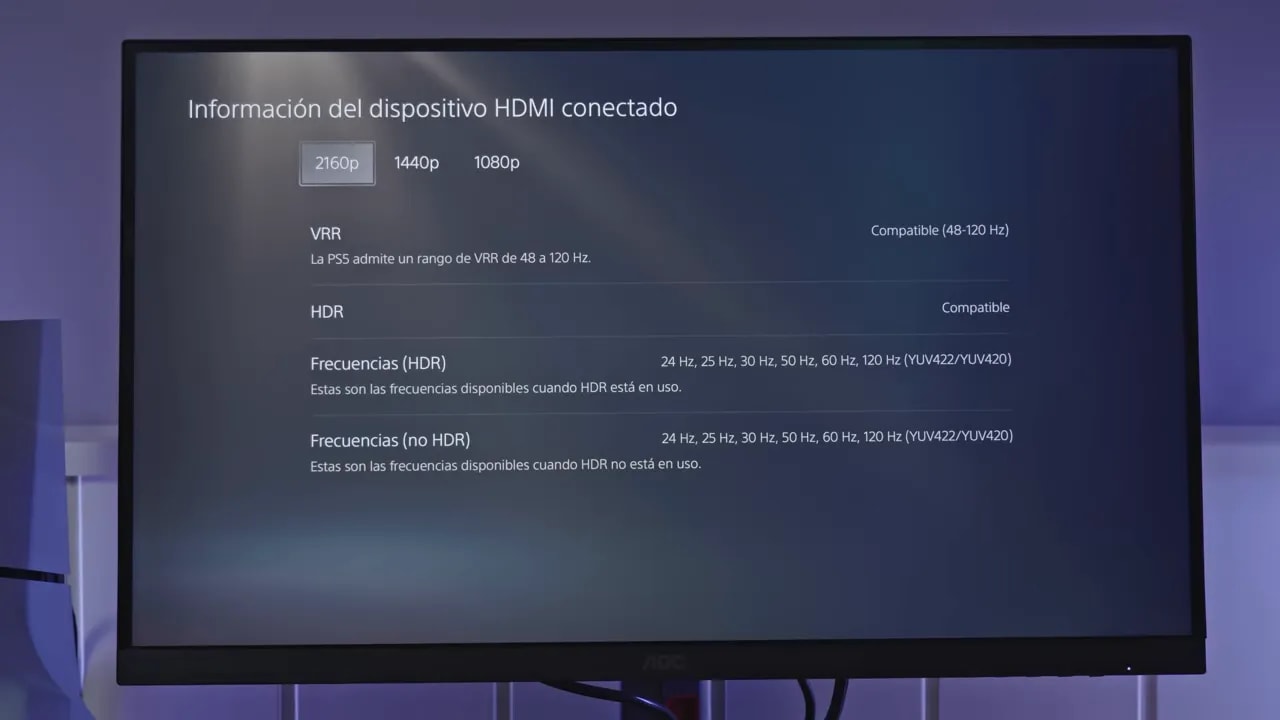
For console use, overdrive recommendations are:
-
120 Hz without VRR: mode Faster
-
120 Hz with VRR: preferably Fast, because Faster increases overshoot more
-
60 Hz: simply Fast, with or without VRR
So for anyone wanting a monitor suited to both PC and PS5, the AOC U27G4R fits very well.
PIP, PBP, audio, and other extras
There are several interesting additions not always found at this price. For example, it has PIP and PBPmodes, useful for displaying two video sources simultaneously.
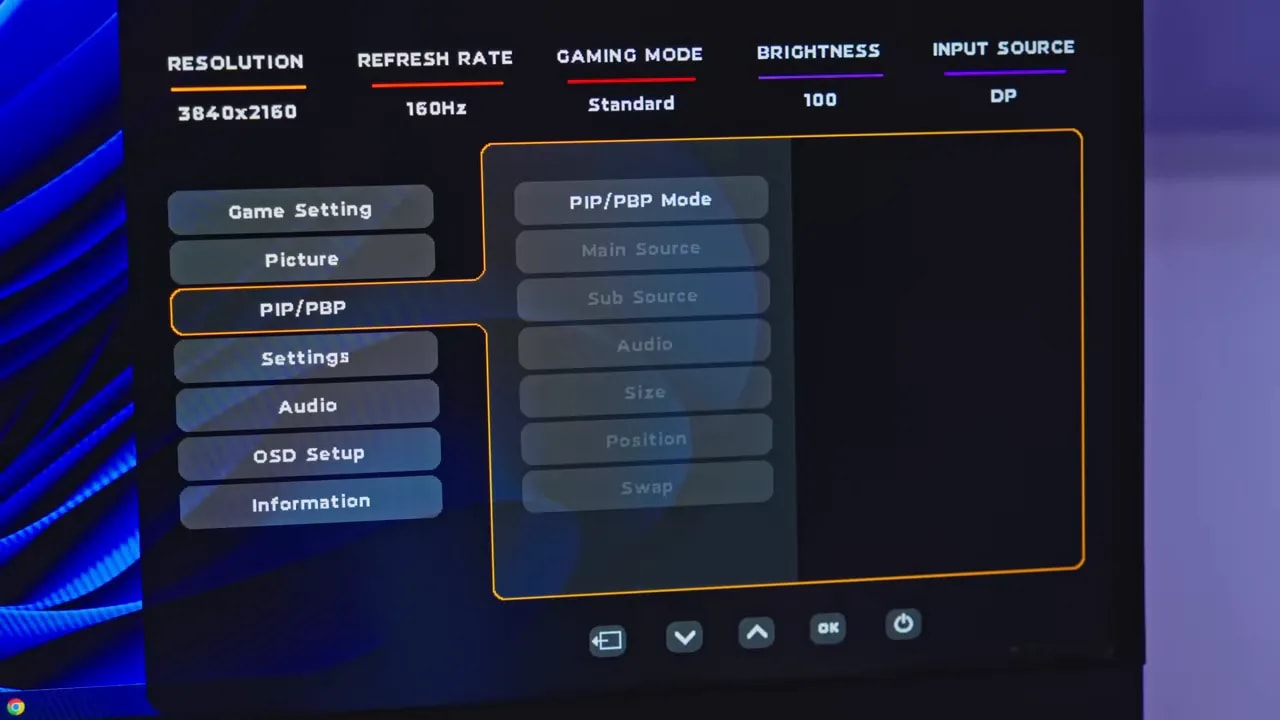
However, although the OSD shows audio settings, the monitor does not have built-in speakers. Those controls manage volume for connected headphones or external speakers.
How 1080p mode looks at 27 inches
There is an unavoidable issue here. 1080p at 27 inches is not particularly high pixel density, and yes, pixels are more visible than at smaller sizes. In my view, 27 inches is large for Full HD.
The good news is that scaling is quite well done. It does not look like typical poor Windows scaling with odd defects. To the naked eye it seems quite clean, and text looks decent within the limitations of that resolution.
 However, I miss a crop mode for 24 inches for competitive shooter players who prefer a slightly smaller image within the panel. That would have been a nice addition.
Price and value compared with other options
One of the key points of the AOC U27G4R is price. It has been available around 300 euros, particularly at retailers such as PC Componentes, and Amazon has sometimes dropped to that figure too.
This is where the monitor becomes much more appealing. Yes, some options are better in certain areas. In fact, I have already tested another Asus IPS Dual Mode that was slightly superior in some respects. The problem was a price difference of more than 150 euros.
Honestly, I would never pay that difference. With the same concept, the AOC U27G4R delivers performance far too similar to justify such a large price increase.
Final verdict on the AOC U27G4R
For around 300 euros, the AOC U27G4R seems like a very capable monitor to me. It has a great deal to offer:
-
True Dual Mode with 4K 160 Hz and 1080p 320 Hz
-
IPS panel with good colors
-
HDMI 2.1 ideal for PS5
-
Full ergonomic adjustment
-
USB hub
-
Adaptive Sync working well
-
Motion Blur Reduction highly adjustable
-
Response times competitive for its class
The main weakness is factory calibration, particularly the inaccurate whites, and HDR that exists but remains largely incidental. I would also have appreciated an OSD joystick, a cable for the USB hub, and, while we are at it, a 24-inch crop mode.
Even so, the overall balance is very good. More importantly, several shortcomings can be reduced through simple adjustments, particularly color temperature, which also helps gain brightness.
If you want a versatile monitor for switching between competitive games and high-resolution titles, at a good price without moving into much more expensive ranges, the AOC U27G4R is one of the most interesting options available right now.