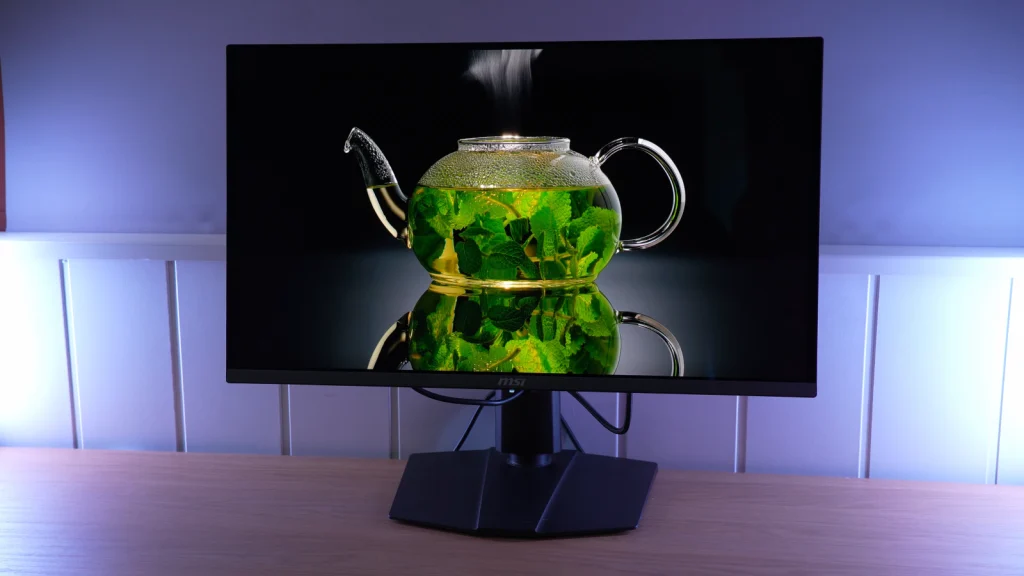
The MSI MPG 272URX brings a very appealing combination to a compact format: QD-OLED, 4K resolution, and 240 Hz at 27 inches. Its main advantage over 32-inch models in the same family lies in definition and desk space. Testing does not show a comparable leap in brightness or color; the important new feature is how that panel fits into a more compact desktop setup.
It is a good choice for alternating between games and tasks that benefit from sharp text, provided you can control reflections. It also has connections that make it useful with multiple devices. In exchange, it retains the brightness limitations, differences between HDR modes, and care requirements of an OLED.
MSI temporarily loaned the unit for this review. The review is not sponsored.
In this review
Packaging, accessories, and assembly
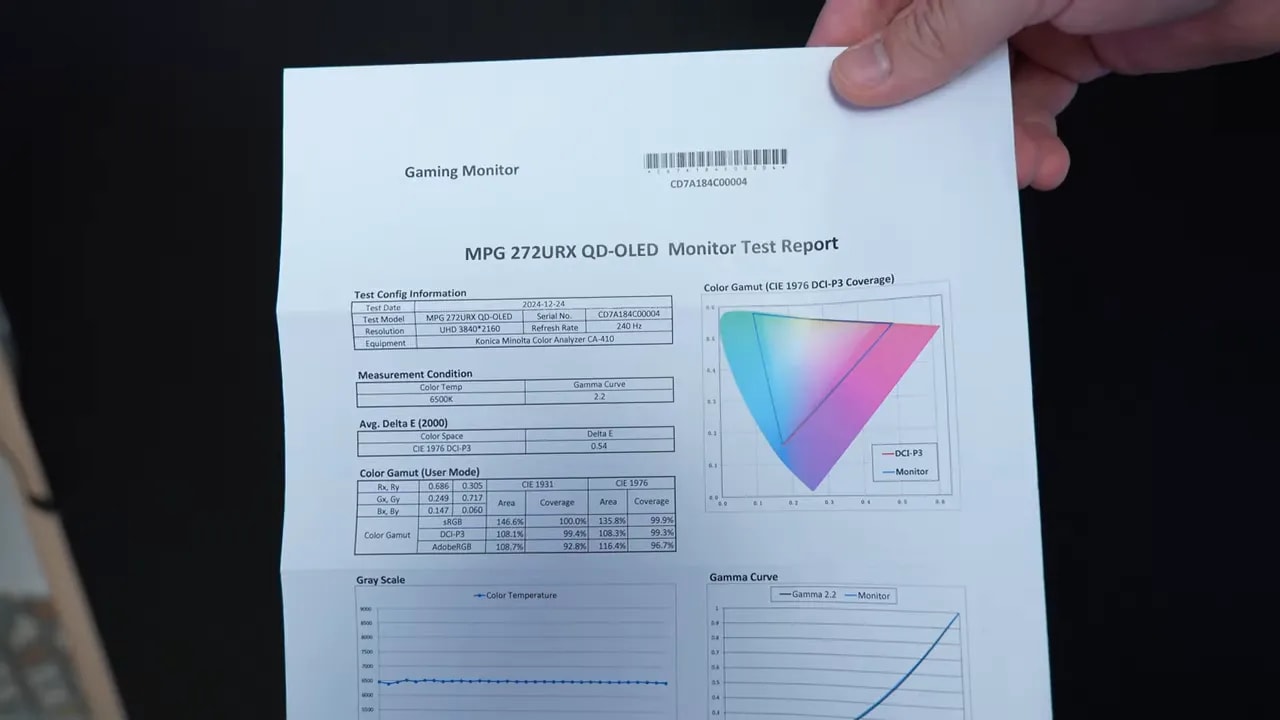
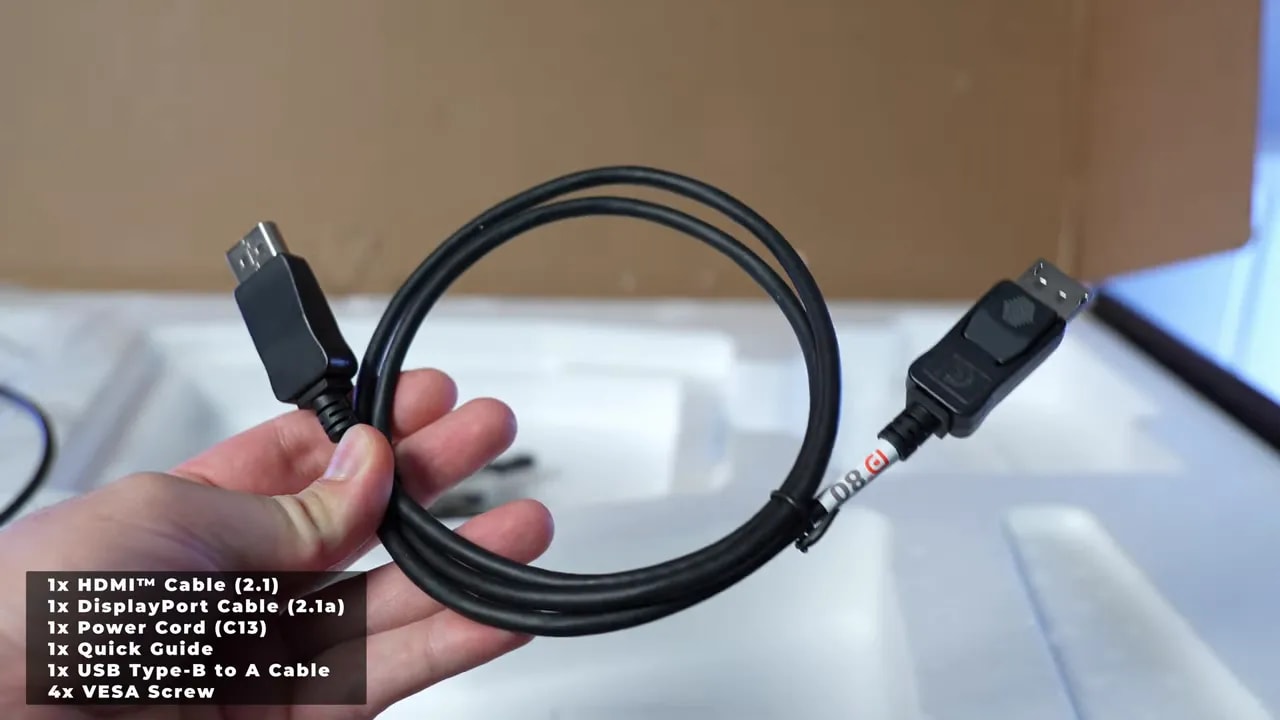
The box includes a useful detail: a DisplayPort 2.1 cable supporting up to 80 Gbps, matching the monitor’s full-bandwidth connection. The photos show both the cable and the test report supplied with the unit. The manufacturer’s report is a delivery reference; this review’s conclusions come from measurements taken for the review.
The stand follows the approach of MSI’s other 27-inch QD-OLED models. It allows height adjustment, tilt, and swivel without dragging the whole base. That is a practical difference compared with tilt-only models: it is easier to center the image and position it at the right height, especially if you change posture or alternate work and gaming.
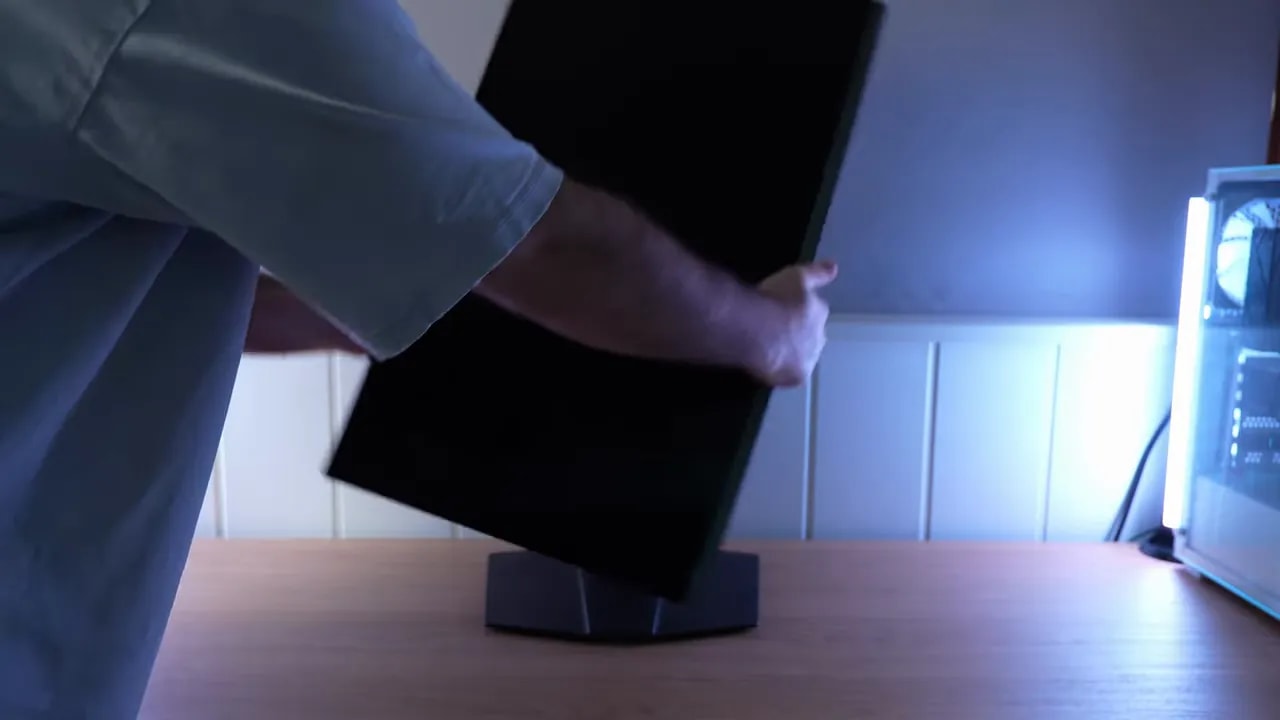
That alone is not a reason to pay any premium, but it is part of the package. If you need an external stand to compensate for a basic one, factor that cost into comparisons.
27-inch 4K: what changes on the desktop
4K pixel density at this size makes text very sharp and largely disguises the color fringing from the QD-OLED subpixel structure. In the review, it was hard to see at a normal distance. This is a worthwhile improvement if you are coming from a 27-inch 1440p OLED and spend part of your day reading or working with windows.
That does not necessarily mean using 100% scaling. With so many pixels on a small surface, interface elements may be too tiny. Increasing text size lets you benefit from the definition without sacrificing comfort. A 32-inch screen makes lower scaling easier and gives you more physical room for windows; compactness and sharpness take priority here.
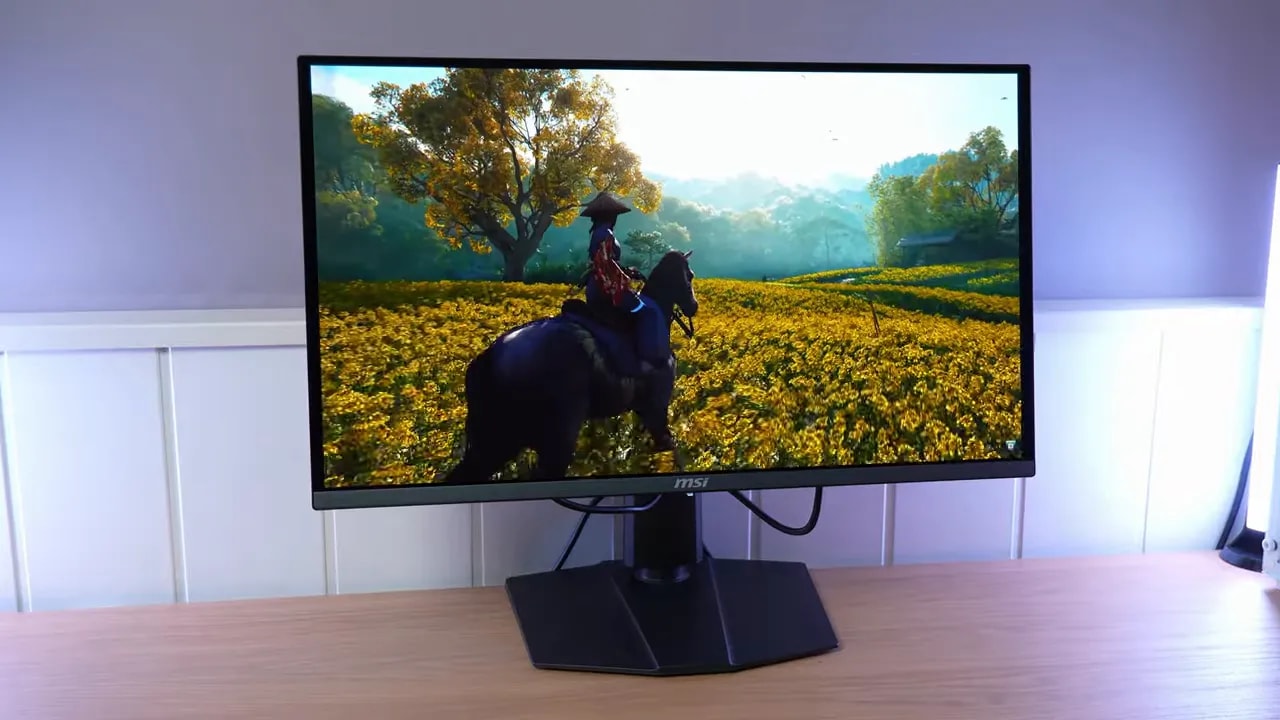
In games, the compact size helps keep the entire scene in view. A 32-inch screen has more presence and immersion, especially in single-player games. Choosing between these formats depends on viewing distance and what you want from your desk, because the 272URX does not generally improve on the panel performance of the tested 32-inch 4K QD-OLEDs.
Glossy finish and ambient light
The glossy finish keeps the image clean, without the texture of a heavy matte coating. The trade-off is distinct reflections. Direct light on the panel produces the magenta tint seen in testing, and blacks lose some perceived depth.
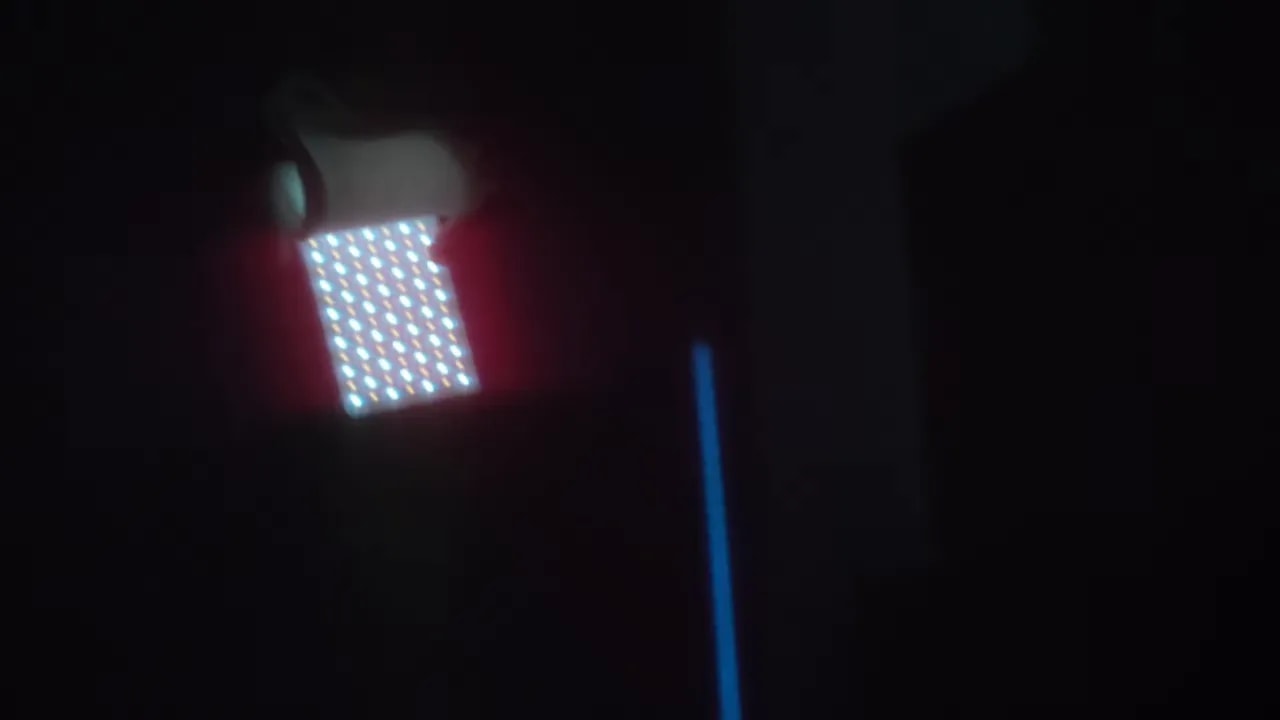
Window and lamp placement matters a lot. In a controlled room, the result is very convincing; with a light source reflected in the gaming area, the same panel can be uncomfortable. The photograph shows that specific surface behavior, something a color-coverage percentage cannot explain.
SDR color: good modes and a setting that reduces brightness
sRGB, P3, and Adobe RGB
Professional modes let you limit the gamut to suit the content. sRGB provides a good factory baseline: average color error was 1.26 in testing. There was room for improvement in grayscale and RGB balance, with red slightly elevated. A dedicated mode is useful, although it is not equivalent to perfect calibration across the entire image.
P3 shows a similar pattern: good color performance with some white and gray inaccuracies. Adobe RGB is also useful, but certain greens strayed farther from the reference. For demanding work, assess the specific mode and calibrate your own unit instead of choosing solely by advertised coverage.
User mode uses a wider gamut and achieves higher SDR brightness at the cost of a more saturated image. That may appeal for gaming, but when showing sRGB content without color management, the additional saturation does not mean greater accuracy. The sensible choice is to use the appropriate clamp when you want to respect the content and native gamut when you prefer that presentation.


These tests should be read together: a good average color error does not mean white and the full grayscale are perfectly adjusted. For demanding editing, that distinction justifies fine-tuning your own unit.
Normal versus User color temperature
Manual calibration improved the unit’s color and balance, but revealed an important trade-off: selecting User color temperature reduced brightness by around 80 nits compared with the reference setting. That is significant on an OLED with much less SDR headroom than a very bright LCD.
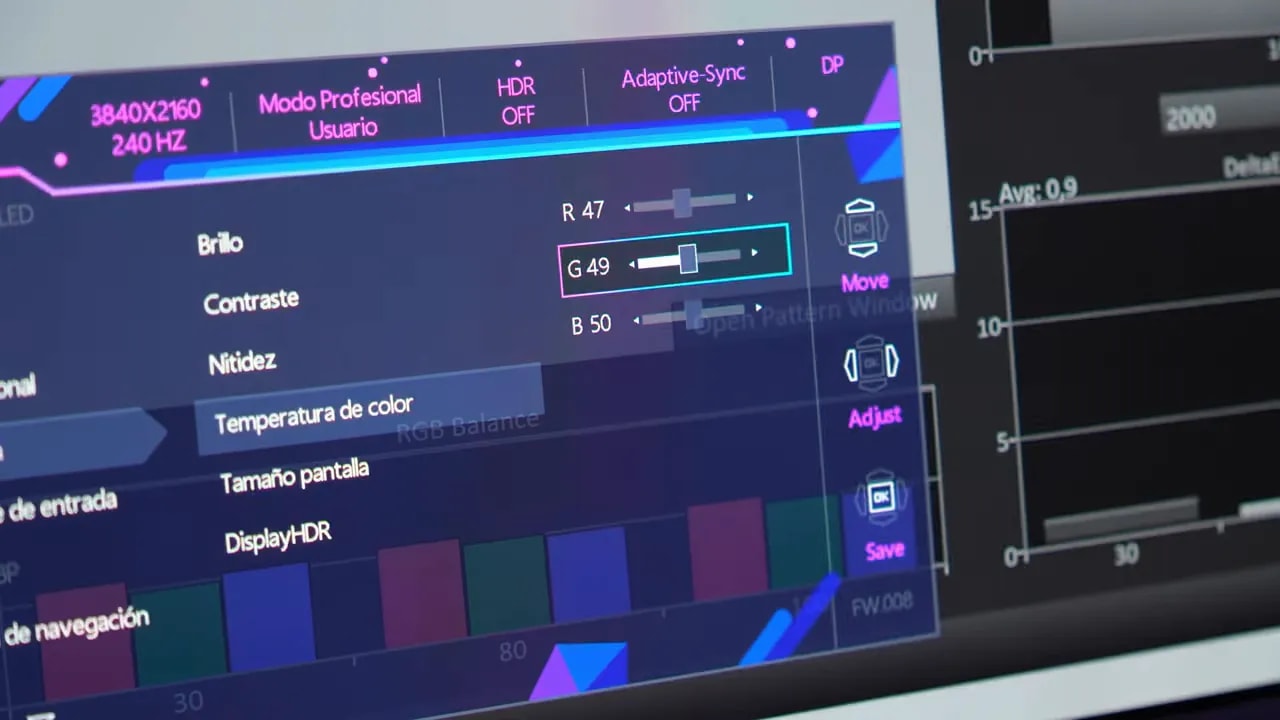
For editing at moderate luminance, it may be acceptable. For gaming or preserving more headroom in a bright room, the review recommends keeping Normal color temperature. Do not confuse User picture mode with the User temperature setting: the observed brightness reduction applies to the latter.
SDR brightness remains stable as the illuminated area changes, with no option to trade that stability for higher peaks in small windows. That consistency makes documents and windows easier to work with. It is different from uniformity between screen areas, which is recorded separately on the product page.
HDR: True Black 400 versus HDR1000
The two main modes offer different compromises. True Black 400 is the most balanced option for a consistent HDR image. HDR1000 aims to intensify small highlights. The mode’s name does not describe full-screen brightness or guarantee better reproduction of every scene.
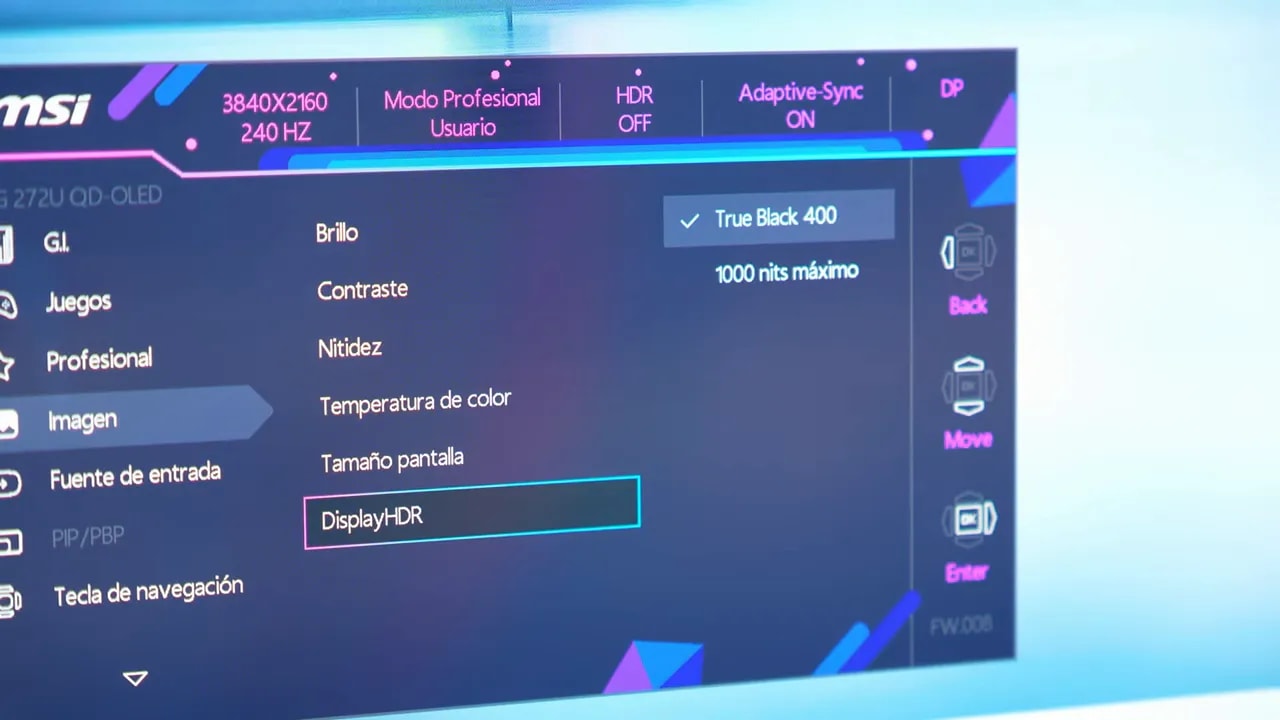
When to choose True Black
In small- and medium-window tests, True Black tracked the luminance reference quite well. That result held approximately through the 25% area test. Much larger illuminated areas brought greater limitations and detail loss.
In use, it tended to deliver a brighter, more balanced overall image. That makes it the mode I would start with for gaming or varied HDR content. Its lower peak does not necessarily mean a dim image: midtone brightness distribution and what happens when the scene is no longer mostly dark also matter.
What HDR1000 gains and loses
HDR1000 reached around 1,026 nits in a 2% window, performing well under that specific condition. At 10%, brightness was around 460 nits, similar to True Black, but with lower accuracy. As the illuminated area grew, tracking deviated farther and detail could be lost.
The two captures show the difference at 10% in True Black and HDR1000. They help explain why chasing only the highest peak can lead to a worse choice for a particular scene. The product-page gallery preserves the other windows and tests for reviewing the full behavior.
HDR1000 can look more striking in intense points against dark backgrounds, while the rest of the image appears dimmer. It makes sense to try it with content featuring those lights, without leaving it enabled solely because of the number in its name.
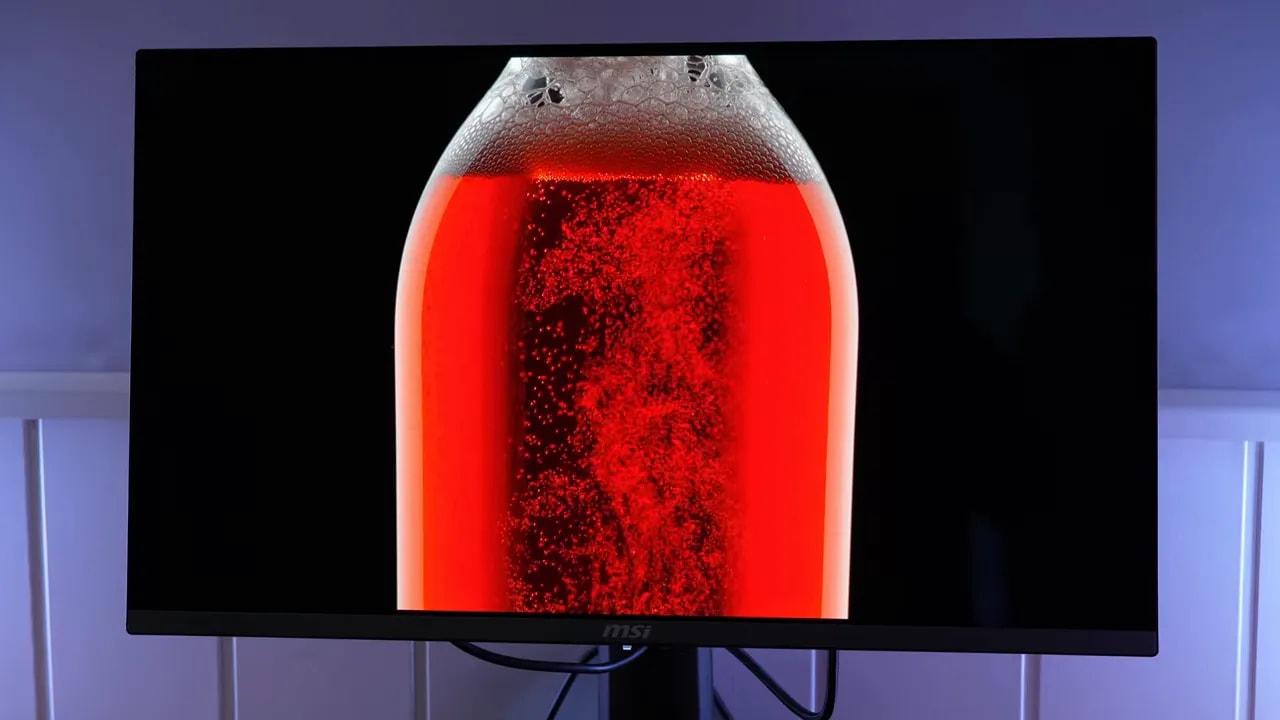
HDR gamut is wide, in line with the reviewed 32-inch 4K 240 Hz QD-OLEDs. Color coverage and volume describe different aspects and are listed separately on the product page. The visual result is very appealing, but it does not make this 27-inch format a new generation of brightness or color.


The comparison uses the same illuminated area. Here, HDR1000 does not deliver the leap its name might suggest; its advantage appears in smaller highlights and changes the luminance of the rest of the image.
Motion, variable refresh rate, and PS5
Response is fast, and clarity at 240 Hz is very good. Tests at 240, 120, and 60 Hz showed no significant overshoot issues; input lag at 60 Hz remained normal. Unlike an LCD, it does not require choosing between overdrive modes.
That lets you enjoy both fast-paced games and titles running at lower frame rates. You get more from 240 Hz when the system can deliver a high frame rate; panel speed alone does not turn a 60 FPS game into a 240 FPS one.
Adaptive Sync worked on PC, including with the Nvidia graphics card used in testing. VRR flicker may appear, especially during loading or strong frame-rate fluctuations. Good pixel response does not eliminate that behavior, which should be distinguished from ghosting.
4K at 120 Hz, HDR, VRR, and ALLM were verified on PS5. That is broad compatibility for switching between computer and console. The product page retains the specific modes so you can check capabilities without maintaining a second specification table within the article.

This capture documents pixel transitions on PC. Good response contributes to sharpness, but does not eliminate VRR flicker or by itself prove the PS5 compatibility described in the review.
Connections and OLED care
Full-bandwidth DisplayPort 2.1 and USB-C with video and up to 98 W charging are two of its most useful extras. USB-C makes sense if you alternate between a desktop and a compatible laptop and want fewer cables; it is more than just another number on the port list.
It also includes pixel shifting, logo dimming, and maintenance cycles. These features are part of panel care. I would not interpret them as a guarantee against wear under every usage pattern, or generally recommend disabling them to gain brightness.
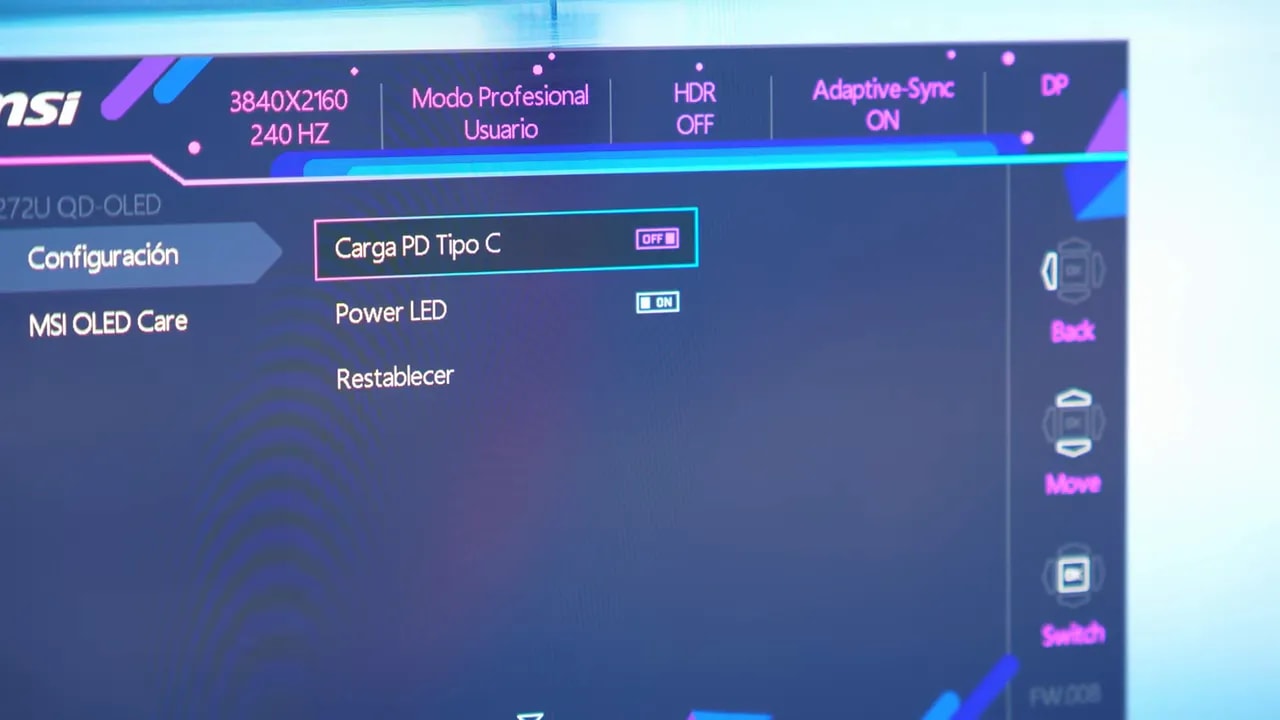
For a desktop with static elements displayed for many hours, that care remains part of the buying decision. Sharper text improves the experience, but does not change the panel technology.
Who I would choose it for
I would choose it for someone specifically wanting a compact 4K OLED with 240 Hz, sharp text, and useful connections for switching devices. The strongest reasons to choose it are the format and feature combination, rather than expecting more brightness or better HDR than every 32-inch OLED.
If immersion or workspace is your priority, I would also compare a 32-inch model. If you work with difficult-to-control reflections or lots of static content, consider whether OLED’s advantages outweigh its compromises. And if you will barely use DisplayPort 2.1 or USB-C, those features alone should not justify a large price difference.
Current deals can shift the balance. The retailer section uses the same price as the product page: it helps assess today’s purchase without turning the price during the review into a permanent recommendation.