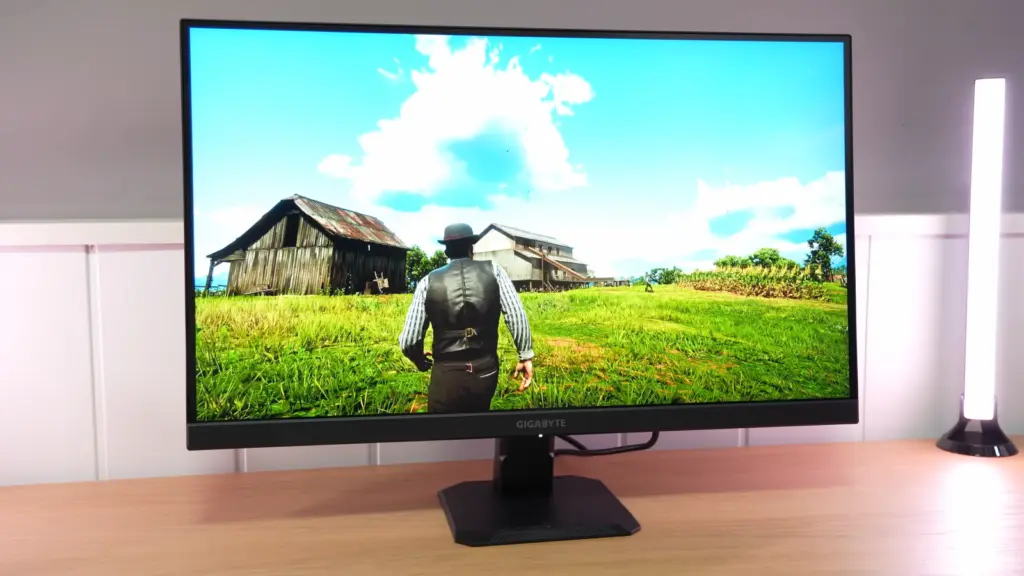
What is in the box and first impressions
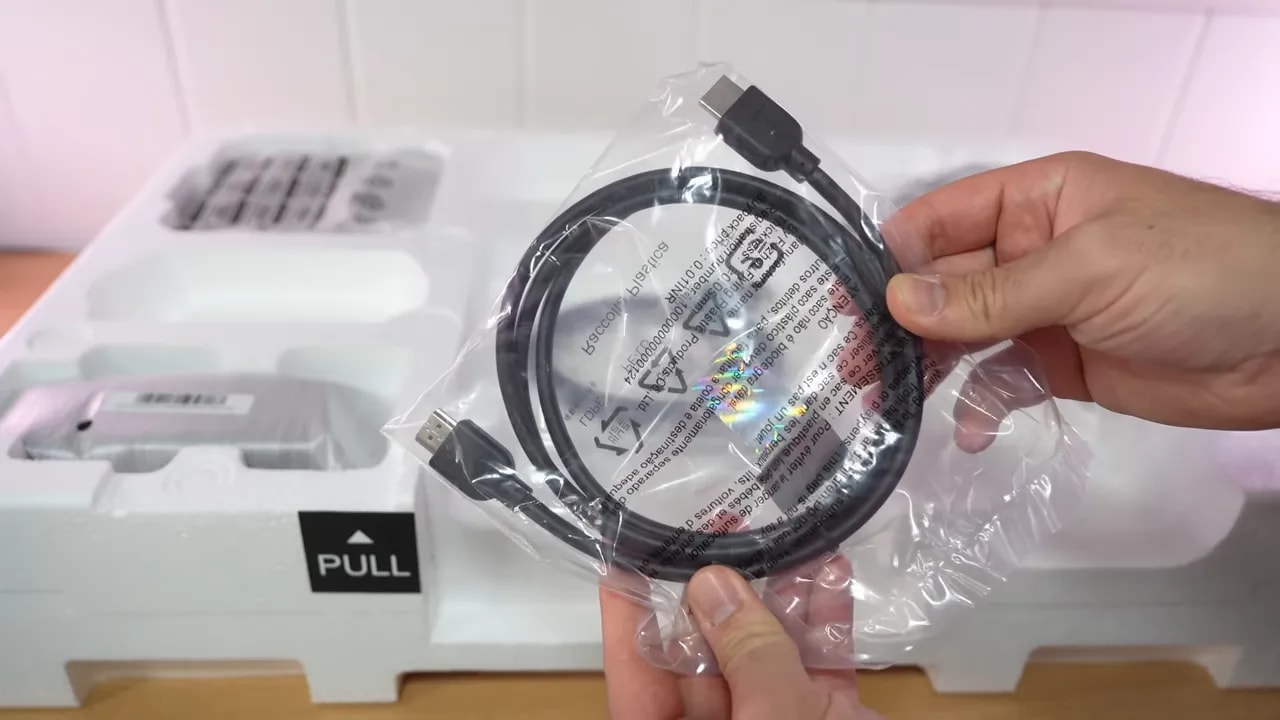
The packaging is straightforward, with no odd surprises, but well executed for the segment this monitor competes in. Inside are:- HDMI 2.1 cable
- DisplayPort 1.4 cable
- The usual documentation
- A cable-management accessory for the back of the stand
 During assembly, it is already clear that Gigabyte is reusing a common stand across its budget GS range. It is not the best stand in the world, but not a complete disaster either. It gives off a fairly basic impression, although it is somewhat better built than other budget solutions out there.
The real issue is less sturdiness than ergonomics. Adjustment is very limited here, since it basically only lets you tilt forward or backward . There is no height adjustment, swivel, or pivot. If you are particular about posture or want to fine-tune positioning, this quickly falls short.
During assembly, it is already clear that Gigabyte is reusing a common stand across its budget GS range. It is not the best stand in the world, but not a complete disaster either. It gives off a fairly basic impression, although it is somewhat better built than other budget solutions out there.
The real issue is less sturdiness than ergonomics. Adjustment is very limited here, since it basically only lets you tilt forward or backward . There is no height adjustment, swivel, or pivot. If you are particular about posture or want to fine-tune positioning, this quickly falls short.
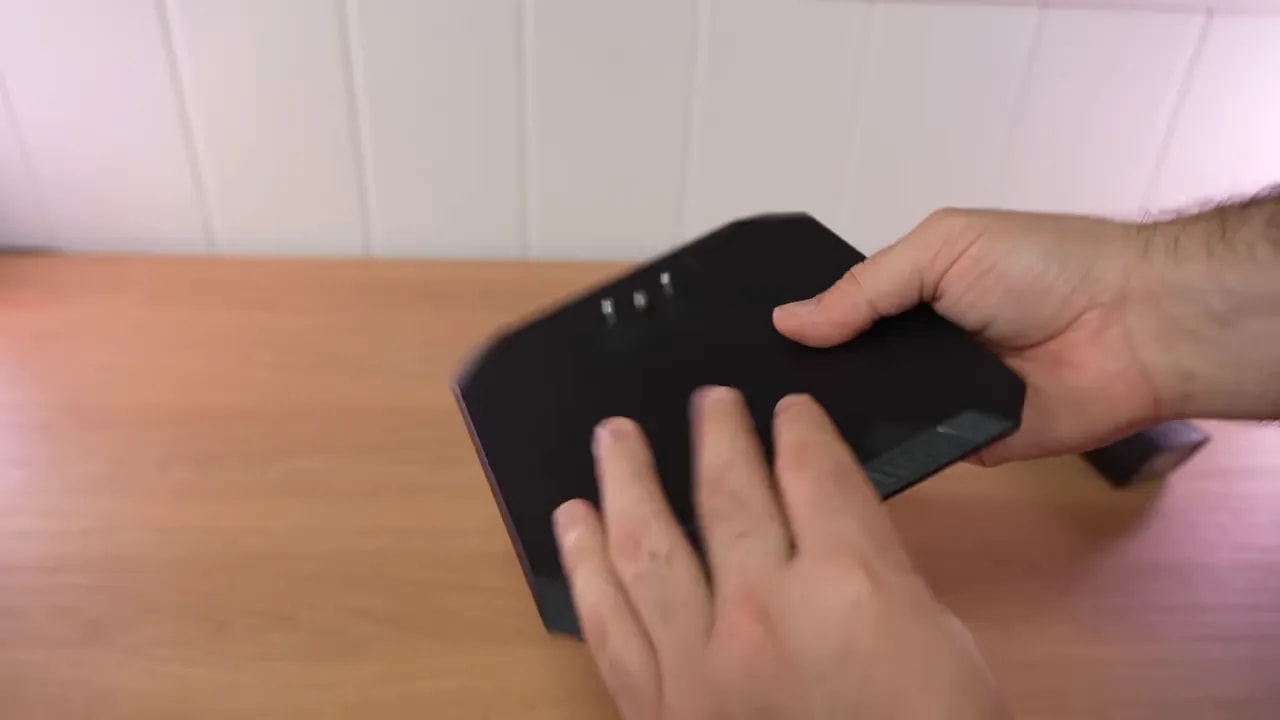 Overall quality is adequate. It does not feel premium, but it does not feel cheap in the hand either. Gigabyte also keeps something I personally really appreciate: an OSD joystick. It may seem minor, but navigating menus with badly placed buttons remains one of the worst habits of many monitors.
Gigabyte GS27U design, construction, and connectivity
For connectivity, the Gigabyte GS27U is very well equipped for its price:- 2 x HDMI 2.1
- 1 x DisplayPort 1.4
- Audio jack
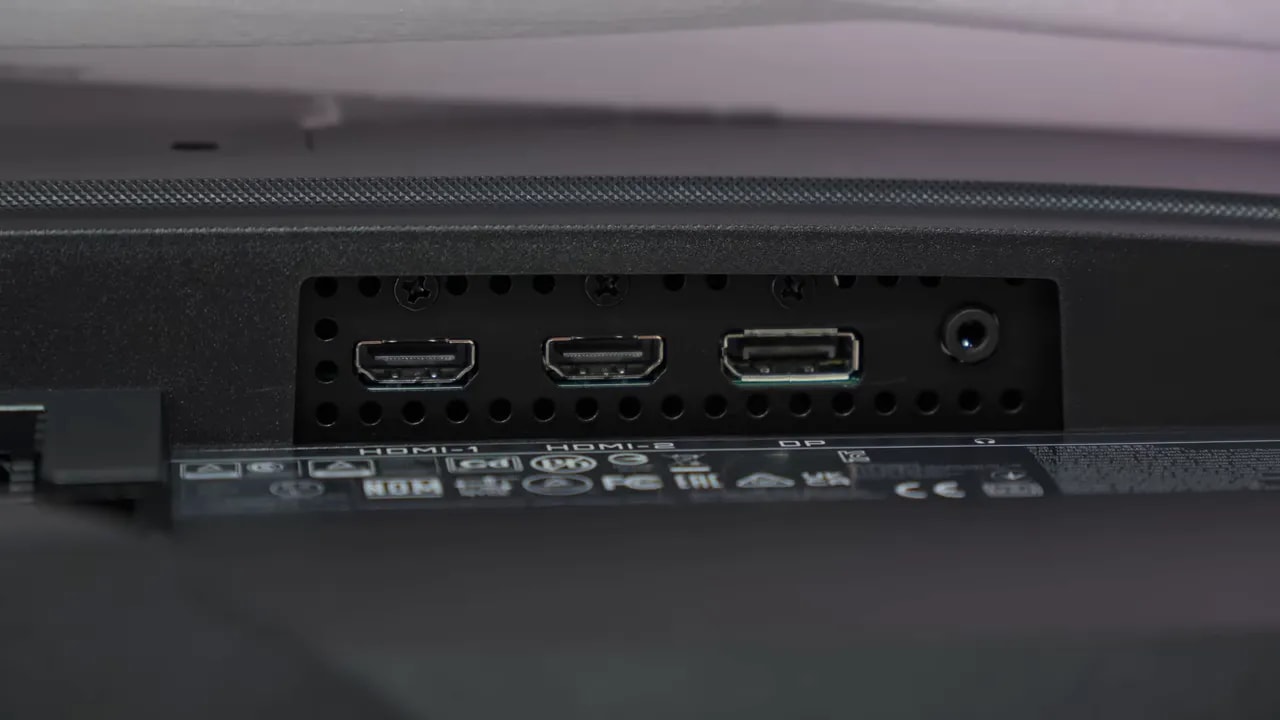 That already puts it in a very interesting position for anyone switching between PC and console, or simply wanting a fast 4K screen for PS5. Two HDMI 2.1 ports are particularly useful, avoiding cable swapping or having to give up a high-bandwidth input.
The panel has a matte finish, very much in line with other Gigabyte models in this family. However, it is a fairly light matte finish, not one that blurs the image excessively. Reflected light sources are more noticeable than on monitors with stronger coatings, but colors and perceived sharpness suffer less in return.
That already puts it in a very interesting position for anyone switching between PC and console, or simply wanting a fast 4K screen for PS5. Two HDMI 2.1 ports are particularly useful, avoiding cable swapping or having to give up a high-bandwidth input.
The panel has a matte finish, very much in line with other Gigabyte models in this family. However, it is a fairly light matte finish, not one that blurs the image excessively. Reflected light sources are more noticeable than on monitors with stronger coatings, but colors and perceived sharpness suffer less in return.
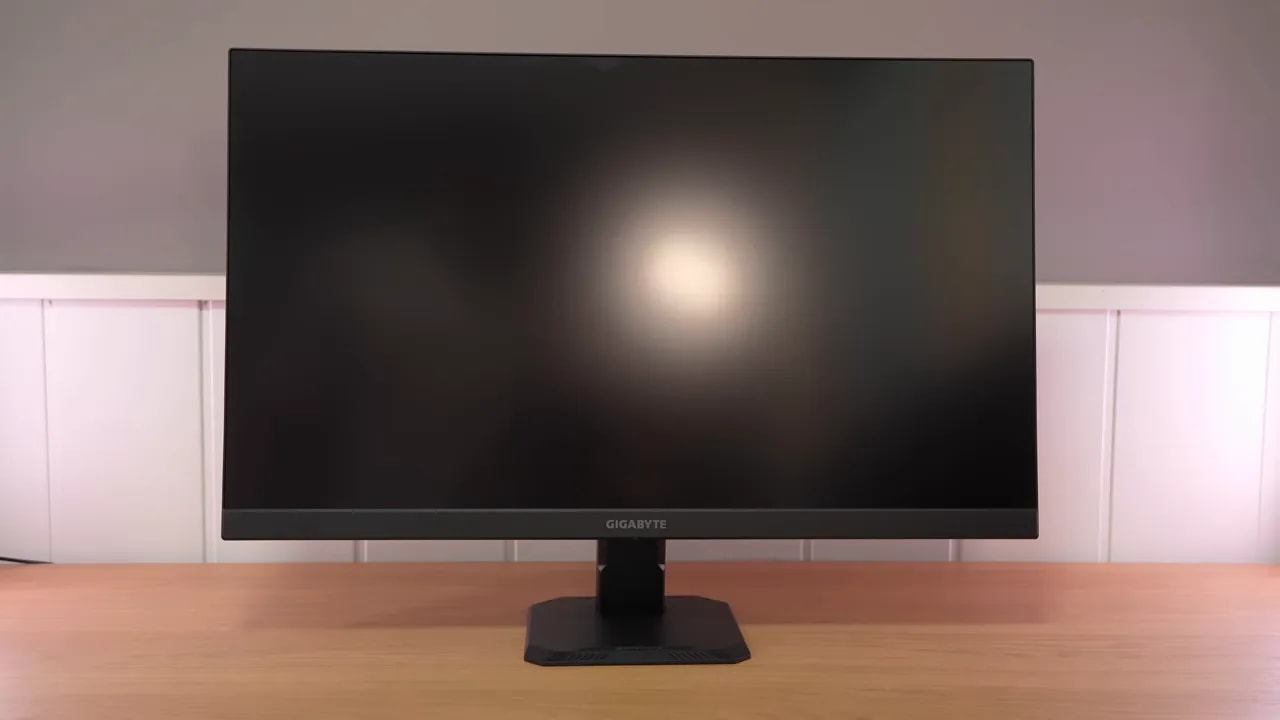 That balance seems right to me. It does not eliminate reflections completely, but neither does it add a heavy coating that washes out the image too much.
OSD and picture modes: mixed results here
As is usual with Gigabyte, the monitor includes several picture modes. The most appealing on paper for anyone seeking accuracy is sRGB mode, but this is where the first serious drawbacks appear. The gamut clamp is not entirely bad. It comes in at around 96% sRGB, which is usable. The problem is that color accuracy does not follow through as it should. Some colors are reasonably well adjusted, but whites and grays deviate too much. Grayscale makes the issue quite clear. Average deviation is around a delta E of 5, which is already rather high for a well-tuned sRGB mode. Also, the red channel is far too high, color temperature is too low, and the image looks warmer than it should. This is compounded by gamma that is too high, around 2.3, and a tonal response that starts close to the sRGB standard but then deviates and drops sharply at the end. In practical terms: sRGB mode exists and more or less clamps the gamut, but it is far from reference quality. If gaming is your main goal and you prefer a more vivid image, Standard mode is much more interesting. Here, the monitor makes use of nearly 95% DCI-P3 coverage, which is actually above average for this price range.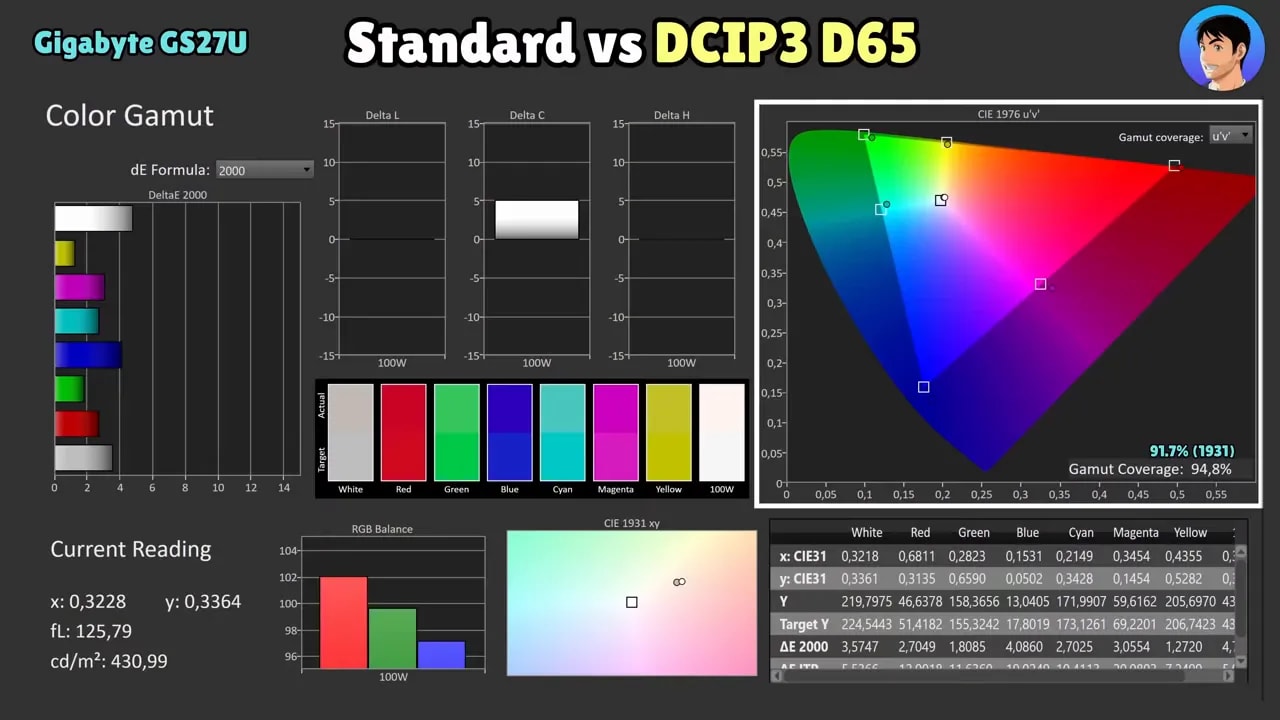 Interestingly, using DCI-P3 as the reference, color accuracy is better than in sRGB mode itself. Yes, one especially saturated blue strays too far, but overall it follows the gamut quite respectably.
This mode also gives you more freedom to adjust color temperature. With the Normal setting, the monitor is around 6250 K, which is not bad, although RGB balance still needs attention. Gamma is not perfect either, and white remains one of the factory calibration’s biggest areas for improvement.
For Adobe RGBcoverage, using the usual 1976 chart reference to compare with other monitors, it reaches 89%. For a gaming monitor at this price, that is a frankly good result.
Interestingly, using DCI-P3 as the reference, color accuracy is better than in sRGB mode itself. Yes, one especially saturated blue strays too far, but overall it follows the gamut quite respectably.
This mode also gives you more freedom to adjust color temperature. With the Normal setting, the monitor is around 6250 K, which is not bad, although RGB balance still needs attention. Gamma is not perfect either, and white remains one of the factory calibration’s biggest areas for improvement.
For Adobe RGBcoverage, using the usual 1976 chart reference to compare with other monitors, it reaches 89%. For a gaming monitor at this price, that is a frankly good result.
Manual calibration: the Gigabyte GS27U improves considerably
Here is the important part: manual calibration greatly improves the Gigabyte GS27U. A professional meter can make it considerably more accurate. On the review unit, setting color temperature to User required lowering the blue channel substantially, specifically to 91, because it was too blue by default. A properly made ICC profile corrects virtually all the major imperfections against DCI-P3. However, remember something often overlooked: even if you buy the same model, each panel can vary slightly from one unit to another. Copying someone else’s settings may help, but will not make it identical. As always, this matters much more for color-critical work than if gaming is your priority. For gaming, Standard mode’s factory calibration is good enough to enjoy without any drama.

The factory blue cast and grayscale tuning explain the room for improvement through calibration. The values used apply to this unit; copying its blue setting or an ICC profile is no substitute for measuring another screen.
Brightness, contrast, and uniformity
For brightness, the Gigabyte GS27U reaches almost 440 nits in Standard mode with Normal color temperature. That is quite good and, honestly, there is nothing to complain about here at this price. Contrast is around 1030:1 at maximum brightness. It does not particularly stand out, but is squarely within expectations for IPS. It will not surprise anyone, although it does not disappoint either. The brightness and color uniformity is decent. There is a slightly weaker area in the lower-right corner, but overall the panel behaves better than is often seen in this class. As for backlight bleed, nothing particularly noticeable appears. And IPS glow is more or less where you would expect for this type of panel. It is no miracle, but there are no unpleasant surprises either.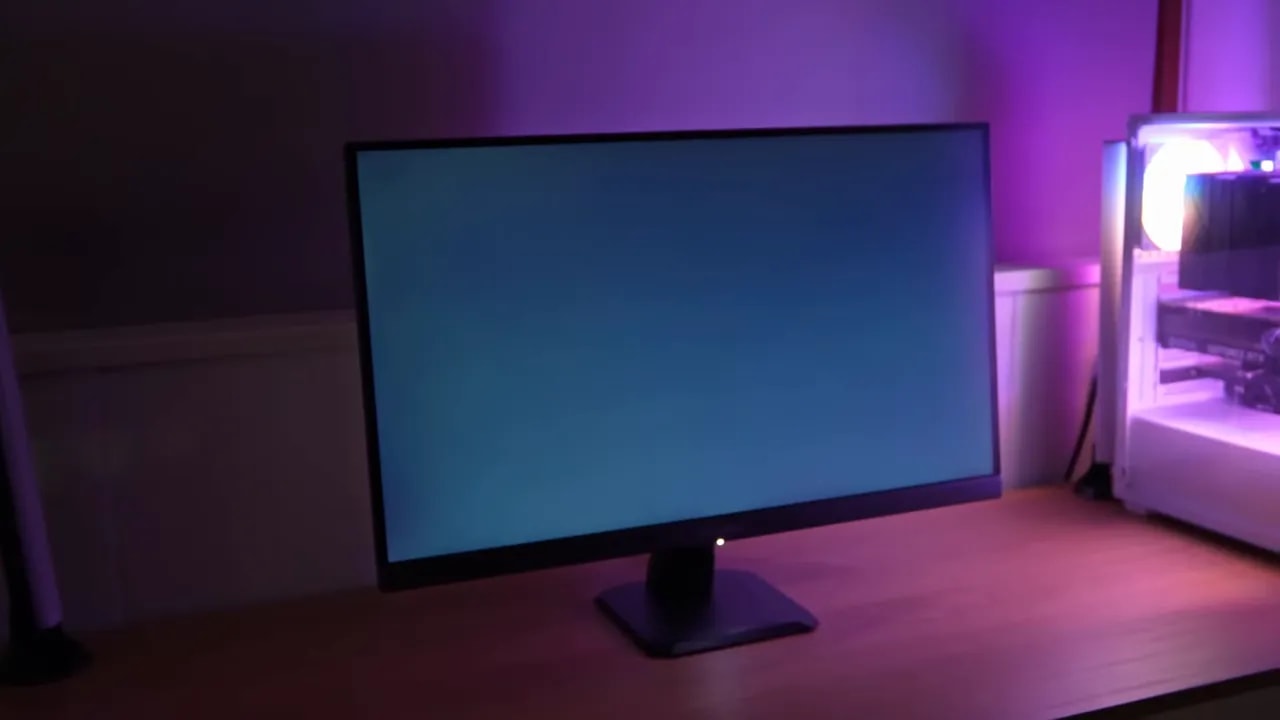
HDR on the Gigabyte GS27U: supported, yes; impressive, no
The monitor supports HDR, but this needs to be put in perspective from the start. The Gigabyte GS27U falls short in brightness and contrast for a truly good HDR experience. That does not make the mode completely useless, but expectations need to be kept in check.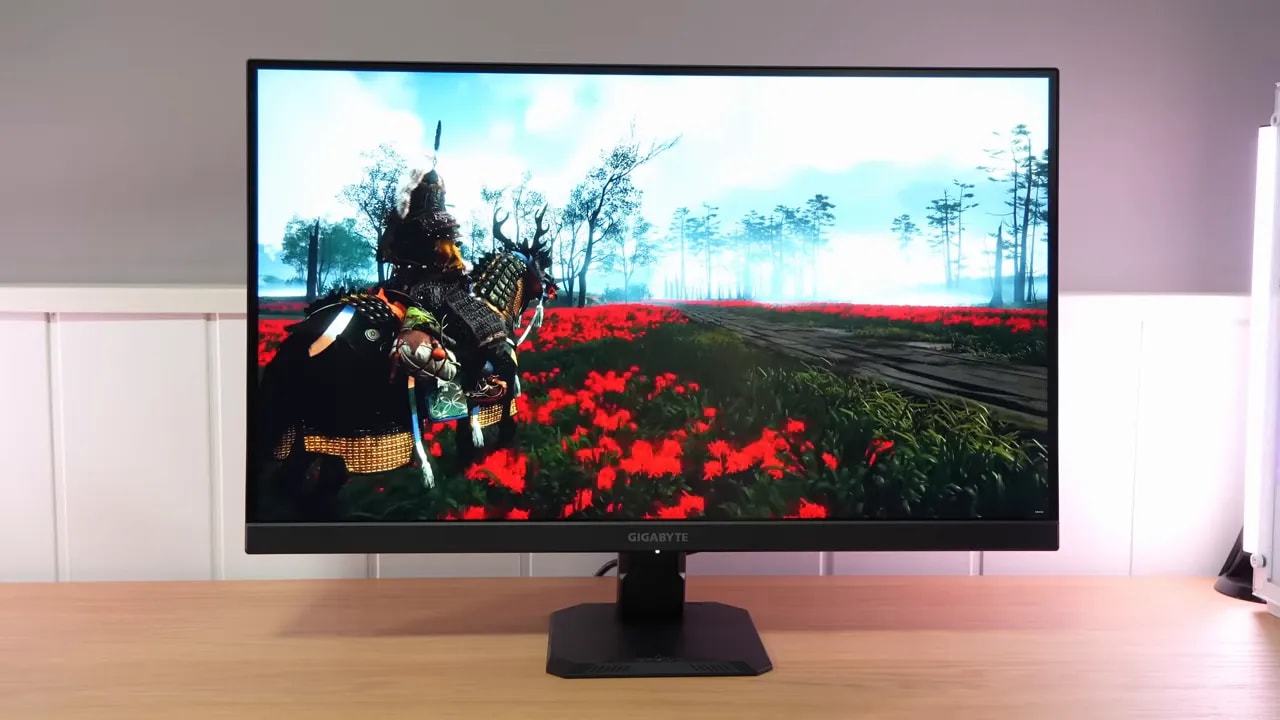 Brightness barely changes when HDR is enabled. Luminance response is not entirely bad, but the PQ EOTF curve does not track the standard correctly from the outset. This causes a loss of definition in dark tones and means blacks are not handled as well as they should be.
In fact, delta ITP deviation in black tones is quite high. Color accuracy strays considerably from HDR standards, although it still manages to outperform many budget monitors. Color coverage in BT.2020 is not bad either, keeping the product’s price firmly in mind.
Quick HDR verdict: it is there and works, but is not a real reason to buy.
Brightness barely changes when HDR is enabled. Luminance response is not entirely bad, but the PQ EOTF curve does not track the standard correctly from the outset. This causes a loss of definition in dark tones and means blacks are not handled as well as they should be.
In fact, delta ITP deviation in black tones is quite high. Color accuracy strays considerably from HDR standards, although it still manages to outperform many budget monitors. Color coverage in BT.2020 is not bad either, keeping the product’s price firmly in mind.
Quick HDR verdict: it is there and works, but is not a real reason to buy.

Some midtones follow the reference reasonably well, but the black level lifts shadows and highlights quickly hit the panel’s limit. Grayscale also shows a cool image. These are separate limitations from simply accepting an HDR signal.
Response times and overdrive
One of the most important aspects of a gaming monitor is how it handles response times, and Gigabyte again includes its usual overdrive modes. On this Gigabyte GS27U, the two most interesting at 160 Hz are:- Picture Quality
- Smart OD
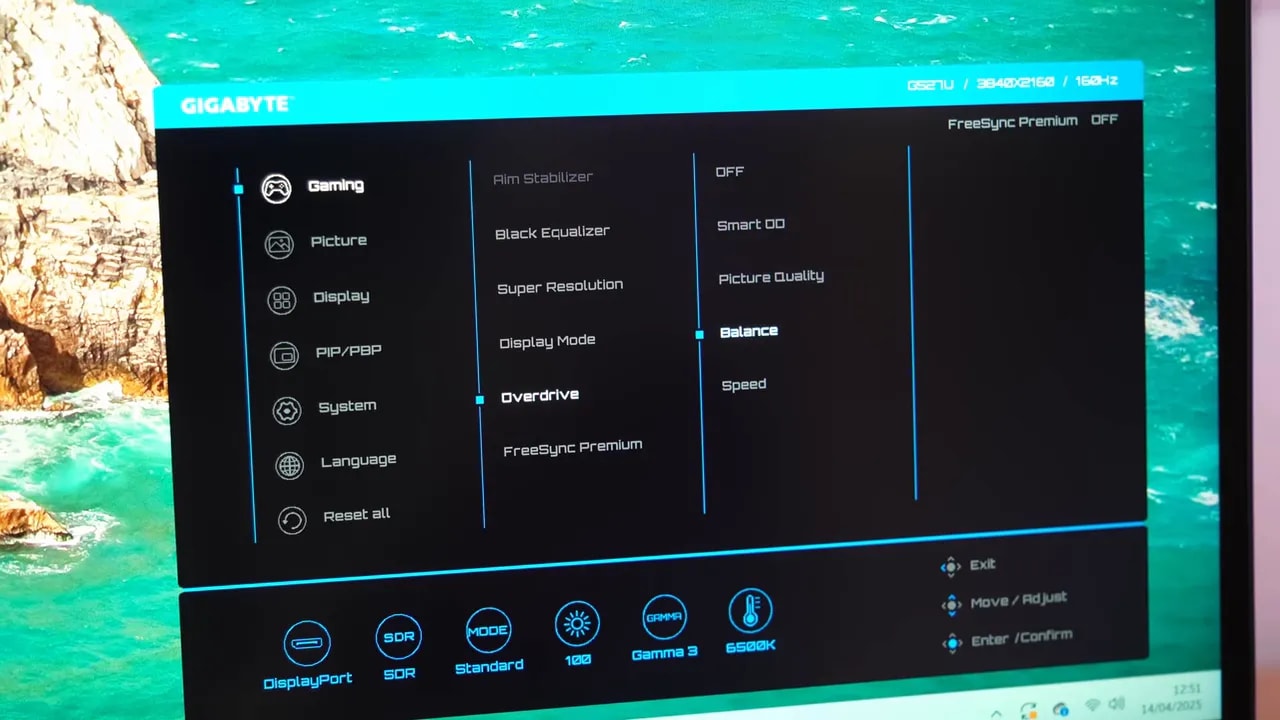 If you want to avoid overshoot completely, the best mode is Picture Quality. Response times could be slightly lower, yes, but approximately 6.5 ms initial response is not bad at all for the overall package.
If you tolerate a little more overshoot in exchange for greater speed, then Smart OD is the most recommendable mode. Here it drops below 5 ms, and although overshoot is a little more present, it is virtually imperceptible in visual tests. Personally, it is the mode I would use without hesitation.
Compared with monitors costing considerably more, it also fares quite well. It is not the absolute response-time champion, but it is certainly not struggling in its class.
If you want to avoid overshoot completely, the best mode is Picture Quality. Response times could be slightly lower, yes, but approximately 6.5 ms initial response is not bad at all for the overall package.
If you tolerate a little more overshoot in exchange for greater speed, then Smart OD is the most recommendable mode. Here it drops below 5 ms, and although overshoot is a little more present, it is virtually imperceptible in visual tests. Personally, it is the mode I would use without hesitation.
Compared with monitors costing considerably more, it also fares quite well. It is not the absolute response-time champion, but it is certainly not struggling in its class.
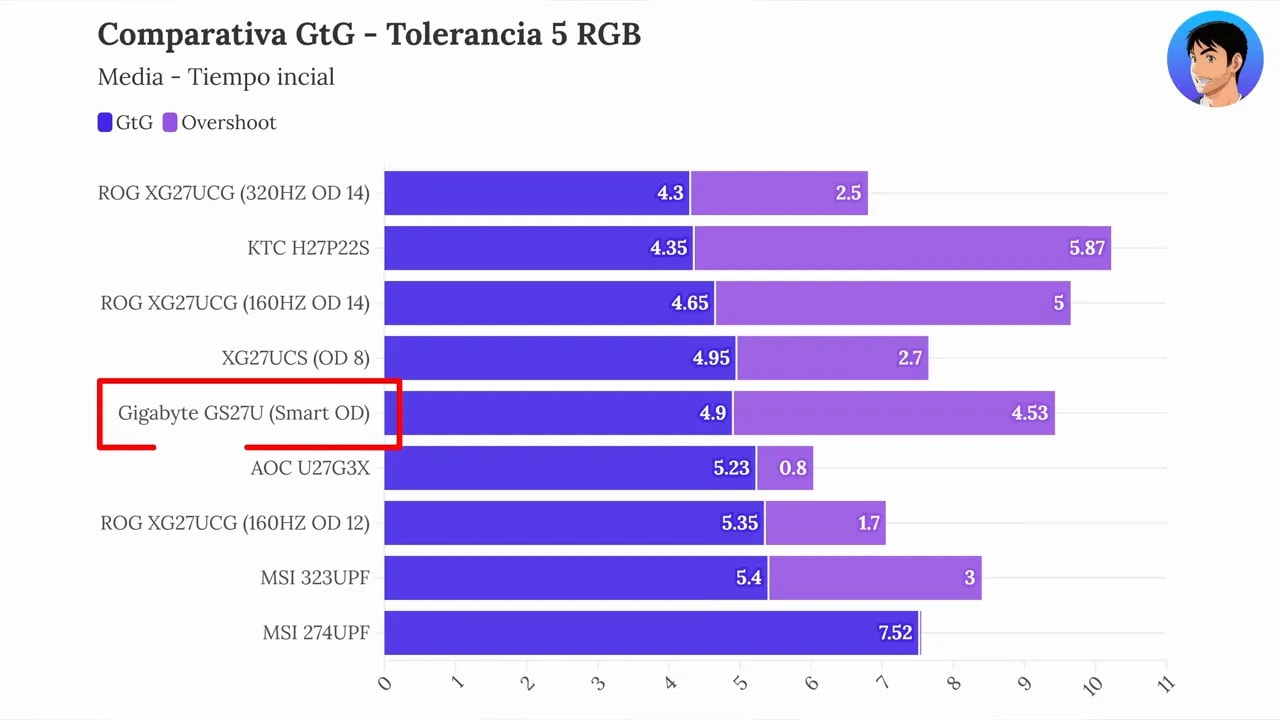 There was also an interesting detail in the gray-to-gray measurements. In some situations, especially at 160 Hz with Picture Quality, enabling or disabling VRR changed the results noticeably. Response times were faster with VRR enabled. That is unusual behavior, so it is prudent to use the slower values as a conservative reference.


The comparison keeps the refresh rate constant and changes overdrive. Smart OD speeds up transitions with a little more overshoot; Picture Quality avoids that excess at the cost of slower initial response. Smart OD’s balance is the choice for gaming in this review.
Motion tests, ghosting, and UFO Test
In motion, the Gigabyte GS27U makes a fairly good impression. Smart OD offers a very solid balance between clarity and overshoot control. In UFO-style tests, the additional trail is not particularly visible, reinforcing the impression that Gigabyte has tuned this monitor quite competently for gaming.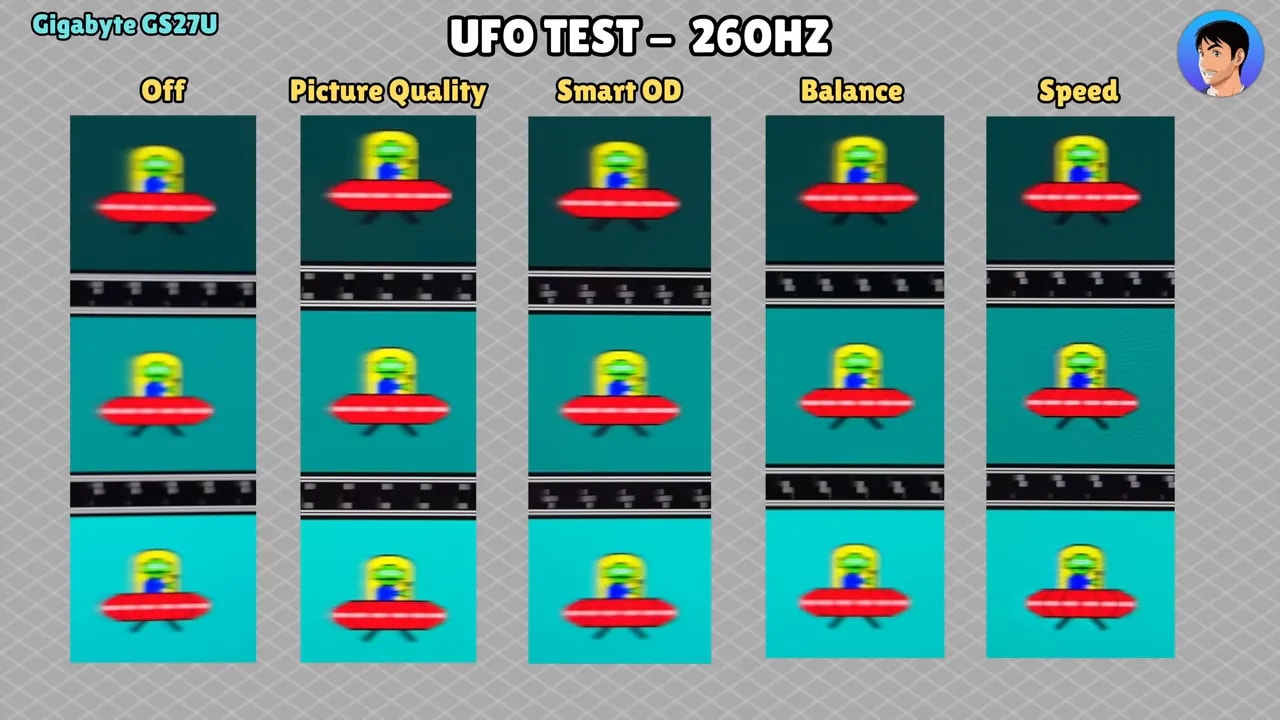 That is especially valuable because this is not an extremely expensive model, but a monitor aiming to be affordable while holding up in an area where cutting corners is easy.
FreeSync Premium, G-Sync Compatible, and VRR behavior
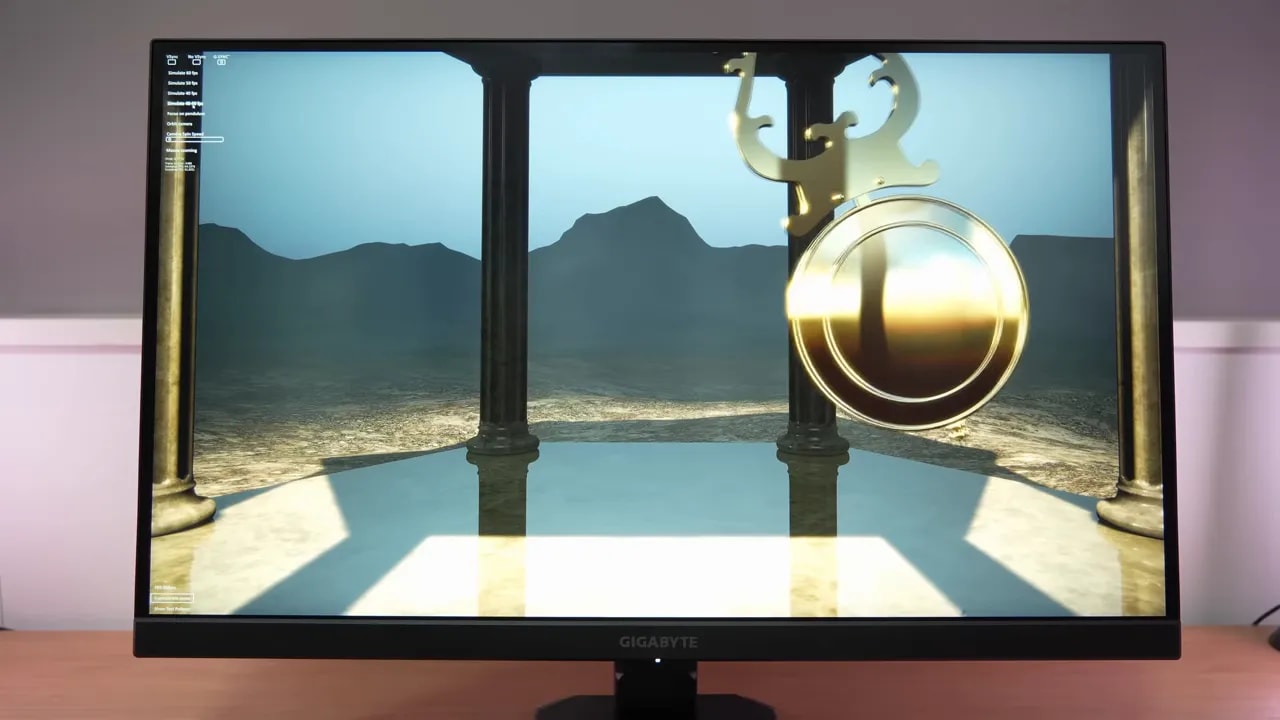
The monitor includes FreeSync Premium and can also be used as G-Sync Compatible with Nvidia graphics cards, although it does not have official Nvidia certification as such.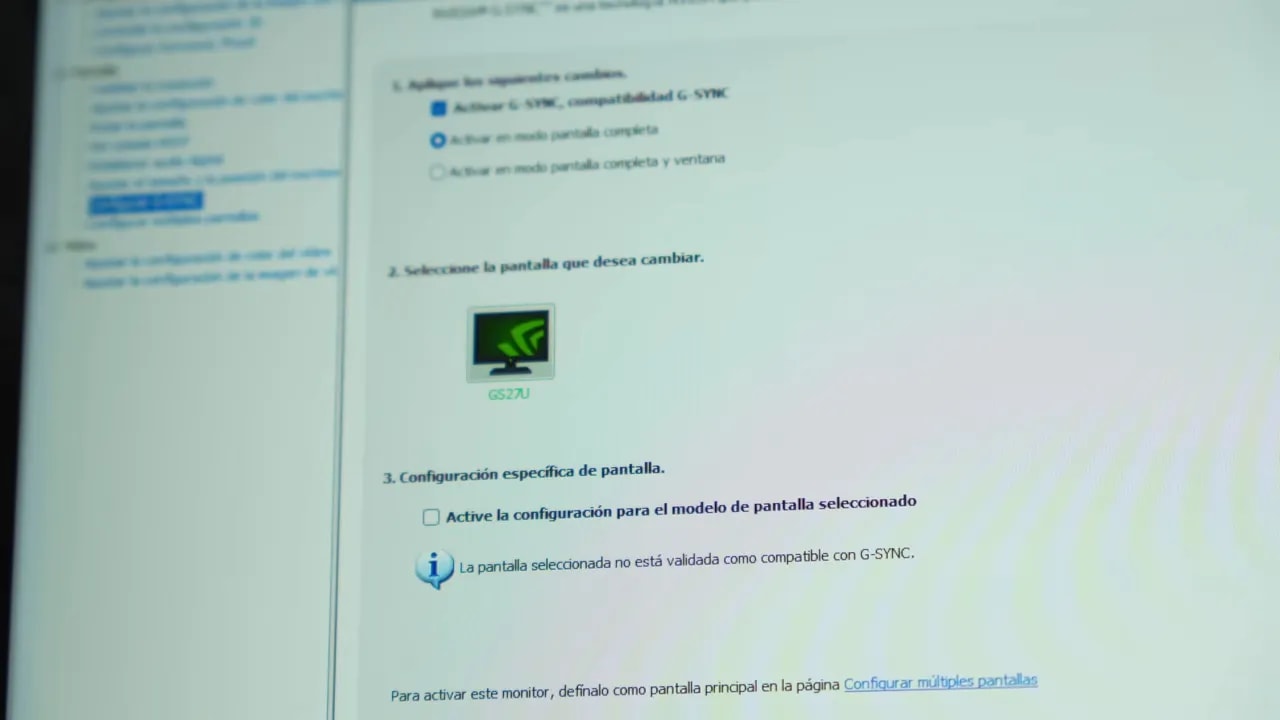 In practice, it works well. Pendulum tests show barely any flickering, and when it does occur, it is mild enough to be irrelevant in normal use. This matters because VRR is a headache on some budget monitors, which does not seem to be the case here.
PS5 compatibility: one of its major strengths
If there is one reason many people will consider the Gigabyte GS27U, it is for use with PlayStation 5. The news here is very good. Compatibility is essentially complete. Although it is not confirmed whether HDMI 2.1 operates at the maximum theoretical bandwidth, what matters is that on PS5 it correctly delivers:- 4K
- 120 Hz
- VRR
- ALLM
- The maximum color configuration the console allows
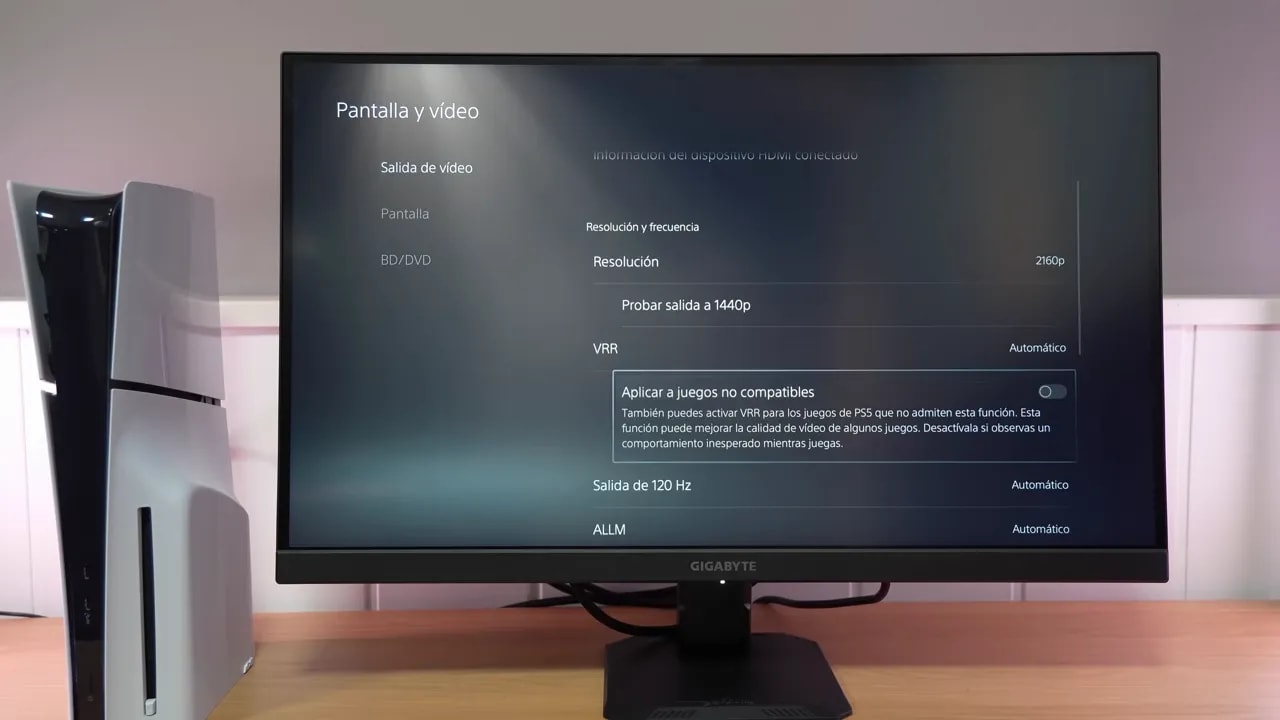 That means that, whether or not it has the standard’s full bandwidth on paper, it does have enough bandwidth to offer the best possible PS5 experience. Ultimately, that is what really matters.
Performance at 120 Hz and 60 Hz
It is normal for response times to change somewhat at lower refresh rates, and in this case performance remains decent. At 120 Hz, the Smart OD mode is again a very good option. It introduces barely any overshoot and delivers response times of around 6.3 ms, which I consider completely acceptable. At 60 Hz, you can use Picture Quality, maintaining around 6.5 ms. Overshoot rises slightly more here, but remains virtually imperceptible in actual use.Input lag
Input lag is in line with the vast majority of well-implemented current monitors: very good. There is absolutely no need to worry about it on this model.The best and worst of the Gigabyte GS27U
The best
- Very aggressive pricing for what it offers
- 4K at 160 Hz at 27 inches
- IPS panel with quite capable color in Standard mode
- 2 HDMI 2.1 ports and very good PS5 compatibility
- Decent brightness and contrast for its class
- Decent response times, especially with Smart OD
- VRR works well with both FreeSync and Nvidia
The worst
- Very basic stand for ergonomics
- Weak sRGB mode in actual accuracy
- Factory calibration could be better
- Very ordinary HDR